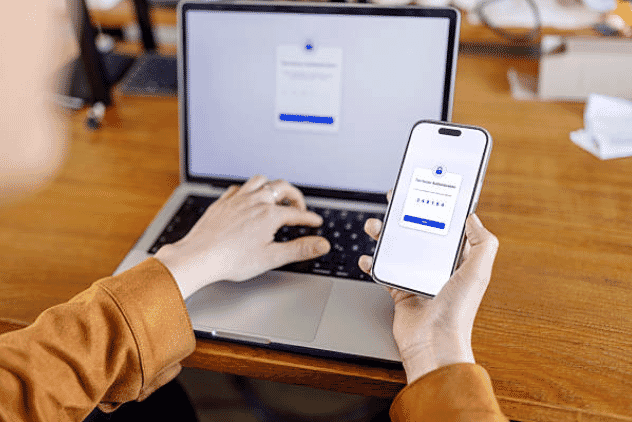

LG-020 - Getting Comfortable with Technology
Start your technology journey by learning about the devices you use every day. This beginner-friendly module introduces computers, smartphones, tablets and the basic skills needed to use them confidently.
Before You Begin
Welcome
If you've never used technology before, you're not alone.
Many people begin using computers, smartphones and tablets later in life to stay in touch with family, access services, manage banking or simply enjoy hobbies online.
The good news is that you don't need to know everything at once.
This learning module starts with the very basics and explains everything in plain English, one step at a time.
There are no silly questions, and everyone learns at their own pace.
What You'll Learn
During this module you'll explore:
- What a computer is
- What a smartphone is
- What a tablet is
- The keyboard and mouse
- Using a touchscreen
- Turning devices on and off safely
Each lesson only takes a few minutes.
Lesson 1 - What is a Computer?
A computer is an electronic device that helps you complete many everyday tasks.
You can use a computer to:
- Write letters
- Browse the internet
- Send emails
- Watch videos
- Store photos
- Pay bills
- Shop online
- Talk to family and friends
Desktop computers stay on a desk, while laptops are portable and include a built-in screen and keyboard.
Lesson 2 - What is a Smartphone?
A smartphone is a small computer that fits in your pocket.
It allows you to:
- Make phone calls
- Send text messages
- Take photos
- Browse the internet
- Use apps
- Make video calls
- Check the weather
- Navigate with maps
Most smartphones use a touchscreen instead of a keyboard.
Lesson 3 - What is a Tablet?
A tablet sits between a smartphone and a laptop.
Tablets have larger screens than phones and are popular for:
- Reading
- Watching movies
- Video calls
- Playing games
- Browsing the internet
- Viewing photos
Many seniors enjoy tablets because the larger screen is easier to read.
Lesson 4 - Understanding the Keyboard
The keyboard lets you type words and numbers.
You'll mainly use:
- Letters (A–Z)
- Numbers (0–9)
- Space Bar
- Enter key
- Backspace
- Shift key
Don't worry about learning every key straight away.
You'll become familiar with them through practice.
Lesson 5 - Using a Mouse
A mouse controls the pointer on the screen.
You'll learn how to:
- Move the pointer
- Left click
- Right click
- Double click
- Scroll up and down
These are some of the most common actions you'll use every day.
Lesson 6 - Touchscreen Basics
Many phones and tablets don't use a mouse.
Instead you control them by touching the screen.
Common gestures include:
- Tap
- Double tap
- Swipe
- Scroll
- Pinch to zoom
These simple movements become second nature with a little practice.
Lesson 7 - Turning Your Device On and Off
Knowing how to safely start and shut down your device helps keep it running well.
You'll learn:
- Where the power button is
- How to switch your device off correctly
- When to restart your device
- Why updates sometimes require a restart
Need some help with this?
Protect your photos and files, automatic backups plus a “test restore” so you know it works.
Troubleshoot IT provides practical, one-to-one technology support across Darwin, Palmerston and surrounding areas.