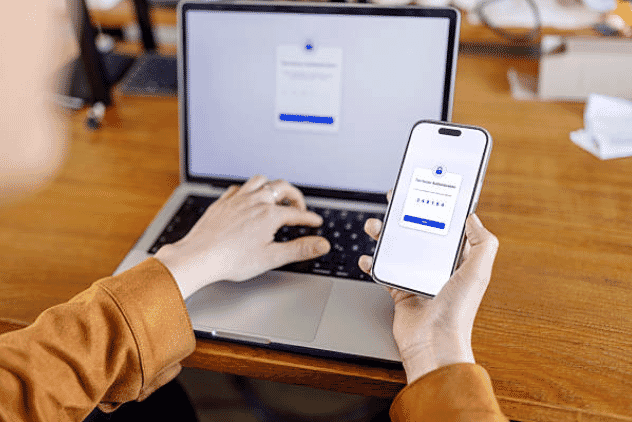

LG-024 - Staying Safe Online
Using the internet should be enjoyable, not stressful. Learn simple habits that will help keep your personal information, money and devices safe while using technology every day.
Before You Begin
Before You Begin
Required Permission
Everyone
Intended Audience
- Seniors
- Older Australians
- Technology beginners
Prerequisites
- Getting Comfortable with Technology
- Understanding Your Device
- Connecting to the Internet
- Staying in Touch
- Internet Basics
Learning Objectives
By the end of this module you will be able to:
- Recognise common online scams.
- Create strong passwords.
- Browse the internet safely.
- Protect your personal information.
- Understand software updates.
- Know what to do if something doesn't feel right.
Main Content
Welcome
The internet is an amazing tool, but just like the real world, there are people who try to take advantage of others.
The good news is that most scams can be avoided by slowing down, thinking carefully and following a few simple safety rules.
You don't need to be a computer expert to stay safe—you just need to know what warning signs to look for.
What You'll Learn
In this module you'll learn:
- Common online scams
- Email scams
- Text message scams
- Phone scams
- Strong passwords
- Software updates
- Safe online shopping
- What to do if you've been scammed
Lesson 1 — Why Online Safety Matters
Many Australians use the internet every day for banking, shopping, communicating and accessing government services.
Unfortunately, scammers also use the internet to trick people into giving away money or personal information.
Learning a few simple habits can greatly reduce your risk.
Lesson 2 — Recognising Scam Emails
Scam emails often try to create panic or excitement.
Common warning signs include:
- Urgent language
- Requests for money
- Unexpected attachments
- Spelling or grammar mistakes
- Strange email addresses
- Links that don't look right
If you're unsure, don't click anything.
Delete the email or ask someone you trust.
Lesson 3 — Scam Text Messages (SMS)
Text message scams have become very common.
Examples include messages claiming to be from:
- Australia Post
- Banks
- Toll roads
- Medicare
- MyGov
- Phone providers
These messages often ask you to click a link.
If you weren't expecting the message, don't click it.
Instead, open the official app or visit the organisation's website directly.
Lesson 4 — Phone Scams
Scammers sometimes call pretending to be:
- Microsoft
- Telstra
- Your bank
- Government departments
- Police
Remember:
No legitimate organisation will pressure you to act immediately or ask you for passwords over the phone.
If you're unsure:
- Hang up.
- Find the official phone number yourself.
- Call back using that number.
Lesson 5 — Creating Strong Passwords
Your password protects your personal information.
A good password should:
- Be long
- Be unique
- Not contain personal information
- Be different for every important account
Avoid passwords such as:
- password123
- 123456
- Your birthday
- Your pet's name
Consider using a password manager if you have many online accounts.
Lesson 6 — Software Updates
Updates keep your device secure.
Updates often:
- Fix security problems
- Improve performance
- Add new features
If your device asks to install updates, it's usually best to do so.
Keeping your device updated is one of the easiest ways to stay protected.
Lesson 7 — Safe Online Shopping
Shopping online can be convenient and safe.
Before buying:
✅ Check the website address.
✅ Look for https://
✅ Read customer reviews.
✅ Use trusted retailers.
Avoid paying by bank transfer unless you know and trust the business.
Lesson 8 — Protecting Personal Information
Be careful about sharing:
- Passwords
- Banking details
- Driver licence numbers
- Passport information
- Medicare numbers
- Verification codes
Legitimate organisations will rarely ask for this information by email or text message.
Lesson 9 — What to Do if You Think You've Been Scammed
If something doesn't seem right:
- Stop communicating with the scammer.
- Don't send any more money.
- Change your passwords.
- Contact your bank immediately if money is involved.
- Run a security scan on your device.
- Ask a trusted family member or IT professional for help.
Acting quickly can often reduce the damage.
Lesson 10 — Trust Your Instincts
One of the best security tools you have is your own judgement.
If something feels:
- Too good to be true
- Too urgent
- Too confusing
- Too unexpected
Pause before acting.
Taking five minutes to think could save you thousands of dollars.
Practice Activity
Complete the following:
✅ Check that your phone or computer is up to date.
✅ Change one weak password to a stronger one.
✅ Look for the padlock icon on a secure website.
✅ Read three emails and identify whether they look genuine.
✅ Practise ignoring suspicious links in text messages.
Tips for Success
✔ Never rush into making a decision.
✔ Think before clicking links.
✔ Keep your software updated.
✔ Use different passwords for important accounts.
✔ Ask for help if something doesn't feel right.
Summary
Online safety isn't about being afraid of technology—it's about using it wisely.
By recognising scams, protecting your personal information and keeping your devices updated, you can enjoy everything the internet has to offer with much greater confidence.
Remember: it's always okay to slow down, ask questions and seek advice before taking action.
Key Takeaways
- Most scams rely on creating urgency or fear.
- Strong passwords help protect your accounts.
- Keep your devices updated.
- Never share passwords or verification codes.
- If something feels suspicious, stop and ask for help.
Next Module
➡ Photos and Memories
Learn how to take photos, organise your picture library, back up precious memories and share them safely with family and friends.
Need a Hand?
Concerned about online safety or worried you may have clicked on something suspicious? Troubleshoot IT can help. We provide patient, one-on-one support to improve your online security, remove unwanted software, secure your devices and give you the confidence to use technology safely every day.
Need some help with this?
Protect your photos and files, automatic backups plus a “test restore” so you know it works.
Troubleshoot IT provides practical, one-to-one technology support across Darwin, Palmerston and surrounding areas.