
BG-025 - Internet Basics
The internet is full of useful information, but knowing how to find it safely is an important skill. Learn how to browse websites, search Google and recognise trustworthy information.
Before You Begin
Before You Begin
Required Permission
Everyone
Intended Audience
- Seniors
- Older Australians
- Technology beginners
Prerequisites
- Getting Comfortable with Technology
- Understanding Your Device
- Connecting to the Internet
- Staying in Touch
Learning Objectives
By the end of this module you will be able to:
- Understand what a web browser is.
- Search for information using Google.
- Visit websites safely.
- Understand website addresses (URLs).
- Use bookmarks to save favourite websites.
- Recognise trustworthy websites.
Main Content
Welcome
The internet gives you access to an incredible amount of information.
Whether you're looking for today's weather, a recipe, news, gardening advice or information about your favourite hobby, the internet can usually help.
Learning how to search and browse safely will help you get the most from your device.
What You'll Learn
In this module you'll learn:
- What a web browser is
- How Google works
- How to search the internet
- Understanding website addresses
- Saving favourite websites
- Staying safe while browsing
Lesson 1 — What is a Web Browser?
A web browser is an app that lets you visit websites.
Common web browsers include:
- Google Chrome
- Microsoft Edge
- Safari
- Firefox
Think of a browser as your doorway to the internet.
Lesson 2 — What is Google?
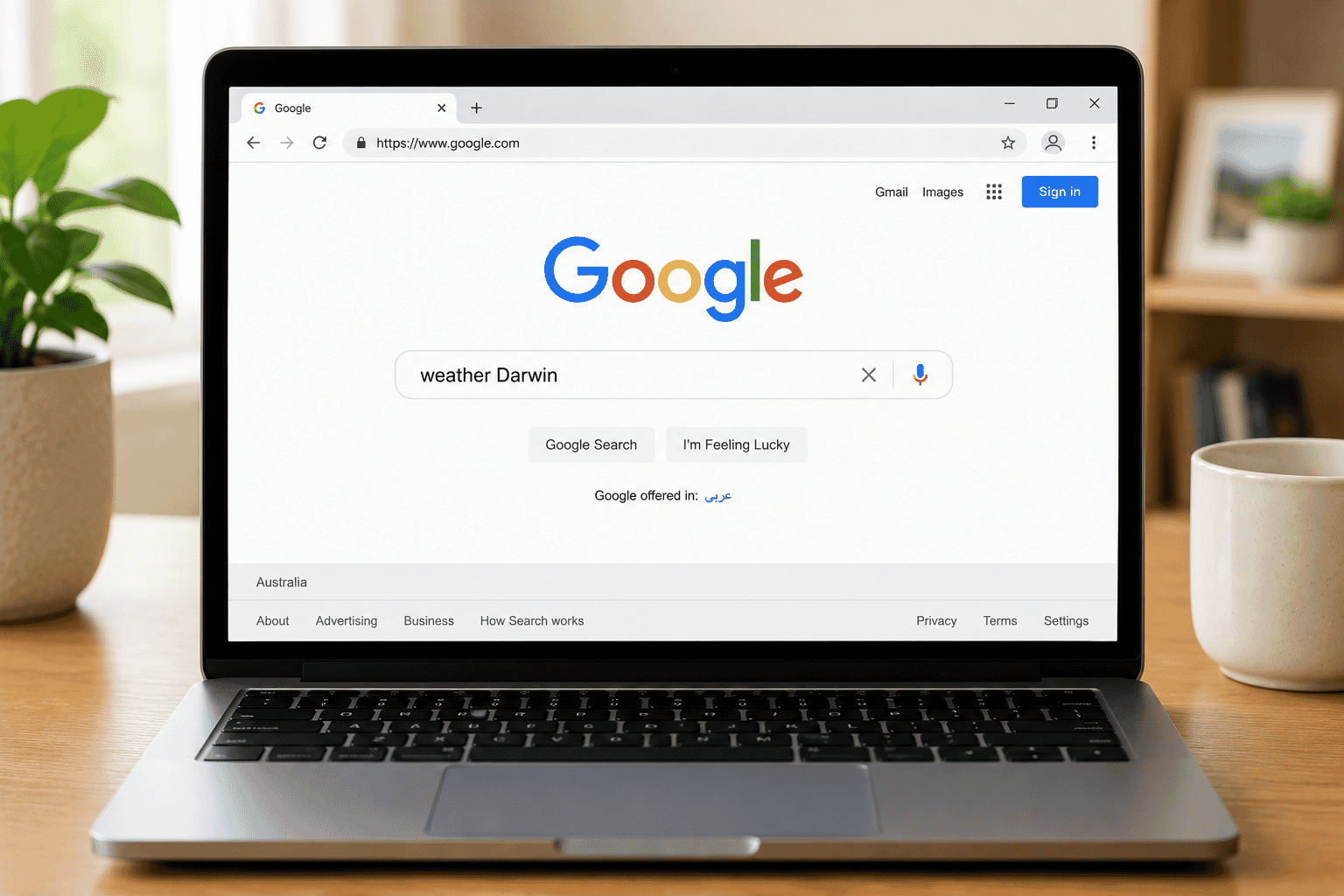
Google is a search engine.
Instead of remembering thousands of website addresses, you simply type what you're looking for.
For example, you could search for:
- Darwin weather
- Easy chicken recipes
- ABC News
- Medicare
- Gardening tips
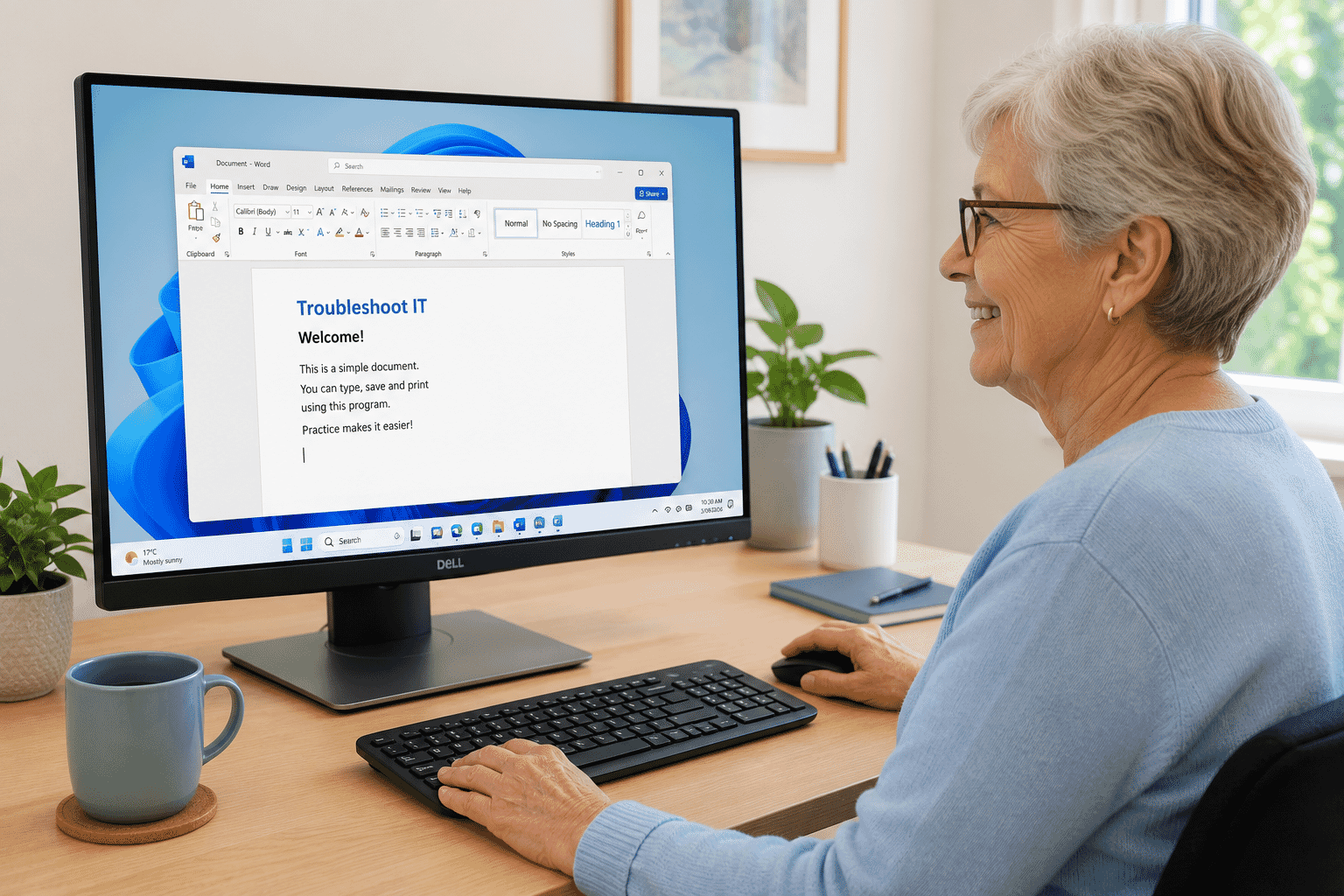
- Troubleshoot IT
Google then shows you websites that may contain the information you're looking for.
Lesson 3 — Searching the Internet
Searching is easy.
- Open your web browser.
- Click or tap the search bar.
- Type what you're looking for.
- Press Enter or Search.
Try searching for:
- Today's weather
- Local news
- Your favourite sports team
- Healthy recipes
- Travel destinations
You don't need to type full sentences—just a few keywords usually works best.
Lesson 4 — Understanding Websites
A website is a collection of pages on the internet.
For example:
- Government websites
- News websites
- Shopping websites
- Banking websites
- Health websites
Each website has its own address, called a URL.
For example:
- www.abc.net.au
- www.bom.gov.au
- www.troubleshootit.com.au
Lesson 5 — Clicking Links
Links are pieces of text or buttons that take you to another page.
You'll find links almost everywhere on the internet.
When you click a link:
- It opens another page.
- It may open another website.
- It may download a file.
Always read where a link is taking you before clicking.
Lesson 6 — Saving Favourite Websites
If you regularly visit the same website, you can save it as a Bookmark or Favourite.
Common websites people save include:
- Online banking
- Medicare
- MyGov
- Bureau of Meteorology
- ABC News
- Your local council
Bookmarks save time because you don't need to search each time.
Lesson 7 — Recognising Safe Websites
Not every website on the internet is trustworthy.
Look for:
✅ A padlock icon in the address bar.
✅ Website addresses beginning with https://
✅ Well-known organisations.
Be cautious if a website:
- Has lots of spelling mistakes.
- Promises unbelievable offers.
- Asks for personal information unexpectedly.
- Looks different from what you expected.
If you're unsure, don't enter any personal information.
Lesson 8 — Avoiding Fake Search Results
Sometimes advertisements appear at the top of search results.
These aren't necessarily bad, but they aren't always the best result.
Take a moment to read the website name before clicking.
Government websites usually end with .gov.au, while Australian education websites often end with .edu.au.
Practice Activity
Try the following:
✅ Open your web browser.
✅ Search for today's weather.
✅ Visit the Bureau of Meteorology website.
✅ Search for a favourite recipe.
✅ Bookmark a website you'll use again.
✅ Return to one of your saved bookmarks.
Tips for Success
✔ Use simple search words.
✔ Read the website name before clicking.
✔ Save useful websites as bookmarks.
✔ Don't click links in unexpected emails or text messages.
✔ If a website doesn't look right, close it and search again.
Summary
The internet is one of the most useful tools you'll ever learn to use.
By understanding how web browsers, Google and websites work, you'll be able to find information quickly, safely and confidently.
Remember, you don't need to know everything—you just need to know how to find reliable information.
Key Takeaways
- A web browser lets you visit websites.
- Google helps you find information online.
- Websites have unique addresses called URLs.
- Bookmarks save your favourite websites.
- Always browse carefully and only trust reputable websites.
Next Module
➡ Staying Safe Online
Learn how to recognise scams, create strong passwords, protect your personal information and browse the internet with confidence.
Need a Hand?
Need help getting comfortable with the internet? Troubleshoot IT provides patient, one-on-one training to help you search the web, use websites safely and build confidence online at your own pace.
Need some help with this?
Protect your photos and files, automatic backups plus a “test restore” so you know it works.
Troubleshoot IT provides practical, one-to-one technology support across Darwin, Palmerston and surrounding areas.