

LG-005 - Understanding Web Browsers
Learn what a web browser is, why you need one and how browsers help you visit websites safely and confidently.
Before You Begin
Knowledge Prerequisites
You do not need any technical experience to complete this guide.
If you've ever wondered what Microsoft Edge, Google Chrome or Safari actually are, you're in the right place.
Learning Objectives
By the end of this guide you should be able to:
- Explain what a web browser is.
- Understand the difference between a browser and a website.
- Understand the difference between a browser and a search engine.
- Recognise the most common web browsers.
- Open a browser and visit a website.
- Feel more confident using the internet.
Introduction
Many people use a web browser every day without realising what it is.
Someone might say:
- "Open your browser."
- "Use Chrome."
- "Open Edge."
- "Go to Safari."
These are all referring to a web browser.
A web browser is simply the program you use to view websites on the internet.
What Is a Web Browser?
A web browser is software that lets you access and view websites.
Without a browser, your computer or phone wouldn't know how to display webpages.
Think of it as the window you use to look out onto the internet.
Every website you visit is displayed inside a browser.
How It Fits Together
By now you've learned about the internet and Wi-Fi.
Here's how everything works together:
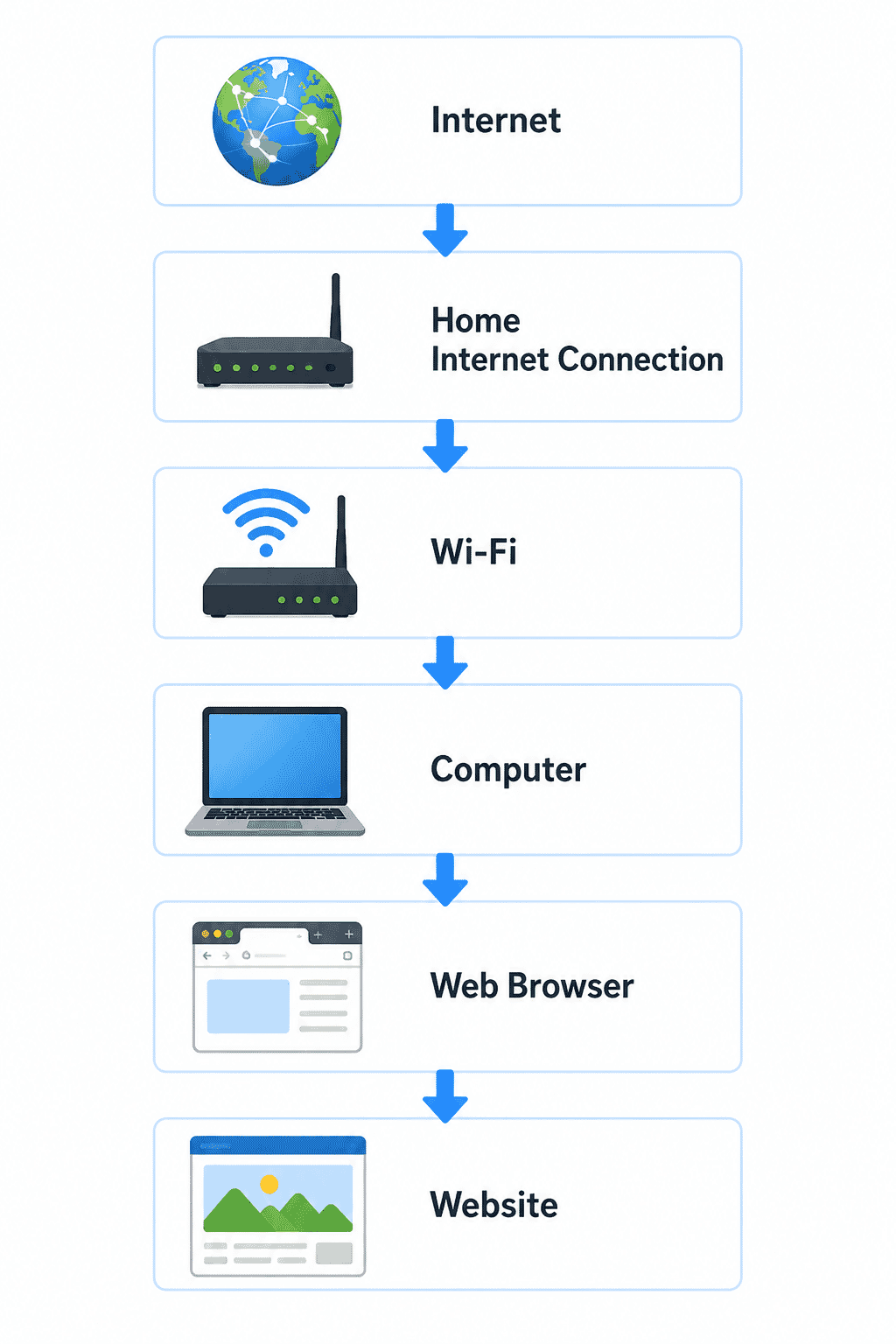
The website you want to visit
Each part has a different job.
The browser is simply the tool that lets you explore the internet.
Browser vs Website
This is one of the most common points of confusion.
A browser is the program.
A website is what you look at inside the browser.
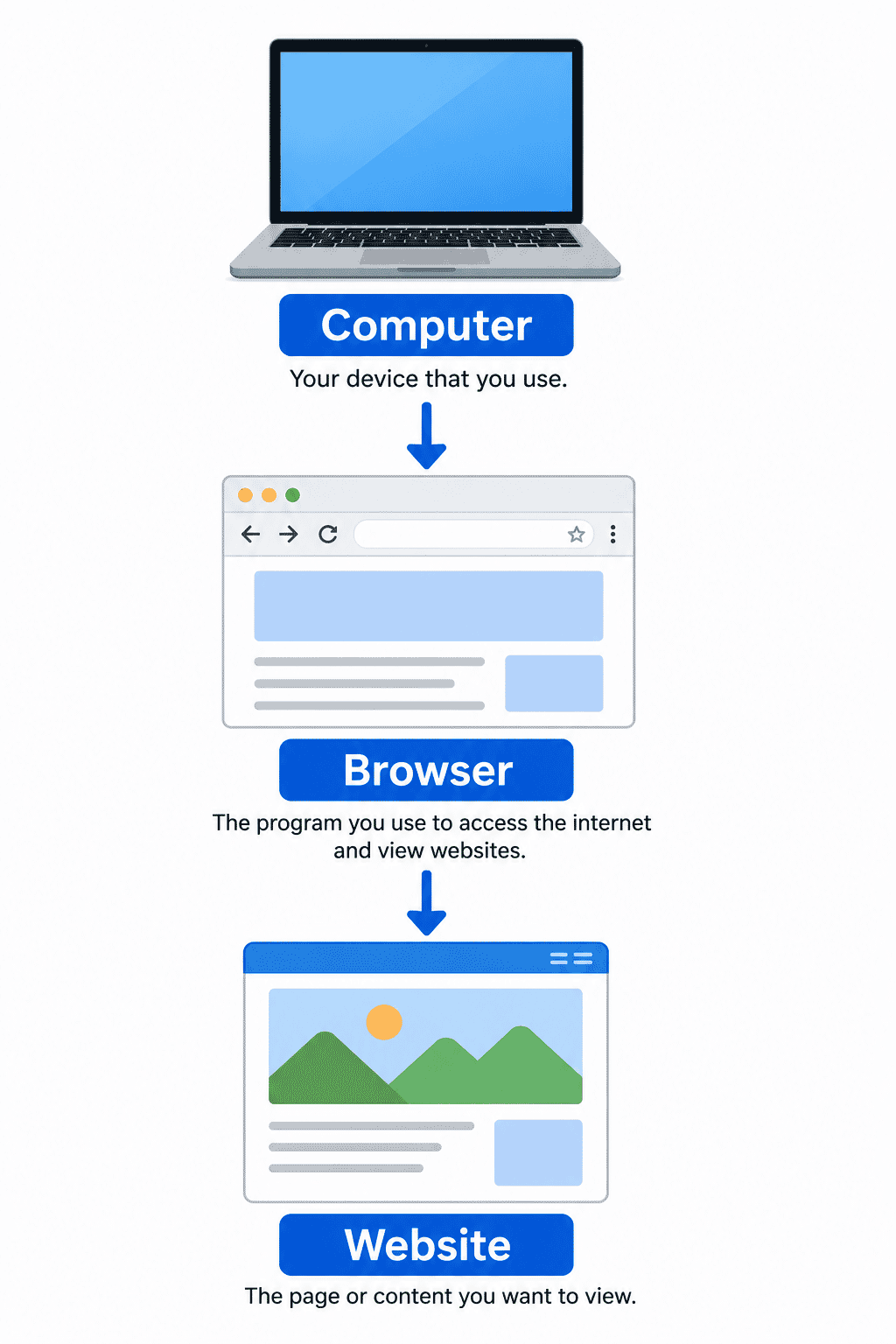
For example:
- Microsoft Edge is a browser.
- Google Chrome is a browser.
- Safari is a browser.
Inside those browsers you might visit:
- ABC News
- The Bureau of Meteorology
- Services Australia
- Troubleshoot IT
The browser opens the website.
The website is not the browser.
Browser vs Search Engine
People often say "I'm using Google."
Sometimes they mean Google Chrome.
Sometimes they mean Google Search.
These are different things.
A browser is the program.
A search engine helps you find websites.
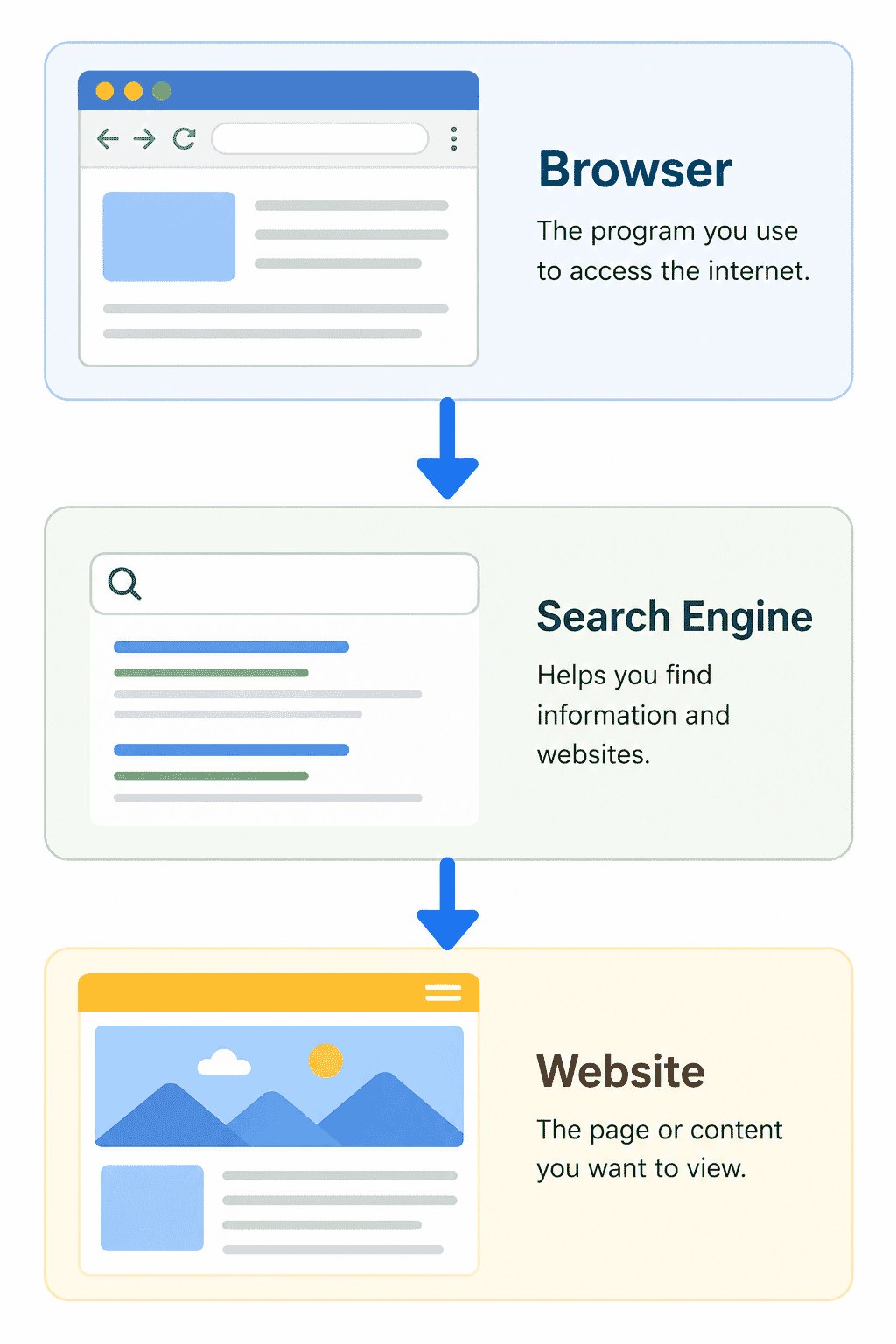
For example:
Browser:
- Microsoft Edge
- Google Chrome
- Safari
- Mozilla Firefox
Search engines:
- Google Search
- Bing
- DuckDuckGo
You use a browser to access a search engine.
The search engine then helps you find websites.
Common Web Browsers
Most people only ever use one browser.
Some of the most common are:
- Microsoft Edge (Windows)
- Google Chrome
- Safari (Apple devices)
- Mozilla Firefox
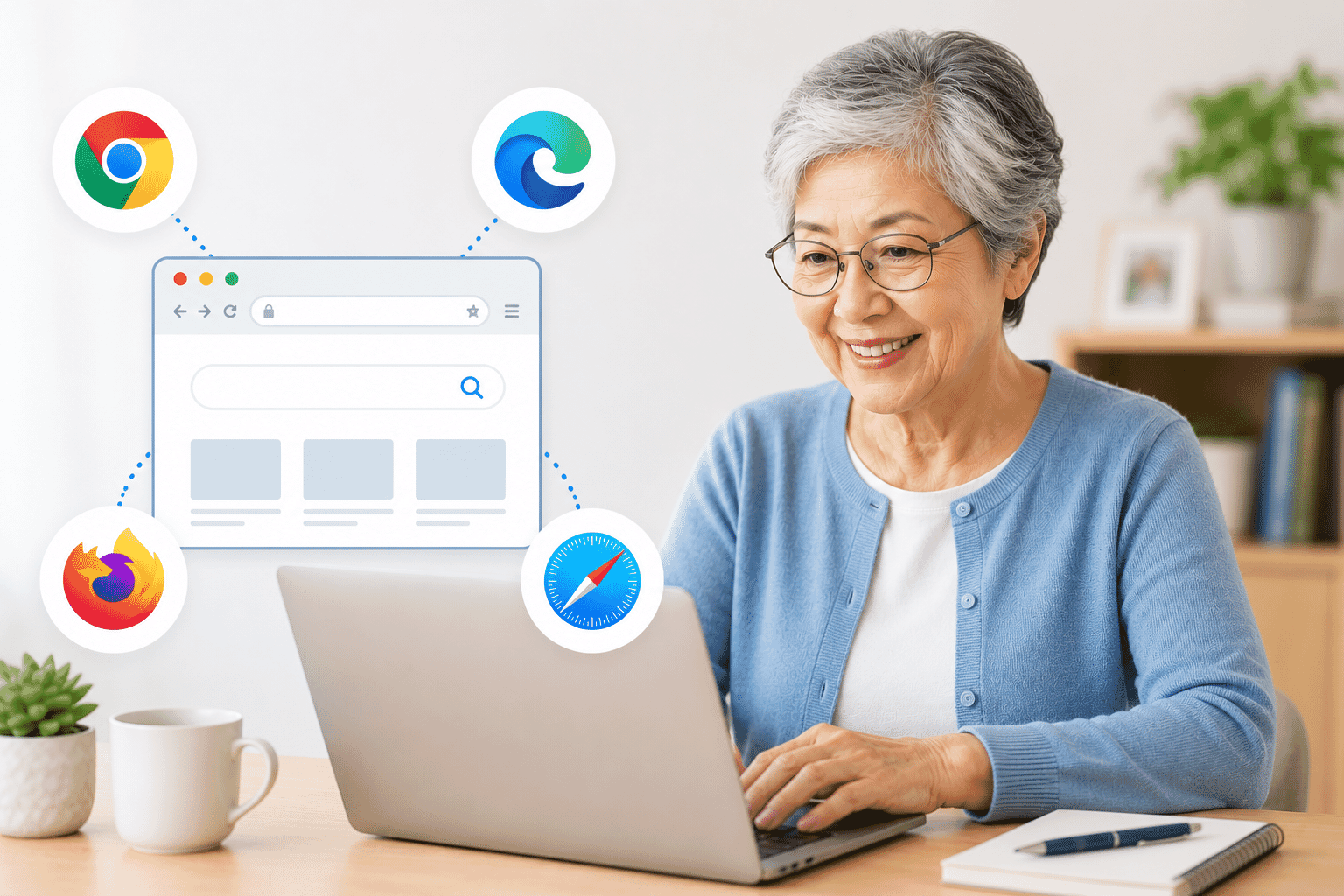
Although they look slightly different, they all perform the same basic job.
Choose the one you're most comfortable using.
Parts of a Browser Window
Most browsers have the same basic layout.
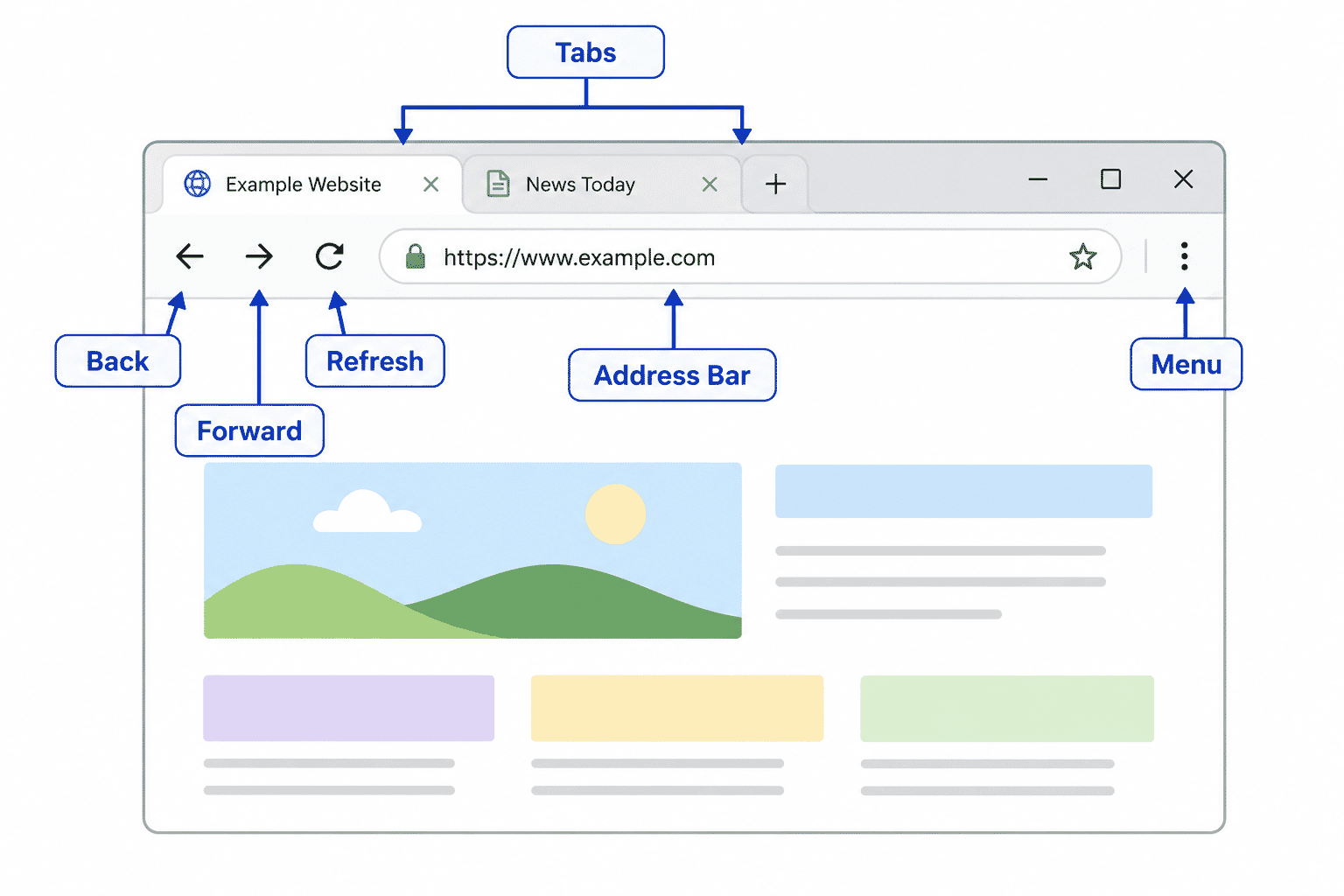
You'll usually see:
- Back button
- Forward button
- Refresh button
- Address bar
- Tabs
- Menu button
Learning where these controls are will make browsing much easier.
Opening a Browser
Opening a browser is simple.
On Windows:
- Click the Start button.
- Open Microsoft Edge or Google Chrome.
On an iPhone or iPad:
Tap Safari.
On Android:
Tap Chrome or your preferred browser.
The browser opens ready for you to visit a website.
Visiting a Website
Every website has an address.
For example:
www.troubleshootit.com.au
Click in the address bar.
Type the website address.
Press Enter or Go.
The browser connects to the website and displays the page.
Tabs
One of the most useful browser features is tabs.
Tabs let you have several websites open at the same time without opening lots of separate windows.
For example, you could have:
- Your email
- A weather forecast
- ABC News
- A recipe
all open in different tabs.
You can switch between them whenever you like.
Staying Safe
A browser helps you access the internet, but it's still important to browse safely.
Remember to:
- Visit websites you trust.
- Check website addresses carefully.
- Never enter passwords on websites that don't look genuine.
- Keep your browser updated.
- Close suspicious pop-up windows without clicking them.
Safe browsing becomes easier with practice.
Helpful Tips
- Learn where the address bar is.
- Use bookmarks for websites you visit often.
- Close tabs you no longer need.
- Keep your browser updated.
- Don't worry if someone else uses a different browser—they all work in similar ways.
Common Mistakes
- Thinking Google is a web browser.
- Confusing a browser with a website.
- Typing search terms into the address incorrectly.
- Closing the browser instead of just closing a tab.
- Assuming every website is trustworthy.
Troubleshooting
I can't find my browser.
Look for Microsoft Edge, Google Chrome or Safari on your device.
The website won't open.
Check your internet or Wi-Fi connection first.
The browser has frozen.
Close the browser and open it again.
If necessary, restart your device.
Summary
A web browser is the program you use to view websites on the internet.
Whether you use Microsoft Edge, Google Chrome, Safari or Firefox, they all allow you to visit websites, search for information and complete everyday tasks online.
Understanding what a browser does makes using technology much less confusing.
What You've Learned
You now know:
- What a web browser is.
- The difference between a browser and a website.
- The difference between a browser and a search engine.
- The most common browsers.
- How to open a browser.
- How to visit a website safely.
Keep Learning
Continue with:
- LG-006 – Understanding Apps
- LG-007 – What Is the Cloud?
- LG-008 – Computer words explained
These guides build on what you've learned here and will help you become even more confident online.
Call to Action
Open the browser on your computer, tablet or phone.
Spend a few minutes exploring.
Visit a website you know and practice recognising the address bar, tabs and navigation buttons.
The more you use your browser, the more comfortable it will become. Every small step builds confidence with technology.
Need a Hand?
Learning technology is easier when you can ask questions.
If something in this guide doesn't make sense, or you'd like help with your own computer, phone or tablet, join our free community:
Technology Help for Seniors Australia
https://www.facebook.com/groups/techhelpforseniors
Ask questions, share your experiences and learn alongside other Australians building confidence with technology.
Requirements
None
Learning Paths
View all pathsNeed some help with this?
Protect your photos and files, automatic backups plus a “test restore” so you know it works.
Troubleshoot IT provides practical, one-to-one technology support across Darwin, Palmerston and surrounding areas.