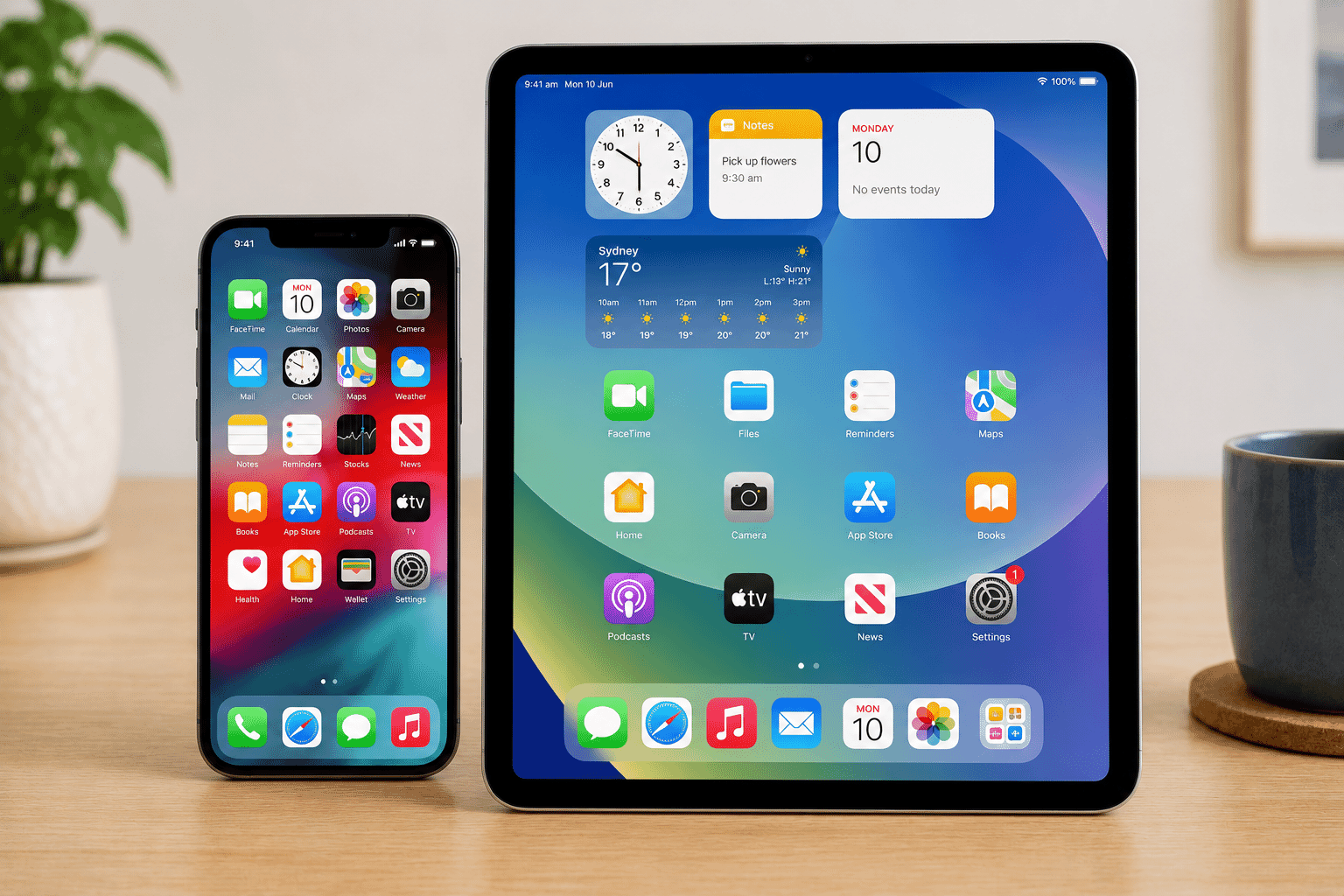
LG-006 - Understanding Apps
Apps help us complete everyday tasks such as sending messages, checking the weather, shopping and banking. Learn what apps are and how to use them with confidence.
Before You Begin
Knowledge Prerequisites
You do not need any technical experience to complete this guide.
If you already use a smartphone, tablet or computer, you've almost certainly used apps without realising it.
This guide explains what apps are, where they come from and how they help you complete everyday tasks.
Remember, there are no silly questions. Every experienced technology user started by learning the basics.
Learning Objectives
By the end of this guide you should be able to:
- Explain what an app is.
- Understand why apps exist.
- Recognise common types of apps.
- Understand the difference between an app and a website.
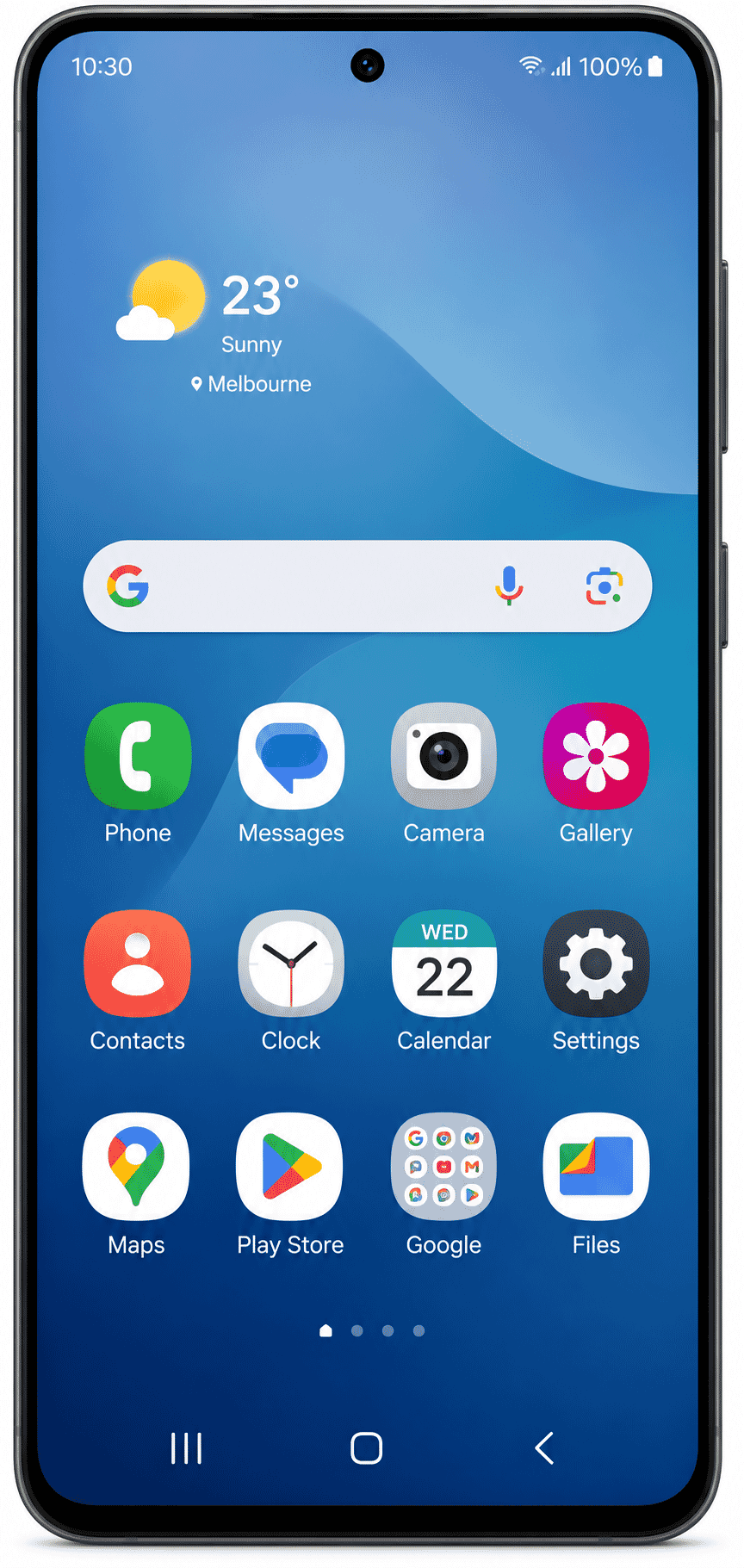
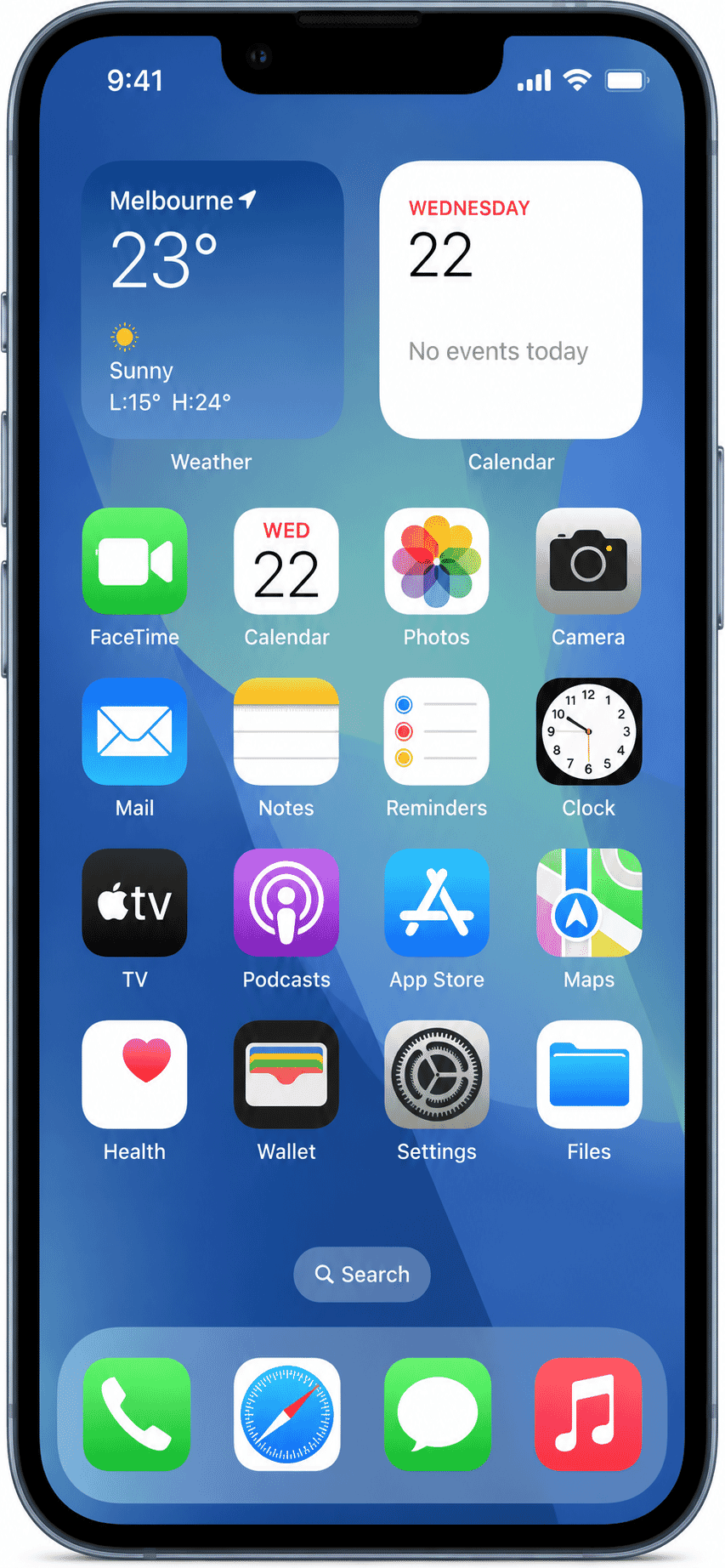
- Recognise apps on different devices.
- Understand where apps come from.
- Install apps safely.
- Understand why updates are important.
- Feel more confident using apps every day.
Introduction
Whether you're sending a message, checking the weather, taking a photo or reading the news, you're probably using an app.
Apps have become an important part of everyday life because they make common tasks quicker and easier.
Once you understand what an app is, you'll realise that you already use them more often than you think.
What Is an App?
An app (short for application) is a software program designed to help you perform a specific task.
Think of an app as a digital tool.
Just as you might use a hammer to drive a nail or a calculator to solve a maths problem, an app helps you complete a particular task on your device.
Some apps help you communicate, while others help you learn, work, shop or relax.
Most people use dozens of different apps every day without thinking about them.
Why Do Apps Exist?
Apps are designed to make life easier.
Instead of one large program trying to do everything, each app focuses on a specific job.
For example:
- A Camera app takes photos.
- A Maps app helps you find directions.
- A Calendar app keeps track of appointments.
- A Banking app helps you manage your money.
A Weather app shows today's forecast.
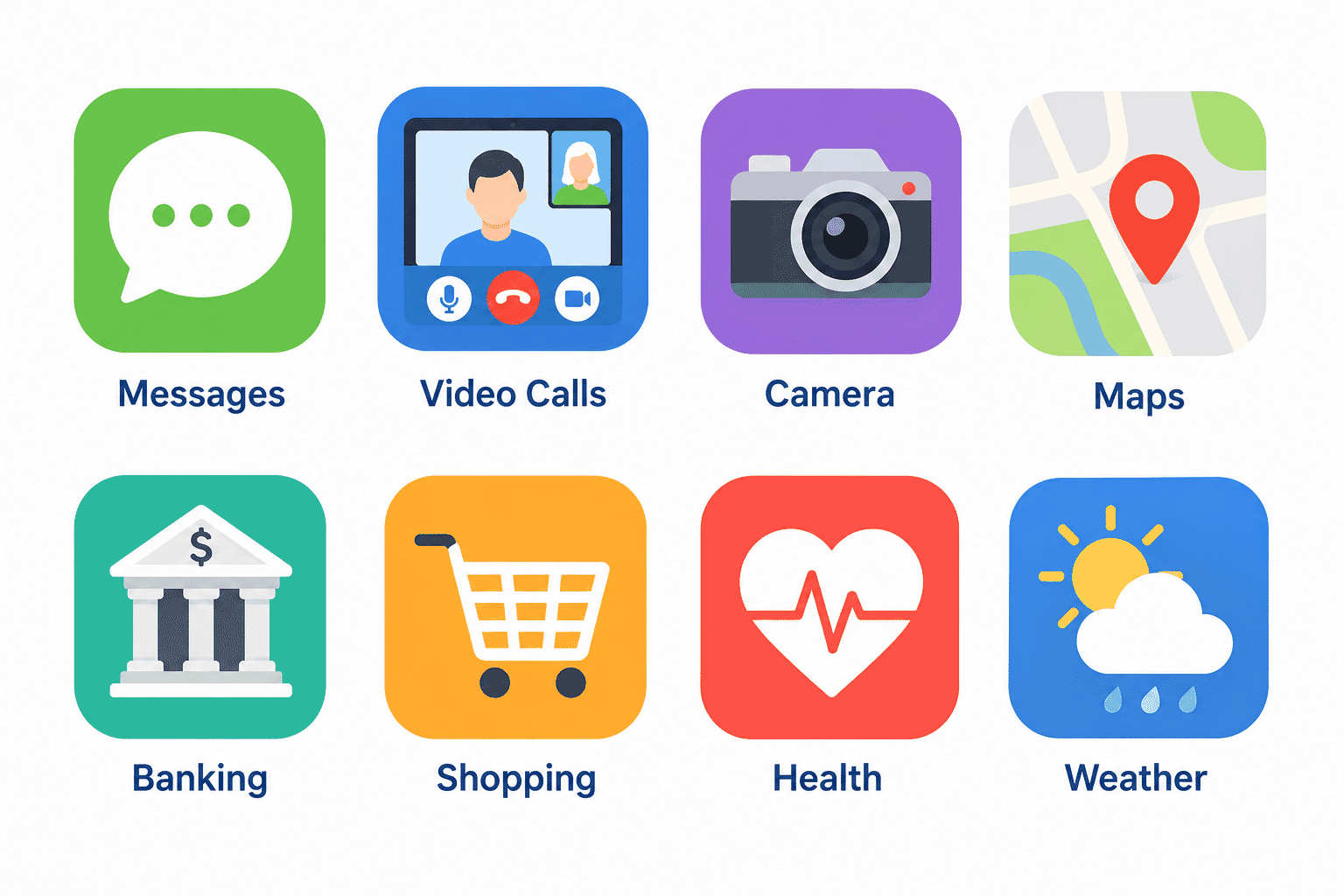
Because each app has a clear purpose, they're generally easier to learn and use.
Apps on Different Devices
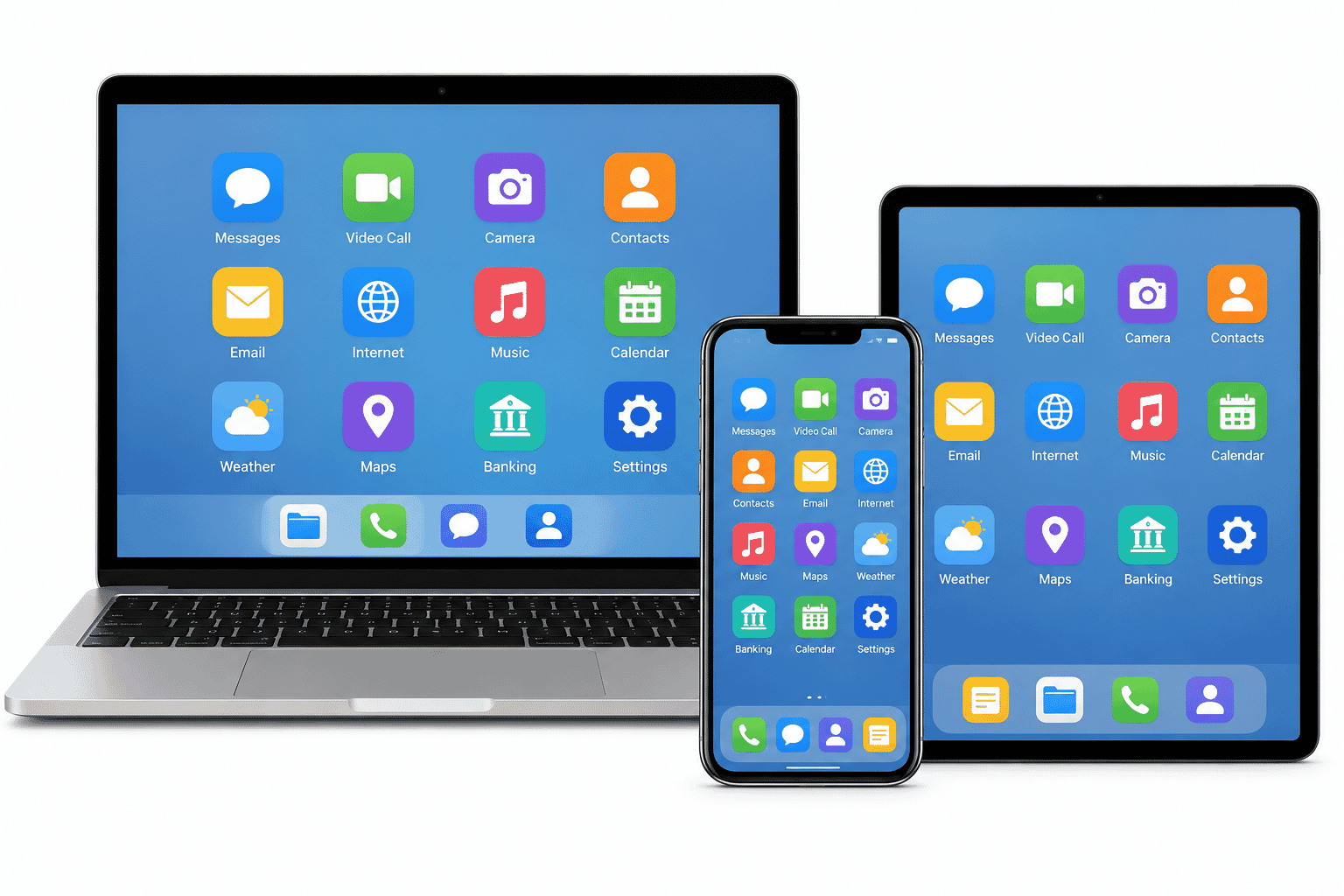
Apps aren't limited to smartphones.
You can use apps on:
- Smartphones
- Tablets
- Windows computers
- Apple Mac computers
Many apps are available on several different devices, although they may look slightly different depending on the screen size.
For example, you might use the same calendar or video-calling app on both your phone and your laptop.
Apps and Websites Are Different
Many beginners confuse apps and websites.
Although they often provide similar services, they are different.
An app is installed on your device.
A website opens inside a web browser.
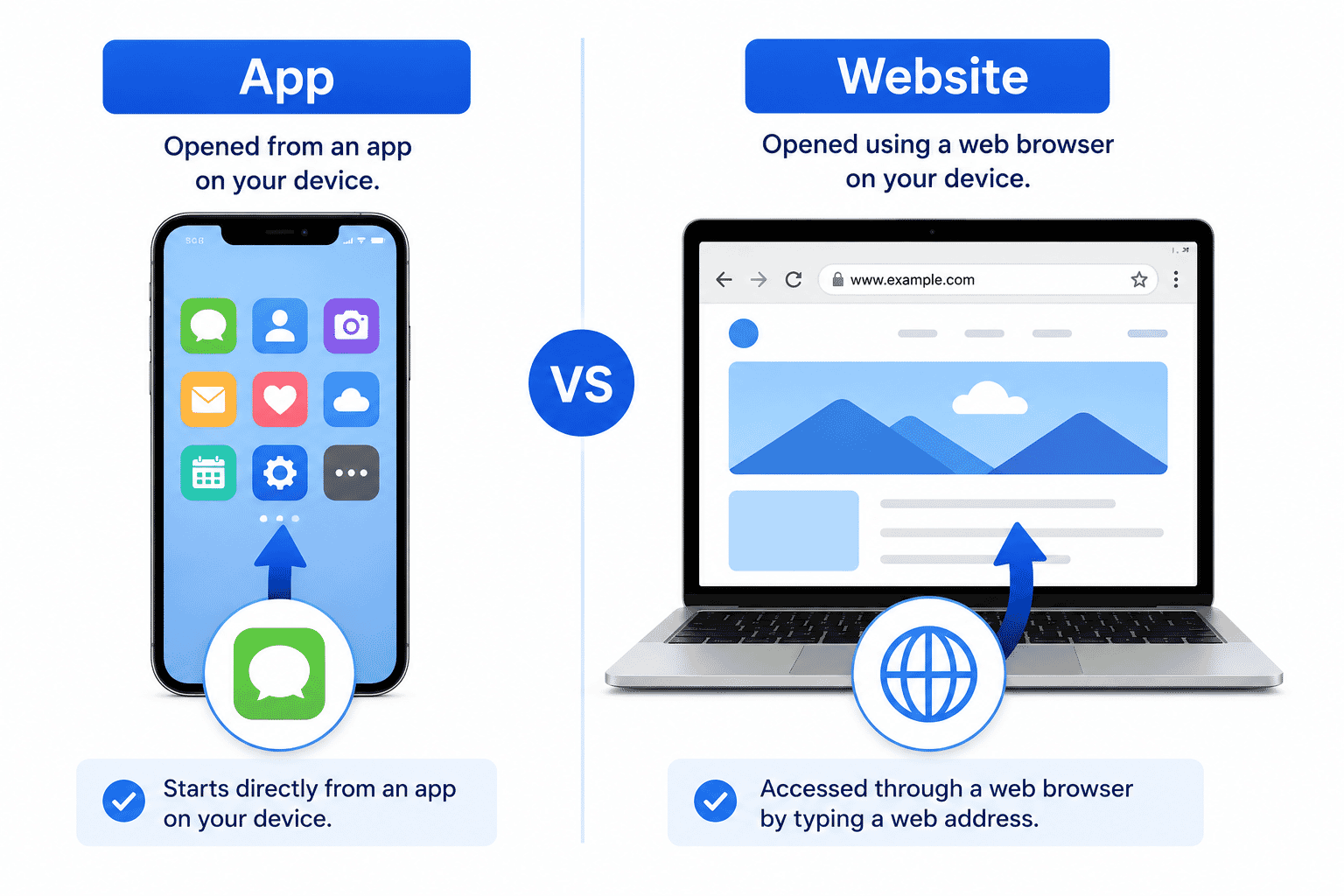
For example:
An app:
- Opens from an icon on your device.
- May continue working even when you're not using a browser.
- Can often send notifications.
A website:
- Opens in Microsoft Edge, Google Chrome or Safari.
- Requires a web browser.
- Is accessed using a web address.
Some companies provide both a website and an app.
For example, you may use a banking app on your phone but visit the same bank's website on your computer.
Common Types of Apps
There are thousands of apps available, but most fall into familiar categories.
Some common examples include:
- Communication
- Video calling
- Maps and navigation
- Camera and photos
- Banking
- Shopping
- Weather
- Health
- Entertainment
- Music
- Education
You don't need every app available.
Install only the apps that are useful for you.
Where Do Apps Come From?
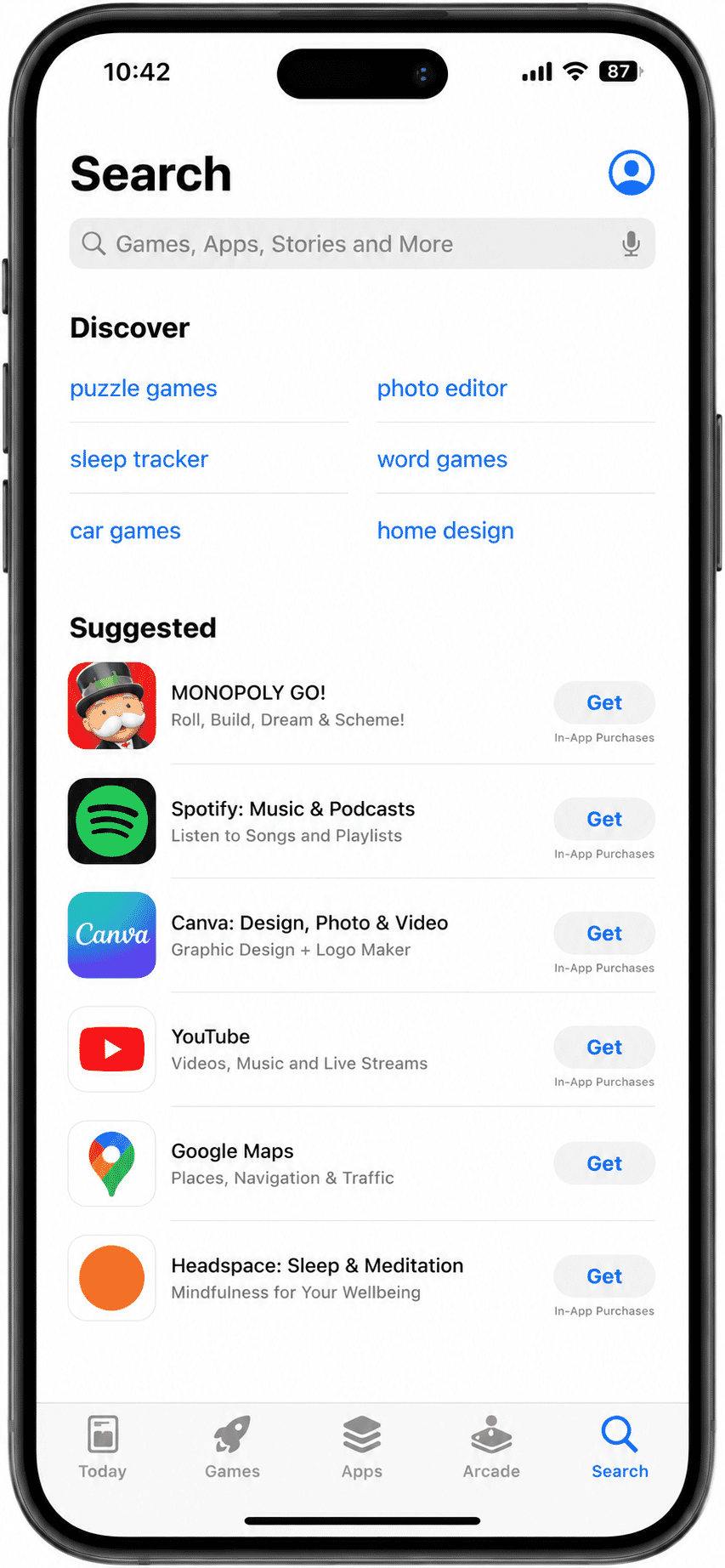
Apps are downloaded from trusted app stores.
Different devices use different stores.
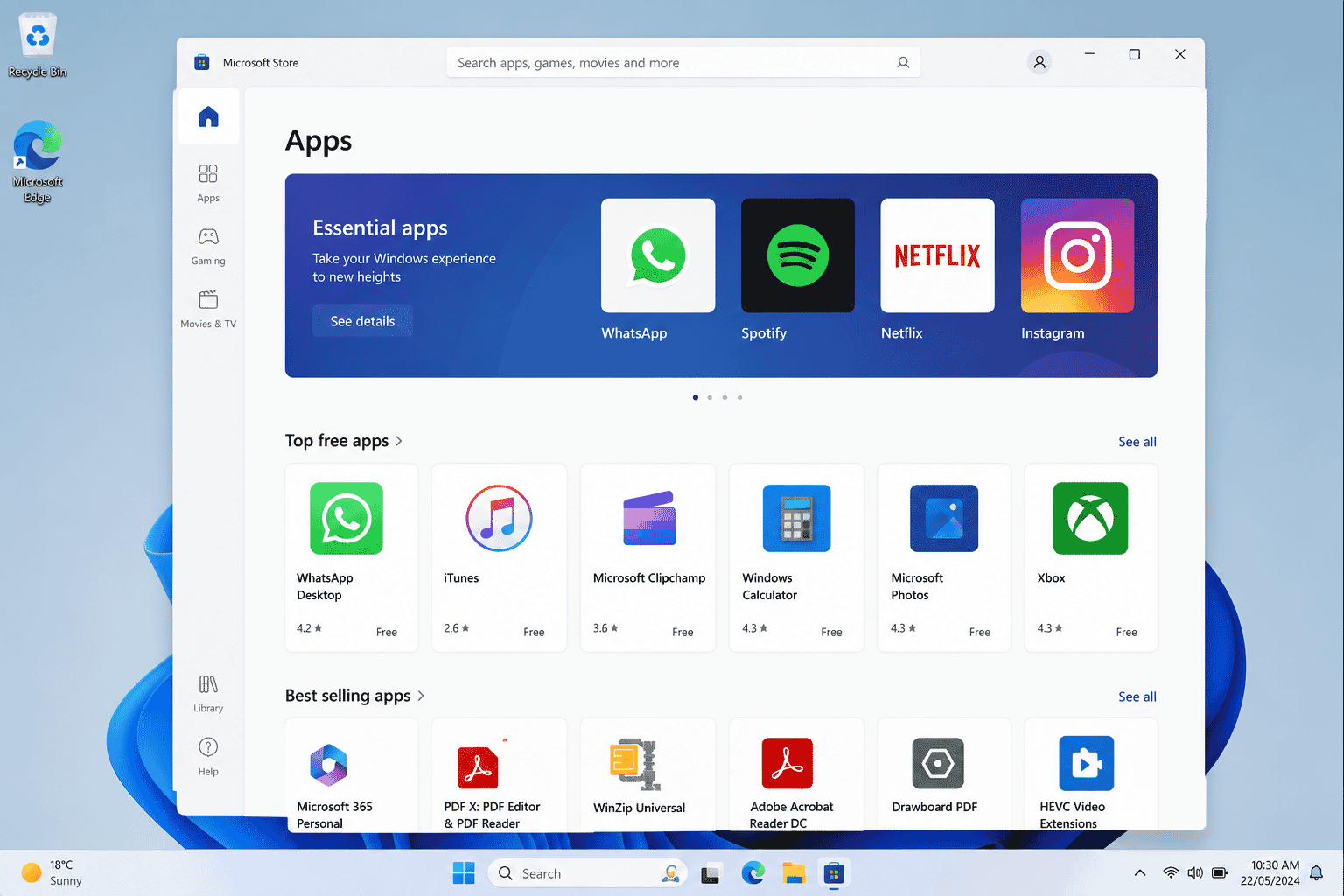
Windows computers use the Microsoft Store.
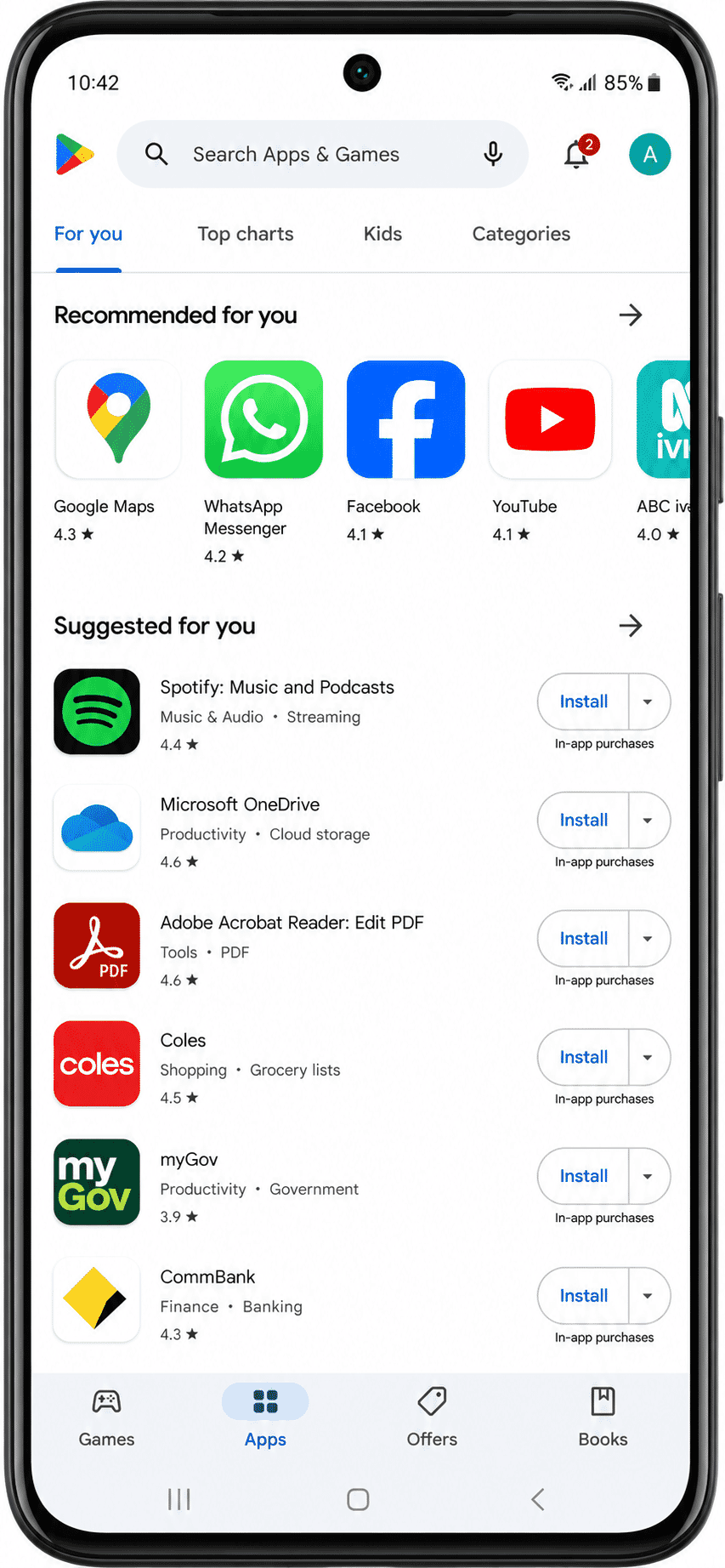
Android devices use the Google Play Store.
Apple devices use the App Store.
Using the official store helps reduce the chance of downloading unsafe software.
Installing Apps
Installing an app is usually very simple.
The exact steps vary depending on your device, but the process is very similar.
Windows
- Open the Microsoft Store.
- Search for the app.
- Select the app.
- Click Install.
Android
- Open Google Play Store.
- Search for the app.
- Select the app.
- Tap Install.
iPhone and iPad
- Open the App Store.
- Search for the app.
- Select the app.
- Tap Get.
Keeping Apps Updated
App developers regularly release updates.
Updates often include:
- Security improvements.
- Bug fixes.
- New features.
- Better performance.
Allowing apps to update automatically is usually the easiest option.
Keeping apps updated helps keep your device safer.
Installing Apps Safely
Most apps are perfectly safe, but it's still important to be careful.
Good habits include:
- Download apps only from official app stores.
- Read reviews before installing unfamiliar apps.
- Check who created the app.
- Avoid downloading apps from websites you don't trust.
- Remove apps you no longer use.
If you're unsure about an app, ask someone you trust before installing it.
Try It Yourself
If you have a smartphone, tablet or computer, try these simple activities.
- Find three apps you already use.
- Open your Camera app.
- Open your Calendar app.
- Open your Weather app.
- Find the official app store on your device.
- Browse the available apps without installing anything.
Take your time.
There is no rush.
The goal is simply to become familiar with where apps are located.
Helpful Tips
- Arrange frequently used apps on your home screen.
- Delete apps you no longer use.
- Keep your apps updated.
- Download apps only from trusted sources.
- Remember that every app has one main purpose.
Confidence grows through regular practice.
Common Mistakes
Many beginners:
- Confuse apps with websites.
- Download apps from unsafe websites.
- Install too many apps at once.
- Ignore update notifications.
- Worry that they will "break" their device.
These are common learning experiences.
Most mistakes can easily be corrected.
Troubleshooting
I can't find an app.
Use the search feature on your device or look in the app library.
An app won't open.
Close the app and try again.
If necessary, restart your device.
I accidentally deleted an app.
Most apps can be downloaded again from the official app store.
I'm not sure if an app is safe.
Only download apps from official app stores and check the developer before installing.
Summary
Apps are small programs designed to help you complete specific tasks.
Whether you're using a smartphone, tablet or computer, apps make everyday activities quicker and easier.
Once you understand what apps are and where they come from, using technology becomes much less intimidating.
What You've Learned
You now know:
- What an app is.
- Why apps exist.
- The difference between apps and websites.
- Common types of apps.
- Where apps come from.
- How to install apps safely.
- Why updates are important.
- Basic app safety.
Keep Learning
Continue with:
- LG-007 – What Is the Cloud?
- LG-008 – Computer words explained
These guides build on what you've learned here and will help you become even more confident using technology.
Call to Action
Congratulations!
You've taken another important step in understanding modern technology.
Spend a few minutes exploring the apps already installed on your device.
Open a few familiar ones and notice how each app has its own purpose.
The more you use apps, the more comfortable and confident you'll become.
Requirements
None
Learning Paths
View all pathsNeed some help with this?
Protect your photos and files, automatic backups plus a “test restore” so you know it works.
Troubleshoot IT provides practical, one-to-one technology support across Darwin, Palmerston and surrounding areas.