LG-008 - Computer Words Explained
Technology doesn't have to be confusing. Learn the meaning of common computer words in simple, everyday language and build confidence using your devices.
Before You Begin
Knowledge Prerequisites
Technology has its own language.
You may hear words like browser, app, cloud, download or Wi-Fi and wonder what they actually mean.
The good news is that most technology words describe simple ideas. Once you understand the meaning behind the words, using technology becomes much less intimidating.
This guide explains common computer terms in plain English using everyday examples.
You don't need to memorise every definition.
Think of this guide as a handy reference that you can return to whenever you come across an unfamiliar word.
Learning Objectives
By the end of this guide you will be able to:
- Understand common technology words.
- Recognise everyday computer terminology.
- Explain basic technology concepts using plain English.
- Understand the difference between similar terms.
- Feel more confident when reading technology instructions.
- Use computers, smartphones and tablets with greater confidence.
Introduction
Learning technology is much like learning to drive a car.
Before you can drive confidently, you need to understand words like steering wheel, brake, accelerator and indicator.
Computers work the same way.
Once you understand the words people use, everything starts to make much more sense.
This guide explains the technology terms you'll see most often when using a computer, smartphone or tablet.
Remember, you don't need to understand everything straight away.
Every new word you learn makes the next one easier.
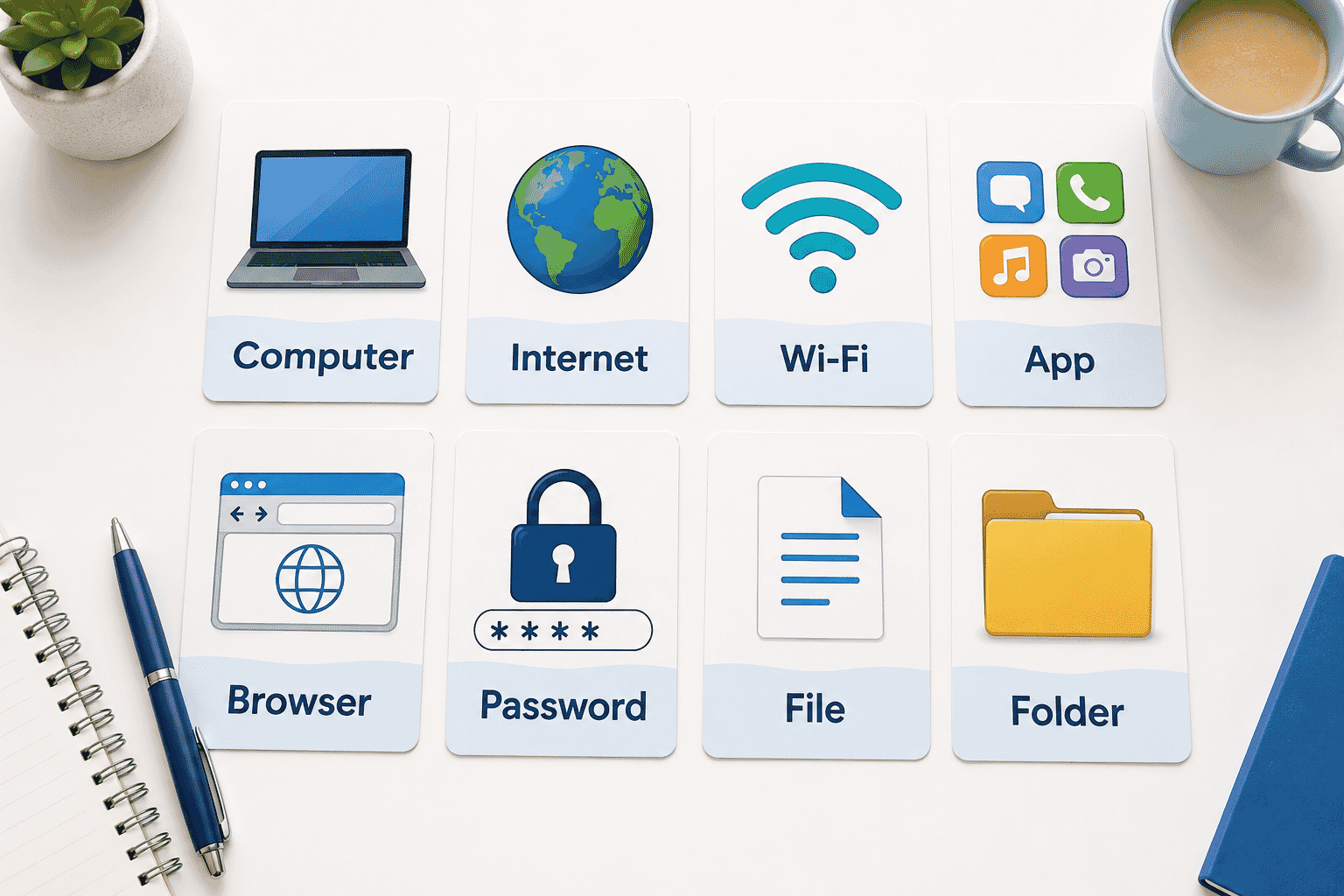
Computer
A computer is an electronic device that helps you complete tasks.
You can use a computer to:
- Write letters
- Browse the internet
- Send emails
- Watch videos
- Store photos
- Play games
- Video call family and friends
Think of a computer as a very clever assistant that follows your instructions.
It cannot think for itself—it simply does what you tell it to do.
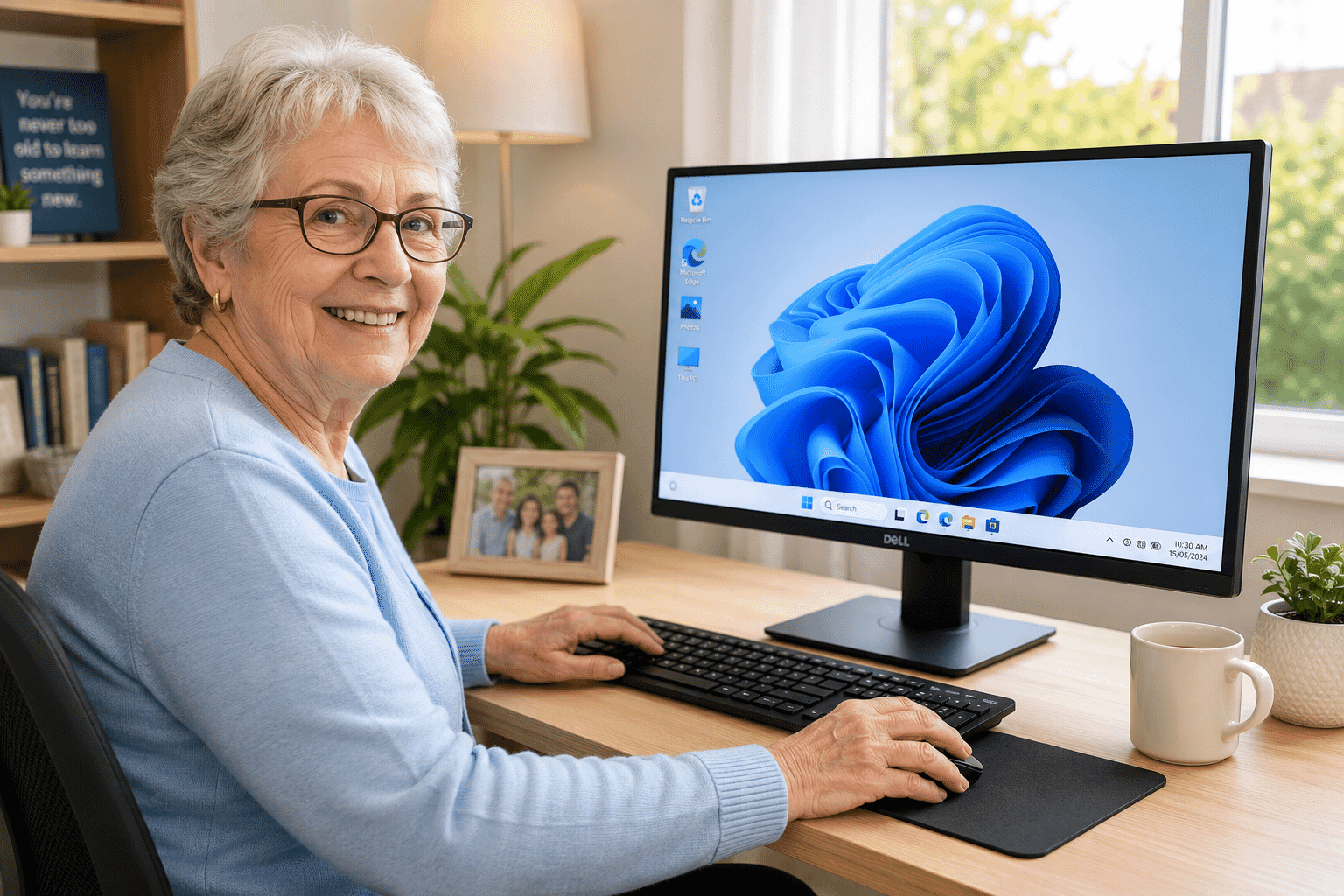
Desktop Computer
A desktop computer usually stays in one place.
It normally includes:
- A monitor (screen)
- A keyboard
- A mouse
- A computer box (sometimes hidden under the desk)
Desktop computers are often used in homes, schools and offices.
Because they don't need to be carried around, they usually have larger screens and keyboards that are comfortable to use.
Laptop
A laptop is a portable computer.
Instead of separate parts, the screen, keyboard and computer are built together into one device.
Laptops have rechargeable batteries, allowing you to use them almost anywhere.
Many people choose laptops because they are easy to carry between rooms or take when travelling.
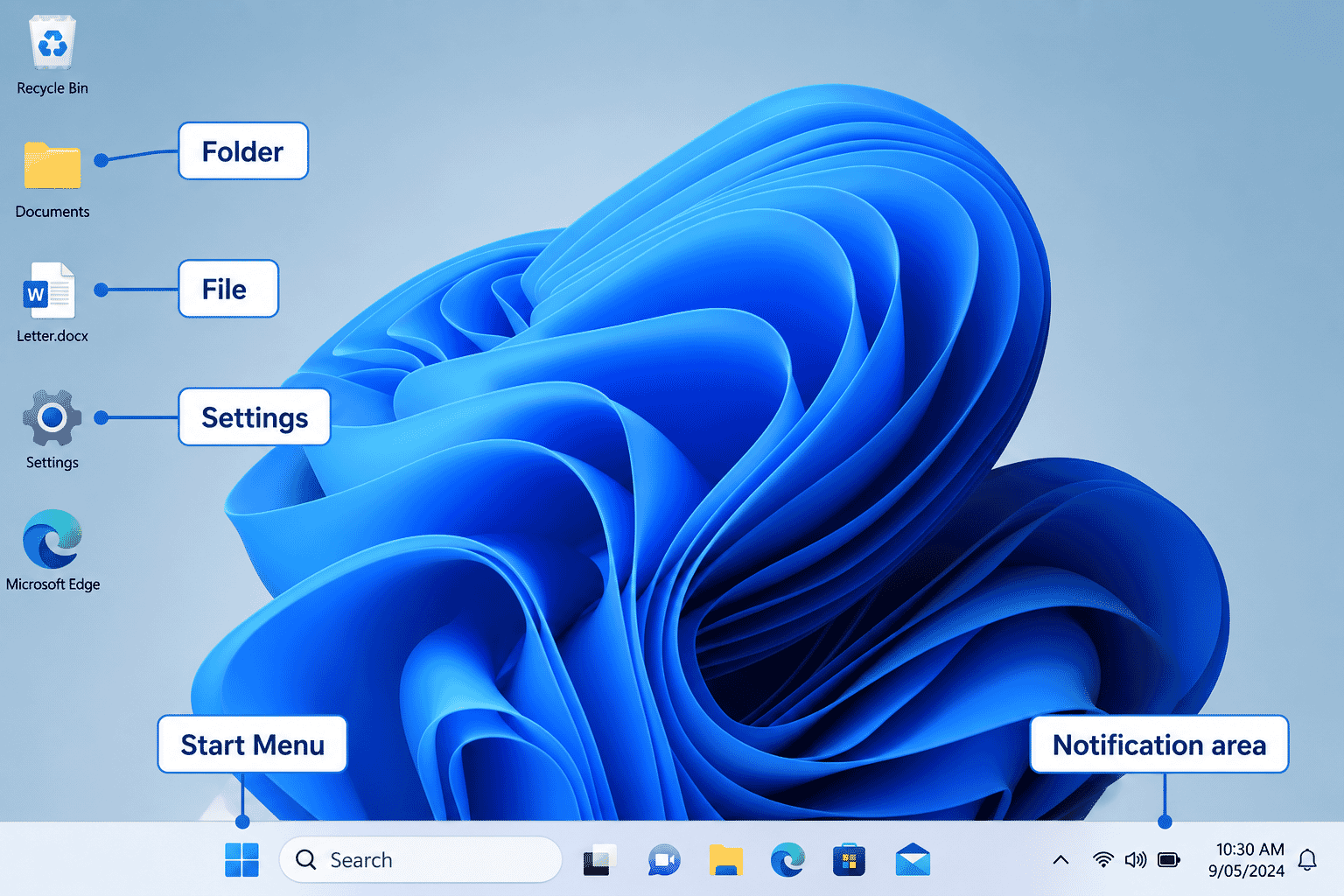
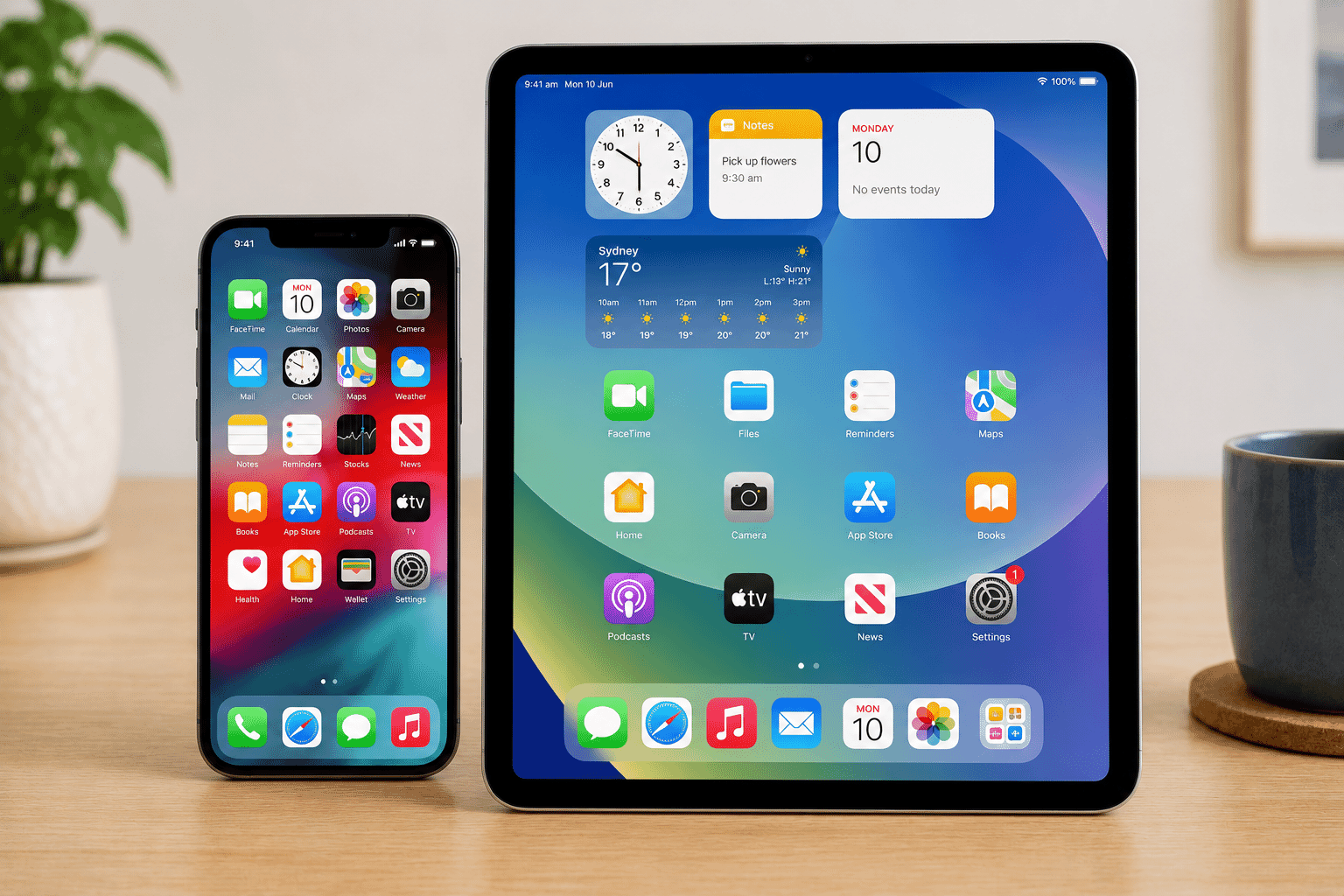
Smartphone
A smartphone is a mobile phone that can do much more than make phone calls.
It allows you to:
- Browse the internet
- Take photographs
- Send emails
- Use apps
- Watch videos
- Navigate using maps
- Make video calls
Most smartphones are controlled by touching the screen rather than using a keyboard or mouse.
Tablet
A tablet is similar to a smartphone but has a much larger screen.
Many people find tablets easier to read because text and pictures appear larger.
Tablets are popular for:
- Reading books
- Watching movies
- Browsing the internet
- Playing games
- Video calls
They are lightweight and easy to carry around the home.
Internet
The internet is a worldwide network that connects millions of computers and devices together.
The internet allows you to:
- Visit websites
- Send emails
- Watch videos
- Read the news
- Shop online
- Speak with family around the world
Think of the internet like a giant road system that allows information to travel from one place to another.
Wi-Fi
Wi-Fi is the wireless connection that allows your device to connect to the internet without using cables.
Your home modem or router creates a Wi-Fi network that your devices can join.
Remember:
Wi-Fi is not the internet.
Wi-Fi is simply one way of connecting to the internet.
You can also connect using mobile data.
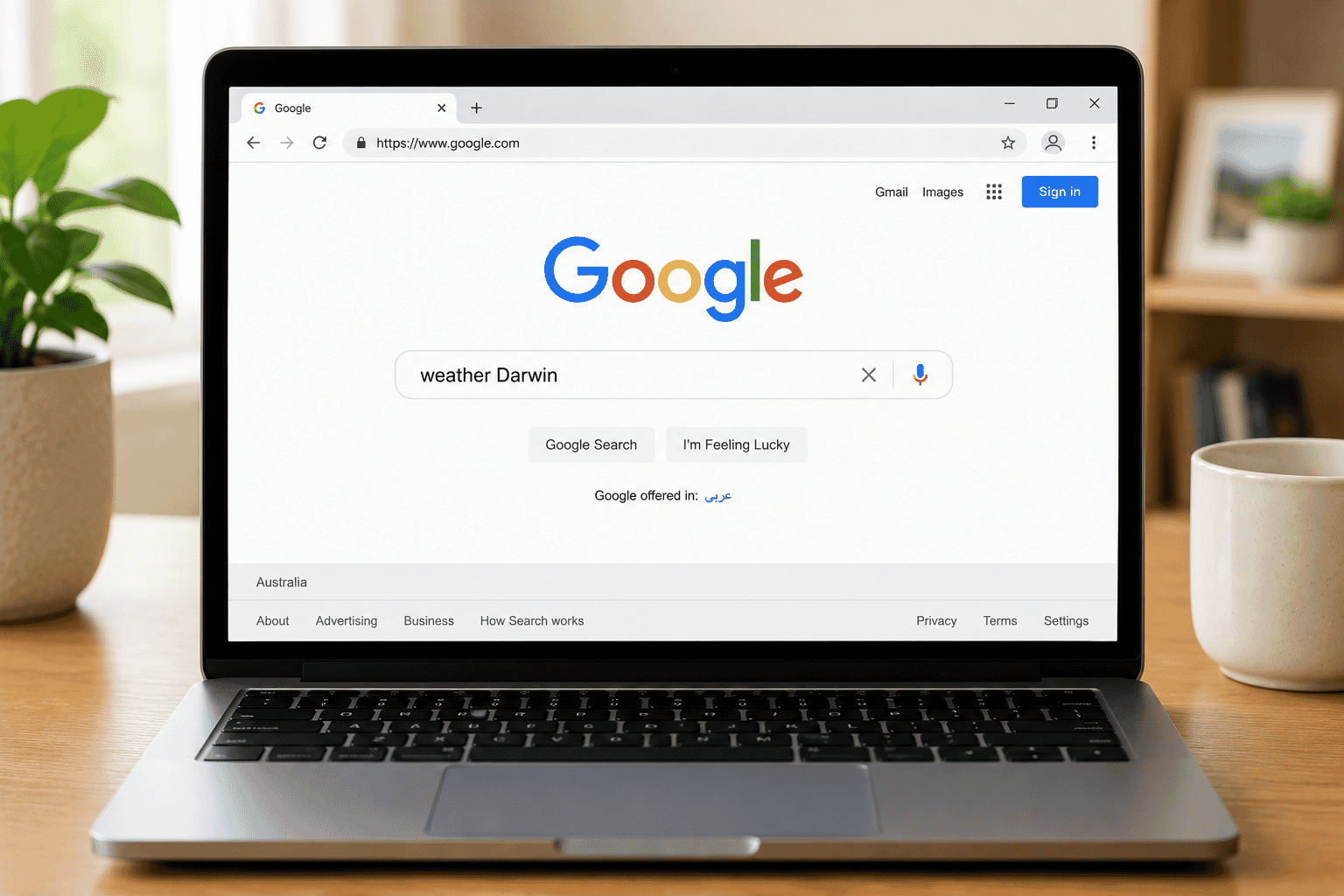
Web Browser
A web browser is a program used to view websites.
Popular web browsers include:
- Google Chrome
- Microsoft Edge
- Mozilla Firefox
- Apple Safari
Think of a browser as the vehicle you use to travel around the internet.
Without a browser, you wouldn't be able to visit websites.
Website
A website is a collection of information available on the internet.
Websites may contain:
- Text
- Pictures
- Videos
- Forms
- News
- Shopping
- Learning resources
Every website has its own address, called a web address or URL.
For example:
www.troubleshootit.com.au
is a website address.
App
An app (short for application) is a program designed to perform a particular task.
Examples include:
- Banking apps
- Weather apps
- Calendar apps
- Camera apps
- YouTube
Apps make it easy to perform specific tasks without needing to understand complicated technology.
Most smartphones and tablets include many apps already installed.
Download
When you download something, you are copying it from the internet to your device.
For example, you might download:
- A photo
- A document
- A recipe
- A music file
- A software program
Once downloaded, the file is stored on your computer, tablet or smartphone so you can open it later.
Think of downloading like bringing a book home from the library.
Upload
When you upload something, you are sending it from your device to the internet.
For example, you might upload:
- Holiday photos to Facebook
- Documents to OneDrive
- A file to send in an email
- Photos to cloud storage
Think of uploading as placing something into a secure online storage box.
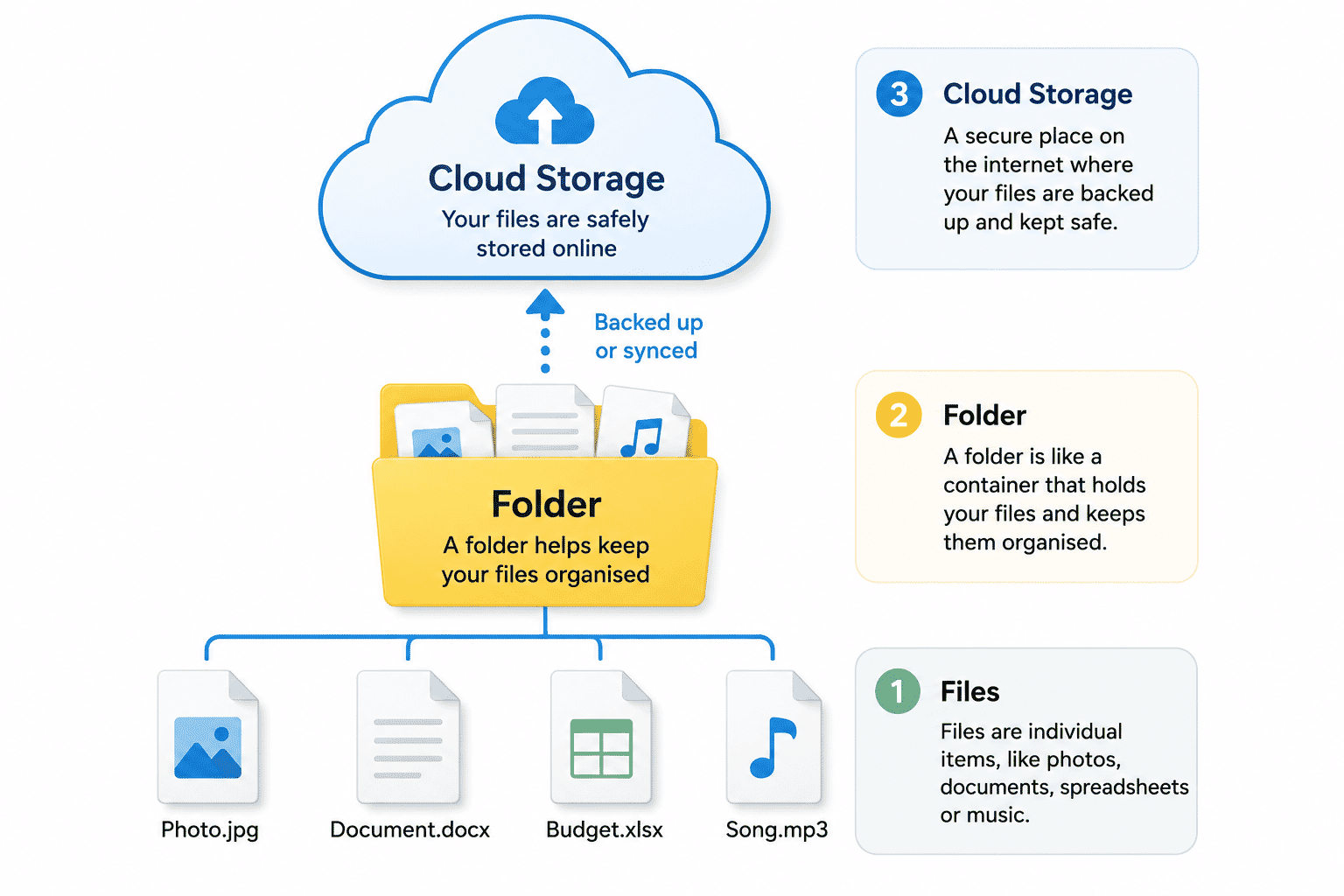
File
A file is a single piece of information stored on your device.
Files include things like:
- Documents
- Photographs
- Videos
- Music
- Spreadsheets
- PDF files
Every file has a name so you can find it again later.
Think of a file as a single sheet of paper.
Folder
A folder is used to organise your files.
Just like paper folders in a filing cabinet, computer folders help keep information tidy.
For example, you might have folders called:
- Documents
- Family Photos
- Recipes
- Holidays
- Bills
Using folders makes it much easier to find things later.
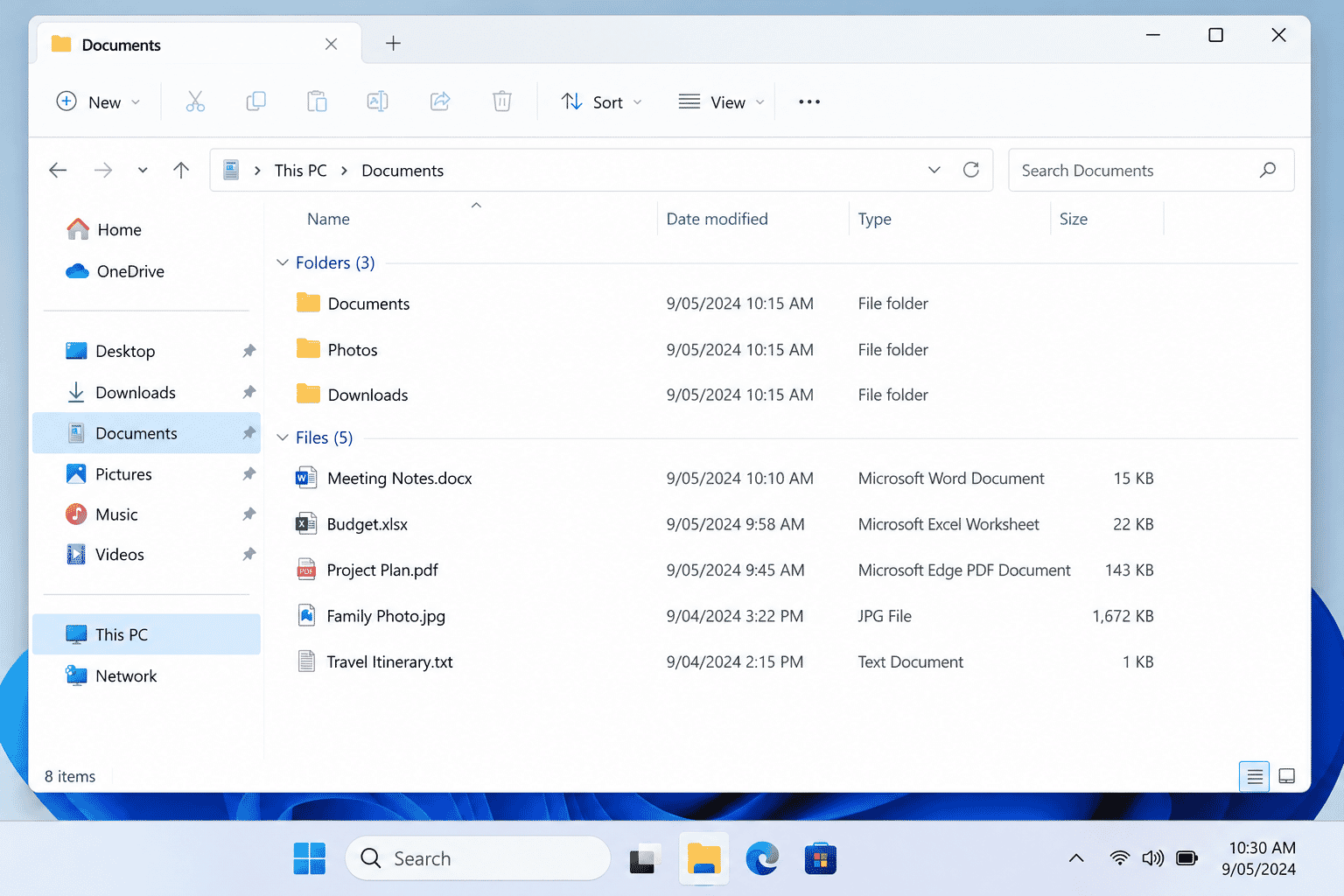
Cloud
The cloud is simply another place to store your files.
Instead of keeping everything on one computer, the cloud stores copies of your files securely on the internet.
This allows you to access them from different devices.
Many people automatically back up their photos to the cloud without even realising it.
Think of the cloud as a secure storage unit that you can access whenever you need it.
Touchscreen
A touchscreen is a screen that responds when you touch it with your finger.
Instead of using a mouse, you simply touch the items you want to use.
Most smartphones and tablets use touchscreens.
Some modern laptops also have touchscreens.
Click
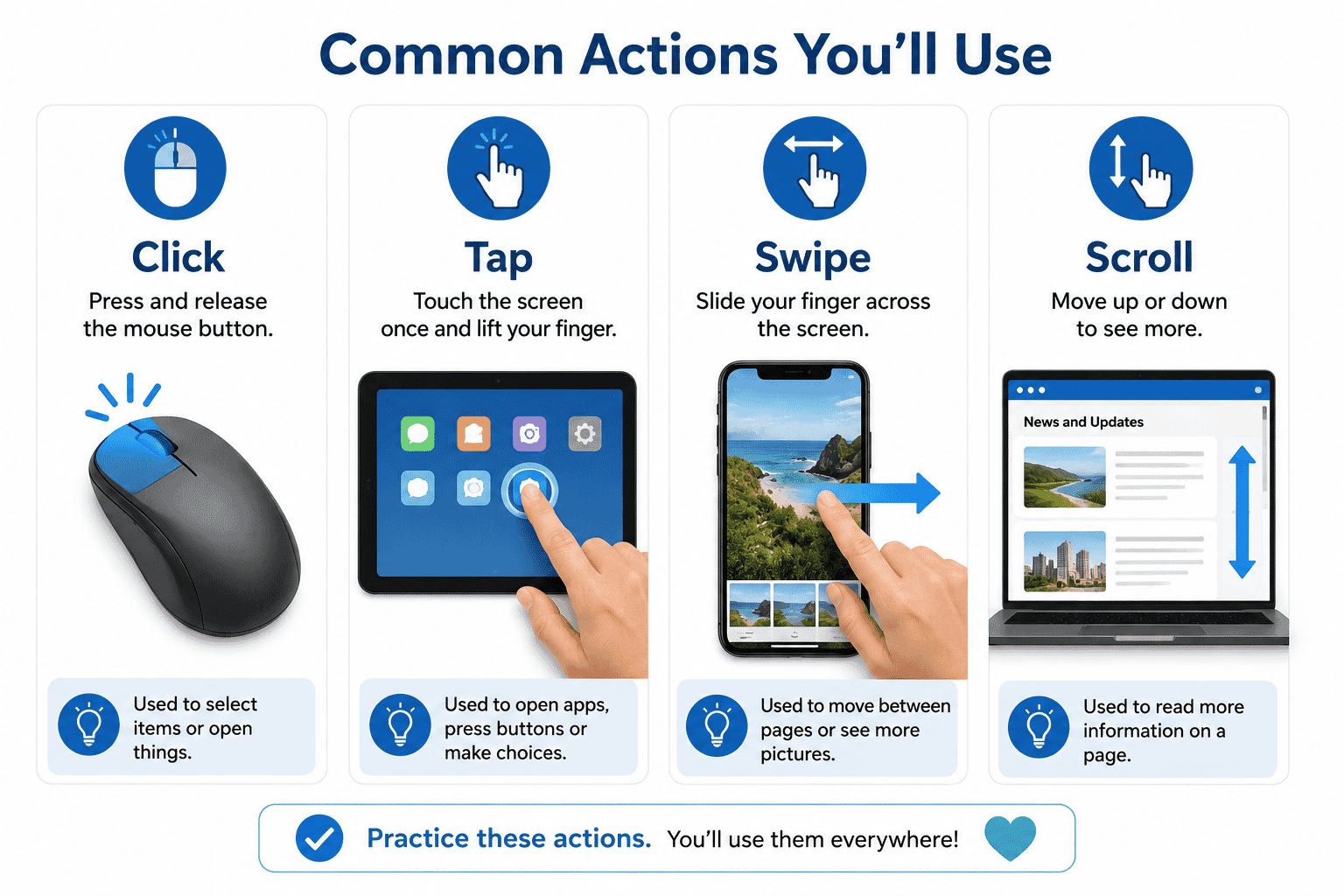
A click means pressing the left button on a computer mouse once.
You usually click to:
- Open menus
- Select an item
- Press a button
- Choose a link
Think of it as pointing and selecting.
Double-click
A double-click means pressing the left mouse button twice quickly.
Double-clicking is commonly used to open:
- Documents
- Folders
- Programs
Many newer devices no longer require double-clicking as often, but you'll still see it used in Windows.
Tap
A tap is the touchscreen version of a mouse click.
Instead of pressing a mouse button, you gently touch the screen once.
You'll use tapping on:
- Smartphones
- Tablets
- Some touchscreen laptops
Swipe
A swipe means moving your finger across a touchscreen.
Swiping lets you:
- Move between screens
- Browse photos
- Answer calls
- Delete notifications
Think of swiping as gently sliding a piece of paper across a table.
Scroll
Scrolling allows you to move up or down through information that doesn't fit on the screen.
You can scroll by:
- Rolling the mouse wheel
- Dragging the scroll bar
- Swiping your finger on a touchscreen
You scroll every day when reading websites, emails and social media.
Username
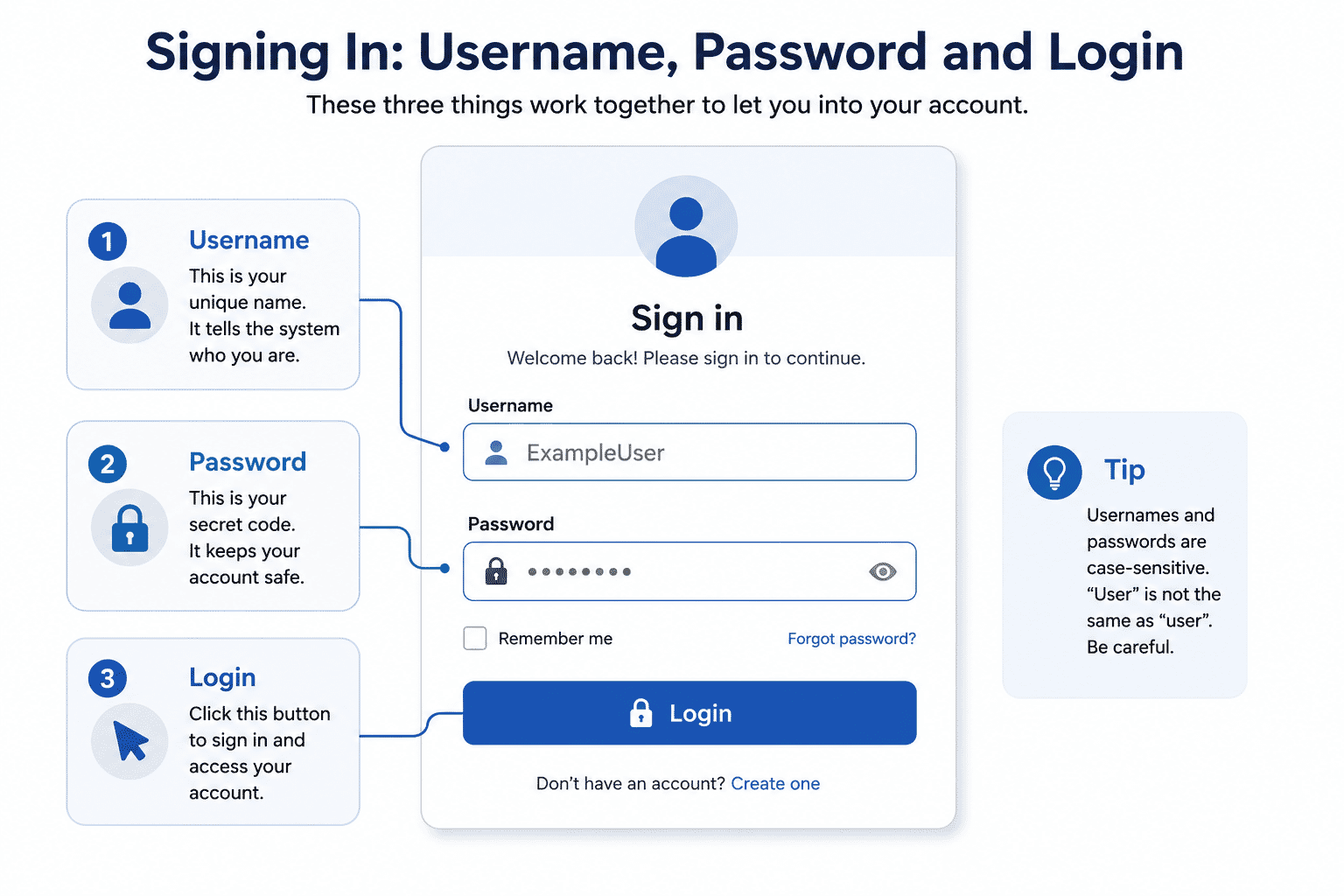
A username identifies who you are when signing in to an account.
Sometimes your username is:
- Your email address
- A customer number
- A name you created
It tells the website or app who is trying to sign in.
Password
A password helps protect your account.
Only someone who knows the correct password should be able to access your information.
A good password should be:
- Difficult for other people to guess
- Different for each important account
- Kept private
Think of a password as the key to your front door.
Login
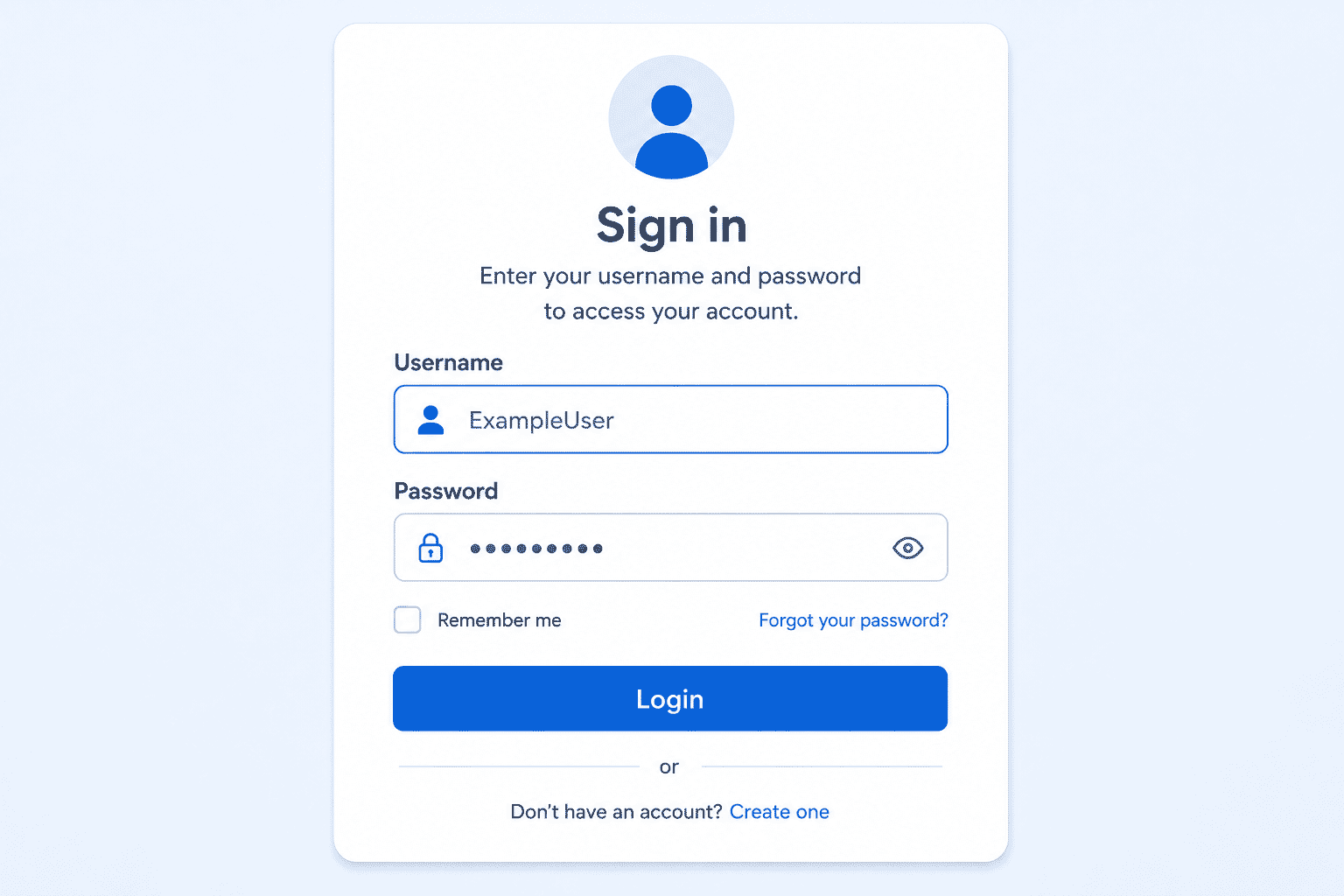
A login is the process of signing in to your account.
Most websites and apps ask for:
- Your username (or email address)
- Your password
Once both are entered correctly, you can access your account.
Settings
Settings allow you to change how your device or an app works.
For example, you can change:
- Font size
- Volume
- Brightness
- Wi-Fi connections
- Notifications
- Privacy options
Almost every computer, tablet and smartphone has a Settings section.
If something doesn't behave the way you expect, Settings is often the first place to look.
Notification
A notification is a message from your device or an app.
Notifications can tell you about:
- New emails
- Text messages
- Calendar reminders
- Software updates
- Weather alerts
- App activity
Notifications help keep you informed.
However, you don't have to respond to every notification immediately.
If you're unsure what a notification means, it's perfectly fine to ignore it until you have time to read it carefully.
Technology is full of unfamiliar words when you're first starting out.
The important thing to remember is that these words describe everyday ideas.
The more often you hear them, the more familiar they become.
You don't need to memorise every definition.
Simply understanding the basic meaning of each word will make using computers, smartphones and the internet much easier.
Helpful Tips
As you continue learning about technology, remember these simple tips:
- Don't worry if you don't remember every computer word straight away.
- Technology terms become familiar the more you see and use them.
- If you come across an unfamiliar word, pause and look it up rather than guessing.
- Keep this guide handy so you can refer back to it whenever you need to.
- Ask questions—everyone starts as a beginner.
Learning technology is a journey, not a race.
Every new word you understand makes using your computer, tablet or smartphone a little easier.
Common Mistakes
Many people who are new to technology make the same mistakes.
Thinking every word has a complicated meaning
Most technology terms are much simpler than they sound.
For example, a folder on a computer works much like a paper folder, and a download simply means copying something onto your device.
Mixing up similar words
Some words sound similar but mean different things.
For example:
- Internet is the worldwide network.
- Wi-Fi is one way of connecting to the internet.
- A browser is the program you use to view websites.
- A website is the information you visit using the browser.
Understanding the differences makes technology much less confusing.
Being afraid to explore
Many beginners worry that pressing the wrong button will break something.
In most cases, simply looking around your device won't cause any problems.
Take your time and explore.
If you're unsure, ask for help before making major changes.
Forgetting where you learned something
If you read a new technology word today but forget it next week, that's completely normal.
Even experienced computer users occasionally look things up.
Learning happens through repetition.
Troubleshooting
I don't understand a computer word.
Don't panic.
Read the surrounding sentence or paragraph.
Often the context explains the meaning.
If you're still unsure, return to this guide or ask someone you trust.
I keep forgetting what the words mean.
This is perfectly normal.
Technology introduces lots of new terms.
The more often you use them, the easier they become to remember.
Many people find it helpful to keep a small notebook of new technology words.
Different people use different words.
Sometimes you'll hear different names for the same thing.
For example:
- Program and App
- Sign In and Log In
- Folder and Directory
- Web Address and URL
These usually mean the same or very similar things.
Don't let different wording confuse you.
I feel overwhelmed.
You don't need to learn every technology word today.
Focus on understanding just a few terms at a time.
As you continue using technology, the vocabulary will become familiar naturally.
Someone is using words I don't understand.
It's perfectly okay to ask:
"Could you explain that in simpler language?"
A good teacher or support person should always be happy to explain technology without using unnecessary jargon.
Summary
Technology has its own language, just like driving, cooking or gardening.
At first, many computer words can seem unfamiliar, but most describe simple everyday ideas.
Understanding these words makes it much easier to follow instructions, solve problems and feel confident using your devices.
You don't need to memorise every definition.
The important thing is to become familiar with the words you use most often.
Over time, they'll become part of your everyday vocabulary.
What You've Learned
You now understand:
- Common technology words used every day.
- The difference between computers, laptops, smartphones and tablets.
- What the internet and Wi-Fi are.
- What web browsers and websites do.
- The meaning of files, folders and cloud storage.
- The difference between downloading and uploading.
- Common touchscreen actions such as tapping, swiping and scrolling.
- Why usernames and passwords are important.
- What notifications and settings are used for.
These are some of the most common terms you'll encounter when using modern technology.
Keep Learning
Congratulations!
You've now completed Module 1 – Understanding Technology.
That's a fantastic achievement.
You now understand the basic technology concepts that many people find confusing, including computers, smartphones, the internet, Wi-Fi, web browsers, apps, cloud storage and the everyday words used when talking about technology.
You have built a strong foundation that will make learning new technology much easier.
Next, you'll move on to Module 2 – Everyday Computer Skills, where you'll begin putting these concepts into practice.
You'll learn how to:
- Use a keyboard and mouse with confidence.
- Turn a computer on and off safely.
- Navigate the Windows desktop.
- Open and close programs.
- Work with files and folders.
- Save and find your documents.
- Use USB drives and other everyday computer features.
Each lesson builds on what you've already learned, taking you one small step at a time towards becoming a confident computer user.
There's no need to rush.
Complete one guide at a time, practise what you've learned and enjoy the journey.
Call to Action
Congratulations!
You've successfully completed Module 1 – Understanding Technology.
That's an important milestone and a great foundation for everything that follows.
You now understand many of the words and concepts that people use every day when talking about technology. That knowledge will make future lessons much easier to understand.
When you're ready, continue to Module 2 – Everyday Computer Skills and start learning how to use your computer with confidence.
Remember, becoming comfortable with technology doesn't happen overnight.
It happens one lesson, one skill and one success at a time.
Keep practising, stay curious and don't be afraid to ask questions along the way.
Every small step you take builds confidence—and every guide you complete brings you closer to using technology independently.
Remember: You don't need to learn everything at once. Every small step you take builds confidence, and every new skill makes using technology a little easier.
Need a Hand?
Learning technology is easier when you can ask questions.
If something in this guide doesn't make sense, or you'd like help with your own computer, phone or tablet, join our free community:
Technology Help for Seniors Australia
https://www.facebook.com/groups/techhelpforseniors
Ask questions, share your experiences and learn alongside other Australians building confidence with technology.
Requirements
None
Learning Paths
View all pathsNeed some help with this?
Protect your photos and files, automatic backups plus a “test restore” so you know it works.
Troubleshoot IT provides practical, one-to-one technology support across Darwin, Palmerston and surrounding areas.