LG-004 - What Is Wi-Fi?
Confused about Wi-Fi? This beginner-friendly guide explains what Wi-Fi is, why it's useful and how to connect your devices safely.
Before You Begin
Knowledge Prerequisites
You do not need any technical experience to understand Wi-Fi.
This guide explains the basics using everyday language and practical examples.
Learning Objectives
By the end of this guide you should be able to:
- Explain what Wi-Fi is.
- Understand the difference between Wi-Fi and the internet.
- Recognise when a device is connected to Wi-Fi.
- Connect a device to a wireless network.
- Understand why some Wi-Fi networks require a password.
- Use public Wi-Fi more safely.
Introduction
Many people hear the word Wi-Fi every day but are unsure what it actually means.
You might hear someone ask:
- "What's the Wi-Fi password?"
- "Is your Wi-Fi working?"
- "Can I connect to your Wi-Fi?"
Wi-Fi simply allows your devices to connect to the internet without using a cable.
It lets your laptop, tablet, smartphone, smart TV and many other devices communicate with your home internet connection.
What Is Wi-Fi?
Think of Wi-Fi as an invisible wireless connection inside your home or workplace.
Instead of plugging a cable into your computer, your device communicates through radio signals with a small box called a wireless router.
The router is connected to your internet service and shares that connection with your devices.
Wi-Fi Is Not the Internet
This is one of the most common misunderstandings.
The internet is the worldwide network of computers.
Wi-Fi is simply the wireless method your devices use to reach the internet.
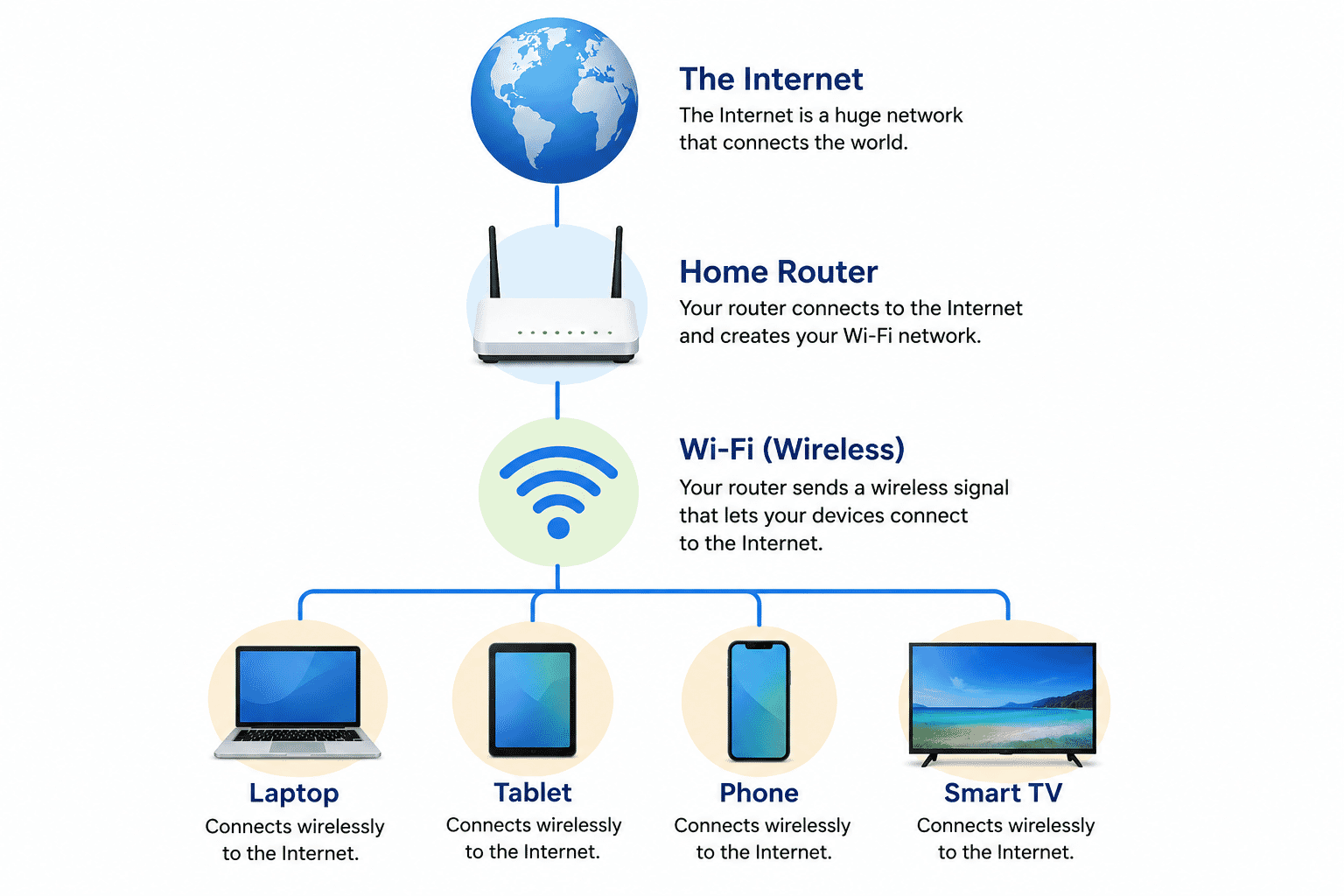
A simple way to remember it is:
- Internet = the destination.
- Wi-Fi = the wireless path that gets you there.
How Wi-Fi Works
A typical home setup looks like this:
Internet Provider
↓
Home Modem or Router
↓
Wi-Fi Signal
↓
Your Devices
- Laptop
- Desktop computer (if wireless)
- Smartphone
- Tablet
- Smart TV
- Printer
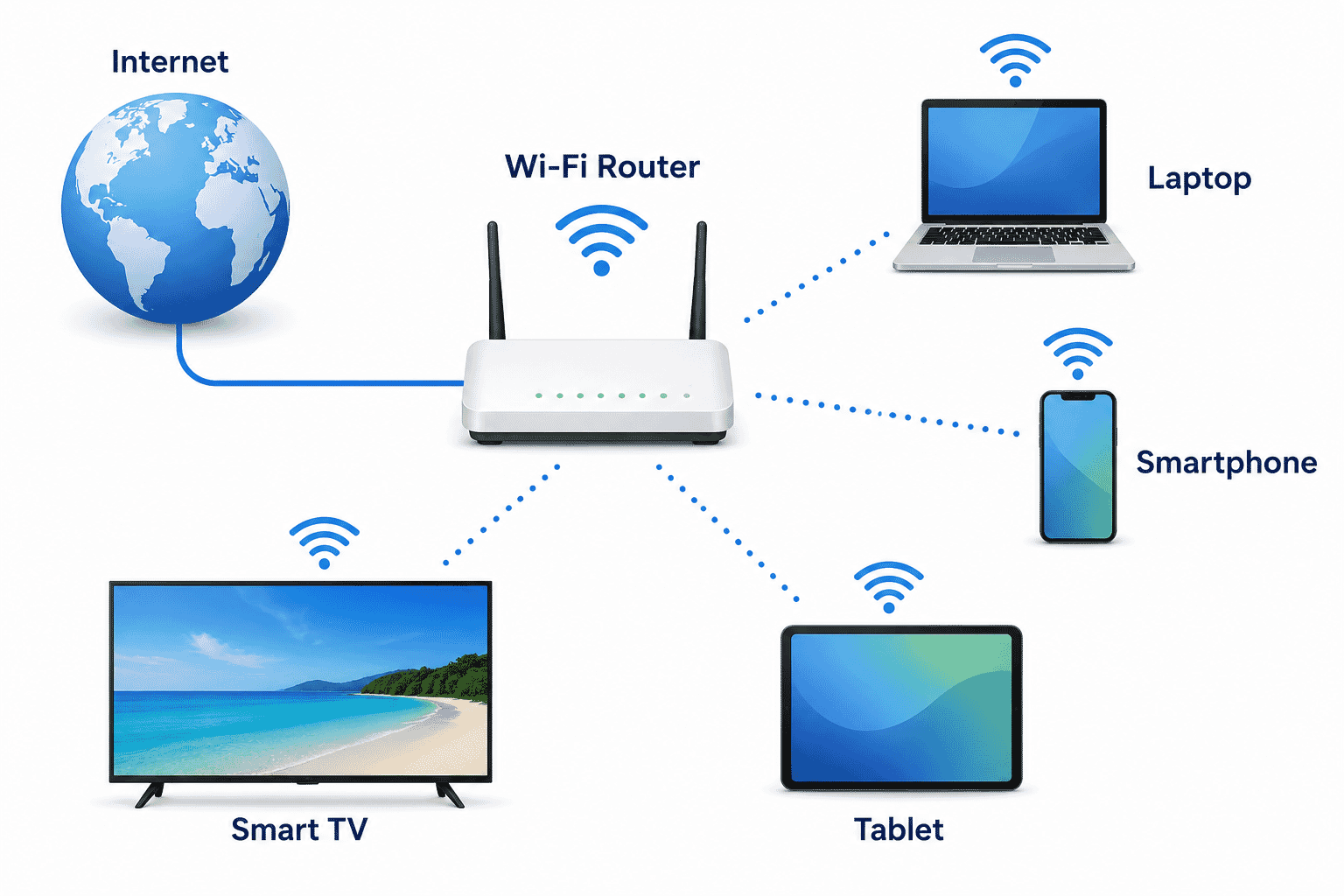
The router sends out a wireless signal throughout your home.
Any authorised device can connect to it.
How Far Does Wi-Fi Reach?
Most home Wi-Fi networks cover:
- Most rooms in a house
- A small backyard
- A home office
Walls, brickwork, metal objects and long distances can reduce the signal strength.
If you notice slow internet in some rooms, your device may simply be too far from the router.
Why Does Wi-Fi Need a Password?
Your Wi-Fi password stops other people from using your internet connection.
Without a password:
- Neighbours could use your internet.
- Your connection may become slower.
- Your network may be less secure.
Always keep your Wi-Fi password private unless you trust the person you're sharing it with.
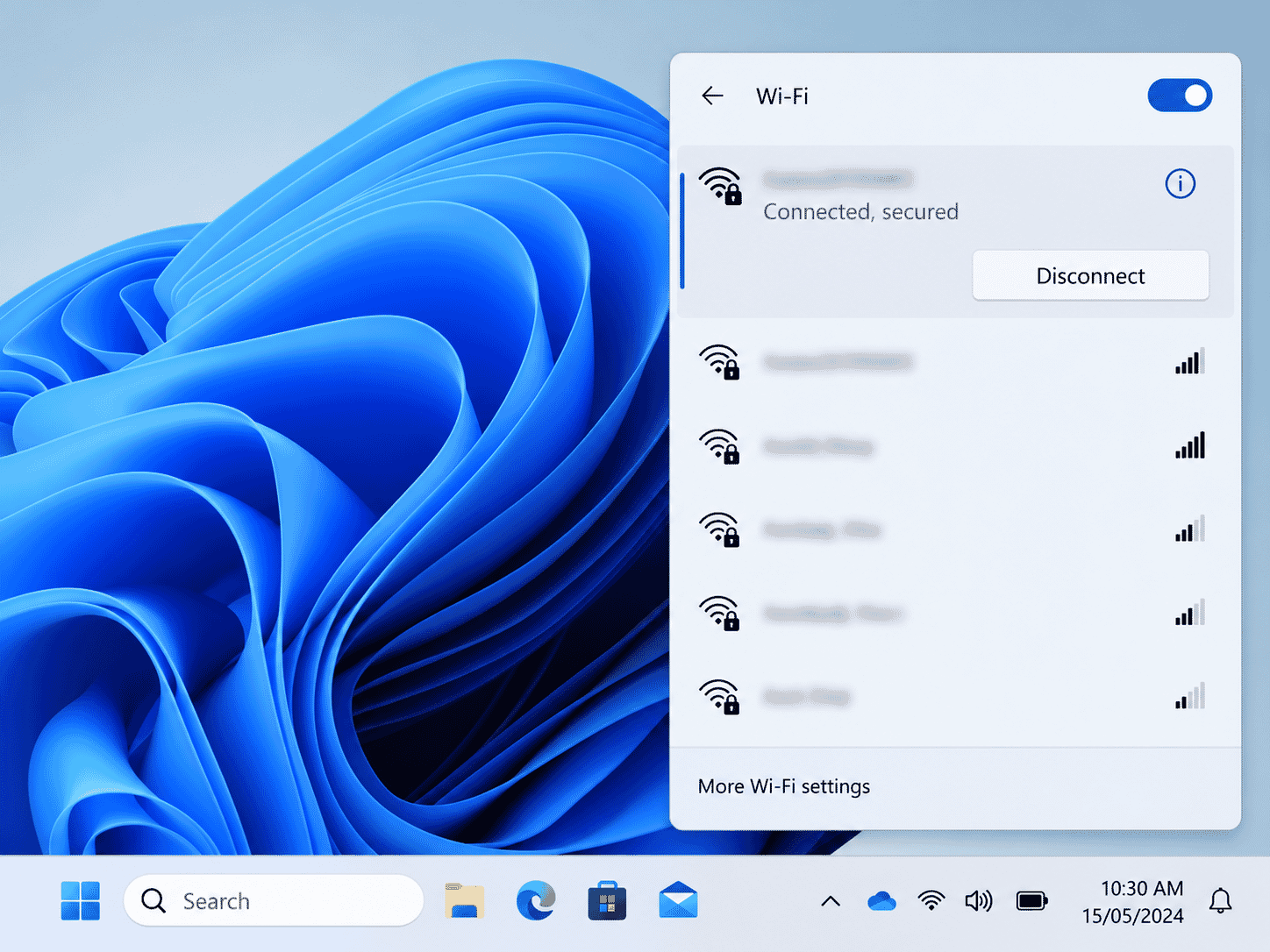
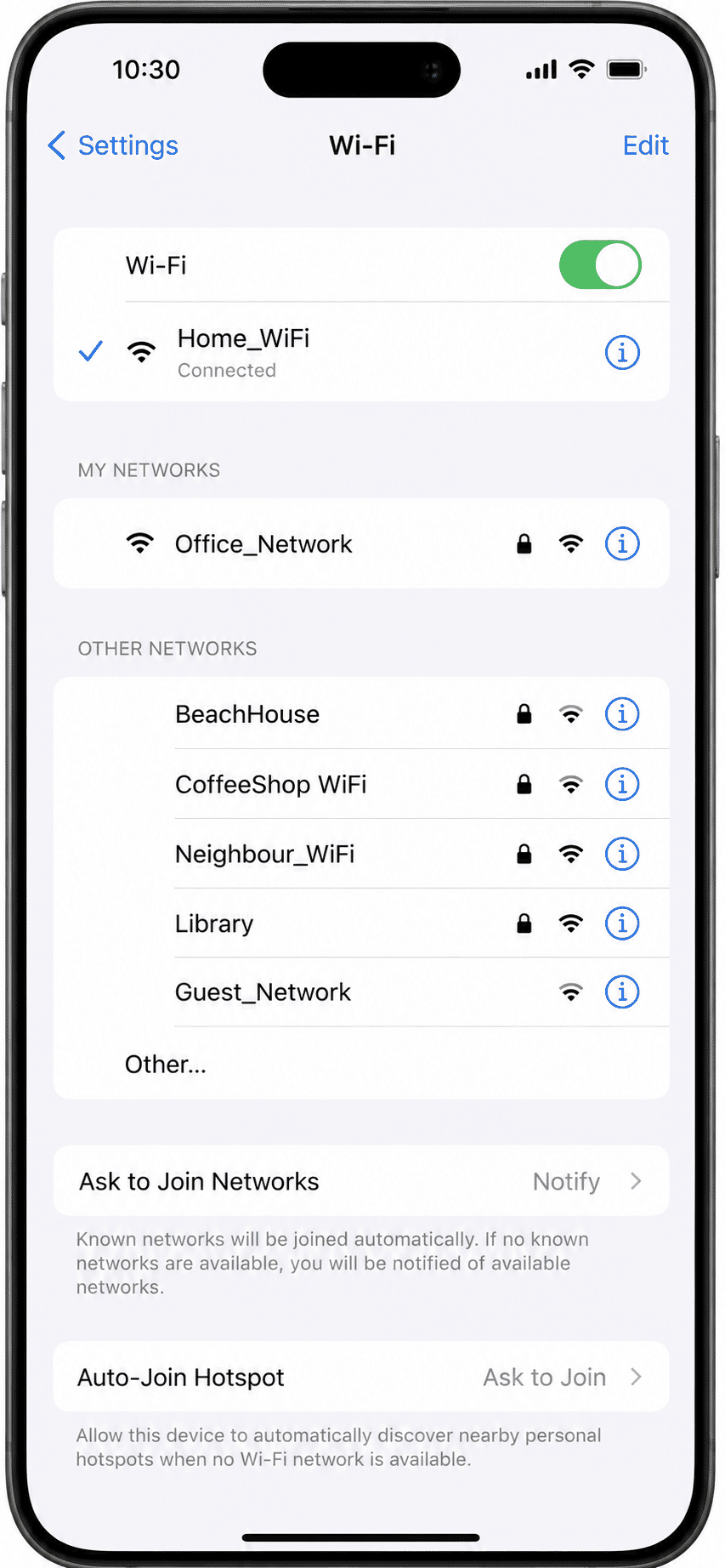
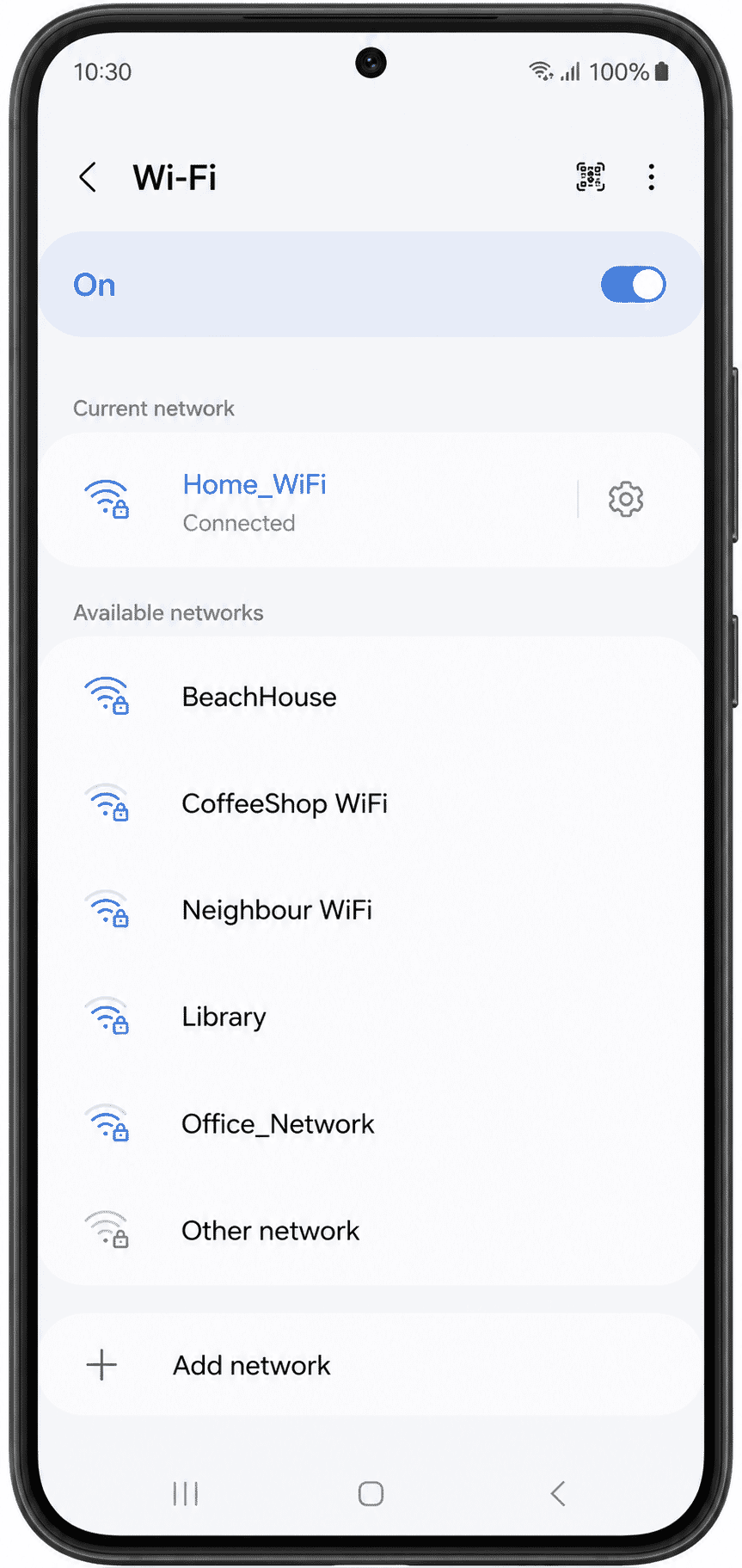
Connecting to Wi-Fi
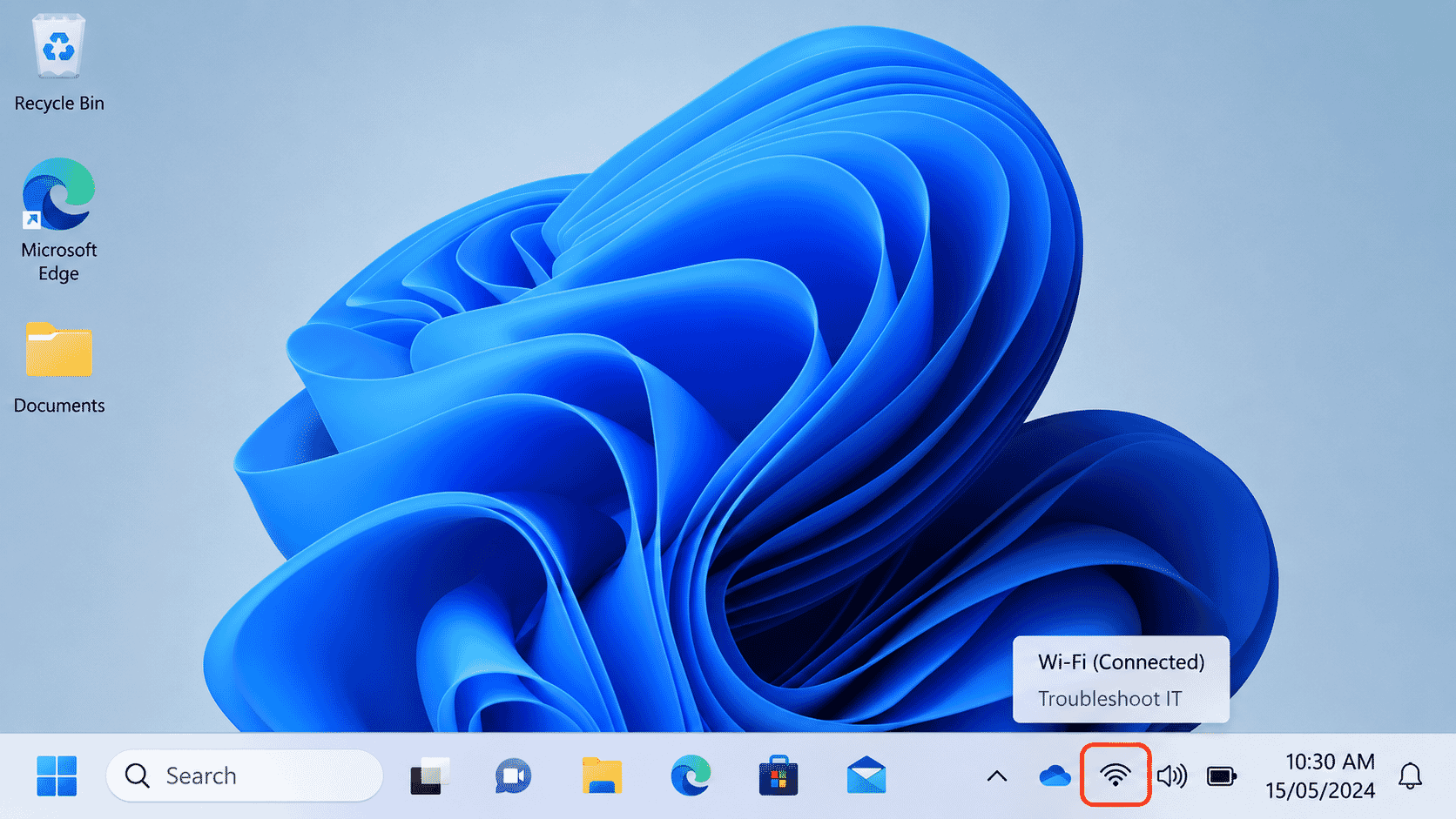
Although every device looks slightly different, the basic steps are similar.
- Open the Wi-Fi settings.
- Turn Wi-Fi on.
- Choose your network from the list.
- Enter the Wi-Fi password.
- Wait for the device to connect.
Once connected, most devices remember the network and reconnect automatically when you're at home.
Public Wi-Fi
You can often find free Wi-Fi in places such as:
- Libraries
- Cafés
- Shopping centres
- Airports
- Hotels
Public Wi-Fi is convenient, but it is not always secure.
Avoid using public Wi-Fi for:
- Internet banking
- Shopping with your credit card
- Accessing sensitive personal information
If you must do these activities, using your mobile data connection is generally safer.
What If Wi-Fi Stops Working?
If your internet suddenly stops working:
- Check that Wi-Fi is turned on.
- Make sure you're connected to the correct network.
- Move closer to the router.
- Restart your device.
- Restart your modem or router if necessary.
Many Wi-Fi problems are resolved by restarting the router and waiting a few minutes.
Helpful Tips
- Place your router in a central location.
- Keep the router away from large metal objects.
- Don't share your Wi-Fi password publicly.
- Restart your router occasionally.
- Update your router if recommended by your internet provider.
Common Mistakes
- Thinking Wi-Fi and the internet are the same thing.
- Connecting to the wrong wireless network.
- Entering the password incorrectly.
- Standing too far from the router.
- Assuming the internet is broken when only Wi-Fi is disconnected.
Troubleshooting
I can't see my Wi-Fi network.
Move closer to your router and check that it is switched on.
My device says "Connected" but the internet doesn't work.
Restart your modem/router and wait a few minutes.
My Wi-Fi is very slow.
Check how far you are from the router and whether several people are using the connection at the same time.
Summary
Wi-Fi allows your devices to connect to the internet without cables.
It makes it easy to use laptops, smartphones, tablets and many other devices anywhere within range of your wireless router.
Understanding the difference between Wi-Fi and the internet is an important step towards becoming more confident with technology.
What You've Learned
You now know:
- What Wi-Fi is.
- How Wi-Fi differs from the internet.
- How devices connect wirelessly.
- Why Wi-Fi passwords are important.
- How to connect to a wireless network.
- Basic steps for solving common Wi-Fi problems.
Keep Learning
Continue with:
- LG-005 – Understanding Web Browsers
- LG-006 – Understanding Apps
- LG-007 – What Is the Cloud?
Each guide builds on the skills you've learned here.
Call to Action
The more you use Wi-Fi, the more familiar it will become.
Try connecting a different device in your home, such as a tablet or smartphone, and practice recognising when it is connected to your wireless network.
Every small step builds confidence, and confidence is the key to becoming more independent with technology.
Need a Hand?
Learning technology is easier when you can ask questions.
If something in this guide doesn't make sense, or you'd like help with your own computer, phone or tablet, join our free community:
Technology Help for Seniors Australia
https://www.facebook.com/groups/techhelpforseniors
Ask questions, share your experiences and learn alongside other Australians building confidence with technology.
Need a Hand?
Learning technology is easier when you can ask questions.
If something in this guide doesn't make sense, or you'd like help with your own computer, phone or tablet, join our free community:
Technology Help for Seniors Australia
https://www.facebook.com/groups/techhelpforseniors
Ask questions, share your experiences and learn alongside other Australians building confidence with technology.
Requirements
None
Learning Paths
View all pathsNeed some help with this?
Protect your photos and files, automatic backups plus a “test restore” so you know it works.
Troubleshoot IT provides practical, one-to-one technology support across Darwin, Palmerston and surrounding areas.