
LG-002 - Understanding Smartphones and Tablets
Smartphones and tablets have become part of everyday life. This beginner-friendly guide explains how they work, the differences between Android and Apple devices, and the basic skills you'll use every day.
Before You Begin
Knowledge Prerequisites
You don't need to own a smartphone or tablet to complete this guide.
If you already have one, feel free to follow along as you read. If not, this guide will help you understand the basics before deciding which device might suit you.
Remember, there are no silly questions. Every experienced user started as a beginner.
Learning Objectives
By the end of this guide you will be able to:
- Explain what a smartphone is.
- Explain what a tablet is.
- Understand the difference between Android and Apple devices.
- Identify the common buttons found on most devices.
- Use basic touchscreen gestures.
- Feel more confident using mobile technology.
Introduction
Smartphones and tablets have become an important part of everyday life.
People use them to keep in touch with family, take photos, read the news, watch videos, manage appointments, shop online and access important services.
Although they may look complicated at first, they are designed to be simple to use. Most tasks involve tapping the screen, reading what appears and following clear instructions.
Once you understand a few basic concepts, you'll find that many different devices work in very similar ways.
What Is a Smartphone?
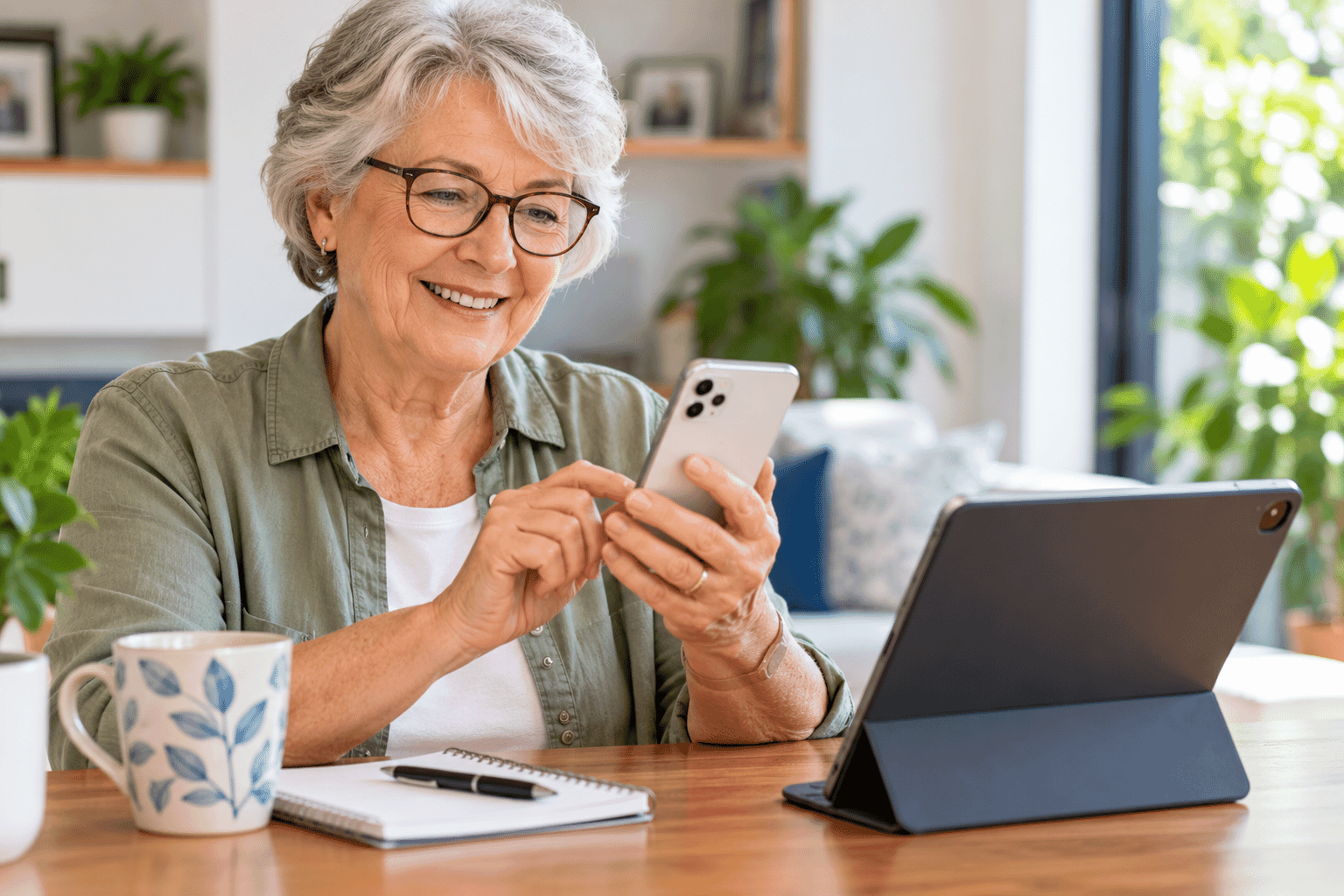
A smartphone is a mobile phone that can do much more than make calls and send text messages.
It is a small computer that fits in your pocket.
With a smartphone you can:
- Make phone calls
- Send text messages
- Take photos and videos
- Browse the internet
- Send emails
- Use maps for navigation
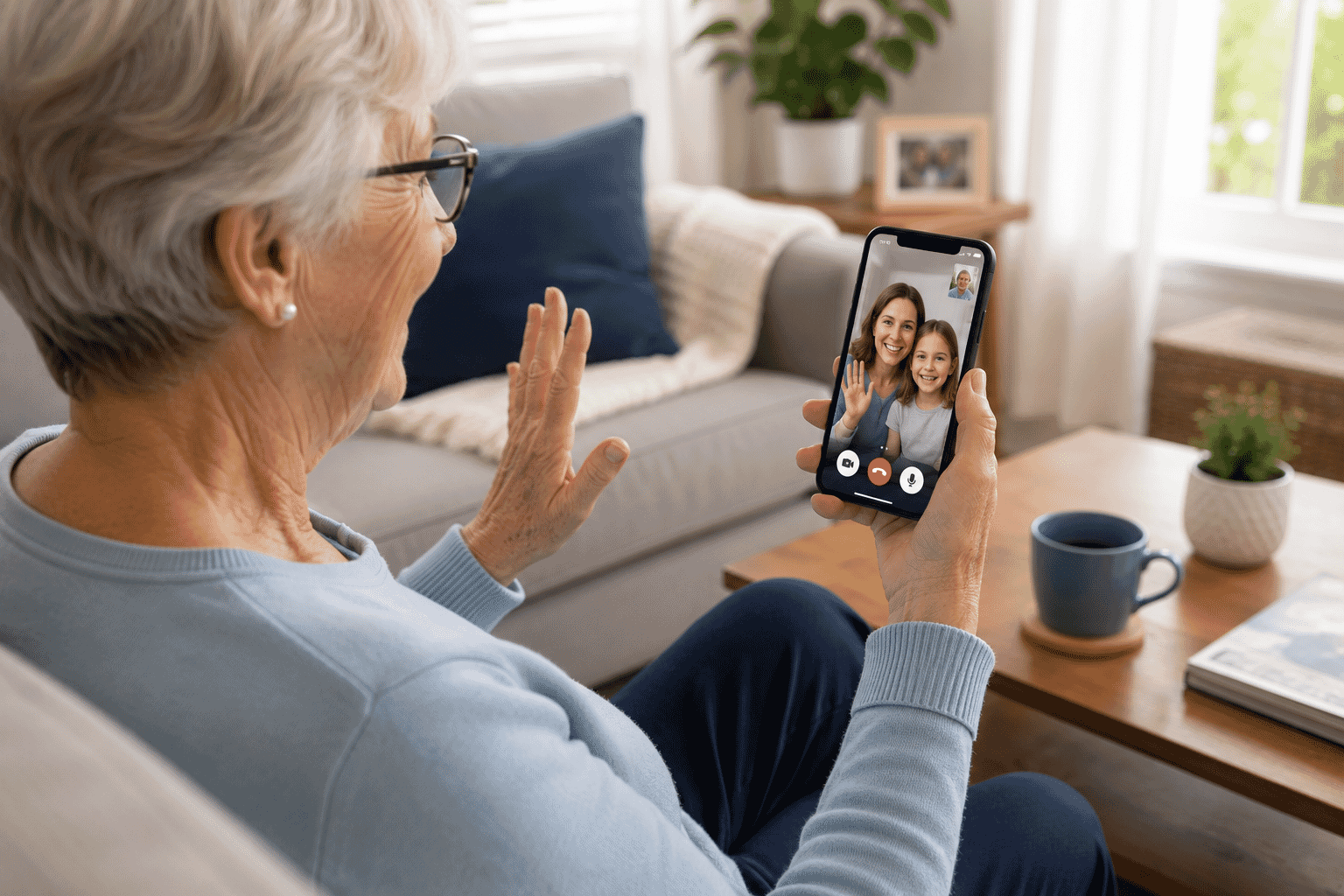
- Join video calls
- Listen to music
- Watch videos
- Install helpful apps
- Access online banking
- Stay connected with family and friends
Most people carry their smartphone with them throughout the day.
What Is a Tablet?
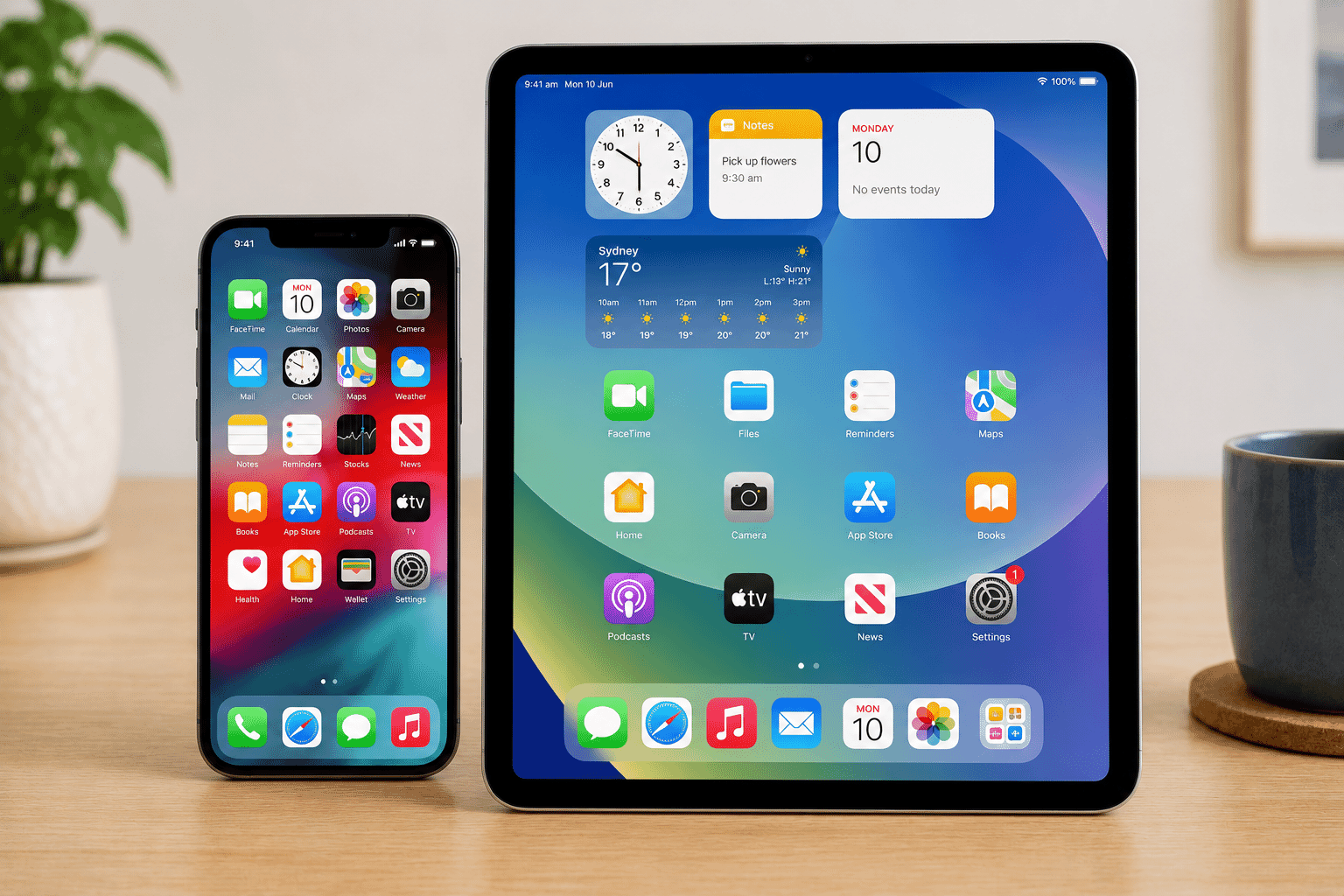
A tablet works very much like a smartphone but has a much larger screen.
Because of the larger display, tablets are often easier to read and use, especially if you have difficulty seeing smaller text.
Many people enjoy using a tablet for:
- Reading books
- Browsing websites
- Watching movies
- Video calls
- Looking at family photos
- Online shopping
- Games
- Learning new skills
Some tablets can also make phone calls, but many are designed mainly for internet use.
Smartphones and Tablets Compared
| Smartphone | Tablet |
|---|---|
| Fits in a pocket | Larger screen |
| Designed for calls | Better for reading |
| Easy to carry | Comfortable for watching videos |
| Great while travelling | Excellent for use at home |
| Smaller keyboard | Larger on-screen keyboard |
Neither device is better than the other.
Many people own both because they serve different purposes.
Android and Apple Devices
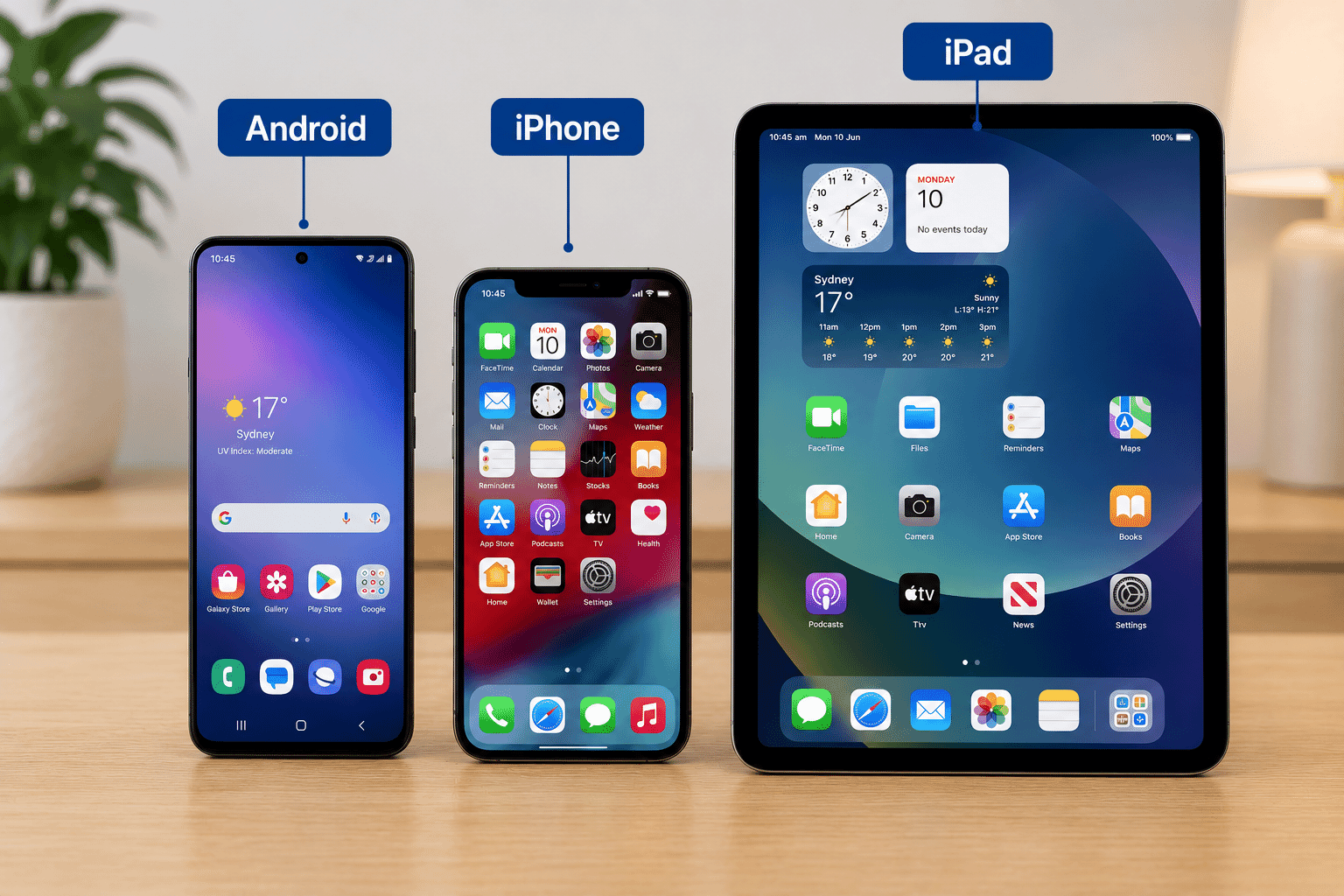
There are two main types of mobile devices.
Android
Android is an operating system developed by Google.
Many manufacturers produce Android devices, including:
- Samsung
- Motorola
- OPPO
- Nokia
Although these brands look slightly different, they all work in broadly the same way.
Android devices give users a wide choice of sizes, prices and features.
Apple
Apple makes:
- iPhone
- iPad
Apple designs both the hardware and the software, so all Apple devices have a consistent appearance and experience.
If you already own other Apple products, an iPhone or iPad often works very well alongside them.
Which One Should You Choose?
There isn't a right or wrong answer.
Choose the device that feels comfortable for you.
Many beginners choose Apple because every iPhone and iPad works in a very similar way.
Others prefer Android because there are more models available across a wider range of prices.
If possible, visit a local electronics store and hold both devices before deciding.
Comfort is often more important than technical specifications.
Understanding the Buttons
Although many controls now appear on the screen, most devices still have a few physical buttons.
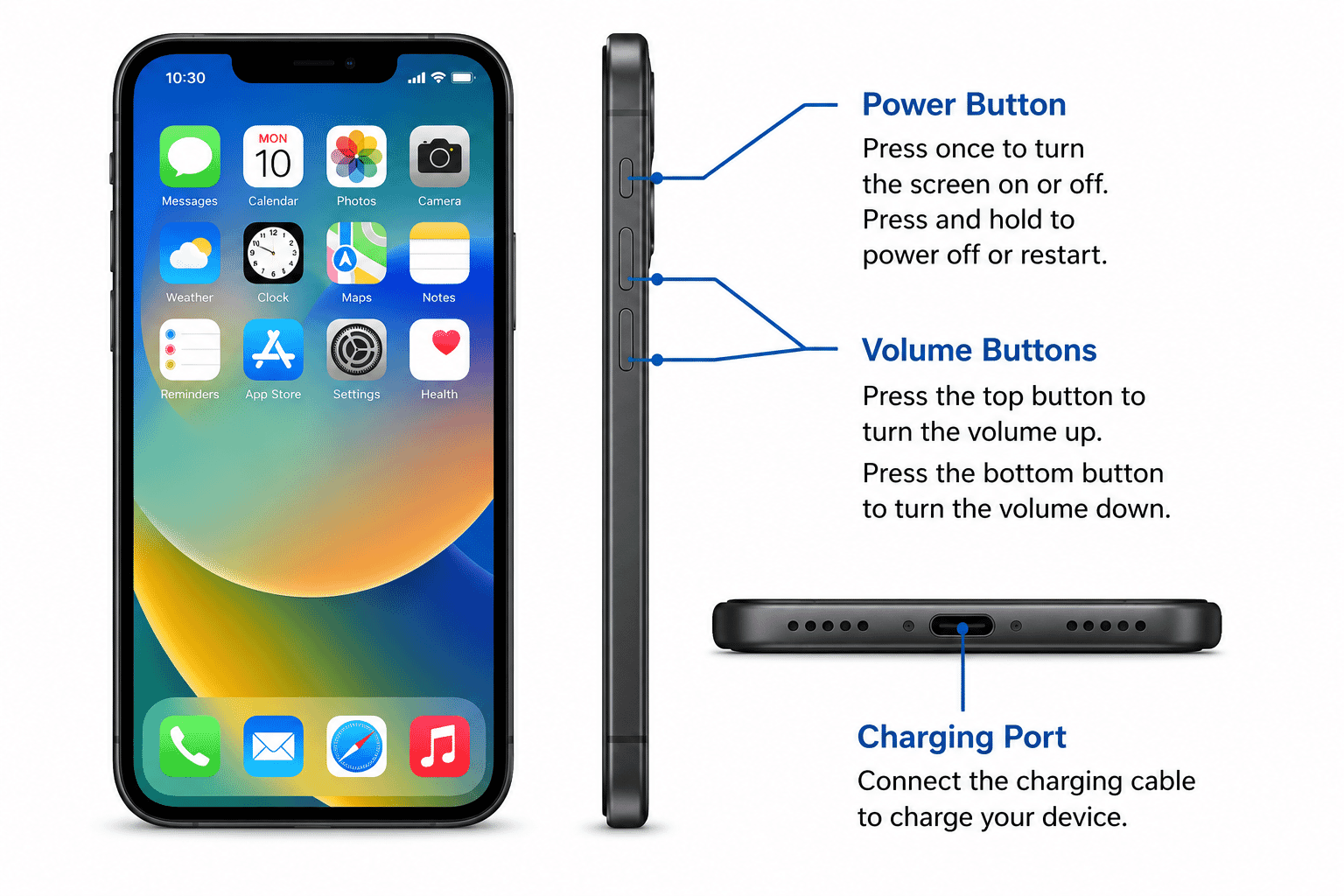
Power Button
The power button turns the screen on or off.
Holding it for a few seconds usually allows you to switch the device off or restart it.
Volume Buttons
These buttons control how loud your device is.
You'll use them when:
- Listening to music
- Watching videos
- Making phone calls
- Receiving notifications
Charging Port
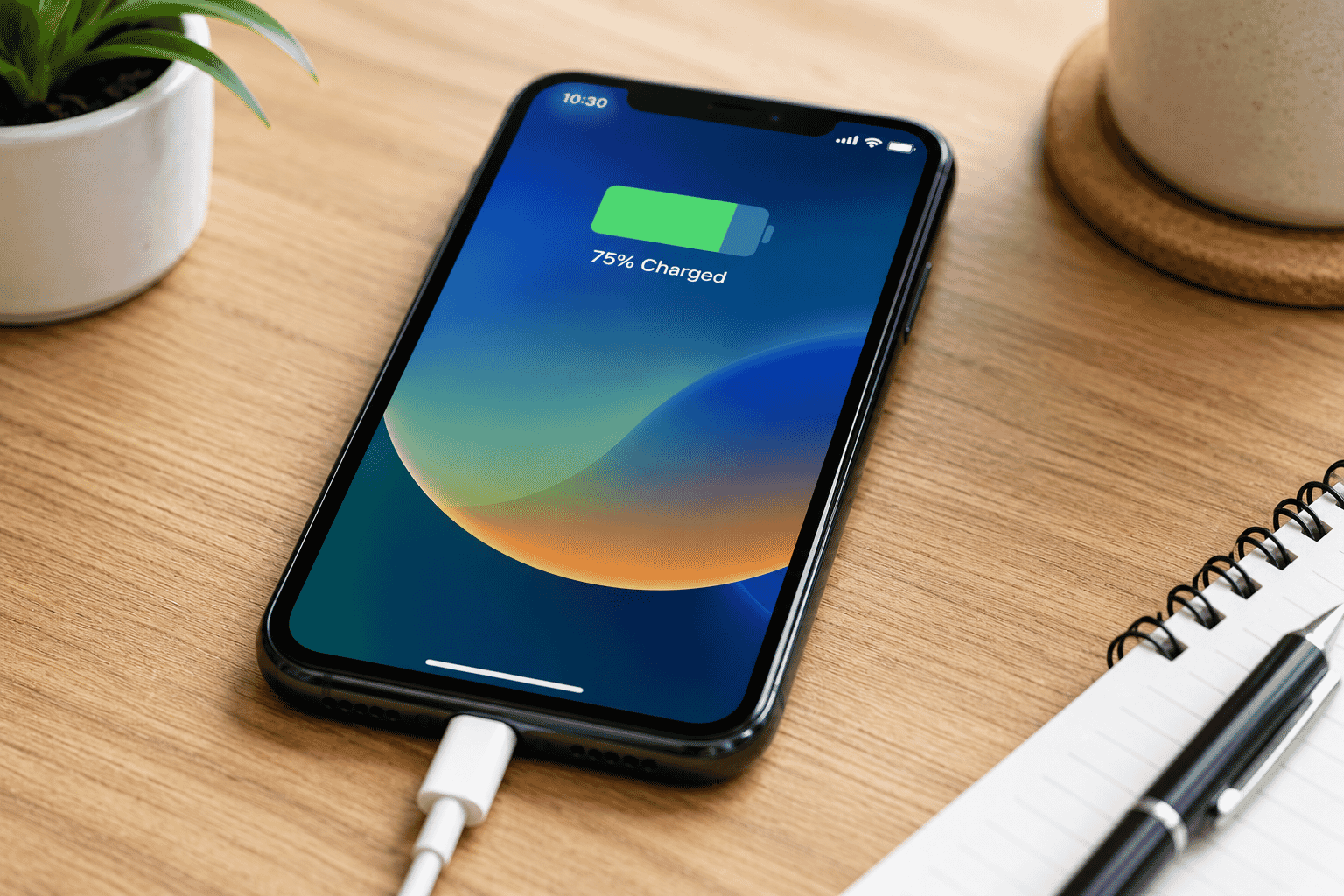
The charging port is where you connect the charging cable.
Modern devices commonly use:
- USB-C
- Lightning (older Apple devices)
Many newer devices also support wireless charging.
Using the Touchscreen
Instead of using a mouse, smartphones and tablets respond to your fingers.
Here are the four gestures you'll use most often.
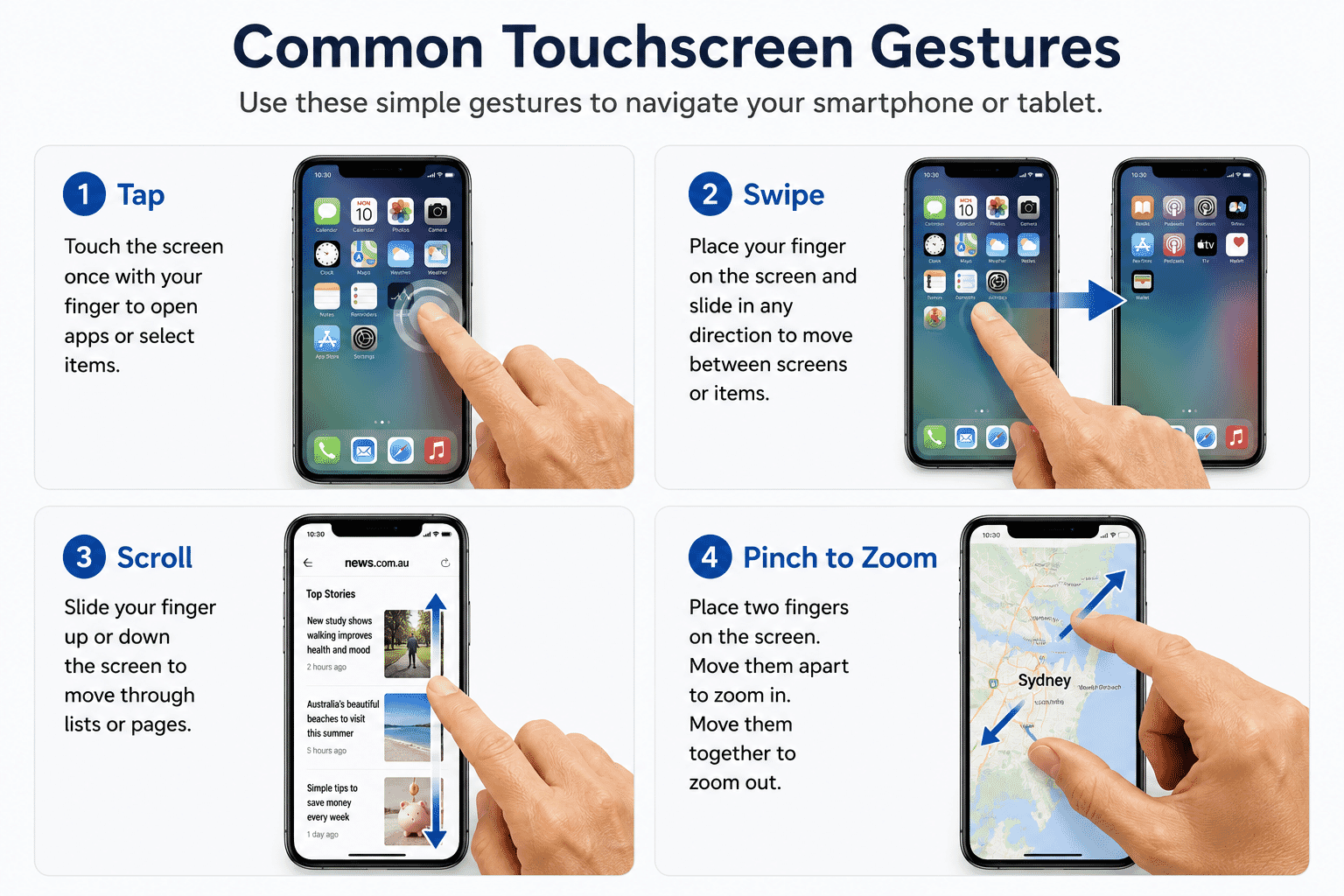
Tap
A tap is a quick touch of the screen.
Use it to:
- Open apps
- Press buttons
- Select items
Swipe
Place your finger on the screen and slide it.
Swiping allows you to:
- Move between screens
- Read webpages
- Browse photos
Scroll
Scrolling moves information up or down the screen.
You'll use this constantly when reading websites or social media.
Pinch to Zoom
Place two fingers on the screen.
Move them apart to make something larger.
Move them together to make it smaller.
This works well for:
- Maps
- Photos
- Websites
Apps
An app (short for application) is a program that runs on your smartphone or tablet.
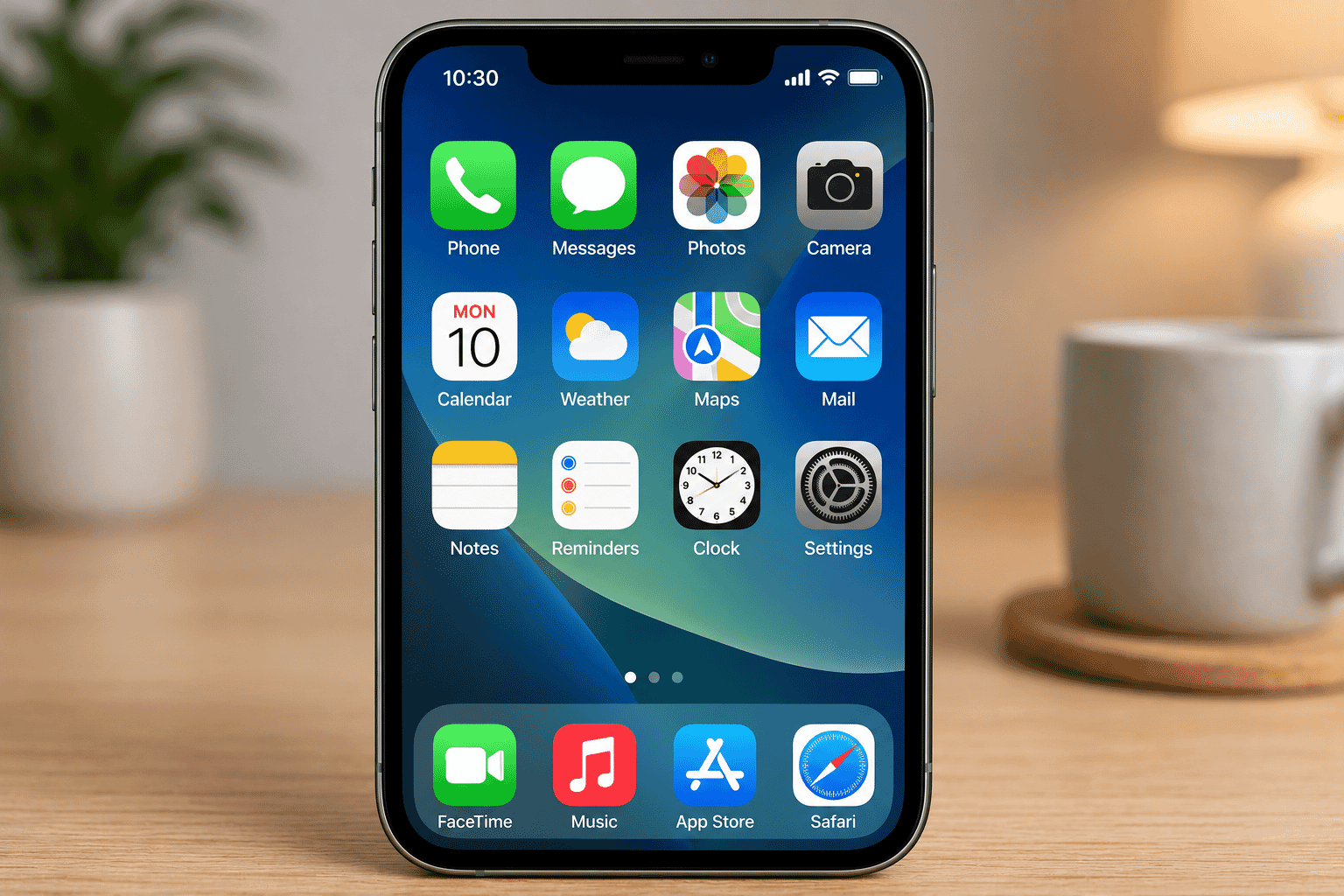
Some common apps include:
- Camera
- Photos
- Messages
- Phone
- Calendar
- Weather
- Maps
- Calculator
- Banking
- Video calling
Just like programs on a computer, different apps help you perform different tasks.
Keeping Your Device Safe
A few simple habits will help keep your device secure.
- Keep your device updated.
- Use a screen lock such as a PIN or fingerprint.
- Only install apps from the official app store.
- Avoid opening links from unknown messages.
- Ask someone you trust if you're unsure about something.
Technology should make life easier, not more stressful.
Try It Yourself
If you have a smartphone or tablet, spend a few minutes practising these simple tasks.
- Turn the screen on and off.
- Adjust the volume.
- Open the Camera app.
- Swipe between home screens.
- Scroll through a webpage.
- Open and close an app.
- Pinch to zoom in on a photo.
Don't worry about making mistakes.
Most actions can easily be undone.
Helpful Tips
- Hold the device comfortably with both hands when learning.
- Take your time.
- Read messages before tapping buttons.
- Charge your device regularly.
- Keep the screen clean.
- Increase the text size if reading is difficult.
Learning a little each day builds confidence surprisingly quickly.
Common Mistakes
Many beginners think they have broken their device when something unexpected happens.
In most cases, the solution is simple.
Common mistakes include:
- Tapping too quickly.
- Accidentally rotating the screen.
- Letting the battery become completely flat.
- Closing an app when they meant to go back.
- Pressing and holding instead of tapping once.
These happen to everyone, even experienced users.
Troubleshooting
My screen won't turn on.
Check whether the battery needs charging.
Press the power button briefly rather than holding it down.
The text is too small.
Increase the text size in the Accessibility or Display settings.
I can't find an app.
Swipe through your home screens or use the search feature.
My touchscreen isn't responding.
Clean the screen and remove any thick gloves.
If necessary, restart the device.
Summary
Smartphones and tablets are simply portable computers designed to make everyday tasks easier.
Once you understand the difference between Android and Apple devices, learn a few touchscreen gestures and become familiar with the basic buttons, you'll already have the skills needed to start exploring confidently.
Remember, confidence grows through practice.
Every small success makes the next task easier.
What You've Learned
You now know:
- What a smartphone is.
- What a tablet is.
- The difference between Android and Apple devices.
- The purpose of the main buttons.
- How to use common touchscreen gestures.
- What apps are.
- Basic ways to keep your device safe.
Keep Learning
Continue your learning with:
- LG-003 – Understanding the Internet
- LG-004 – Using a Mouse and Keyboard
- LG-005 – Connecting to Wi-Fi
Each guide builds on the previous one and will help you become more confident using technology.
Call to Action
Congratulations on completing another step in your technology journey.
Learning something new takes time, and every lesson helps build confidence.
Practise the gestures you've learned today whenever you have a few spare minutes.
The more you use your device, the more comfortable it will become.
Remember, you don't need to become an expert overnight.
One small step at a time is all it takes to become more confident, more independent and more connected through technology.
Requirements
None
Learning Paths
View all pathsNeed some help with this?
Help choosing a device based on accessibility and communication needs (voice control, captions, screen readers, etc.).
Troubleshoot IT provides practical, one-to-one technology support across Darwin, Palmerston and surrounding areas.