LG-007 - What Is the Cloud?
The cloud isn't something floating in the sky. It's simply another place to safely store your files so you can access them from your computer, tablet or smartphone whenever you need them.
Before You Begin
Knowledge Prerequisites
You don't need any previous knowledge about cloud storage before starting this guide.
If you already use a computer, tablet or smartphone, you're probably already using the cloud without even realising it.
This guide explains what the cloud is, how it works and why it makes using technology easier.
Remember, you don't need to understand how the technology works behind the scenes. You only need to understand enough to use it confidently and safely.
Learning Objectives
By the end of this guide you will be able to:
- Explain what the cloud is.
- Understand why it is called "the cloud".
- Explain the difference between local storage and cloud storage.
- Recognise common cloud storage services.
- Understand how files can be accessed from multiple devices.
- Understand how cloud photo backup works.
- Use cloud storage more confidently and safely.
Introduction
Many people have heard someone say,
"Just save it to the cloud."
or
"Your photos are backed up in the cloud."
For many beginners, especially those new to technology, the word cloud can sound confusing or even a little intimidating.
The good news is that the cloud is much simpler than it sounds.
The cloud is simply another place to store your information.
Instead of keeping your files only on your own computer, tablet or smartphone, you can also store them safely on secure computers connected to the internet.
These secure computers are called servers, but you don't need to remember that technical term to use the cloud successfully.
Millions of people use cloud services every day without even realising it.
If you use an iPhone, your photos may already be backed up to iCloud.
If you have a Windows computer, you may already be using Microsoft OneDrive.
If you have an Android phone, your photos and documents may already be stored in Google Drive.
Understanding the cloud isn't about learning complicated technology.
It's simply about understanding where your files are stored and how you can access them safely.
What Is the Cloud?
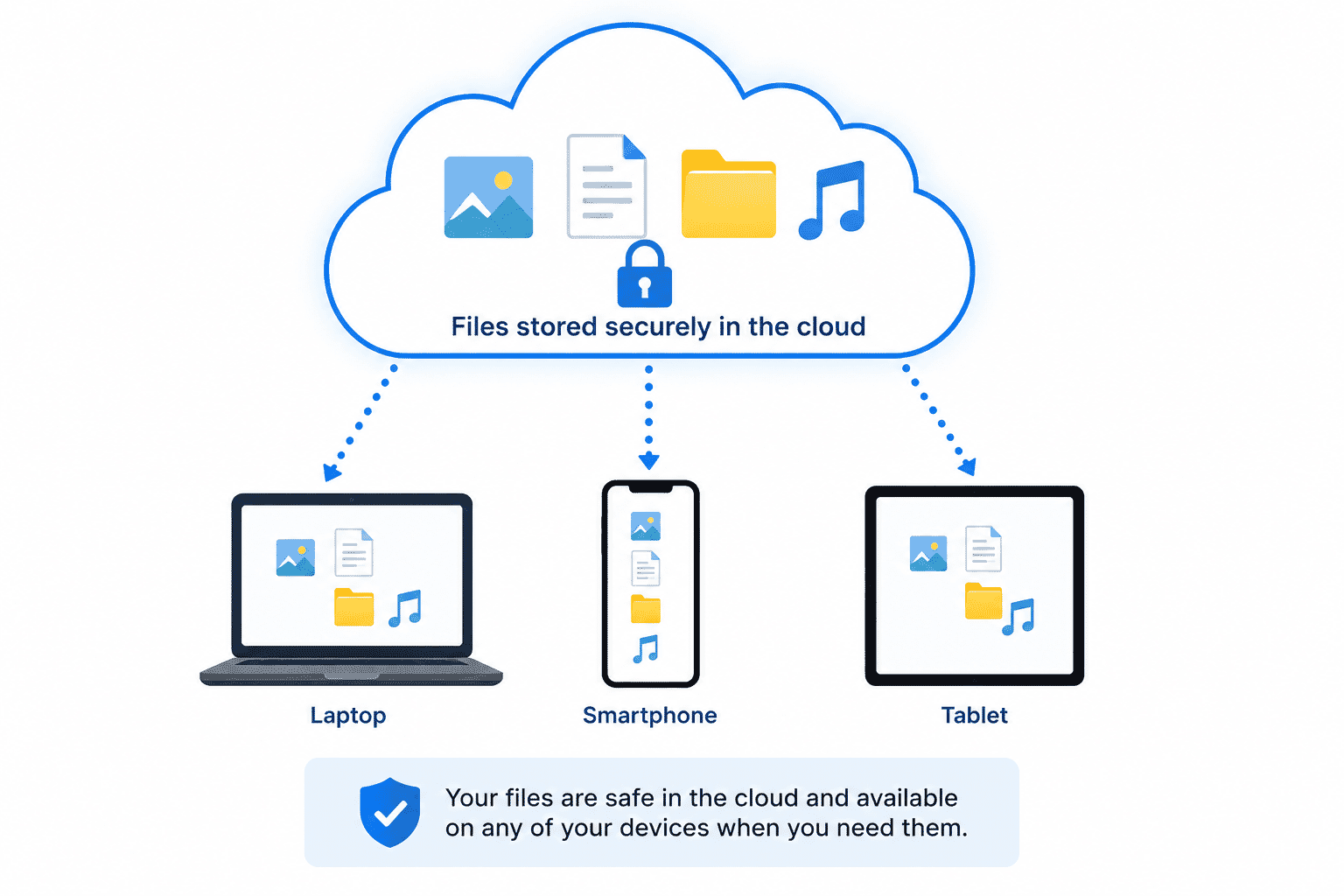
The cloud is a collection of secure computers connected to the internet that store information for people and businesses.
Instead of saving everything only on your own device, you can also save copies of your files online.
Those files remain available whenever you sign in using your account.
Think of the cloud as another filing cabinet.
Instead of being in your study or spare room, it's located in highly secure buildings operated by companies such as Microsoft, Google and Apple.
These companies look after the computers that store your information, while you simply access your files whenever you need them.
Using the cloud doesn't replace your computer.
It simply gives you another safe place to keep important information.
Why Is It Called "The Cloud"?
The name comes from old computer diagrams.
Engineers often drew the internet as a simple cloud shape because they didn't need to show every computer involved.
Over time, people simply started calling internet-based storage the cloud.
Despite its name, the cloud is not floating in the sky.
It isn't weather.
It isn't magic.
It's simply another name for computers connected to the internet that safely store information.
Think of It Like a Storage Unit
Imagine you have thousands of family photos.
You could keep them all in a cupboard at home.
That's similar to storing files only on your computer.
But what happens if there's a fire, flood or your computer stops working?
You could lose everything.
Now imagine renting a secure storage unit.
Your belongings are still yours, but they're stored somewhere much safer.
Whenever you need something, you simply visit the storage unit and collect it.
Cloud storage works in a similar way.
Your files still belong to you.
They're simply stored somewhere designed to keep them safe and available whenever you need them.
Local Storage vs Cloud Storage
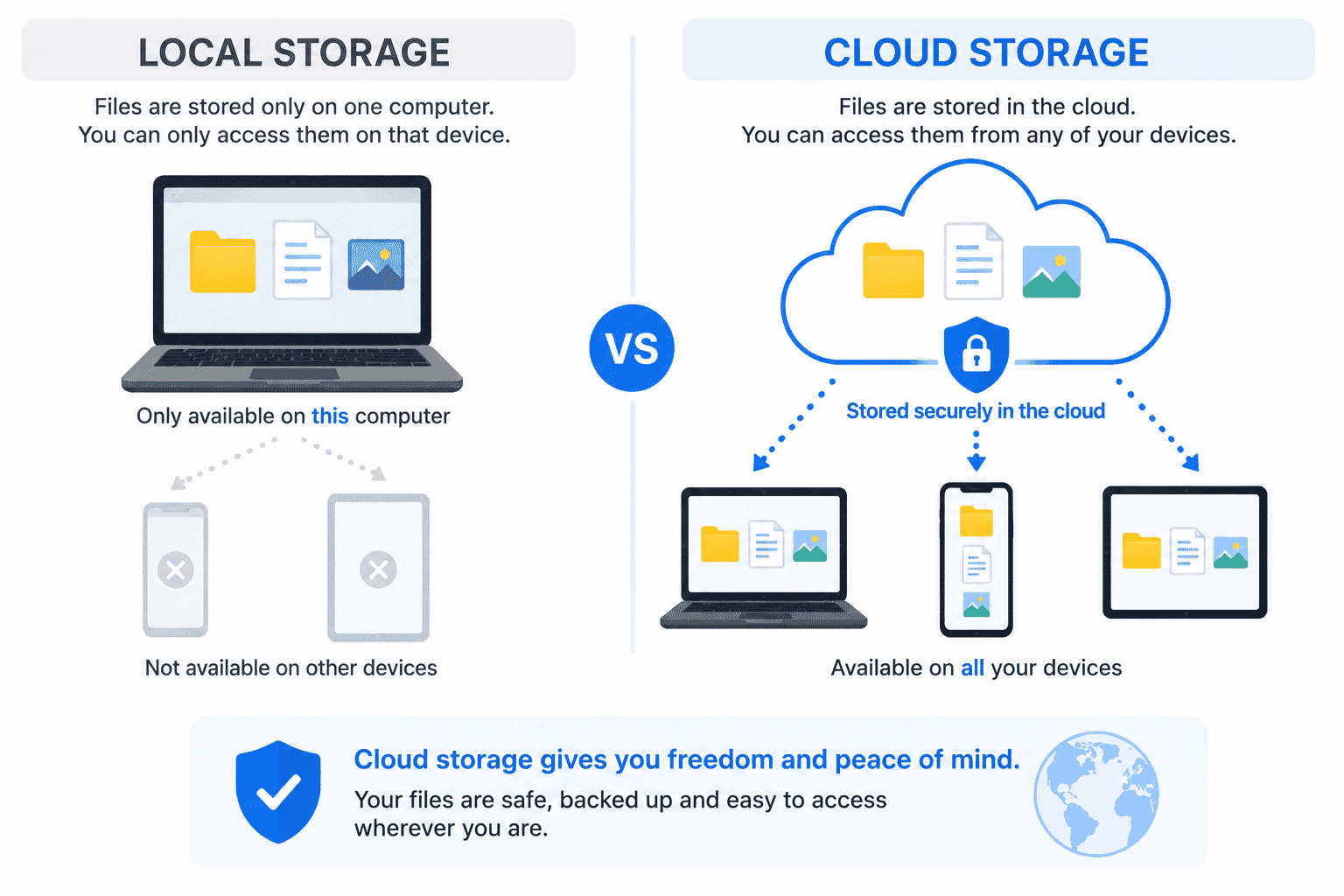
Before cloud storage became common, nearly everything was stored directly on the device being used.
This is known as local storage.
If your computer failed, was stolen or was damaged, your files could easily be lost unless you had made a backup.
Cloud storage works differently.
Instead of relying on one device, a copy of your information is stored online.
That means you can often access it from another computer, phone or tablet simply by signing in with the same account.
Both methods have their place.
Many people use both local storage and cloud storage together for extra protection.
Why Is Cloud Storage Useful?
Cloud storage offers several practical benefits for everyday users.
Your Files Are Backed Up
If your phone is lost or your computer stops working, your files may still be safely stored in the cloud.
This can save years of family photos, important documents and personal memories.
You Can Access Files from Different Devices
Imagine writing a shopping list on your laptop.
Later, while you're at the supermarket, you open your phone and the same list is already there.
That's one of the biggest advantages of cloud storage.
Your information can follow you between devices.
Sharing Becomes Easier
Instead of emailing large files, you can often share a simple link.
Family members can view holiday photos or important documents without needing copies sent back and forth.
Devices Are Easier to Replace
If you buy a new phone or computer, signing in with your account can restore much of your information automatically.
Photos, contacts, calendars and documents often reappear without needing to copy everything manually.
Common Cloud Services
Several companies provide cloud storage.
The three most common services are:
Microsoft OneDrive
Usually included with Windows computers and Microsoft 365.
OneDrive stores documents, photos and other files and works closely with Microsoft Office.
Google Drive
Commonly used on Android phones and with Google accounts.
Google Drive stores files and also works with Google Docs, Sheets and Photos.
Apple iCloud
Built into iPhones, iPads and Mac computers.
iCloud automatically synchronises photos, contacts, calendars and other information across Apple devices.
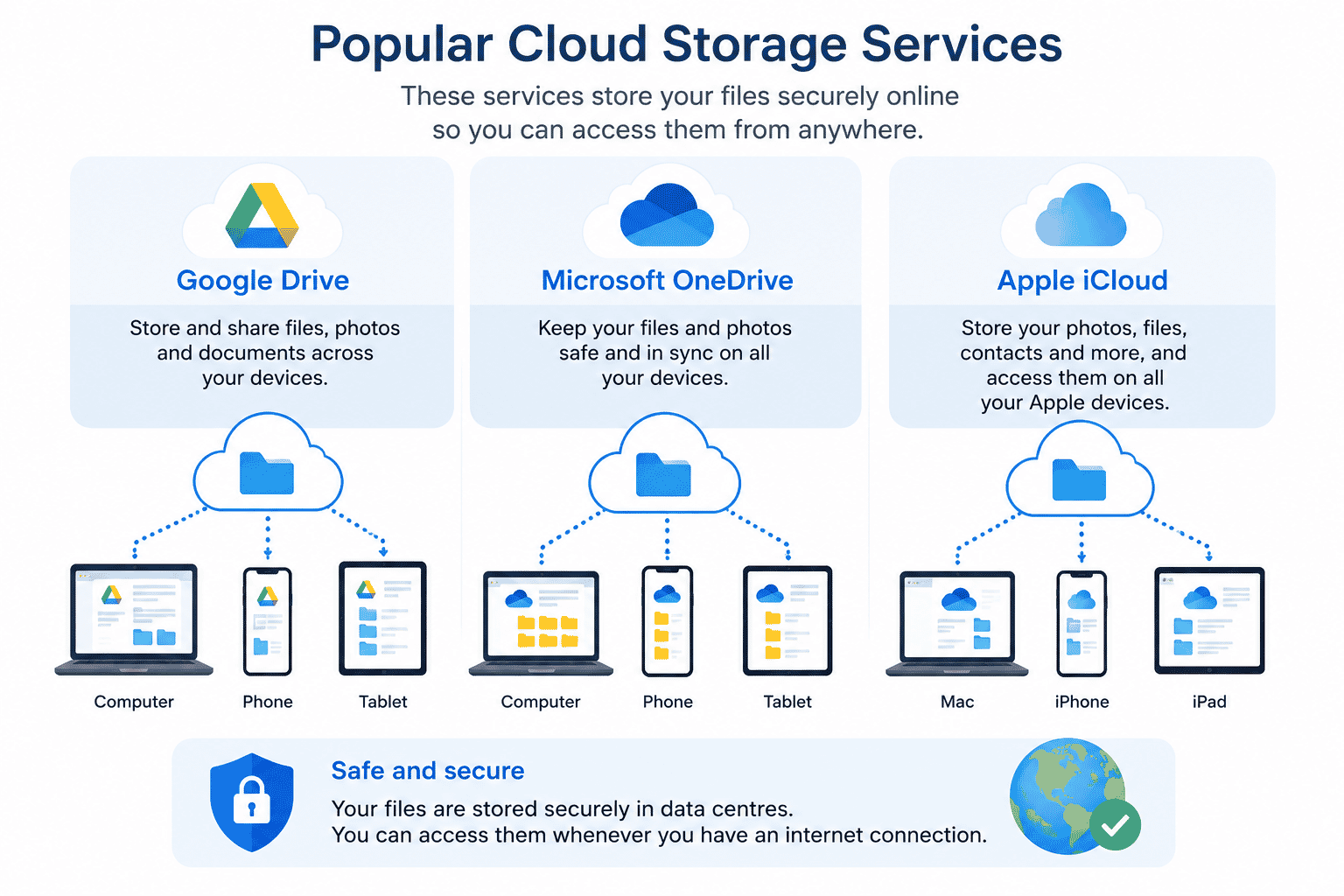
Although they have different names, they all perform a very similar job.
They safely store your information so you can access it from more than one device.
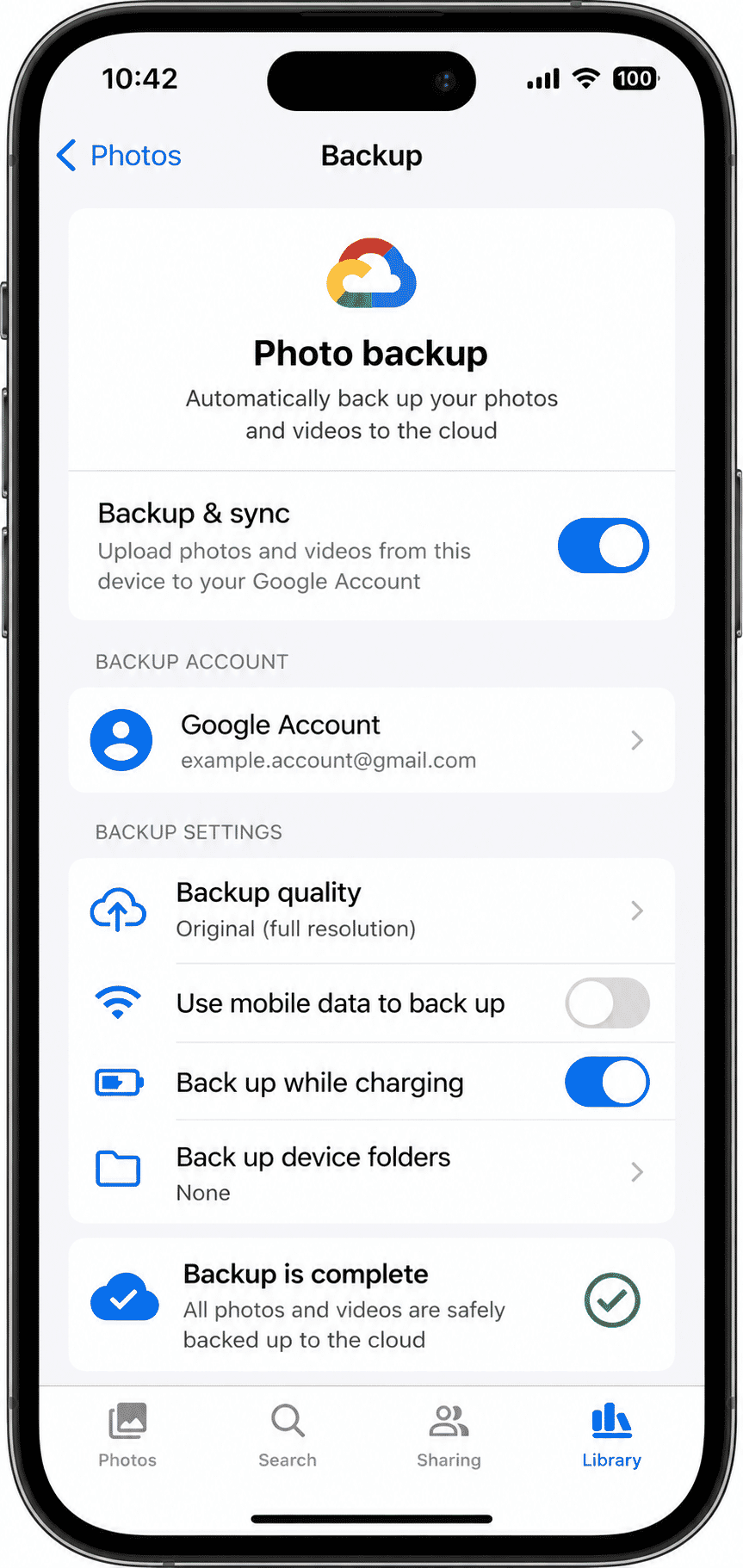
Backing Up Photos
One of the most common uses of cloud storage is protecting photographs.
Many smartphones can automatically upload new photos to the cloud whenever they connect to Wi-Fi.
This means that even if your phone is lost, damaged or replaced, your memories may still be safely stored online.
For many people, this is one of the most valuable features of cloud storage.
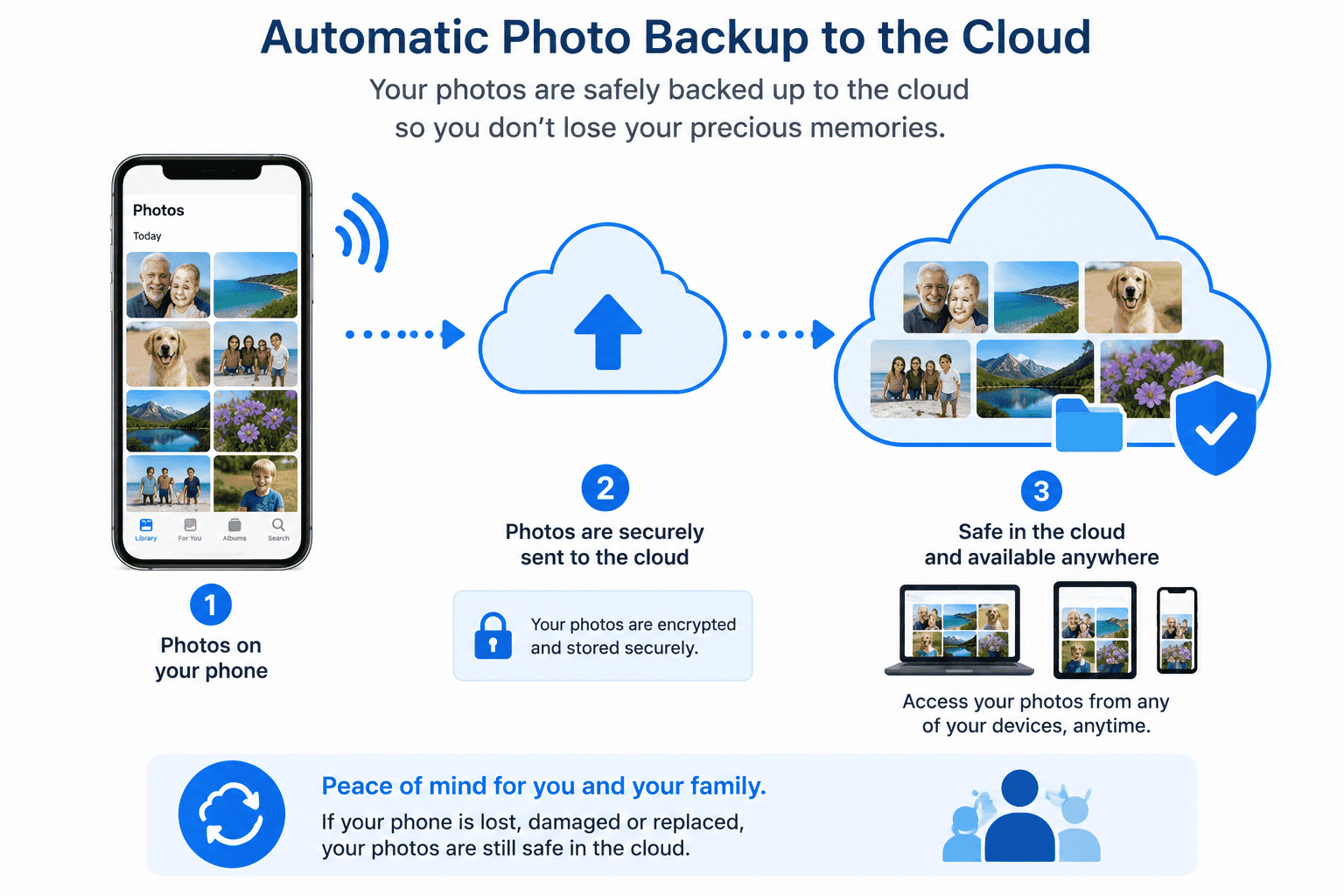
You don't have to manually copy every picture.
Once automatic backup is enabled, your device quietly does the work in the background.
Viewing Your Cloud Files
One of the biggest advantages of cloud storage is that your files are not limited to one device.
If you save a document on your laptop, you may also be able to view it later on your phone or tablet.
This makes it much easier to continue where you left off, no matter which device you're using.
You simply sign in using the same account.
Microsoft OneDrive
Microsoft OneDrive is built into Windows 11 and works closely with Microsoft Office.
If you're signed in with a Microsoft account, your Documents, Pictures and Desktop folders may already be synchronised.
To view your files:
- Open File Explorer.
- Select OneDrive from the left-hand menu.
- Browse your folders and files.
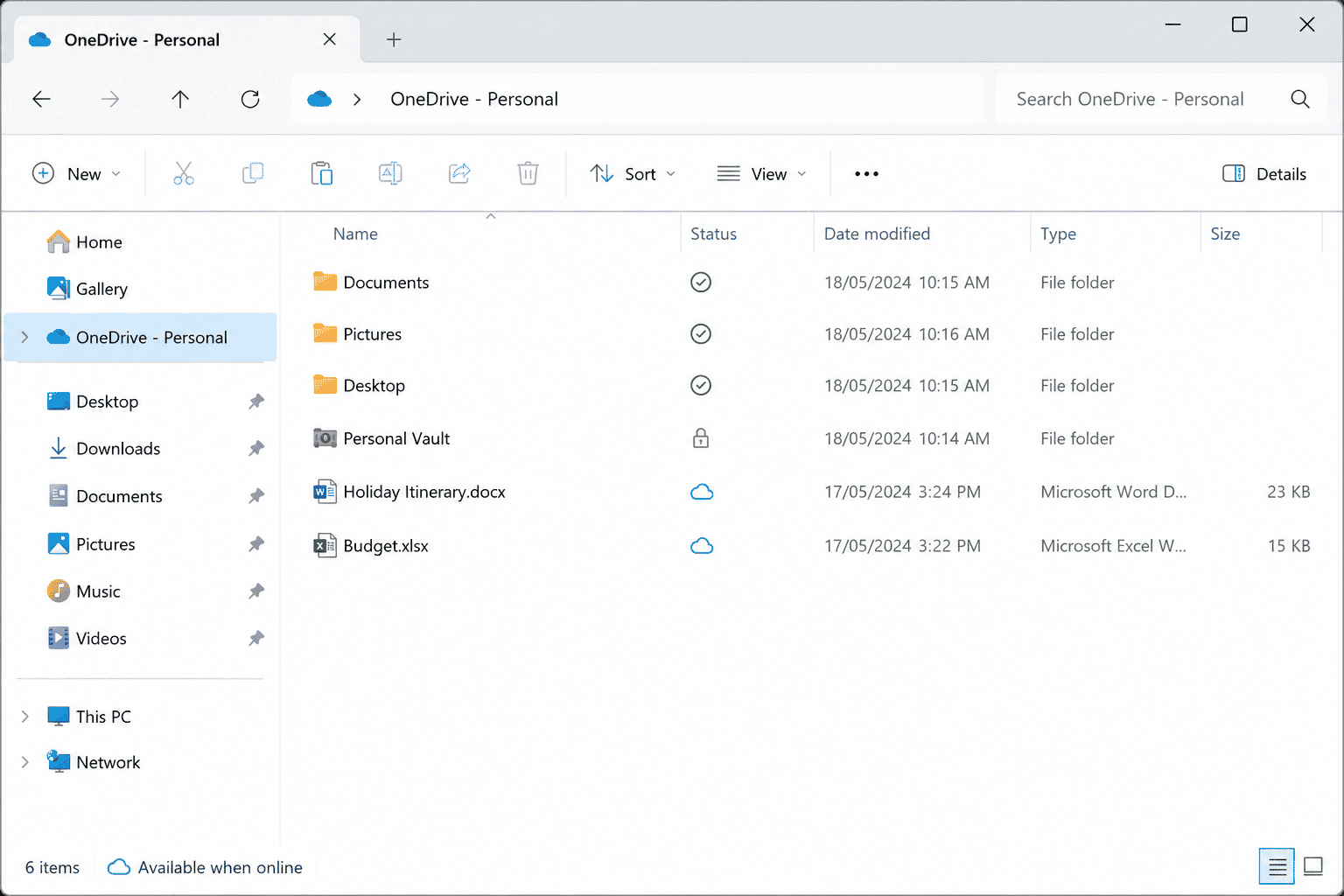
You can also access OneDrive using a web browser by visiting the Microsoft website and signing in with your Microsoft account.
Google Drive
Google Drive is Google's cloud storage service.
If you use Gmail or an Android phone, you already have a Google account and may already be using Google Drive.
To view your files:
- Open your preferred web browser.
- Visit drive.google.com.
- Sign in using your Google account.
- Browse your folders and files.
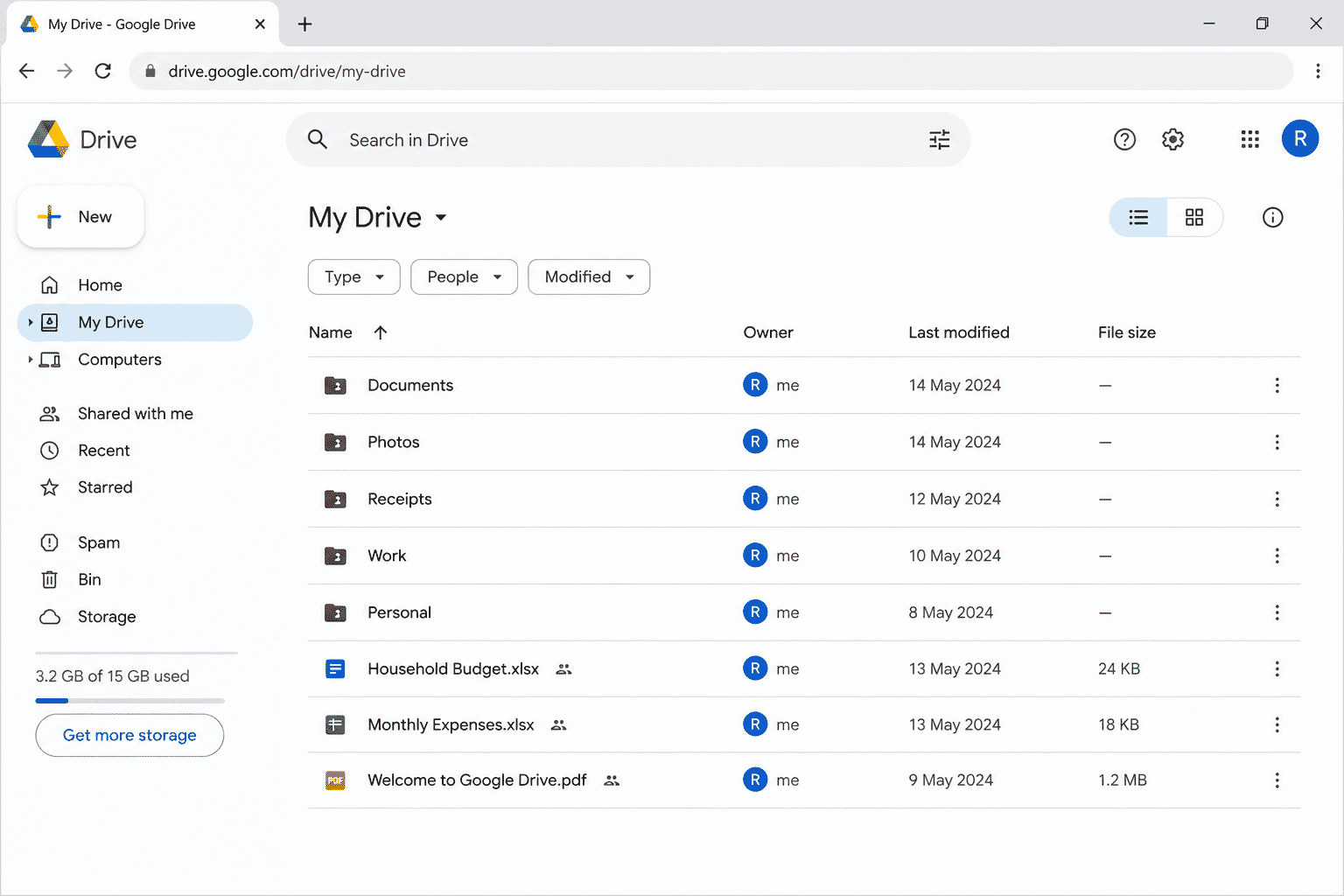
Google Drive can also be installed on Windows and Apple computers so that it behaves much like another folder on your computer.
Apple iCloud
Apple iCloud is included with iPhones, iPads and Mac computers.
It stores information such as:
- Photos
- Contacts
- Calendars
- Notes
- Documents
If you're signed in with your Apple ID, much of this information may already be synchronised automatically.
You can also access iCloud using a web browser.
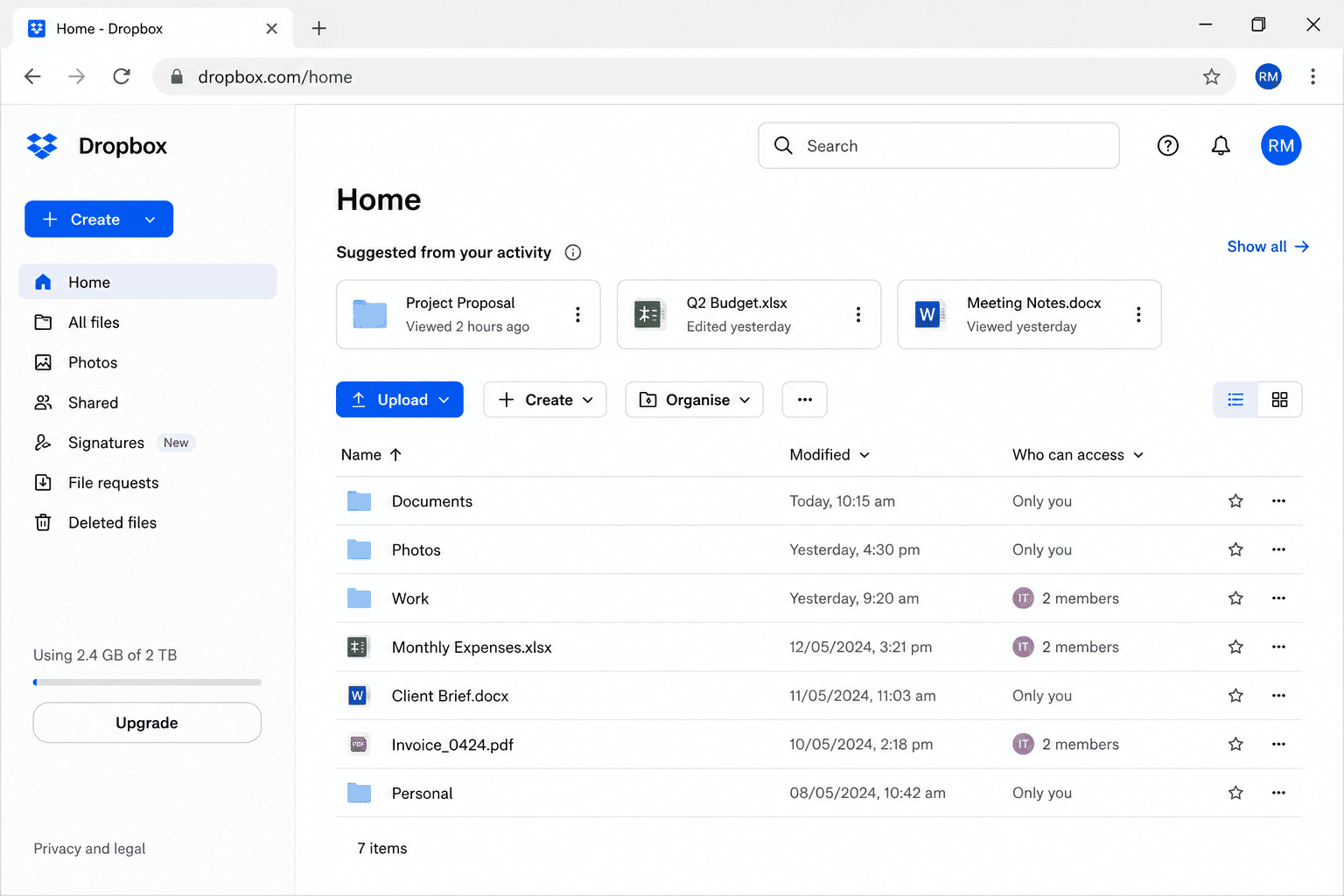
Accessing Your Files from Another Device
Imagine you create a shopping list on your laptop before leaving home.
When you arrive at the supermarket, you open the same app on your phone.
The shopping list is already there.
Nothing needed to be copied manually.
The cloud quietly synchronised the information between your devices.
The same thing can happen with:
- Documents
- Photos
- Calendars
- Contacts
- Notes
This is one of the main reasons people enjoy using cloud storage.
What Happens If You Buy a New Device?
Replacing a computer or smartphone used to involve copying files manually.
Today, much of that work can happen automatically.
After signing in with the same account, many cloud services can restore:
- Photos
- Contacts
- Calendars
- Documents
- Notes
- Settings
- Purchased apps
Although some information may still need to be transferred manually, cloud storage makes changing devices much easier than it used to be.
Do You Always Need the Internet?
Usually, yes.
Because your files are stored online, an internet connection is normally required to upload new files or access files that aren't already saved on your device.
However, many cloud services allow you to make files available offline.
These files are downloaded onto your device so you can continue working even when you don't have internet access.
Once you're connected again, your changes are synchronised automatically.
Is the Cloud Safe?
This is one of the most common questions people ask.
Large companies such as Microsoft, Google and Apple spend enormous amounts of money protecting their cloud services.
Their data centres include:
- Physical security
- Fire protection
- Backup power
- Multiple copies of data
- Advanced cybersecurity
While no technology is perfect, storing files with reputable cloud providers is generally much safer than relying on a single computer with no backup.
You also play an important role in protecting your information.
Good habits include:
- Using strong passwords.
- Turning on two-factor authentication where available.
- Keeping your devices updated.
- Never sharing your passwords.
- Signing out of shared computers.
Privacy
Cloud storage providers do not own your files simply because they're stored in the cloud.
However, it is always worth reading the privacy information provided by your chosen service.
Avoid storing highly sensitive information unless you understand who can access it and how it is protected.
If you're unsure, ask someone you trust or seek advice before uploading important documents.
Common Myths About the Cloud
There are many misunderstandings about cloud storage.
Let's clear up a few of the most common ones.
"The cloud is somewhere in the sky."
No.
The cloud simply refers to secure computers connected to the internet.
"Only experts use the cloud."
Not at all.
Millions of people use cloud storage every day without realising it.
Many smartphones automatically back up photos as soon as they're taken.
"The cloud replaces my computer."
No.
Your computer or phone still stores information locally.
The cloud simply provides another place to keep copies of your files.
"Everything is automatically backed up."
Not necessarily.
Some services require backup to be switched on.
It's worth checking your settings occasionally to make sure important information is being protected.
Try It Yourself
Spend a few minutes exploring the cloud services available on your own devices.
Try these activities:
- Open Microsoft OneDrive, Google Drive or Apple iCloud.
- Look through your folders.
- See whether your photos are already being backed up.
- Find a file that appears on more than one device.
- Check whether automatic photo backup is enabled.
You don't need to change any settings yet.
Simply becoming familiar with these services is a great first step.
Helpful Tips
- Keep important files backed up.
- Use the same account on your devices if you want files to synchronise.
- Connect to Wi-Fi when uploading large numbers of photos.
- Keep your cloud password secure.
- Occasionally check that backups are still working.
- Don't panic if you buy a new device—your cloud account can often restore much of your information.
Common Mistakes
Many beginners accidentally:
- Assume every file is automatically backed up.
- Forget which account they used.
- Ignore backup warnings.
- Delete files without realising they are synchronised across devices.
- Think cloud storage replaces good password security.
These are common mistakes and are usually easy to fix.
Understanding how your cloud account works will help you avoid most of them.
Troubleshooting
I can't find my files.
Check that you're signed in using the correct Microsoft, Google or Apple account.
Many people accidentally use a different account without realising it.
My files aren't updating.
Make sure your device is connected to the internet.
Cloud services need a connection before they can synchronise changes.
My photos aren't being backed up.
Check that photo backup is enabled in your cloud storage settings.
Some services also require Wi-Fi before uploading large numbers of photos.
I bought a new phone and my photos are missing.
Sign in using the same cloud account you used on your previous device.
If your photos were backed up, they should begin appearing after synchronisation is complete.
Be patient.
Large photo libraries can take some time to download.
I'm worried about losing my files.
Cloud storage is designed to reduce this risk.
For extra protection, many people keep important documents in both cloud storage and on an external backup drive.
Summary
The cloud is simply another place to store your files safely.
Instead of keeping everything on one computer or phone, cloud storage allows copies of your important information to be stored securely on computers connected to the internet.
This makes it easier to:
- Protect your photos and documents.
- Access your files from multiple devices.
- Restore information when replacing a computer or phone.
- Share files with family and friends.
- Reduce the risk of losing important memories.
Although the technology behind the cloud is quite advanced, using it is usually very simple.
For most people, the cloud quietly works in the background, keeping information available whenever it is needed.
Understanding the cloud helps you feel more confident using today's technology and makes it much easier to move between different devices.
What You've Learned
You now know:
- What the cloud is.
- Why it is called "the cloud".
- That the cloud is not a physical cloud in the sky.
- The difference between local storage and cloud storage.
- Why cloud storage is useful.
- How cloud services allow you to access files from different devices.
- The differences between Microsoft OneDrive, Google Drive and Apple iCloud.
- How cloud storage can automatically back up your photos.
- Why an internet connection is usually required.
- Basic cloud security and privacy tips.
- Common myths about the cloud.
- How to troubleshoot some common cloud storage problems.
Keep Learning
Now that you understand the cloud, you're ready to continue building your technology skills.
Continue with:
- LG-008 – Computer words explained
These guides build on what you've learned here and will help you become even more confident using computers, smartphones and the internet.
Call to Action
Congratulations!
You've just learned one of the most misunderstood concepts in modern technology.
The cloud isn't mysterious or complicated.
It's simply another place to safely store your information so it's available when you need it.
Take a few minutes to explore the cloud service on your own device.
If you have a Windows computer, look for Microsoft OneDrive.
If you use an Android phone, open Google Drive.
If you use an iPhone or iPad, explore Apple iCloud.
You don't need to change any settings today.
Simply becoming familiar with these services is an excellent first step.
Remember, confidence with technology comes from taking small steps and practising regularly.
Every guide you complete builds your knowledge and makes the next one even easier.
Need a Hand?
Learning technology is easier when you can ask questions.
If something in this guide doesn't make sense, or you'd like help with your own computer, phone or tablet, join our free community:
Technology Help for Seniors Australia
https://www.facebook.com/groups/techhelpforseniors
Ask questions, share your experiences and learn alongside other Australians building confidence with technology.
Learning Paths
View all pathsNeed some help with this?
Protect your photos and files, automatic backups plus a “test restore” so you know it works.
Troubleshoot IT provides practical, one-to-one technology support across Darwin, Palmerston and surrounding areas.