LG-012 - Opening and Closing Programs
Learn how to open, switch between and close programs in Windows with confidence. This beginner-friendly guide explains the Start menu, desktop shortcuts, taskbar and basic program management for seniors and new computer users.
Before You Begin
Overview
One of the first things you'll do on a computer is open a program.
Programs allow you to browse the internet, write letters, look at photos, watch videos and do many other everyday tasks.
Learning how to safely open and close programs is one of the most important computer skills.
This guide explains the different ways to open programs and how to close them correctly when you've finished.
Learning Objectives
By the end of this guide you will be able to:
- Understand what a program is.
- Open a program from the Start menu.
- Open a program from a desktop icon.
- Recognise when a program is open.
- Switch between open programs.
- Close a program safely.
Prerequisites
Before starting this guide, it may help to complete:
- LG-009 – Using a Mouse
- LG-010 – Using a Keyboard
- LG-011 – Understanding Windows
What Is a Program?
A program (sometimes called an application or app) is software that performs a particular task.
Different programs are designed for different jobs.
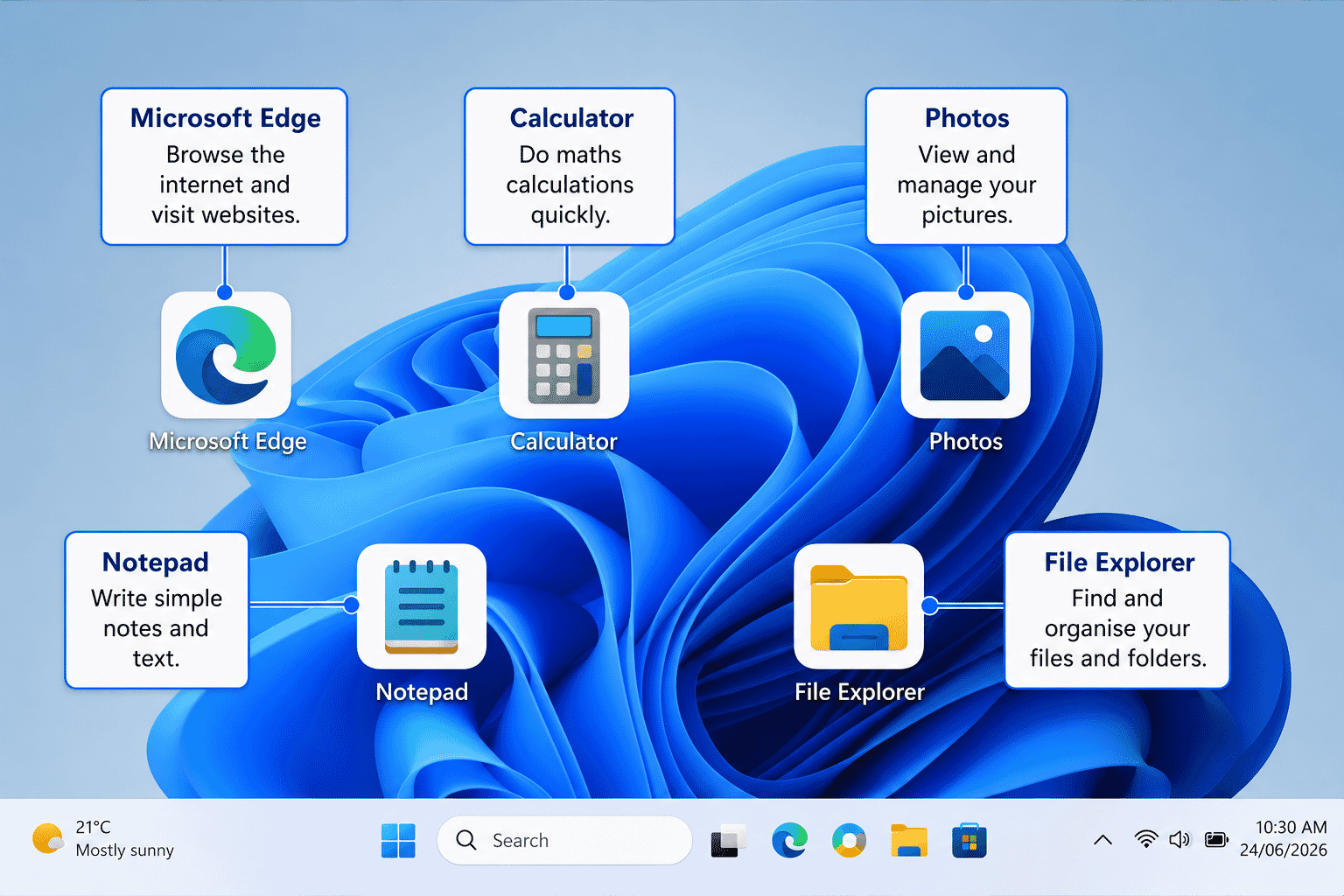
For example:
- Microsoft Edge lets you browse the internet.
- Photos lets you view pictures.
- Notepad lets you type simple notes.
- Calculator helps with calculations.
You choose the program that matches the task you want to complete.
Ways to Open a Program
There are several ways to open a program in Windows.
As a beginner, you'll mainly use two methods.
Opening a Program from the Start Menu
The Start menu contains a list of programs installed on your computer.
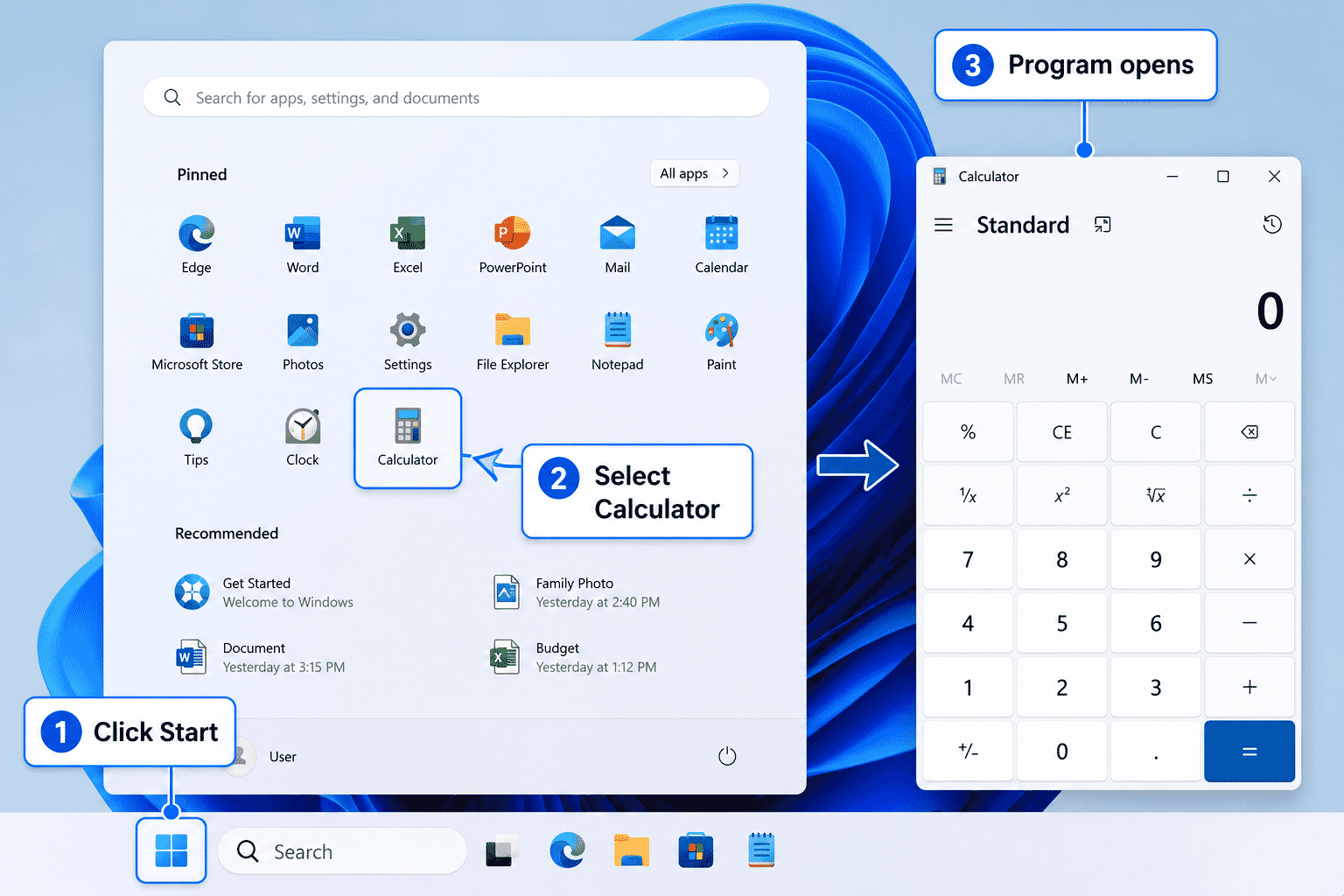
To open a program:
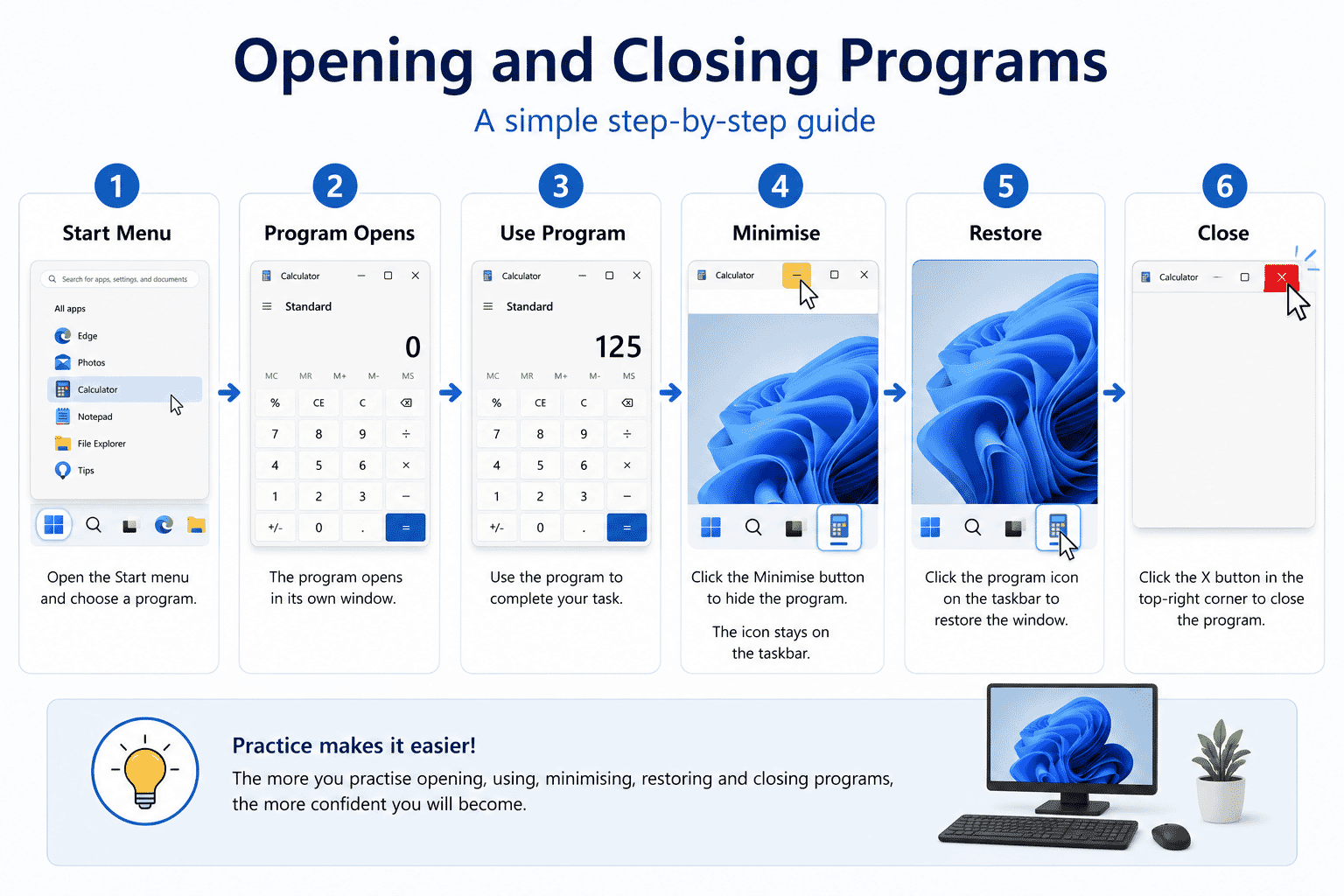
- Click the Start button.
- Select the program you want.
- Wait a few seconds while it opens.
Many people use the Start menu every day because it is easy to find almost any program.
Opening a Program from the Desktop
Some programs have an icon on the desktop.
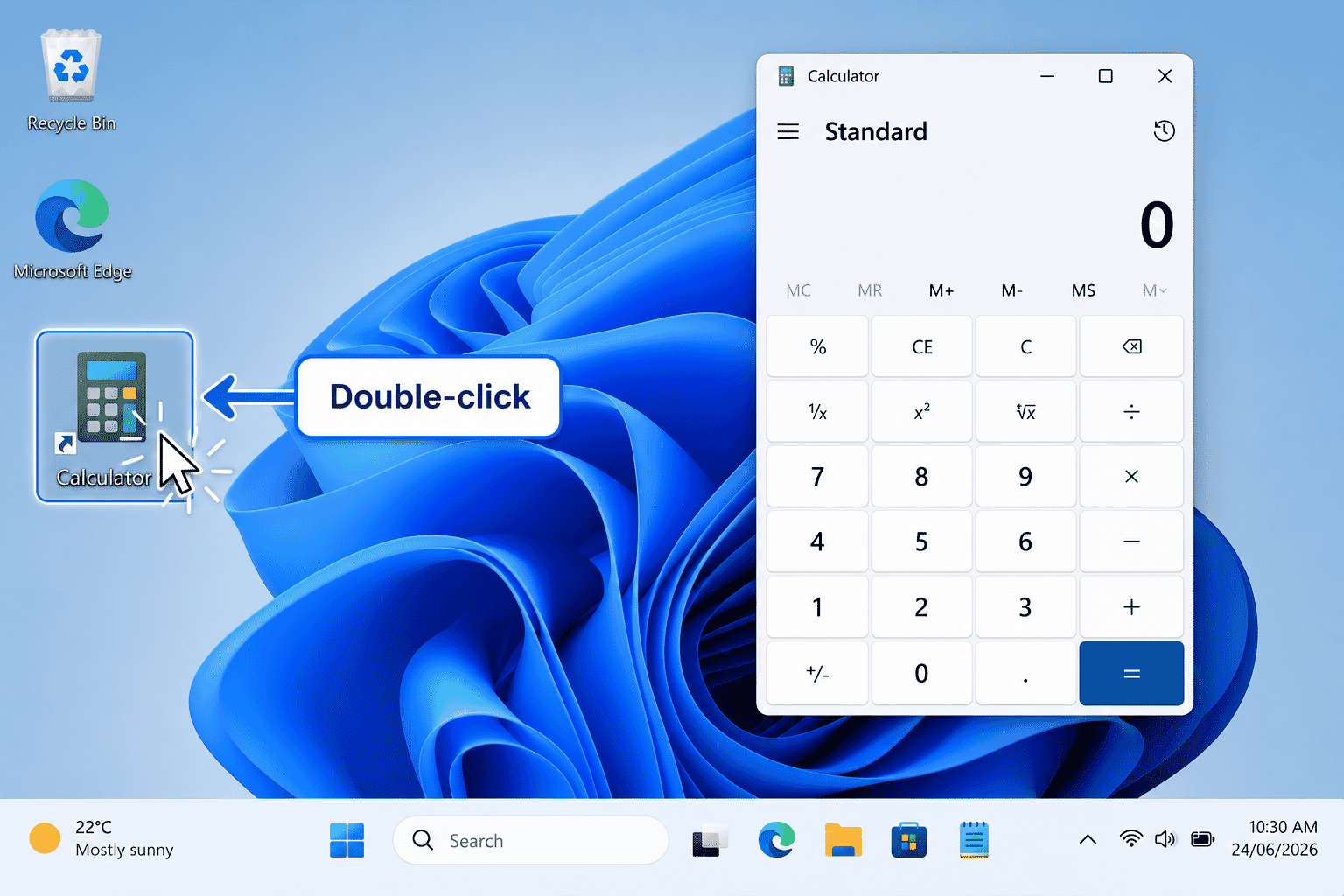
To open one:
- Move the mouse pointer over the icon.
- Double-click the icon.
- Wait while the program opens.
Not every program has a desktop icon.
If you cannot find one, use the Start menu instead.
How Do You Know a Program Is Open?
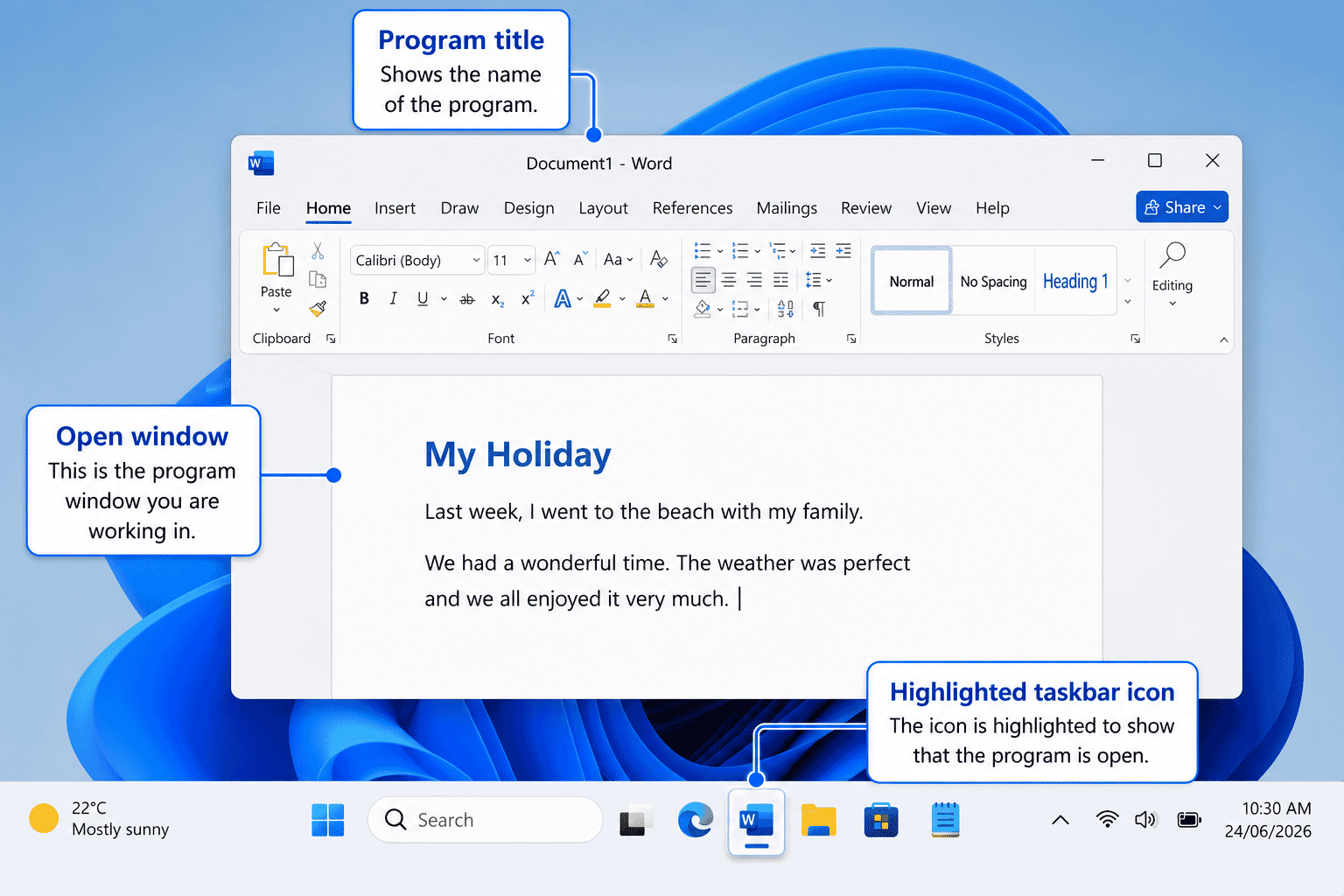
When a program opens, you will usually notice:
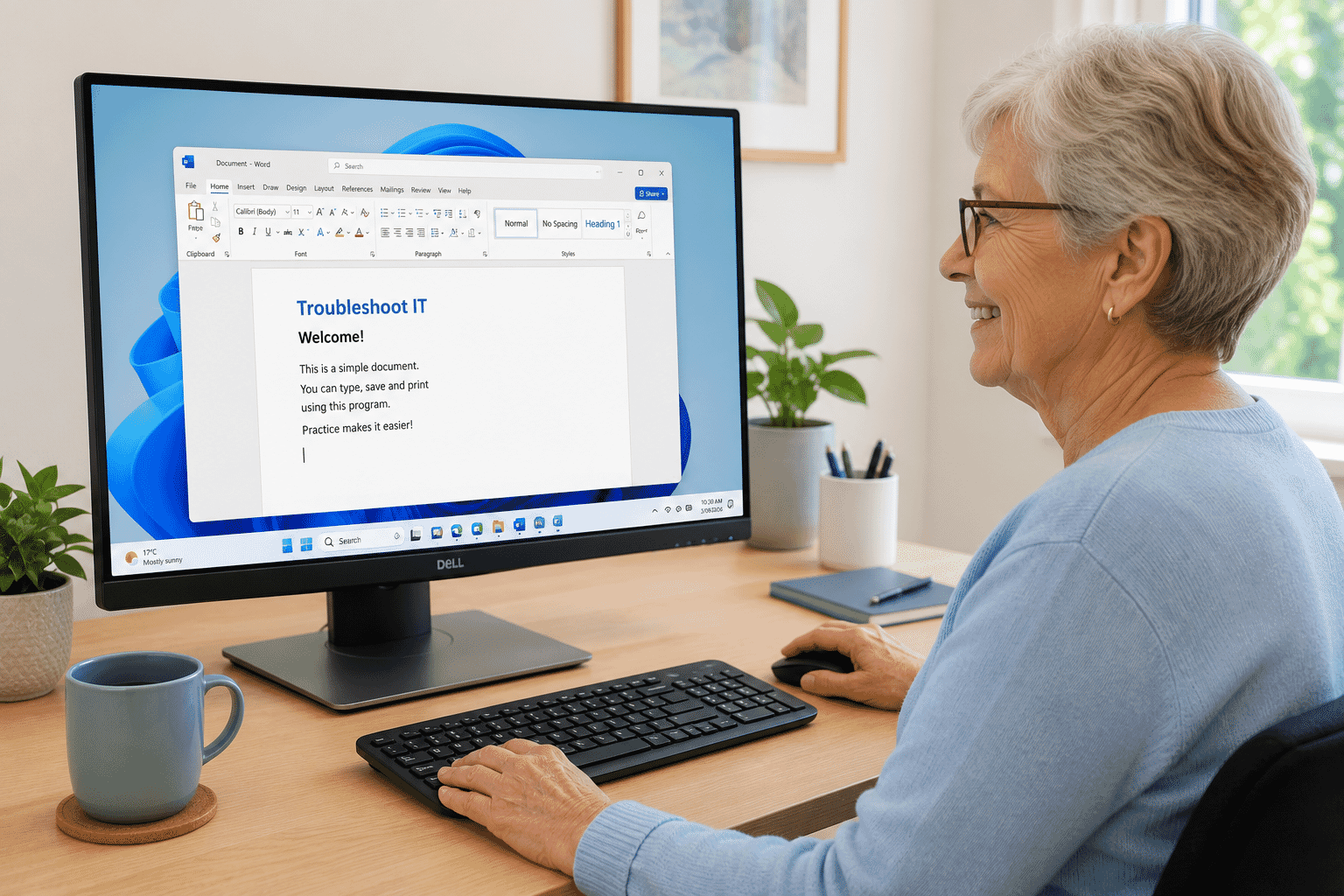
- A new window appears.
- Its icon appears highlighted on the taskbar.
- The program name appears at the top of the window.
You can now begin using the program.
Switching Between Programs
It is common to have more than one program open at the same time.
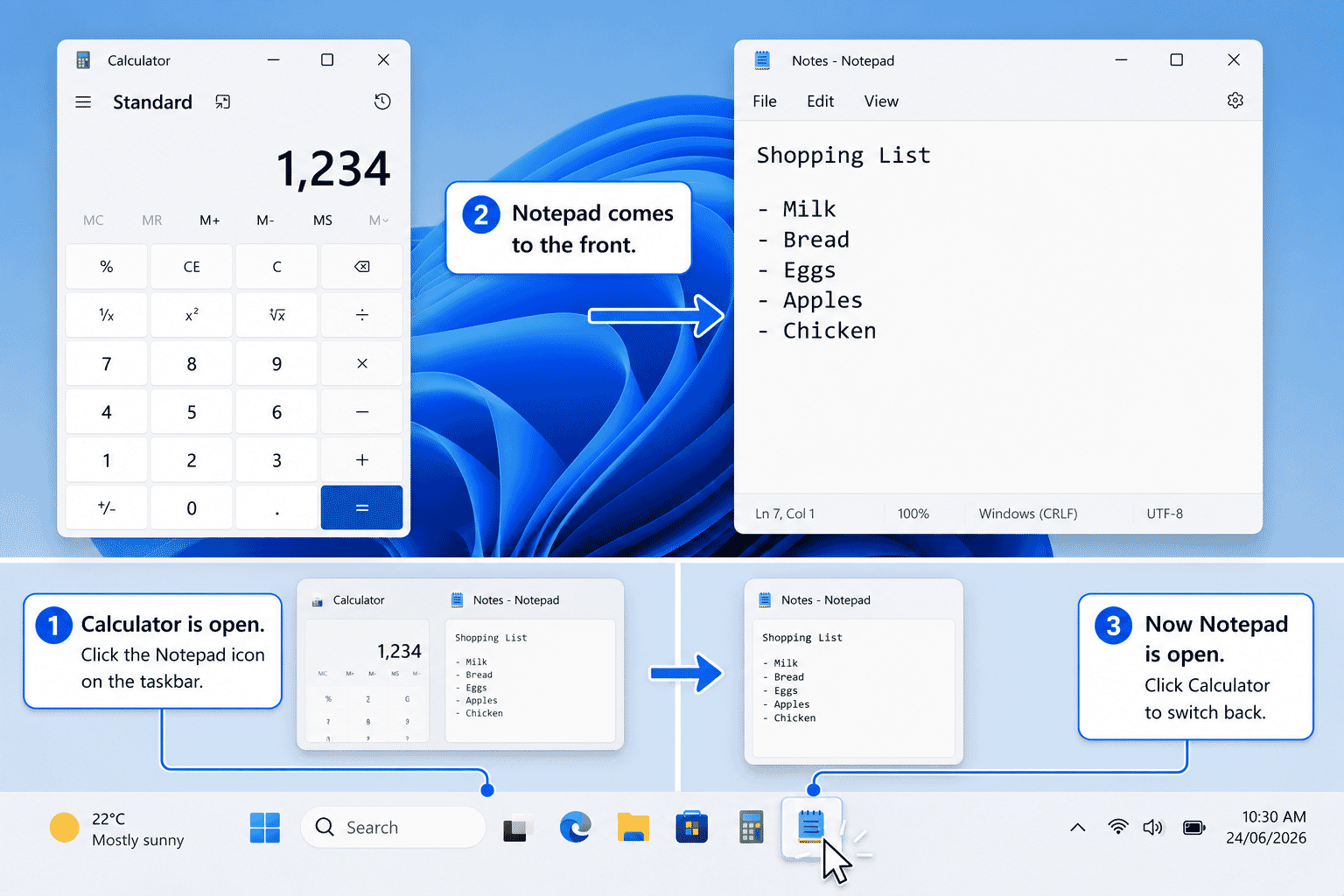
For example, you may have:
- A web browser
- A document
- Calculator
To switch between programs:
- Look at the taskbar.
- Click the program you want.
Windows will bring that program to the front.
Minimising a Program
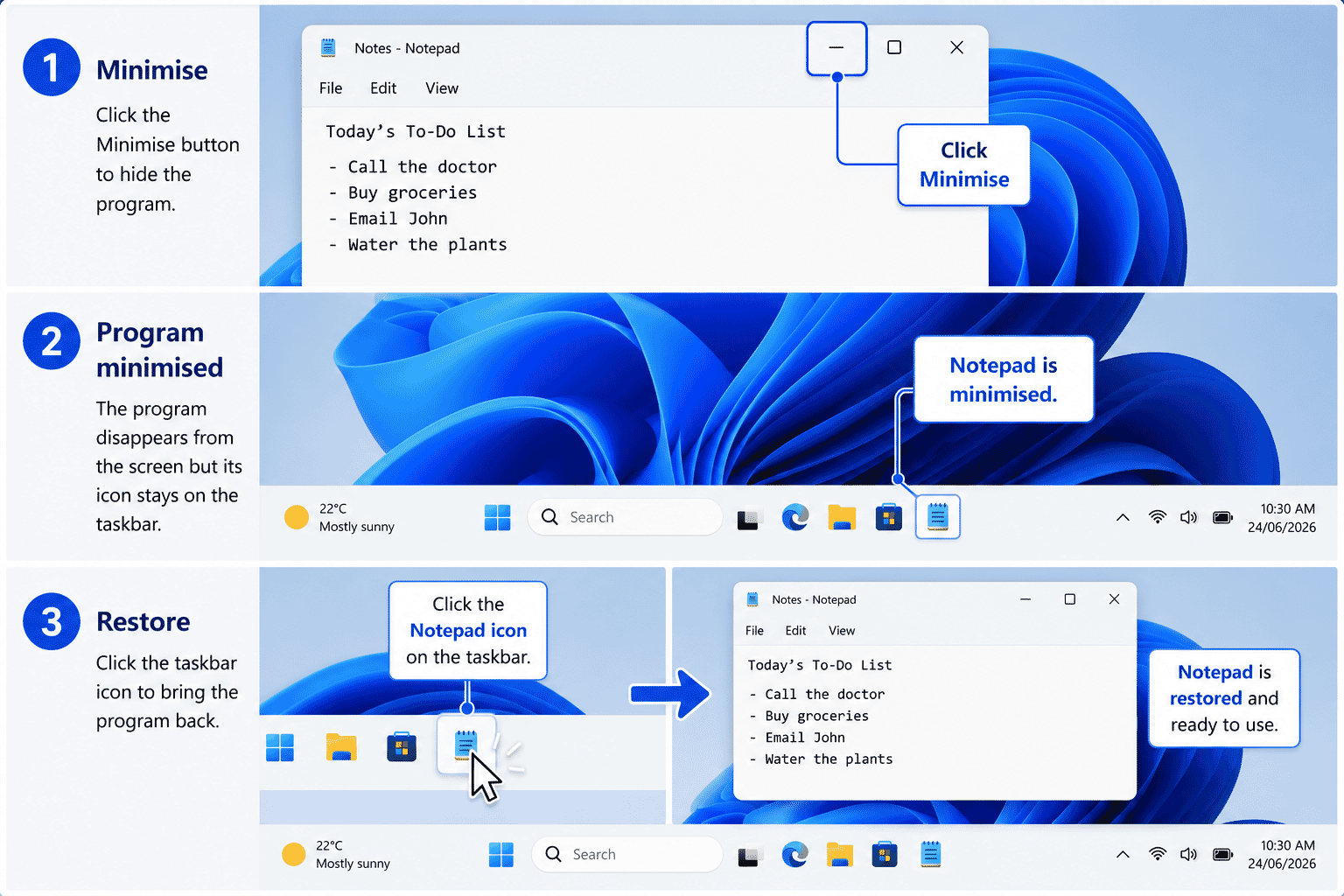
Sometimes you want to keep a program open but temporarily get it out of the way.
Click the Minimise button in the top-right corner of the window.
The program disappears from the screen but remains open.
You can reopen it by clicking its icon on the taskbar.
Maximising and Restoring
The Maximise button makes a program fill the entire screen.
Selecting it again restores the window to its previous size.
Some people prefer working with full-screen windows, while others like several smaller windows open at once.
Closing a Program
When you've finished using a program, you should close it.
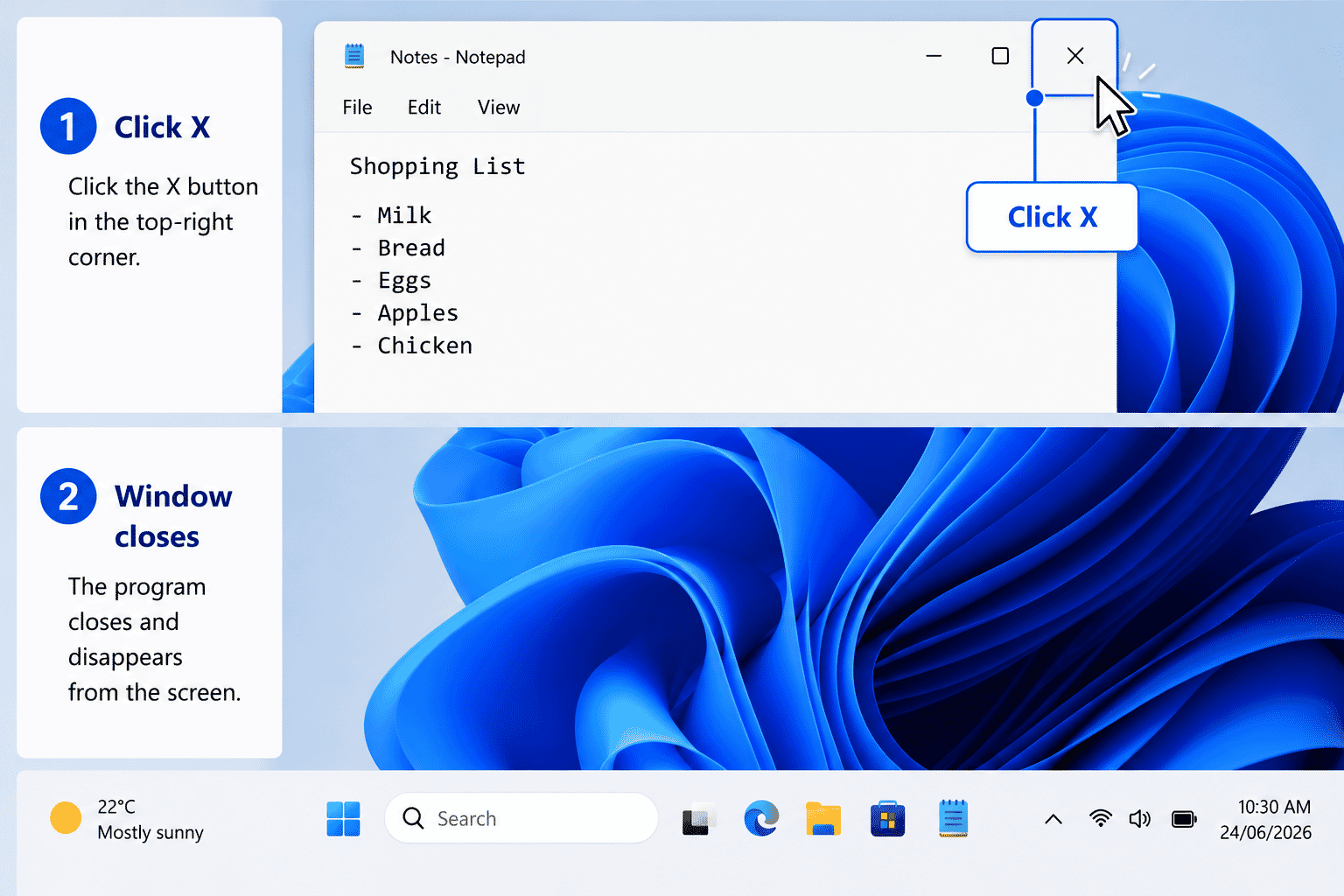
To close a program:
- Click the Close (X) button in the top-right corner.
- Wait while the window disappears.
If the program contains unsaved work, Windows may ask whether you want to save your changes first.
Always read the message before choosing an option.
If a Program Stops Responding
Occasionally, a program may stop responding.
This is sometimes called freezing.
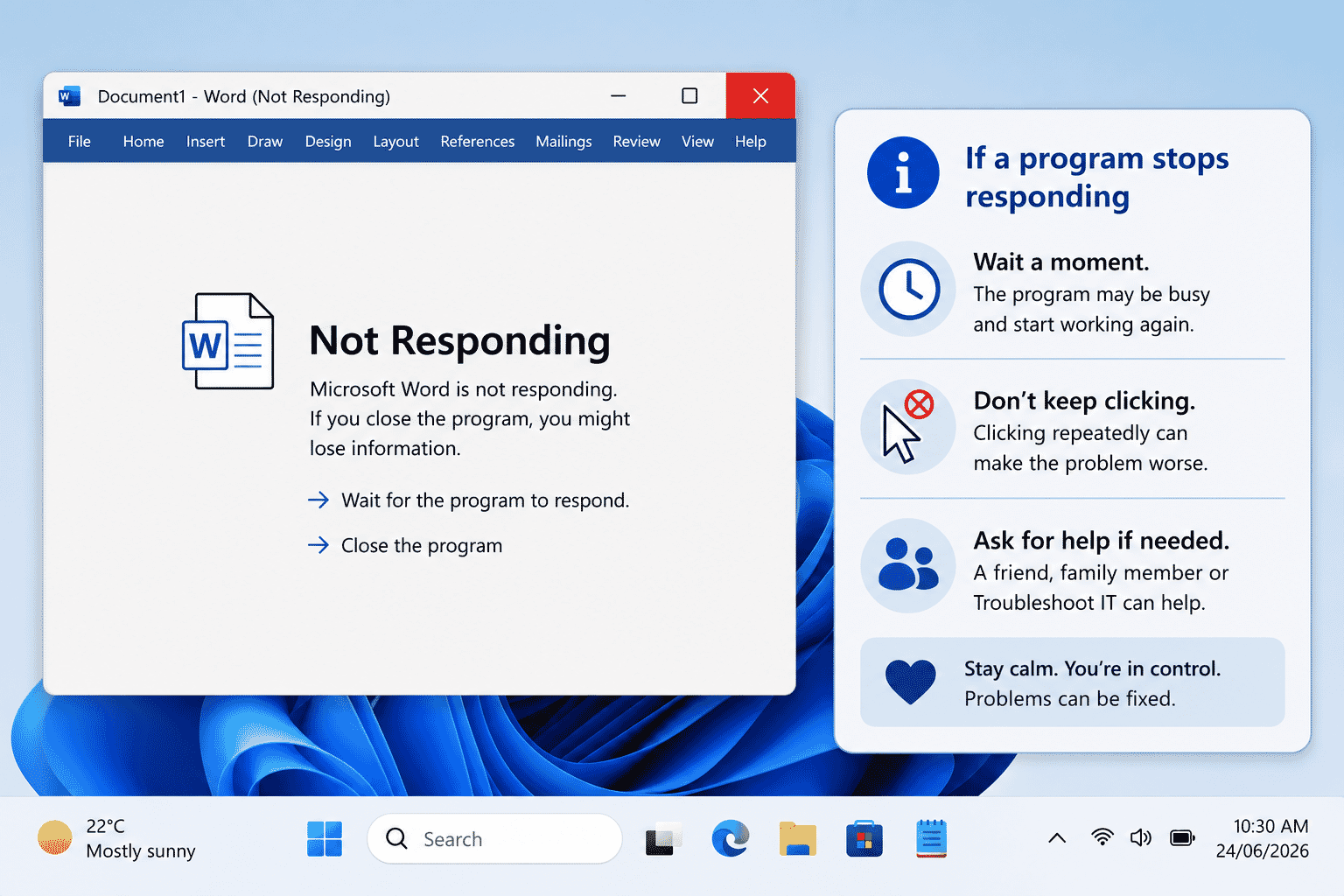
If this happens:
- Wait a minute to see if it recovers.
- Avoid clicking repeatedly.
- If necessary, ask someone for help.
Most programs recover after a short wait.
Practice Activity
Spend a few minutes practising.
- Open the Start menu.
- Open Calculator.
- Close Calculator.
- Open Notepad.
- Minimise Notepad.
- Restore Notepad using the taskbar.
- Close Notepad.
Repeat the activity until you feel comfortable.
Beginner Tips
As you learn to use programs:
- Open one program at a time.
- Read messages before clicking.
- Don't worry if something takes a few seconds to open.
- It's normal to forget where a program is at first.
- The Start menu is usually the easiest place to begin.
Confidence comes through regular practice.
What You've Learned
You now know:
- What a program is.
- How to open a program from the Start menu.
- How to open a desktop shortcut.
- How to recognise when a program is open.
- How to switch between open programs.
- How to minimise a program.
- How to maximise a program.
- How to close a program safely.
These skills are used every time you work on a Windows computer.
Keep Learning
Next guides in this module:
- LG-013 – Saving Files
- LG-014 – Finding Files Again
These guides will teach you how to save your work and organise your files so you can easily find them again.
Learning Paths
View all pathsNeed some help with this?
Protect your photos and files, automatic backups plus a “test restore” so you know it works.
Troubleshoot IT provides practical, one-to-one technology support across Darwin, Palmerston and surrounding areas.