LG-018 - Downloading Files Safely
Learn what downloads are, how to recognise a safe source, and how to find downloaded files in Windows 11.
Before You Begin
Overview
This guide will help you with downloading files safely using simple steps and familiar examples. You can work at your own pace and repeat any activity.
Before You Begin
- Device: Windows 11 computer with Microsoft Edge.
- Internet: A working internet connection.
- Account: No new account is needed for the practice activities.
- Permissions: Normal access to the computer and browser; do not change shared settings without permission.
- Helpful previous guide: LG-017 – Understanding Websites.
- Safety: Use public, non-sensitive information for practice. Do not enter passwords or personal details.
Learning Objectives
By the end of this guide, you should be able to:
- what does download mean?.
- before you download.
- recognise common file types.
- download a practice pdf.
- find your download.
- check a file before opening.
What Does Download Mean?
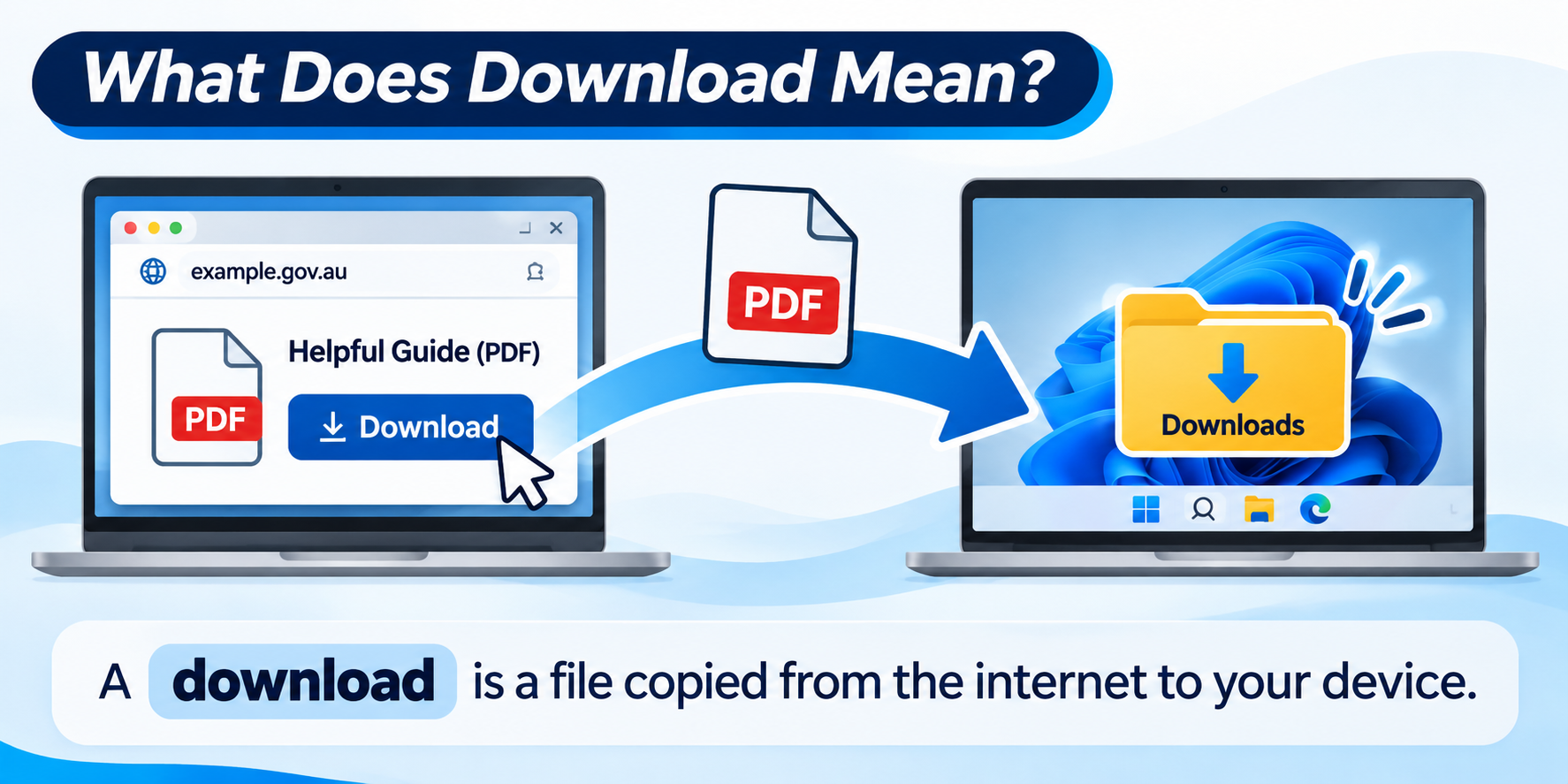
A download is a file copied from the internet to your device. Examples include a PDF information sheet, a photo or a form. Opening a webpage is not the same as downloading a file.
Before You Download
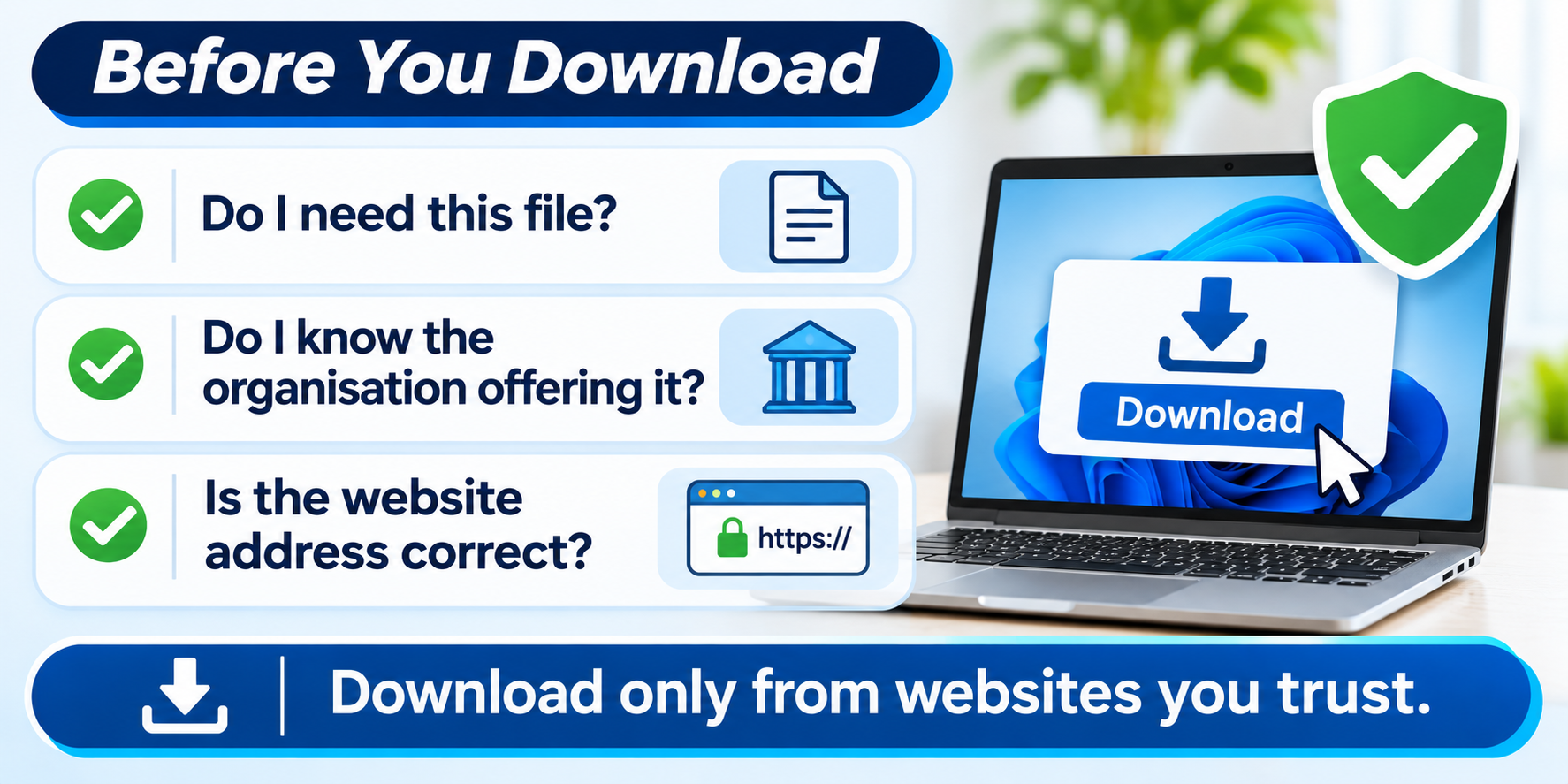
Ask: Do I need this file? Do I know the organisation offering it? Is the website address correct? Download only from websites you trust. Be particularly careful with unexpected email attachments and advertisements.
Recognise Common File Types
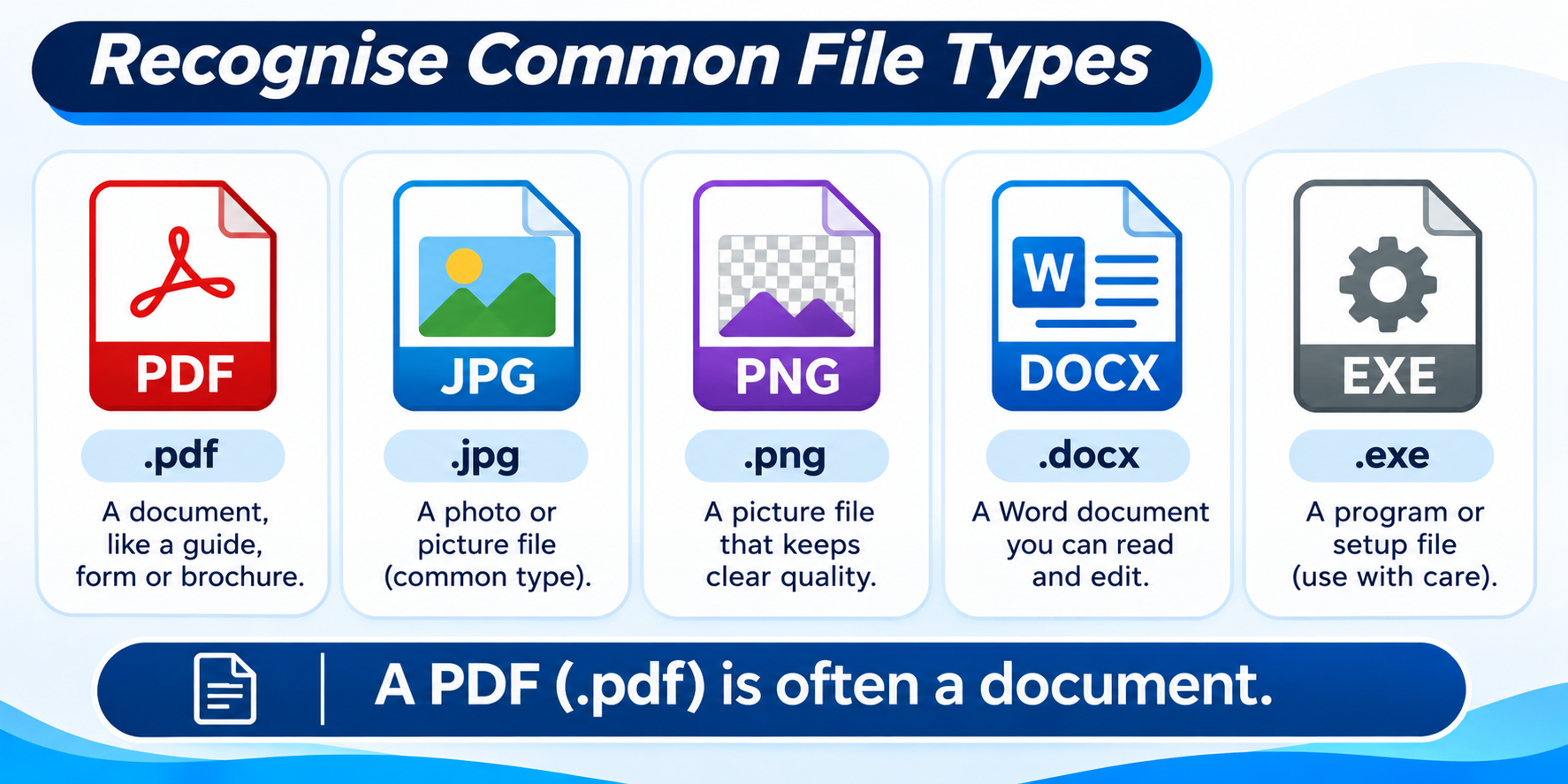
A PDF (.pdf) is often a document. Photos may end in .jpg or .png. Word documents may end in .docx. Programs may use .exe or .msi. A familiar file ending is not proof that a file is safe.
Download a Practice PDF
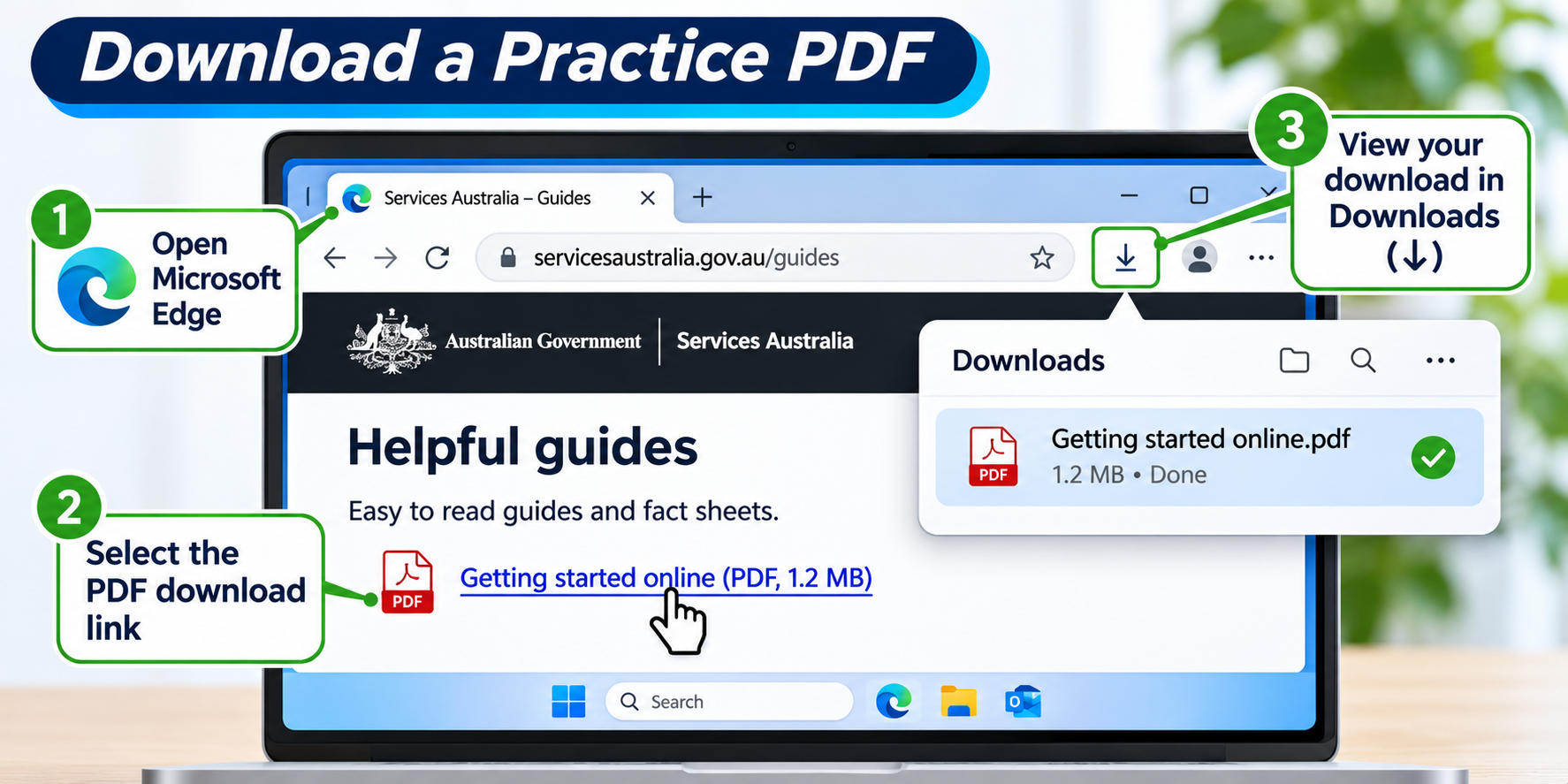
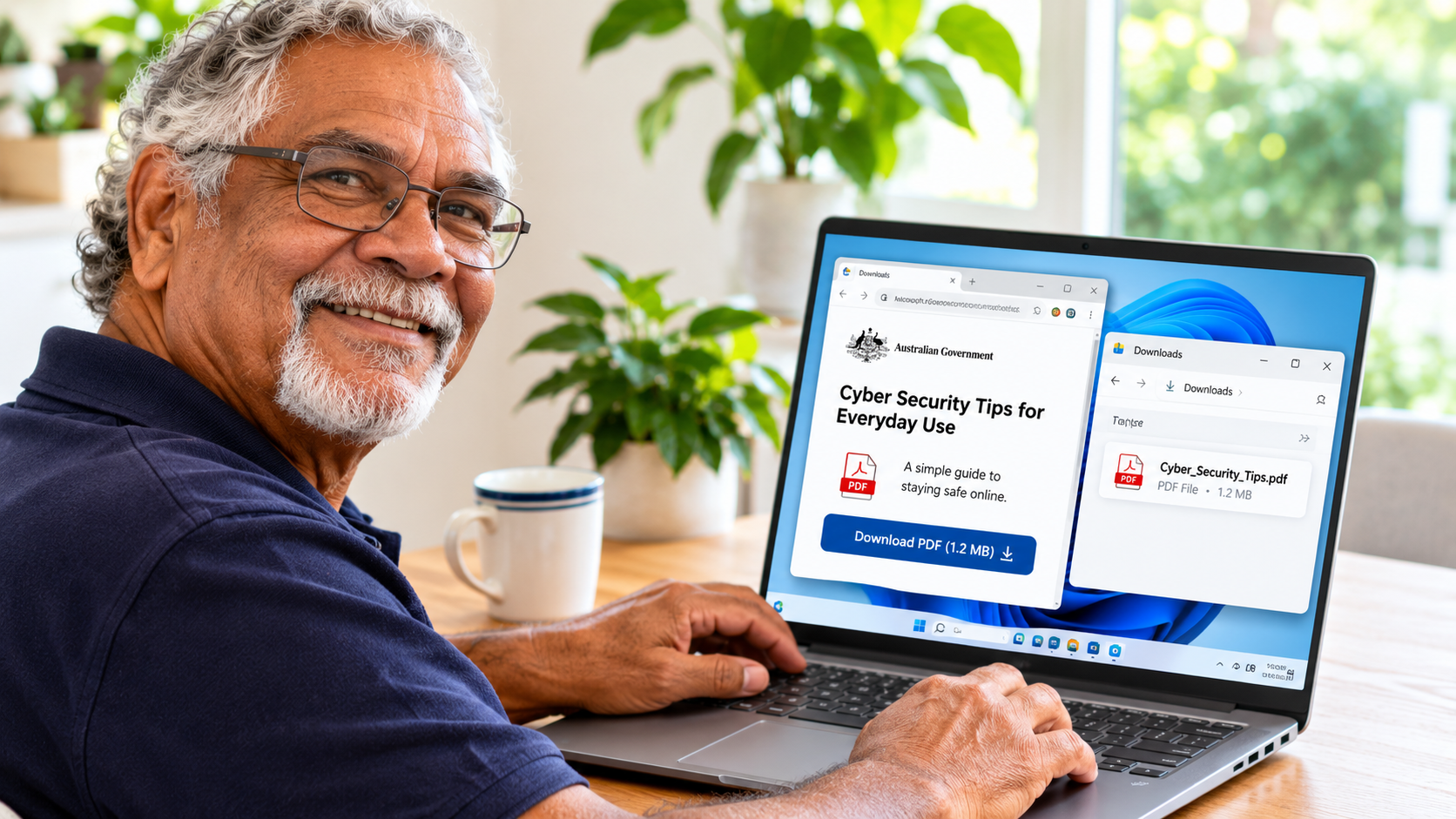
Open Edge and visit a trusted public organisation that provides a PDF. Select its clearly labelled Download link. If Edge asks what to do, choose the normal download option. Do not install any software for this exercise.
Find Your Download
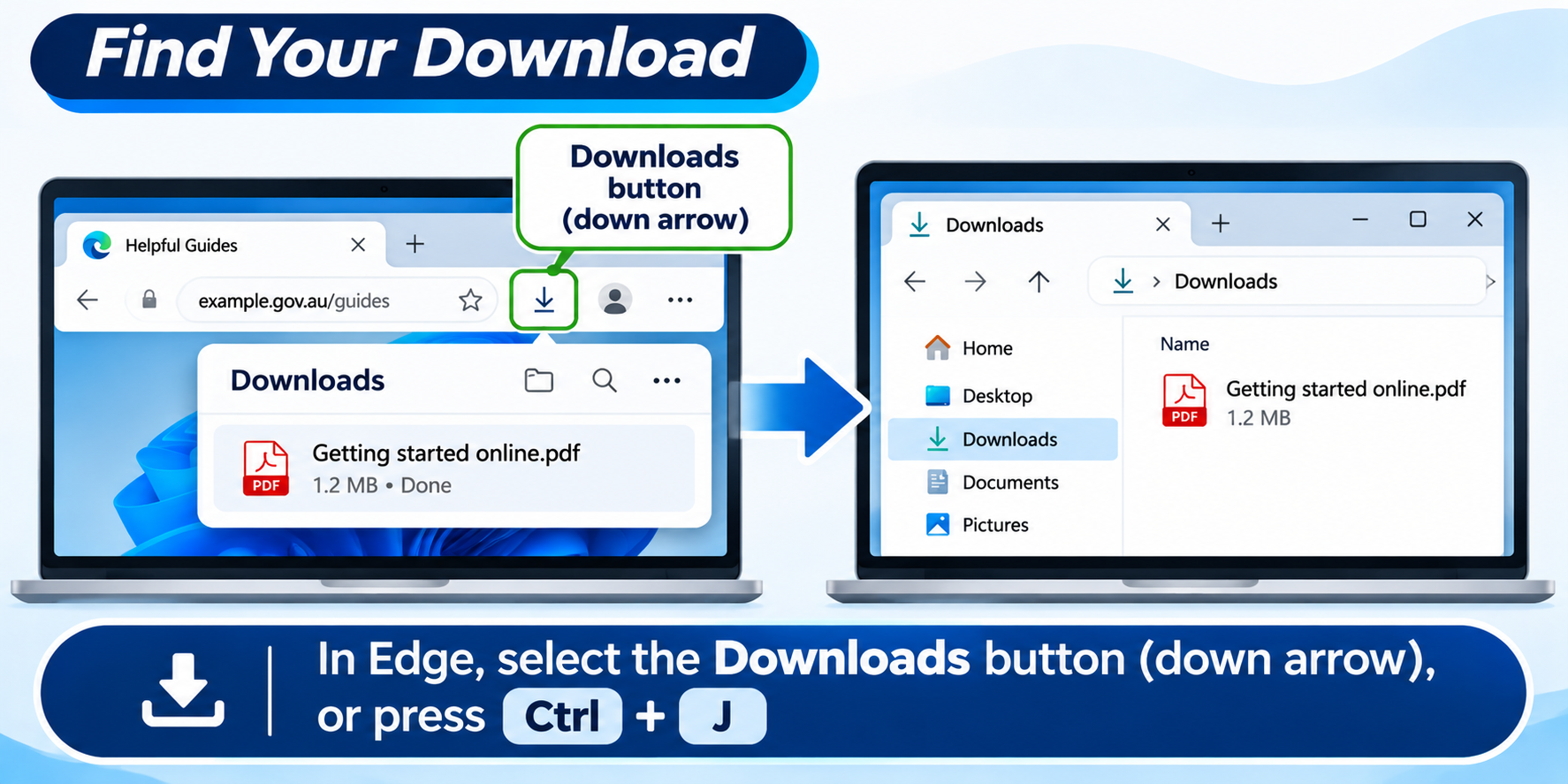
In Edge, select the Downloads button (down arrow), or press Ctrl + J. You can also open File Explorer and select Downloads. Some downloads may be saved to another folder if your settings were changed.
Check a File Before Opening
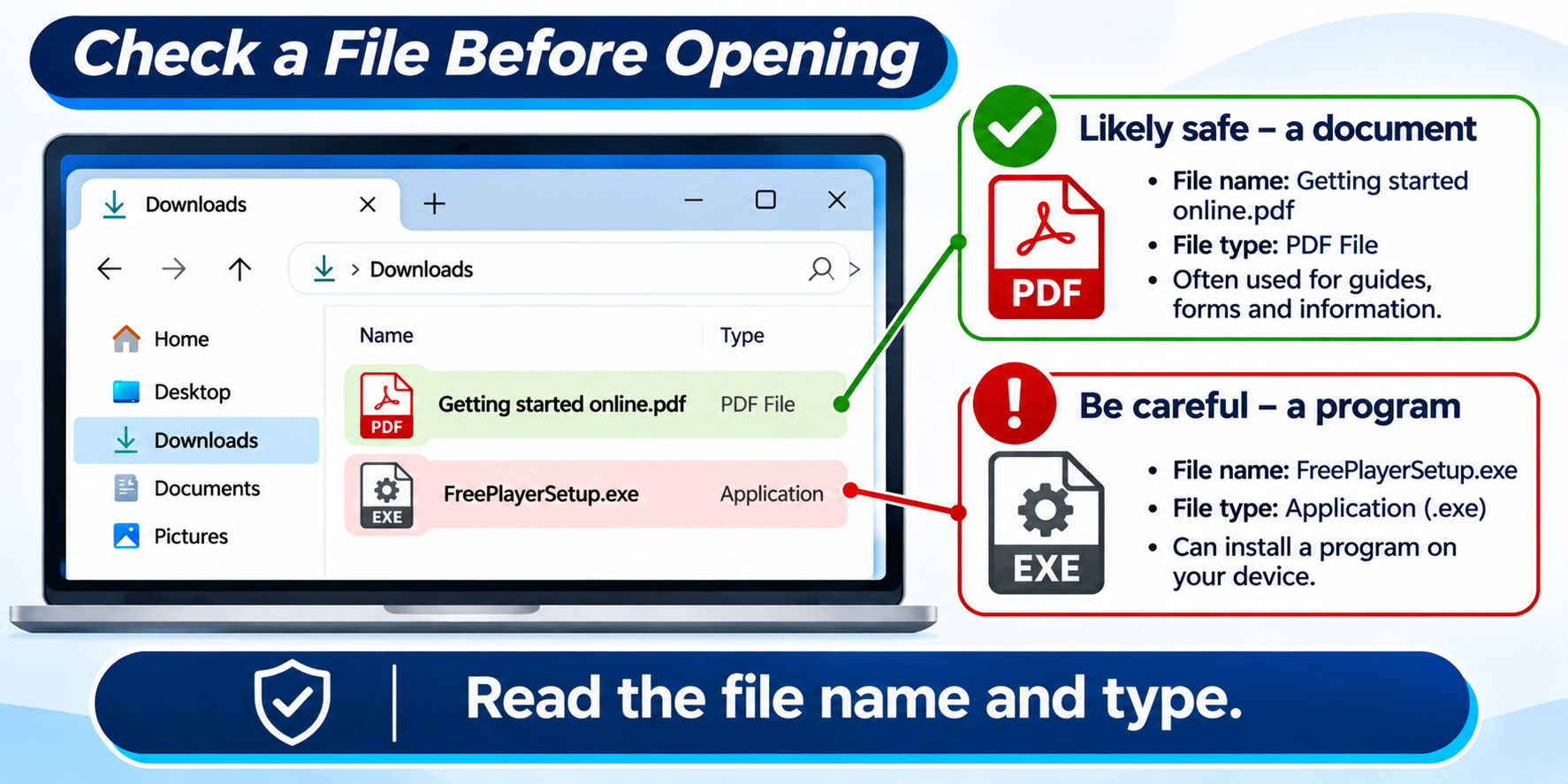
Read the file name and type. If you were expecting a PDF but received an application file, do not open it. Windows Security may warn you about a suspicious file; do not bypass the warning. Ask for help if uncertain.
Avoid Fake Download Buttons
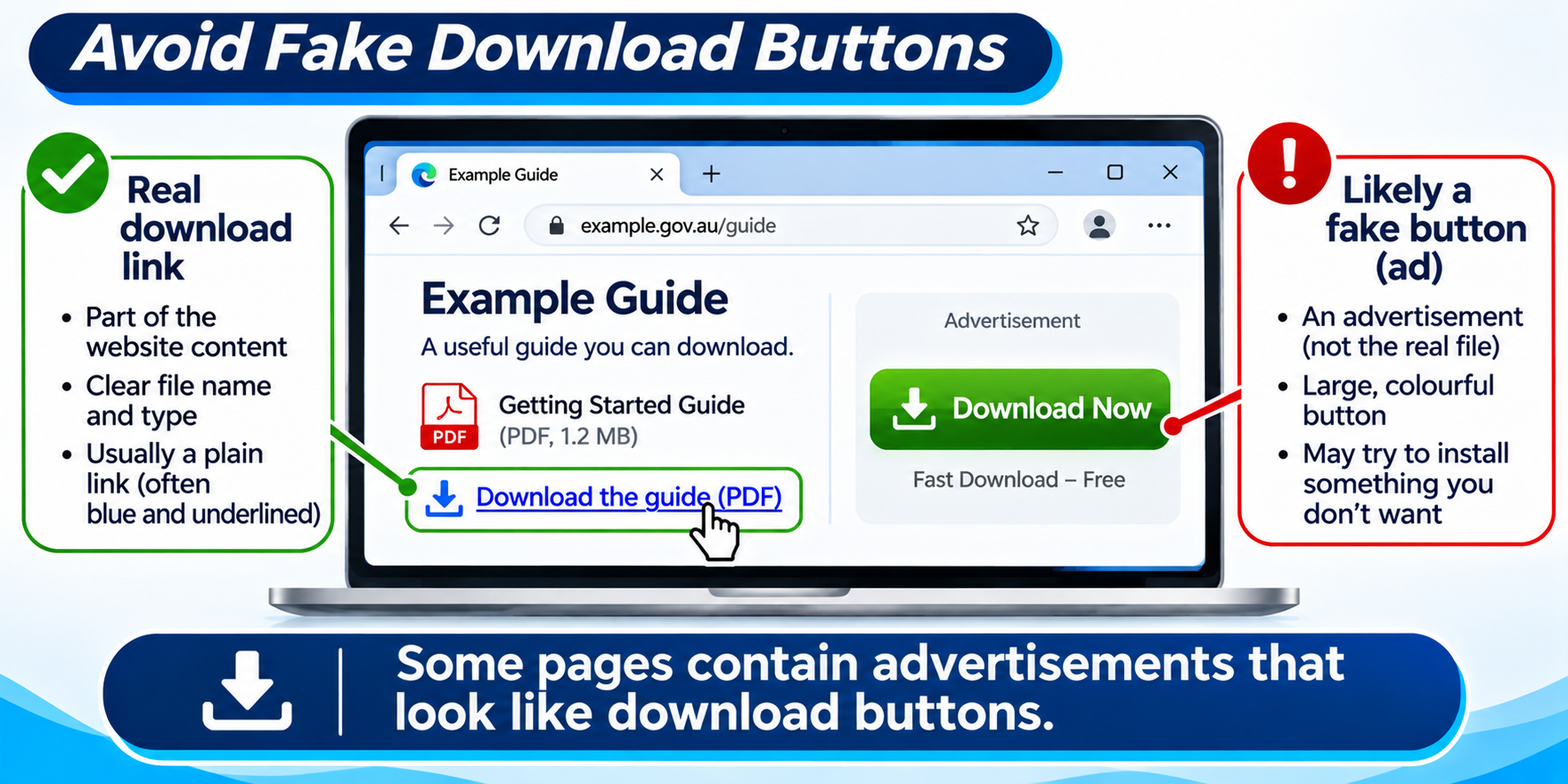
Some pages contain advertisements that look like download buttons. Look for the button belonging to the website or document you intended to use. If a page opens many pop-ups, close it and try a trusted source.
If a Download Goes Wrong
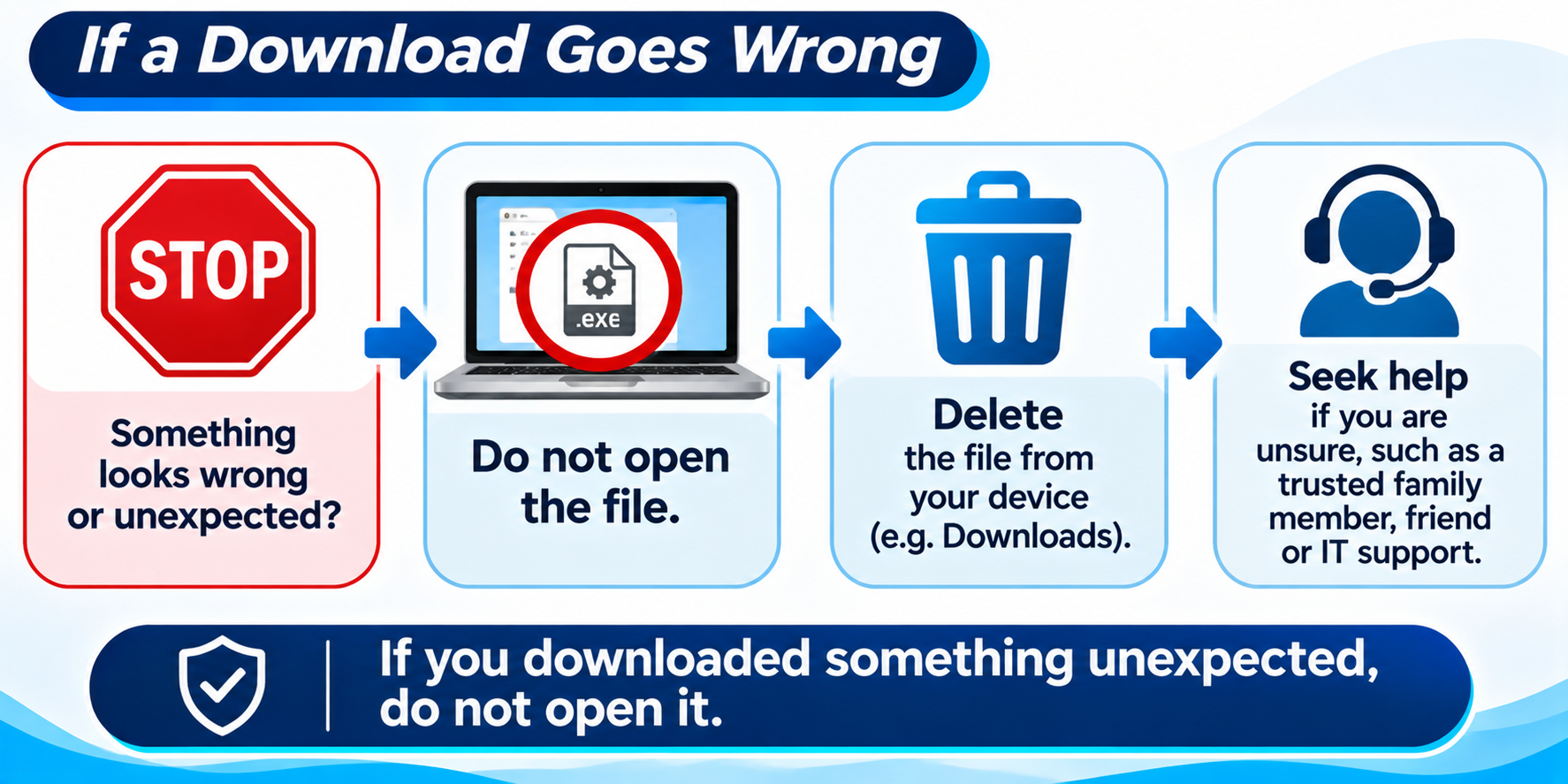
If you downloaded something unexpected, do not open it. You can delete the file from Downloads. If you ran an unknown program or entered personal details, seek trusted technical help promptly.
Practice: Download and Find a PDF
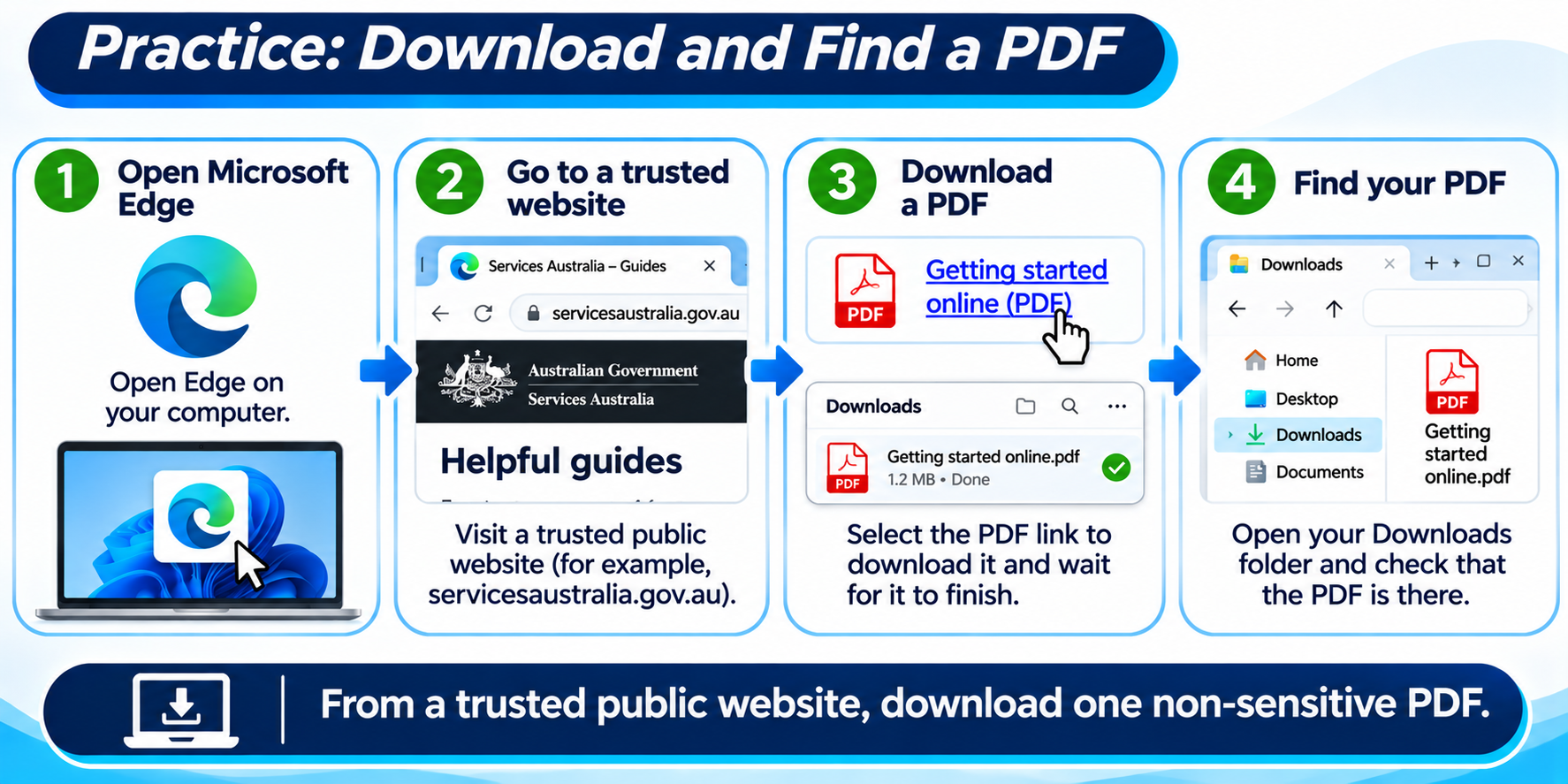
From a trusted public website, download one non-sensitive PDF. Find it using Ctrl + J, then in the Downloads folder. Check its name before opening it. You can delete the practice copy afterwards.
What You Have Learned
You know how to check the source, recognise file types, locate downloads and avoid suspicious files.
Troubleshooting
| Problem | What to Try |
|---|---|
| The page or feature looks different | Browser versions change. Look for the same named control or ask for help. |
| The page does not load | Check Wi-Fi, try again, or open another familiar website. |
| I am not sure whether a link or file is safe | Do not proceed. Check the website address and ask a trusted person. |
Beginner Tips
- Take your time and practise one action at a time.
- Read messages before selecting a button.
- Use a familiar public website for practice.
- Stop if a website asks for unexpected payment, personal information or software.
What You Have Learned
You have practised the key skills in this guide. Repeat the practice activity whenever you need a reminder.
Keep Learning
Next: LG-019 – Creating Bookmarks.
Learning Paths
View all pathsNeed some help with this?
Protect your photos and files, automatic backups plus a “test restore” so you know it works.
Troubleshoot IT provides practical, one-to-one technology support across Darwin, Palmerston and surrounding areas.