LG-014 - Finding Files Again
Saved a document but cannot remember where it went? Learn how to find and reopen files in Windows 11 using File Explorer, Documents, Recent files and search.
Before You Begin
Overview
In the last guide, LG-013 – Saving Files, you learned how to save a document and give it a useful name.
But what happens when you want to read that document again?
You might remember saving it but not remember where it went. That is a common experience when you are learning to use a computer.
This guide shows you a few simple ways to find your saved work and open it again. We will use Windows 11 and a practice file called My First Document.
Before You Begin
- Device: A Windows 11 desktop or laptop computer.
- What you need: A mouse or touchpad and a saved file to practise with.
- Account: No new account is needed.
- Permissions: You need access to the Windows account and folder containing the file.
- Helpful previous guides: LG-011 – Understanding Windows; LG-012 – Opening and Closing Programs; LG-013 – Saving Files.
Your screen might look a little different depending on your Windows settings. That is normal.
Learning Objectives
By the end of this guide, you will be able to:
- Open File Explorer.
- Look inside the Documents folder.
- Recognise a saved file by its name.
- Open a saved file again.
- Check recent files and other common folders.
- Search for a file when you cannot remember where you saved it.
What Does Finding a File Mean?
When you save a file, your computer keeps it in a location such as Documents or Pictures.
Finding a file simply means going back to that location and choosing the file you want.
Think of it like putting a letter in a filing cabinet. To read it again, you open the right drawer, find the letter and take it out.
You do not need to remember every folder on your computer. Knowing a few useful places is enough to get started.
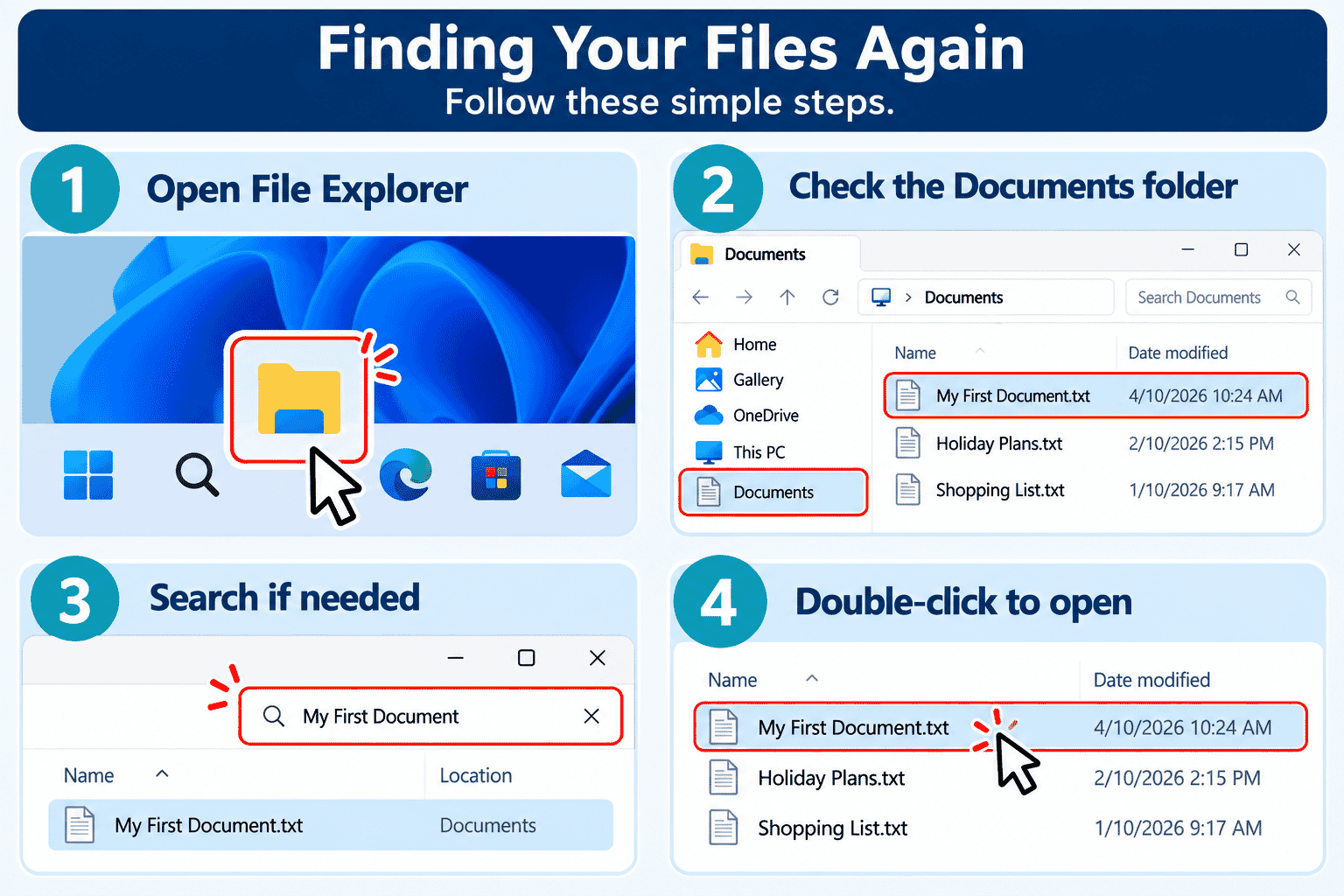
Opening File Explorer
File Explorer is a Windows program that helps you look through files and folders on your computer.
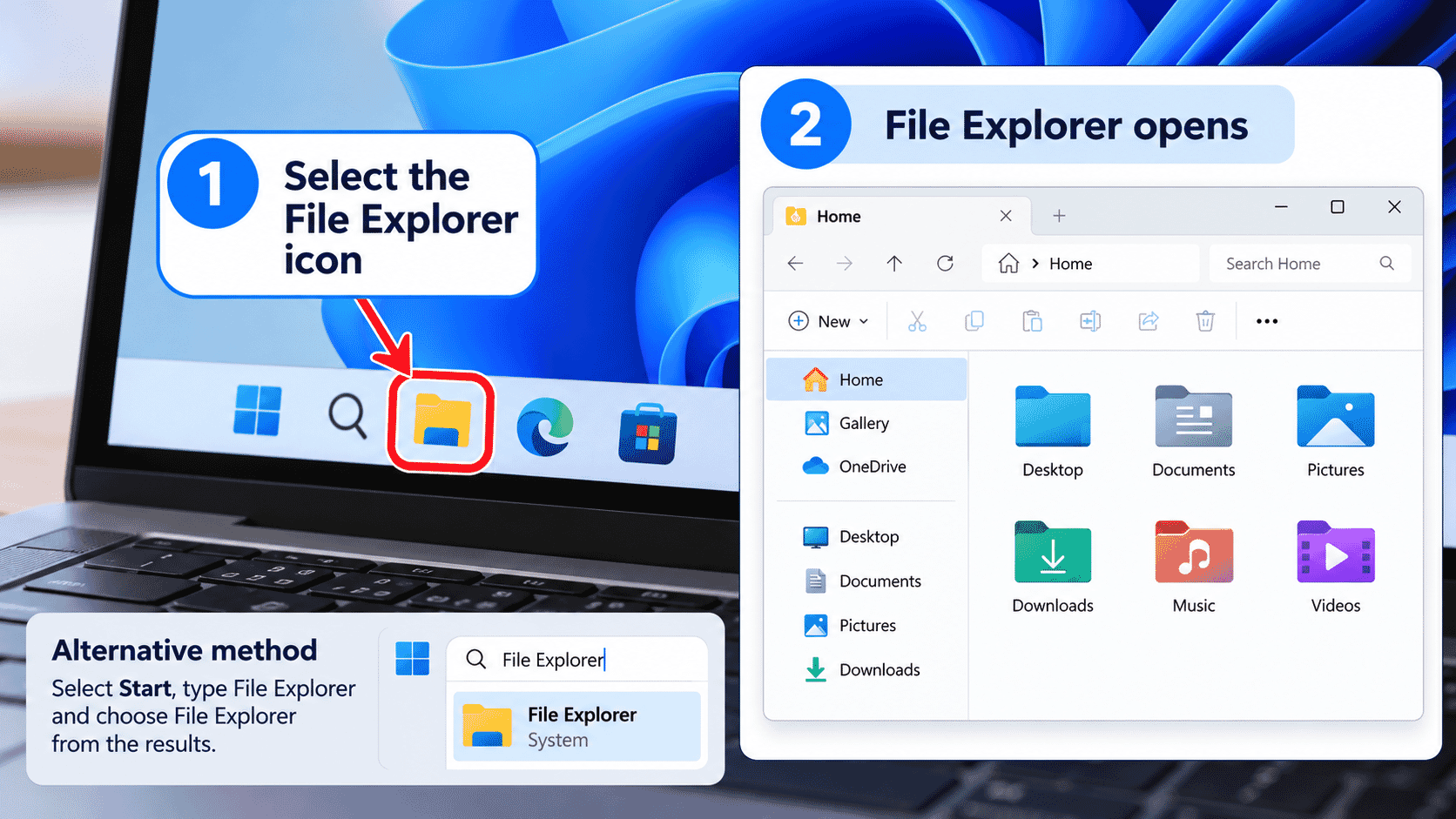
To open File Explorer:
- Look at the taskbar along the bottom of your screen.
- Select the folder-shaped File Explorer icon, if it is there.
- Wait for the File Explorer window to open.
If you cannot see the icon:
- Select Start.
- Type File Explorer into the search box.
- Select File Explorer from the results.
You can also press Windows key + E on your keyboard.
Once File Explorer opens, you can choose a folder and look at the files inside it.
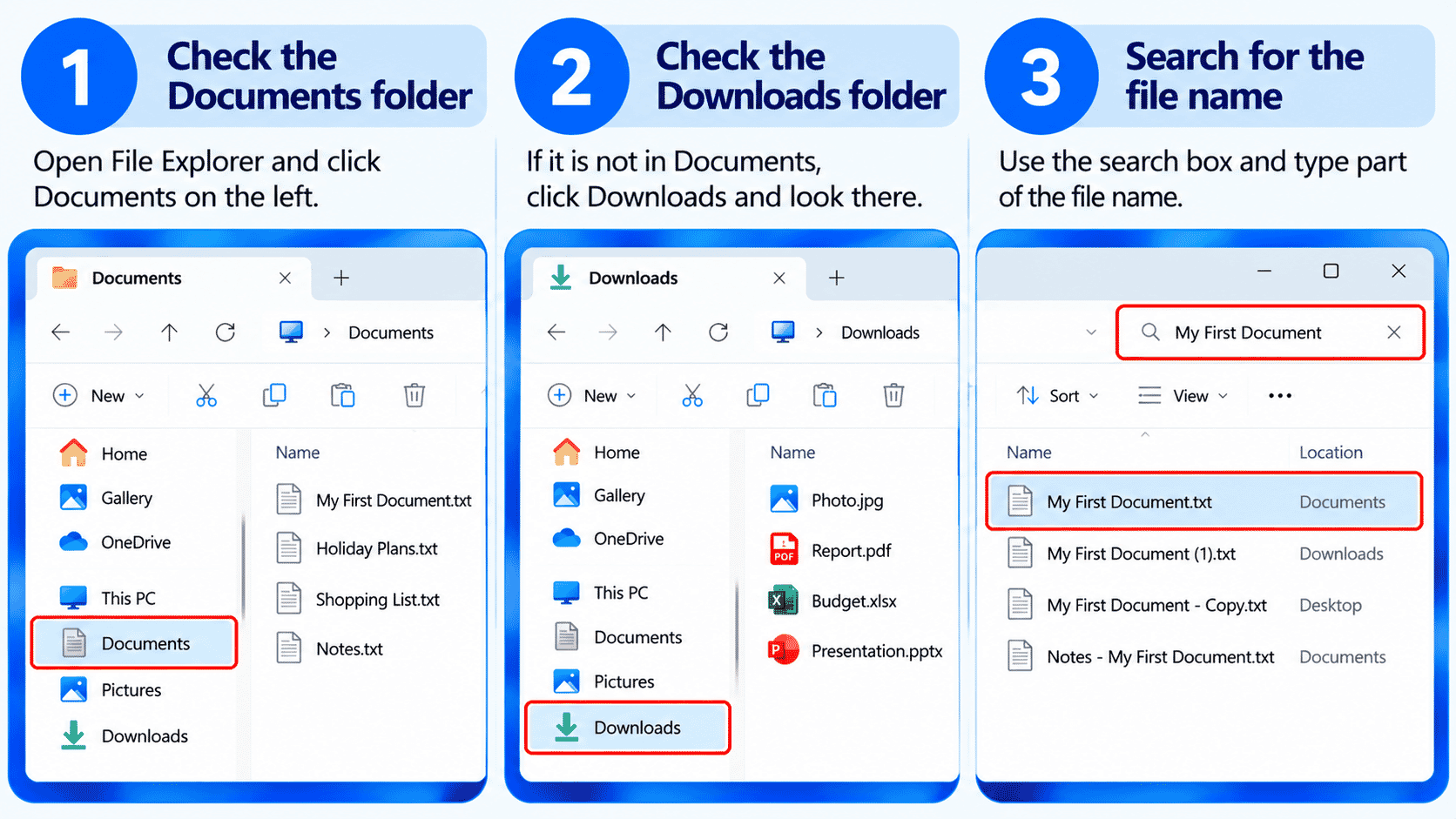
Looking in Documents
In LG-013, you practised saving a file in Documents. This is a good place to look first for letters, notes and other written work.
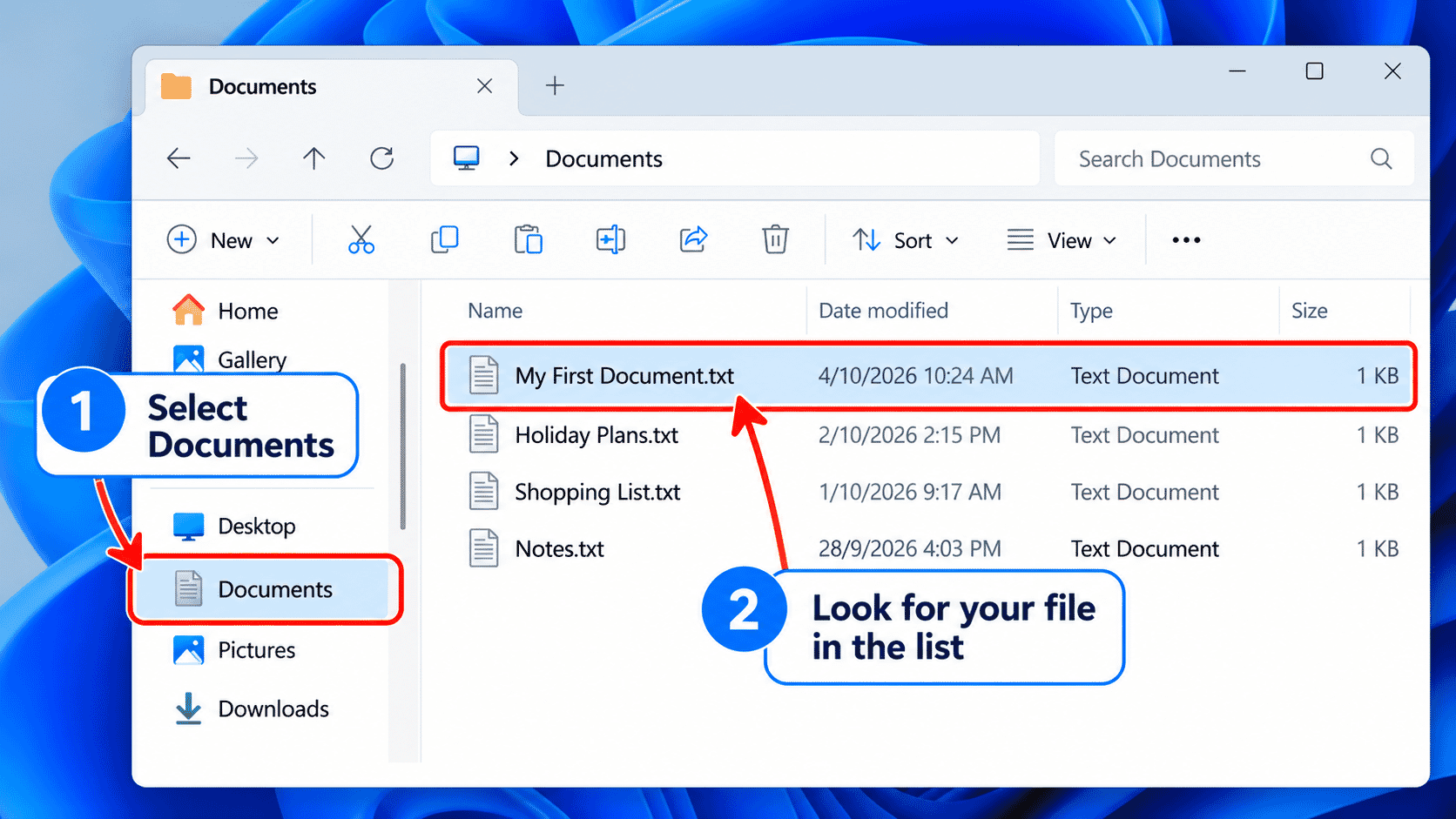
- Open File Explorer.
- Look for Documents in the left-hand navigation area or under Home.
- Select Documents. If you do not see it, try This PC > Documents.
- Look through the file names in the main part of the window.
- Find My First Document if you completed the previous guide's activity.
You might see My First Document.txt instead. The letters after the dot tell Windows what kind of file it is. Windows may hide those letters, so either name is fine.
Helpful tip: If your Documents folder is backed up with OneDrive, it may appear under OneDrive in File Explorer instead. You can still look for Documents there.
Opening a File Again
Once you can see your saved file, you can open it.
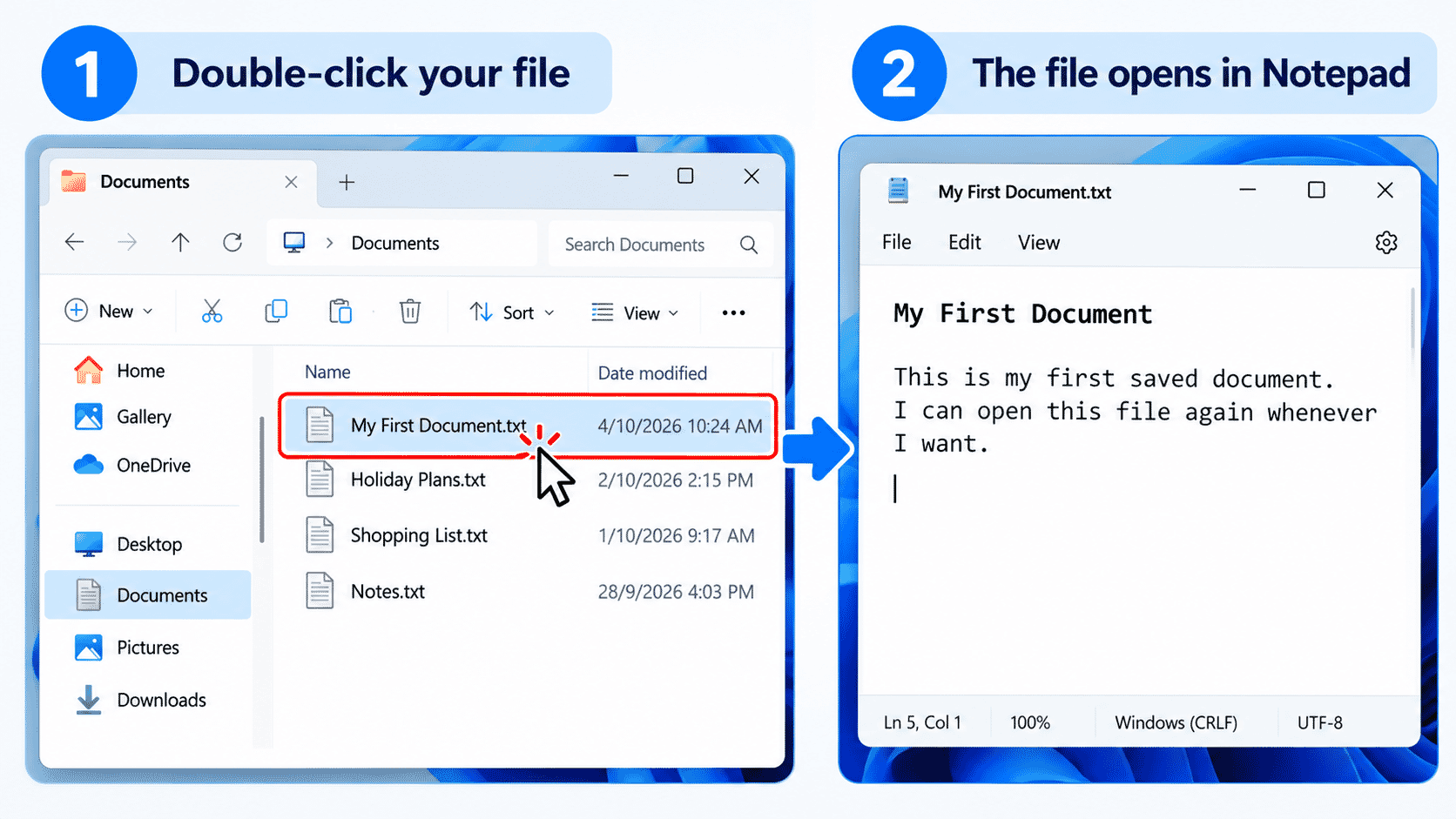
- Point to My First Document.
- Double-click the file with your mouse.
- Wait for the file to open in a suitable program, such as Notepad.
- Read the contents to check that it is the right file.
You can also click the file once and press Enter.
If you want to make changes, remember to save them before closing the program.
Remember: Opening a file lets you view or work on it. You do not need to save it again unless you make changes you want to keep.
Checking Recent Files
Sometimes the quickest way to find a document is to look for something you opened recently.
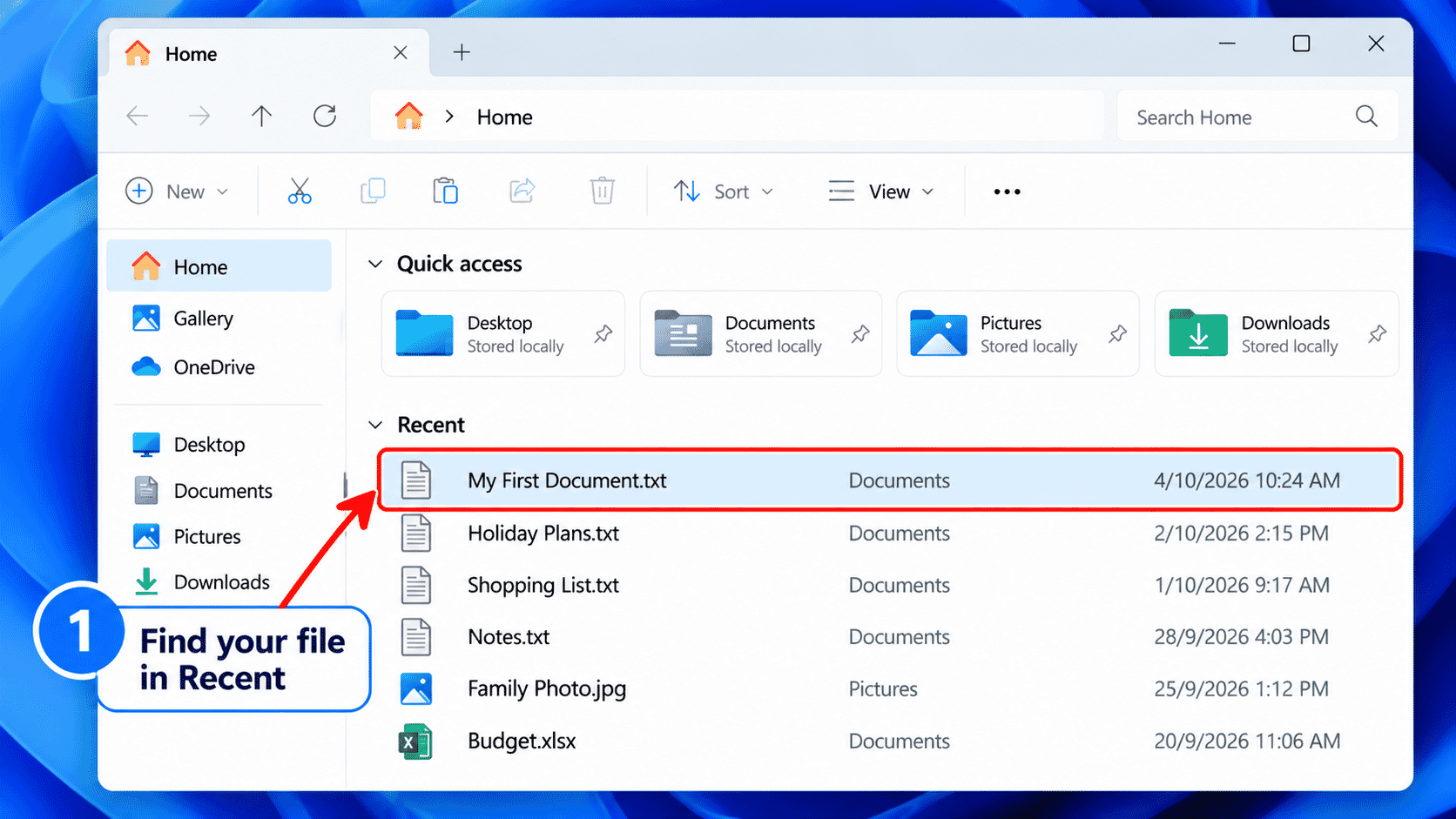
- Open File Explorer.
- Select Home, if it is available.
- Look for a section called Recent.
- Select the file you recognise to open it.
The Recent section may not appear, or it may be empty. This depends on your Windows settings and what you have used recently.
If you cannot find the file there, use Documents or search instead.
Searching for a File
What if you remember the file's name but cannot remember which folder you used?
File Explorer has a search box that can help.
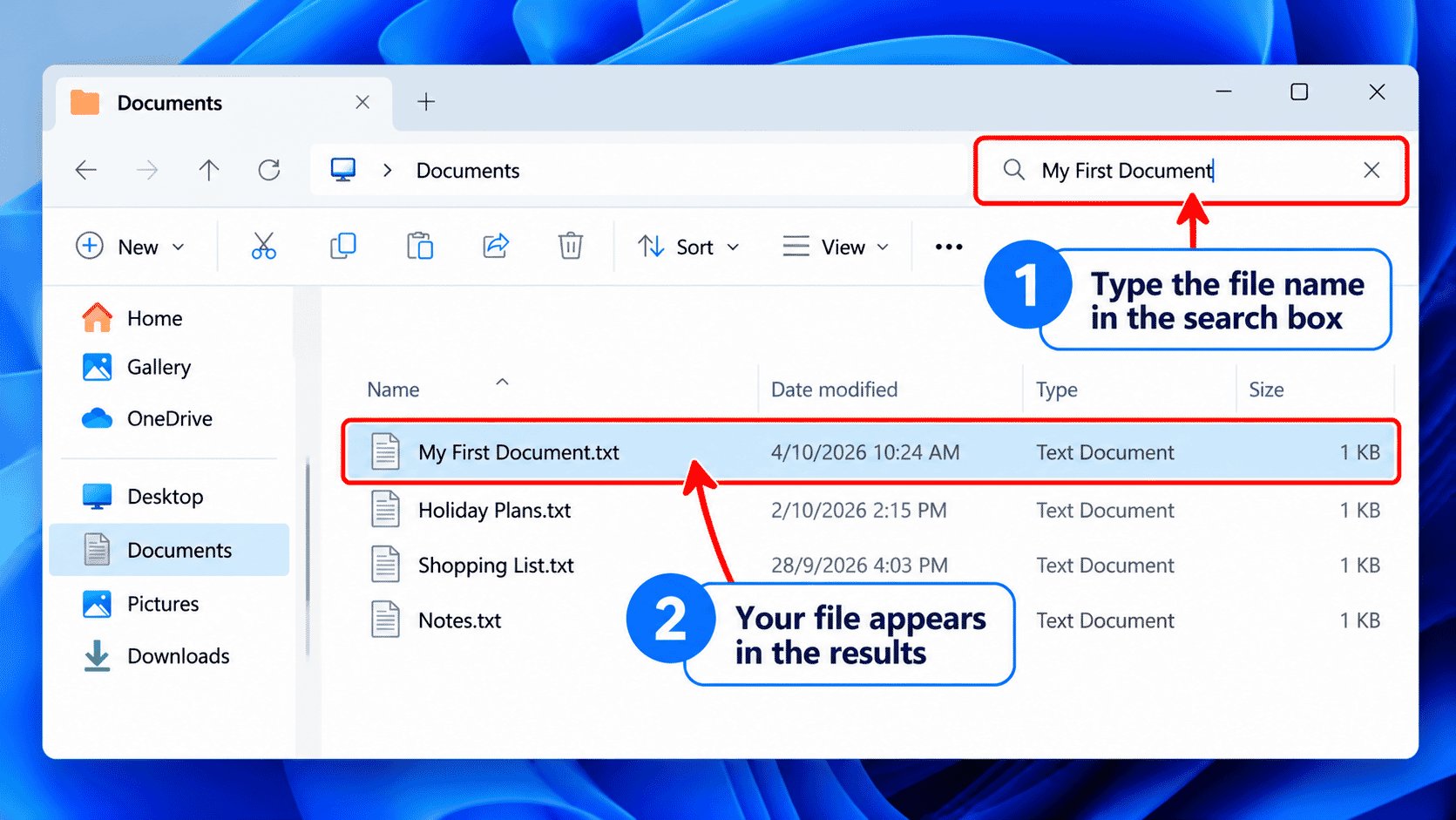
- Open File Explorer.
- Select Documents if you think you saved the file there.
- Click the search box near the top-right of File Explorer.
- Type part of the file name, such as My First Document.
- Press Enter and allow time for the results to appear.
- Double-click the matching file to open it.
Searching in Documents looks for files in that folder and its subfolders. If you cannot find a match, try searching another likely location, or select This PC before searching more widely. A wider search may take longer.
You do not have to type the whole name. A useful word from the name may be enough.
Other Places to Look
Not everything you save goes into Documents. The location depends on the program and the choice you made when saving or downloading.
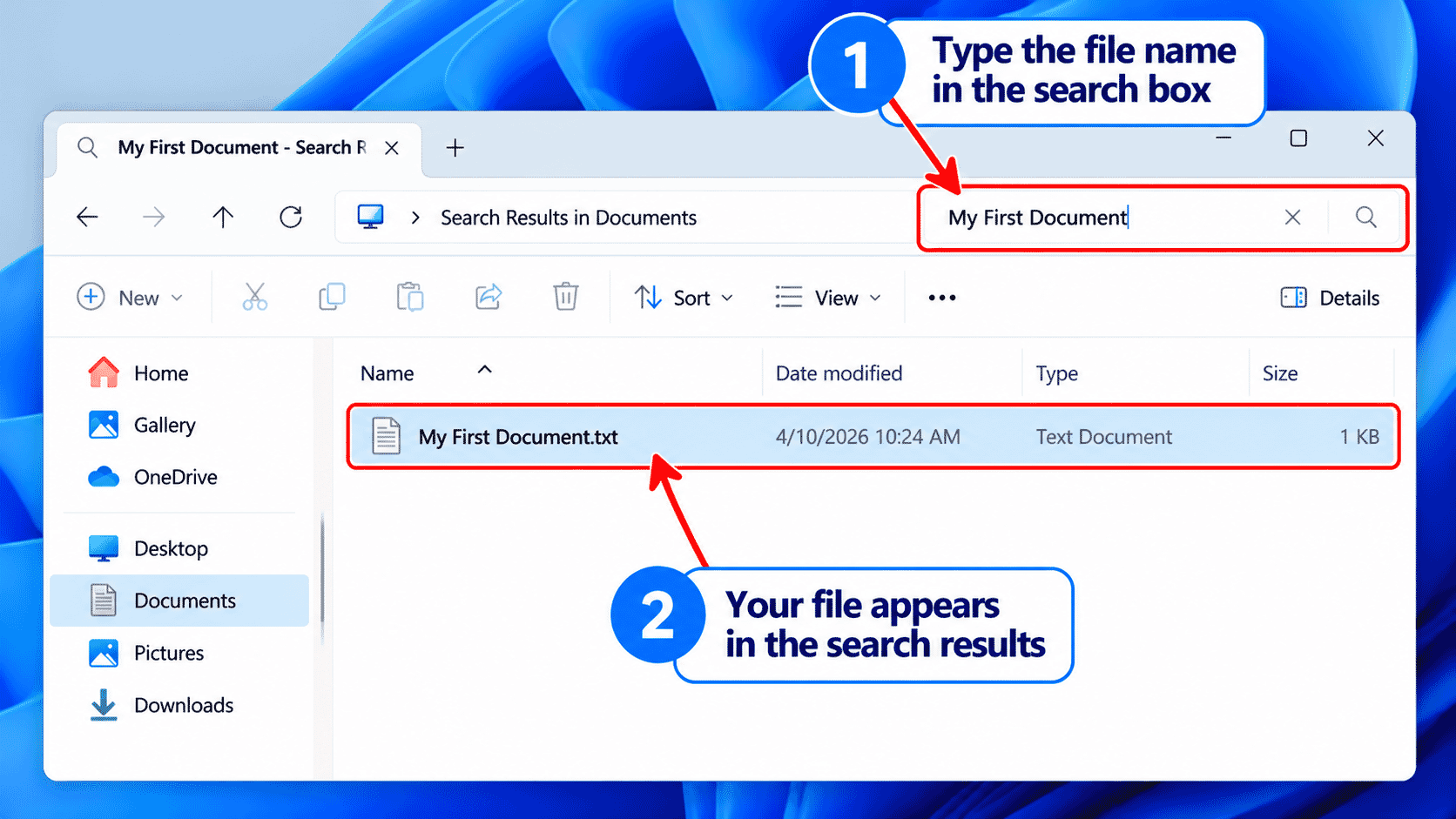
Some common places are:
| Folder | What you might find |
|---|---|
| Documents | Letters, notes and written work |
| Downloads | Files downloaded from websites or emails |
| Pictures | Photos and images |
| Desktop | Files you chose to keep on your desktop |
To check one of these places, open File Explorer and select the folder.
If you downloaded a document from a website, Downloads is often a good place to start.
Knowing Where You Are
It helps to notice the folder name at the top of File Explorer. This is sometimes called the address bar.
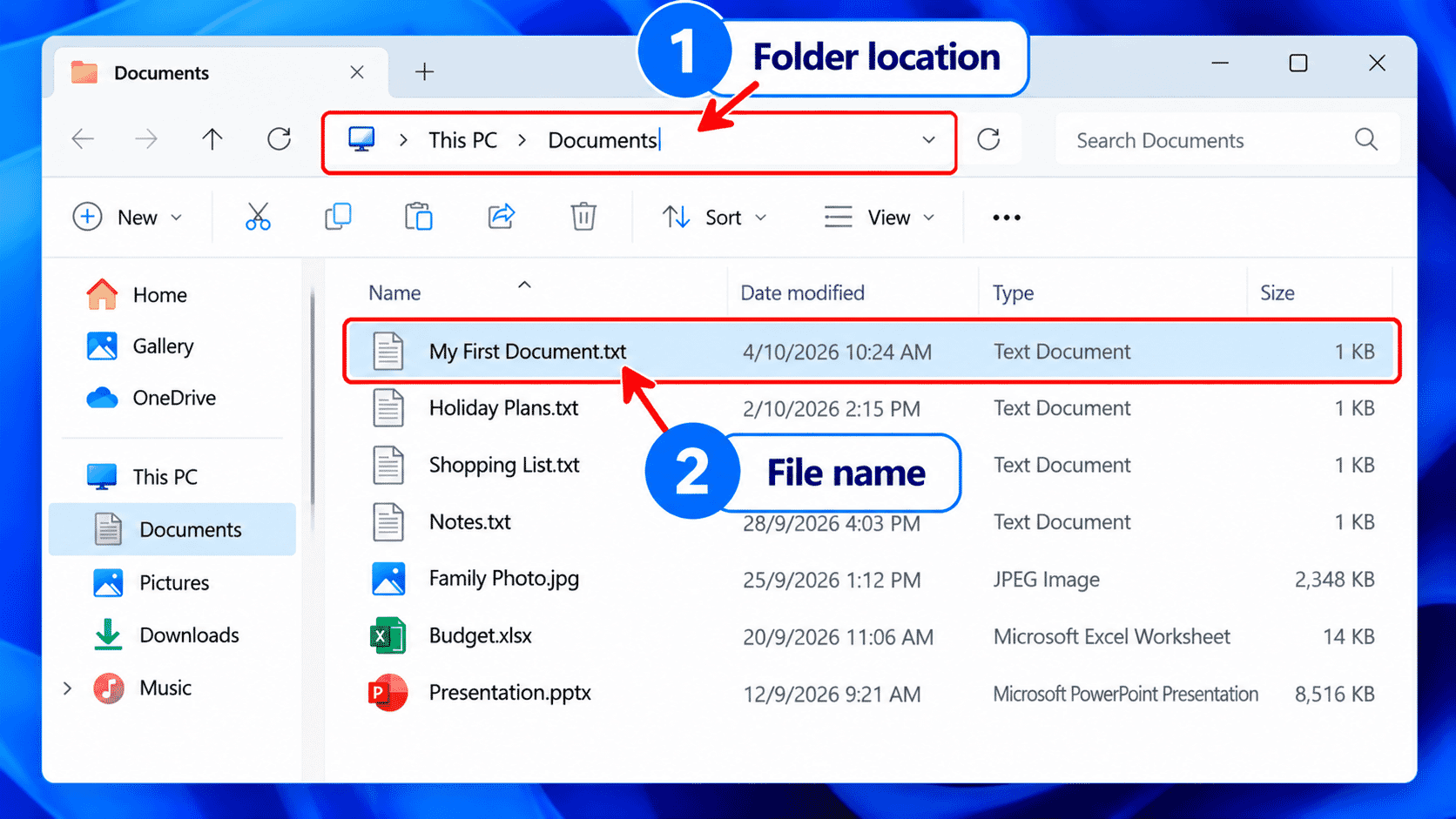
If it says Documents, you are looking inside Documents. If you select Downloads, you are looking somewhere different.
You can use the Back arrow near the top of File Explorer to return to the previous place you viewed.
You do not need to learn complicated file locations or technical paths. Just pay attention to the folder name.
What If You Cannot Find It?
If your file does not appear straight away, try these checks one at a time.
| Problem | Possible cause | What to try |
|---|---|---|
| My file is not in Documents | It was saved somewhere else | Check Downloads, Desktop or another folder you used |
| I cannot remember the full name | The file has a different name | Search using one word you remember |
| Nothing appears in search | You searched the wrong folder | Try another folder or search from This PC |
| I can see the file but it will not open | Windows may need a suitable program | Read the message and ask for help if you are unsure |
| My recent files are missing | Recent items may be turned off | Find the file in its folder instead |
Avoid deleting, moving or renaming files while you are trying to locate them. You can practise organising files in the next guide.
If a file was never saved, it may not be available in File Explorer. Some programs offer recovery features, but this depends on the program.
Try It Yourself
Let's return to the file you created in LG-013.
- Open File Explorer.
- Select Documents.
- Find My First Document.
- Double-click it to open it.
- Check that your name and the date are still there.
- Close the file when you have finished.
- Open File Explorer again and search for My First Document in Documents.
If you did not complete the previous activity, you can first use Notepad to create a short practice note and save it in Documents.
You can repeat these steps as many times as you like. Finding your own saved work is a useful everyday skill.
Helpful Tips
- Give files names that describe what is inside them.
- Remember the folder you choose when saving.
- Start with Documents for letters and notes.
- Check Downloads for files you received from the internet.
- Search using a word from the file name if you are unsure.
- Take your time. A file can be safely stored even when you cannot immediately see it.
Common Mistakes
Looking only at the desktop: Many files are saved in Documents rather than on the desktop. Open File Explorer and check Documents.
Searching in the wrong folder: File Explorer searches within the location you selected. Try another folder or This PC.
Clicking once and expecting a file to open: A single click usually selects the file. Double-click it, or select it and press Enter, to open it.
Not recognising a file extension: A file may have letters such as .txt after its name. This is normal and does not mean it is a different document.
What You've Learned
You now know how to:
- Open File Explorer.
- Find the Documents folder.
- Recognise and open a saved file.
- Check recent files when available.
- Look in Downloads, Pictures and Desktop.
- Search for a file using part of its name.
- Check which folder you are viewing.
You have taken the next step from saving your work to finding it again when you need it.
Keep Learning
Next guide in this module:
- LG-015 – Understanding Files and Folders (planned)
You will learn how files and folders fit together and how to keep your work organised.
You may also find these guides helpful:
- LG-011 – Understanding Windows
- LG-012 – Opening and Closing Programs
- LG-013 – Saving Files
If you would like some one-on-one help, Troubleshoot IT can support you at your own pace.
Learning Paths
View all pathsNeed some help with this?
One-hour, in-person 1:1 tech training for people who find technology challenging, especially older adults, with patient, practical support using phones, tablets and computers.
Troubleshoot IT provides practical, one-to-one technology support across Darwin, Palmerston and surrounding areas.