LG-015 - Understanding Files and Folders
Learn the difference between files and folders in Windows 11. Create and name folders, move or copy a file, and keep your documents organised with easy steps.
Before You Begin
Knowledge Prerequisites
Overview
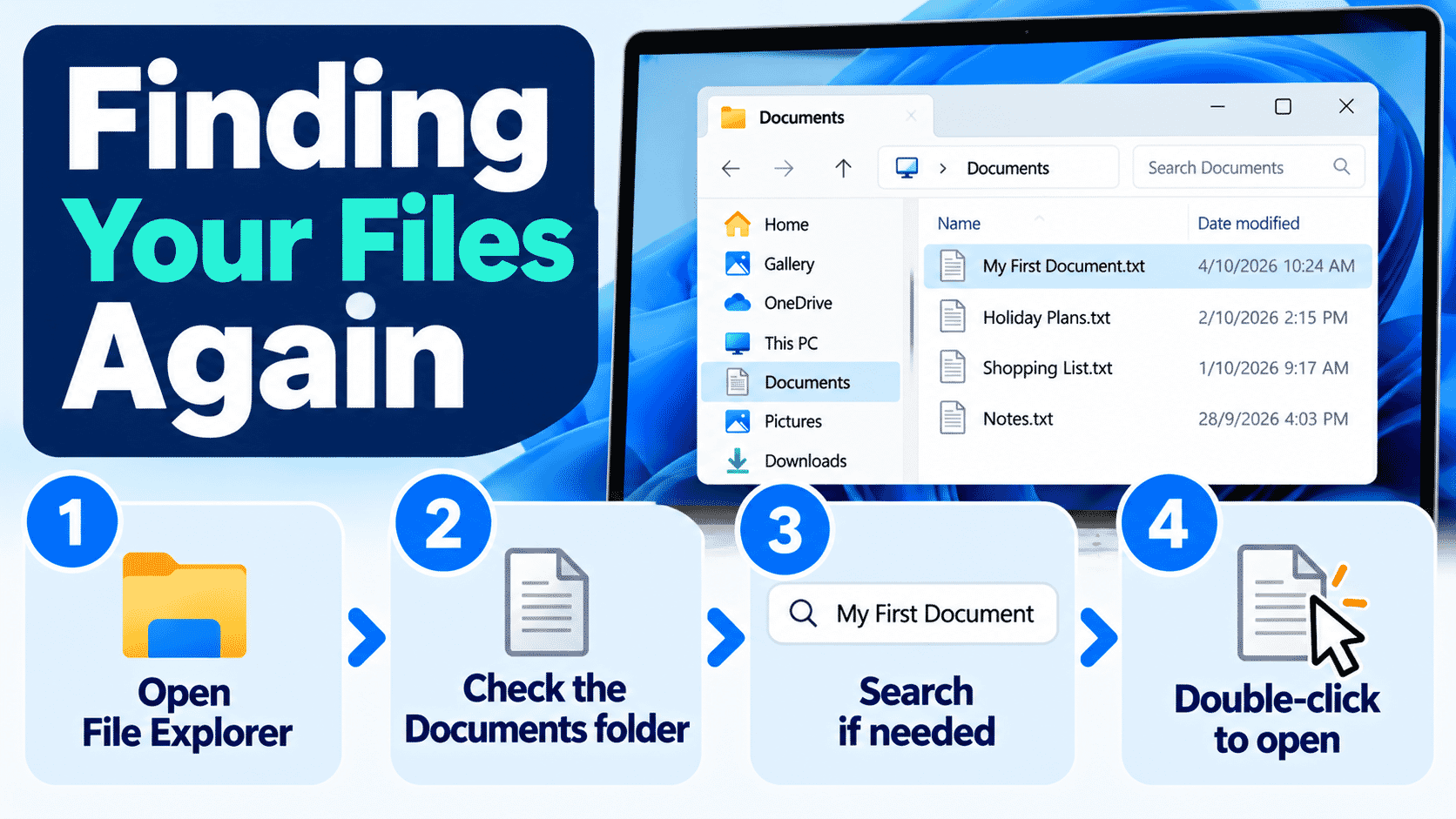
In LG-013 – Saving Files, you learned to save your work. In LG-014 – Finding Files Again, you learned how to find and open it.
Now you will learn how to keep your files organised so they are easier to find next time. You do not need a complicated system. A few clearly named folders can make a big difference.
Before You Begin
- Device: A Windows 11 desktop or laptop.
- What you need: A mouse or touchpad and a practice file you are happy to move or copy.
- Account: No new account is required.
- Permissions: Access to the Windows account and folders you are working in. You may not be able to change protected or shared folders.
- Helpful previous guides: LG-011 – Understanding Windows; LG-013 – Saving Files; LG-014 – Finding Files Again.
Use a practice document rather than an important original. Your screen may look slightly different, and that is normal.
Learning Objectives
By the end of this guide, you will be able to:
- Explain the difference between a file and a folder.
- Open a folder using File Explorer.
- Create and name a new folder.
- Rename a folder you created.
- Move a practice file into a folder.
- Explain how copying differs from moving.
- Keep a simple folder structure.
What Is the Difference Between a File and a Folder?
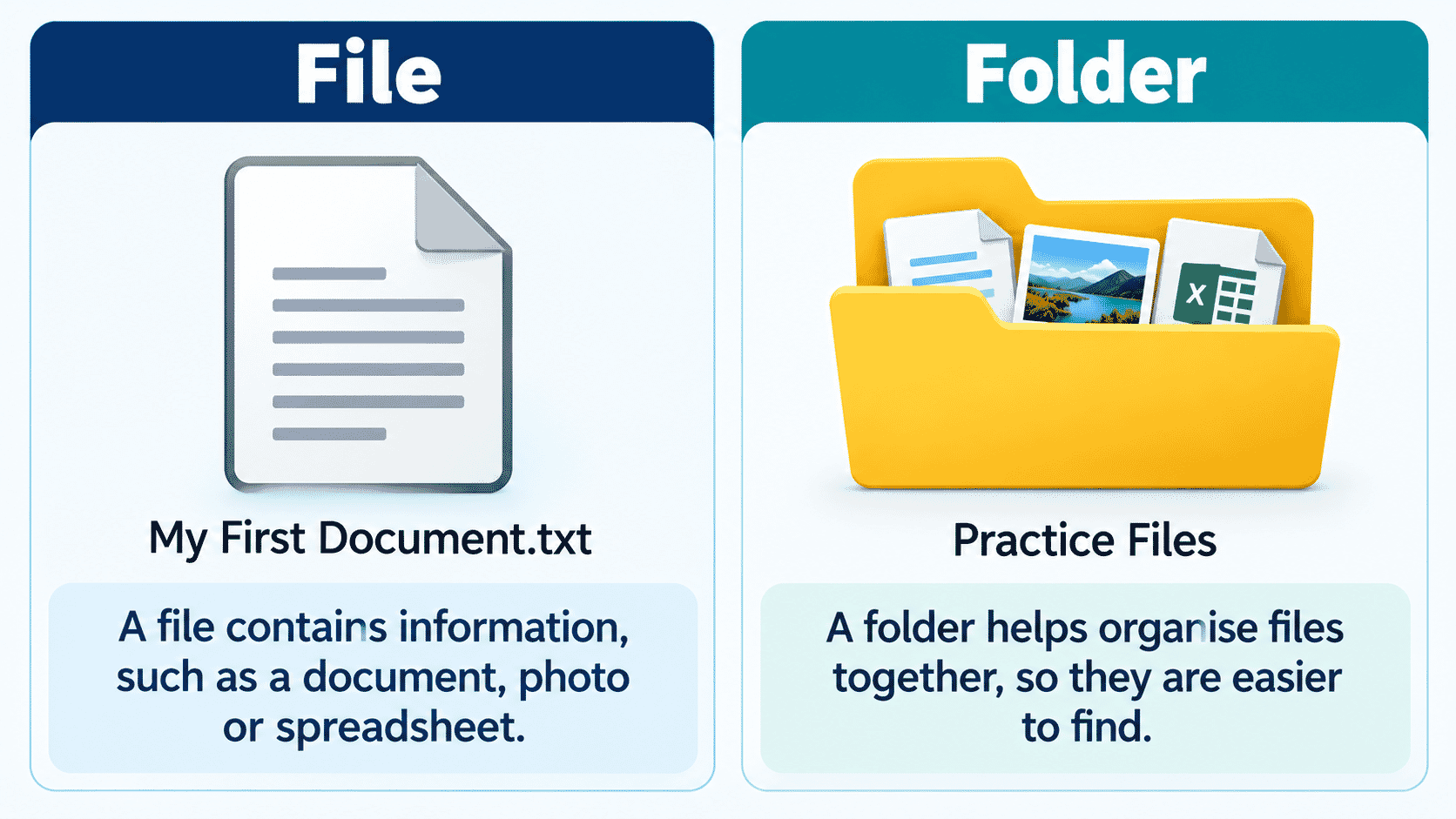
A file holds something you want to keep, such as a letter or photograph. A folder is a place for keeping related files together. Think of a file as a letter and a folder as the labelled folder you put the letter into. A folder can also contain other folders.
Finding Folders in File Explorer
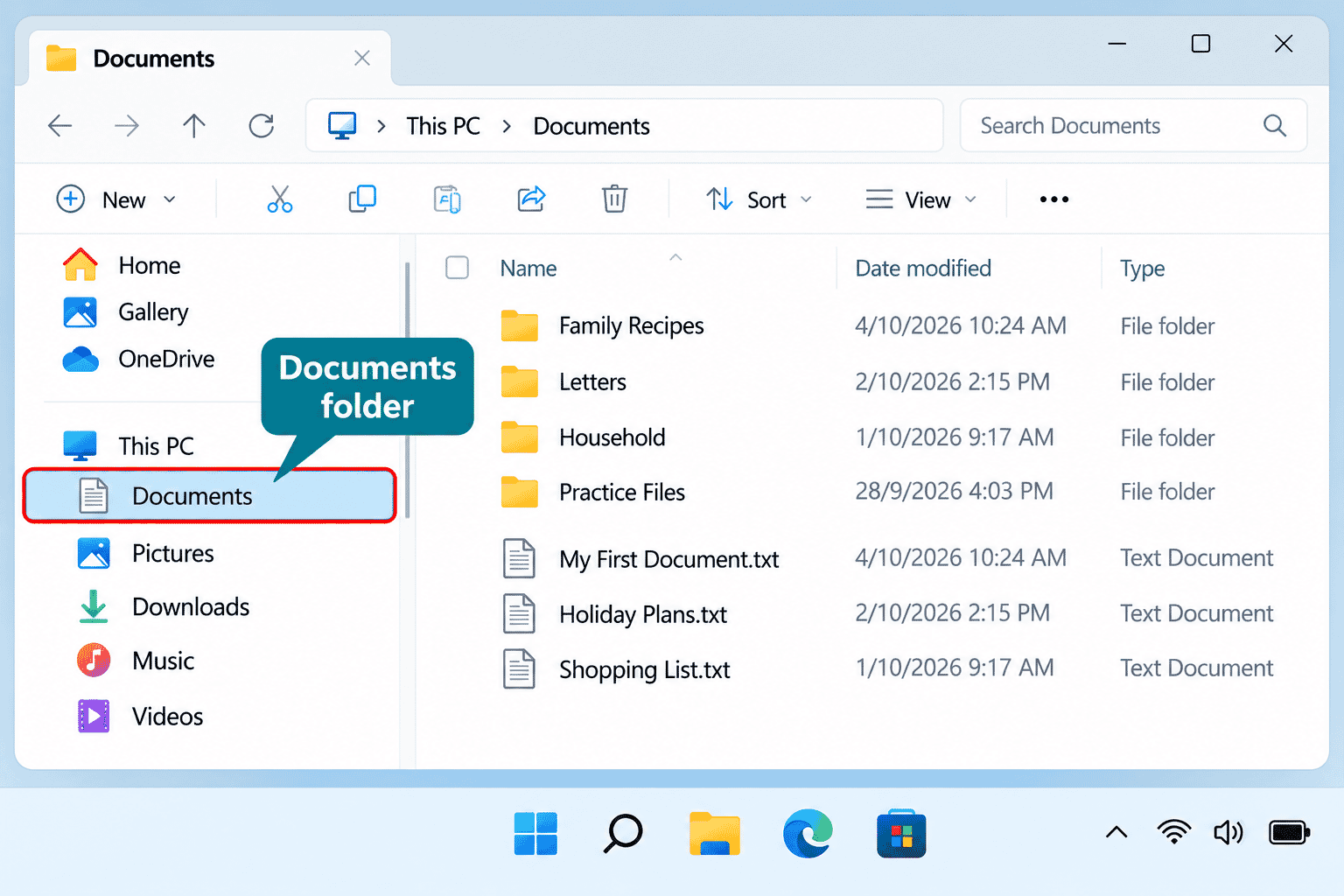
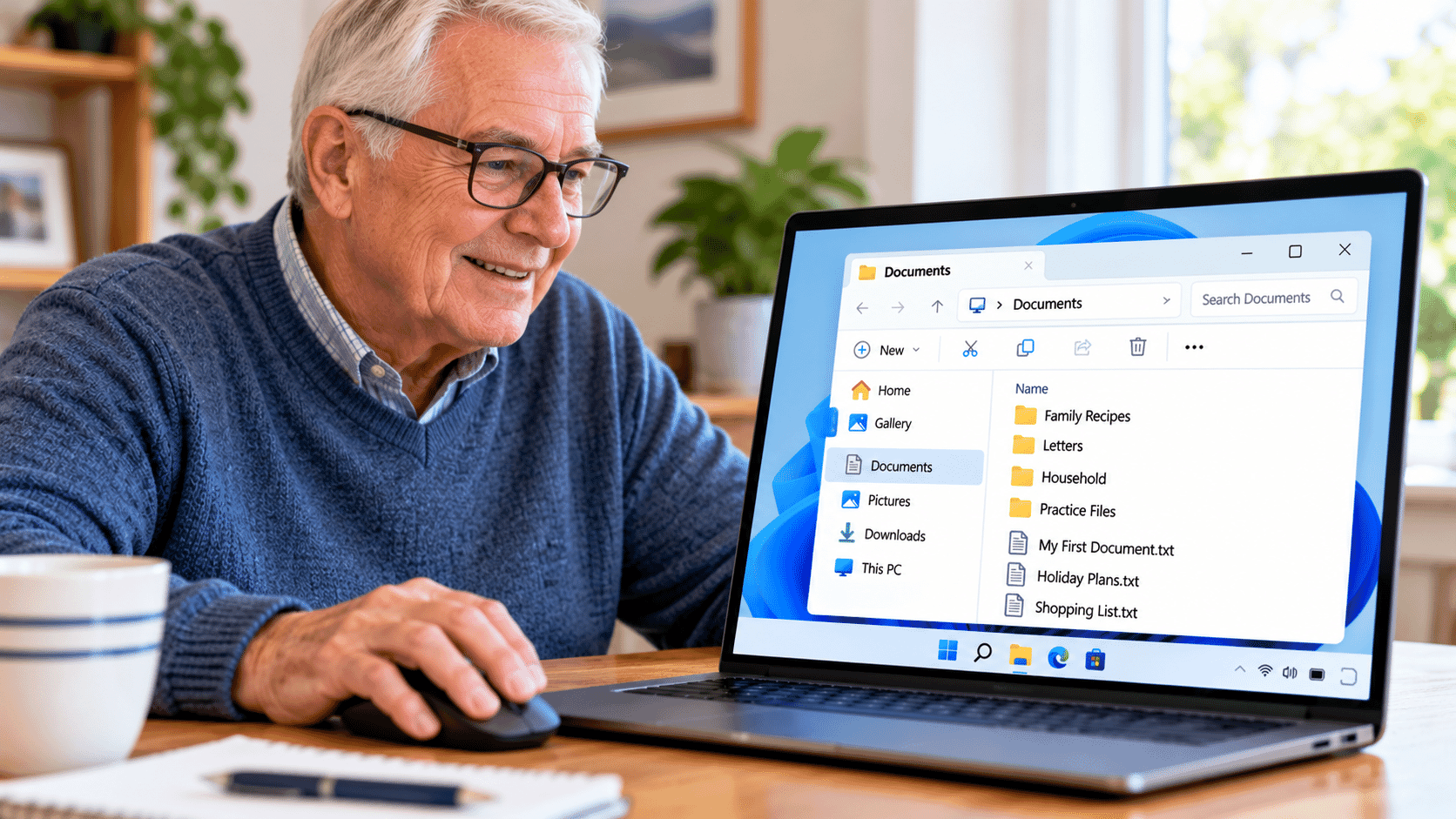
Open File Explorer by selecting its folder-shaped icon on the taskbar, or press Windows key + E. In the navigation pane, look for Home and common locations such as Documents, Pictures and Downloads. If Documents is not visible, select This PC and then Documents, where available. On some computers, Documents may be under OneDrive. The exact layout can vary.
Opening a Folder
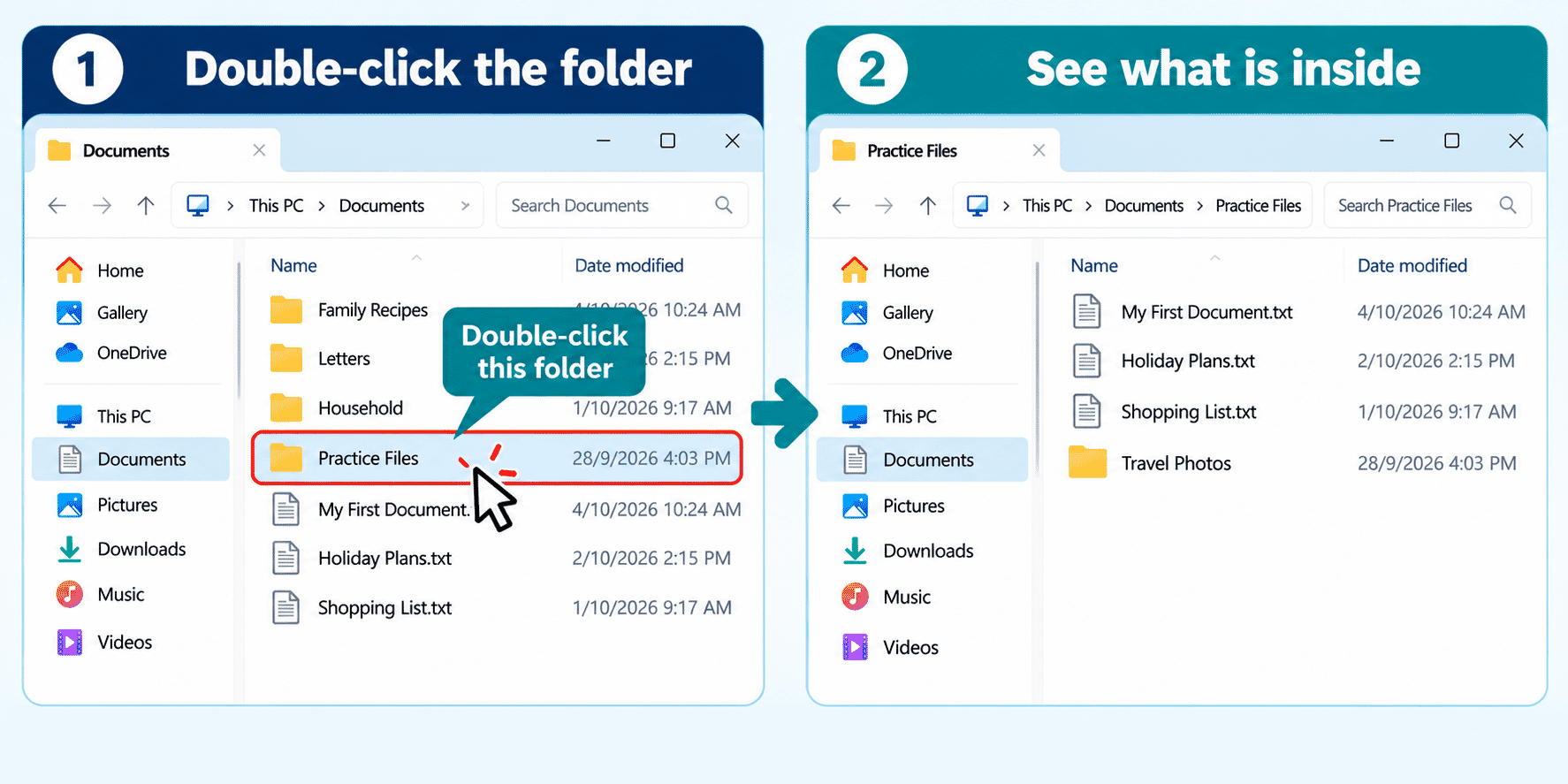
To see what is inside a folder, double-click it. You will see the files and any other folders it contains. To return to the previous location, select the Back arrow near the top of File Explorer. You can also select a location in the address bar to move back to it.
Creating a New Folder
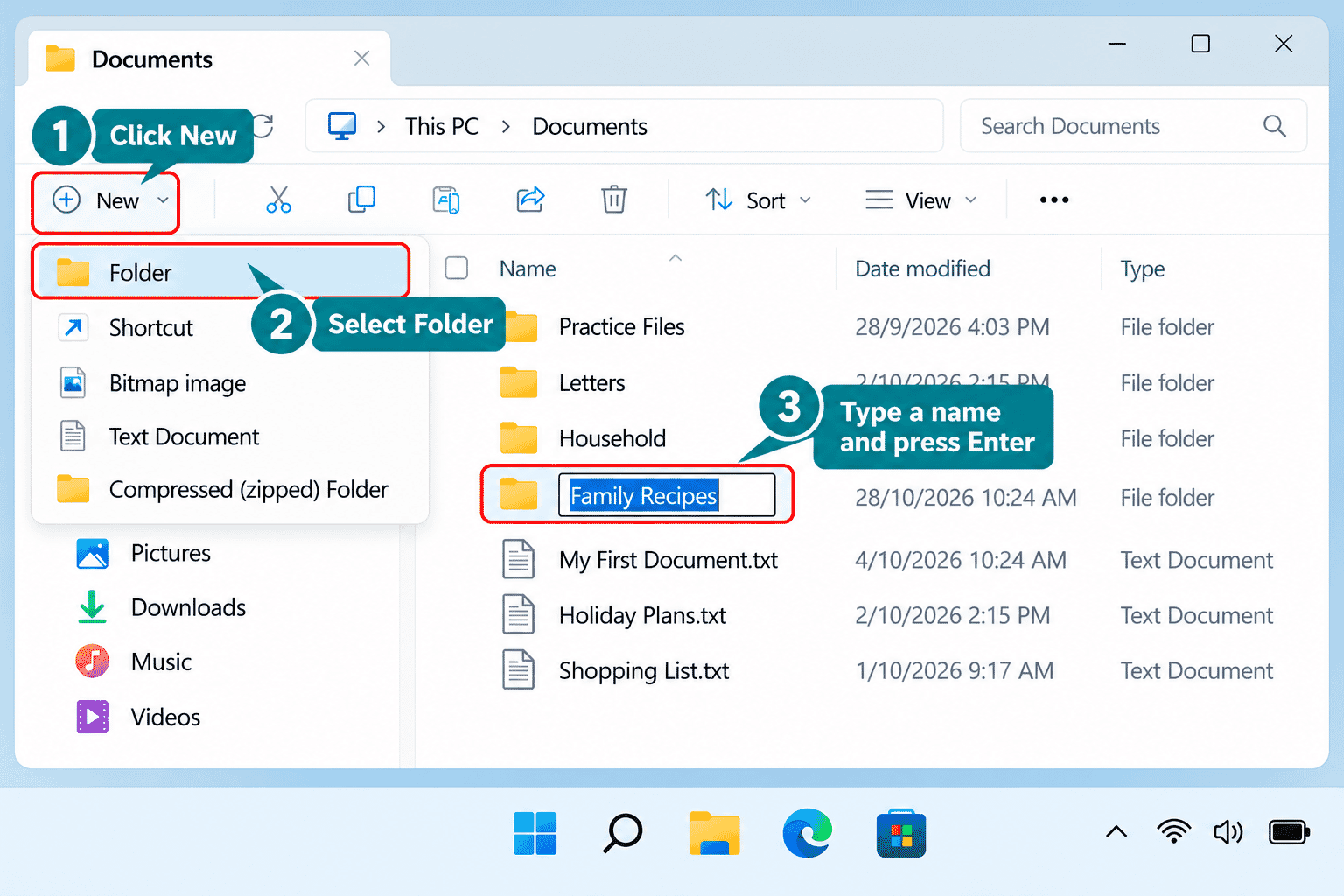
You can make a folder to keep related work together. For example, you might create Family Recipes inside Documents. Open Documents, select New, then Folder. Type Family Recipes and press Enter. If your computer looks different, right-click an empty area and choose New > Folder.
Renaming a Folder
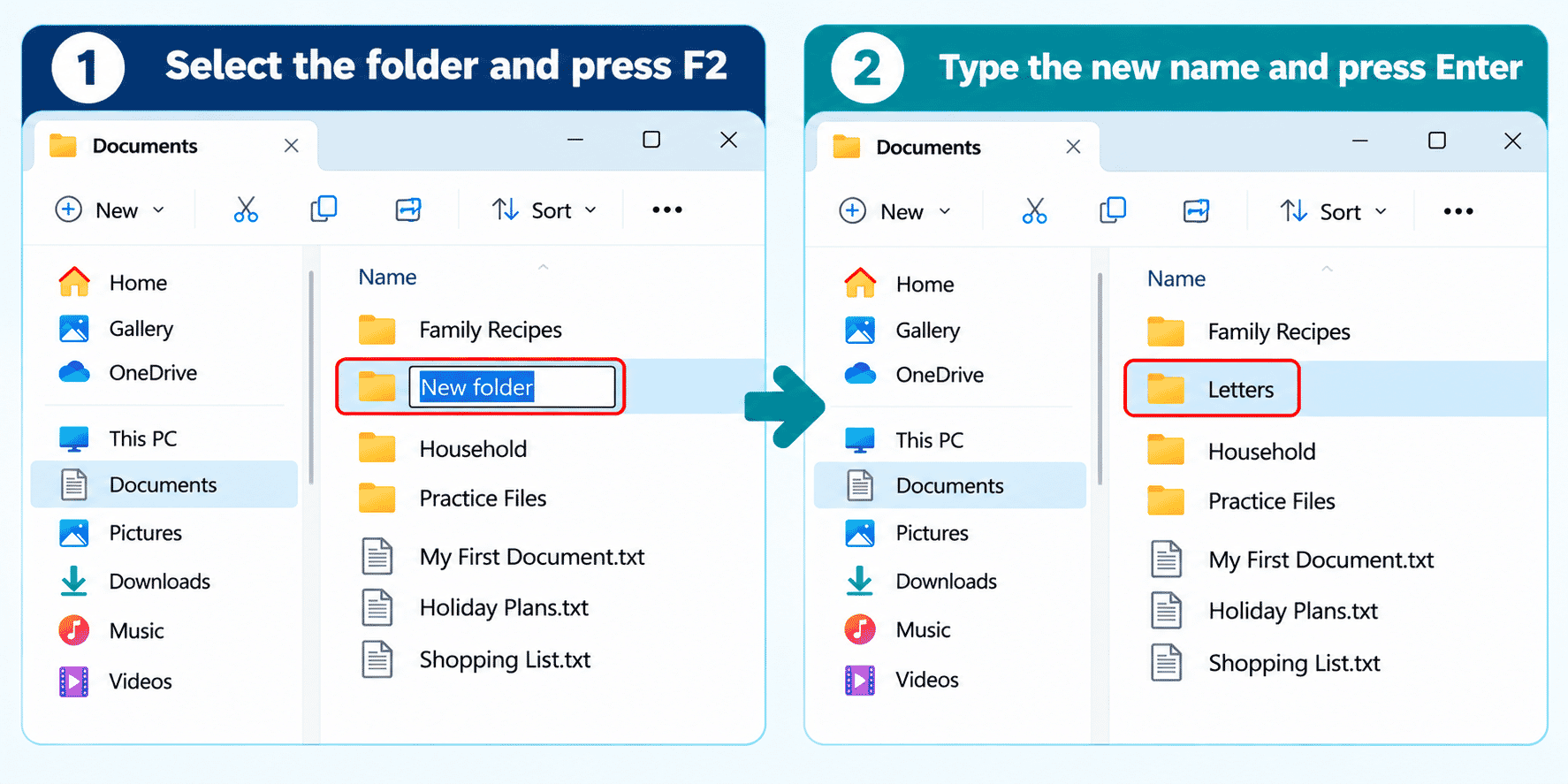
To give a folder a clearer name, select it once, press F2 (or right-click and choose Rename), type the new name and press Enter. Rename only folders you created or understand. Changing a folder name does not normally change the contents inside it, but shortcuts or programs that expect its old location may stop working.
Moving a File into a Folder
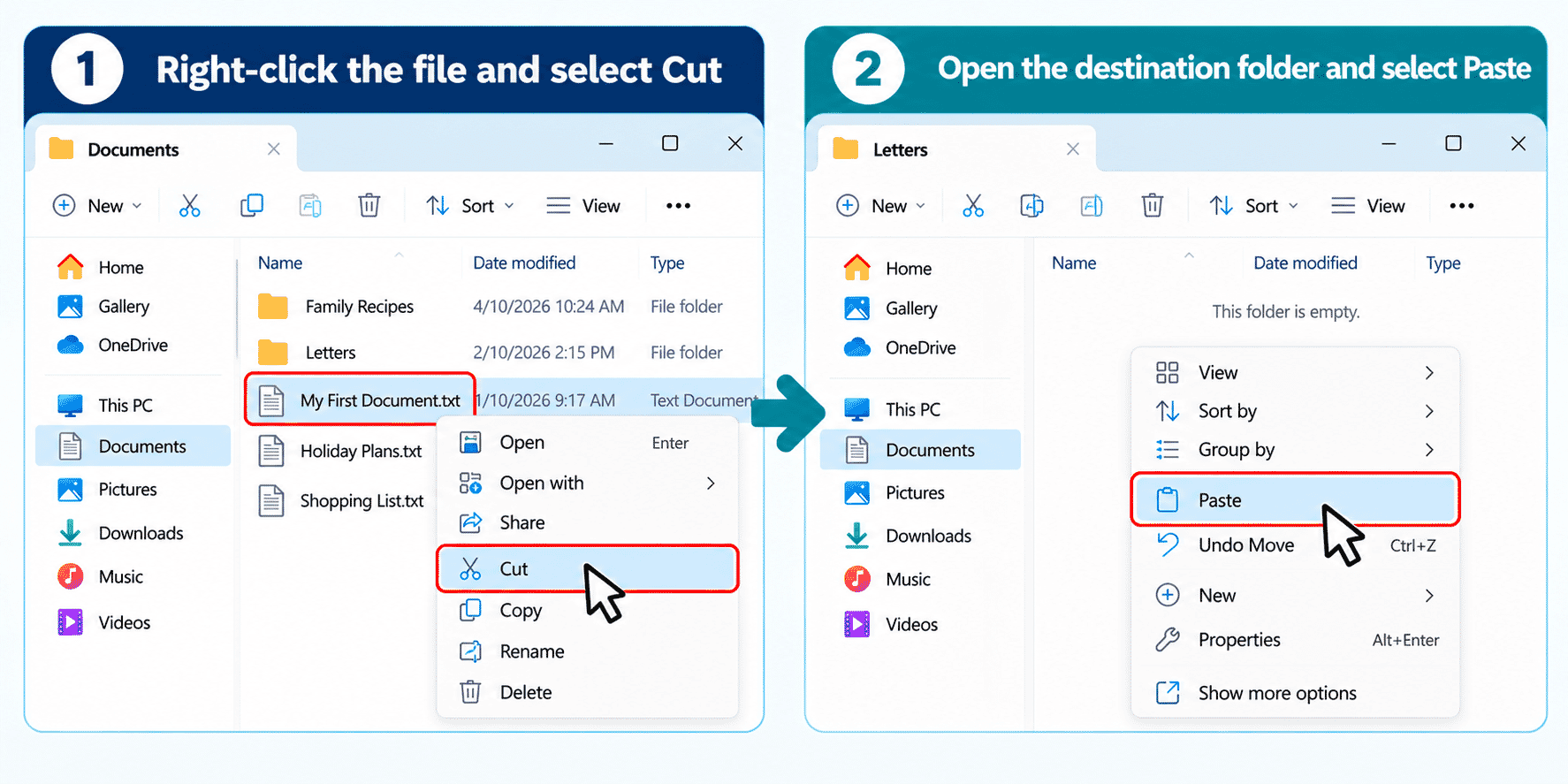
You can put an existing file into your new folder. In File Explorer, find the file, right-click it and select Cut. Open the destination folder, right-click an empty area and select Paste. The file should now appear inside that folder. Check that it is there before closing File Explorer. Cut and Paste moves the file, rather than making another copy. Avoid moving files belonging to programs or other people.
Copying a File Instead of Moving It
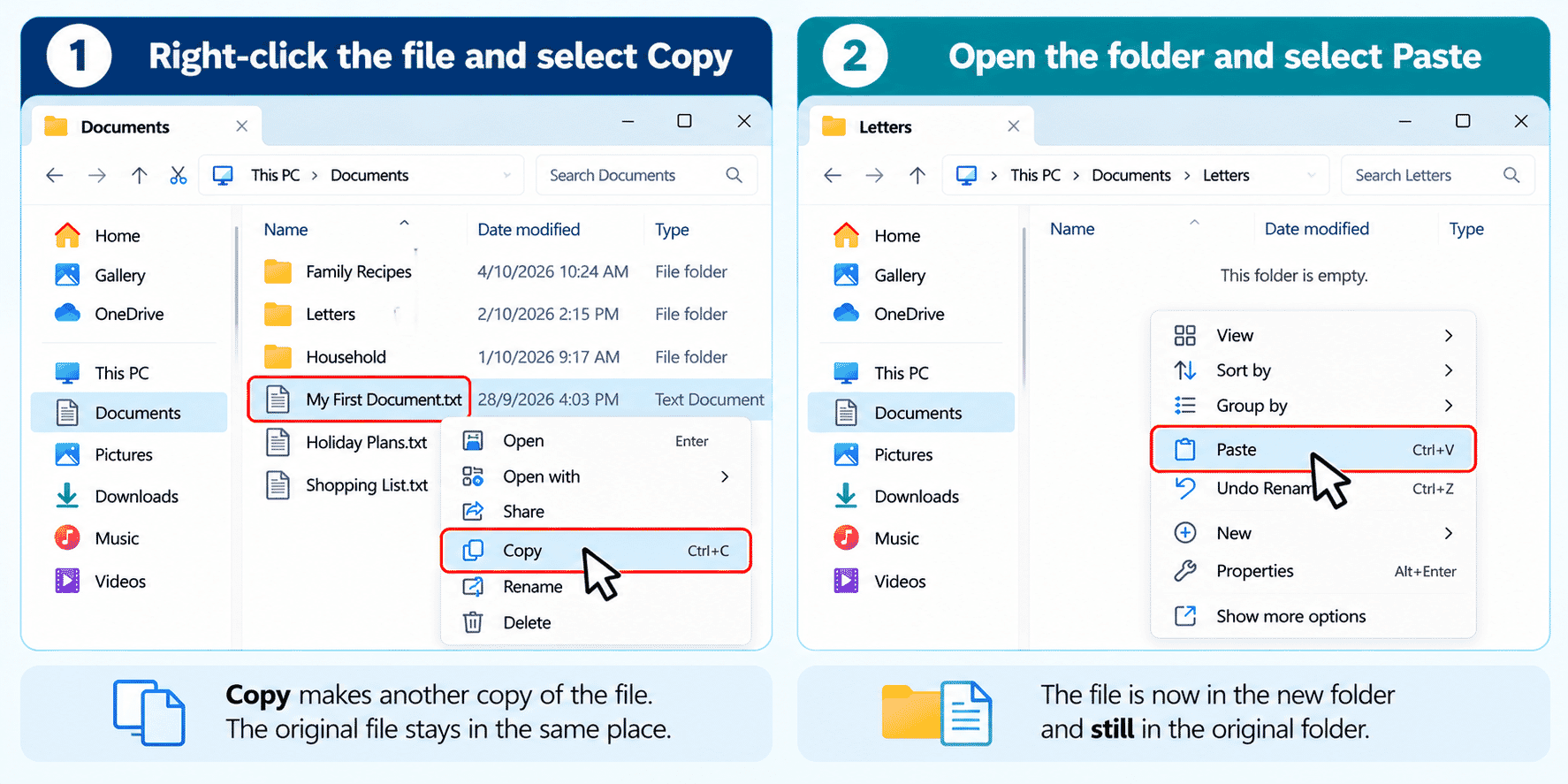
Sometimes you want the file in two places. Right-click the file and choose Copy. Open the destination folder and select Paste. The original remains in its previous location and a second copy is created. If you edit one copy later, the other copy will not automatically update. You can use Ctrl + C to copy and Ctrl + V to paste.
Keeping Your Folders Simple
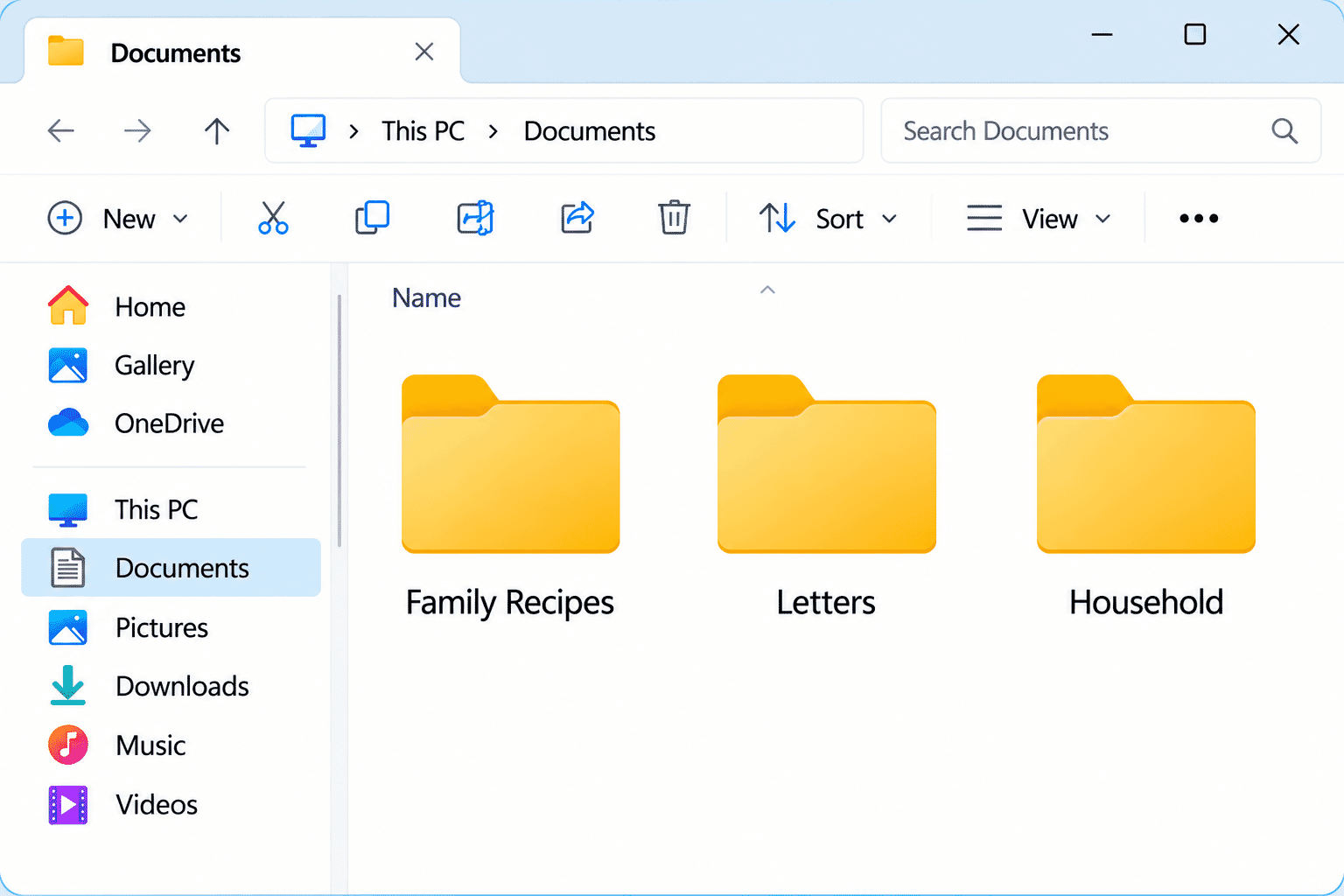
Start with just a few useful folders. For example, Documents might contain Family Recipes, Letters and Household. Give files and folders meaningful names. Avoid creating many folders inside folders while you are still learning. You do not have to organise everything at once.
If You Cannot Find a File After Moving It
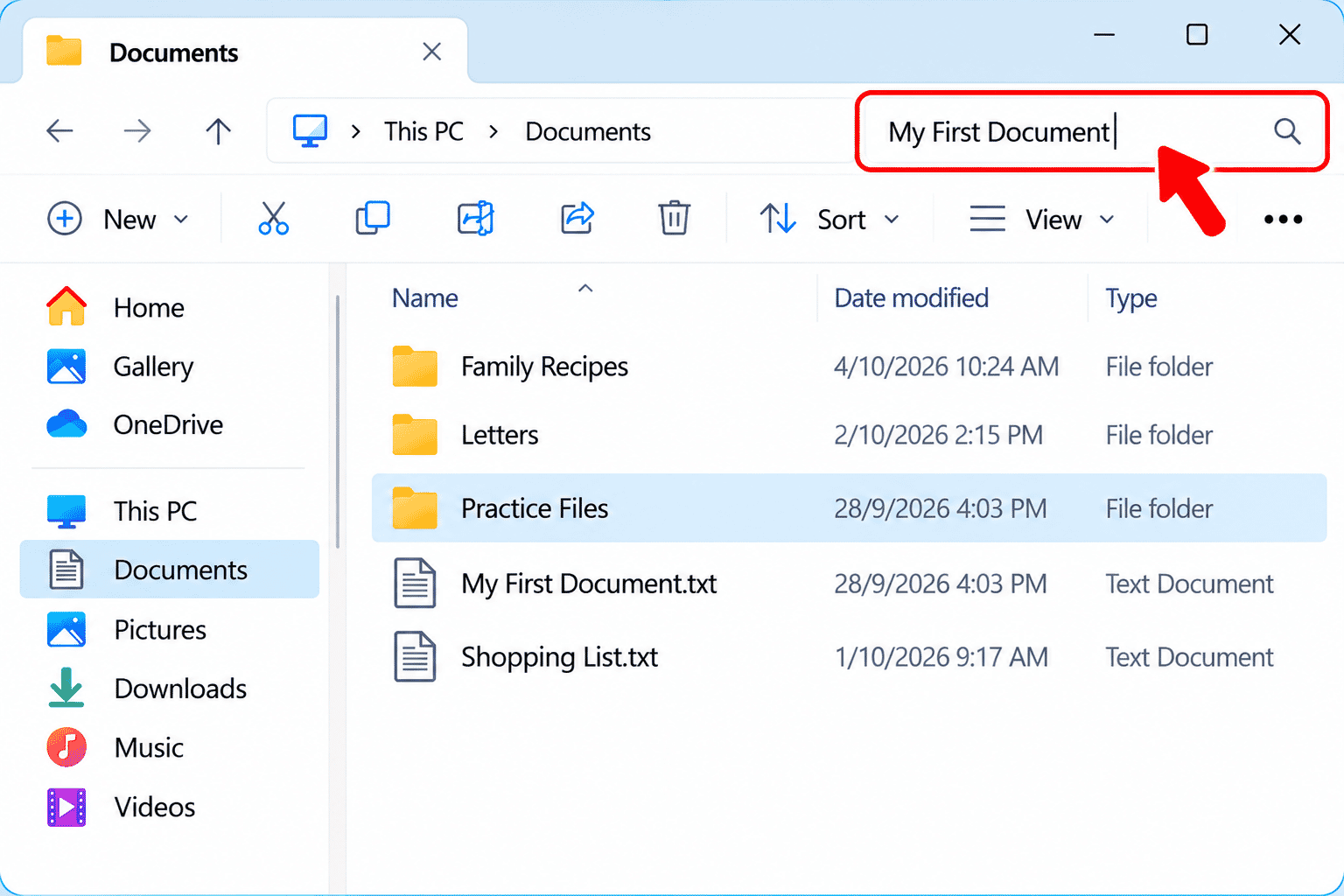
Open the folder you moved it into and look for its name. If you cannot see it, use the search box in File Explorer or go back to LG-014 – Finding Files Again. If you just moved the wrong file, Ctrl + Z may undo the move while you are still working in File Explorer. Do not delete folders or files to try to fix the problem.
Practice Activity
Let's organise a practice document together.
- Open File Explorer and go to Documents.
- Select New > Folder and name it Practice Files.
- Find My First Document from LG-013, or create a new practice text file if you prefer not to move the original.
- Right-click the practice file and select Copy.
- Open Practice Files, right-click an empty area and select Paste.
- Double-click the copied file to check that it opens.
- Go back to Documents and check that the original is still there.
You have created a folder and copied a file into it. If the original is important, leave it where it is.
Beginner Tips
- Use clear names such as Family Recipes instead of New Folder.
- Keep your folder system simple while you are learning.
- Practise with copies rather than important original files.
- Read any Windows warning before you select an option.
- Do not move, rename or delete unfamiliar system folders.
- Remember that OneDrive folders may sync changes to other devices.
What You've Learned
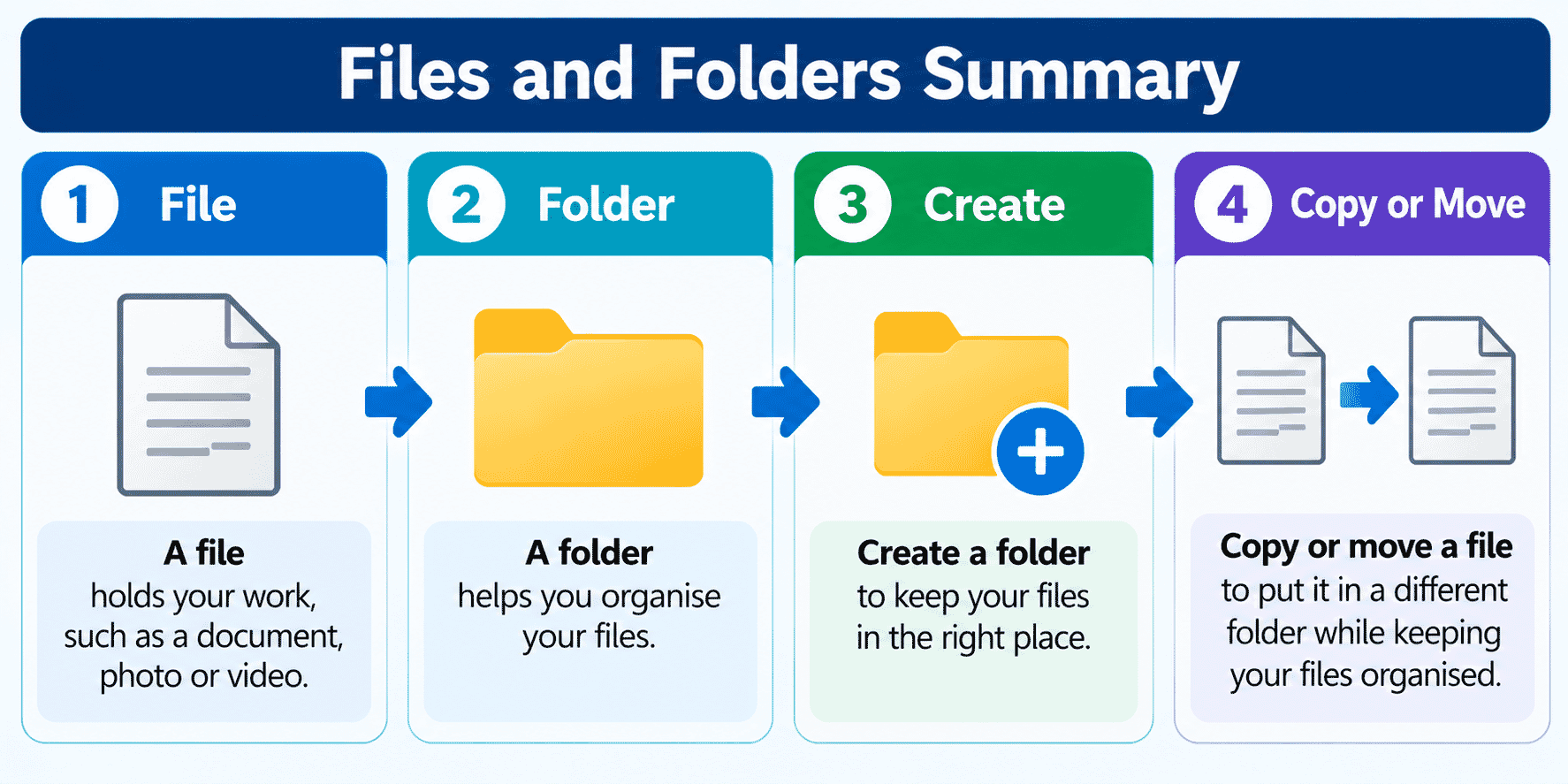
You now know:
- A file holds information and a folder groups files together.
- File Explorer lets you open and browse folders.
- You can create and rename your own folders.
- Move changes a file's location, while Copy keeps the original.
- A simple folder system helps you find things again.
These are useful everyday skills, and they become easier with practice.
Keep Learning
You have now completed the proposed Module 2 – Using Your Computer sequence.
Next, explore Module 3 – Getting Online, beginning with the planned guide LG-016 – Searching the Internet once it is available.
You can also revisit LG-014 – Finding Files Again whenever you need help locating a document.
Requirements
A windows computer
Learning Paths
View all pathsNeed some help with this?
Protect your photos and files, automatic backups plus a “test restore” so you know it works.
Troubleshoot IT provides practical, one-to-one technology support across Darwin, Palmerston and surrounding areas.