LG-011 - Understanding Windows
Learn the main parts of a Windows computer, including the desktop, taskbar, Start menu, icons, application windows and notifications. This beginner-friendly guide helps seniors use Windows with greater confidence.
Before You Begin
Overview
Windows is the software that allows you to use your computer.
It provides everything you see on the screen, including the desktop, taskbar, Start menu and the programs you use every day.
You don't need to understand every part of Windows to use your computer confidently.
Learning a few important areas is enough to begin using your computer safely and comfortably.
This guide introduces the Windows desktop and explains the main parts you'll use every day.
Learning Objectives
By the end of this guide you will be able to:
- Understand what Windows is.
- Identify the Windows desktop.
- Recognise the taskbar.
- Open and use the Start menu.
- Understand desktop icons.
- Recognise a window.
- Understand basic navigation within Windows.
Prerequisites
Before starting this guide, it may help to complete:
- LG-009 – Using a Mouse
- LG-010 – Using a Keyboard
What Is Windows?
Windows is called an operating system.
An operating system is the main software that controls your computer.
Think of Windows as the organiser of your computer.
It helps your computer:
- Display information.
- Open programs.
- Save files.
- Connect to the internet.
- Manage printers and other devices.
Without Windows, using a computer would be much more difficult.
You don't need to remember the term "operating system".
Just remember that Windows is what makes your computer work the way it does.
The Windows Desktop
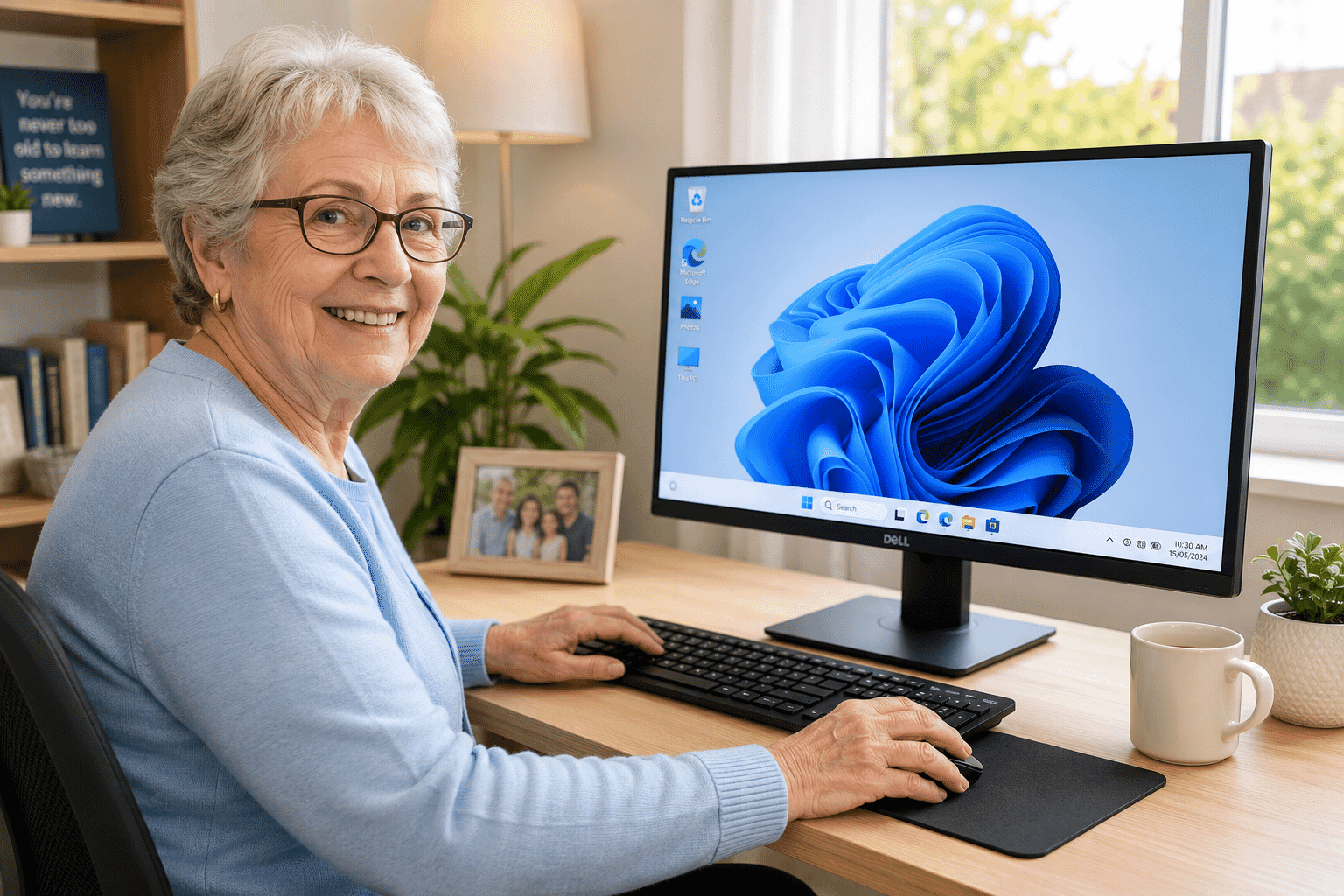
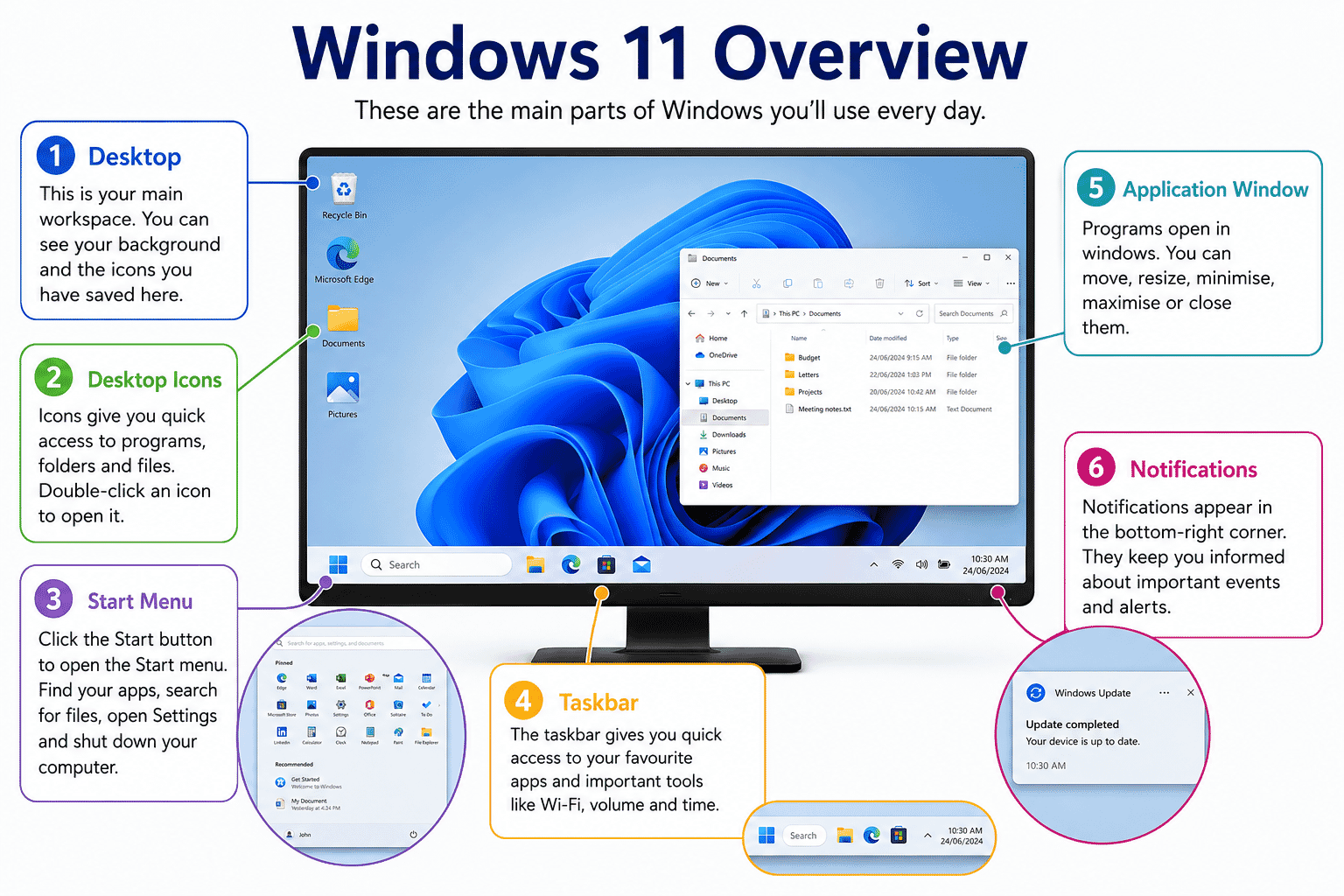
After you turn on your computer and sign in, you'll usually see the Desktop.
The Desktop is your main workspace.
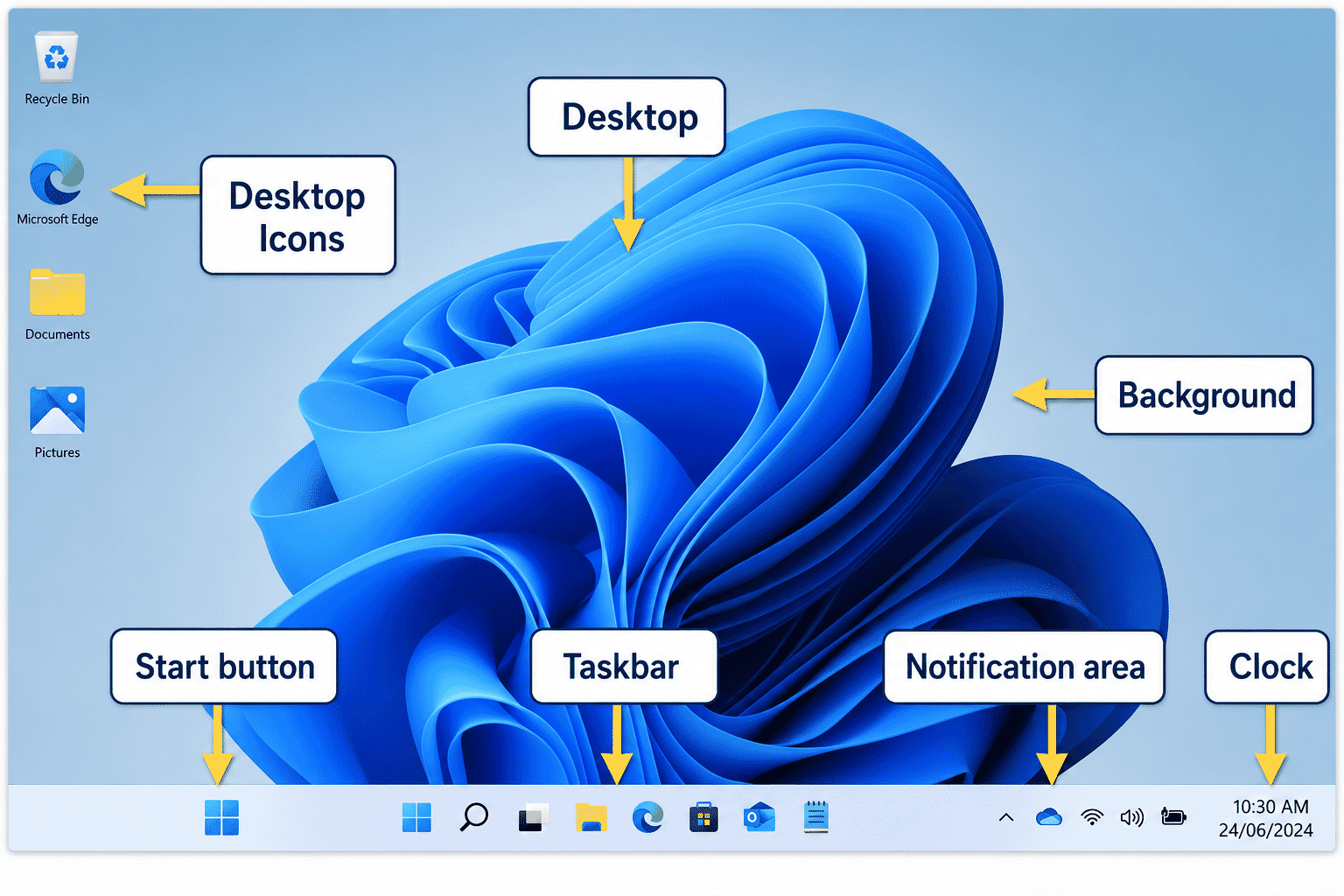
Think of it like the top of a real desk.
You can keep useful items there so they are easy to find.
On the desktop you may see:
- Icons
- Shortcuts
- Files
- Folders
- A background picture
- The taskbar
Every computer looks slightly different because people often personalise their desktop.
Understanding the Taskbar
The taskbar is the long bar that usually appears across the bottom of the screen.
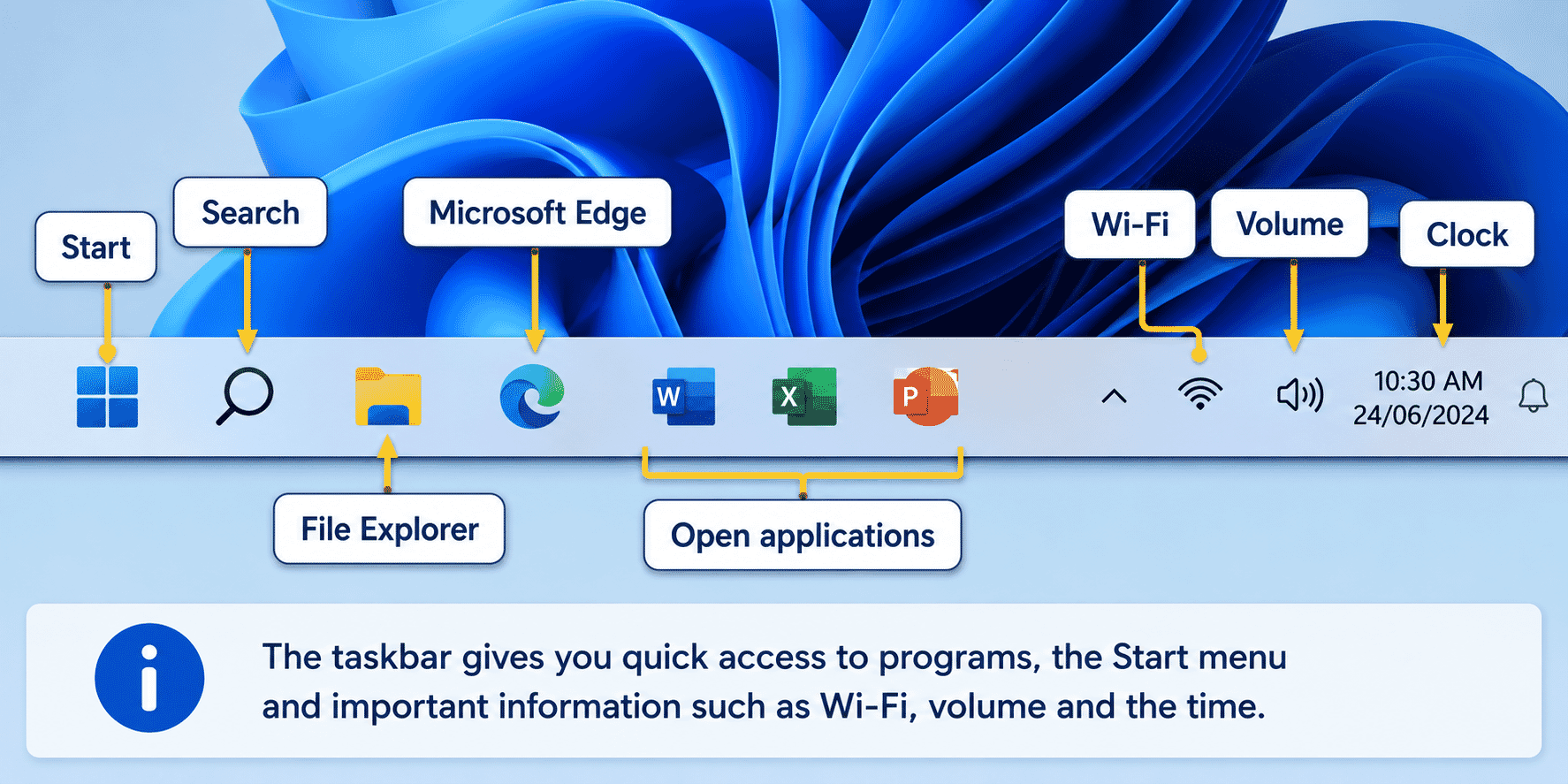
It gives you quick access to programs and important information.
The taskbar usually contains:
- Start button
- Search
- Pinned programs
- Open programs
- Wi-Fi status
- Volume control
- Battery level (laptops)
- Date and time
You will use the taskbar every time you use your computer.
The Start Menu
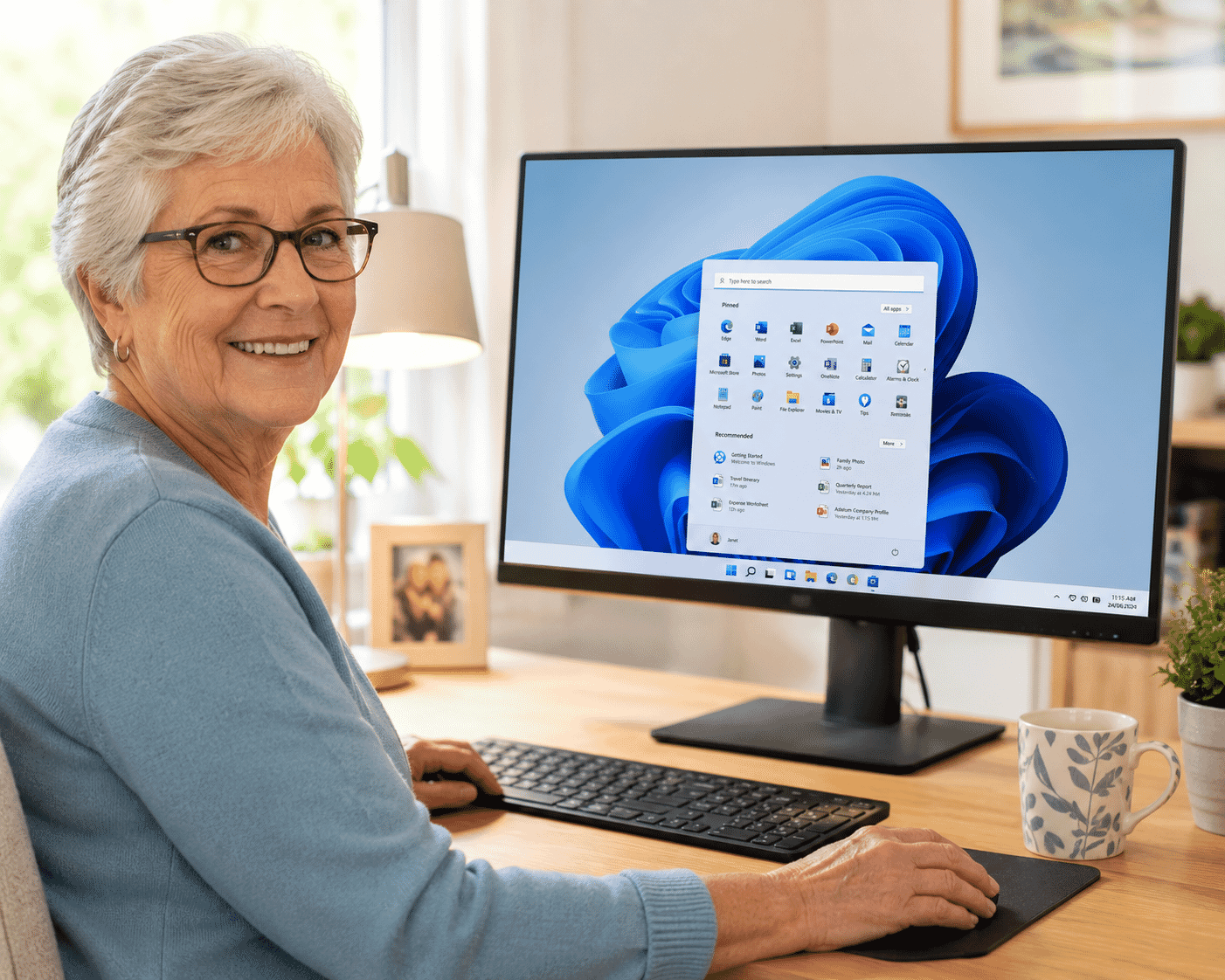
The Start menu is one of the most important parts of Windows.
To open it:
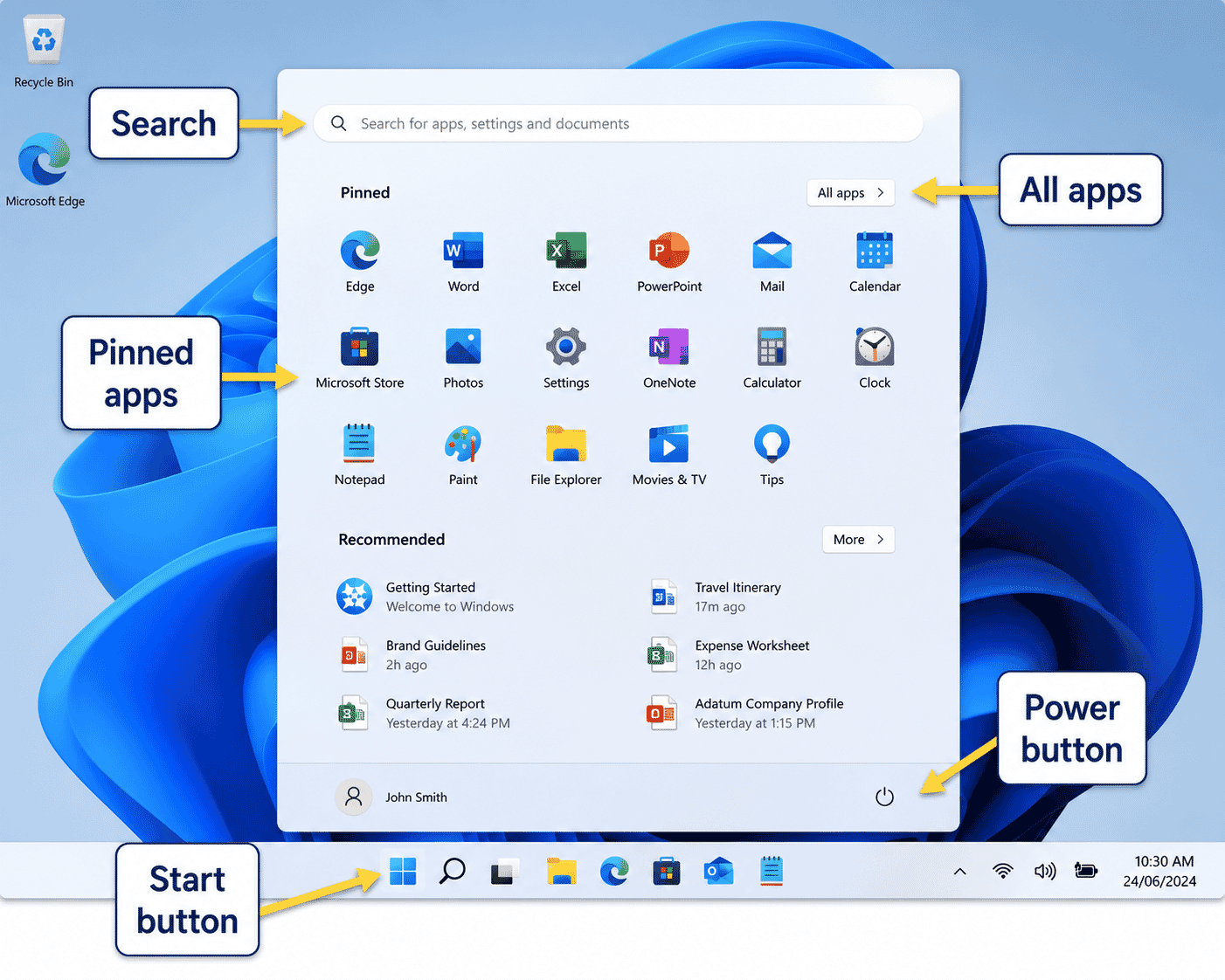
- Click the Start button.
- The Start menu appears.
From here you can:
- Find programs.
- Search for files.
- Open Settings.
- Restart your computer.
- Shut down your computer.
Whenever you are unsure where to begin, the Start menu is a good place to start.
Desktop Icons
Icons are small pictures that represent programs, folders or files.
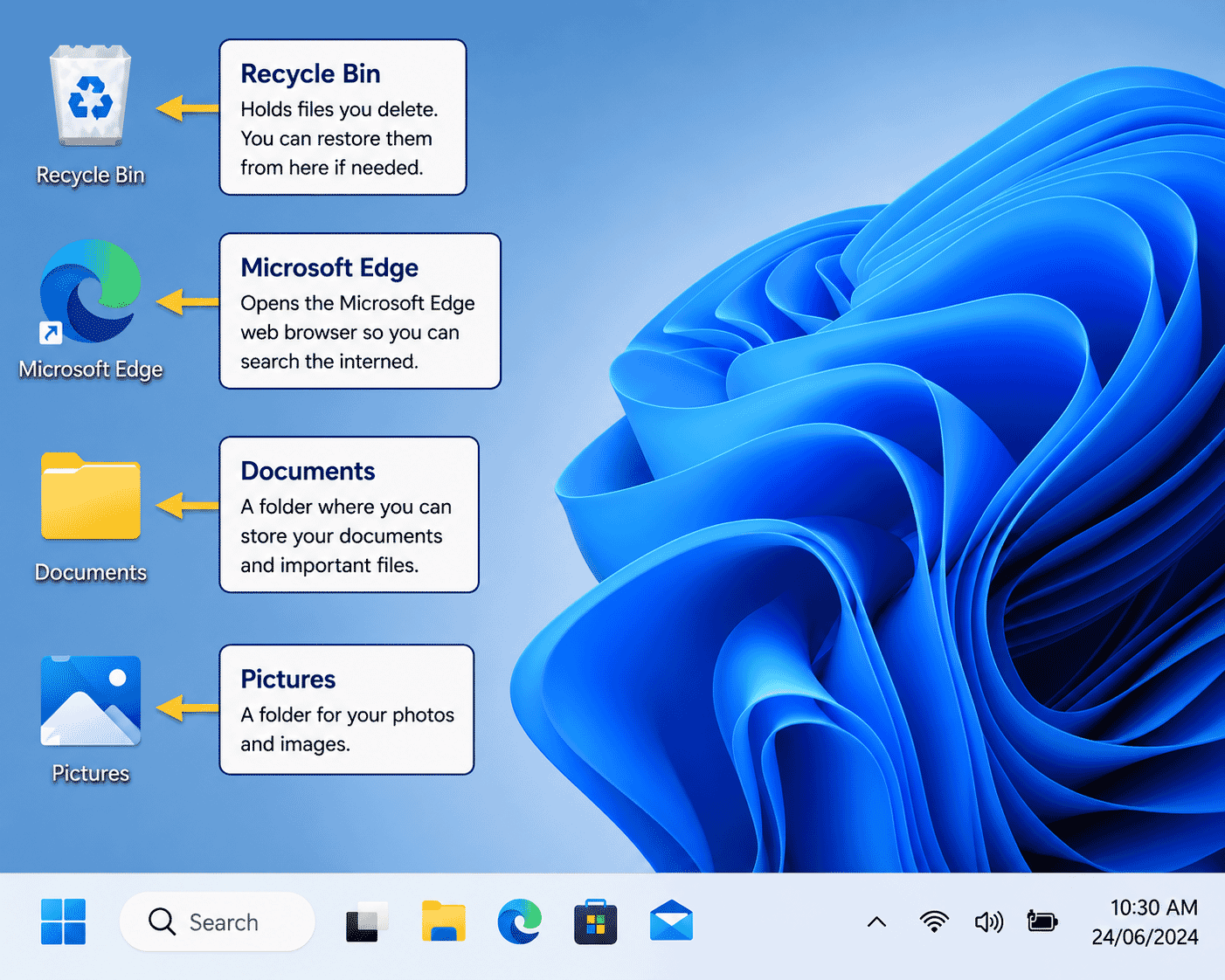
Each icon gives you quick access to something on your computer.
Common desktop icons include:
- Recycle Bin
- Microsoft Edge
- This PC
- Documents
- Pictures
Some computers may have many icons.
Others may have only a few.
Understanding Windows (Application Windows)
When you open a program, it appears inside a window.
A window is simply a box on your screen that contains the program you are using.
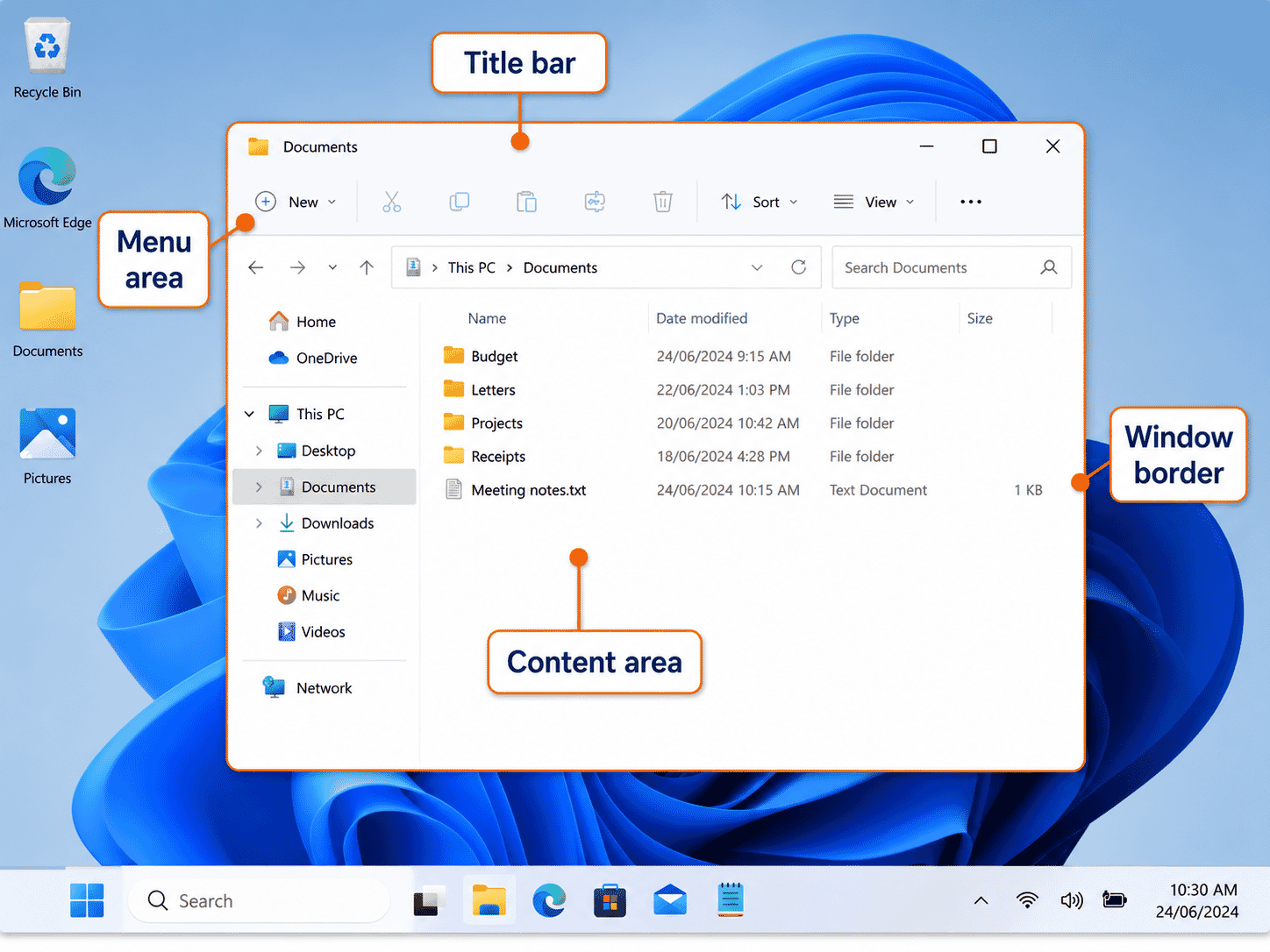
For example:
- A web browser opens in a window.
- A document opens in a window.
- A photo opens in a window.
You can have several windows open at the same time.
Window Controls
Every window has three important buttons in the top-right corner.
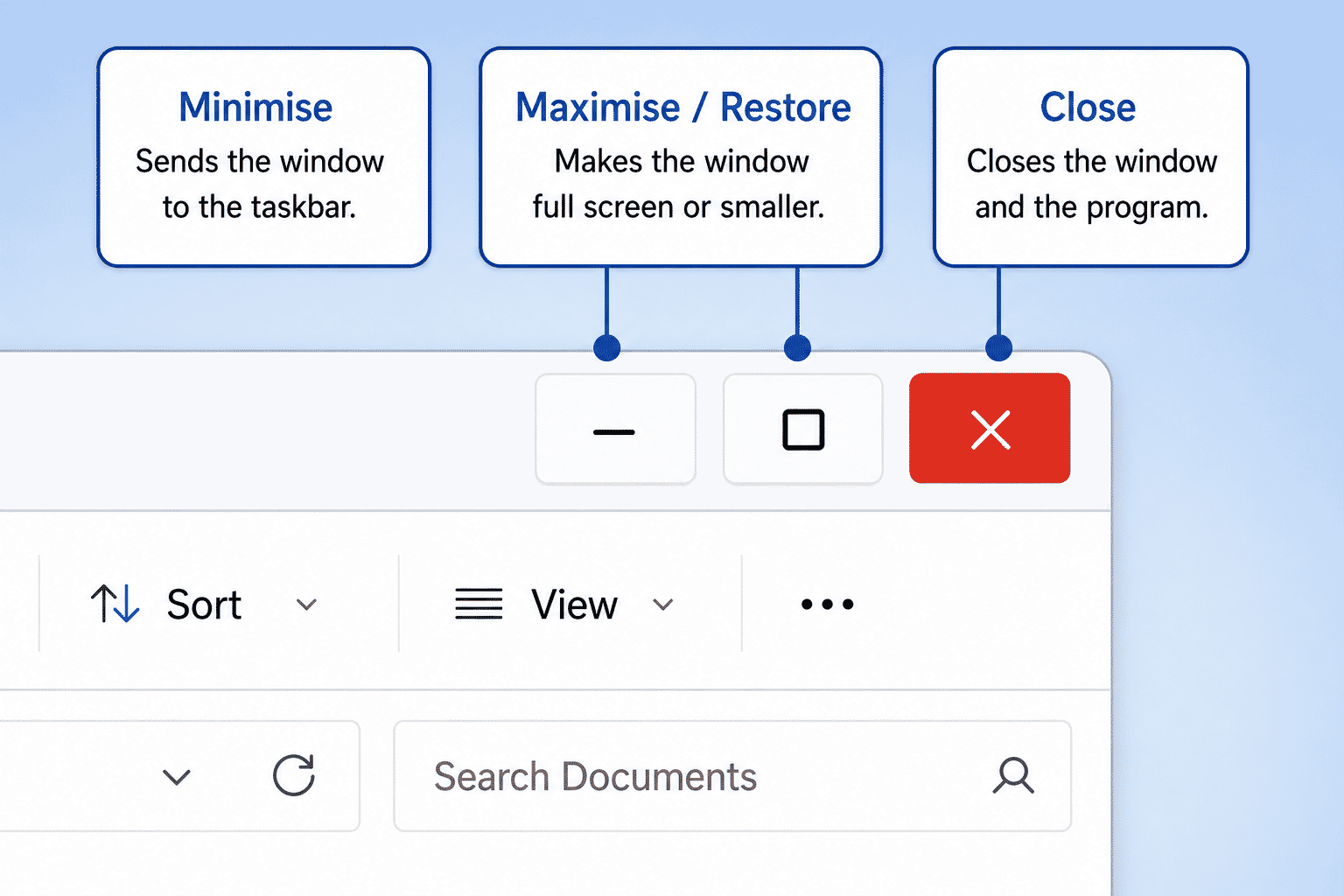
Minimise
Hides the window but keeps the program running.
You can reopen it from the taskbar.
Maximise or Restore
Makes the window fill the screen.
Selecting it again returns the window to its previous size.
Close
Closes the current window.
If you haven't saved your work, Windows may ask if you want to save it first.
Notifications
Sometimes Windows displays small messages in the corner of the screen.
These are called notifications.
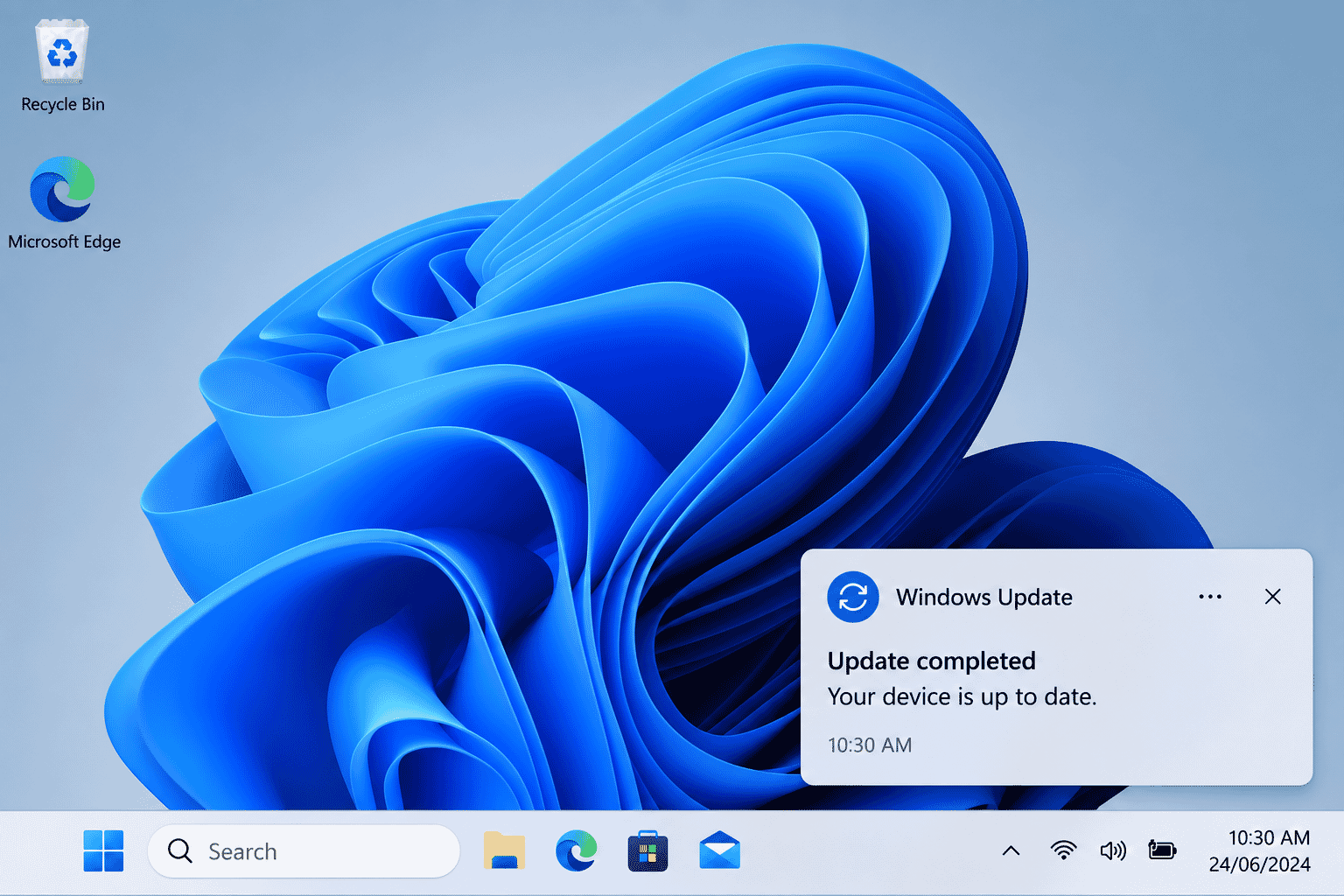
Notifications might tell you:
- An email has arrived.
- An update is available.
- A download has finished.
- Your battery is getting low.
You don't need to read every notification immediately.
Most will remain available until you have time to look at them.
The Mouse Pointer
As you learned in the previous guide, moving your mouse moves the pointer on the screen.
The pointer changes shape depending on what you're doing.
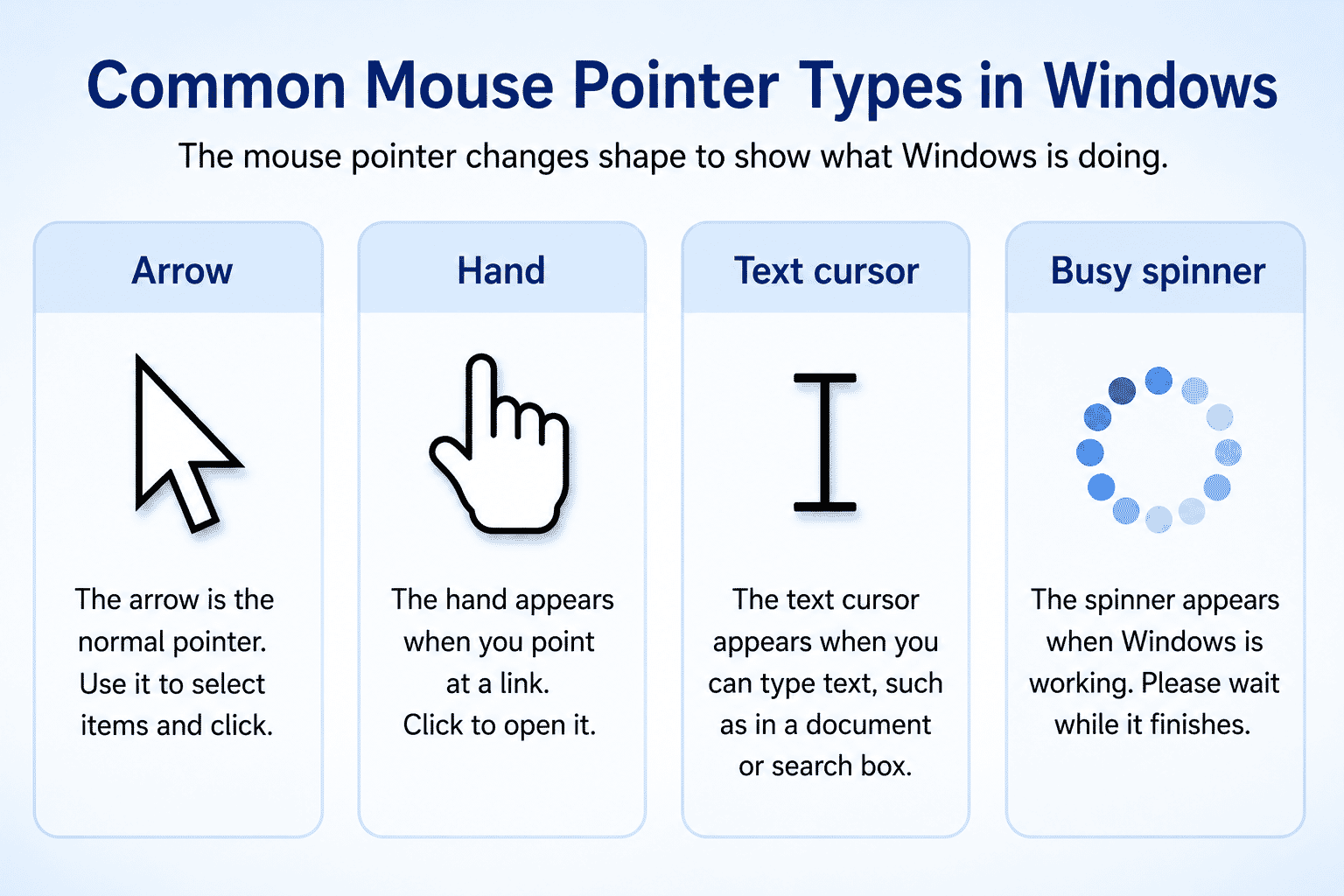
For example:
- Arrow
- Hand
- Typing cursor
- Busy spinning circle
These changes help you understand what Windows is doing.
Practice Activity
Spend a few minutes exploring your desktop.
Try to:
- Find the Start button.
- Open the Start menu.
- Find the taskbar.
- Look for the clock.
- Find one desktop icon.
- Open and close the Start menu several times.
There is no need to worry about making mistakes.
Simply becoming familiar with these areas is excellent practice.
Beginner Tips
As you become more familiar with Windows:
- Explore one feature at a time.
- Don't worry if your screen looks different from someone else's.
- Windows can be customised.
- Most mistakes can easily be undone.
- Confidence comes through regular practice.
What You've Learned
You now know:
- What Windows is.
- What the desktop is.
- What the taskbar does.
- How the Start menu works.
- What desktop icons are.
- What a window is.
- What notifications are.
- The purpose of the minimise, maximise and close buttons.
These are the foundations for using every Windows computer.
Keep Learning
Next guides in this module:
- LG-012 – Opening and Closing Programs
- LG-013 – Saving Files
- LG-014 – Finding Files Again
These guides will teach you how to work with programs and organise your files with confidence.
Learning Paths
View all pathsNeed some help with this?
Protect your photos and files, automatic backups plus a “test restore” so you know it works.
Troubleshoot IT provides practical, one-to-one technology support across Darwin, Palmerston and surrounding areas.