LG-010 - Using a Keyboard
Learn how to use a computer keyboard with confidence. This beginner-friendly guide explains the most important keys, typing basics and simple techniques to help seniors and new computer users type comfortably.
Before You Begin
Overview
The keyboard is one of the main ways you communicate with your computer.
You use it to type letters, numbers, passwords, emails, web addresses and documents.
At first, a keyboard can seem confusing because it has many keys.
The good news is that you only need to learn a small number of keys to start using your computer confidently.
This guide introduces the most important keys and explains how they are used in everyday situations.
Learning Objectives
By the end of this guide you will be able to:
- Identify the main parts of a keyboard.
- Type letters, numbers and symbols.
- Understand the purpose of common keys.
- Use the Space Bar, Enter and Backspace.
- Understand the Shift and Caps Lock keys.
- Build confidence using a keyboard.
What Is a Keyboard?
A keyboard is an input device that allows you to type information into your computer.
Whenever you write an email, search Google, type a password or create a document, you will use the keyboard.
Although keyboards contain many keys, beginners only need to become familiar with a few of them.
As your confidence grows, you'll naturally learn more keys over time.
The Main Areas of a Keyboard
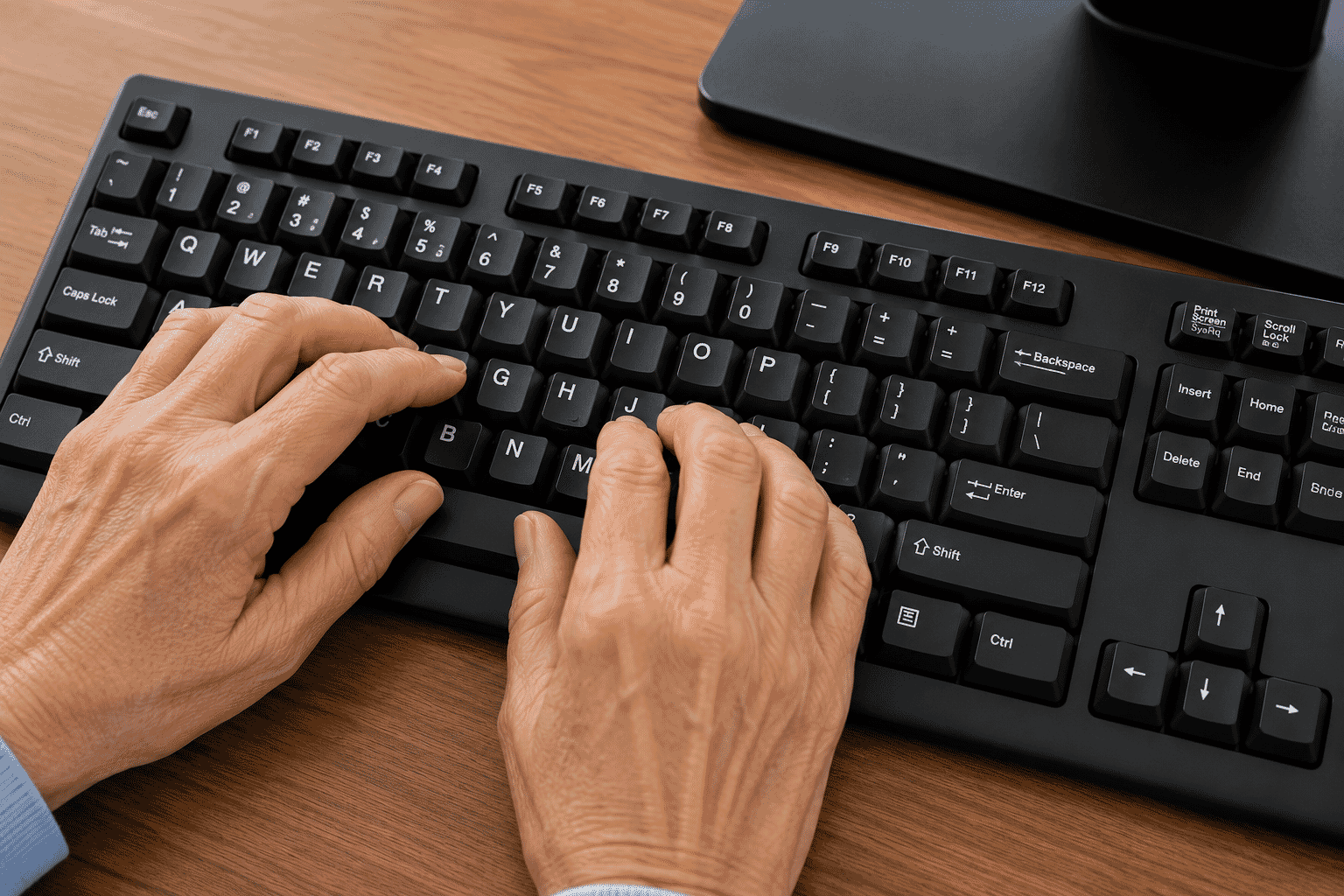
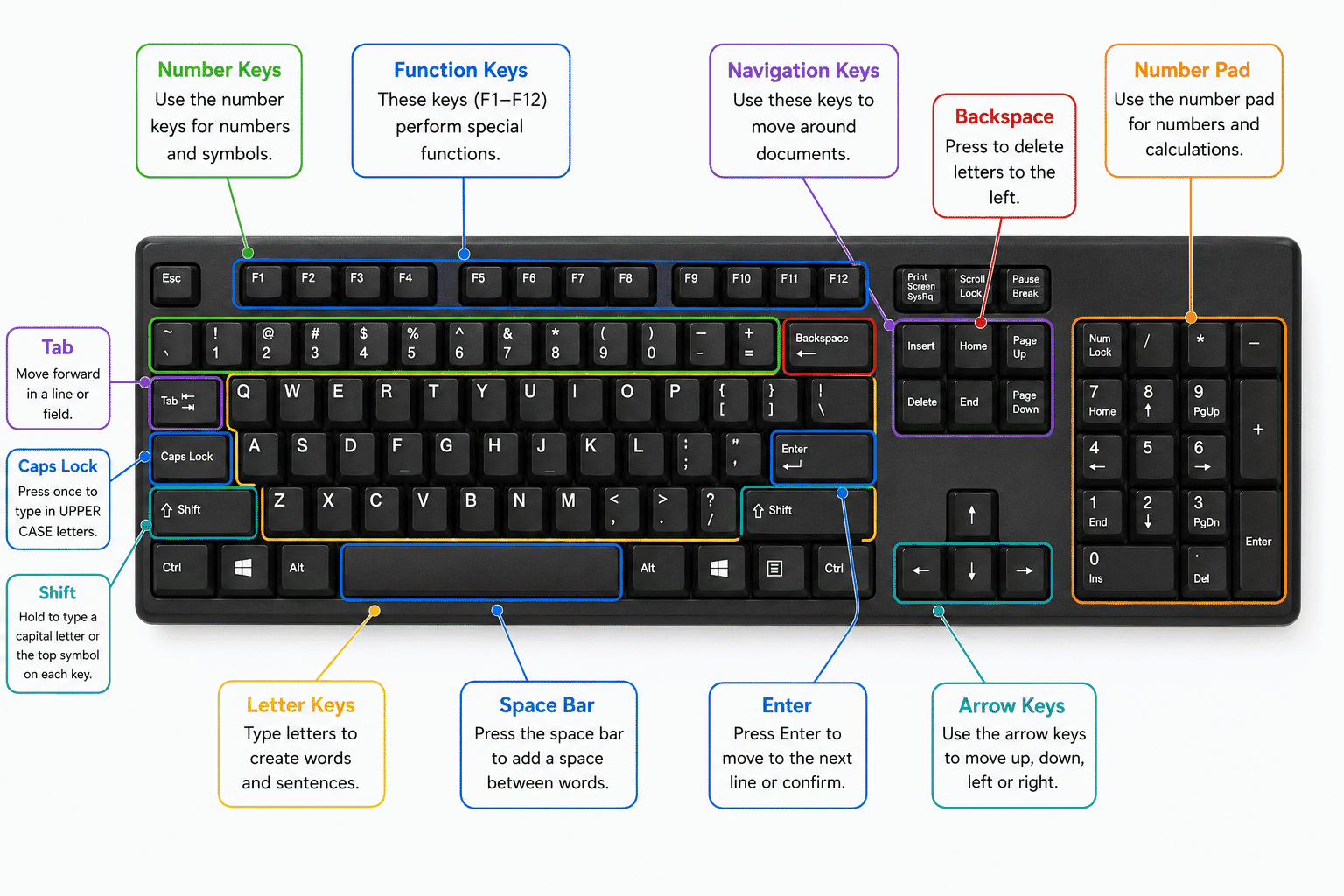
Most full-sized keyboards have four main sections.
Letter Keys
These are the A to Z keys.
They are used to type words and sentences.
Number Keys
The number keys run across the top of the keyboard.
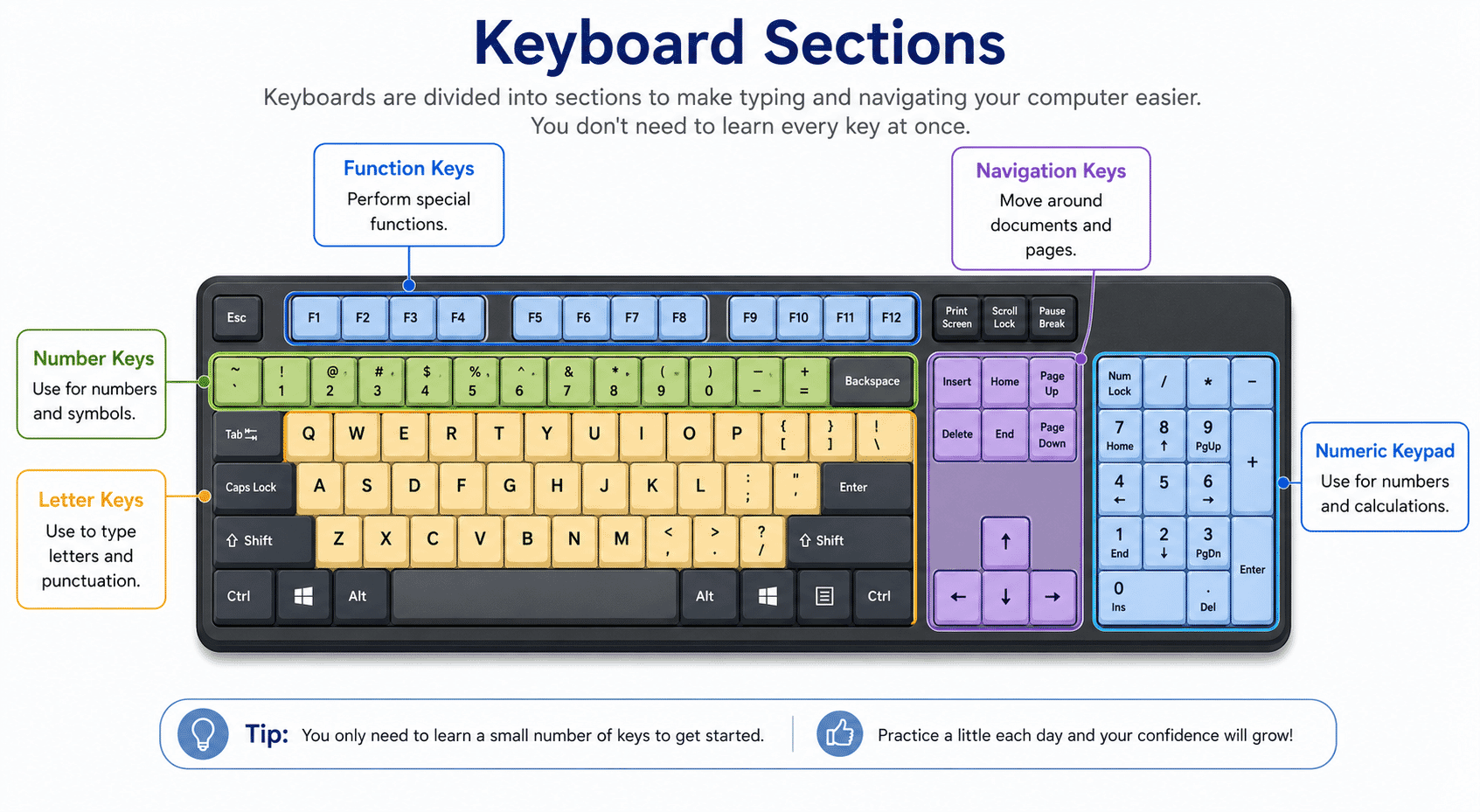
Some keyboards also have a separate number pad on the right-hand side.
Function Keys
Across the very top of the keyboard are the function keys labelled F1 to F12.
Most beginners rarely need these keys, so you can safely ignore them for now.
Navigation Keys
These include the arrow keys and a few other keys used to move around documents.
The arrow keys are useful for moving the cursor without using the mouse.
The Most Important Keys
For everyday computer use, these are the keys you'll use most often.
Space Bar
The long key at the bottom of the keyboard.
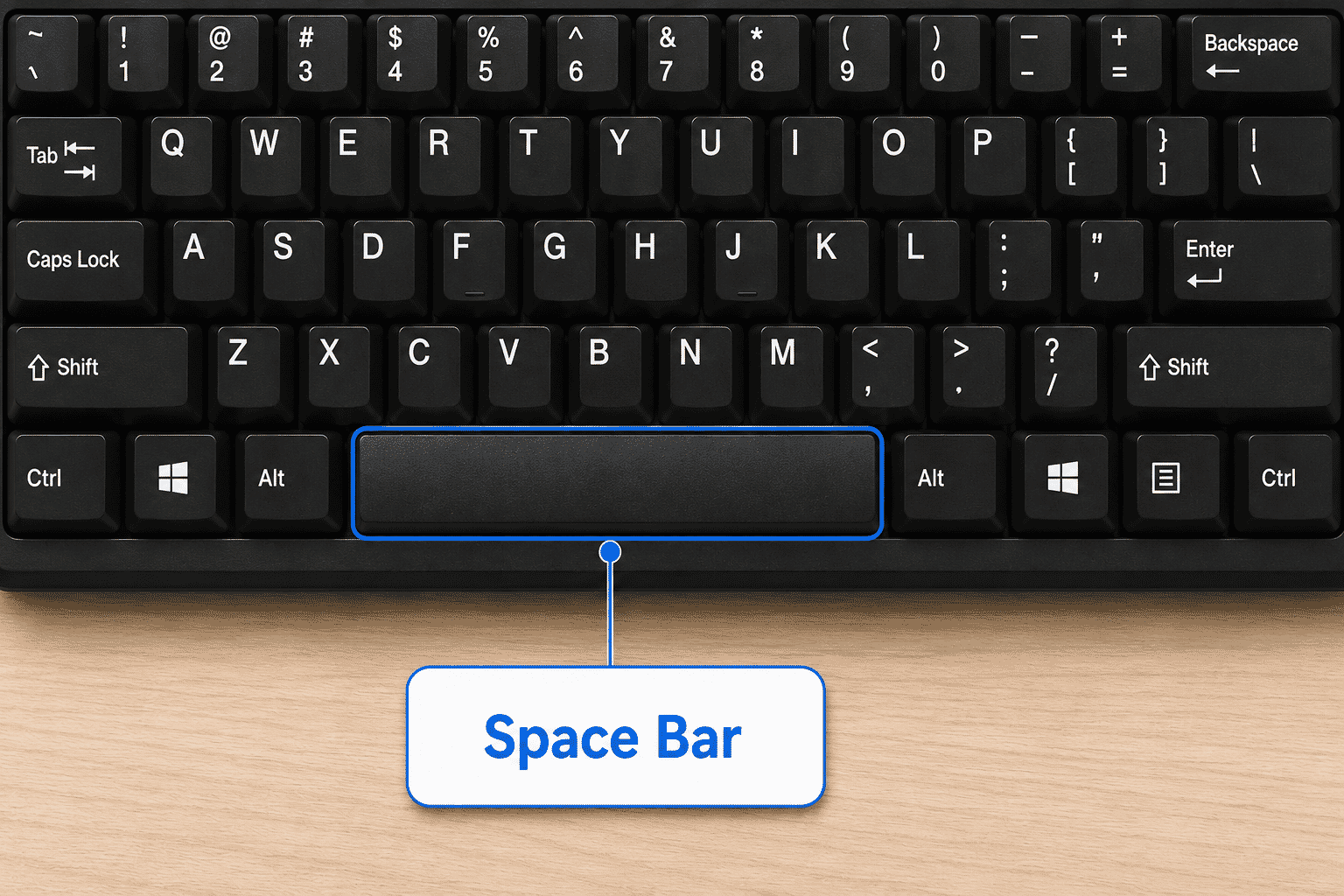
It creates a space between words.
Enter
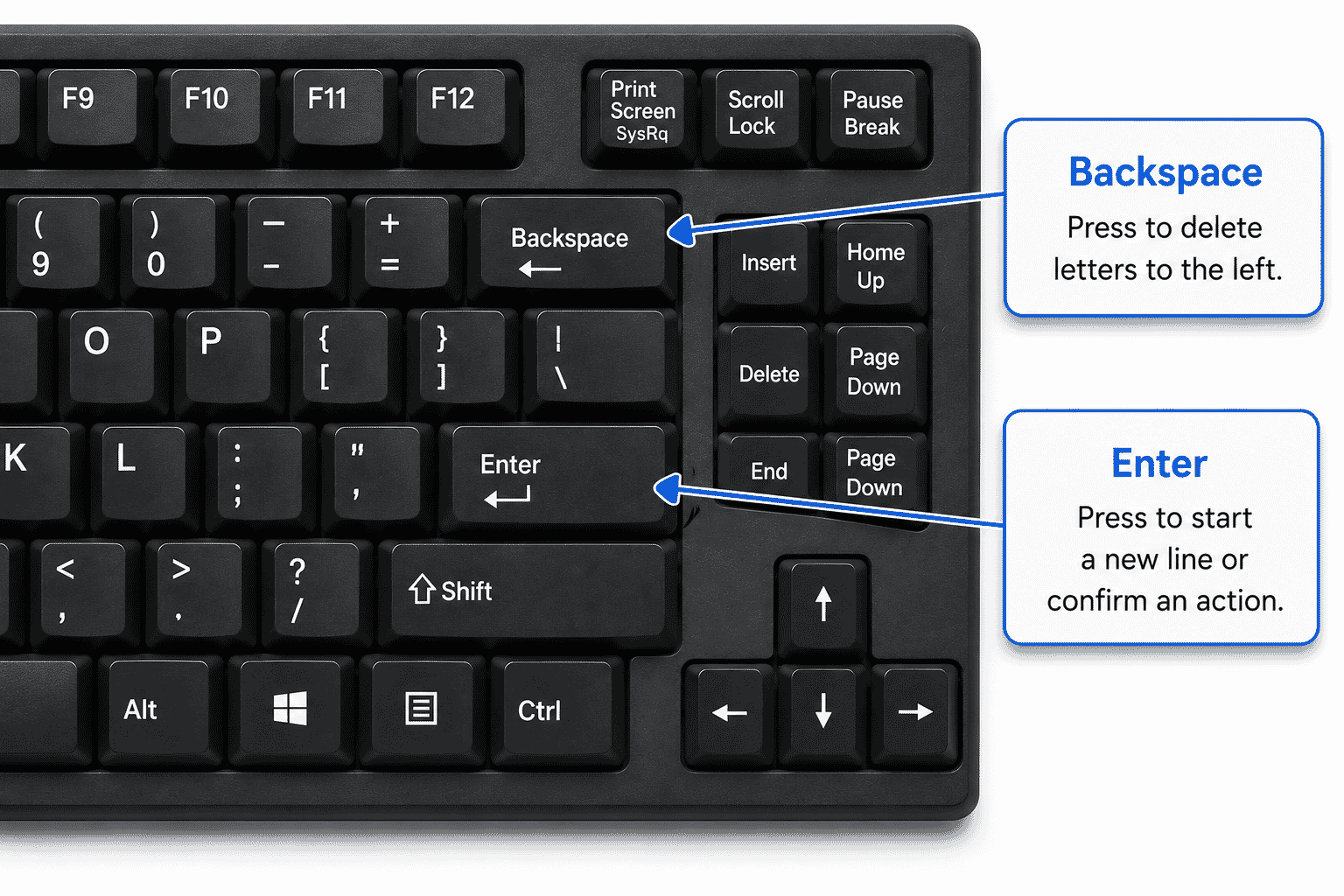
The Enter key starts a new line when typing.
It is also used to confirm actions, such as opening a program or submitting information.
Backspace
Backspace deletes the character to the left of the typing cursor.
If you make a typing mistake, Backspace is usually the key you'll use to fix it.
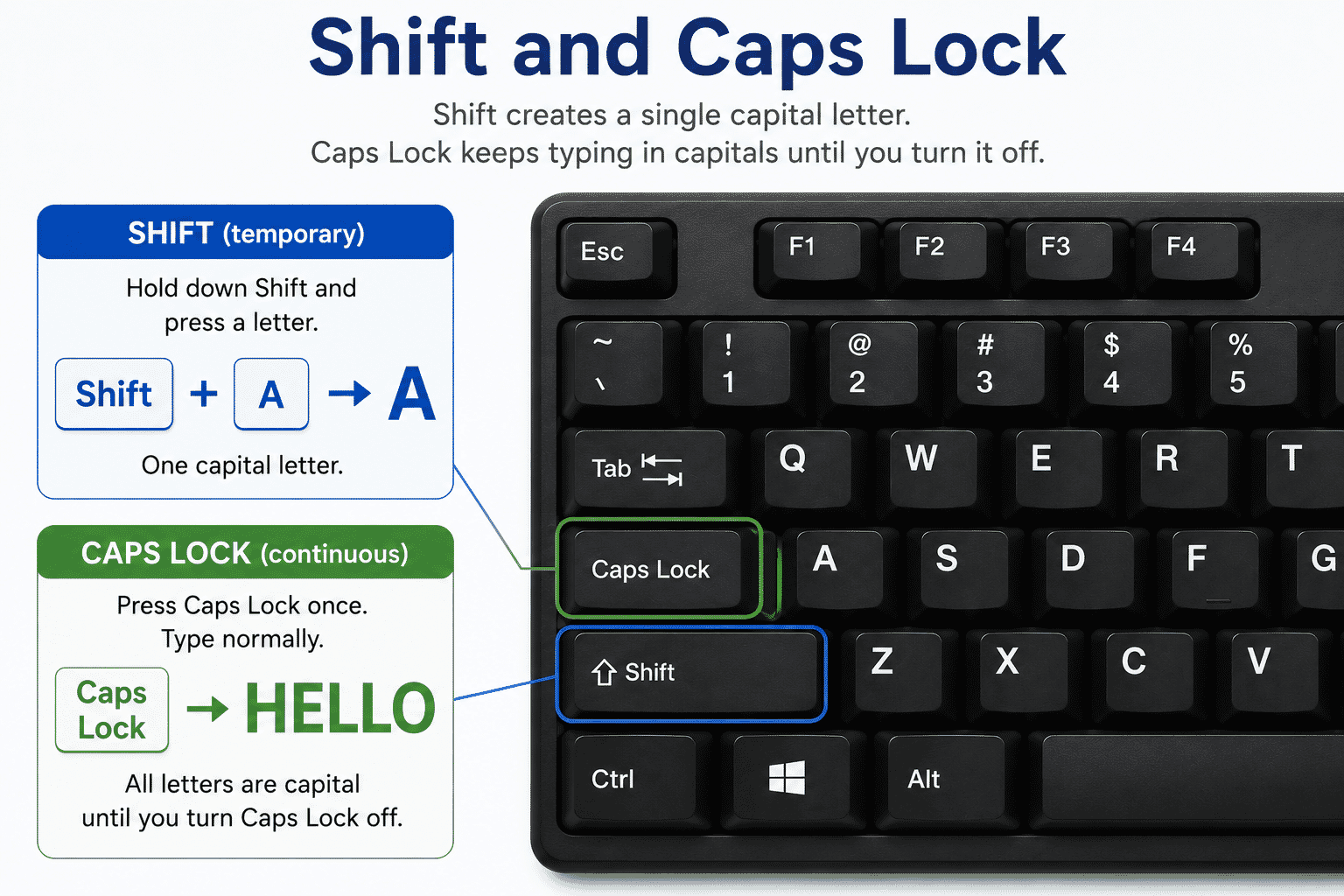
Shift
Hold the Shift key while pressing a letter to type a capital letter.
Shift is also used to type many symbols found on the keyboard.
Caps Lock
Caps Lock keeps letters in CAPITALS until you turn it off.
Most of the time, it is better to use Shift rather than Caps Lock.
Arrow Keys
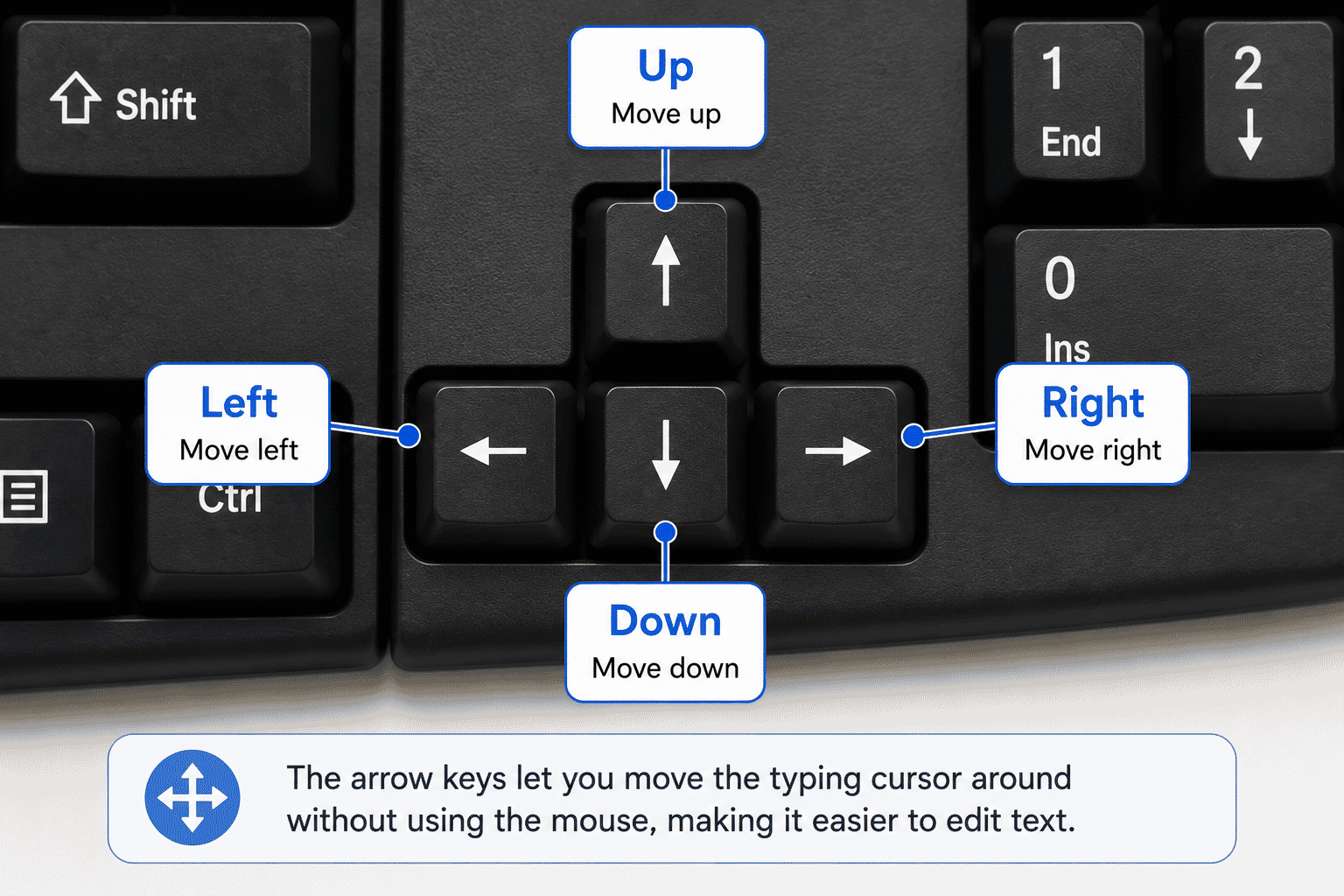
The arrow keys move the typing cursor around the screen.
They are useful when editing text without needing to use the mouse.
The Typing Cursor
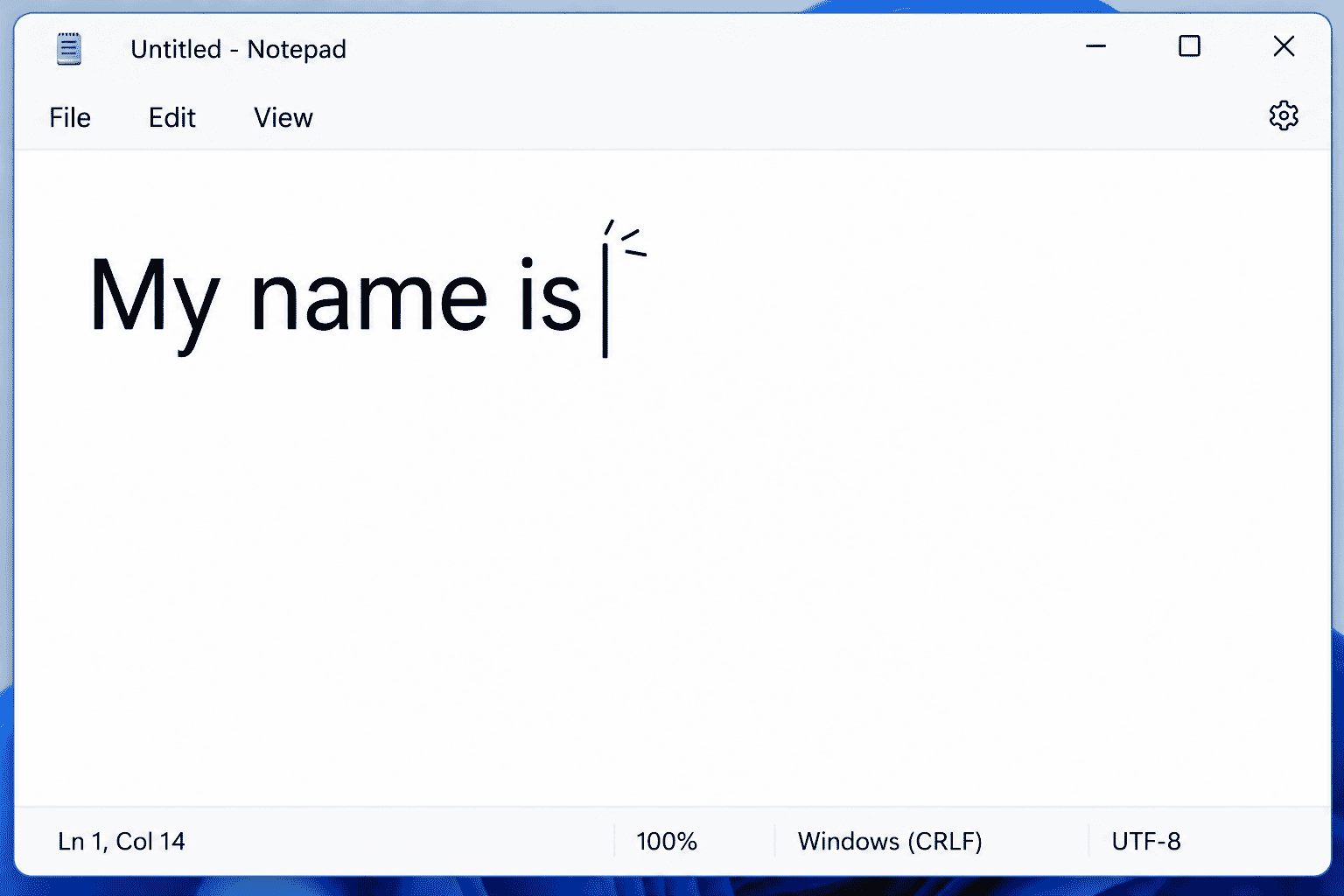
Whenever you click inside a document or text box, you will see a blinking vertical line.
This is called the cursor or insertion point.
Everything you type will appear where the cursor is blinking.
If you cannot see the cursor, click once where you want to begin typing.
Typing Your First Sentence
Let's practise.
Open a document or a text box and type:
My name is ______.
Press the Space Bar between each word.
If you make a mistake, use Backspace to correct it.
When you finish, press Enter to move to the next line.
Using Capital Letters
There are two common ways to type capital letters.
Shift
Hold Shift while pressing a letter.
This is the method you'll use most often.
Caps Lock
Press Caps Lock once to type in capitals.
Press it again to return to normal typing.
Remember to turn Caps Lock off when you no longer need it.
Common Beginner Mistakes
When learning to use a keyboard, people often:
- Press keys too hard.
- Forget to use the Space Bar.
- Leave Caps Lock turned on.
- Look only at the keyboard instead of the screen.
- Worry about typing slowly.
All of these are completely normal.
Typing speed improves naturally with practice.
Accuracy is much more important than speed.
Practice Activity
Spend five minutes practising these tasks.
- Type your name.
- Type today's date.
- Type your address.
- Press Enter to start a new line.
- Correct a mistake using Backspace.
- Type one sentence using a capital letter at the beginning.
Don't worry if you need to look at the keyboard.
Almost everyone does when they first begin.
Keyboard Confidence Tips
As you practise:
- Relax your hands.
- Press keys gently.
- Watch the screen as you type.
- Take your time.
- Focus on accuracy before speed.
- Practise a few minutes each day.
Small amounts of regular practice quickly build confidence.
What You've Learned
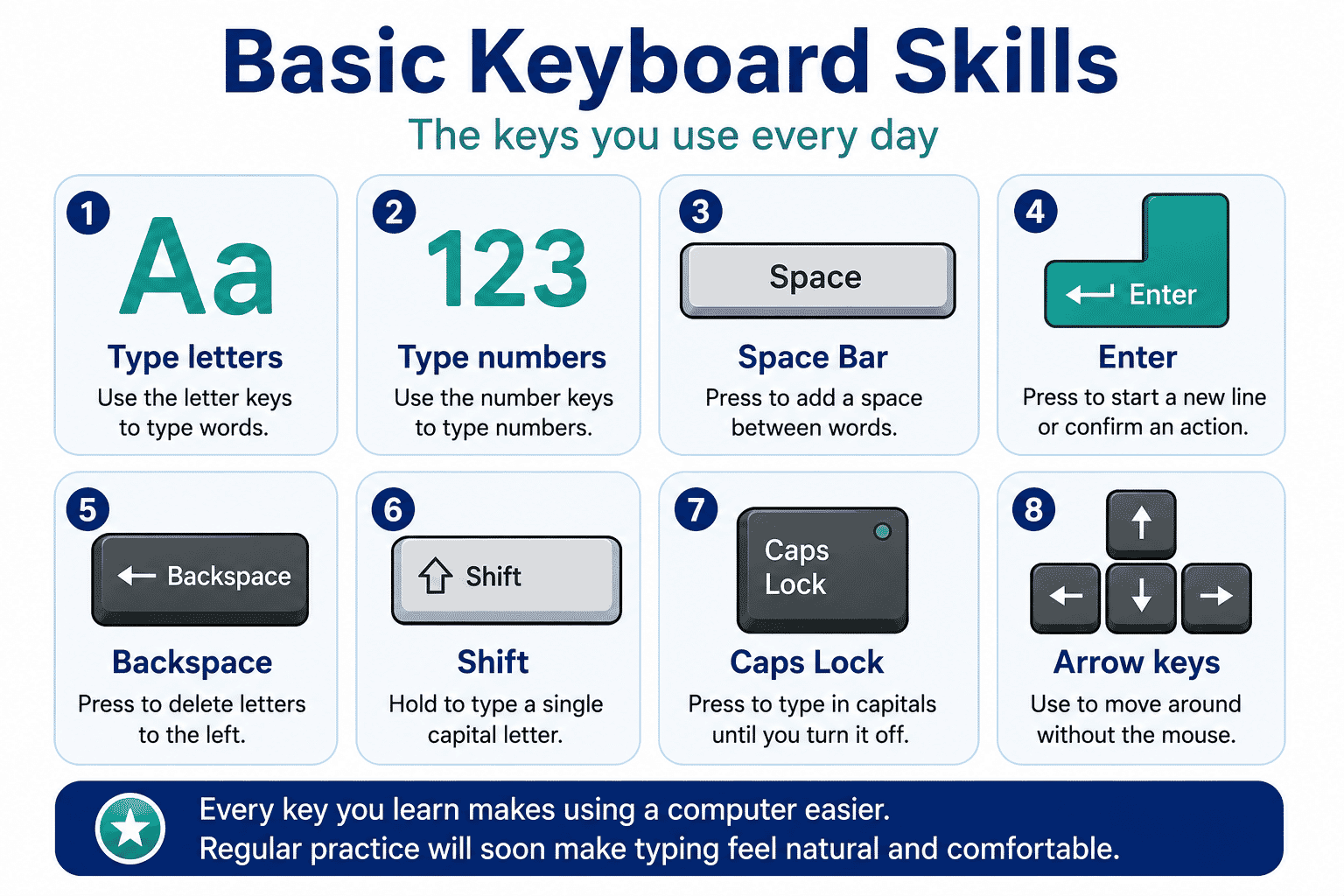
You now know:
- What a keyboard is.
- The main sections of a keyboard.
- The purpose of the Space Bar.
- How Enter works.
- How to use Backspace.
- The difference between Shift and Caps Lock.
- How to move the cursor with the arrow keys.
These skills form the foundation for typing on any Windows computer.
Keep Learning
Next guides in this module:
- LG-011 – Understanding Windows
- LG-012 – Opening and Closing Programs
- LG-013 – Saving Files
Each guide builds on the keyboard skills you've learned and will help you become more confident using your computer.
Learning Paths
View all pathsNeed some help with this?
Protect your photos and files, automatic backups plus a “test restore” so you know it works.
Troubleshoot IT provides practical, one-to-one technology support across Darwin, Palmerston and surrounding areas.