LG-009 - Using a Mouse
Learn how to hold and use a computer mouse with confidence. This beginner-friendly guide explains moving the pointer, clicking, scrolling and practising basic mouse skills safely.
Before You Begin
Overview
A computer mouse is one of the main tools used to control a computer.
It lets you move around the screen, open programs, select items and choose what you want the computer to do.
At first, using a mouse can feel awkward.
That is completely normal.
Like holding a pen, using a TV remote or learning to drive, it becomes easier with practice.
This guide explains the basic parts of a mouse and how to use it confidently.
Learning Objectives
By the end of this guide, you will be able to:
- Hold a mouse comfortably.
- Move the pointer around the screen.
- Understand left-clicking.
- Understand right-clicking.
- Use the scroll wheel.
- Practise basic mouse movements safely.
Prerequisites
Before starting this guide, it may help to complete:
- LG-001 – What Is a Computer?
- LG-008 – Common Technology Words Explained
What Is a Mouse?
A mouse is a small device that sits on your desk.
When you move the mouse with your hand, a small arrow moves on the computer screen.
This arrow is called the pointer or cursor.
You use the pointer to choose things on the screen.
For example, you can use the mouse to:
- Open a program.
- Click a button.
- Choose a menu item.
- Select a file.
- Scroll through a page.
- Close a window.
The mouse does not control the computer by itself.
It helps you tell the computer what you want to do.
The Main Parts of a Mouse
Most computer mice have three main parts:
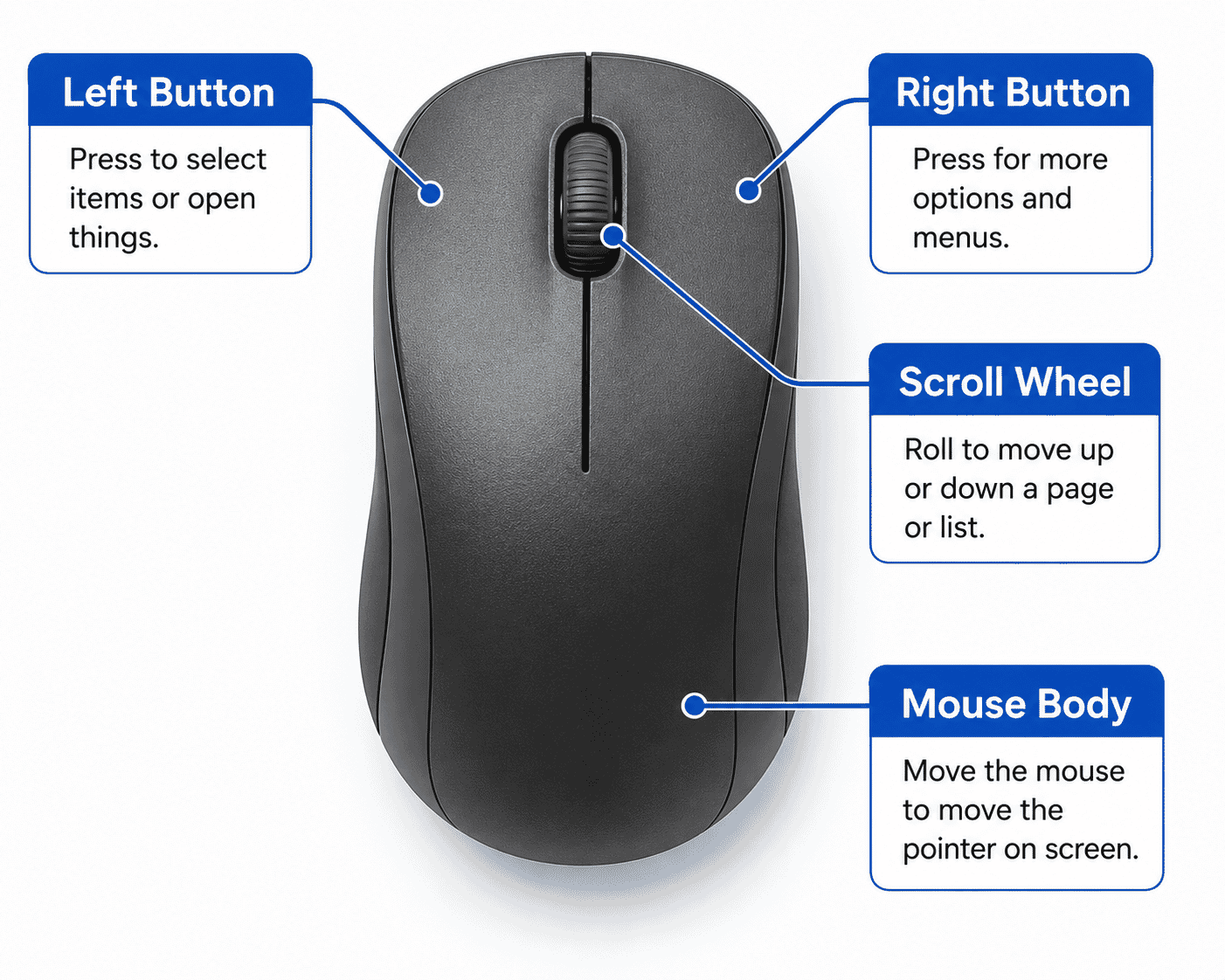
Left Button
The left button is the button you will use most often.
It is usually used to select or open things.
Right Button
The right button usually opens extra options.
These options change depending on what you click on.
Scroll Wheel
The scroll wheel sits between the left and right buttons.
It helps you move up and down a page.
Some scroll wheels can also be pressed like a button, but beginners do not need to worry about that yet.
How to Hold the Mouse
Place your hand gently over the mouse.
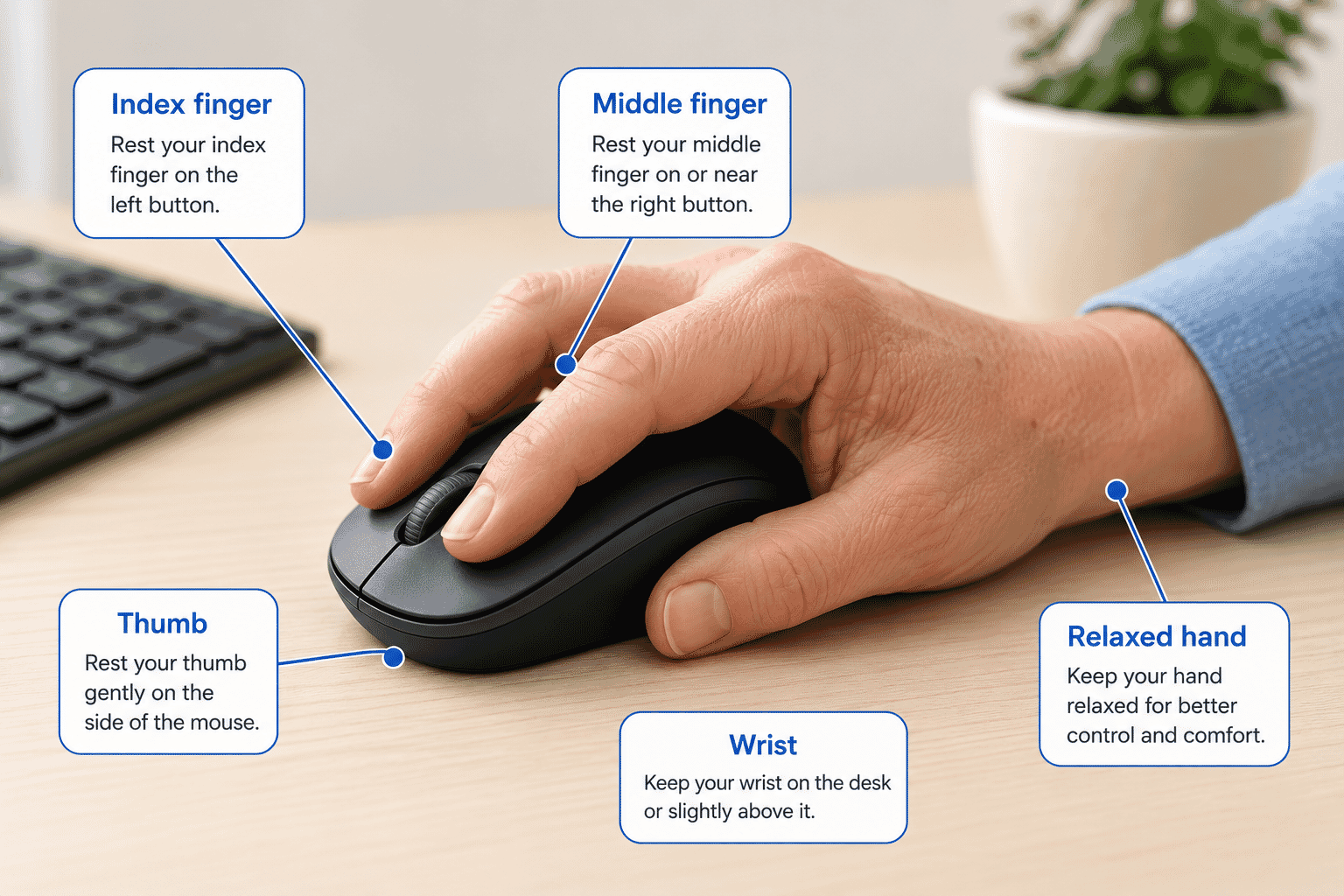
Your index finger should rest on the left button.
Your middle finger can rest near the right button.
Your palm should feel relaxed.
Try not to grip the mouse too tightly.
A relaxed hand makes the mouse easier to control.
If the pointer moves too quickly or too slowly, that can be changed in the computer settings later.
Moving the Pointer
When you move the mouse on the desk, the pointer moves on the screen.
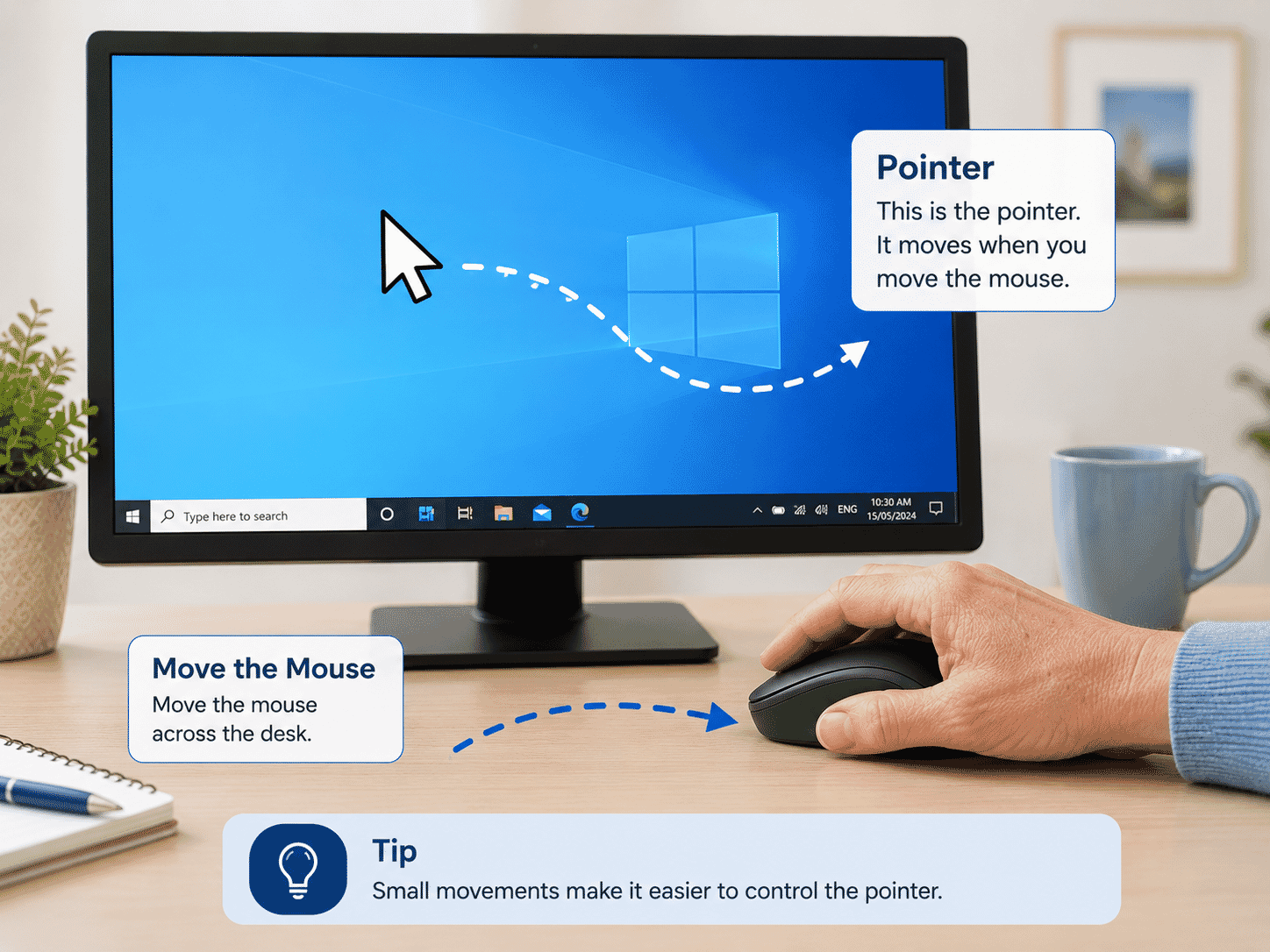
Move the mouse slowly at first.
Try moving it:
- Left
- Right
- Up
- Down
- In a circle
If you run out of room on the desk, lift the mouse slightly, place it back in a comfortable position, and keep moving.
This is normal.
You do not need to keep the mouse flat on the desk the whole time.
Left-Clicking
A left-click means pressing the left mouse button once.
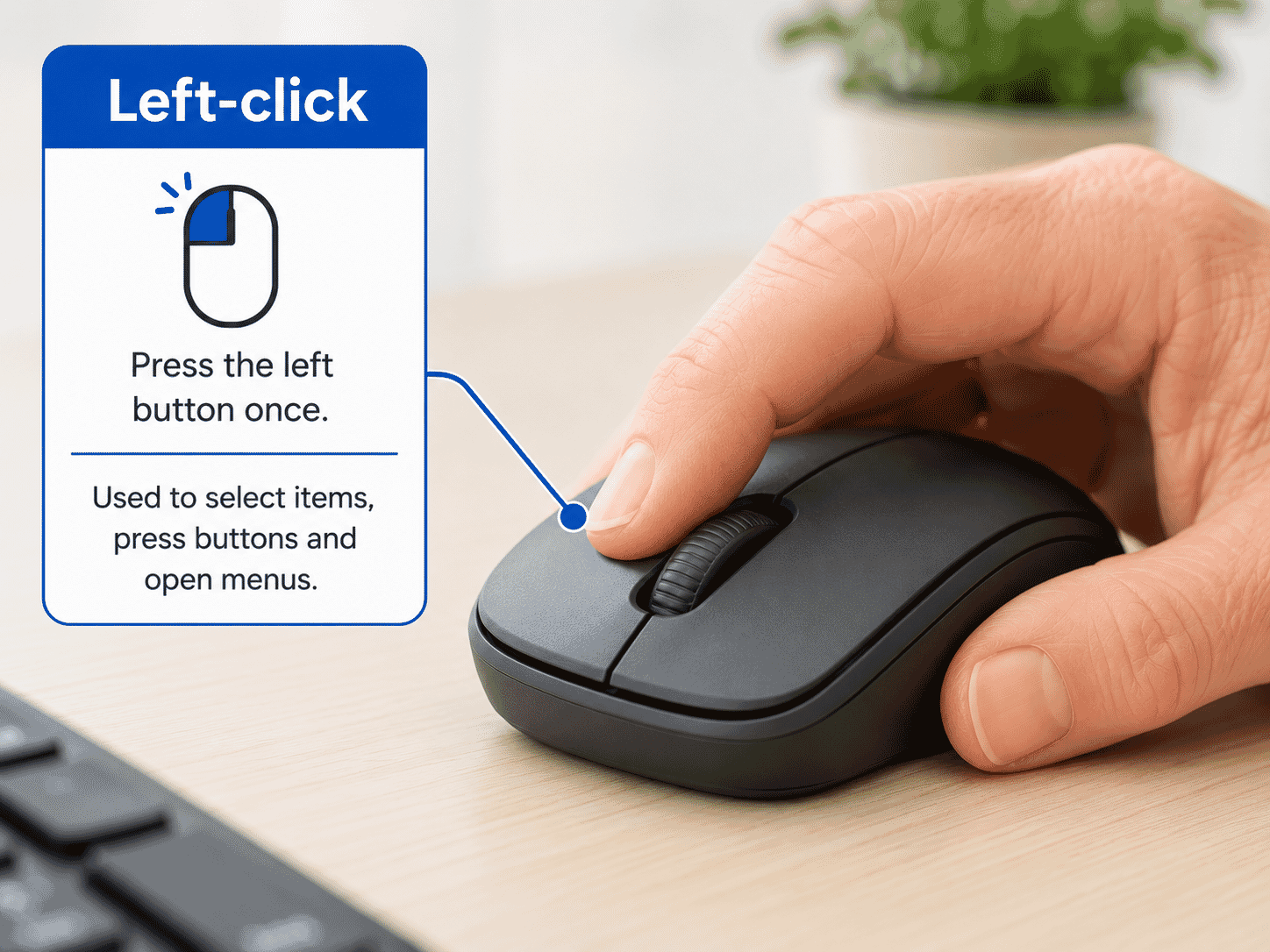
Left-clicking is used to choose something.
You may left-click to:
- Select a button.
- Open a menu.
- Place the typing cursor in a box.
- Choose an item on the screen.
Try to press gently and release.
You do not need to press hard.
Double-Clicking
A double-click means pressing the left mouse button twice quickly.
Double-clicking is often used to open things on the desktop, such as:
- Programs
- Folders
- Files
- Photos
Double-clicking can take practice.
If it does not work the first time, do not worry.
Try again slowly and keep your hand relaxed.
Right-Clicking
A right-click means pressing the right mouse button once.
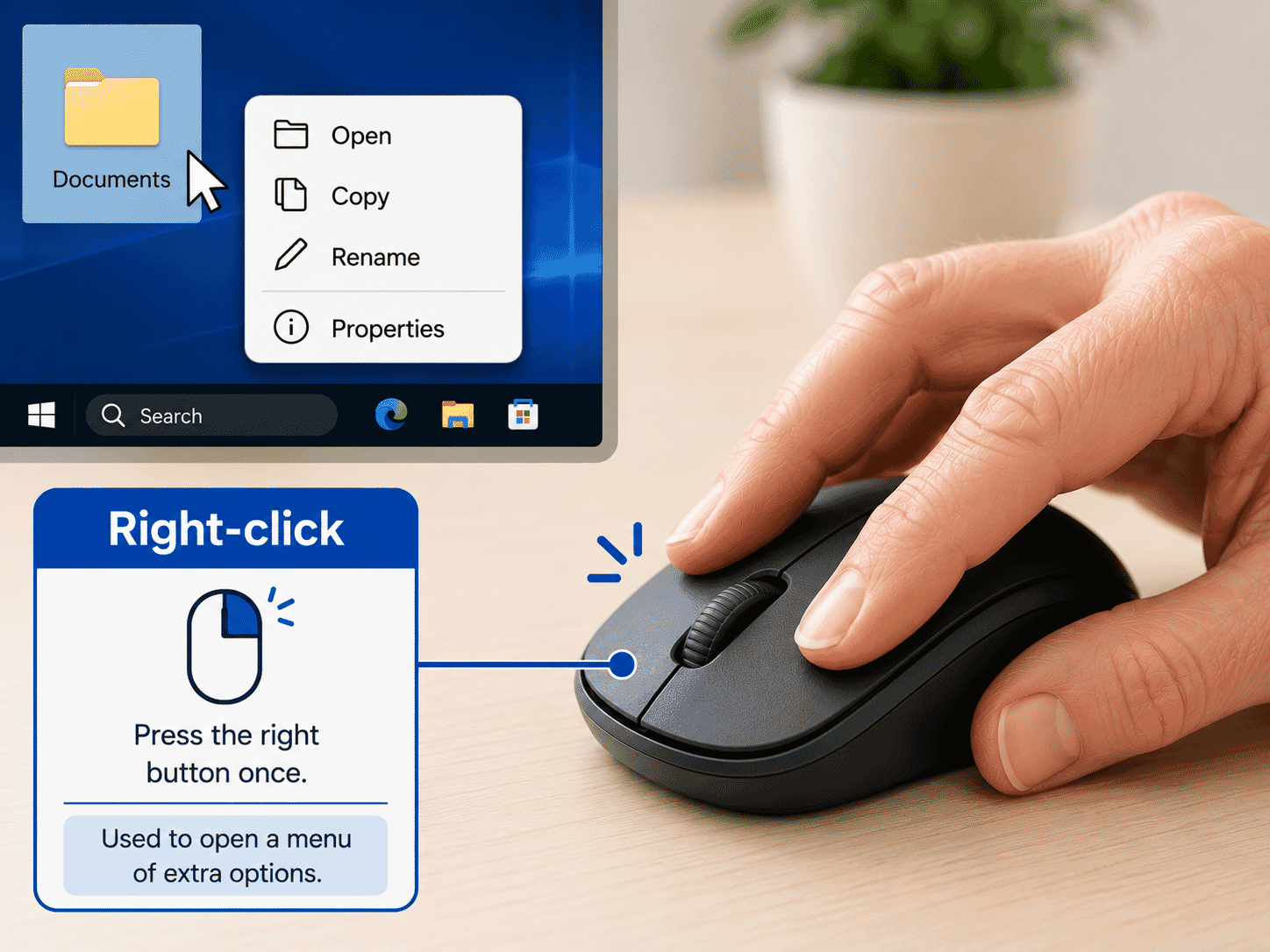
Right-clicking usually opens a small menu with extra choices.
This menu is sometimes called a context menu.
For example, right-clicking may show options such as:
- Open
- Copy
- Rename
- Delete
- Properties
Beginners do not need to use right-clicking all the time.
For now, just remember that right-clicking usually shows more options.
Scrolling
The scroll wheel helps you move up and down a page.
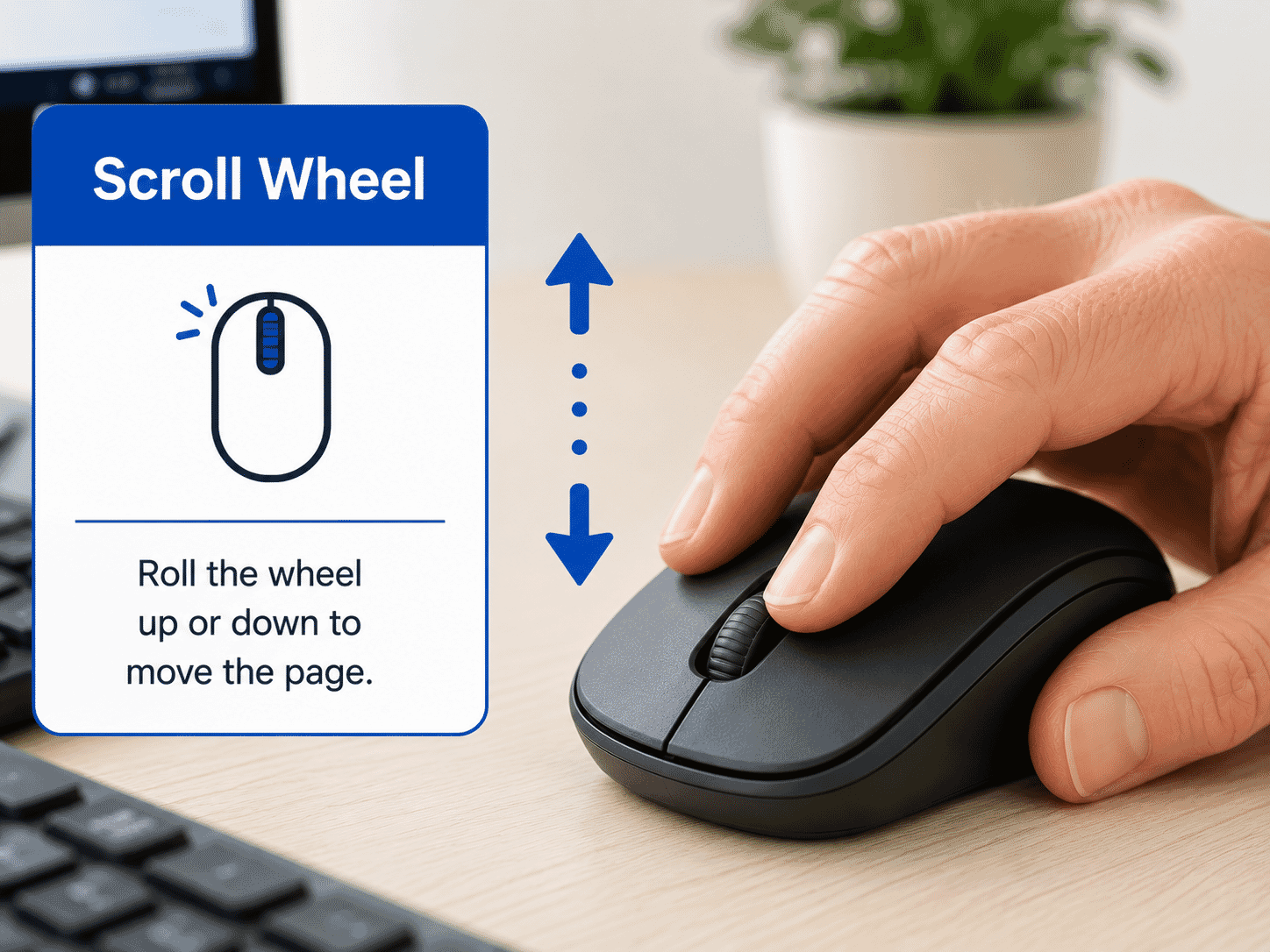
To scroll, gently roll the wheel with your finger.
Scroll up to move back toward the top of a page.
Scroll down to move further down a page.
You will use scrolling when reading:
- Websites
- Emails
- Documents
- Settings pages
- Long lists
Scrolling is one of the most useful mouse skills to practise.
Dragging
Dragging means holding the left mouse button down while moving the mouse.
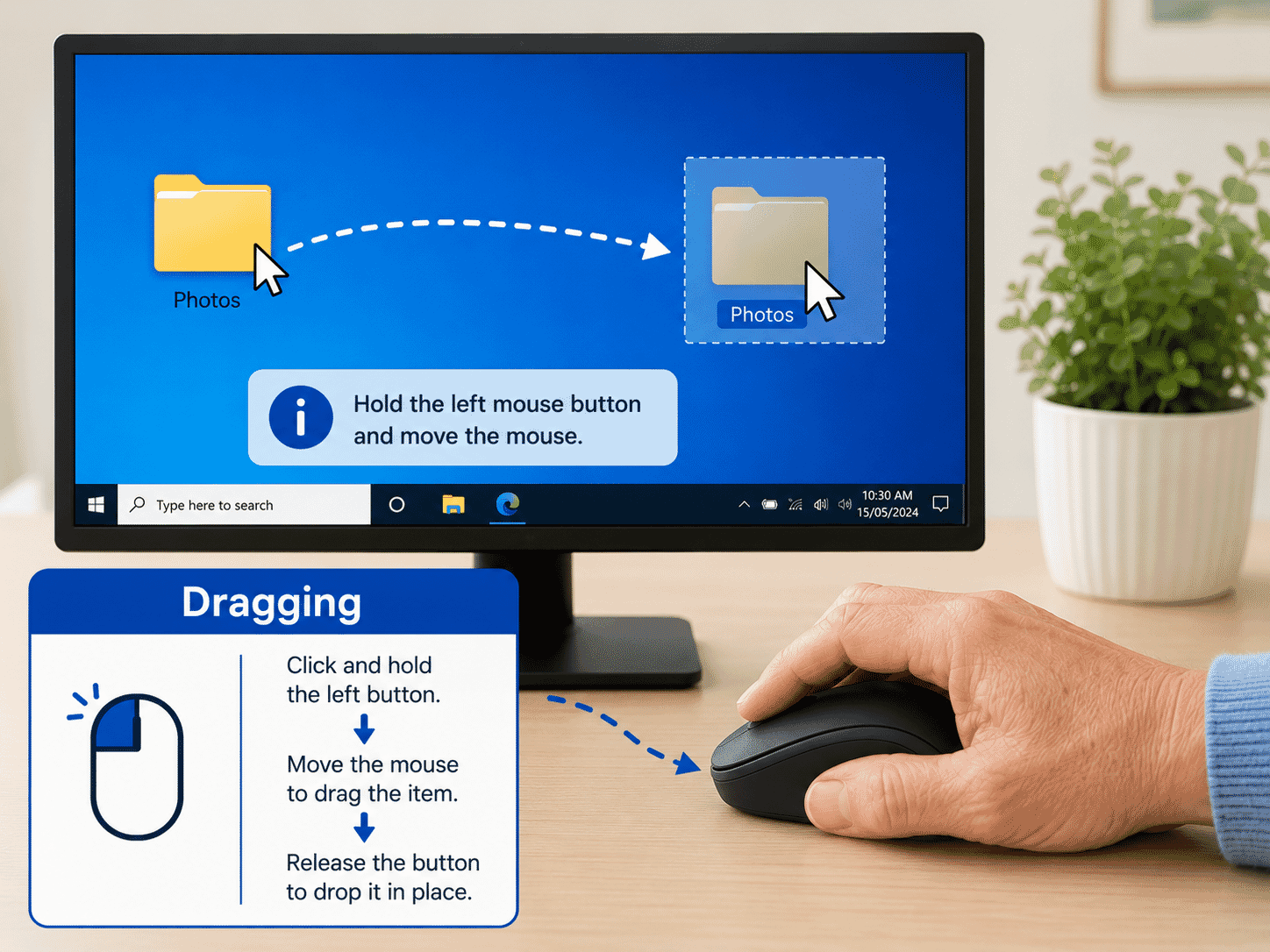
You might drag something to move it from one place to another.
For example, dragging can be used to:
- Move a window.
- Highlight text.
- Move a file.
- Adjust the size of something.
Dragging takes more control than clicking.
It is okay if this feels tricky at first.
Common Beginner Mistakes
When learning to use a mouse, people often:
- Move the mouse too quickly.
- Hold the mouse too tightly.
- Click while the pointer is still moving.
- Double-click too slowly.
- Press the wrong button.
- Lose track of the pointer on the screen.
These are normal learning mistakes.
They do not mean you are doing badly.
They simply mean your hand and eyes are still getting used to working together.
Practice Activity
Try this simple practice activity.
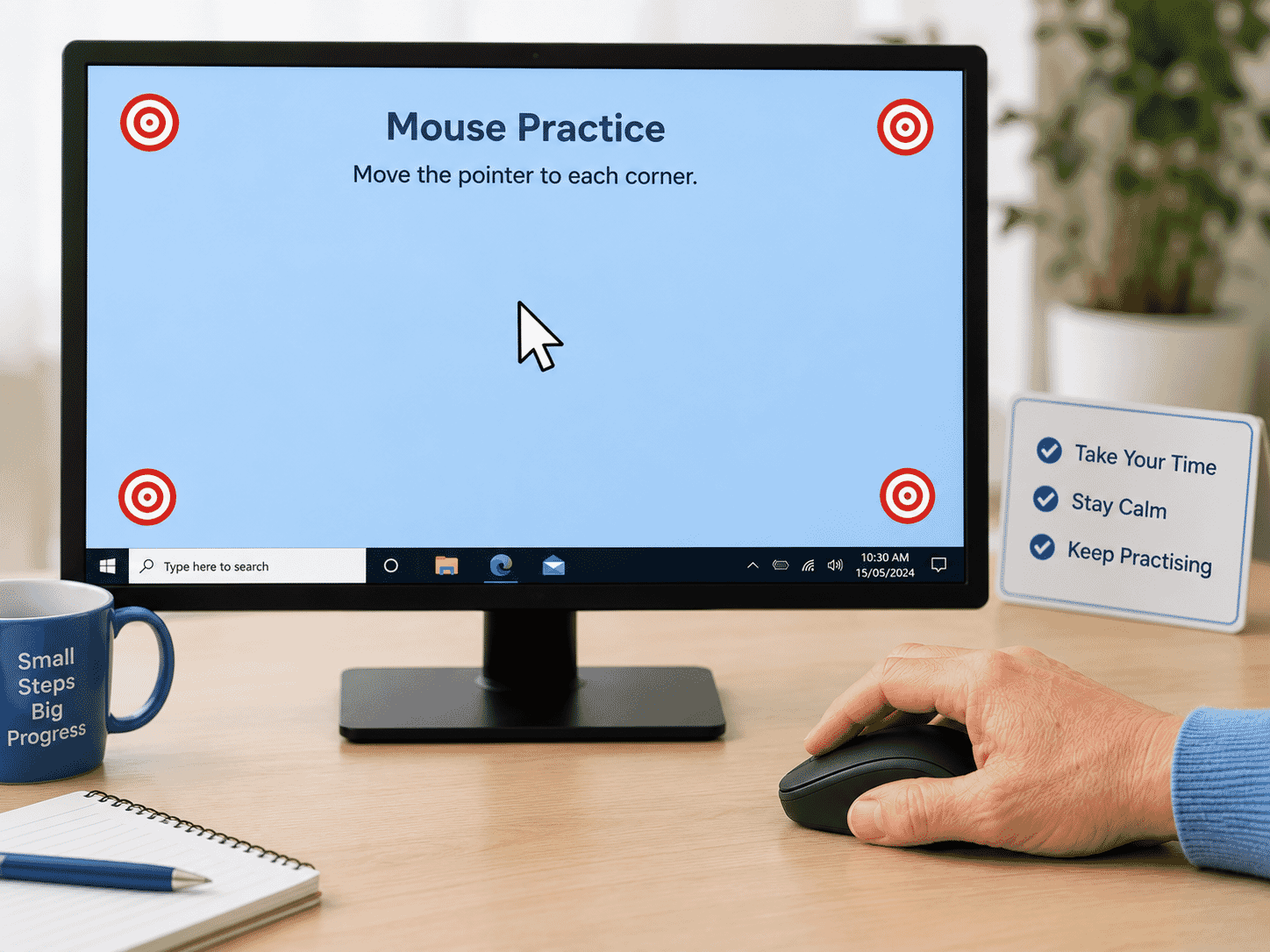
- Place your hand gently on the mouse.
- Move the pointer to each corner of the screen.
- Move the pointer to the middle of the screen.
- Left-click once on an empty area.
- Scroll up and down on a website or document.
- Practise double-clicking an icon if one is available.
- Right-click on an empty area and notice the menu that appears.
- Click away from the menu to close it.
Take your time.
There is no need to rush.
Mouse Confidence Tips
Here are a few tips that can make using a mouse easier:
- Keep your wrist relaxed.
- Move the mouse slowly.
- Look at the pointer, not your hand.
- Use a mouse pad if the mouse feels jumpy.
- Practise for a few minutes at a time.
- Ask for help if the pointer feels too fast.
The goal is not to be perfect.
The goal is to become comfortable.
What You've Learned
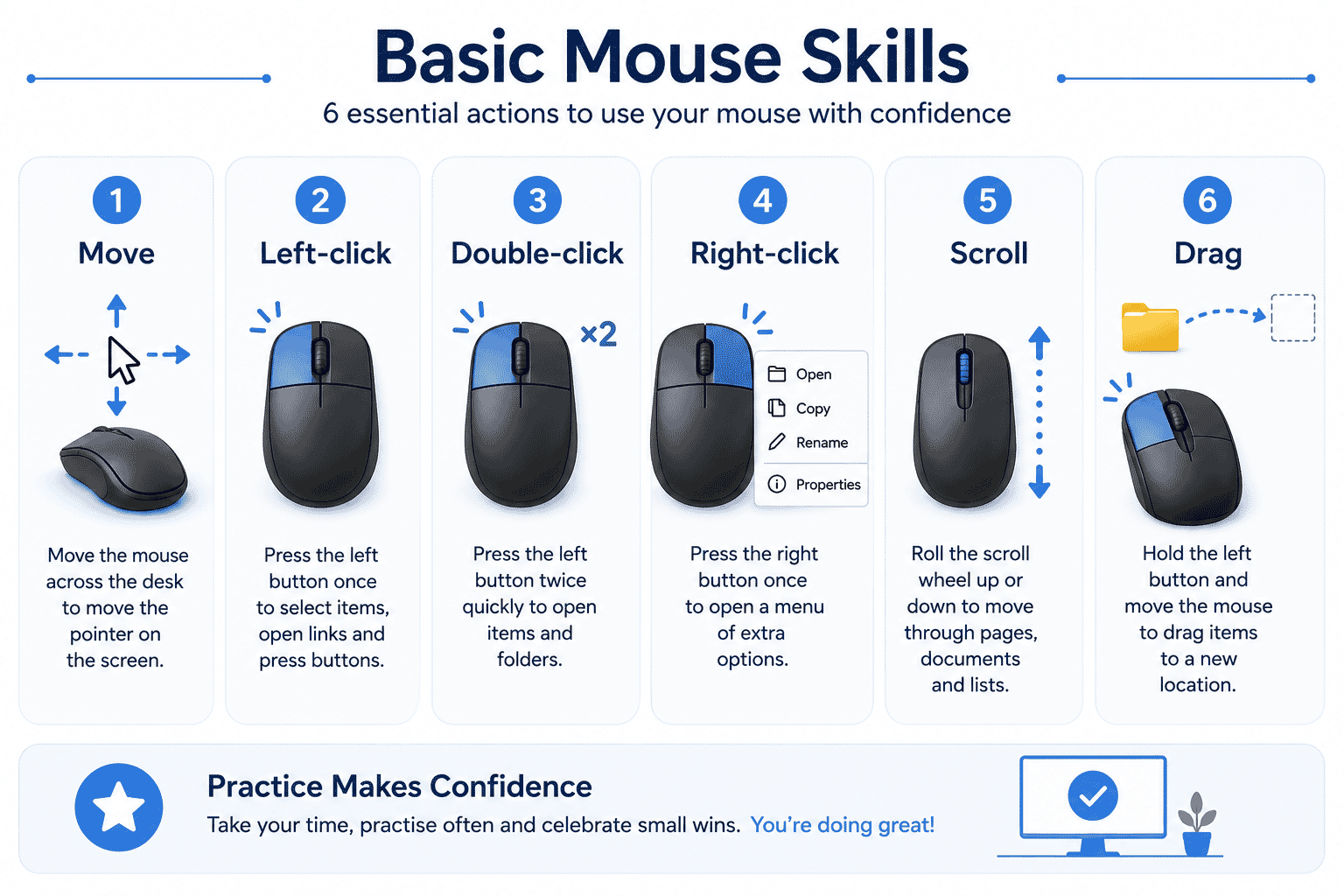
You have learned:
- What a computer mouse does.
- How the pointer moves on the screen.
- What the left button is used for.
- What the right button is used for.
- How to use the scroll wheel.
- What double-clicking means.
- What dragging means.
- How to practise basic mouse skills.
Using a mouse becomes easier with repetition.
The more you practise, the more natural it will feel.
Keep Learning
Next guides in this module:
- LG-010 – Using a Keyboard
- LG-011 – Understanding Windows
- LG-012 – Opening and Closing Programs
These guides build on the mouse skills you have started learning here.
Learning Paths
View all pathsNeed some help with this?
Protect your photos and files, automatic backups plus a “test restore” so you know it works.
Troubleshoot IT provides practical, one-to-one technology support across Darwin, Palmerston and surrounding areas.