LG-013 - Saving Files
Learn how to save files with confidence on a Windows computer. This beginner-friendly guide explains what files are, why saving is important, the difference between Save and Save As, and how to choose good file names and save locations.
Before You Begin
Applies To
Windows
Knowledge Prerequisites
Overview
Have you ever spent time writing a letter or creating a document, only to wonder where it went afterwards?
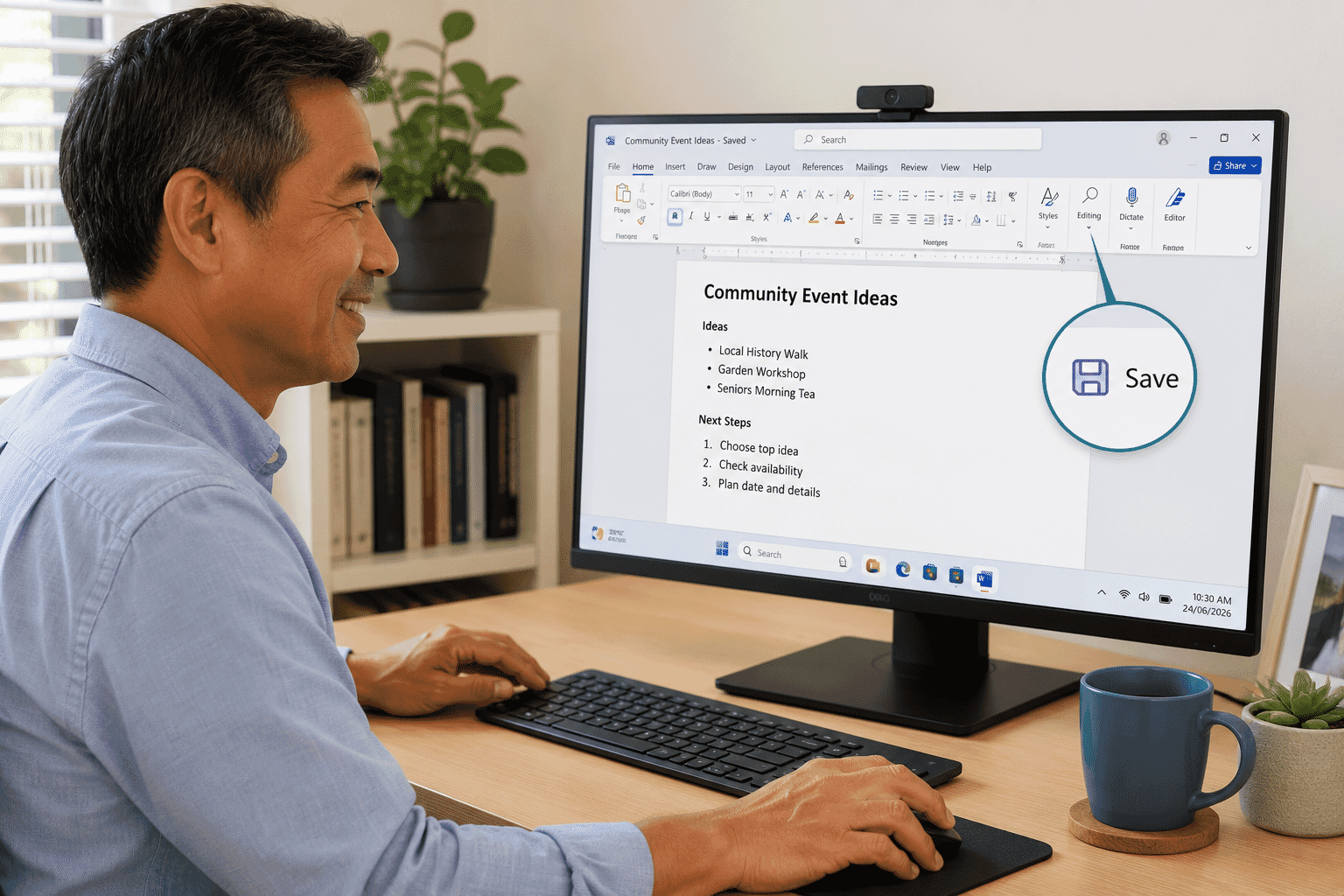
Saving a file allows you to keep your work so you can open it again later.
Learning how to save files is one of the most important computer skills because it protects your work and makes it easy to find again.
This guide explains what files are, where they can be saved and how to save them safely.
Learning Objectives
By the end of this guide you will be able to:
- Understand what a file is.
- Understand the difference between saving and opening.
- Save a file using Save.
- Save a file with a new name using Save As.
- Choose a suitable location to save a file.
- Use simple file names.
Prerequisites
Before starting this guide, it may help to complete:
- LG-011 – Understanding Windows
- LG-012 – Opening and Closing Programs
What Is a File?
A file is a piece of information stored on your computer.
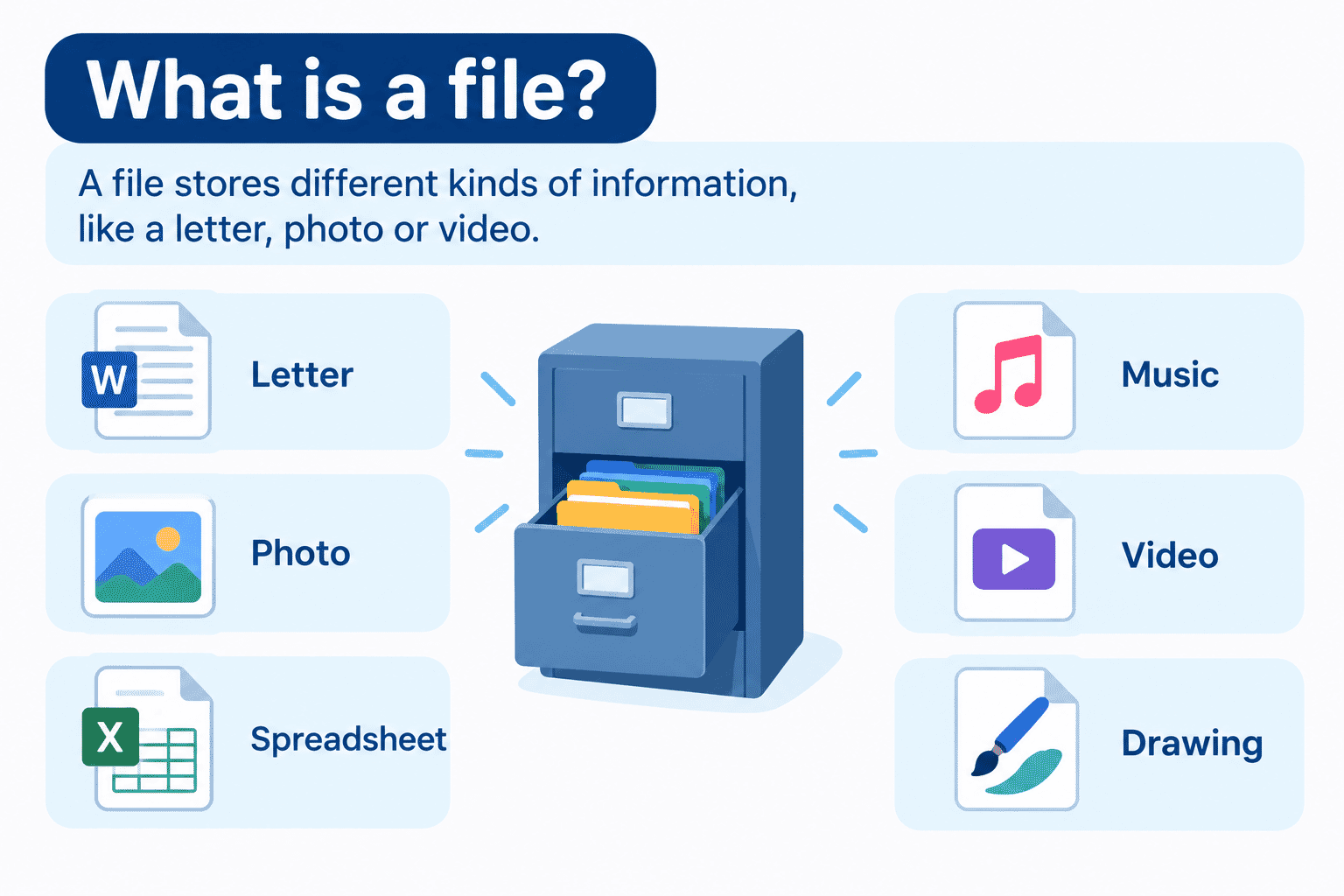
Files can contain many different types of information, including:
- Letters
- Photos
- Spreadsheets
- Music
- Videos
- Drawings
Think of a file as a sheet of paper that you keep inside a filing cabinet.
The filing cabinet keeps your work safe until you need it again.
Why Do You Need to Save?
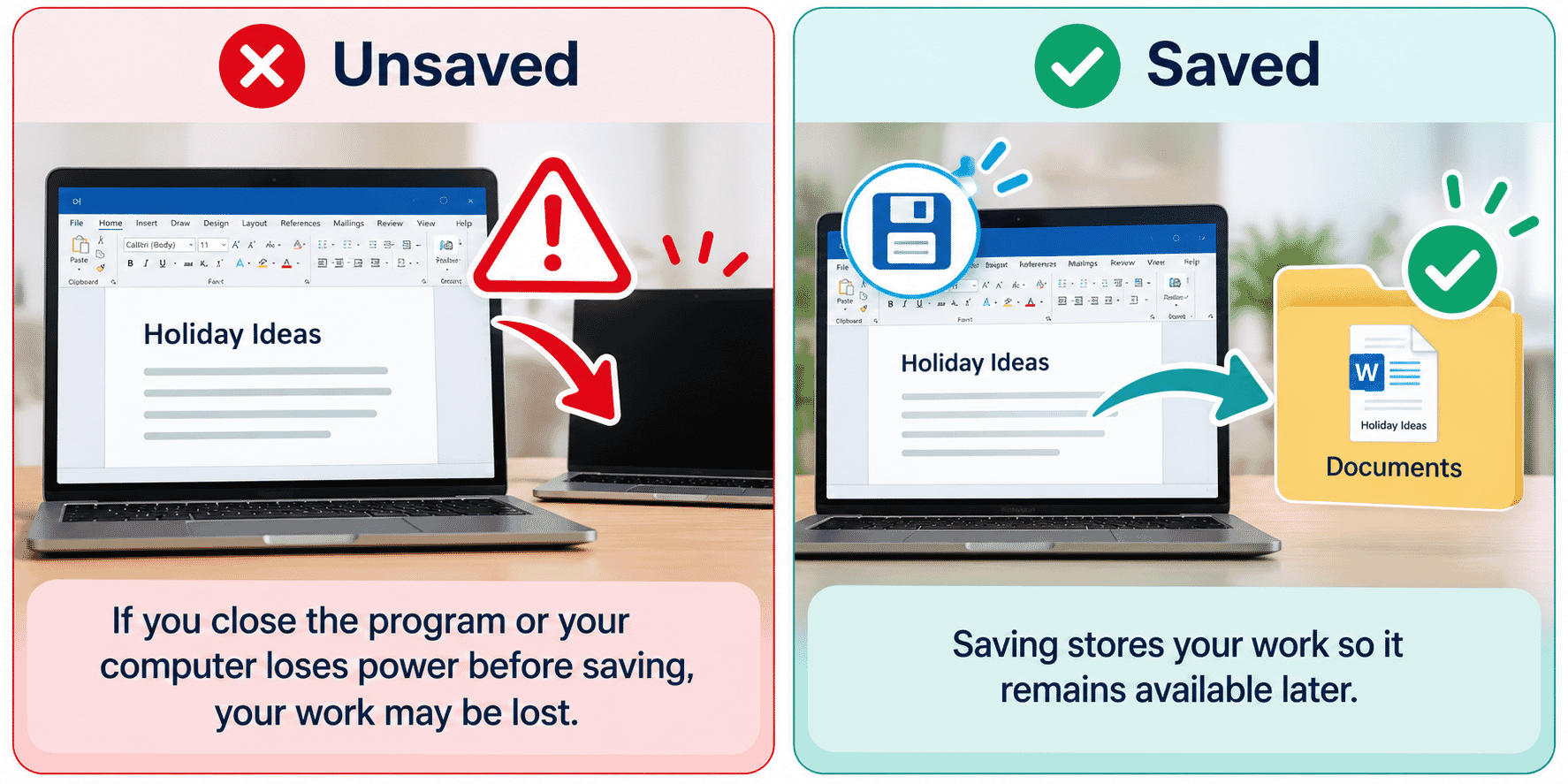
When you create or change something on a computer, it usually stays in the computer's temporary memory.
If you close the program or your computer loses power before saving, your work may be lost.
Saving stores your work permanently on your computer.
It only takes a few seconds and can prevent losing hours of work.
What Does Save Mean?
When you choose Save, Windows stores your work.
The next time you save the same file, the old version is replaced with the updated one.
Think of Save as updating the same document.
What Is Save As?
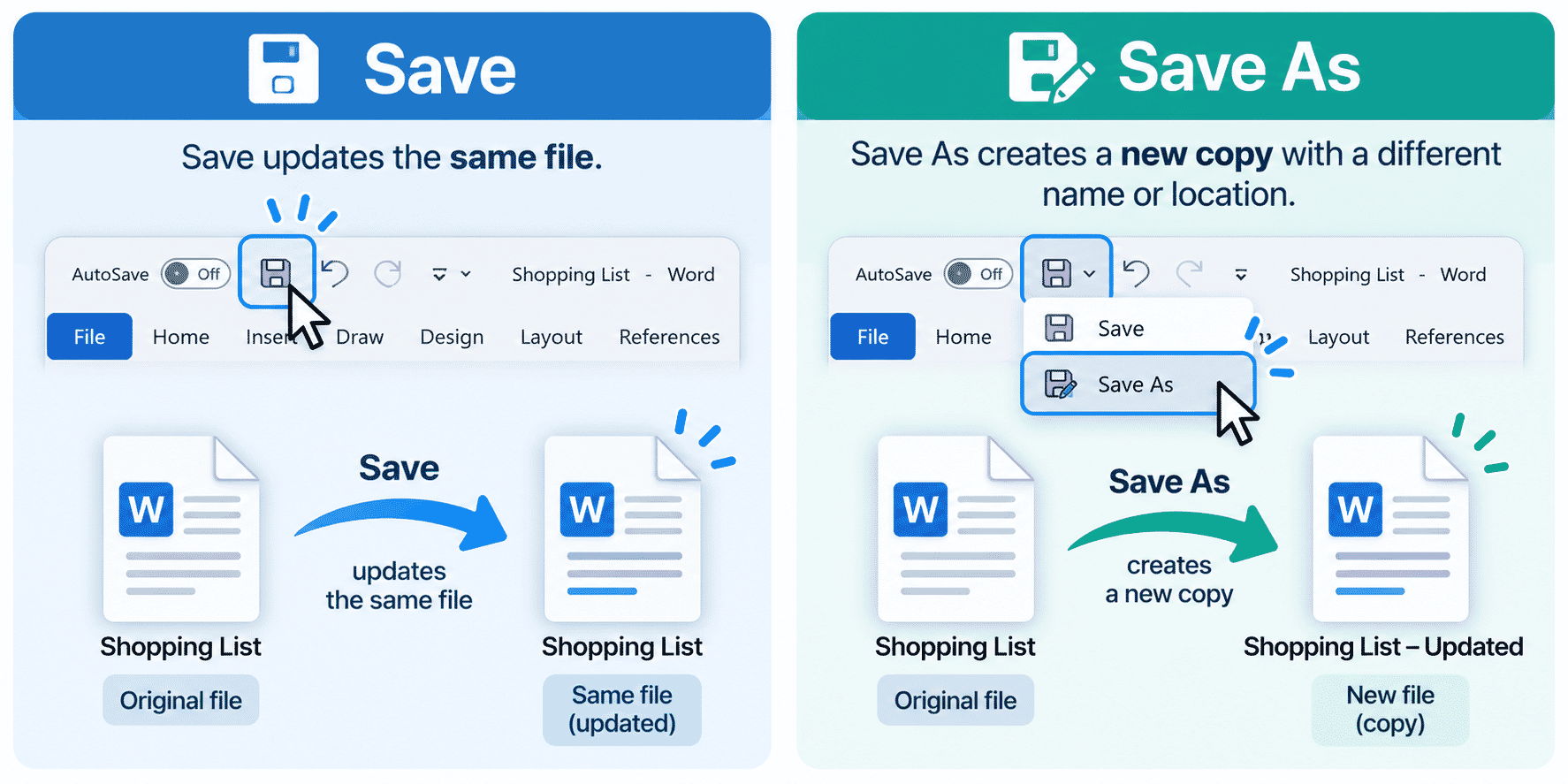
Save As creates a new copy of your file.
This is useful when you want to:
- Keep the original version.
- Create another copy.
- Save the file with a different name.
- Save it in a different location.
For example:
- Letter to John.docx
- Letter to Sarah.docx
Both files can exist at the same time.
Choosing Where to Save
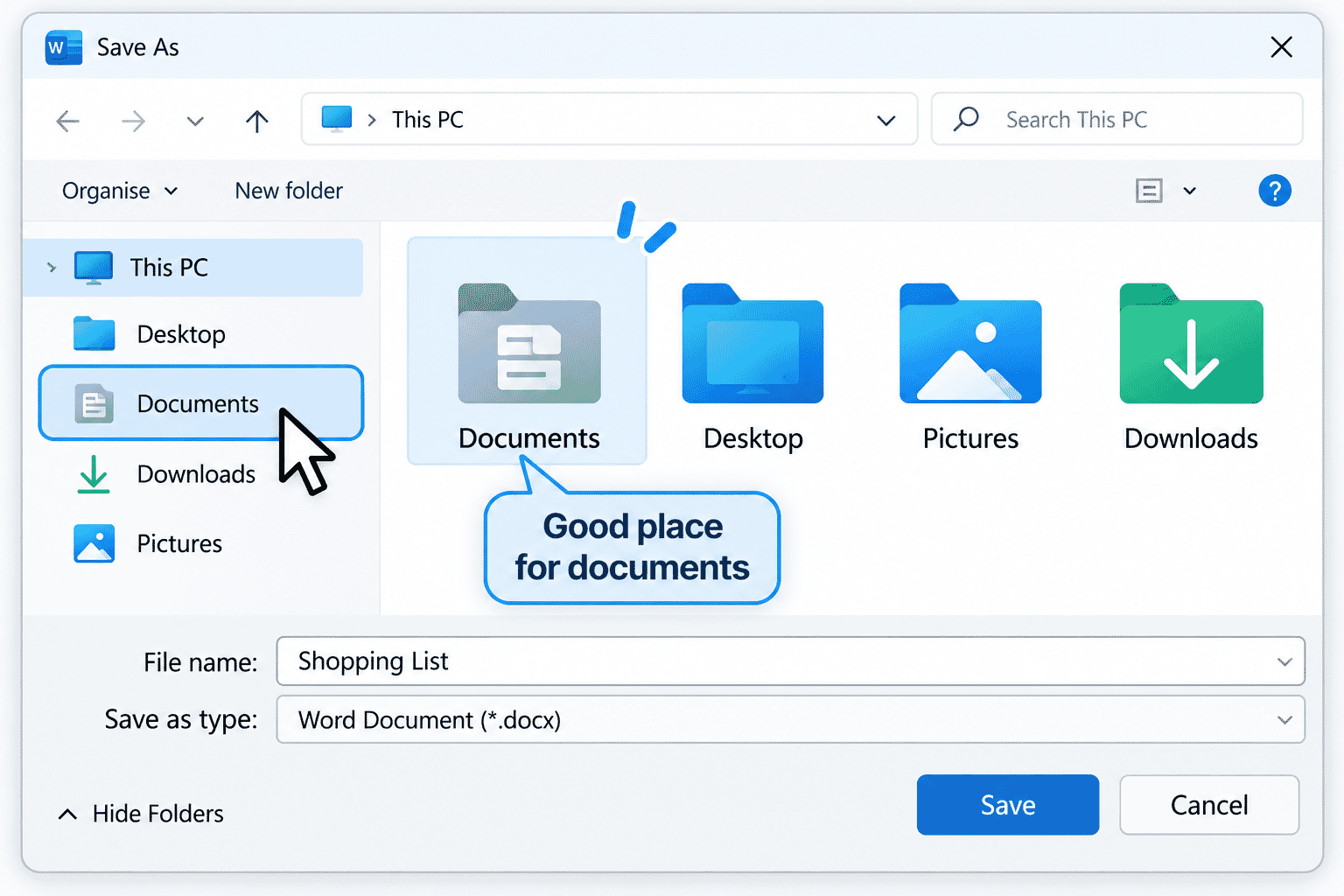
Windows provides several common places to save files.
The most common locations are:
- Documents
- Desktop
- Pictures
- Downloads
For beginners, the Documents folder is usually the best place to save letters and other documents.
Photos are usually stored in Pictures.
Giving Your File a Good Name
A good file name helps you find your work later.
Choose names that clearly describe the file.
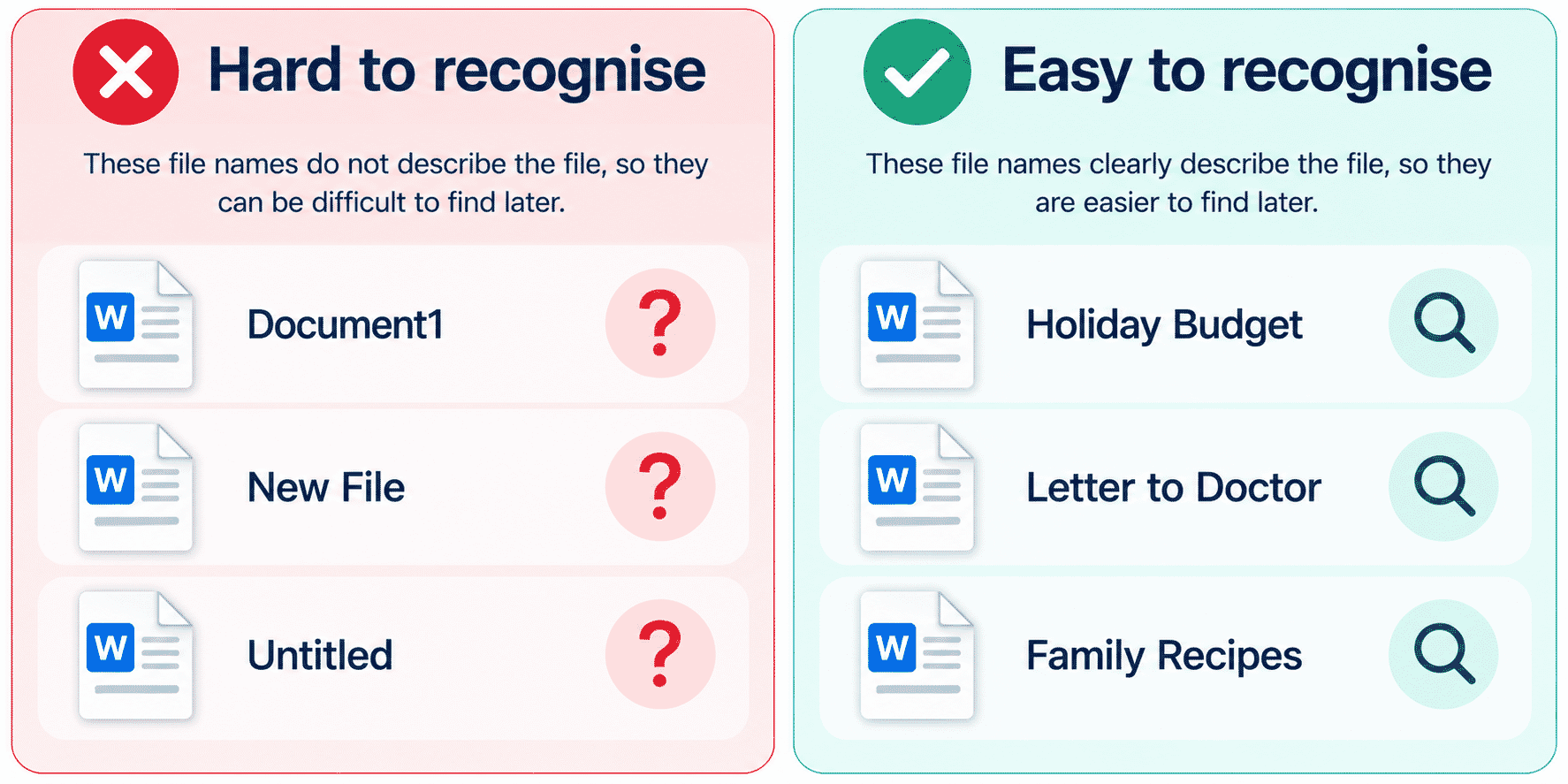
Good examples include:
- Holiday Budget
- Letter to Doctor
- Shopping List
- Family Recipes
Avoid names like:
- Document1
- New File
- Untitled
Meaningful names save time later.
Saving a File for the First Time
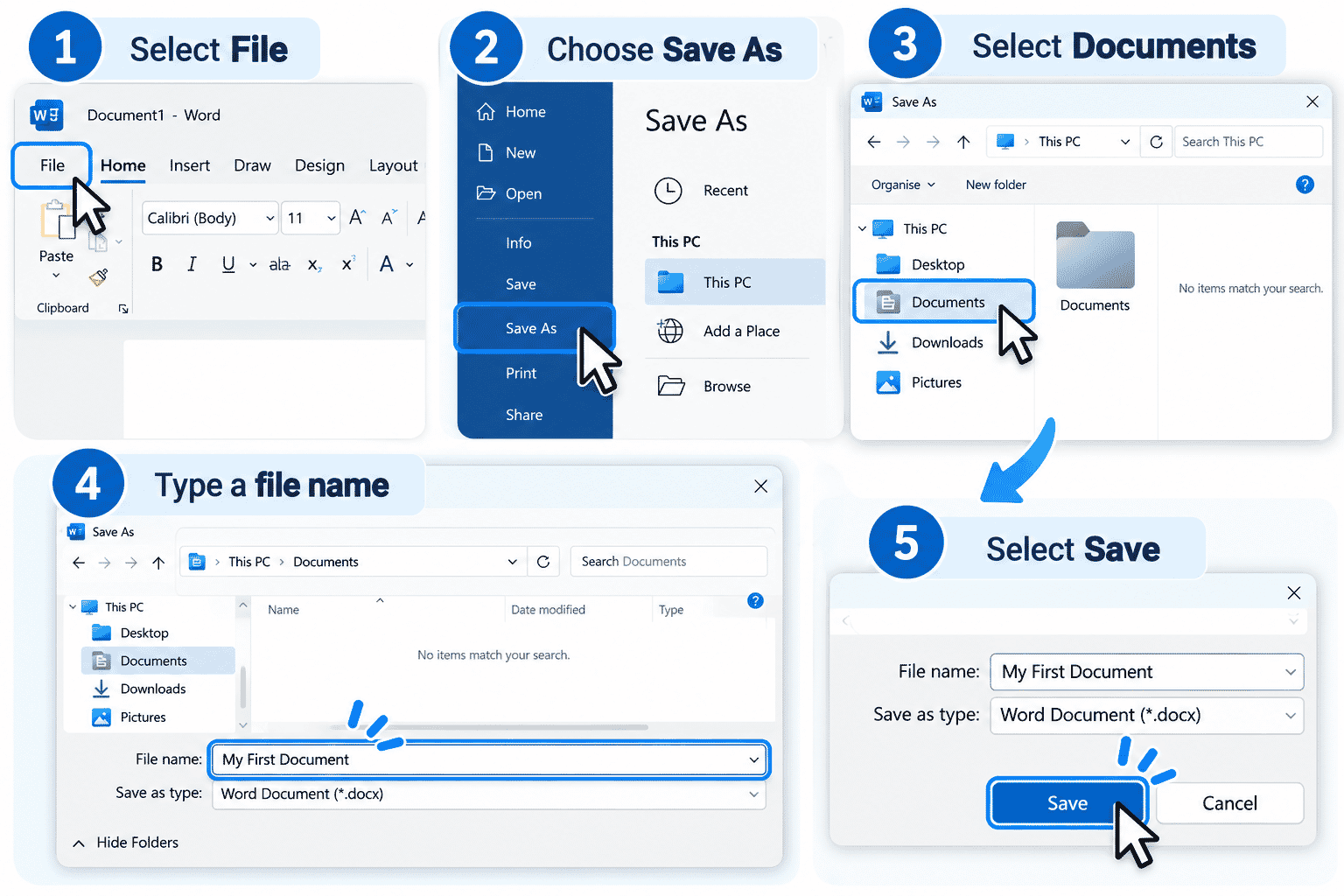
When saving a new file:
- Select File.
- Choose Save or Save As.
- Select a location such as Documents.
- Type a file name.
- Select Save.
Your work is now stored safely on your computer.
Saving Changes
After making more changes, save your work again.
Many programs allow you to:
- Select File > Save, or
- Press Ctrl + S
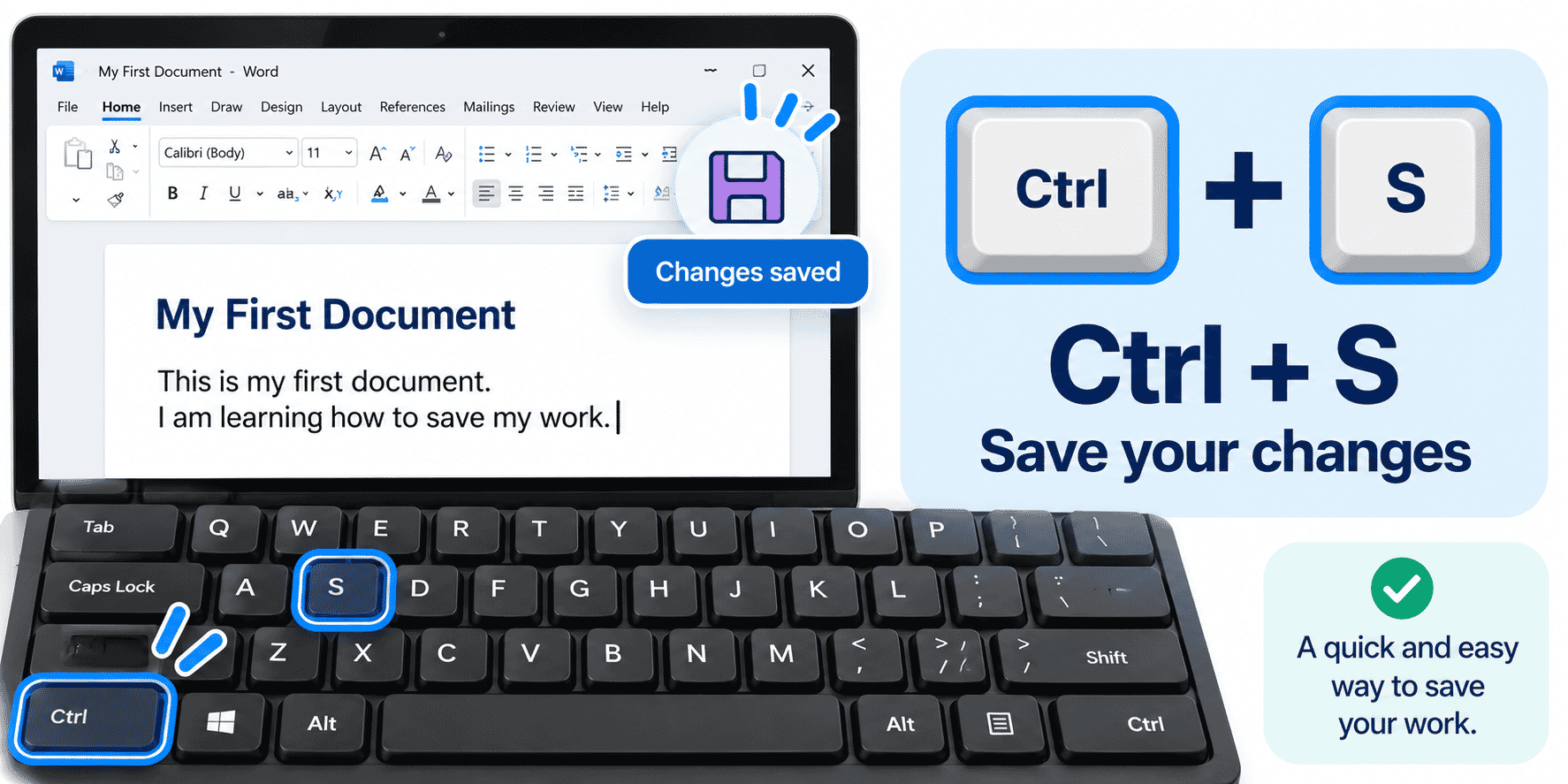
Saving regularly is a good habit.
Many experienced computer users save their work every few minutes.
What If I Forget to Save?
Many modern programs automatically save your work.
However, not every program does.
It is always safest to save your work yourself.
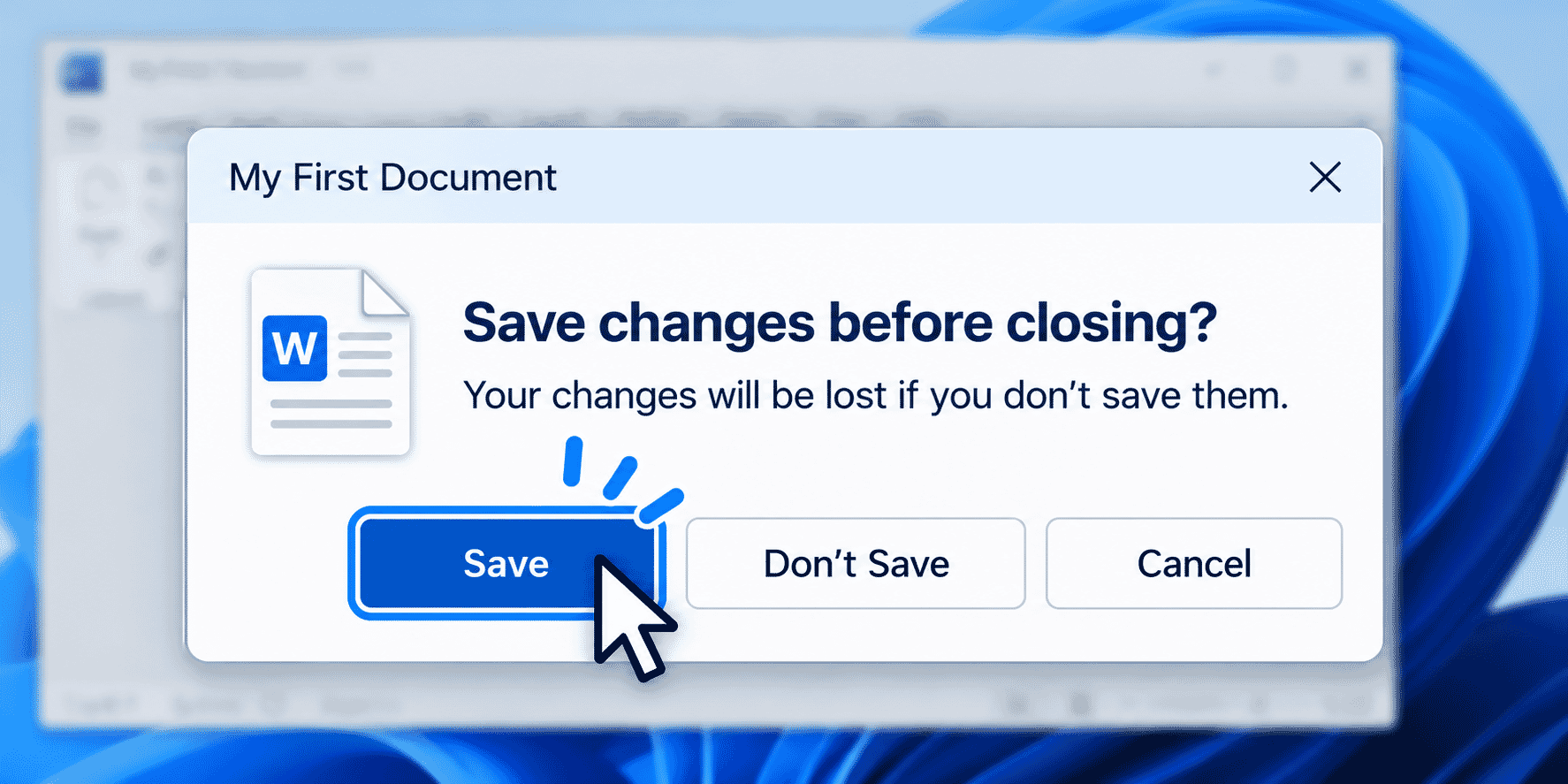
If you are unsure, save again.
You cannot usually save too often.
Practice Activity
Try this simple activity.
- Open Notepad.
- Type your name.
- Type today's date.
- Save the file in Documents.
- Name it:
My First Document
- Close Notepad.
Don't worry about finding it again.
You'll learn that in the next guide.
Beginner Tips
As you begin saving files:
- Save early.
- Save often.
- Give every file a meaningful name.
- Use the Documents folder whenever possible.
- Don't worry if saving feels unfamiliar at first.
The more you practise, the easier it becomes.
What You've Learned
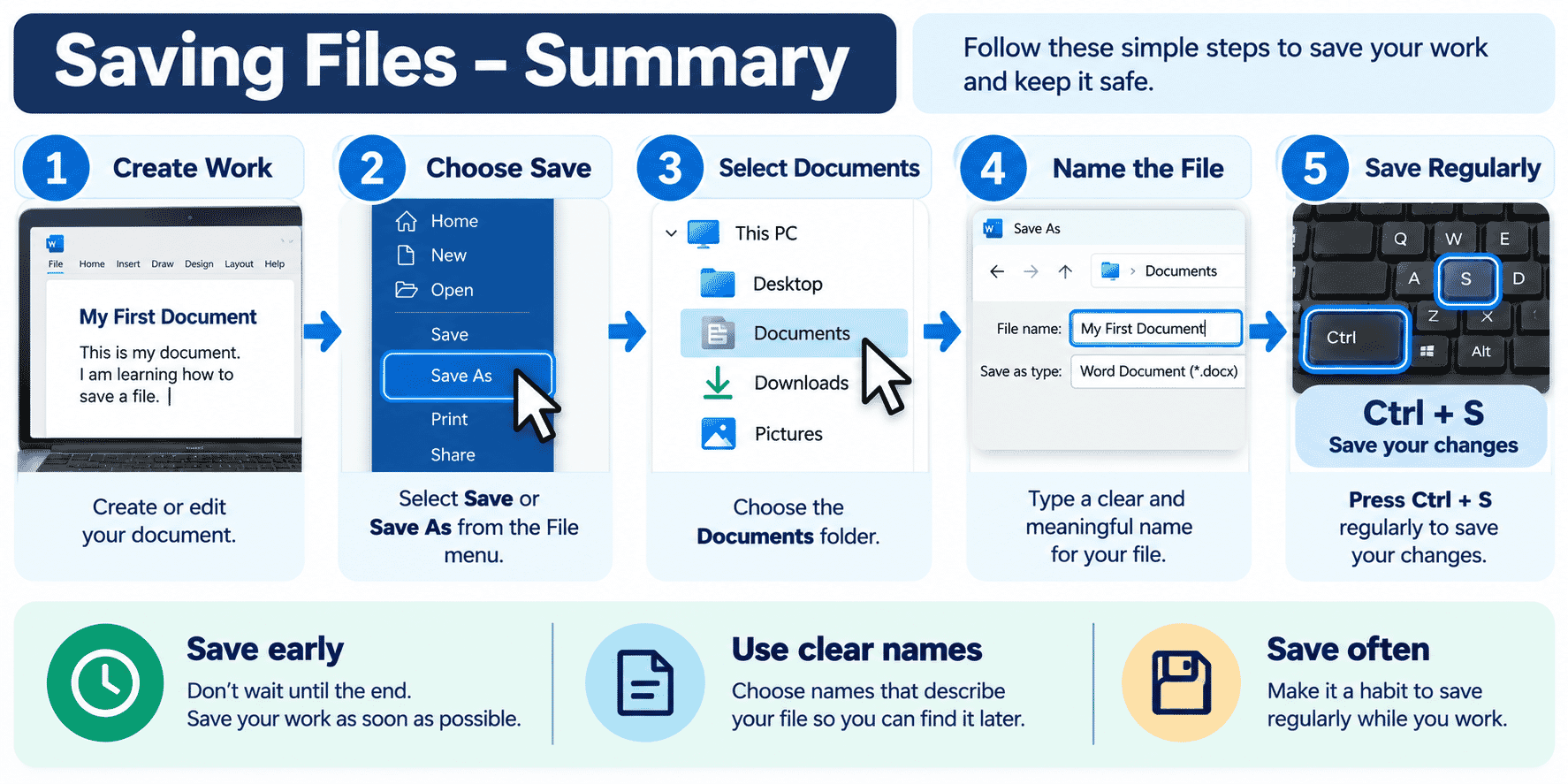
You now know:
- What a file is.
- Why saving is important.
- The difference between Save and Save As.
- How to choose a save location.
- How to create meaningful file names.
- Why saving regularly is a good habit.
These skills will help protect your work and make it much easier to use your computer with confidence.
Keep Learning
Next guide:
- LG-014 – Finding Files Again
You'll learn how to open the files you've saved, search for documents and keep your computer organised.
Requirements
Windows computer
Need some help with this?
One-hour, in-person 1:1 tech training for people who find technology challenging, especially older adults, with patient, practical support using phones, tablets and computers.
Troubleshoot IT provides practical, one-to-one technology support across Darwin, Palmerston and surrounding areas.