LG-016 - Searching Google Effectively
Learn to search Google using useful words, recognise results and refine searches without sharing private information.
Before You Begin
Overview
This guide will help you with searching google effectively using simple steps and familiar examples. You can work at your own pace and repeat any activity.
Before You Begin
- Device: Windows 11 computer with Microsoft Edge.
- Internet: A working internet connection.
- Account: No new account is needed for the practice activities.
- Permissions: Normal access to the computer and browser; do not change shared settings without permission.
- Helpful previous guide: LG-015 – Understanding Files and Folders.
- Safety: Use public, non-sensitive information for practice. Do not enter passwords or personal details.
Learning Objectives
By the end of this guide, you should be able to:
- what is a search engine?.
- open google.
- choose useful search words.
- read the results page.
- choose a trustworthy result.
- improve a search.
What Is a Search Engine?
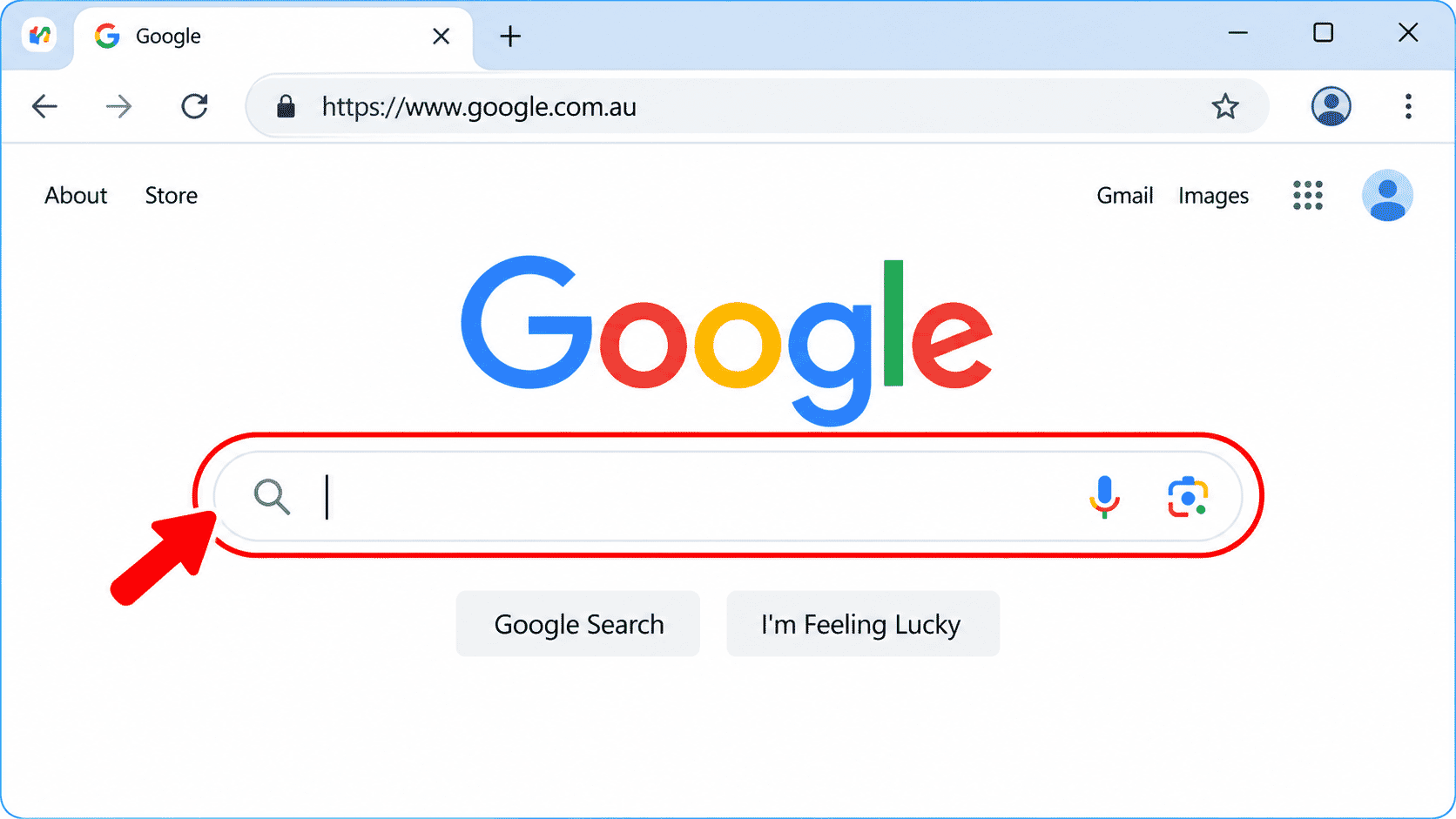
A search engine helps you find information on the internet. Google is one example. A search engine is not the same as a website or a browser. Your browser, such as Microsoft Edge, opens Google and other websites.
Open Google
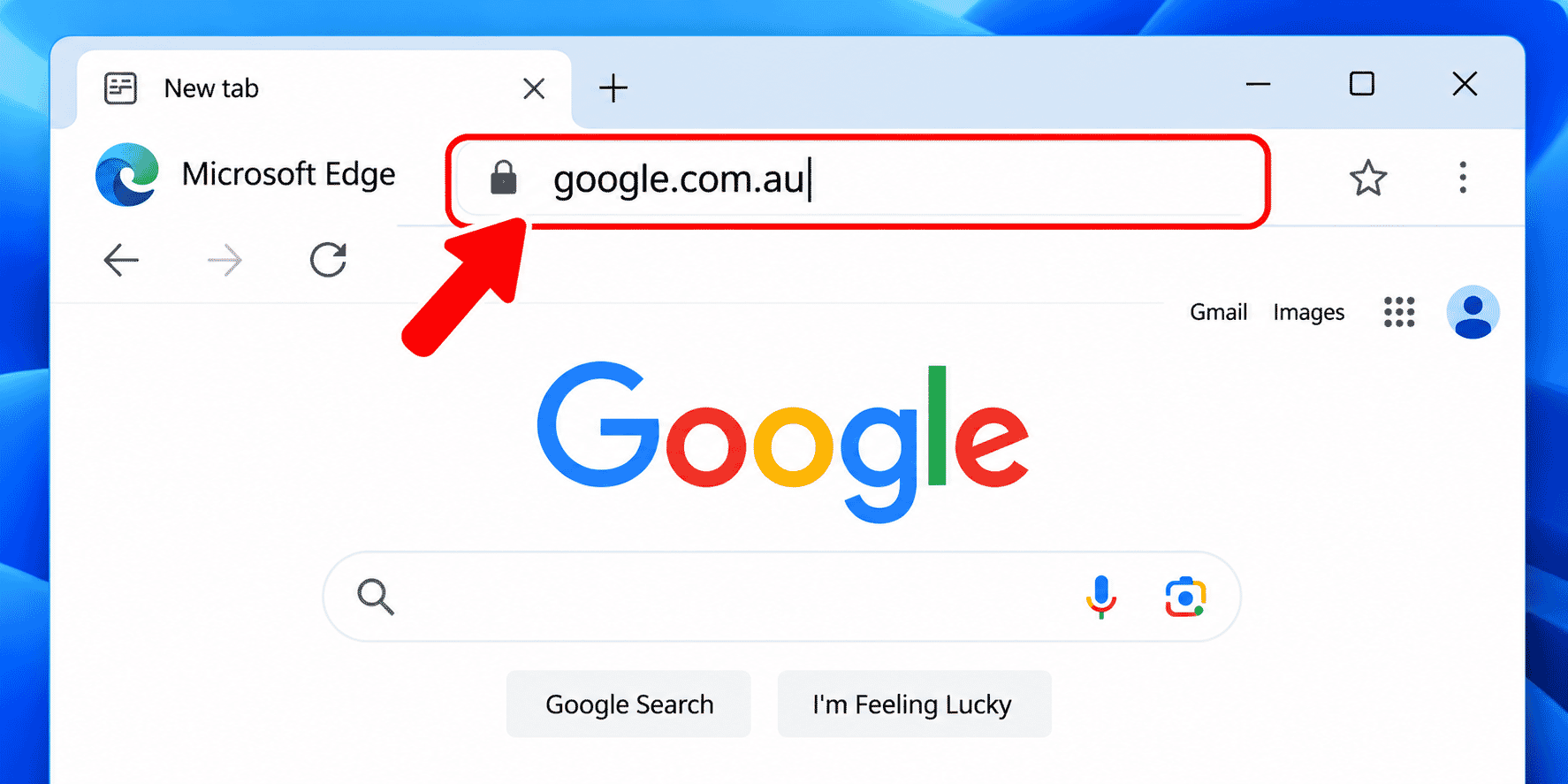
Open Microsoft Edge. Click the address bar at the top, type google.com.au and press Enter. You can also type a search directly into the browser address bar.
Choose Useful Search Words
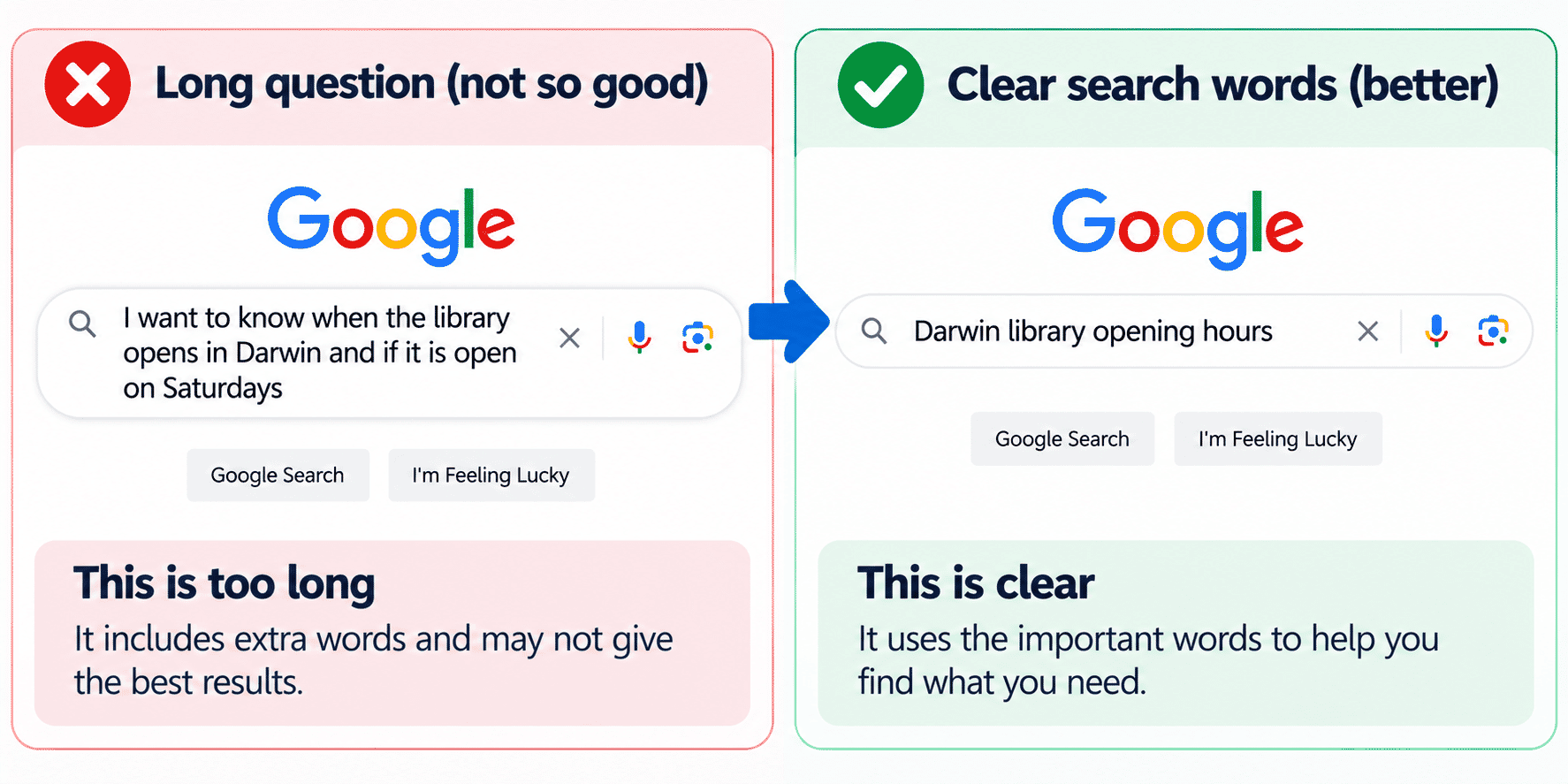
Think about what you want to know. Type the important words rather than a long story. For example, try Darwin library opening hours rather than I want to know when the library opens. Add a place or year when it matters.
Read the Results Page
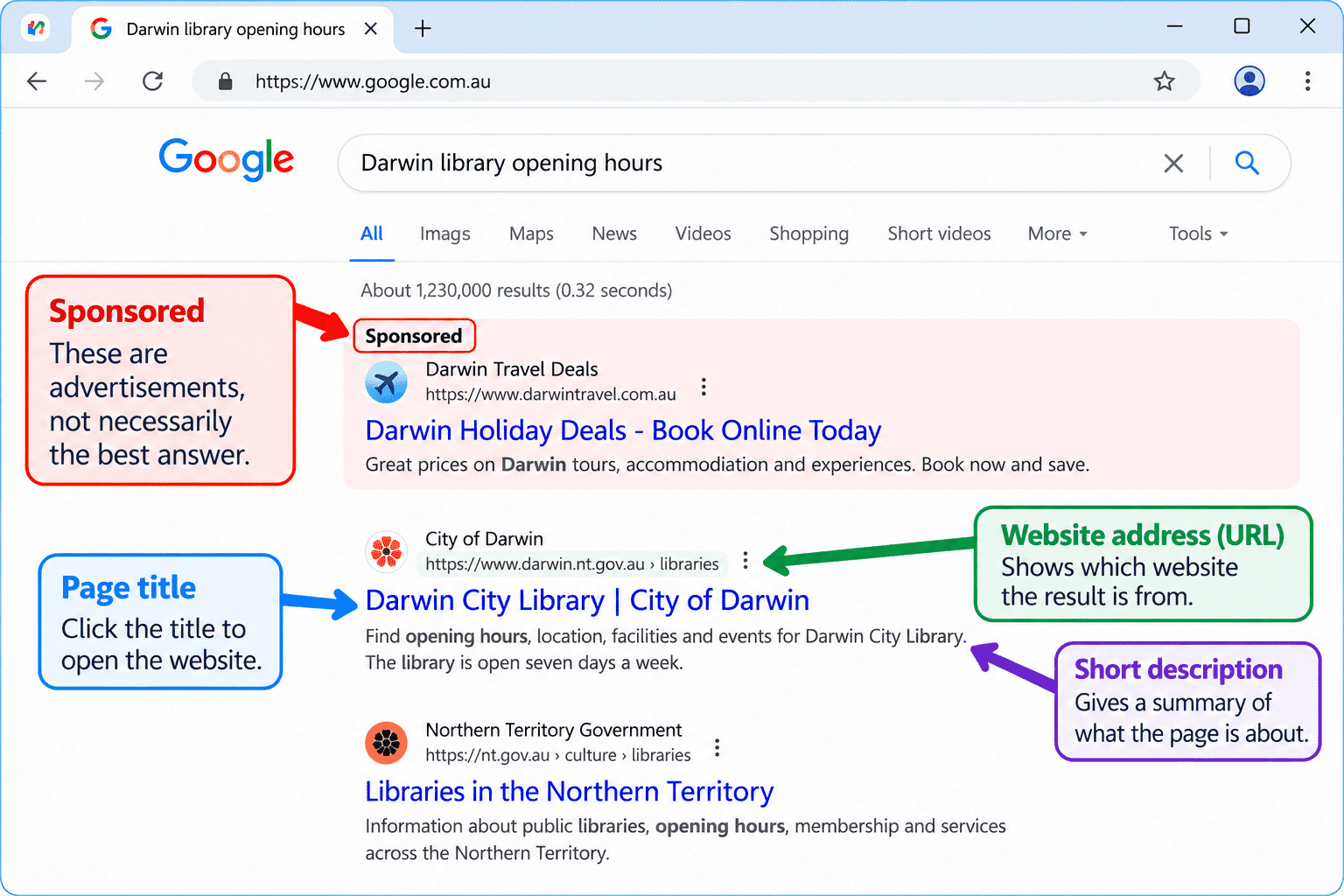
After you search, Google shows links to websites. Look for the page title, website address and short description. Some results are marked Sponsored; these are advertisements, not necessarily the best answer.
Choose a Trustworthy Result
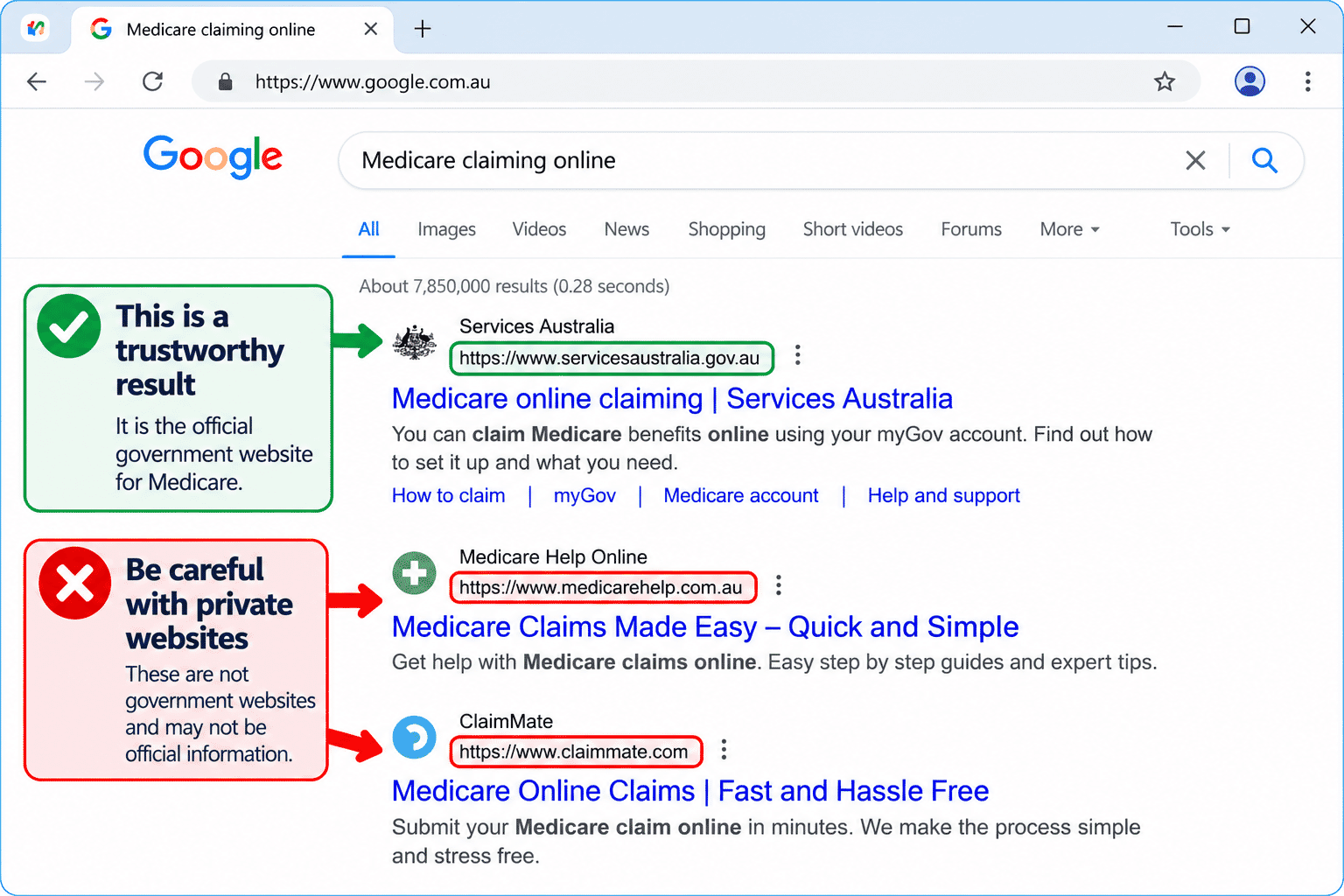
For health, money or government information, prefer the relevant official organisation. Check the website address carefully, and compare important claims with another reliable source. A result appearing first does not prove it is correct.
Improve a Search
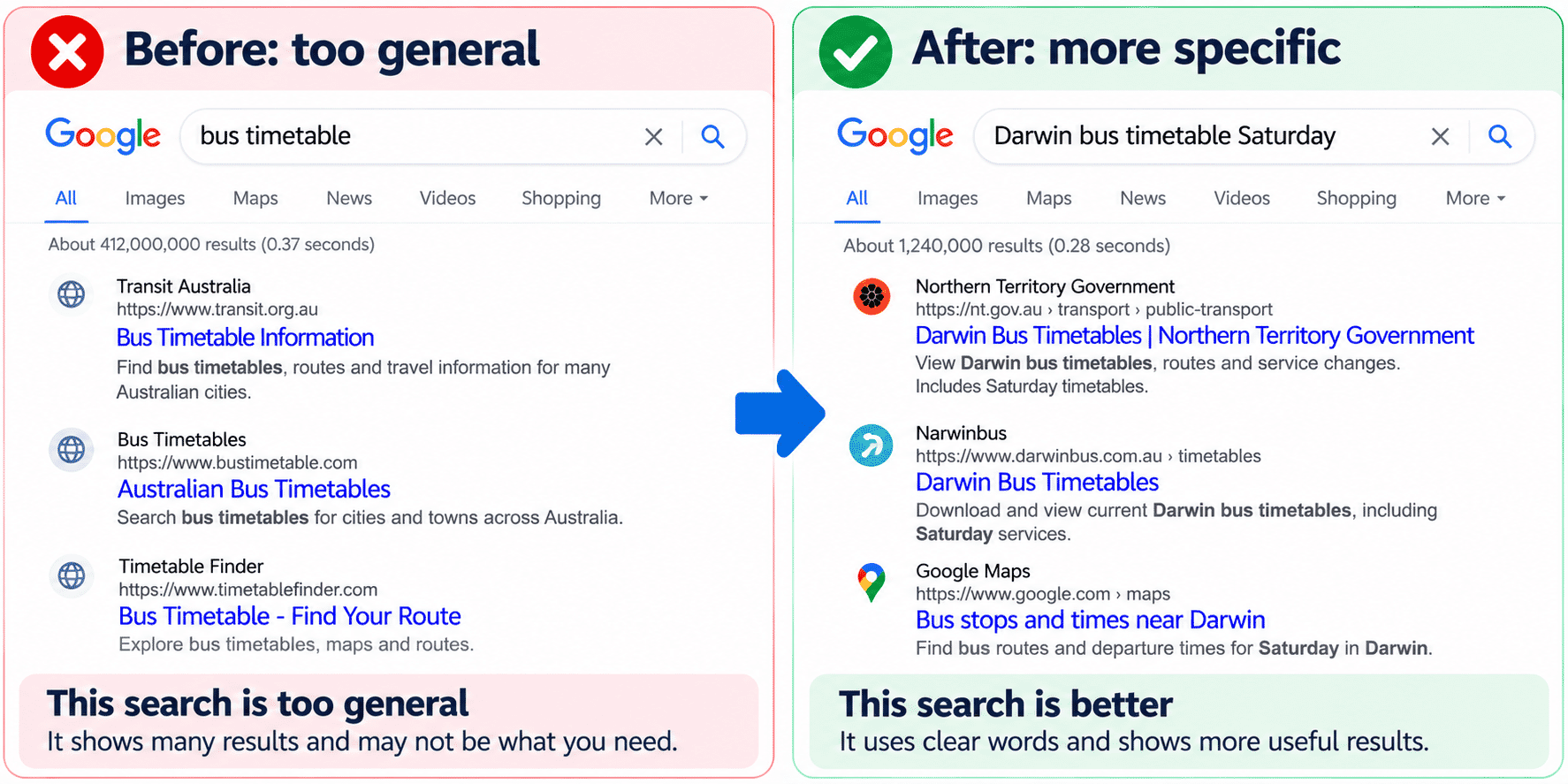
If the results are not useful, add a more specific word. For example, change bus timetable to Darwin bus timetable Saturday. If a search is too narrow, remove a word and try again.
Avoid Unsafe Search Results
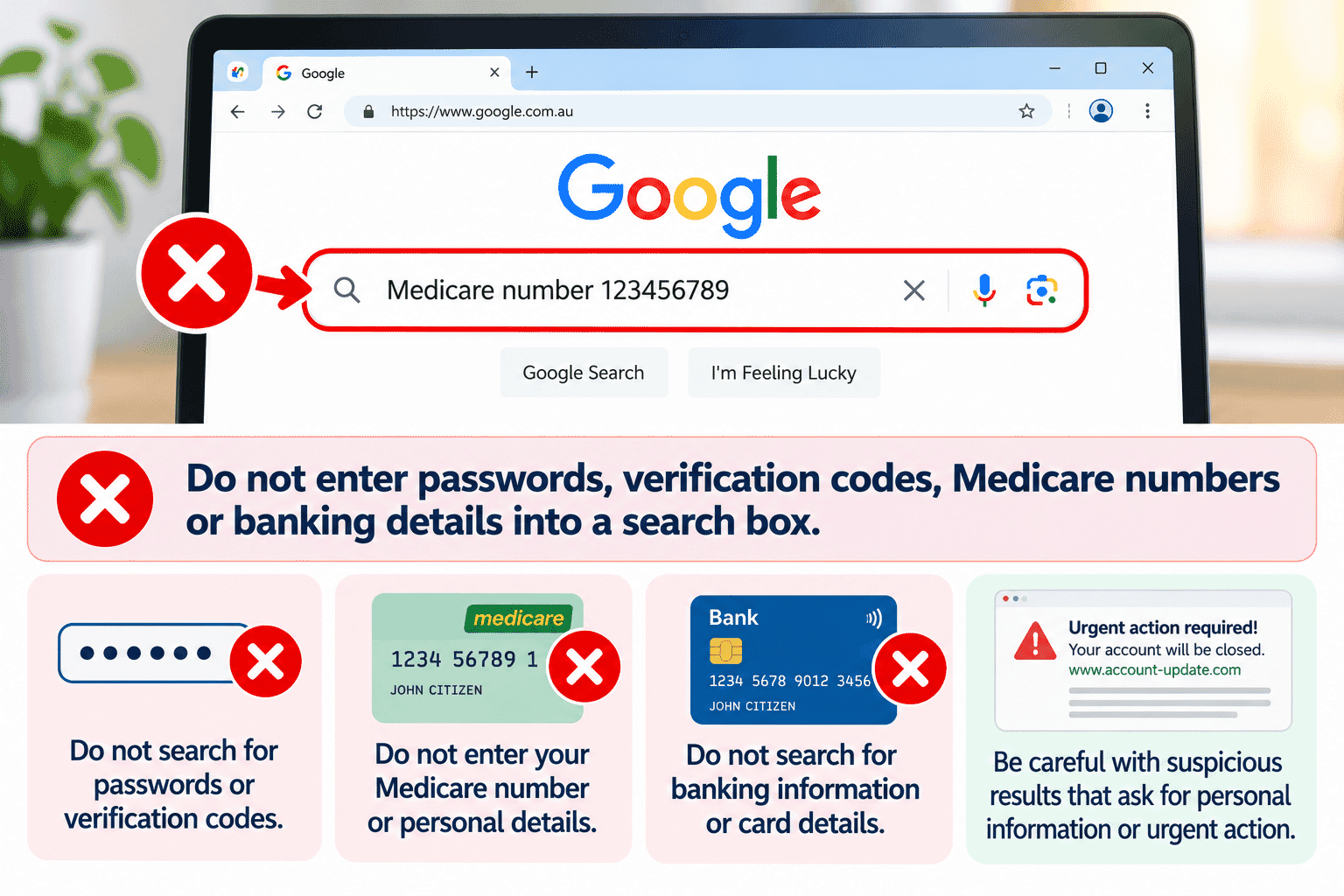
Do not enter passwords, verification codes, Medicare numbers or banking details into a search box. Be careful with results that demand urgent action, promise prizes or ask you to install software. Open the official website directly when unsure.
Practice: Find Local Information
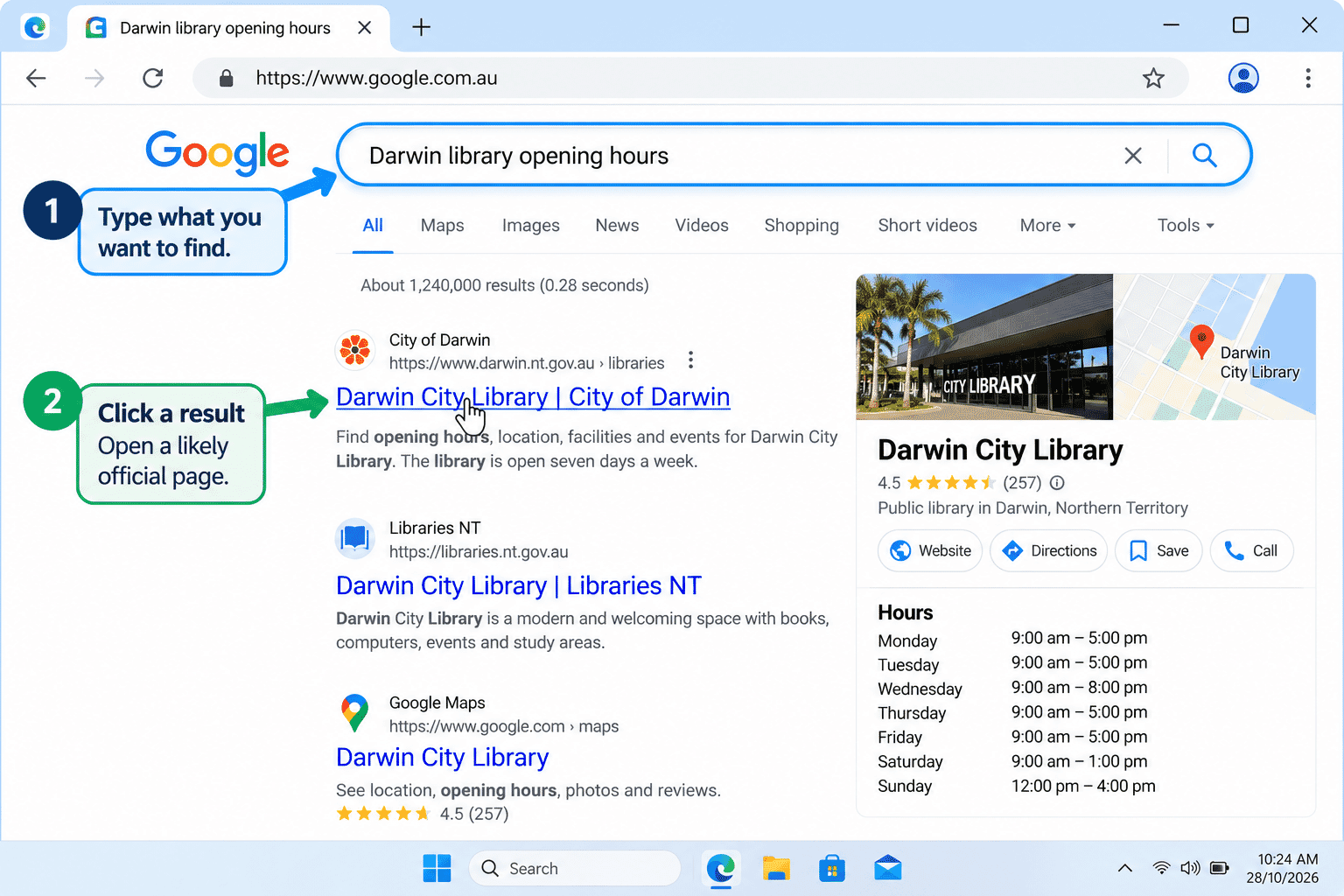
Try searching for the opening hours of a public library near you. Read the title and address of a result. Open a likely official page and check the hours. Do not sign in or provide personal information for this activity.
What You Have Learned
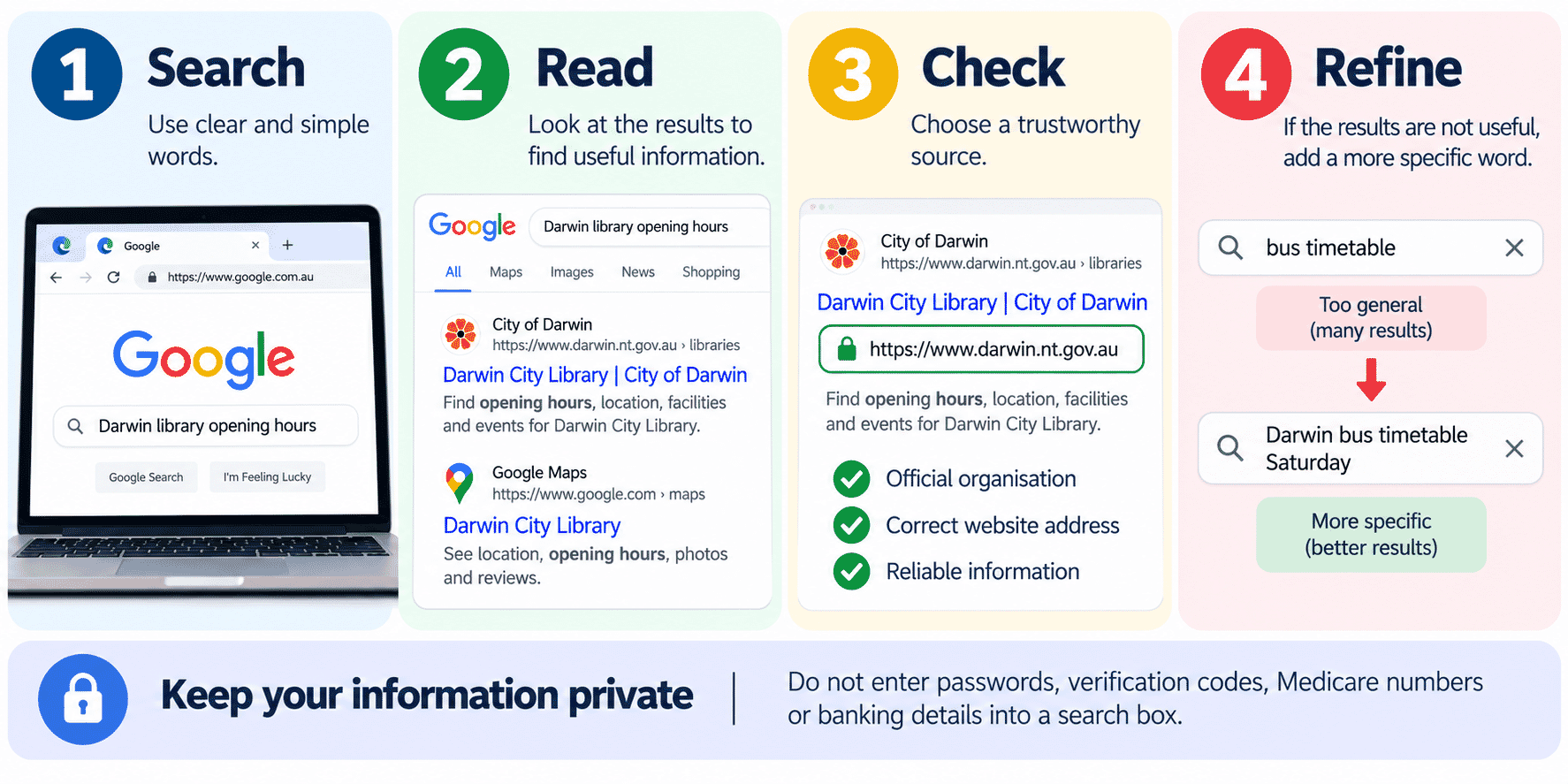
Search using clear words, check the source, refine results and protect private information. You can now use search to find information more confidently.
Troubleshooting
| Problem | What to Try |
|---|---|
| The page or feature looks different | Browser versions change. Look for the same named control or ask for help. |
| The page does not load | Check Wi-Fi, try again, or open another familiar website. |
| I am not sure whether a link or file is safe | Do not proceed. Check the website address and ask a trusted person. |
Beginner Tips
- Take your time and practise one action at a time.
- Read messages before selecting a button.
- Use a familiar public website for practice.
- Stop if a website asks for unexpected payment, personal information or software.
What You Have Learned
You have practised the key skills in this guide. Repeat the practice activity whenever you need a reminder.
Keep Learning
Next: LG-017 – Understanding Websites.
Requirements
Access to the internet and a device
Learning Paths
View all pathsNeed some help with this?
Protect your photos and files, automatic backups plus a “test restore” so you know it works.
Troubleshoot IT provides practical, one-to-one technology support across Darwin, Palmerston and surrounding areas.