LG-501 - Getting to Know Your iPhone or iPad
New to iPhone or iPad? This beginner-friendly guide introduces the main parts of your device, explains the difference between an iPhone and iPad, and helps you become comfortable holding, waking and recognising the basic features of your Apple device.
Before You Begin
Before You Begin
You will get the most from this guide if you have your iPhone or iPad with you.
You do not need:
- Previous Apple experience.
- An Apple Account.
- Internet access.
- To change any settings.
- To install anything.
If your device looks slightly different from the examples in this Learning Path, that is normal.
Apple has produced many different iPhone and iPad models. Button positions, cameras, charging connections and some screen features can vary.
What Is an iPhone?
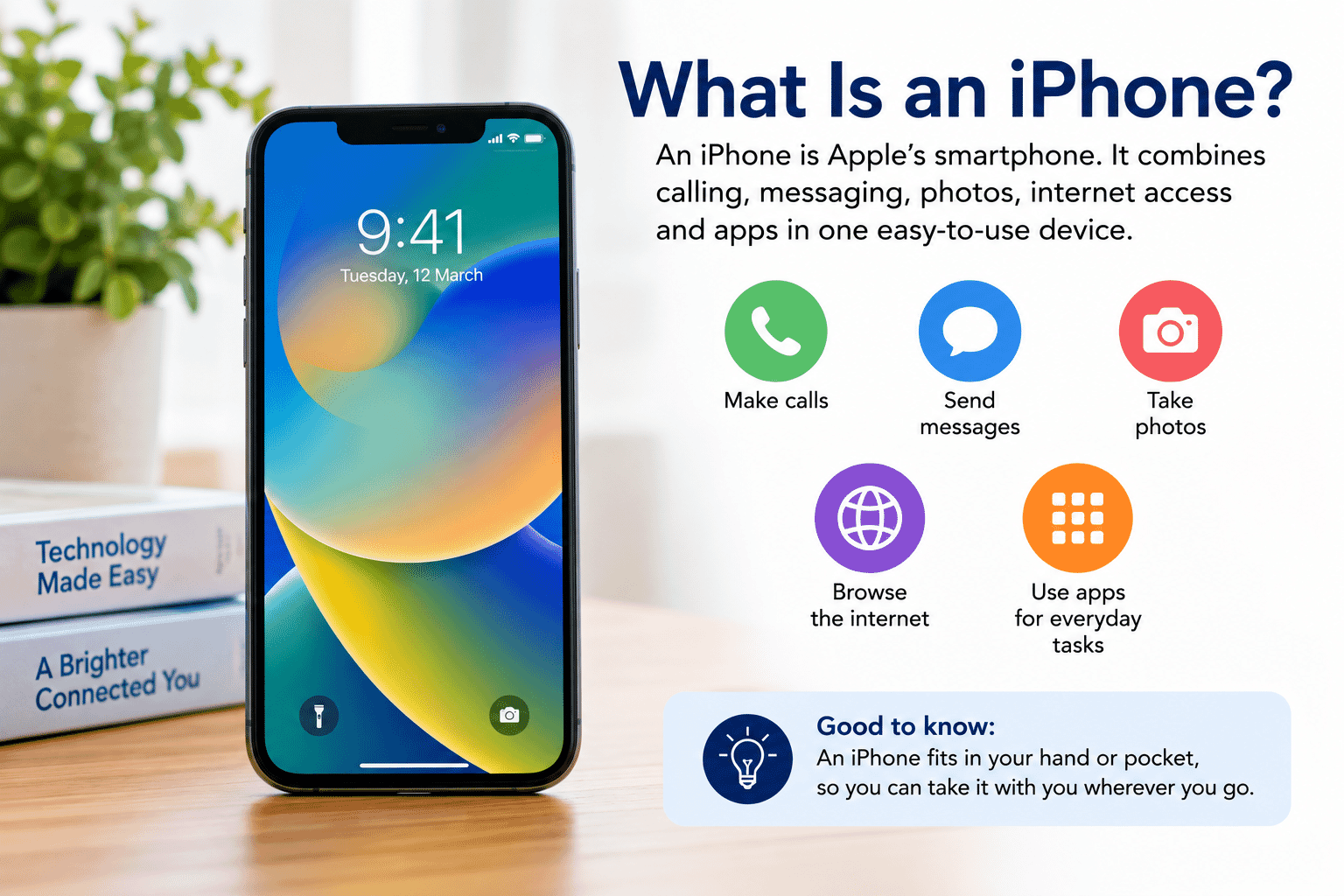
An iPhone is Apple's smartphone.
It combines many everyday devices and services into one small touchscreen device.
An iPhone can be used for things such as:
- Making and receiving phone calls.
- Sending messages.
- Taking photos and videos.
- Using email.
- Browsing the internet.
- Using maps.
- Making video calls.
- Installing apps.
- Listening to music or podcasts.
- Using online services.
You do not need to learn all of these things now.
Throughout LP-005, we will introduce them one step at a time.
What Is an iPad?
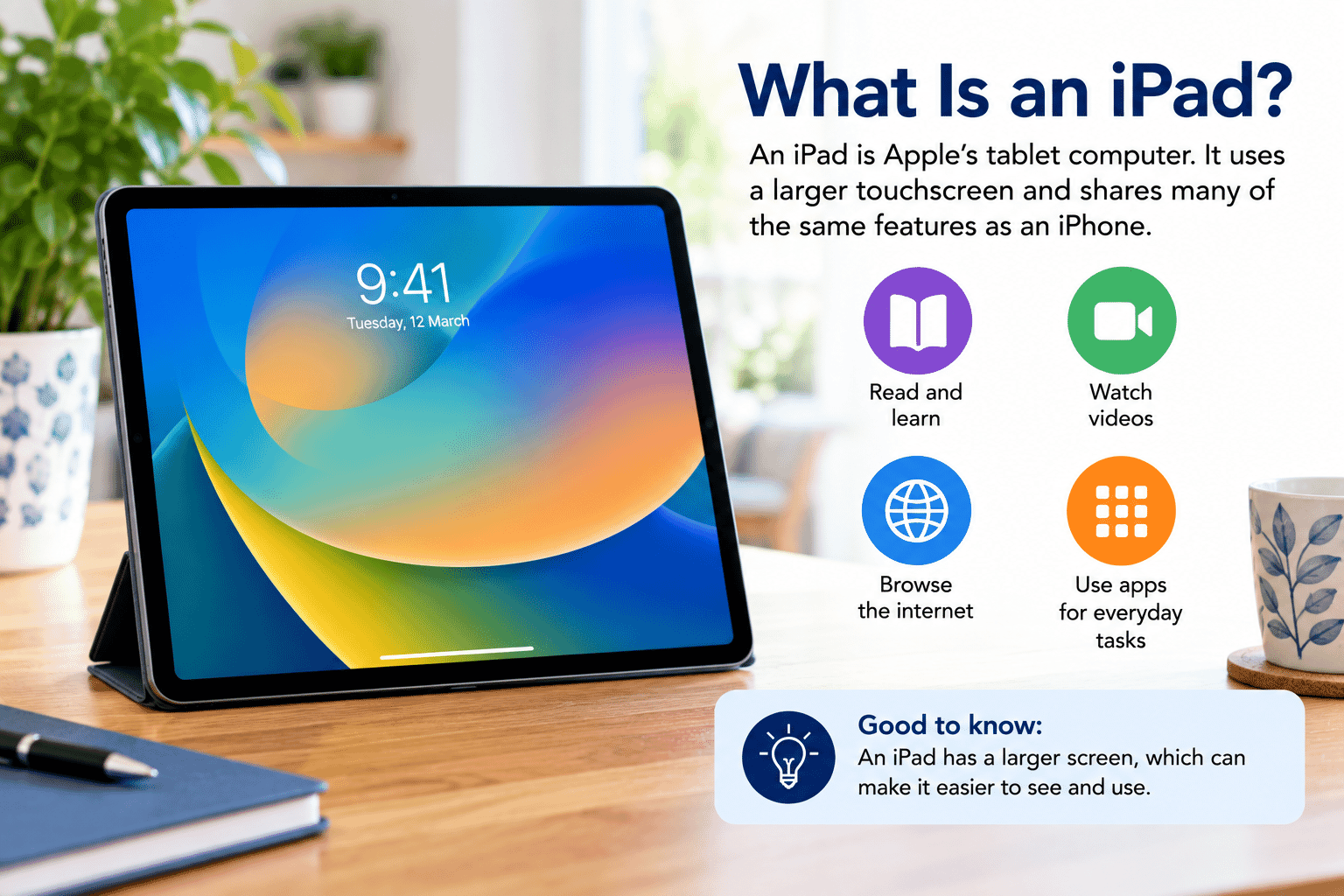
An iPad is Apple's tablet computer.
It works in many of the same ways as an iPhone but has a much larger screen.
People commonly use an iPad for:
- Browsing the internet.
- Reading email.
- Watching videos.
- Making FaceTime calls.
- Looking at photos.
- Reading books or news.
- Using apps.
- Playing games.
- Writing notes or documents.
Some iPads can connect to a mobile network using a cellular service, while others use Wi-Fi only.
An iPad is not simply a larger iPhone. Some features and screen layouts work differently.
iPhone or iPad: What Is the Main Difference?
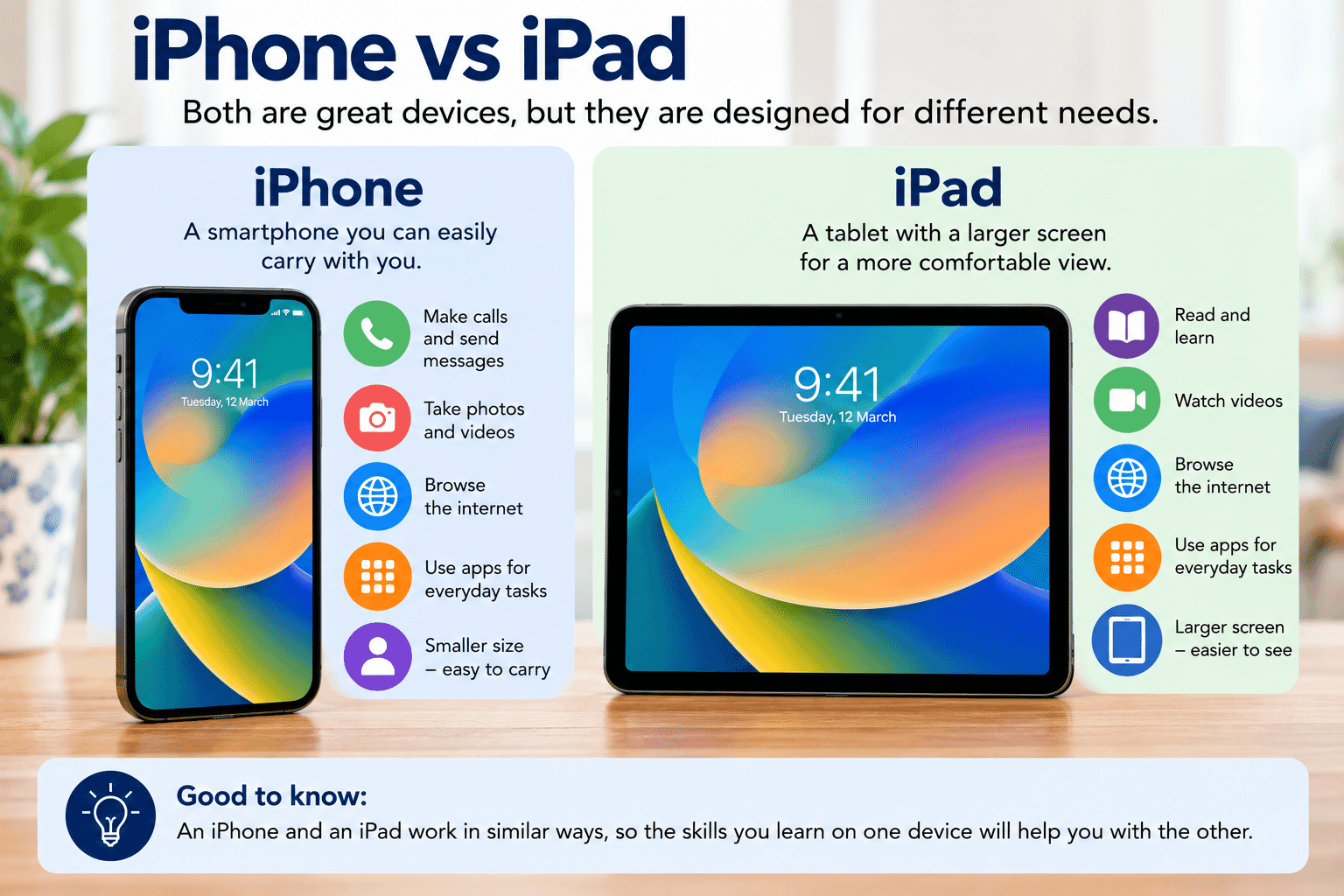
The easiest difference to recognise is size.
An iPhone is designed to be a phone you can easily carry with you.
An iPad has a larger screen and is designed more like a portable tablet computer.
Both devices use similar Apple software and many of the same apps.
If you learn a skill on one device, you will often recognise the same idea on the other.
There will still be differences, and this Learning Path will point them out when they matter.
The Touchscreen
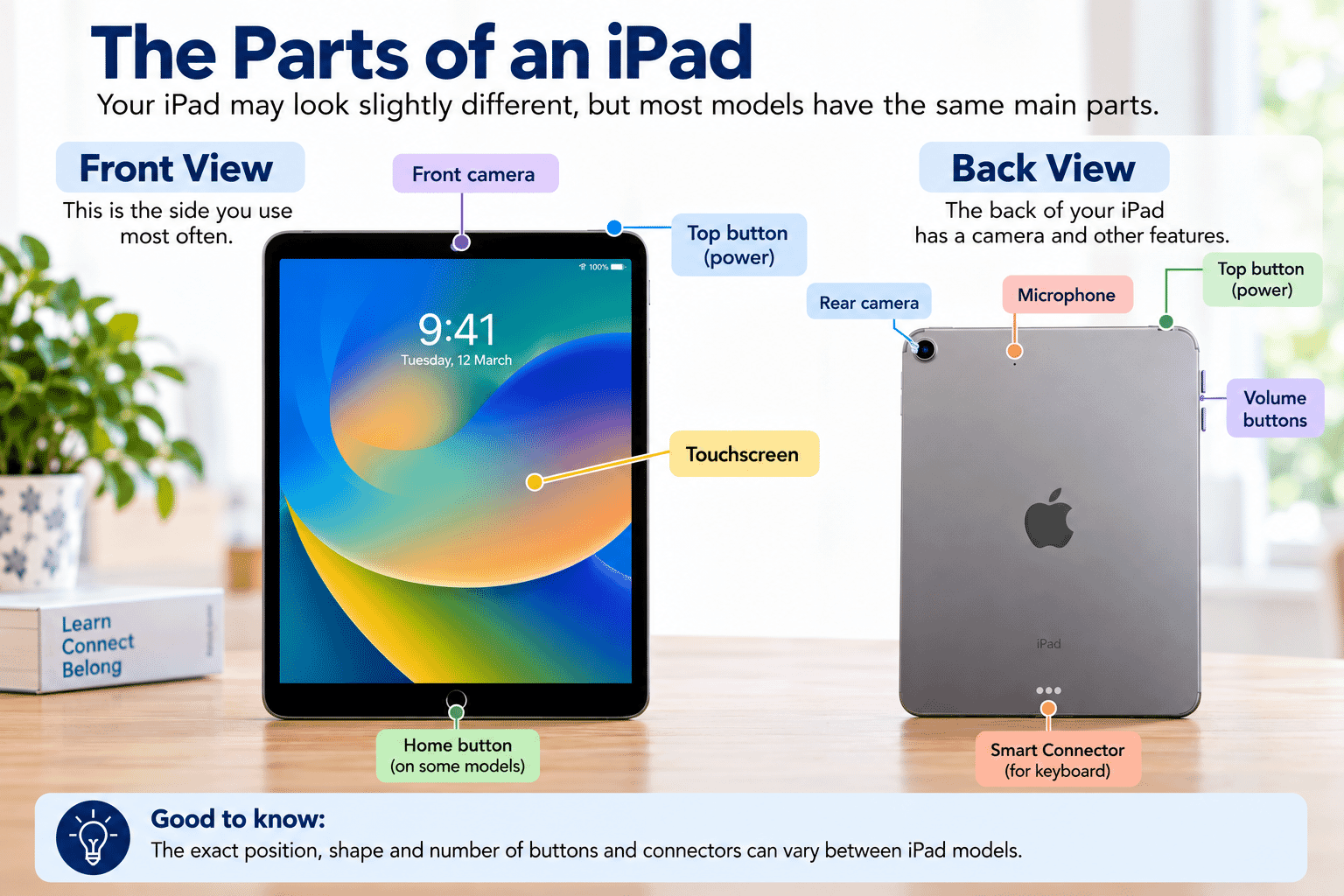
The large glass area on the front of your iPhone or iPad is the touchscreen.
Instead of using a mouse for most tasks, you control the device by touching the screen with your finger.
You can:
- Tap something to select it.
- Swipe your finger across the screen.
- Scroll through information.
- Press and hold some items for more options.
- Use two fingers for some actions.
You do not need to practise all of these gestures yet.
We will cover touchscreen skills properly in LG-503 -- Using the Touchscreen and LG-504 -- Essential iPhone and iPad Gestures.
For now, simply become comfortable with the idea that the screen is also the main control for the device.
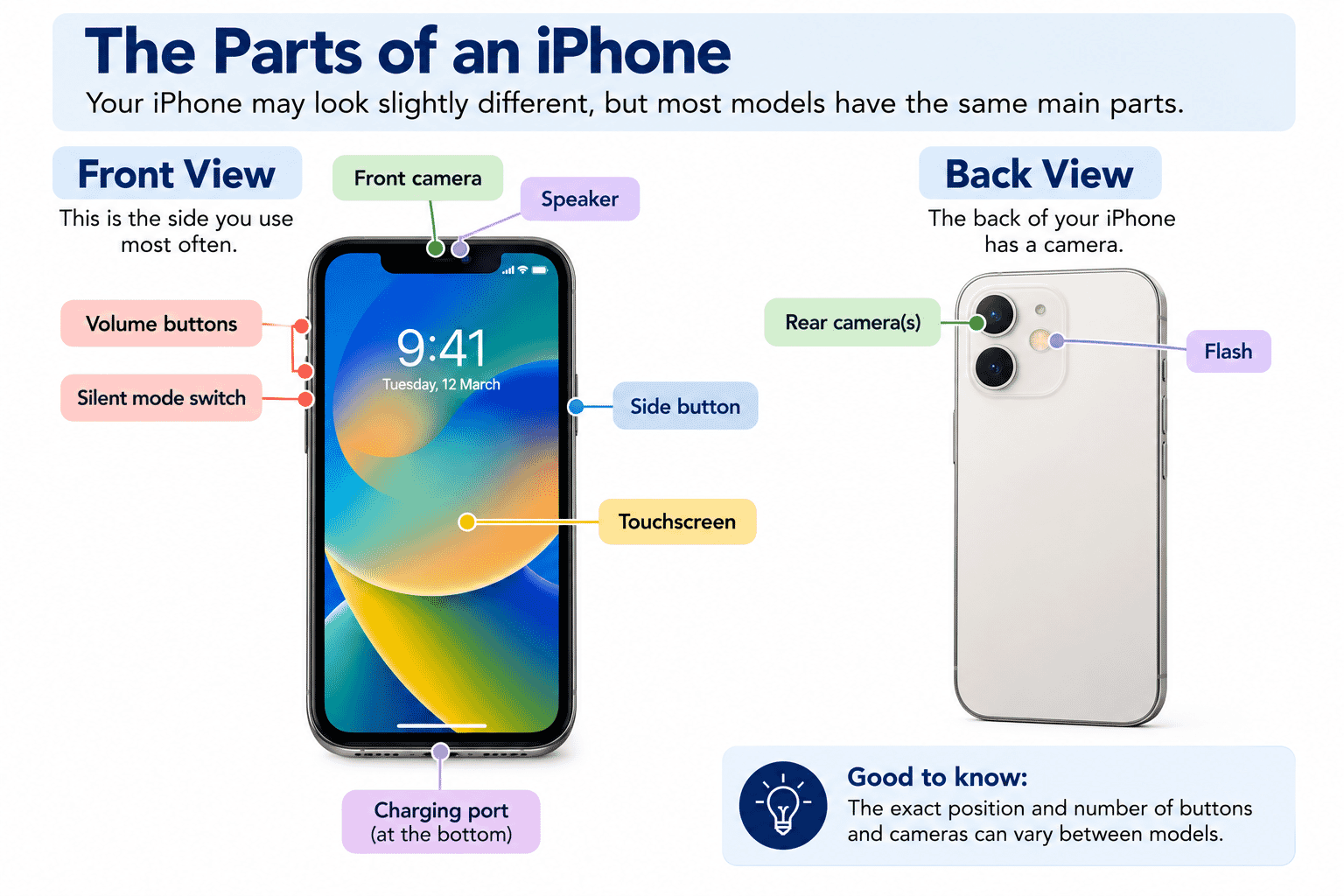
The Front of Your Device
Look at the front of your iPhone or iPad.
Most of the front is taken up by the screen.
Depending on your model, you may also notice:
- A small front-facing camera.
- A speaker near the top of some iPhones.
- Sensors that may be difficult to see.
- A Home button on some older models.
Newer devices may not have a Home button at all.
That is normal.
You do not need to press or test every part yet.
The Back of Your Device
Turn your device over carefully.
You will normally see one or more cameras near the top.
Depending on the model, you may see:
- One camera.
- Several camera lenses.
- A flash.
- Small sensors.
- The Apple logo.
The number of cameras does not change the basic skills you need to learn.
Later in this Learning Path, you will learn how to take photos and videos.
For now, simply know where the rear camera is so you do not accidentally cover it with your finger when taking a photo.
The Sides of Your Device
Around the sides of an iPhone or iPad you may find several physical controls.
Depending on the model, these can include:
- A side or top button.
- Volume buttons.
- A Ring/Silent switch on some iPhones.
- An Action button on some iPhones.
- A SIM tray on some cellular models.
Your device may not have every item in this list.
Do not worry if the controls on your device look different from someone else's.
The next guide, LG-502 -- Buttons, Ports and Charging, will explain these controls in more detail.
Speakers and Microphones
Your device contains speakers and microphones.
Speakers allow you to hear sounds such as:
- Phone calls.
- Videos.
- Music.
- Notifications.
- FaceTime conversations.
Microphones allow the device to hear you when you:
- Make a phone call.
- Record a video.
- Use FaceTime.
- Record your voice.
- Speak to Siri.
Some speaker and microphone openings can look very similar.
You do not need to identify every small opening on the device.
The important thing is to avoid covering them unnecessarily when using the device.
The Charging Connection
Your iPhone or iPad has a connection used for charging.
Depending on the model, this may be USB-C or Lightning.
You do not need to memorise the names yet.
The important thing is that you use a compatible charging cable and do not force a plug into the device.
We will cover charging properly in LG-502 -- Buttons, Ports and Charging.
Waking Your Device
When an iPhone or iPad is not being used, the screen may turn off.
This does not necessarily mean the device itself is switched off.
Usually, it is simply asleep.
Depending on your device, you can normally wake it by:
- Pressing the side or top button once.
- Tapping the screen on supported models.
- Raising an iPhone on supported models.
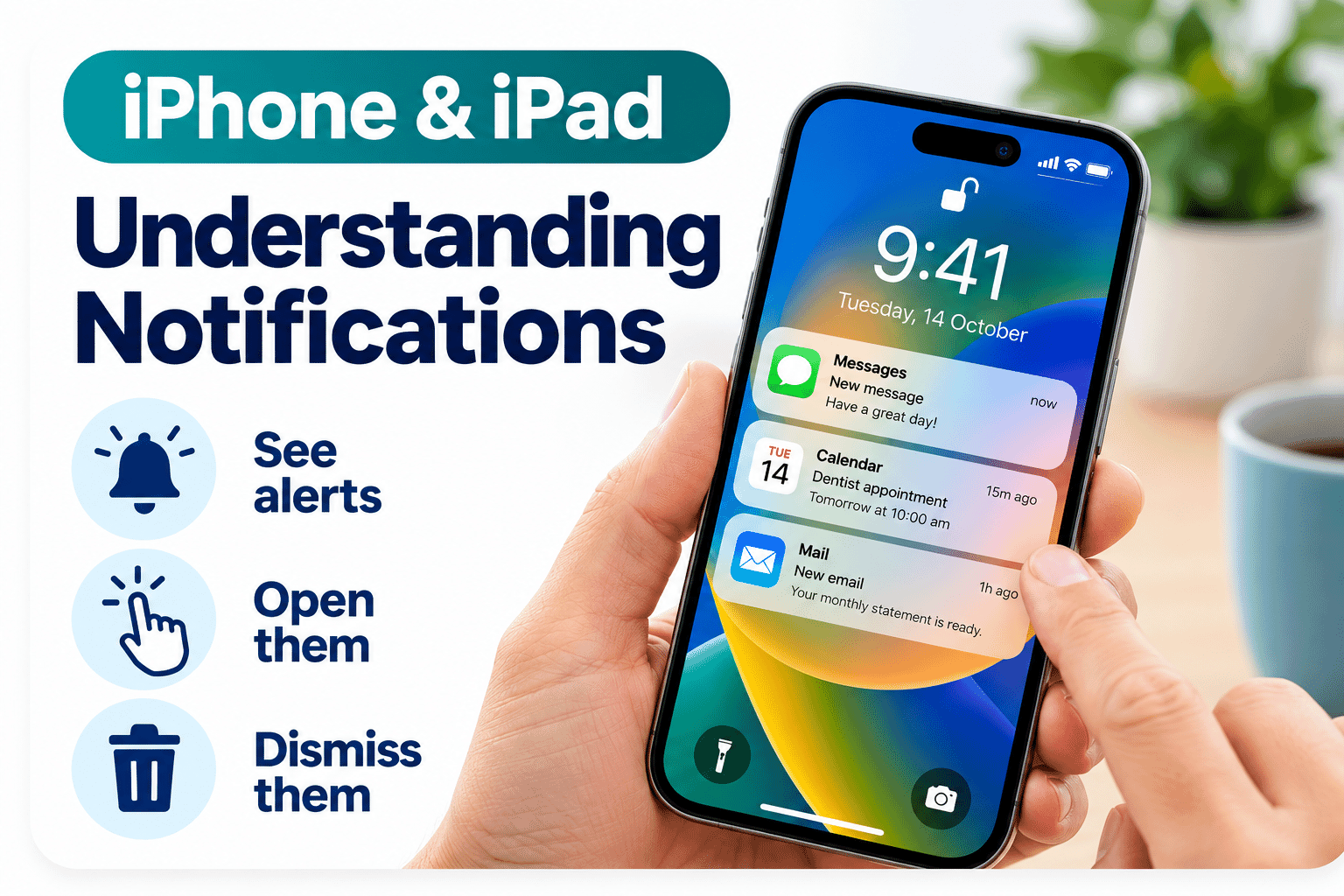
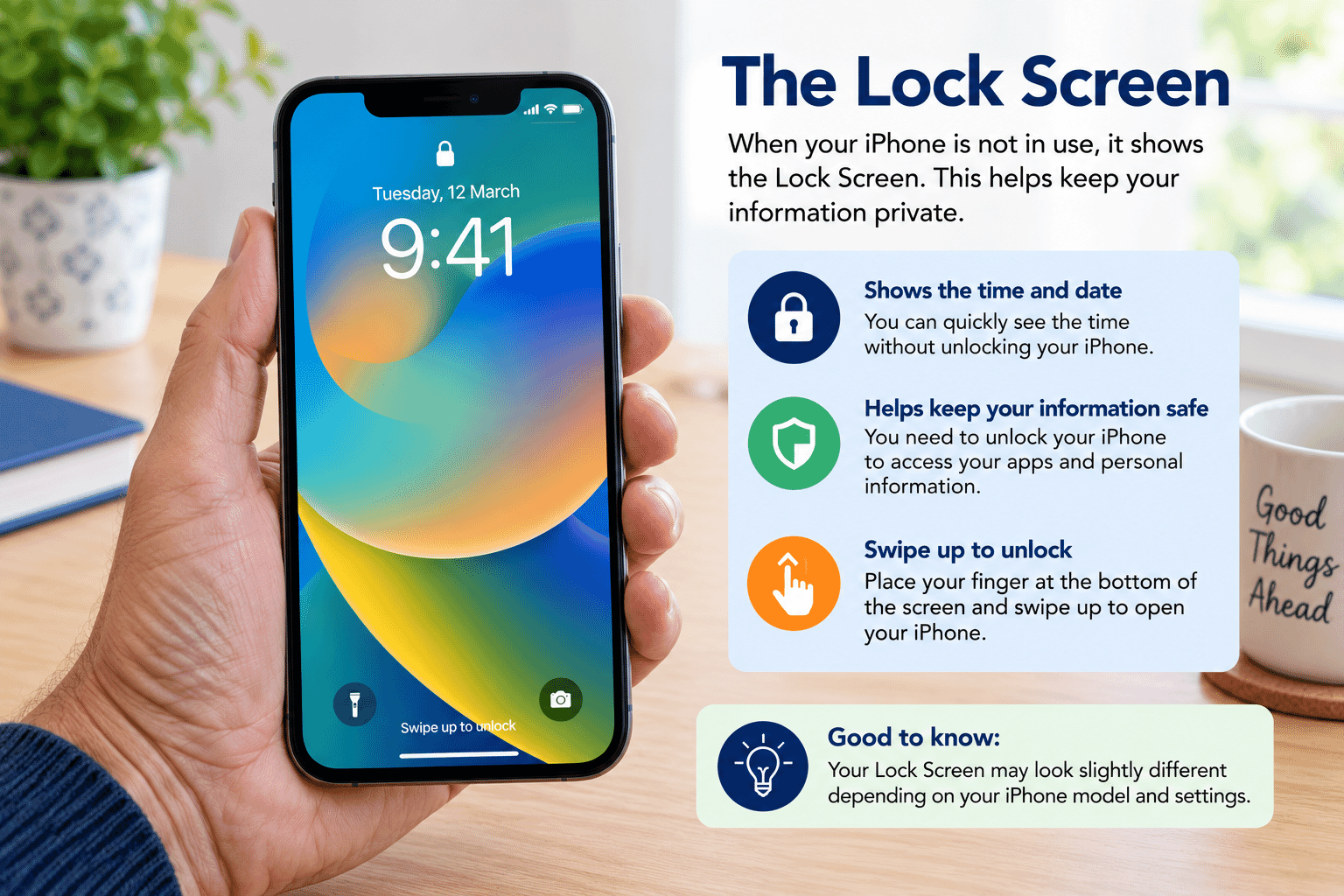
When the device wakes, you will usually see the Lock Screen.
What Is the Lock Screen?
The Lock Screen is the screen you normally see before you open or unlock your device.
It can show information such as:
- The time.
- The date.
- Notifications.
- Battery information.
- A background picture.
Your Lock Screen may look different from someone else's because it can be personalised.
You may also need to use:
- A passcode.
- Face ID.
- Touch ID.
These security features will be covered later in the Learning Path.
For now, simply recognise the Lock Screen as the starting point when you wake your device.
What Model Do I Have?
You do not need to know the exact model of your iPhone or iPad for most beginner tasks.
However, knowing the model can be useful when:
- Buying a case.
- Buying a charging cable or accessory.
- Asking for technical help.
- Checking whether a feature is supported.
If you already know how to open Settings, the model can usually be found under:
Settings > General > About
If you are not comfortable opening Settings yet, leave this for later.
You will learn how to find and change settings in LG-509 -- Finding and Changing Settings.
Try It Yourself
Pick up your iPhone or iPad and take a minute to look at it.
Without changing any settings, see if you can identify:
- The touchscreen.
- The front camera.
- The rear camera or cameras.
- The volume buttons.
- The side or top button.
- The charging connection.
- The speaker openings you can see.
Now wake the device and look at the Lock Screen.
That is enough for this activity.
You do not need to explore anything else yet.
Helpful Tips
- Hold your device securely when examining it.
- It is normal for different iPhones and iPads to look different.
- You do not need to remember the name of every button immediately.
- Avoid forcing cables or accessories into a connection.
- A dark screen often means the device is asleep, not broken.
- Learn one skill at a time rather than trying to understand every feature.
Common Mistakes
Thinking Every iPhone or iPad Looks the Same
Apple changes device designs over time.
A guide or family member may have a device with different buttons or cameras from yours.
The basic ideas are still very similar.
Pressing Every Button to See What Happens
You do not need to experiment with every physical control while you are learning what the device is.
Become familiar with where the controls are first.
Thinking a Dark Screen Means the Device Is Off
The device may simply be asleep.
Try waking it with the side or top button.
Forcing a Charging Cable
If a cable does not fit easily, stop and check that it is the correct cable and is facing the right way.
Troubleshooting
Problem Possible Cause What to Try
The screen is black The device may be Press the side or top asleep button once
The screen remains The battery may be flat Connect the device to a black compatible charger and allow it time to charge
My device does not have Different models have Continue using the the buttons shown in an different controls controls available on example your device and check the next guide for more detail
I cannot find a Home Many newer models do This is normal; button not have one navigation gestures will be explained later
I do not know whether I The device type is An iPhone is have an iPhone or iPad unclear phone-sized; an iPad is a larger tablet. The device information can also be checked later in Settings
My charging cable does It may be the wrong Do not force it. Check not fit connector the cable and device connection first
Summary
An iPhone is Apple's smartphone, while an iPad is Apple's tablet computer.
Although they are different devices, they share many common features and skills.
You have now been introduced to the:
- Touchscreen.
- Front and rear cameras.
- Physical buttons.
- Speakers and microphones.
- Charging connection.
- Lock Screen.
You do not need to remember every detail yet.
The purpose of this first guide is simply to make the device feel more familiar.
What You've Learned
You now know:
- The basic difference between an iPhone and an iPad.
- Where the touchscreen is.
- Where to look for the front and rear cameras.
- That buttons and connections vary between models.
- That your device contains speakers and microphones.
- That a dark screen may simply mean the device is asleep.
- What the Lock Screen is.
- Why knowing your exact device model can sometimes be useful.
You have taken the first step towards becoming more confident using your iPhone or iPad.
Keep Learning
Next guide:
LG-502 -- Buttons, Ports and Charging
You will take a closer look at the physical controls on your device, learn what the main buttons do and understand how to charge your iPhone or iPad safely.
Learning Paths
View all pathsNeed some help with this?
Protect your photos and files, automatic backups plus a “test restore” so you know it works.
Troubleshoot IT provides practical, one-to-one technology support across Darwin, Palmerston and surrounding areas.