LG-506 - Using Control Centre
Learn how to open and use Control Centre on your iPhone or iPad. This beginner-friendly guide explains common controls such as Wi-Fi, Bluetooth, brightness, volume, Airplane Mode and screen rotation.
Before You Begin
Knowledge Prerequisites
Overview
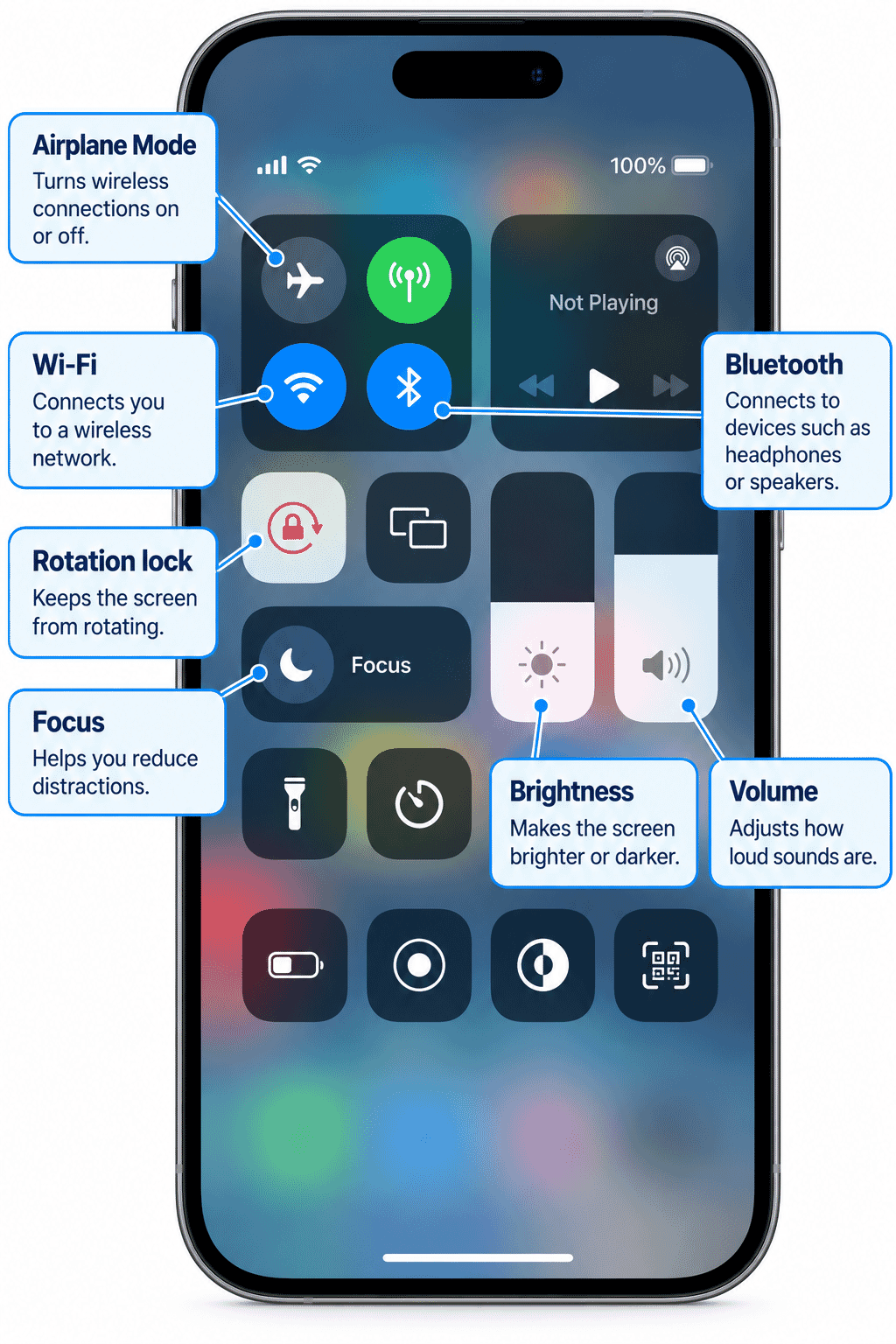
Control Centre gives you quick access to useful controls on your iPhone or iPad.
Instead of opening Settings every time you want to adjust something simple, you can open Control Centre and make a quick change.
Depending on your device and how it has been set up, Control Centre can give you access to things such as:
- Wi-Fi.
- Bluetooth.
- Airplane Mode.
- Screen brightness.
- Volume.
- Focus.
- Screen rotation lock.
- Torch on supported devices.
- Other controls you choose to add.
Your Control Centre may not look exactly like someone else's.
That is normal. Apple allows Control Centre to be customised, and newer software can also organise controls into different groups.
In this guide, we will concentrate on recognising and using the most common controls.
Learning Objectives
By the end of this guide you will be able to:
- Understand what Control Centre is.
- Open Control Centre on your iPhone or iPad.
- Close Control Centre.
- Recognise common controls.
- Adjust screen brightness.
- Adjust volume.
- Understand the basic purpose of Wi-Fi and Bluetooth controls.
- Recognise Airplane Mode and Focus.
- Understand screen rotation lock.
- Know that pressing and holding some controls can reveal more options.
- Avoid making unnecessary changes when you are unsure what a control does.
Before You Begin
It is helpful to have completed Module 1 -- Meet Your iPhone or iPad.
In particular, you should be reasonably comfortable with:
- Tapping.
- Swiping.
- Pressing and holding.
- Starting a gesture from the edge of the screen.
Have your iPhone or iPad unlocked and ready to use.
You do not need to change any important settings during this guide.
What Is Control Centre?
Control Centre is a panel containing shortcuts to frequently used controls.
It is designed to save you time.
For example, if the screen is too bright, you can adjust the brightness from Control Centre without searching through the Settings app.
You can also quickly check or access controls for connections, sound and other device features.
Think of Control Centre as a quick controls panel.
How to Open Control Centre
The method depends on your device.
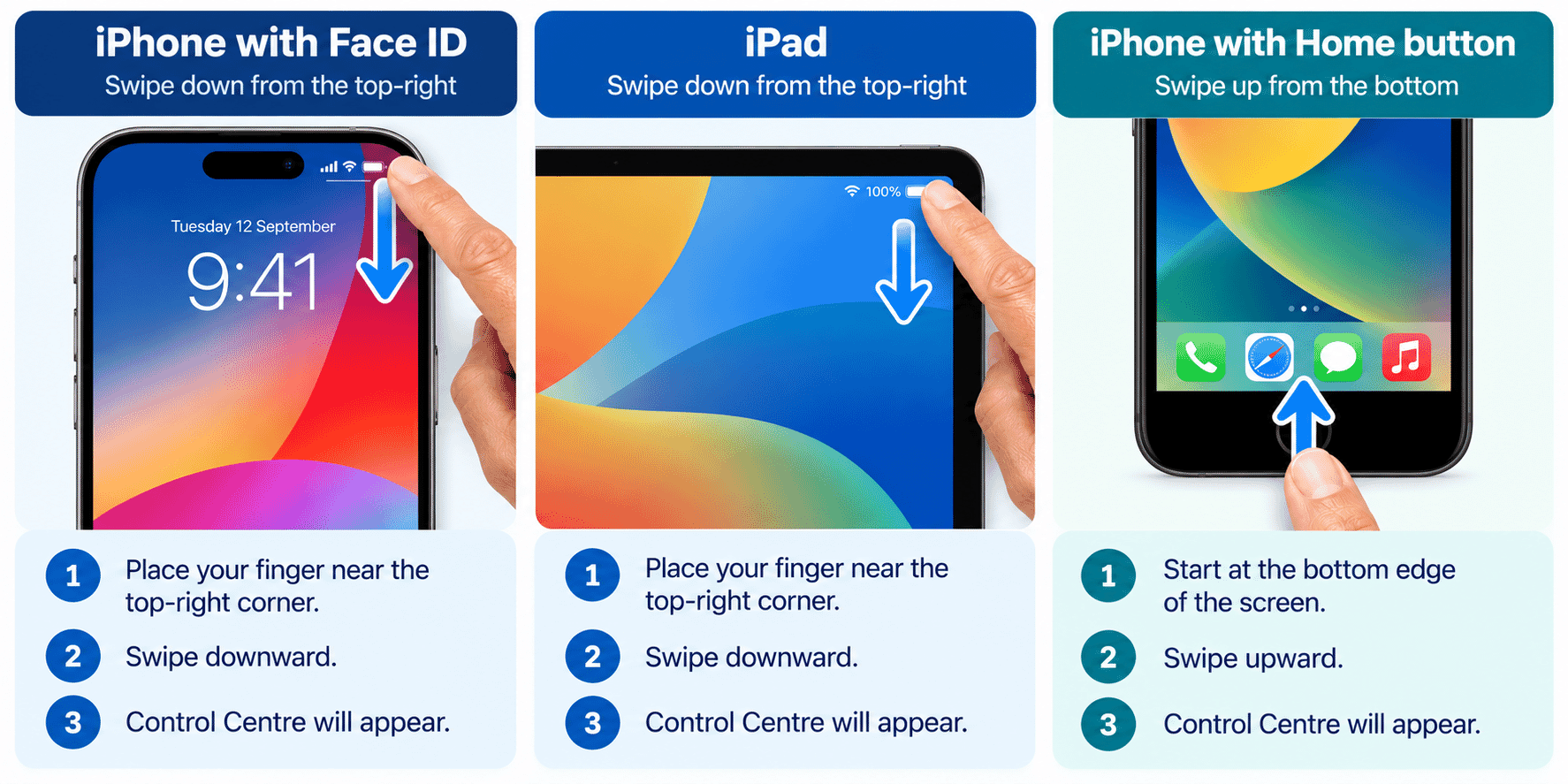
iPhone with Face ID
On an iPhone with Face ID:
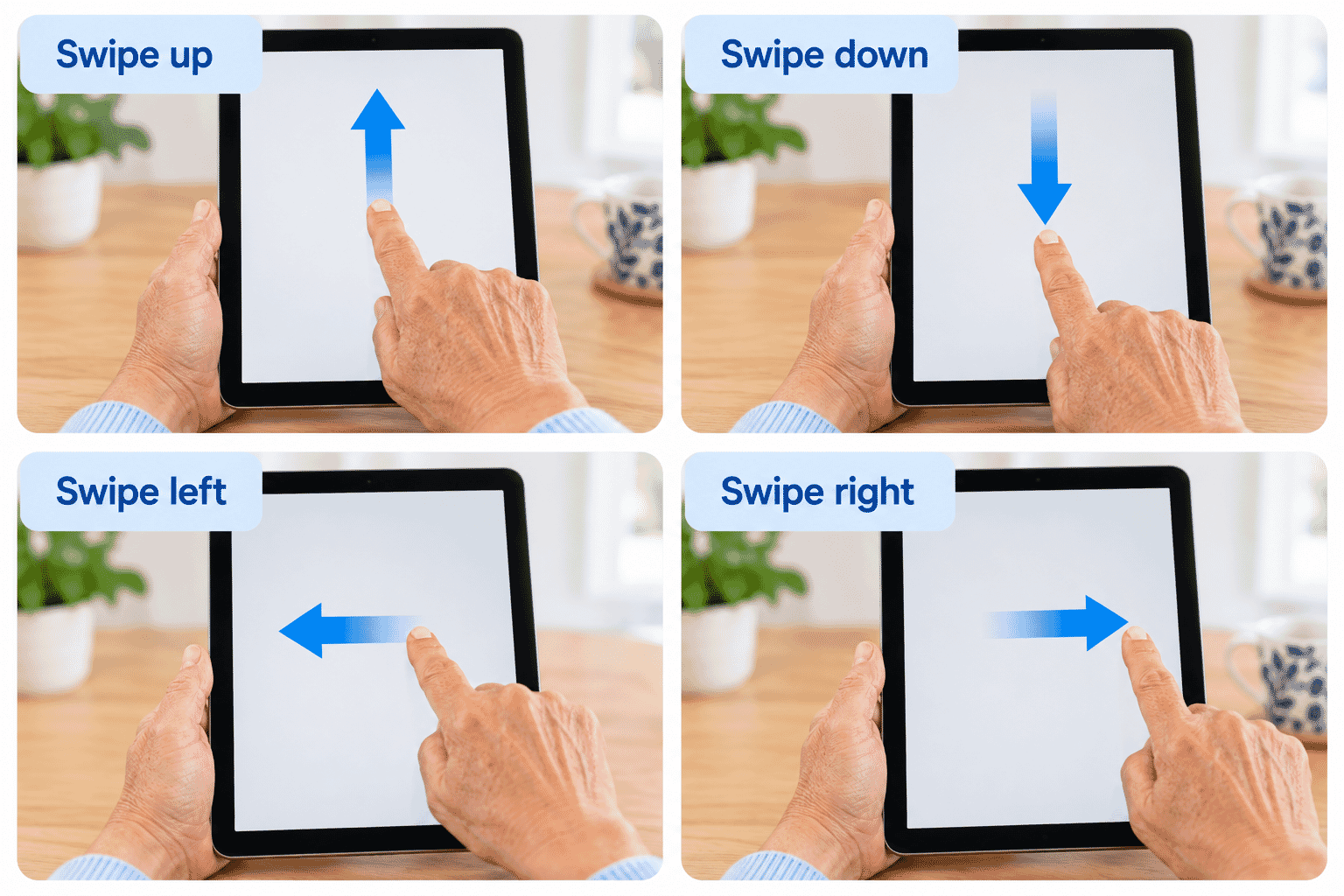
- Place your finger near the top-right corner of the screen.
- Swipe downward.
- Control Centre should appear.
If you start too close to the centre at the top, you may open your notifications instead.
iPhone with a Home Button
On an iPhone with a Home button:
- Start at the bottom edge of the screen.
- Swipe upward.
- Control Centre should appear.
iPad
On current iPads:
- Place your finger near the top-right corner of the screen.
- Swipe downward.
- Control Centre should appear.
How to Close Control Centre
On a newer iPhone without a Home button, you can swipe upward from the bottom of the screen.
On an iPad, you can swipe upward from the bottom or tap outside Control Centre.
On an iPhone with a Home button, press the Home button or use the method supported by your device.
If you are unsure, tapping outside the panel may also close it in some situations.
Your Control Centre May Look Different
Do not worry if the controls on your device are arranged differently from the examples in this guide.
Control Centre can be customised.
On newer versions of iPhone and iPad software, Control Centre can also contain additional groups of controls.
The exact controls available can depend on:
- Your device.
- Your software version.
- Features supported by your device.
- Controls that have been added or removed.
Focus on recognising the purpose of the common controls rather than memorising one exact layout.
Wi-Fi
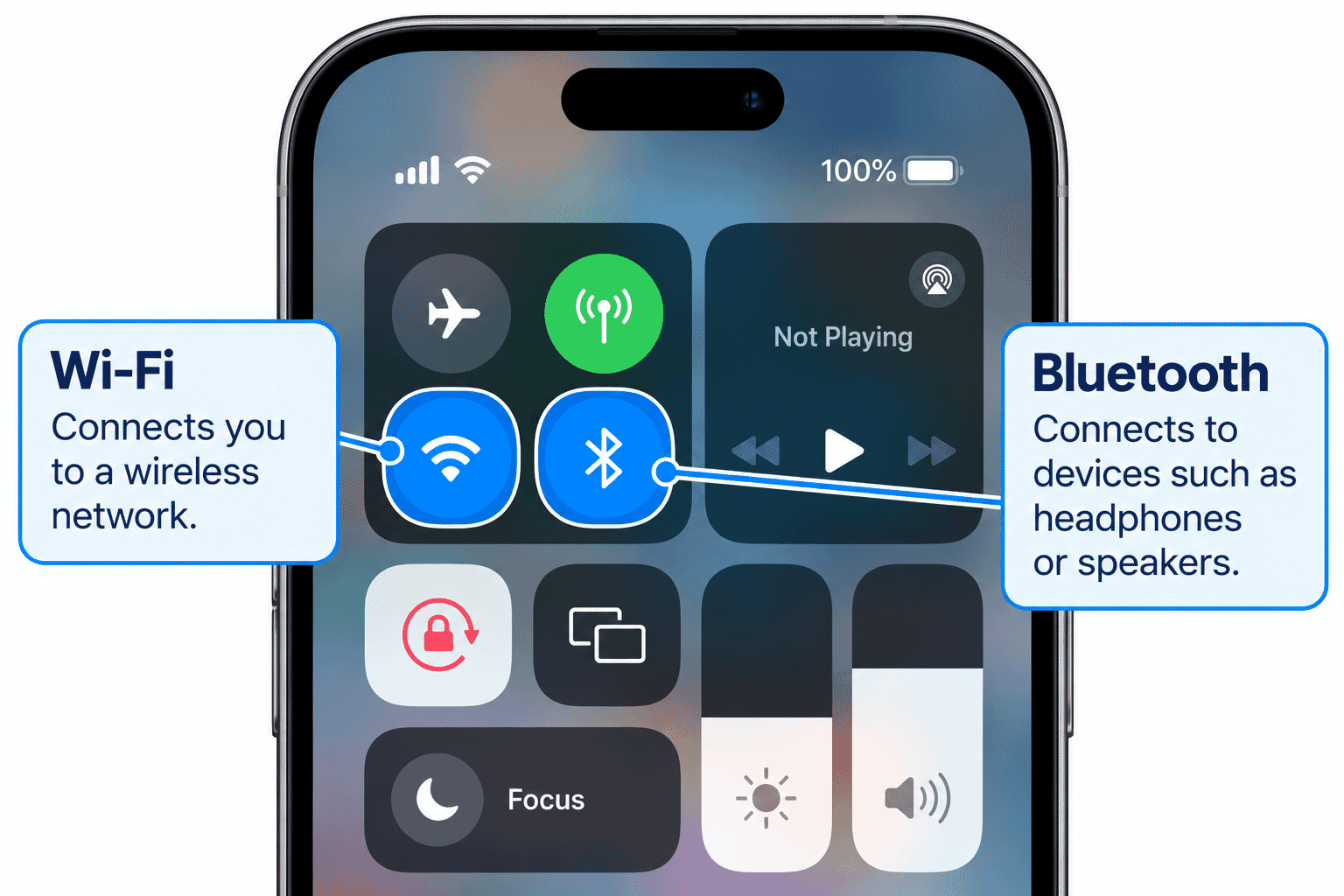
The Wi-Fi control relates to wireless network connections.
Wi-Fi is commonly used to connect your device to the internet through a home, workplace or public wireless network.
You may recognise the Wi-Fi symbol as curved lines spreading outward.
Tapping the Wi-Fi control in Control Centre can disconnect your device from the Wi-Fi network it is currently using.
An important point for beginners is that this does not necessarily switch Wi-Fi completely off.
If you need to fully turn Wi-Fi off, use:
Settings > Wi-Fi
Connecting to Wi-Fi networks will be covered properly in:
LG-516 -- Connecting to Wi-Fi
Bluetooth
Bluetooth allows your iPhone or iPad to communicate wirelessly with nearby compatible accessories.
Examples include:
- Headphones.
- Speakers.
- Keyboards.
- Some hearing devices.
- Other accessories.
Tapping Bluetooth in Control Centre can disconnect the device from many Bluetooth accessories.
Like Wi-Fi, this does not necessarily switch Bluetooth completely off.
If you need to fully turn Bluetooth off, use:
Settings > Bluetooth
Bluetooth setup and pairing will be covered in:
LG-518 -- Using Bluetooth
Airplane Mode
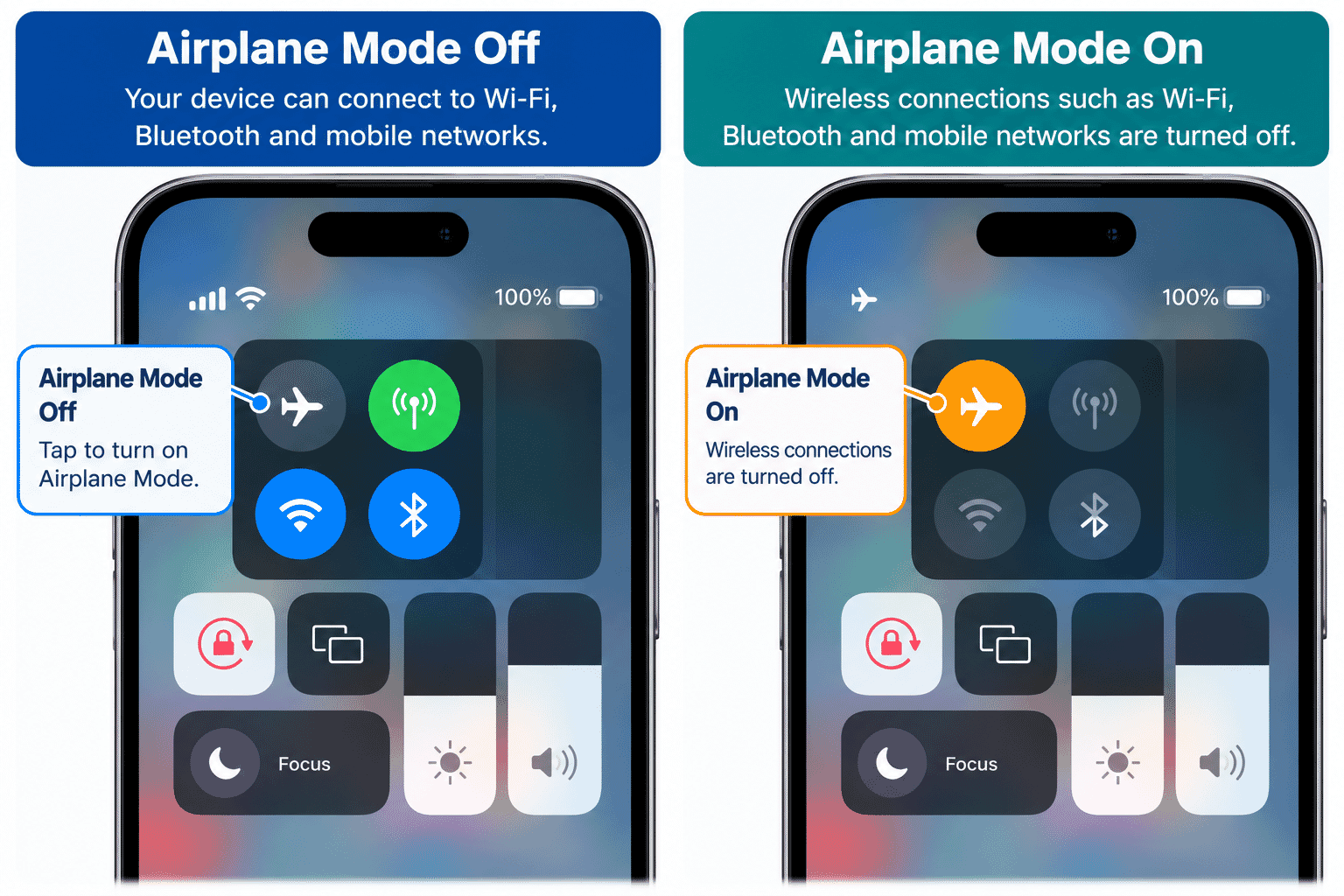
Airplane Mode is usually represented by an aeroplane symbol.
It changes wireless connections on the device.
You may use it when travelling by air or in other situations where wireless connections need to be limited.
Do not turn Airplane Mode on simply because you are having trouble with the internet unless you understand what it will change.
If Airplane Mode is accidentally turned on, you may notice that your normal mobile connection is unavailable.
Tap the Airplane Mode control again to turn it off.
Adjusting Screen Brightness
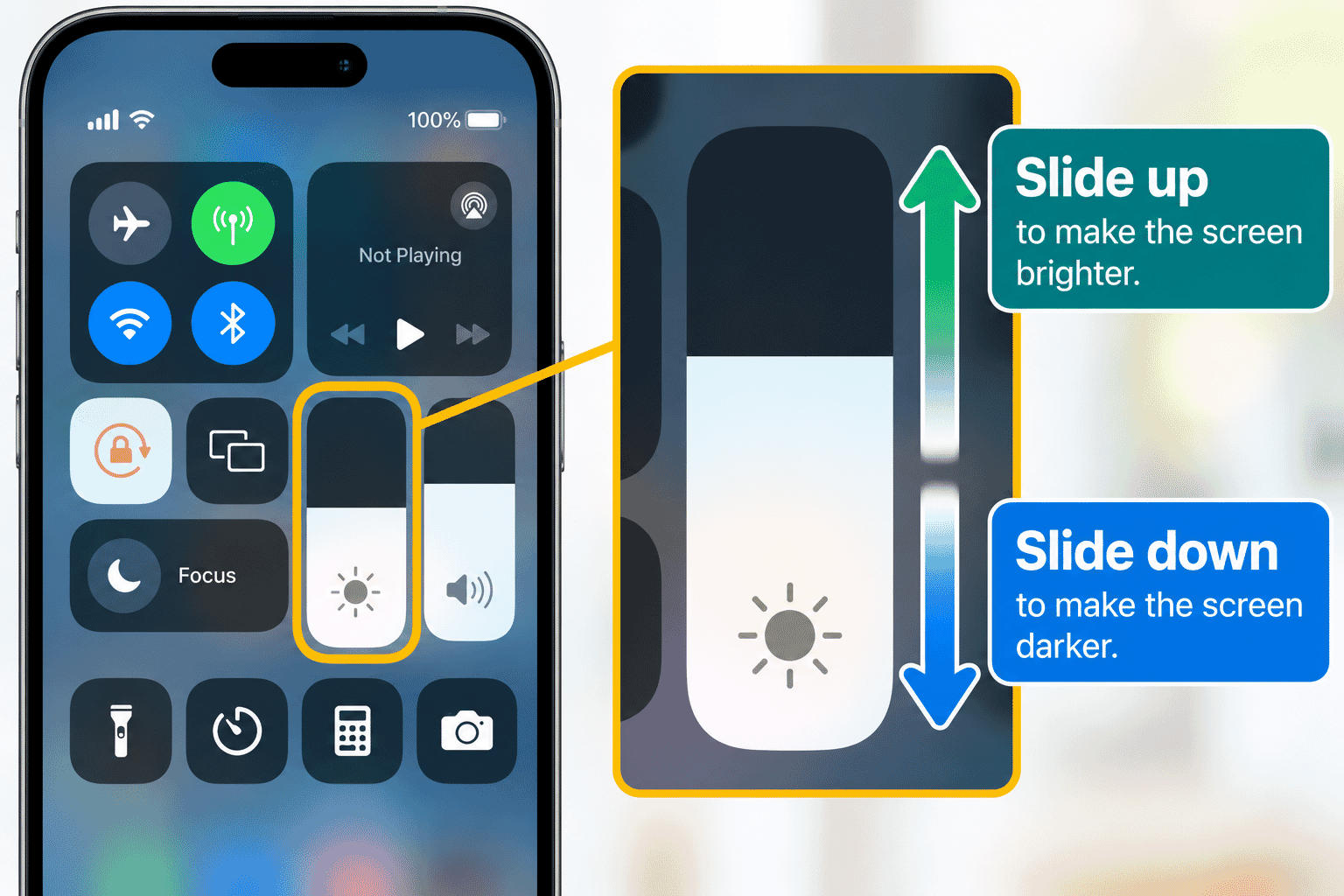
Control Centre gives you a quick way to make the screen brighter or darker.
Look for the brightness control, usually represented with a sun symbol.
To adjust it:
- Open Control Centre.
- Place your finger on the brightness slider.
- Move your finger upward to make the screen brighter.
- Move your finger downward to make it darker.
Choose a level that is comfortable for you.
If the screen suddenly seems very dark, check the brightness control before assuming there is something wrong with the device.
Adjusting Volume
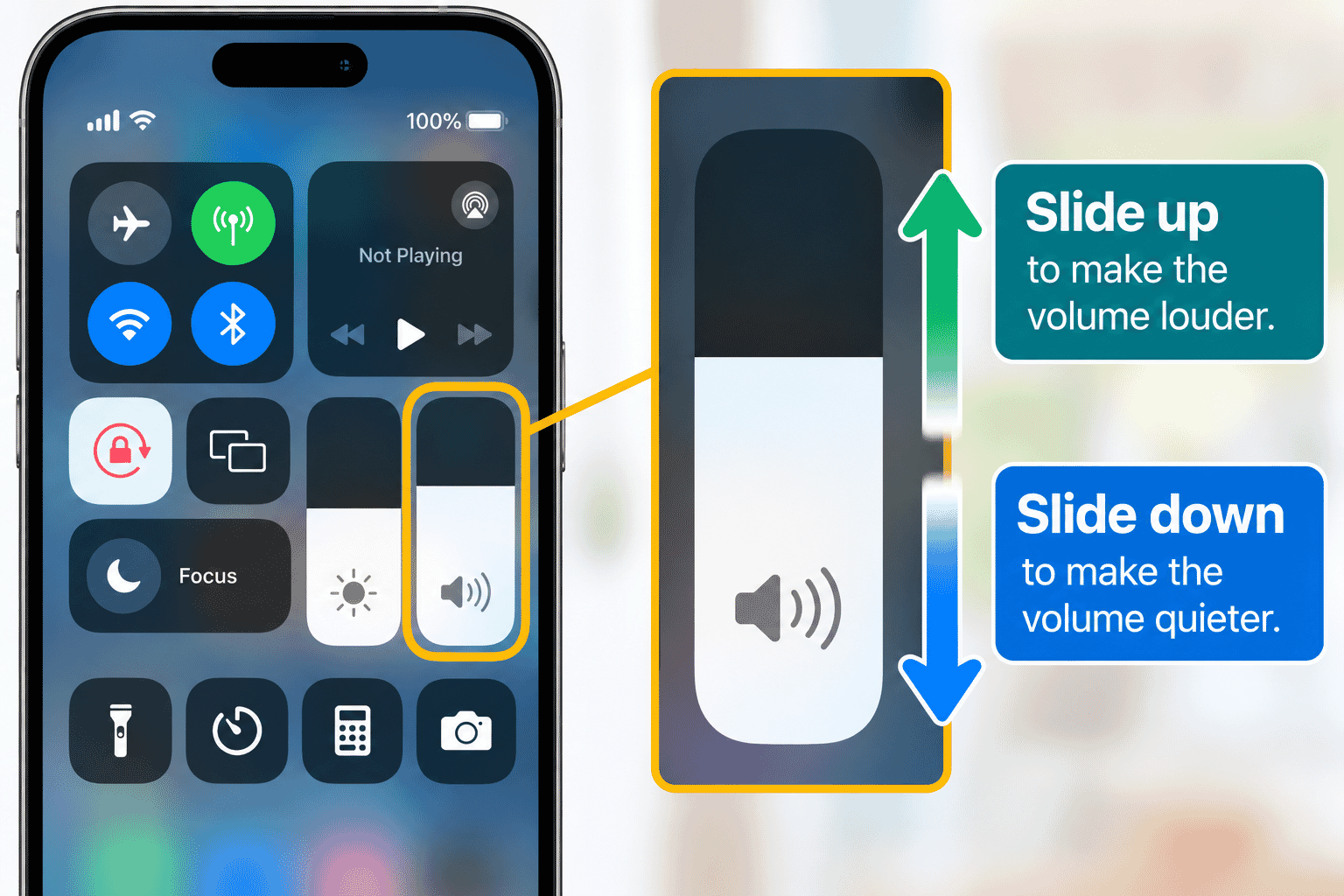
Control Centre also includes a volume control.
It is usually represented with a speaker symbol.
To adjust the volume:
- Open Control Centre.
- Find the volume slider.
- Move your finger upward to increase the volume.
- Move your finger downward to reduce the volume.
The physical volume buttons on your device can also adjust sound in many situations.
If you cannot hear something, both the current activity and other sound settings can affect the result. We will look at sound in more detail later in the Learning Path.
Focus and Do Not Disturb
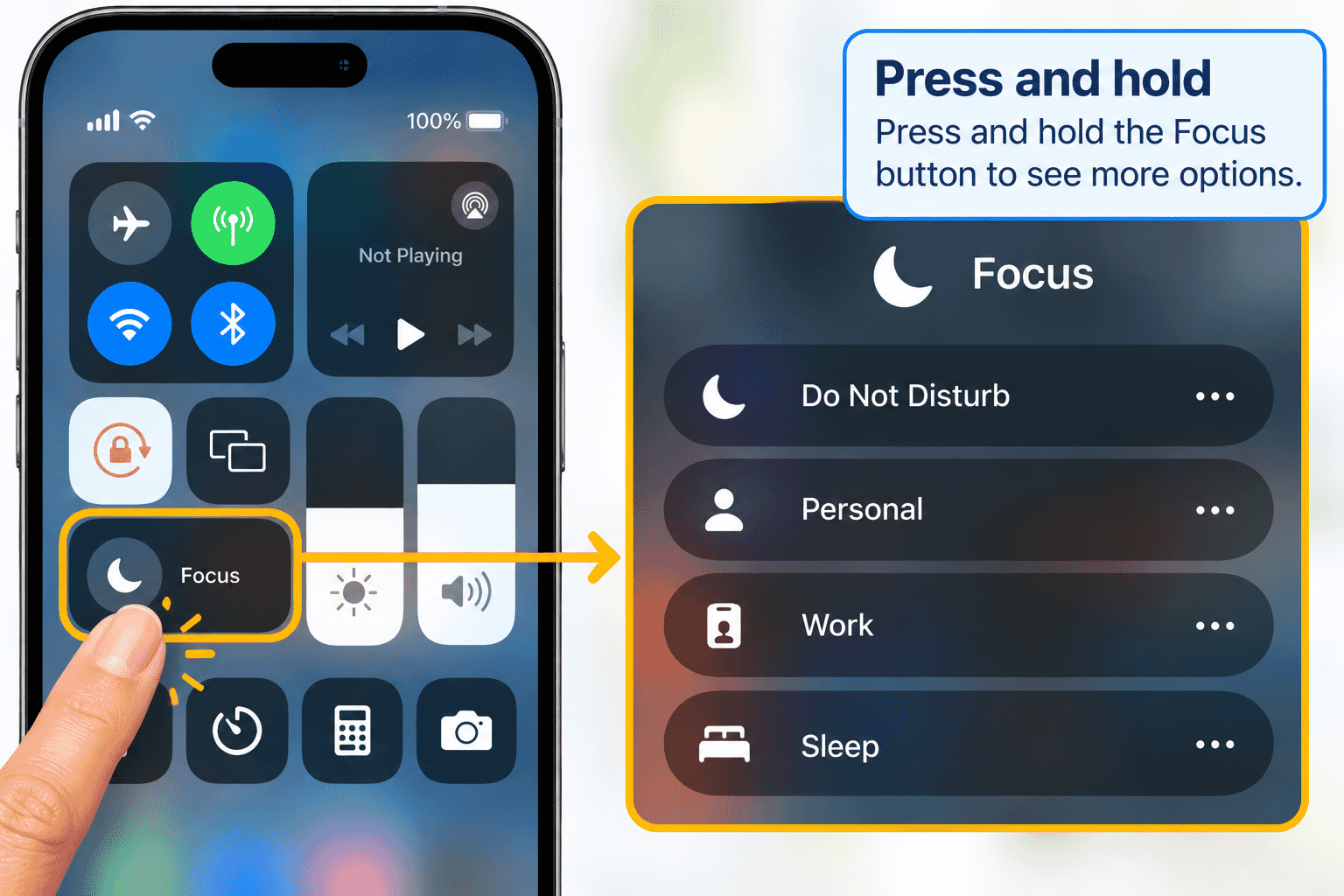
You may see a control labelled Focus.
Focus features can change which calls, alerts and notifications are allowed to interrupt you.
One common Focus option is Do Not Disturb.
If you unexpectedly stop hearing alerts or receiving normal interruptions, it can be worth checking whether a Focus mode has been turned on.
Do not worry about configuring Focus yet.
For now, simply learn to recognise the control.
Screen Rotation Lock
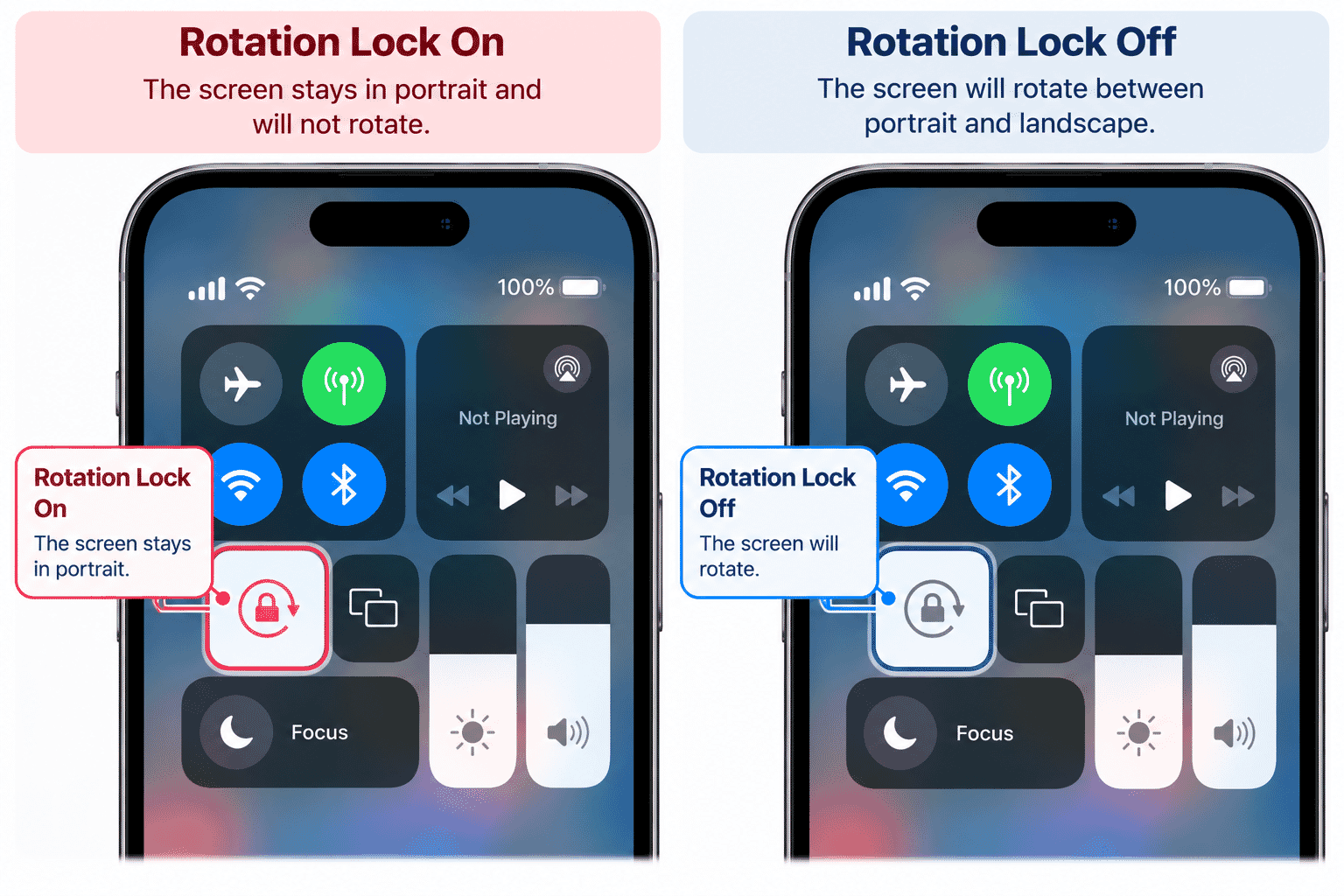
Your iPhone or iPad may have a rotation lock control.
It is commonly represented by a padlock with a circular arrow.
When rotation lock is on, the screen may remain in one orientation even when you turn the device sideways.
If you expect the screen to rotate but it does not:
- Open Control Centre.
- Look for the rotation lock control.
- Check whether it is active.
Remember that some apps do not support screen rotation, so turning rotation lock off does not guarantee that every screen will rotate.
Torch
On supported devices, Control Centre can include a Torch control.
Tap the Torch control to turn the device's light on.
Tap it again to turn it off.
On supported devices, pressing and holding the Torch control can reveal additional options such as brightness.
If you do not see a Torch control, your device or Control Centre setup may be different.
Press and Hold for More Options
Some Control Centre items can do more than a simple tap suggests.
If you press and hold a supported control, additional options may appear.
For example, pressing and holding certain connection or brightness controls can reveal more choices.
You do not need to explore every additional option now.
If you open a menu you do not understand, you can close it without making a change.
Control Centre Can Have More Than One Group
On newer versions of iOS, Control Centre can include different groups of controls.
You may see additional controls for things such as media, Home accessories or connectivity.
This means the first screen you see may not contain everything available in Control Centre.
For a beginner, there is no need to explore or customise all of these groups immediately.
Start with the controls you recognise and actually need.
Be Careful with Connection Controls
Wi-Fi, Bluetooth and Airplane Mode affect how your device communicates with networks and other devices.
If everything is working normally, there is usually no reason to keep switching these controls on and off.
If you accidentally change something and lose a connection, stop and check which control you touched.
Avoid rapidly tapping several connection controls at once, because this can make it harder to work out what changed.
Try It Yourself
Open Control Centre on your device.
Without changing anything yet, see if you can find:
- Wi-Fi.
- Bluetooth.
- Airplane Mode.
- Brightness.
- Volume.
- Focus.
- Rotation lock, if visible.
- Torch, if available.
Now practise the following:
Activity 1 -- Brightness
Move the brightness slider slightly darker.
Then return it to a comfortable level.
Activity 2 -- Volume
Move the volume slider slightly.
Return it to your preferred level.
Activity 3 -- Close and Reopen
Close Control Centre.
Open it again.
Repeat this until the opening gesture begins to feel familiar.
There is no need to change Wi-Fi, Bluetooth or Airplane Mode simply for practice.
Helpful Tips
- Control Centre is designed for quick access, not for learning every setting on your device.
- Start the opening gesture from the correct edge or corner.
- If notifications appear instead, try again closer to the top-right corner on supported devices.
- Your Control Centre may look different from someone else's.
- Brightness and volume are safe controls to practise with.
- Avoid changing connection controls unless you understand what they do.
- Press and hold can reveal more options on some controls.
- You can close Control Centre without making any changes.
Common Mistakes
| Common Mistake | What Happens | What to Remember |
|---|---|---|
| Opening Notifications instead of Control Centre | On newer iPhones, swiping down too close to the top centre opens Notification Centre. | Start your swipe from the top-right corner to open Control Centre. |
| Thinking Wi-Fi has been completely turned off | Tapping Wi-Fi in Control Centre generally disconnects you from the current network rather than fully disabling Wi-Fi. | To turn Wi-Fi off completely, open Settings > Wi-Fi. |
| Thinking Bluetooth has been completely turned off | The Bluetooth control can disconnect accessories without completely disabling Bluetooth. | To turn Bluetooth off completely, open Settings > Bluetooth. |
| Accidentally turning on Airplane Mode | Your normal mobile connection may disappear when Airplane Mode is switched on. | Open Control Centre and check the aeroplane symbol. Tap it to turn Airplane Mode off if it is active. |
| Making too many changes at once | Changing several controls can make it difficult to work out what caused a problem. | Change one thing at a time so you can understand what each control does. |
Troubleshooting
| Problem | Possible Cause | What to Try |
|---|---|---|
| Notifications appear instead of Control Centre | Your swipe started too close to the top centre of the screen. | Start your swipe closer to the top-right corner. |
| Nothing happens when I swipe down | Your gesture may not have started at the correct edge. | Start directly at the top-right edge and swipe down smoothly. |
| My older iPhone does not open Control Centre from the top-right | Your iPhone may have a Home button and use a different gesture. | Swipe upward from the bottom edge of the screen. |
| My Control Centre looks different | It may be customised or use a different software version. | Look for familiar symbols and controls rather than expecting an identical layout. |
| I cannot connect to Wi-Fi after tapping its control | Control Centre may have disconnected you from the network. | Tap the Wi-Fi control again or open Settings > Wi-Fi to reconnect. |
| My Bluetooth accessory disconnected | The Bluetooth control may have disconnected your accessory. | Tap Bluetooth again or check Settings > Bluetooth. |
| My screen will not rotate | Rotation Lock may be on, or the app may not support rotation. | Check the Rotation Lock control in Control Centre and try rotating the screen in another app. |
| My screen is suddenly very dark | The screen brightness may have been reduced. | Open Control Centre and move the brightness slider upward. |
Summary
Control Centre is a quick way to access commonly used controls on your iPhone or iPad.
You can use it for things such as:
- Adjusting brightness.
- Adjusting volume.
- Checking connection controls.
- Recognising Airplane Mode.
- Checking Focus.
- Checking rotation lock.
- Accessing other useful shortcuts.
The exact layout can vary, so do not worry about memorising one particular Control Centre screen.
Learn the controls you use most often and leave unfamiliar controls alone until you understand what they do.
What You've Learned
You now know:
- What Control Centre is.
- How to open and close it.
- Why the opening gesture can differ on older iPhones.
- How to recognise Wi-Fi and Bluetooth controls.
- Why tapping Wi-Fi or Bluetooth in Control Centre is different from fully turning them off in Settings.
- How to adjust brightness.
- How to adjust volume.
- How to recognise Airplane Mode, Focus and rotation lock.
- That pressing and holding some controls reveals more options.
- Why Control Centre can look different between devices.
Keep Learning
Next guide:
LG-507 -- Understanding Notifications
You will learn what notifications are, where they appear, how to open or dismiss them and how to decide which notifications need your attention.
Learning Paths
View all pathsNeed some help with this?
Protect your photos and files, automatic backups plus a “test restore” so you know it works.
Troubleshoot IT provides practical, one-to-one technology support across Darwin, Palmerston and surrounding areas.