LG-504 - Essential iPhone and iPad Gestures
Learn the essential gestures used to move around an iPhone or iPad. This beginner-friendly guide explains swiping, returning to the Home Screen, moving between Home Screen pages, opening recent apps, zooming and other useful gestures.
Before You Begin
Applies To
iPhone and iPad users
Knowledge Prerequisites
Overview
In the previous guide, you learned the basic touchscreen actions of tapping, scrolling and pressing and holding.
Now you can build on those skills by learning some of the gestures used to move around your iPhone or iPad.
A gesture is simply a particular movement you make with your finger on the touchscreen.
Gestures can help you:
- Move between screens.
- Return to the Home Screen.
- See apps you have recently used.
- Open important controls.
- Zoom in and out.
- Move around your device without needing lots of physical buttons.
You do not need to learn every gesture available on an iPhone or iPad.
This guide concentrates on the ones that are most useful for everyday use.
Learning Objectives
By the end of this guide you will be able to:
- Understand what a touchscreen gesture is.
- Swipe in different directions.
- Move between Home Screen pages.
- Return to the Home Screen.
- Open the App Switcher to see recently used apps.
- Understand that gestures can differ on devices with a Home button.
- Use pinch and spread gestures to zoom where supported.
- Recognise that some gestures start from the edge of the screen.
- Practise gestures slowly and confidently.
Before You Begin
Before starting this guide, it is helpful to have completed:
LG-503 -- Using the Touchscreen
You should already be reasonably comfortable with:
- Tapping.
- Scrolling.
- Pressing and holding.
Have your iPhone or iPad with you and unlock it so you can see the Home Screen.
Your device may behave differently from some examples depending on:
- Whether it has a Home button.
- The iPhone or iPad model.
- The software version.
- The app you are using.
This guide will point out important differences where necessary.
What Is a Gesture?
A gesture is a movement made on the touchscreen that tells the device to perform an action.
For example, instead of pressing a physical button to move to another page, you may move your finger across the screen.
Common gestures include:
- Swipe.
- Swipe up.
- Swipe down.
- Swipe left.
- Swipe right.
- Pinch.
- Spread.
The direction, starting position and speed of your movement can change what happens.
That sounds complicated, but the common gestures become natural with practice.
Swiping
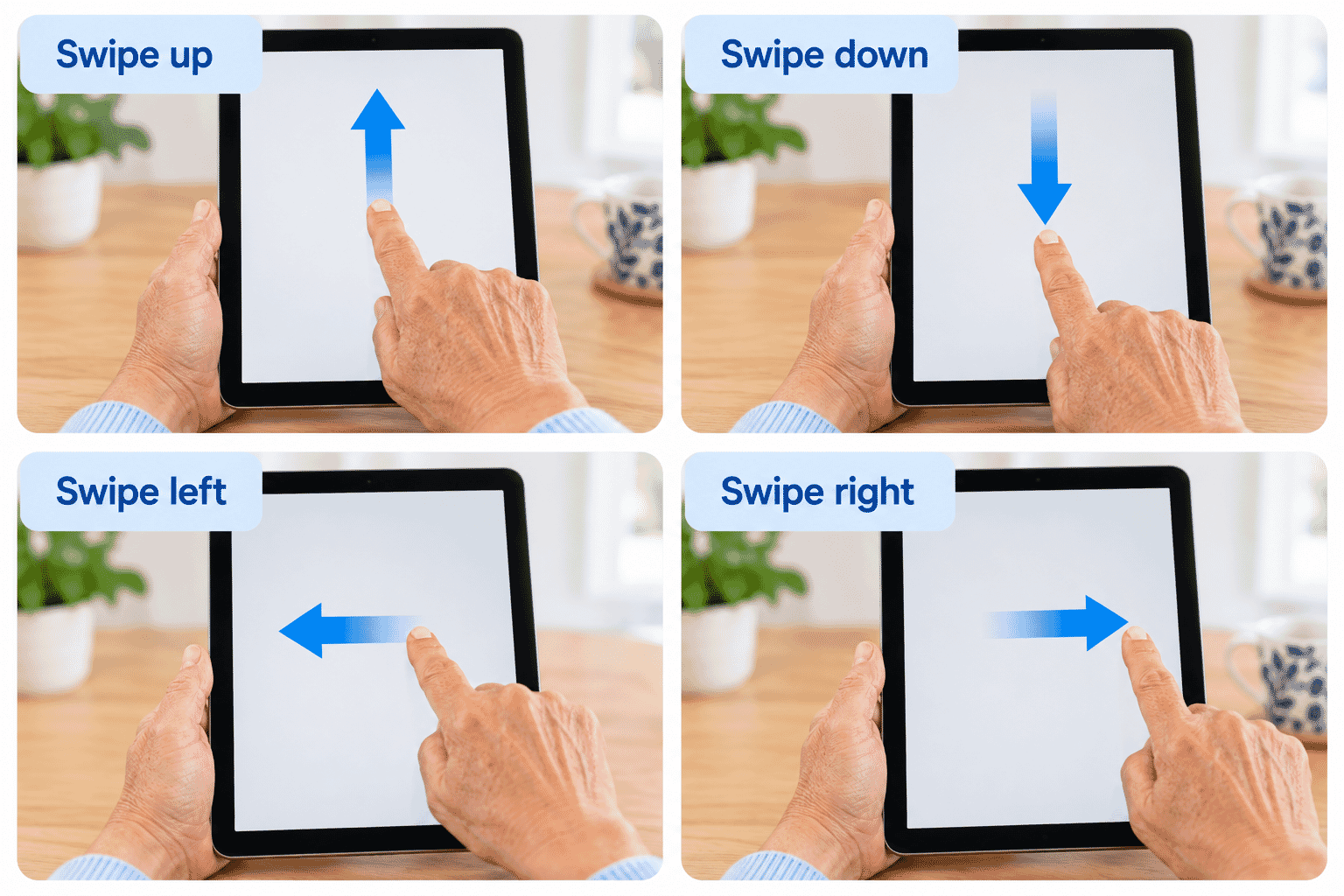
A swipe is when you place your finger on the screen and move it in a direction before lifting it.
You can swipe:
- Up.
- Down.
- Left.
- Right.
The result depends on where you are on the device and where the gesture begins.
To practise a simple swipe:
- Place your finger lightly on the screen.
- Move it smoothly in one direction.
- Lift your finger.
You do not need to press hard.
Moving Between Home Screen Pages
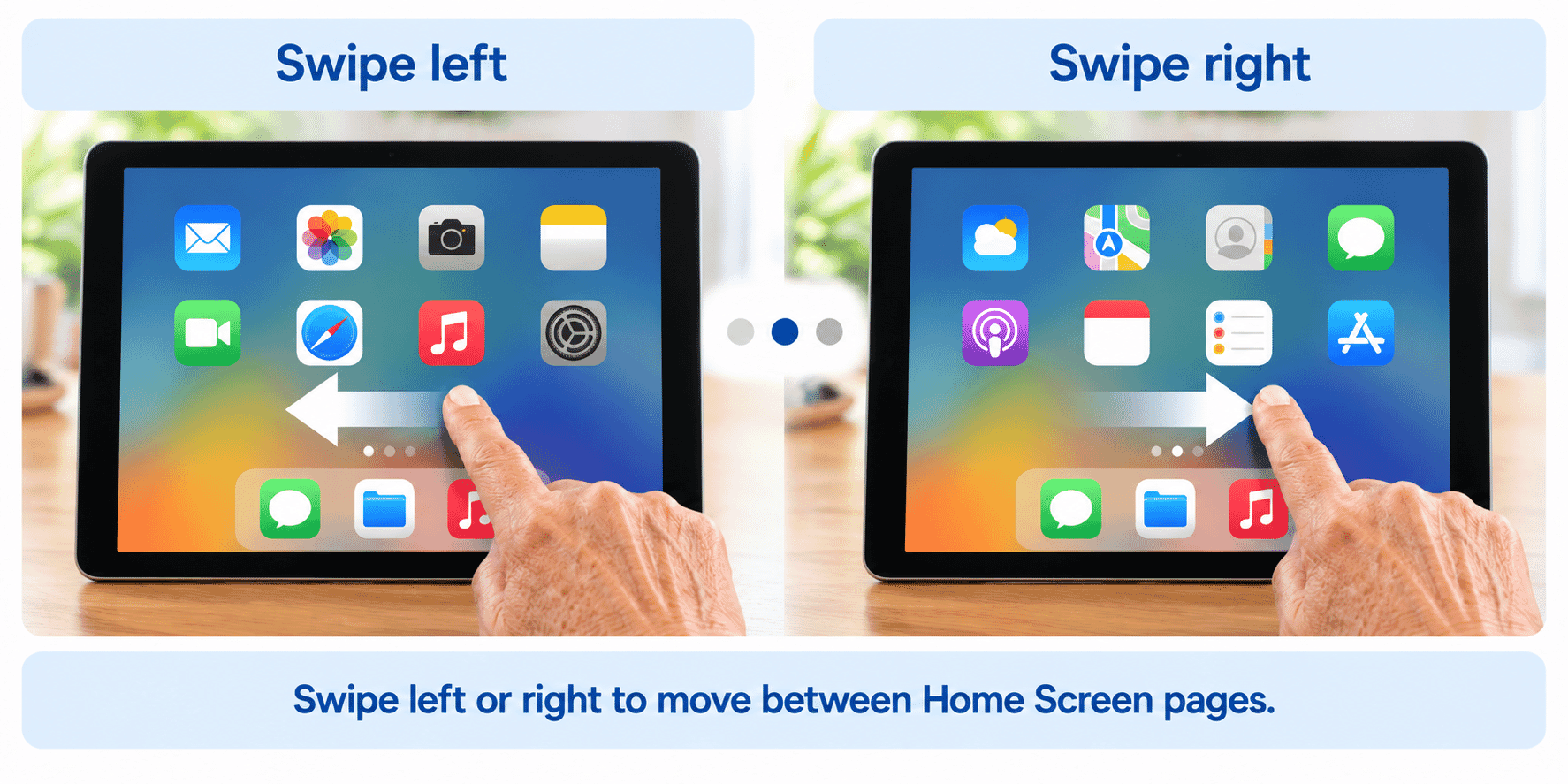
If you have more apps than will fit on one Home Screen page, your device can have several pages.
To move to the next page:
- Place your finger somewhere on the Home Screen where there is no control you need to select.
- Swipe from right to left.
- Lift your finger.
To move back:
- Place your finger on the screen.
- Swipe from left to right.
- Lift your finger.
Think of it as sliding one page away to reveal another.
Returning to the Home Screen
The Home Screen is an important place to know how to return to.
How you get there depends on your device.
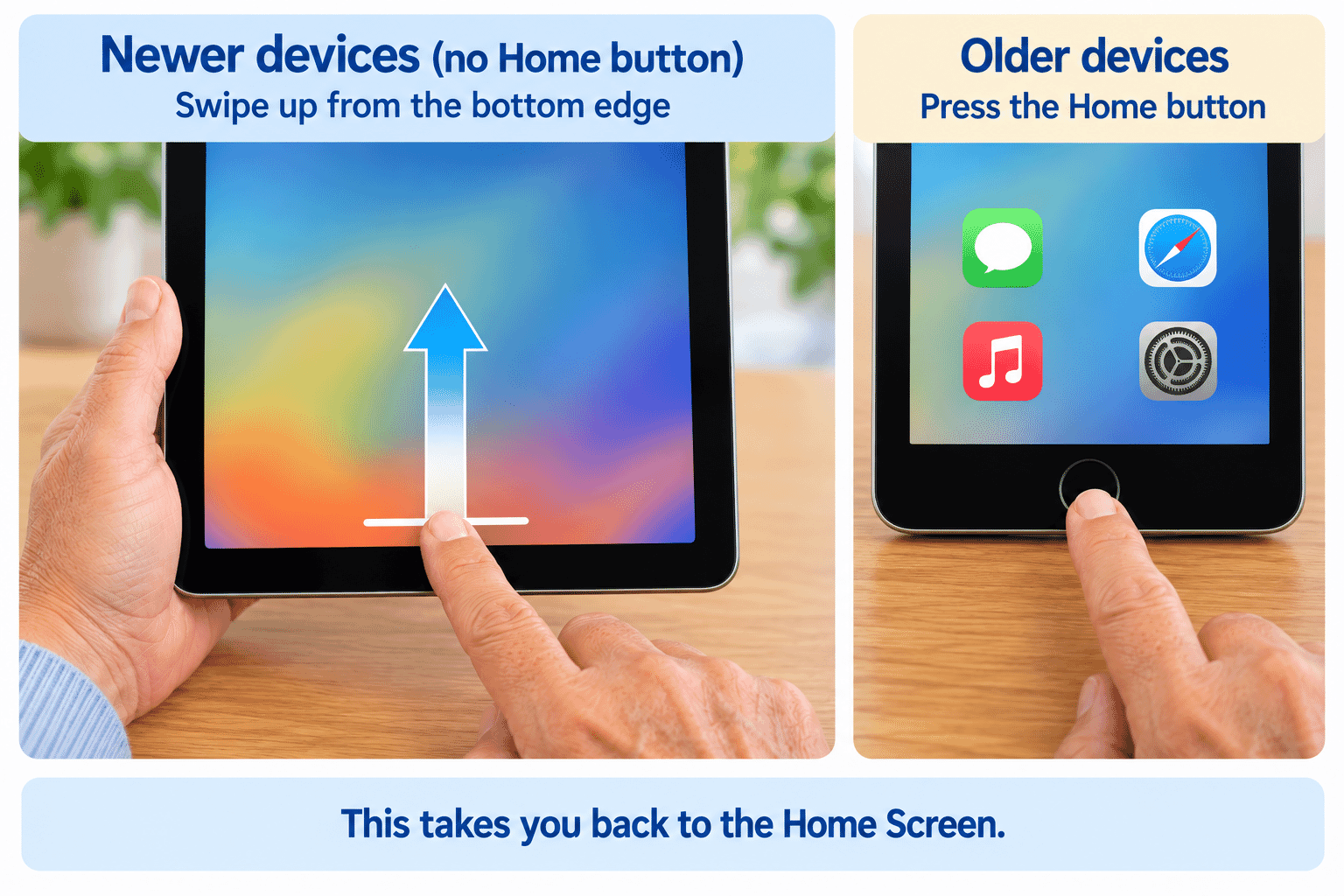
Devices Without a Home Button
On many newer iPhones and iPads:
- Start with your finger at the bottom edge of the screen.
- Swipe upward.
- Lift your finger.
The current app should move away and the Home Screen should appear.
Devices With a Home Button
If your device has a physical Home button, press the Home button once.
You do not need to use the swipe-up Home gesture.
Starting from the Edge Matters
Some gestures only work when your finger begins close to a particular edge of the screen.
For example, returning Home on a device without a Home button begins at the bottom edge.
If you start too far up the screen, the app may scroll instead.
If a gesture does not work:
- Stop.
- Return your finger to the correct starting position.
- Try again slowly.
This is often easier than repeating the same movement quickly.
Seeing Your Recently Used Apps
Your iPhone or iPad can show the apps you have recently used.
This view is commonly called the App Switcher.
It can be useful when you want to move from one open app to another.
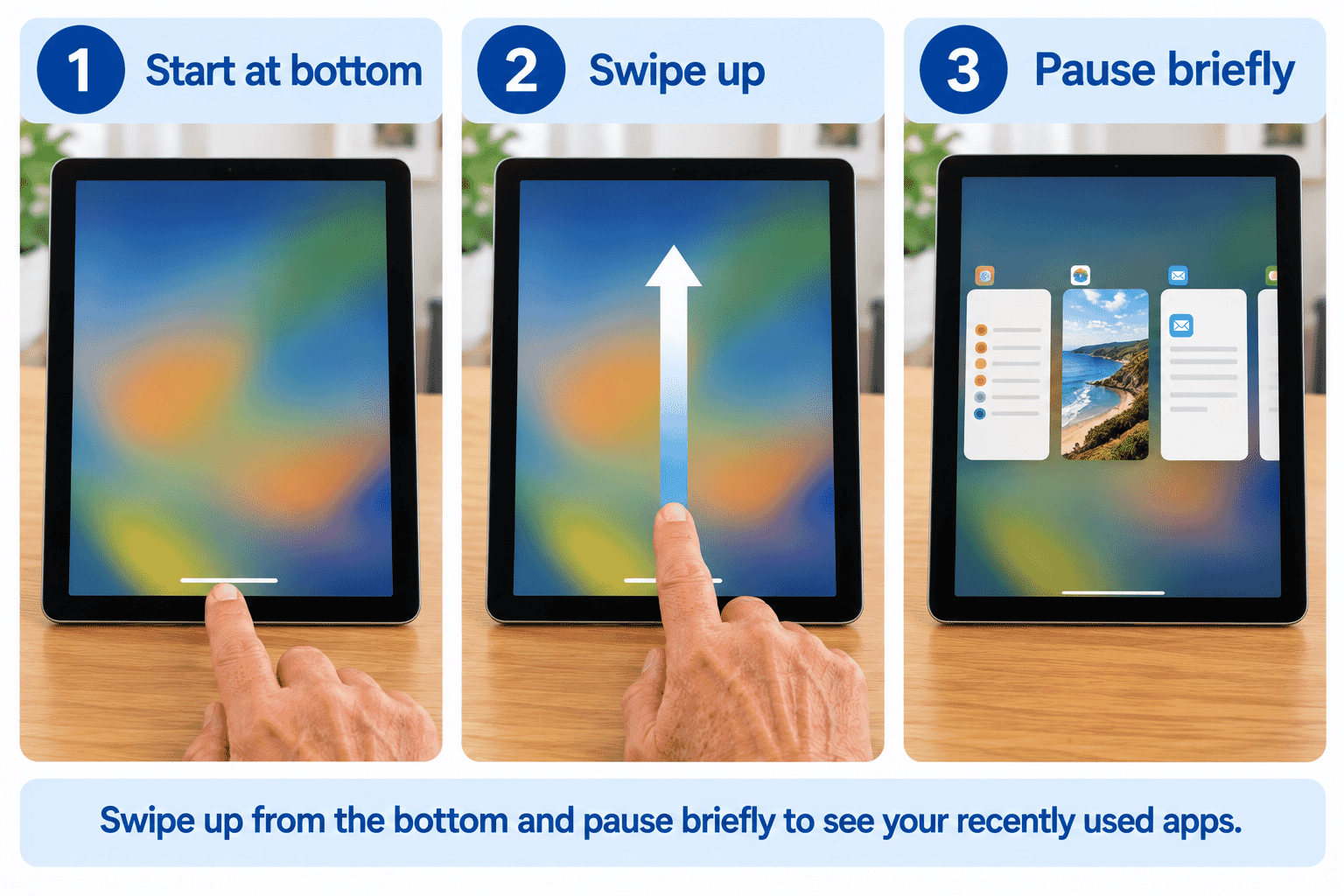
Devices Without a Home Button
A common method is:
- Start at the bottom edge of the screen.
- Swipe upward.
- Pause briefly before lifting your finger.
- The App Switcher should appear.
You should see previews of recently used apps.
Swipe sideways through the previews to find another app, then tap the app you want.
Devices With a Home Button
On supported devices with a Home button, the App Switcher can usually be opened by pressing the Home button twice quickly.
You Do Not Need to Close Every App
Seeing an app in the App Switcher does not necessarily mean it is actively doing something or needs to be closed.
For everyday use, you generally do not need to constantly remove apps from the App Switcher.
The App Switcher is mainly useful for moving between recently used apps.
If an app stops responding, closing and reopening it may sometimes be useful. That will be covered later in:
LG-548 -- What to Do When an App Is Not Working (pending)
Swiping Down
Swiping down can do different things depending on where you start.
For example, on many devices, a downward gesture from an appropriate area near the top of the screen can reveal notifications or other controls.
Because the starting position matters, these features will be taught separately in:
- LG-506 -- Using Control Centre (pending)
- LG-507 -- Understanding Notifications (pending)
For now, the important lesson is that an edge gesture can have a different purpose from scrolling inside an app.
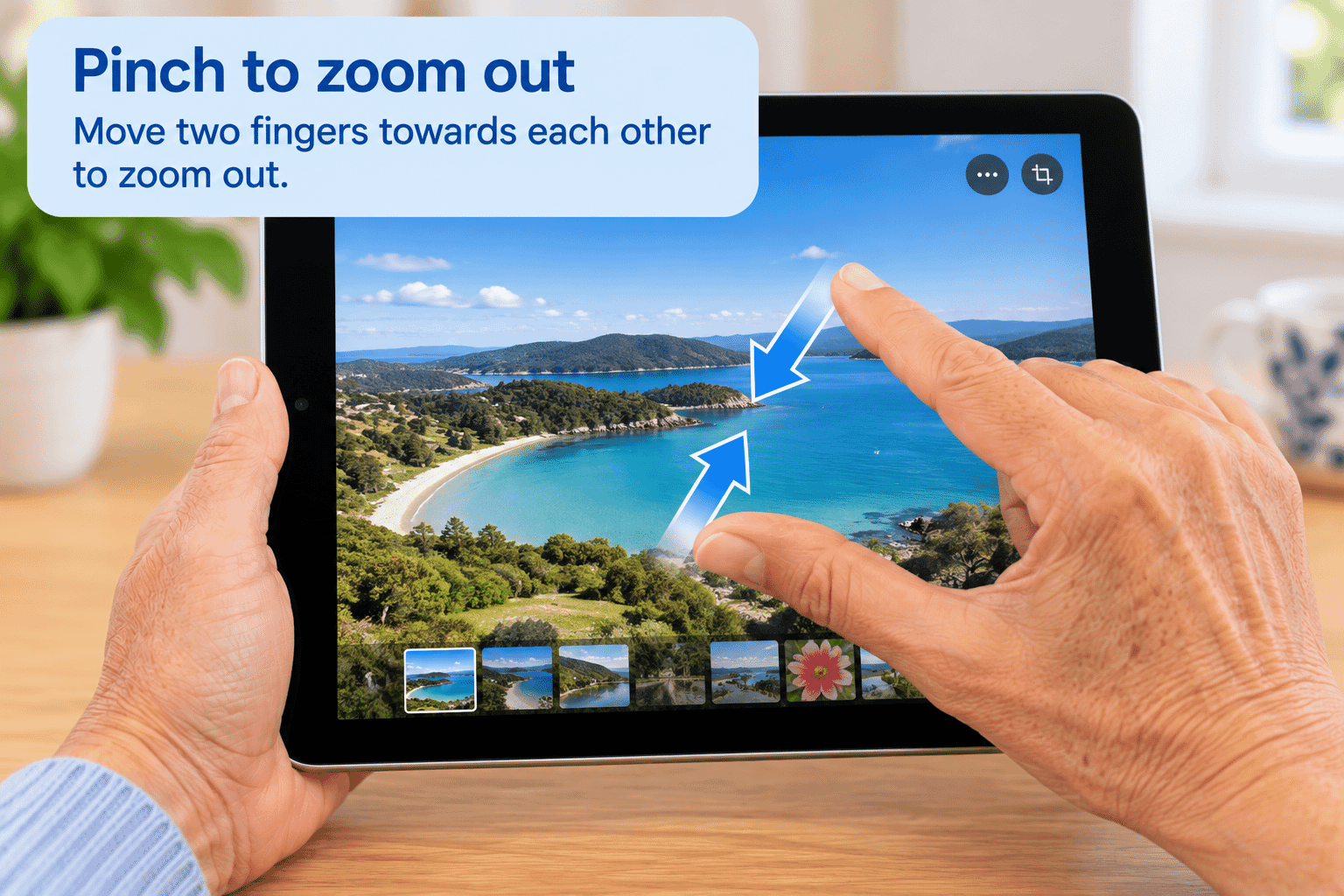
Pinch to Zoom Out
Some apps allow you to use two fingers to change how large something appears.
A pinch means placing two fingers apart on the screen and moving them towards each other.
Where supported, this can make a photo, map or webpage appear smaller.
To try it:
- Place two fingertips on the screen with some space between them.
- Move the fingertips towards each other.
- Lift your fingers.
Spread to Zoom In
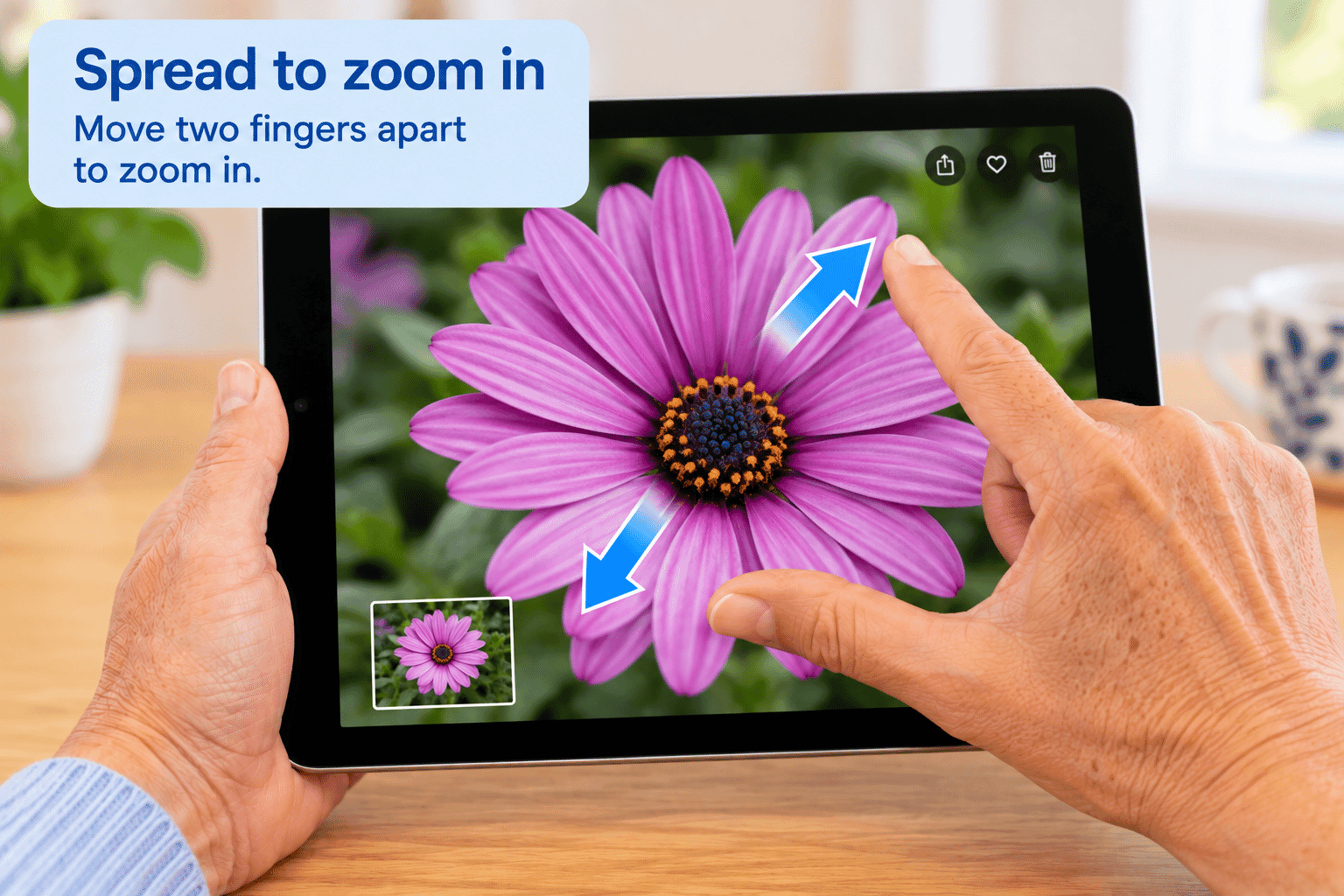
The opposite movement is sometimes called a spread or pinch out.
To zoom in where supported:
- Place two fingertips close together on the screen.
- Move them apart.
- Lift your fingers.
This can make a photo, map or webpage appear larger.
Not every screen supports this gesture.
If nothing happens, it may simply mean that zooming is not available in that part of the app.
Swipe or Scroll?
Swiping and scrolling use similar finger movements.
The difference is usually what you are trying to do.
Scrolling moves through information on a page or list.
Swiping often performs an action such as changing pages, returning Home or revealing another part of the interface.
Do not worry too much about the terminology.
What matters is learning which movement produces the result you want.
Gesture Speed
You do not need to make gestures extremely quickly.
A smooth, confident movement is more important than speed.
If you move too slowly and leave your finger in one place, the device may sometimes interpret the action differently.
If you move too quickly, you may lose control.
With practice, you will find a comfortable speed.
Try It Yourself
Use the following activities to practise.
Activity 1 -- Move Between Home Screen Pages
If you have more than one Home Screen page:
- Swipe from right to left.
- Watch the next page appear.
- Swipe from left to right to return.
Repeat this a few times.
Activity 2 -- Return Home
Open a safe app such as Settings.
If your device does not have a Home button:
- Start at the bottom edge.
- Swipe upward.
- Return to the Home Screen.
If your device has a Home button, press it once.
Activity 3 -- Open the App Switcher
Open two or three apps one at a time.
Then open the App Switcher using the method for your device.
Swipe sideways through the app previews.
Tap one of the previews to return to that app.
Activity 4 -- Practise Zooming
Open a photo.
Place two fingers on the screen.
Try moving them apart to zoom in.
Then move them towards each other to zoom out.
Take your time.
The aim is to understand the movement, not to perform it quickly.
Helpful Tips
- Start gestures from the correct part of the screen.
- Use a light touch.
- Make one smooth movement.
- Slow down if the device is doing something unexpected.
- Practise one gesture several times before moving to another.
- Your device may use a Home button instead of some navigation gestures.
- Not every gesture works in every app.
- It is normal for gestures to feel awkward when you first start.
Common Mistakes
Starting Too Far from the Edge
Some navigation gestures must begin at the edge of the screen.
If you start too far inside an app, you may scroll instead.
Lifting Your Finger Too Early
For the App Switcher, you may need to swipe upward and pause briefly rather than immediately lifting your finger.
Pressing Too Hard
Gestures do not require extra pressure.
A light touch is enough.
Moving Several Times When One Gesture Is Enough
If the device does not respond immediately, stop and try the gesture again carefully instead of making several fast movements.
Expecting Every Device to Work Exactly the Same Way
Devices with a Home button use some different navigation methods from devices without one.
Troubleshooting
| Problem | Possible Cause | What to Try |
|---|---|---|
| Swiping up does not return me Home | You may have started too far from the bottom edge. | Start at the bottom edge and make one smooth upward movement. |
| The page scrolls instead of returning Home | The gesture began inside the app. | Start closer to the bottom edge. |
| I cannot open the App Switcher | The upward gesture may be too short or you may not be pausing. | Swipe up from the bottom and pause briefly before lifting. |
| My device has a Home button | It uses different navigation controls. | Press Home once to return Home and use the supported Home button method for the App Switcher. |
| Pinching does nothing | That screen may not support zooming. | Try the gesture on a photo or map. |
| I keep selecting something instead of swiping | Your finger may not be moving soon enough. | Touch lightly and begin the movement smoothly. |
| The gesture works differently from the guide | Device or software layouts can vary. | Focus on the purpose of the gesture and use the method supported by your device. |
Summary
Gestures allow you to move around your iPhone or iPad using the touchscreen.
The most useful gestures introduced in this guide include:
- Swiping left and right.
- Swiping up to return Home on devices without a Home button.
- Opening the App Switcher.
- Pinching to zoom out.
- Spreading two fingers to zoom in.
You have also learned that the starting position of a gesture can be important.
You do not need to master every gesture immediately.
Practise the common movements until they begin to feel familiar.
What You've Learned
You now know:
- What a touchscreen gesture is.
- How to swipe.
- How to move between Home Screen pages.
- How to return to the Home Screen.
- How to open the App Switcher.
- Why devices with a Home button can work differently.
- How to pinch and spread two fingers to zoom.
- Why some gestures must begin at the edge of the screen.
- How to practise gestures without rushing.
Keep Learning
Next guide:
LG-505 -- Understanding the Home Screen
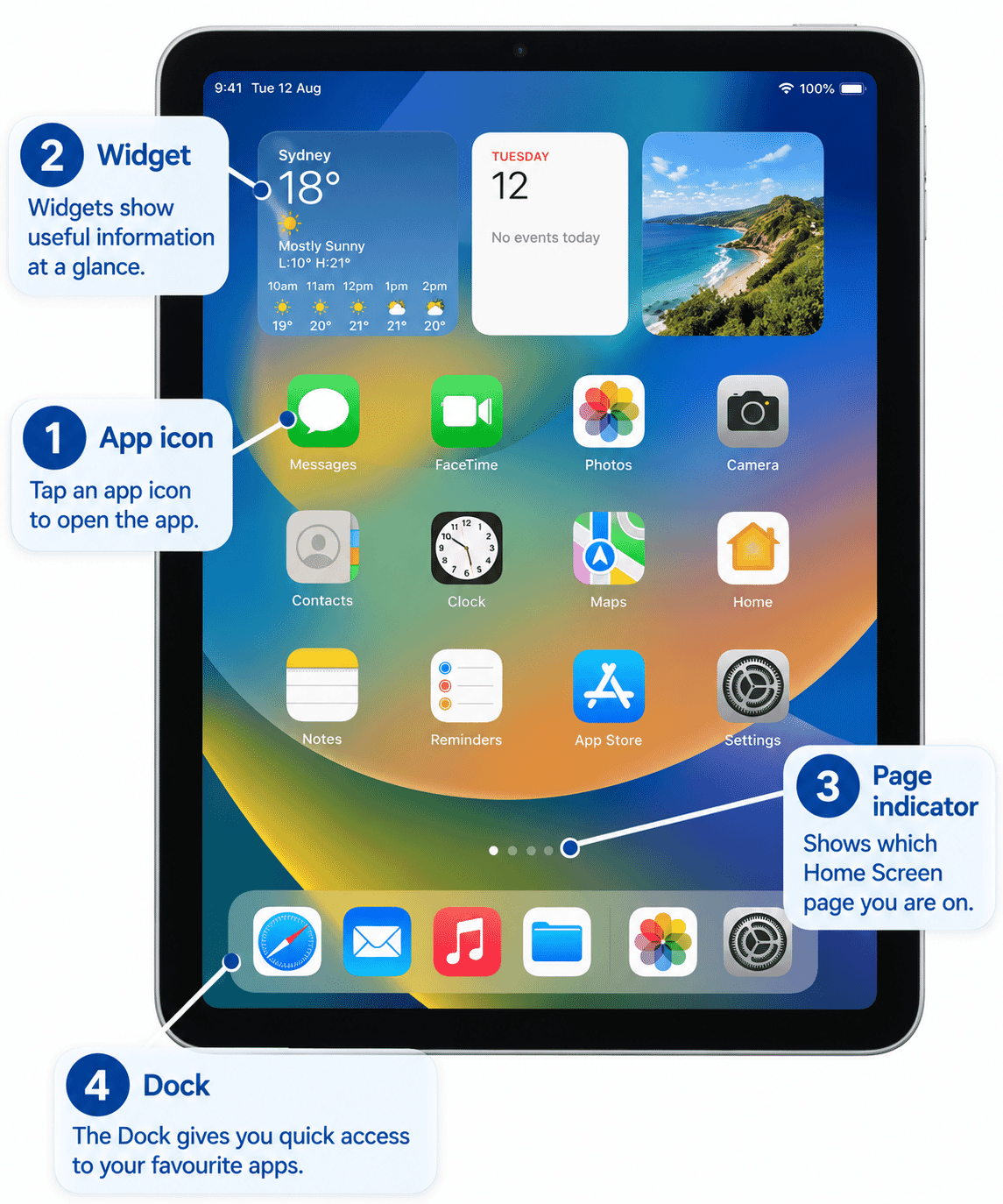
You will learn what you are looking at when you reach the Home Screen, including app icons, pages, the Dock and other common parts of the screen.
Requirements
None
Need some help with this?
Friendly in-home tech help, we fix the problem and make it easier to use next time.
Troubleshoot IT provides practical, one-to-one technology support across Darwin, Palmerston and surrounding areas.