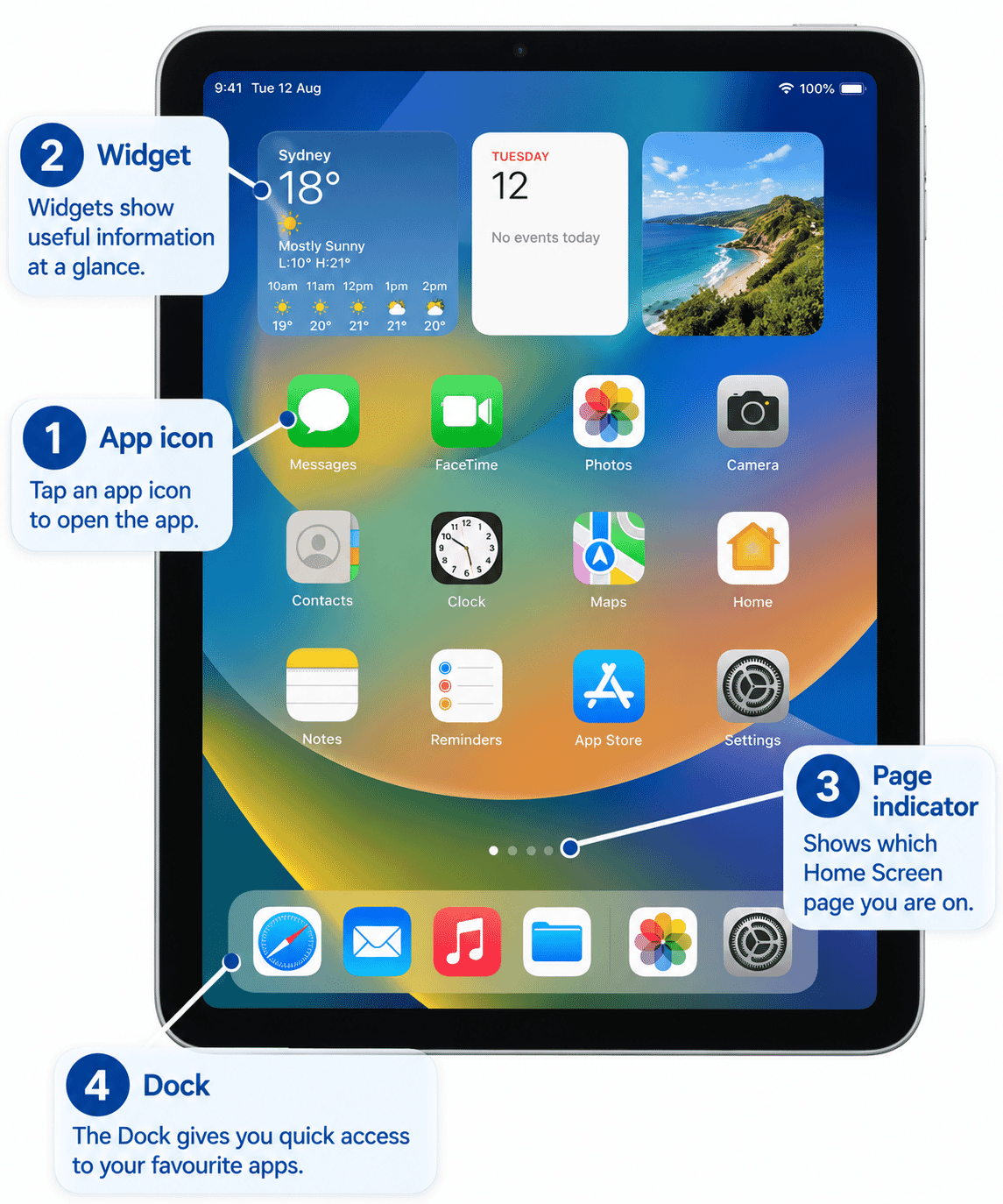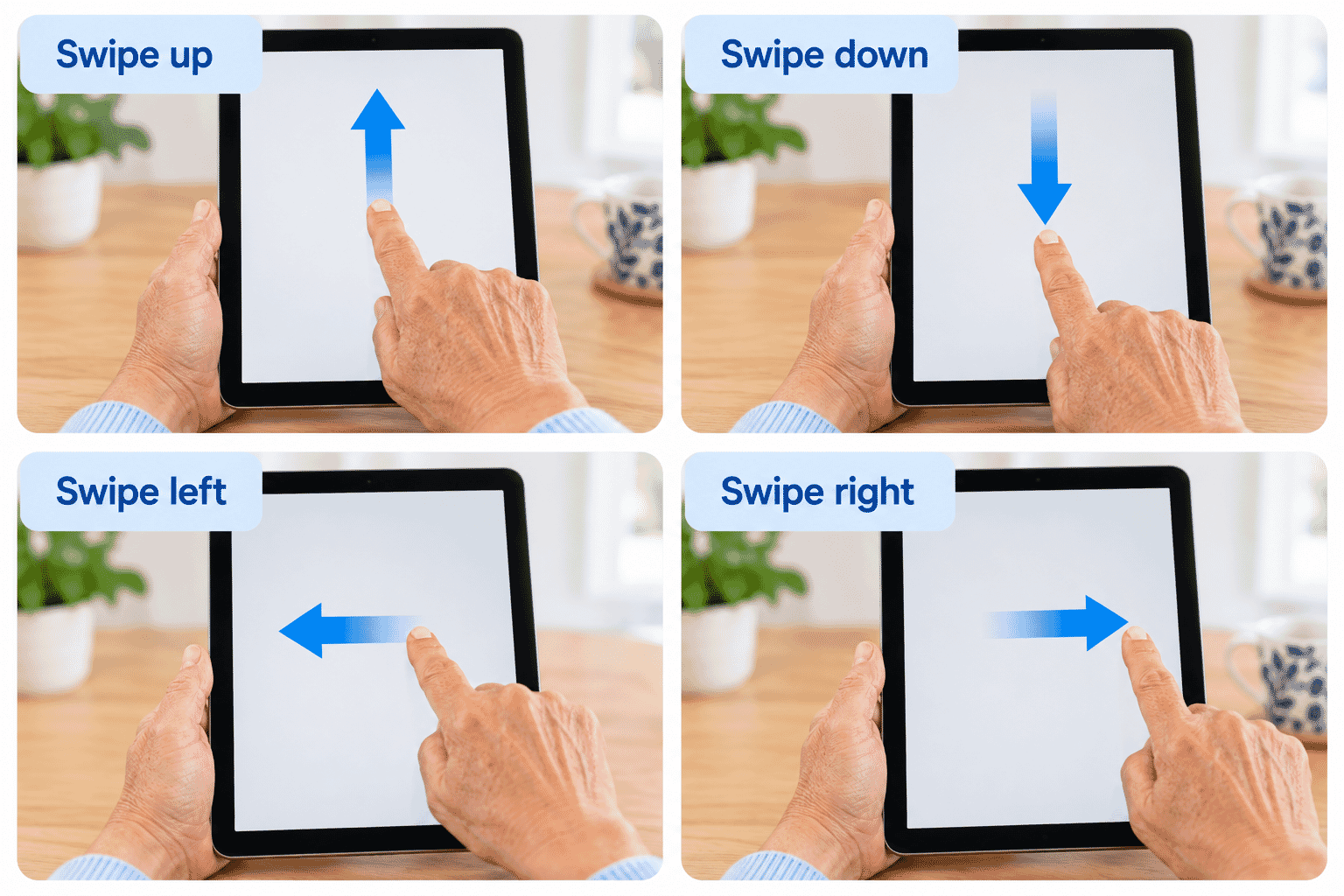
LG-503 - Using the Touchscreen
Learn how to use the touchscreen on your iPhone or iPad with confidence. Practise tapping, scrolling, pressing and holding, and learn what to do if the screen does not respond as expected.
Before You Begin
Knowledge Prerequisites
Overview
The touchscreen is the main way you control an iPhone or iPad.
Instead of using a mouse, you touch items directly on the screen with your finger.
At first, it can be difficult to know how firmly to touch the screen, how quickly to move your finger or why something did not respond the way you expected.
You do not need to press hard.
Most touchscreen actions use a light, deliberate touch.
This guide focuses on the basic touch skills you need before learning more advanced navigation gestures.
Learning Objectives
By the end of this guide you will be able to:
- Touch the screen with an appropriate amount of pressure.
- Tap an item once to select or open it.
- Scroll through information.
- Press and hold an item.
- Understand that different touch actions can produce different results.
- Practise touchscreen actions without rushing.
- Try simple solutions if the screen does not respond.
Before You Begin
Have your iPhone or iPad with you.
Make sure:
- The device has enough battery power.
- The screen is awake.
- You can access the Home Screen or another safe screen where you can practise.
- Your hands are reasonably clean and dry.
You do not need to change any settings.
If you are not yet comfortable unlocking your device, ask someone you trust to help you reach the Home Screen.
How the Touchscreen Works
The screen on your iPhone or iPad can detect the touch of your finger.
You control what happens by changing how you touch or move your finger.
For example:
- A quick touch can open something.
- Moving your finger can scroll through a page.
- Leaving your finger on something for longer can reveal more options.
These small differences are important.
The touchscreen does not know what you intended to do. It responds to the action it detects.
The good news is that these actions become much easier with practice.
You Do Not Need to Press Hard
One of the most common beginner habits is pressing the screen too firmly.
A touchscreen normally responds to a light touch.
Pressing harder does not usually make it work better.
In fact, pressing too firmly can make your hand tense and make accurate tapping more difficult.
Try to keep your hand relaxed and touch the screen gently with the pad of your fingertip.

Tapping
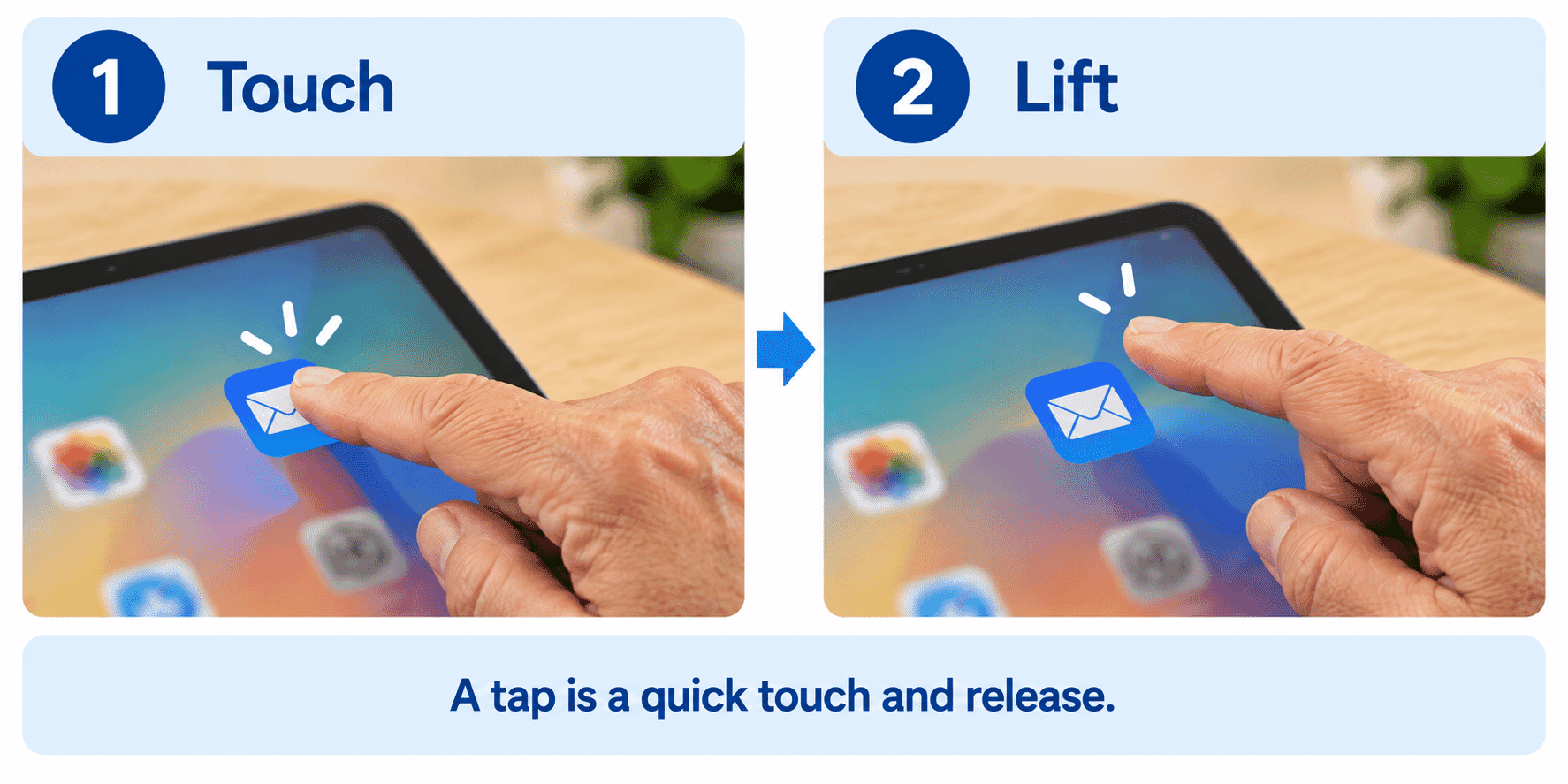
A tap is a quick touch of the screen.
It is similar to clicking once with a computer mouse.
You tap to do things such as:
- Open an app.
- Select a button.
- Choose an option.
- Place the cursor in a text box.
- Open a link.
To tap:
- Place your fingertip over the item you want.
- Touch the screen briefly.
- Lift your finger.
Do not leave your finger resting on the screen for too long.
Practise Tapping
Find an app on your Home Screen that you recognise.
For example, you might choose Settings.
Tap the app once.
It should open.
When you are finished, return to the Home Screen using the method appropriate for your device.
Do not worry if you are not yet confident returning to the Home Screen. We will cover navigation in more detail in the next guides.
What If I Tap the Wrong Thing?
It happens to everyone.
Touchscreens are sensitive, and sometimes you will open the wrong app or select the wrong option.
This does not mean you have damaged the device.
In most cases, you can simply go back or return to the Home Screen and try again.
Learning to use a touchscreen includes learning that small mistakes are normal and usually easy to correct.
Scrolling
A page can contain more information than will fit on the screen.
Scrolling allows you to move through that information.
You might scroll when:
- Reading a website.
- Looking through Settings.
- Reading email.
- Looking through photos.
- Viewing a list of contacts.
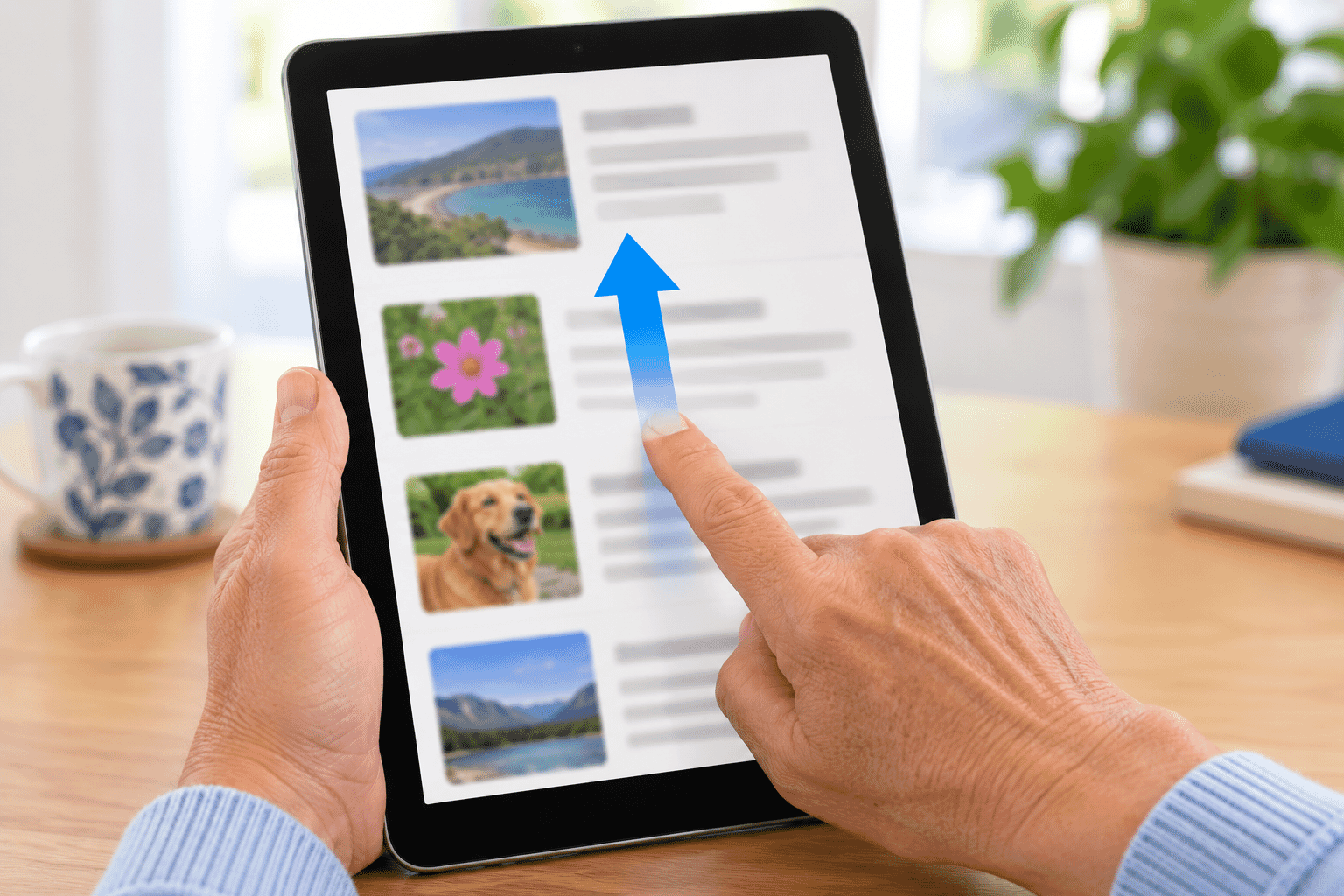
To scroll:
- Place your finger lightly on the screen.
- Move your finger up or down.
- Lift your finger.
The information on the screen will move.
The Page Moves Opposite Your Finger
This can feel unusual when you are first learning.
If you move your finger up, you normally move further down the page.
Imagine that your finger is pushing the page itself.
If you push the page upward, the information lower down becomes visible.
Try it slowly until the movement begins to feel natural.
You Can Scroll Slowly
You do not need to flick quickly through a page.
A slow movement gives you more control.
If you move your finger quickly, the page may continue moving after you lift your finger.
That can be useful later, but while you are learning, slow and deliberate movements are often easier.
Press and Hold
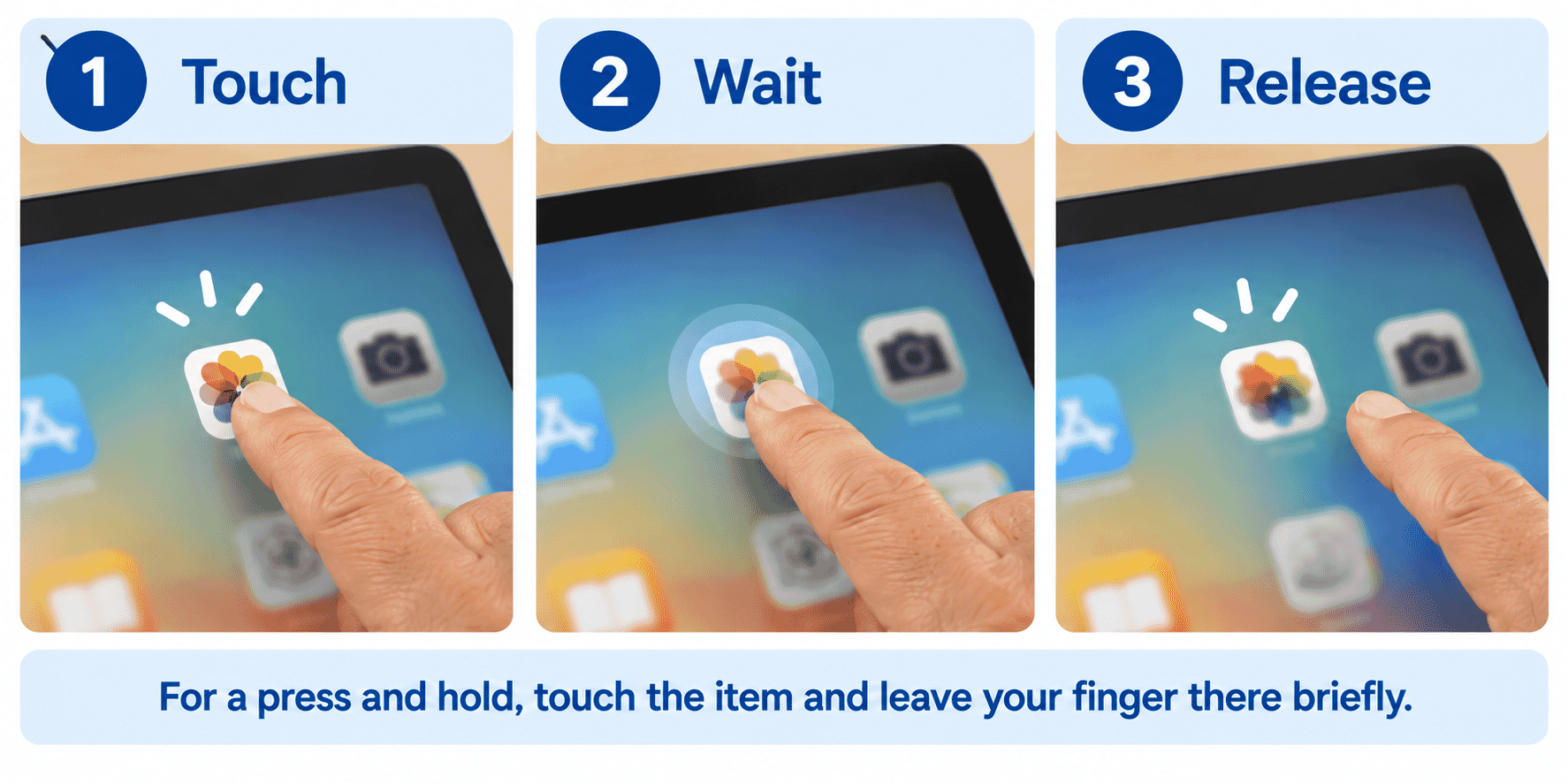
A press and hold means touching an item and leaving your finger there briefly instead of lifting it immediately.
Depending on what you press, this may:
- Open a menu.
- Show extra options.
- Allow you to move or manage an item.
- Show a preview.
To press and hold:
- Place your finger on an item.
- Keep your finger still for a moment.
- Wait for the screen to respond.
- Lift your finger.
Tap or Press and Hold?
The difference is how long your finger remains on the screen.
Tap: touch and release quickly.
Press and hold: touch, wait briefly, then release.
If a menu appears when you only wanted to open something, you may have held your finger on the screen for too long.
That is a normal part of learning.
Tap somewhere safe outside the menu to dismiss it where appropriate, then try again with a quicker tap.
Touching Small Items
Some buttons, links and controls can be small.
If you find them difficult to select:
- Slow down.
- Aim for the centre of the item.
- Use the pad of your fingertip.
- Keep your hand relaxed.
- Make one deliberate tap.
Repeatedly tapping very quickly can make it harder to tell what the device is doing.
Later in this Learning Path, we will also look at settings that can make text and some screen elements easier to see.
Using One Finger
Most basic touchscreen tasks use one finger.
For this guide, focus on:
- Tapping.
- Scrolling.
- Pressing and holding.
Some actions use two or more fingers, but those will be introduced separately in LG-504 -- Essential iPhone and iPad Gestures.
There is no need to learn everything at once.
Keeping the Screen Clean
A screen covered in moisture, grease or dirt can sometimes be harder to use or see clearly.
If the screen needs cleaning:
- Disconnect cables.
- Use a clean, soft, lint-free cloth.
- Wipe the screen gently.
Avoid spraying liquid directly onto the device.
If your hands are wet, dry them before using the touchscreen.
Try It Yourself
Use a safe app such as Settings to practise.
Activity 1 -- Tap
- Find the Settings app.
- Tap it once.
- Notice how quickly you need to lift your finger.
Activity 2 -- Scroll
- Place your finger on the screen.
- Slowly move it upward.
- Watch the page move.
- Slowly move back in the other direction.
Activity 3 -- Press and Hold
Choose a safe item where pressing and holding will not cause a problem.
Press and hold briefly and notice whether additional options appear.
If you are unsure what an option does, do not select it. Tap away from the menu instead.
Repeat each action a few times.
The aim is not speed.
The aim is control.
Helpful Tips
- Use a light touch.
- Keep your hand relaxed.
- Aim for the centre of buttons and icons.
- Practise slowly before trying to move quickly.
- If something unexpected opens, do not panic.
- Give the device a moment to respond before tapping repeatedly.
- Clean and dry fingers generally work better than wet fingers.
- You do not need to master every gesture today.
Common Mistakes
Pressing Too Hard
More pressure usually does not make the touchscreen respond better.
Try a lighter touch.
Holding a Tap for Too Long
If extra options appear, the device may have interpreted your action as a press and hold.
Try again with a quicker tap.
Tapping Repeatedly
If an app takes a moment to open, repeatedly tapping can cause confusion.
Tap once and give the device a moment to respond.
Moving Too Quickly
Fast scrolling can make it easy to pass the information you wanted.
Slow down while you are learning.
Using a Fingernail
The screen is designed to respond to touch. Using the pad of your finger is usually easier and more reliable than trying to tap with a fingernail.
Troubleshooting
Problem Possible Cause What to Try
Nothing happens when I You may have missed the Aim for the centre, tap tap item or the device may once and wait briefly still be responding
A menu appears instead You may have pressed Tap away from the menu of opening the item and held and try a quicker tap
The page moves too far Your scrolling movement Use a shorter, slower may be too fast movement
The screen does not The screen or your Dry your hands and respond well fingers may be wet or gently clean the screen dirty if needed
I keep opening the The controls may be Slow down and make one wrong item small or you may be deliberate tap rushing
The whole device An app or the device Wait briefly. Later appears frozen may not be responding guides cover restarting and troubleshooting in more detail
Summary
The touchscreen is the main way you control your iPhone or iPad.
The three basic skills introduced in this guide are:
- Tap -- touch and release quickly.
- Scroll -- move your finger across the screen to move through information.
- Press and hold -- leave your finger on an item briefly to reveal additional actions.
You do not need to press hard or move quickly.
Control and confidence are more important than speed.
What You've Learned
You now know:
- That an iPhone or iPad touchscreen responds to different touch actions.
- How to tap.
- How to scroll.
- How to press and hold.
- The difference between a tap and a press and hold.
- Why slow, deliberate movements can be easier for beginners.
- What to try if the touchscreen does not respond as expected.
Keep Learning
Next guide:
LG-504 - Essential iPhone and iPad Gestures
You will build on these basic touchscreen skills and learn the gestures used to move around your device, including swiping and other common movements.
Requirements
None
Need some help with this?
One-hour, in-person 1:1 tech training for people who find technology challenging, especially older adults, with patient, practical support using phones, tablets and computers.
Troubleshoot IT provides practical, one-to-one technology support across Darwin, Palmerston and surrounding areas.