LG-510 - Getting Started with Siri
Learn what Siri is and how to use it for simple everyday tasks on your iPhone or iPad, including opening apps, setting timers, making calls and asking useful questions.
Before You Begin
Knowledge Prerequisites
- LG-501 - Getting to Know Your iPhone or iPad
- LG-502 - Buttons, Ports and Charging
- LG-503 - Using the Touchscreen
- LG-504 - Essential iPhone and iPad Gestures
- LG-505 - Understanding the Home Screen
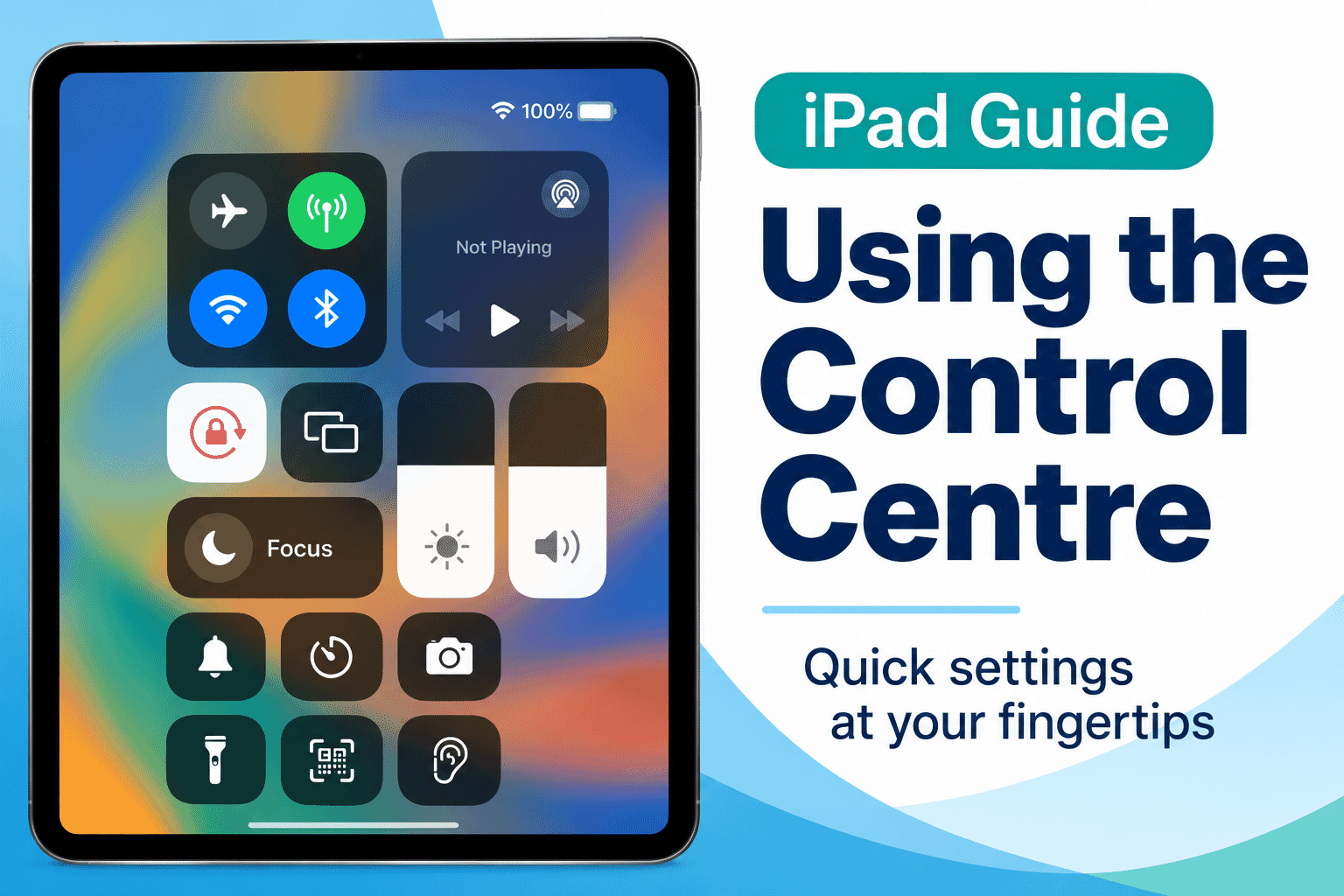
- LG-506 - Using Control Centre
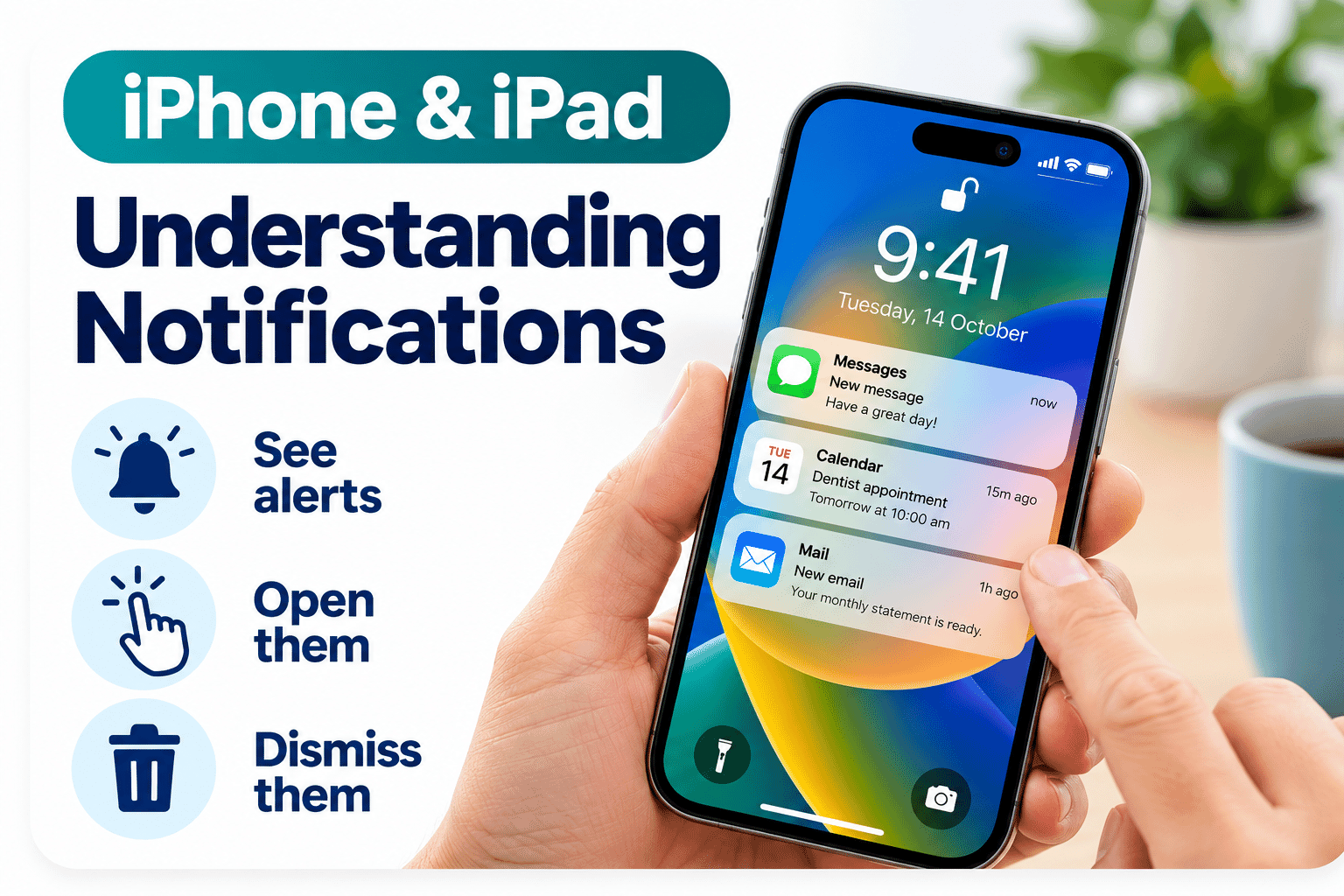
- LG-507 - Understanding Notifications
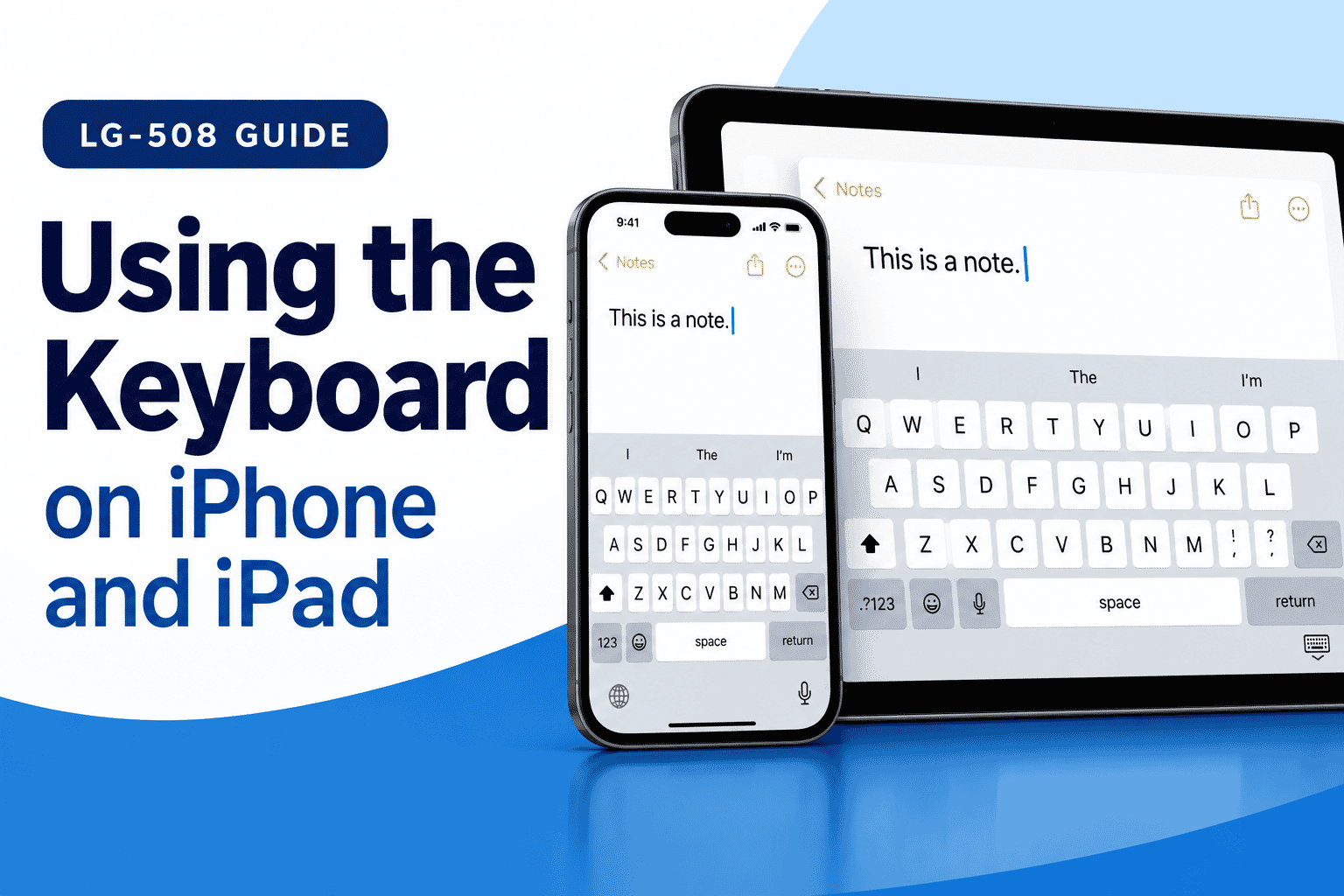
- LG-508 - Using the On-Screen Keyboard
- LG-509 - Finding and Changing Settings
Overview
Siri is Apple's voice assistant.
It allows you to speak to your iPhone or iPad instead of doing everything by tapping and typing.
You can use Siri for simple tasks such as:
- Opening an app.
- Setting a timer.
- Making a phone call on supported devices.
- Sending a message.
- Creating a reminder.
- Asking for simple information.
- Changing some device settings.
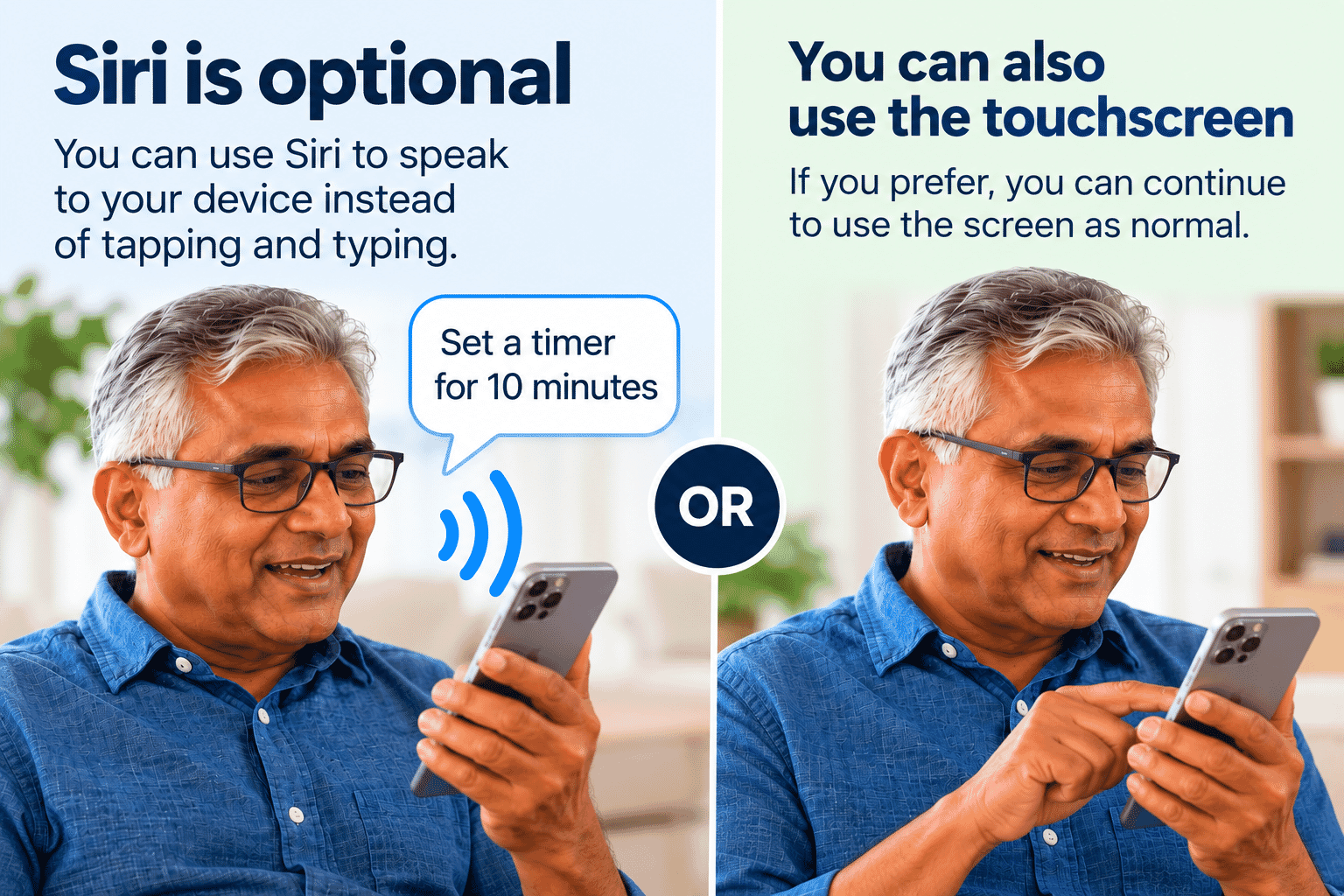
Siri is optional.
You do not need to use Siri to use an iPhone or iPad successfully.
However, it can be very useful if typing is difficult, your hands are busy or you simply find speaking easier.
Learning Objectives
By the end of this guide you will be able to:
- Understand what Siri is.
- Know common ways Siri can be activated.
- Make a simple spoken request.
- Ask Siri to open an app.
- Set a timer.
- Make a call or start a message where supported.
- Ask a simple question.
- Try again when Siri misunderstands you.
- Understand basic privacy considerations.
- Know that Siri is an optional way to use your device.
Before You Begin
You should already be comfortable with:
- Unlocking your device.
- Opening apps.
- Using basic buttons.
- Finding Settings.
These skills were introduced earlier in LP-005.
Siri must also be enabled on your device for voice requests to work.
The exact Siri options available can vary according to:
- Your iPhone or iPad model.
- Your software version.
- Your language and region.
- Your Siri settings.
- The task you are asking Siri to perform.
What Is Siri?
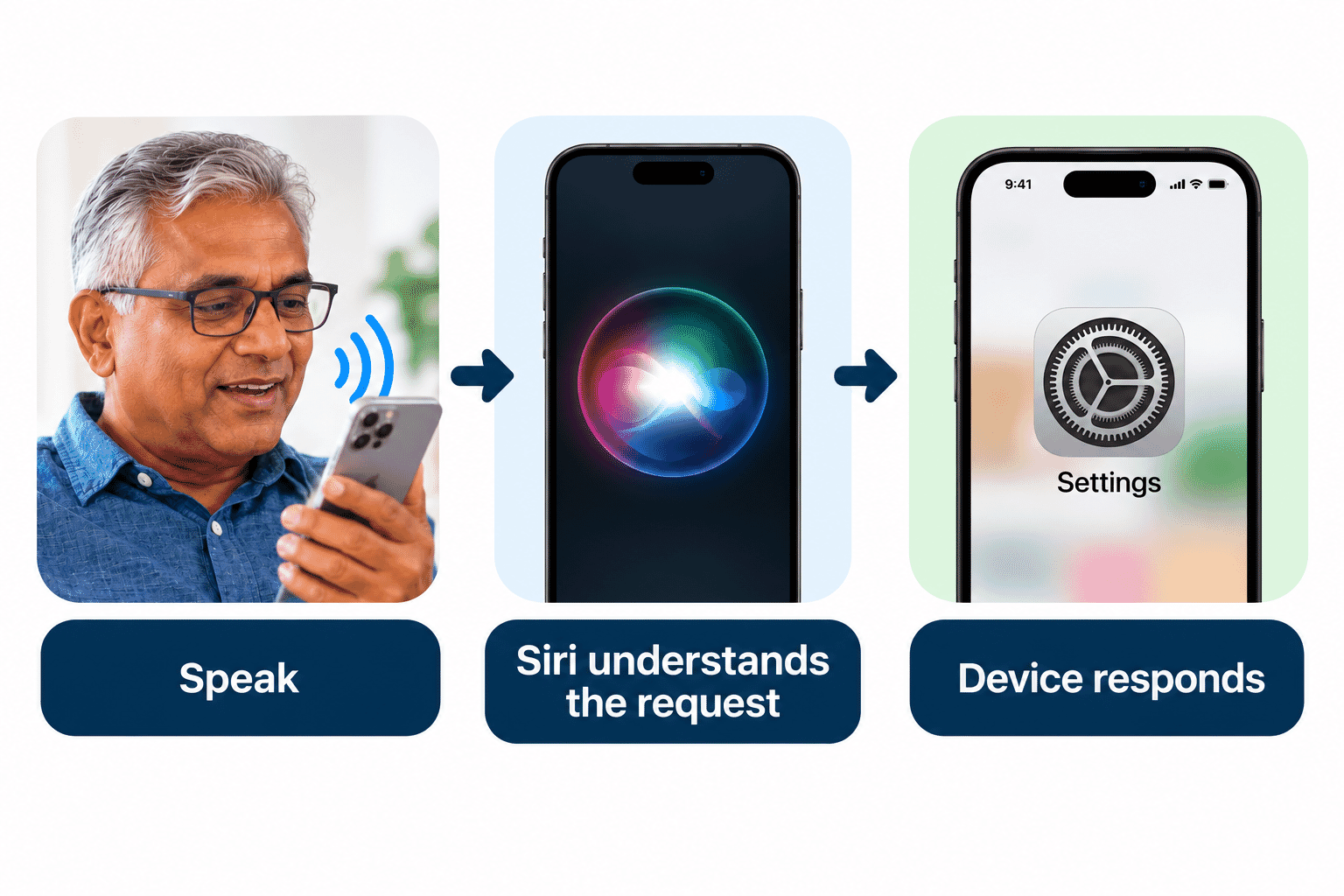
Siri is a voice-controlled assistant built into Apple devices.
Instead of finding an app or typing an instruction yourself, you can ask Siri to help.
For example, you might say:
Set a timer for 10 minutes.
Siri can interpret the request and create the timer for you.
Think of Siri as another way to interact with your device.
It does not replace the touchscreen. It gives you an additional option.
Ways to Start Siri
The method you use can depend on your device and settings.
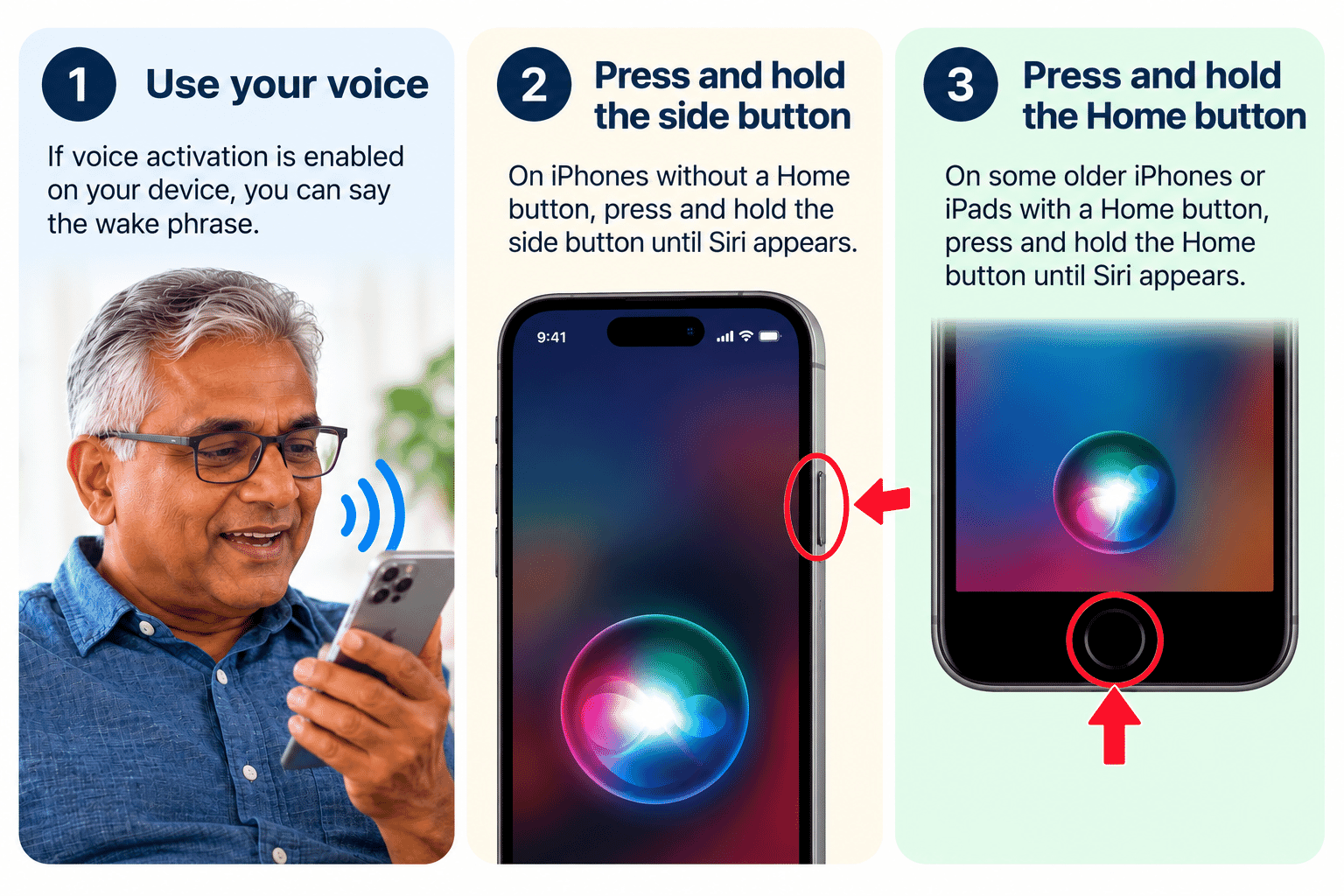
On supported devices, Siri may be activated by:
- Saying the enabled Siri wake phrase.
- Pressing and holding the side button on an iPhone without a Home button.
- Pressing and holding the Home button on some older devices.
- Using another supported activation method or connected accessory.
If speaking the wake phrase does not work, Siri may not be enabled for voice activation.
Using the Side Button
On many newer iPhones:
- Press and hold the side button.
- Wait for Siri to become ready.
- Say your request.
- Release the button if required and allow Siri to respond.
Do not simply tap the side button.
A quick press normally performs a different action.
Using the Home Button on Older Devices
If your iPhone or iPad has a Home button and supports Siri:
- Press and hold the Home button.
- Wait for Siri.
- Say your request.
This is another reason it is useful to know which type of device you have.
Speaking to Siri
You do not need to use special technical language.
Speak naturally and keep your request reasonably simple.
For example:
Open Settings.
or:
Set a timer for 15 minutes.
or:
What is the weather today?
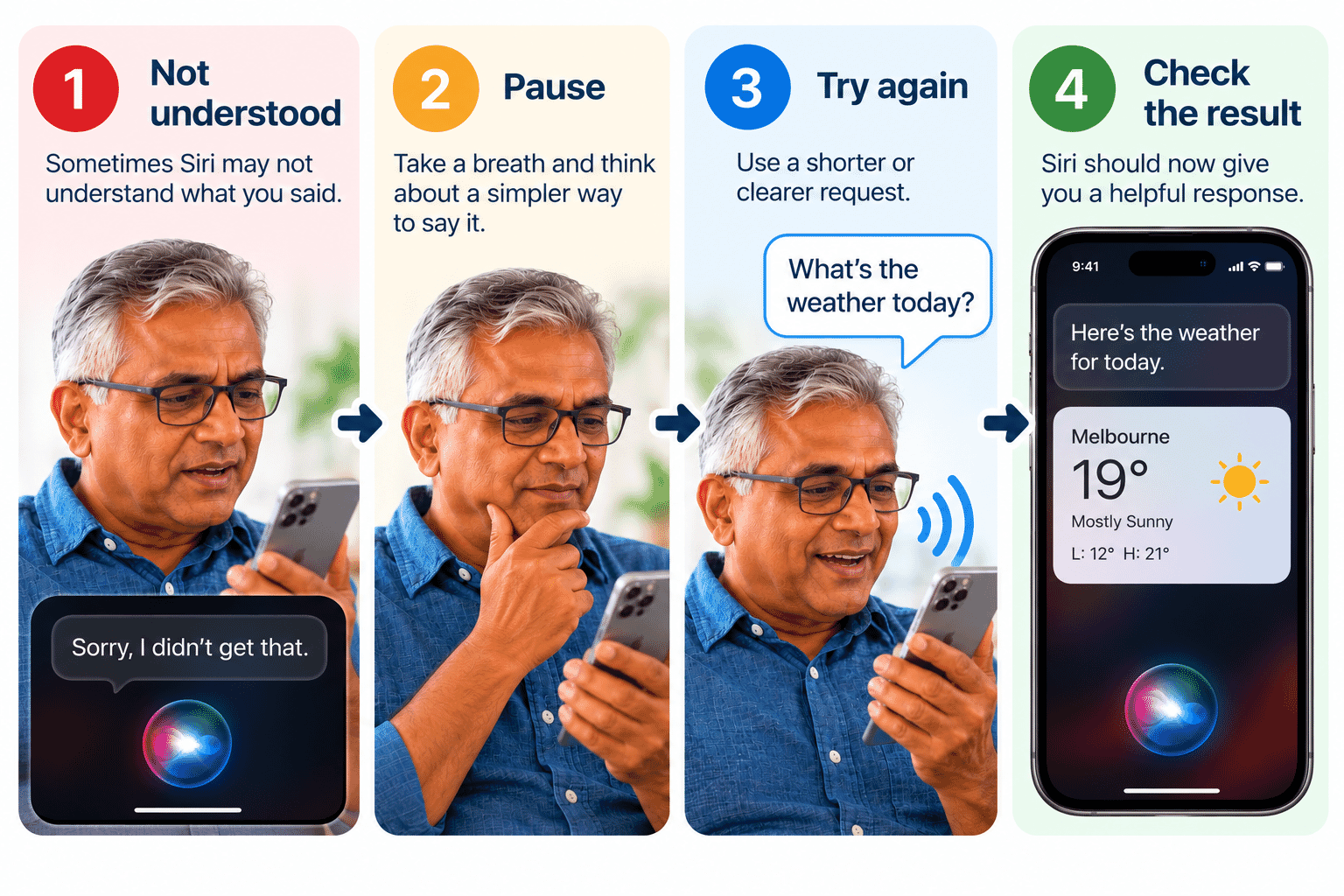
If Siri does not understand, try:
- Speaking a little more slowly.
- Using a shorter request.
- Moving somewhere quieter.
- Rephrasing what you said.
You do not need to shout.
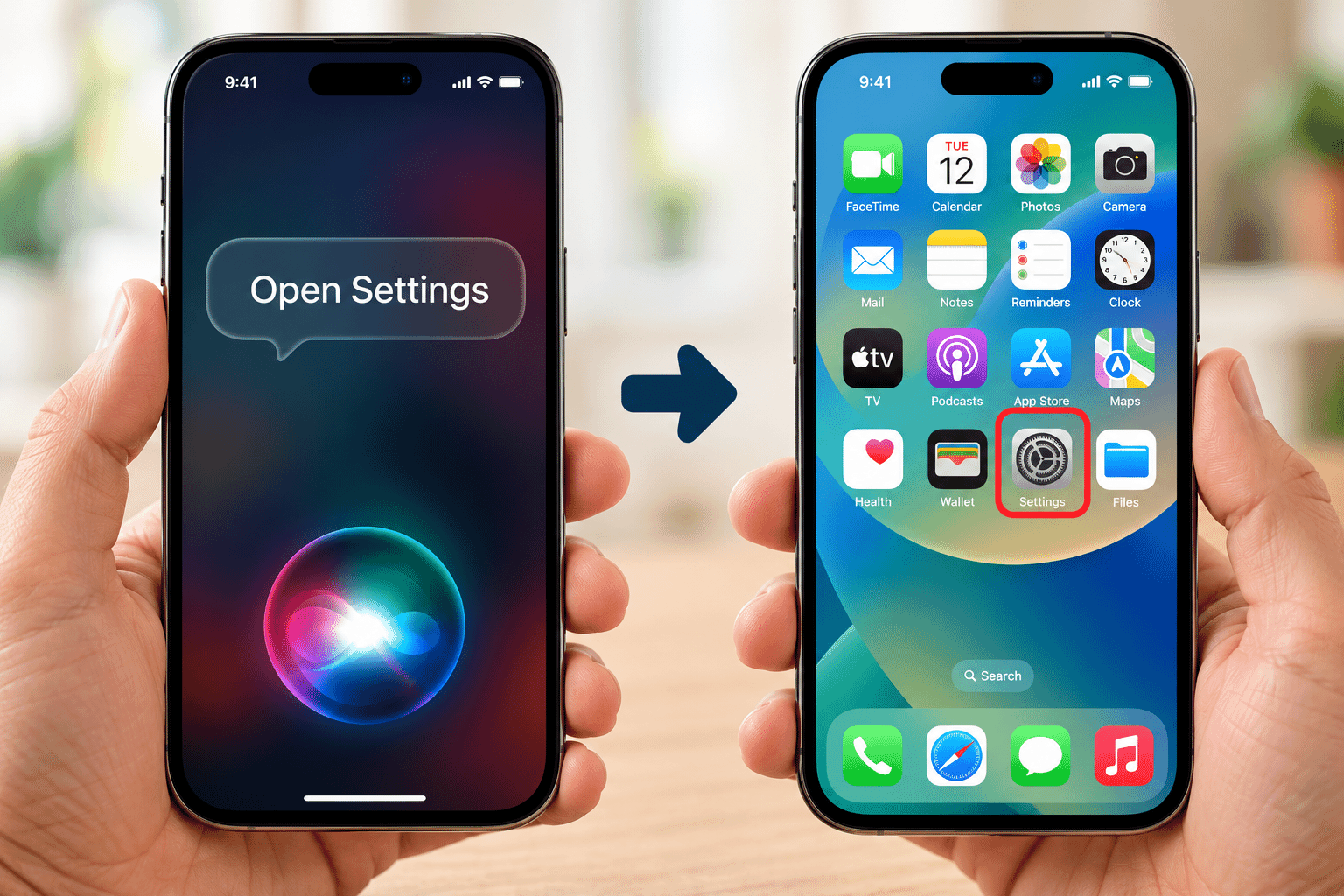
Ask Siri to Open an App
Opening an app is a good first Siri activity.
Try saying:
Open Photos.
or:
Open Settings.
If the app is installed and Siri understands you, the app should open.
This can be useful when you know the name of an app but cannot find its icon.
Set a Timer
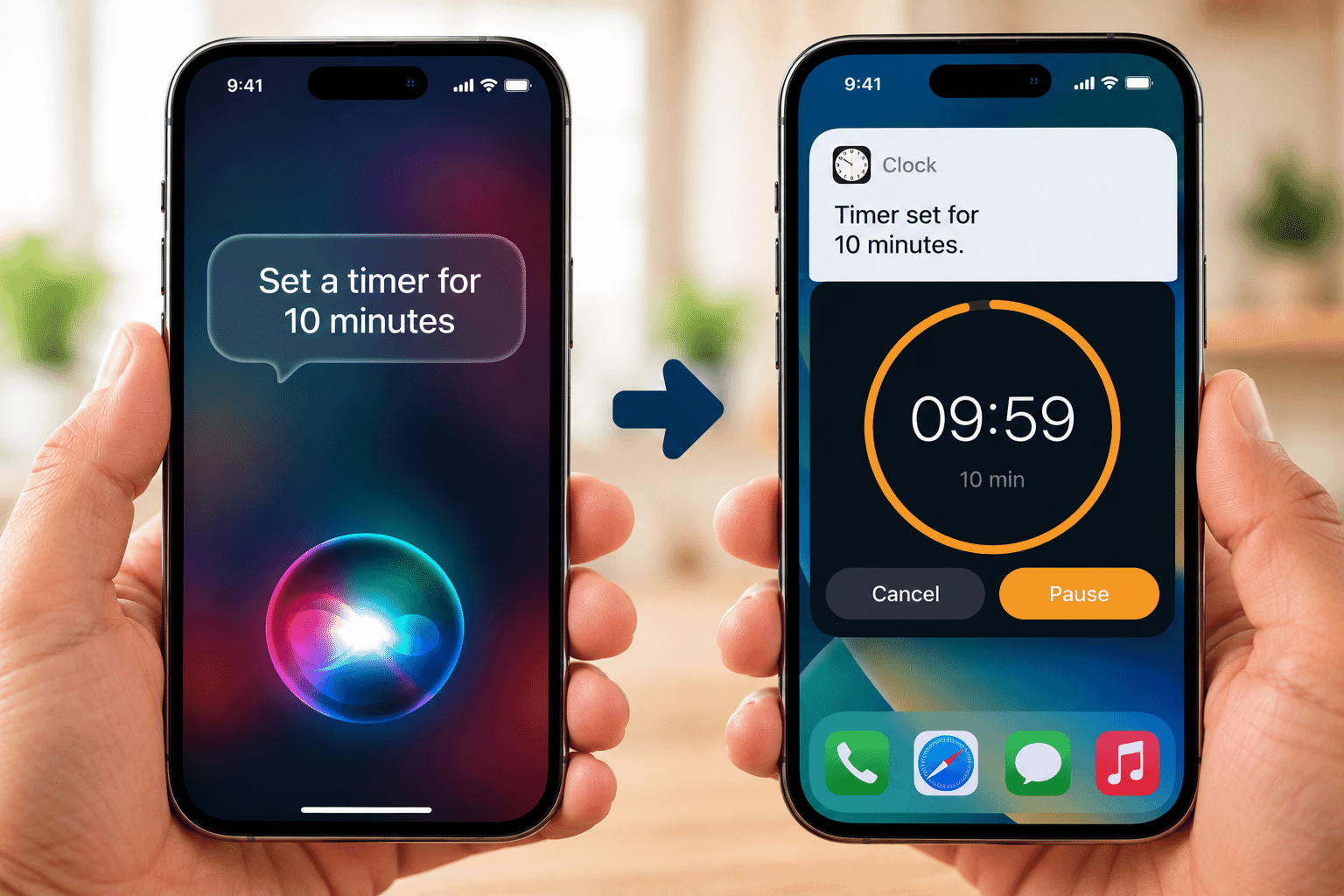
Siri can be particularly useful in the kitchen or whenever your hands are busy.
Try:
Set a timer for 10 minutes.
Siri should confirm the timer.
You can also ask:
How much time is left on my timer?
A timer is a good way to practise because the request is simple and easy to check.
Make a Phone Call
On an iPhone, you can ask Siri to call someone in your Contacts.
For example:
Call Mary.
If more than one contact could match, Siri may ask you which person you mean.
Before allowing a call to begin, pay attention to the name Siri has understood.
If it is the wrong person, cancel rather than continuing.
Calling features can vary on iPad depending on setup and connected services.
Send a Message
Siri can also help create messages.
For example:
Send a message to Mary.
Siri may ask what you want the message to say.
Listen to or read the message carefully before sending it.
Voice recognition can make mistakes, particularly with:
- Names.
- Unusual words.
- Addresses.
- Numbers.
For important information, check the message before it is sent.
Ask a Simple Question
Siri can answer or assist with many simple questions.
Examples include:
What time is it?
What is 25 plus 17?
What is the weather today?
Remind me at 3 pm to call John.
What Siri can answer and how it responds can change over time.
For important medical, financial, legal or emergency decisions, do not rely only on a voice assistant.
Siri May Ask You a Question
Sometimes Siri needs more information.
For example, if you say:
Call David.
and you have several people named David in Contacts, Siri may ask which one you mean.
Listen to the question and respond.
This does not mean you did anything wrong.
Siri is asking for clarification.
What If Siri Gets It Wrong?
Siri will not understand every request perfectly.
That can happen because of:
- Background noise.
- Similar-sounding words.
- Names.
- Your device not hearing the whole request.
- The request being too complicated.
- The requested action not being available.
If Siri gets something wrong:
- Stop the action if necessary.
- Try again.
- Use a shorter or clearer request.
- Check the result before continuing.
If speaking is not working well, you can always use the touchscreen instead.
Siri and Privacy
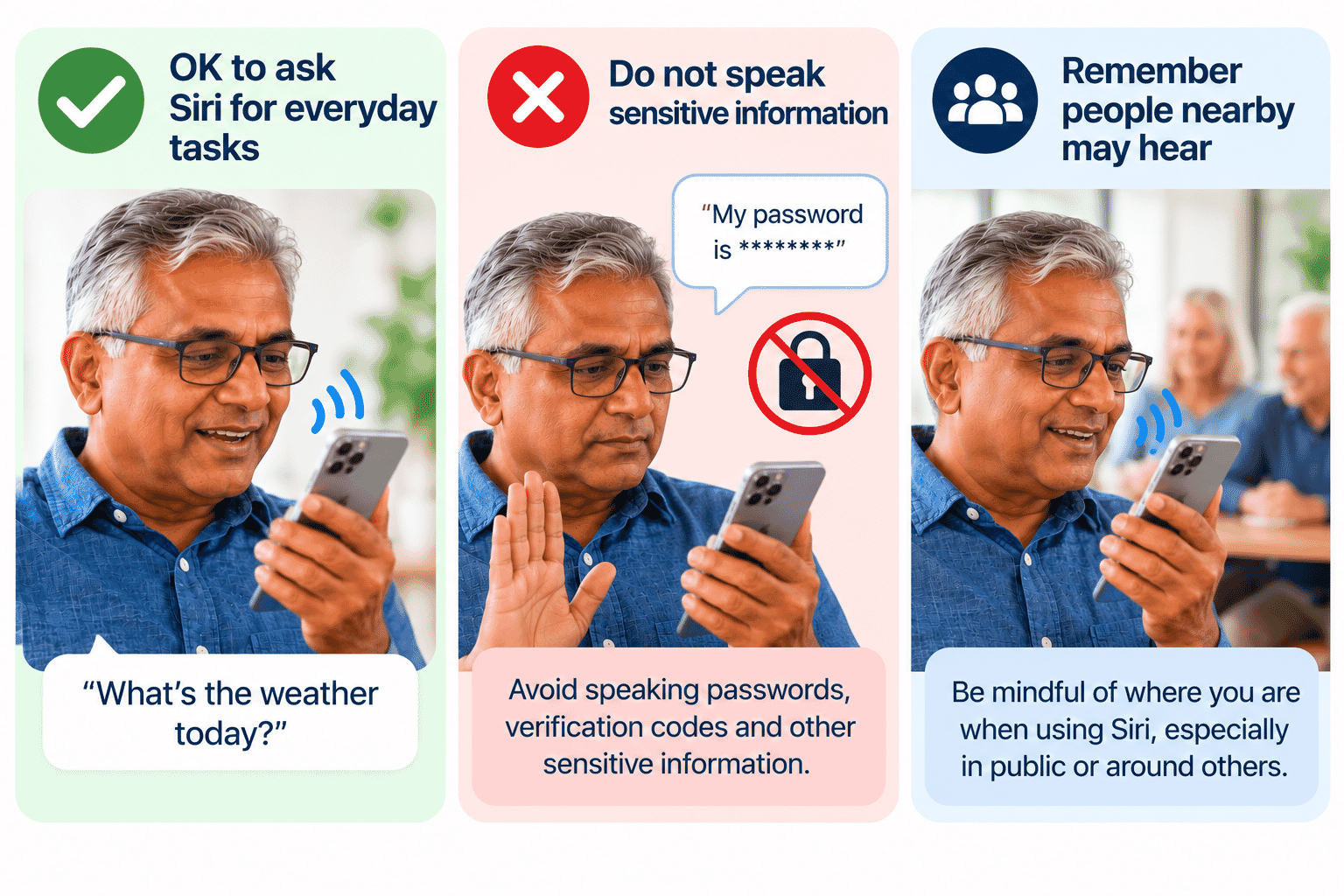
When you use a voice assistant, your device needs to process what you say so it can respond.
Avoid deliberately speaking highly sensitive information when it is not necessary.
For example, do not read aloud:
- Passwords.
- Verification codes.
- Banking passwords or PINs.
- Other people's confidential information.
Also remember that people nearby may hear what you say to Siri and may hear Siri's response.
Use the touchscreen instead when privacy matters.
Siri Cannot Do Everything
Siri can be convenient, but it is not a replacement for understanding your device.
Some tasks still require you to:
- Read information on the screen.
- Confirm an action.
- Unlock the device.
- Choose between options.
- Open Settings.
- Use an app directly.
If Siri says it cannot complete a request, it does not mean your device is broken.
The action may simply need to be done another way.
Siri Is Optional
Some people use Siri every day.
Other people rarely use it.
Both are perfectly reasonable ways to use an iPhone or iPad.
If you find Siri helpful, use it.
If you prefer tapping and typing, continue using those methods.
The goal is to find the approach that makes your device easier for you to use.
Try It Yourself
Choose a quiet place and try these simple requests.
Do not use private information for practice.
Activity 1 - Open an App
Activate Siri and say:
Open Settings.
Return to the Home Screen afterwards.
Activity 2 - Set a Timer
Say:
Set a timer for one minute.
Check that Siri understood the correct time.
Cancel the timer afterwards if necessary.
Activity 3 - Ask a Question
Ask:
What time is it?
Activity 4 - Try a Reminder
If you are comfortable doing so, say:
Remind me in 10 minutes to check my phone.
Check the wording before accepting any prompt.
Activity 5 - Try Again
Deliberately try another simple request.
If Siri misunderstands, rephrase it instead of becoming frustrated.
The aim is to learn how the conversation works.
Helpful Tips
- Start with short, simple requests.
- Speak normally. You do not need to shout.
- Check names before making calls or sending messages.
- Read messages before they are sent.
- Try again if Siri misunderstands you.
- Background noise can make voice recognition harder.
- Do not speak passwords or verification codes.
- Remember that people nearby may hear you.
- Use the touchscreen whenever it is easier or more private.
- Siri is optional.
Common Mistakes
| Common Mistake | What Happens | What to Remember |
|---|---|---|
| Speaking too quickly | Siri may have difficulty understanding a long or rushed request. | Speak clearly and try a shorter, simpler request. |
| Repeating the same request in exactly the same way | Siri may continue misunderstanding the same words. | Try rephrasing your request using different words. |
| Not checking the person Siri is calling | Siri may select the wrong contact, especially when names sound similar. | Always check the contact name before allowing the call to continue. |
| Sending a dictated message without checking it | Siri may misunderstand names, unusual words or parts of your message. | Read or listen to the message before sending it. |
| Assuming Siri can do everything | Some actions are not supported or need to be completed manually. | If Siri cannot complete a task, try using the app or touchscreen instead. |
| Saying sensitive information out loud | Other people nearby may hear private or personal information. | Use the touchscreen or another input method when privacy matters. |
Troubleshooting
| Problem | Possible Cause | What to Try |
|---|---|---|
| Siri does not respond to my voice | Voice activation may not be enabled, or your device may not hear you. | Try activating Siri using the supported button method and check Siri settings. |
| The side button does something else | You may have tapped the button instead of pressing and holding it. | Press and hold the side button until Siri activates, if this method is enabled. |
| Siri misunderstands me | Background noise or an unclear request may affect recognition. | Try again more slowly, speak clearly or use a shorter phrase. |
| Siri opens the wrong app | The app name may have been misunderstood. | Cancel or return to the Home Screen and repeat the app name clearly. |
| Siri chooses the wrong contact | Several contacts may have similar names. | Cancel the action and make your request more specific. Check the contact before continuing. |
| Siri says it cannot do something | The action may not be supported or may require another step. | Try completing the task directly through the app or touchscreen. |
| Siri works sometimes but not others | Your connection, Siri settings or the requested feature may affect availability. | Try a simple request and check Siri settings if the problem continues. |
Summary
Siri gives you another way to use your iPhone or iPad.
You can use your voice to perform simple tasks such as:
- Opening apps.
- Setting timers.
- Making calls.
- Starting messages.
- Creating reminders.
- Asking questions.
Siri will not always understand perfectly, and it cannot do everything.
If something goes wrong, try again, simplify the request or use the touchscreen.
Most importantly, Siri is a choice.
Use it when it makes your device easier and more convenient for you.
What You've Learned
You now know:
- What Siri is.
- Common ways to activate Siri.
- How to make a simple voice request.
- How Siri can open an app.
- How to set a timer.
- How Siri can assist with calls and messages.
- Why you should check names and dictated messages.
- How to try again when Siri misunderstands.
- Why privacy matters when speaking to a voice assistant.
- That Siri is optional.
Module 2 Complete
You have now completed the five guides in Module 2 -- Finding Your Way Around:
- LG-506 -- Using Control Centre
- LG-507 -- Understanding Notifications
- LG-508 -- Using the On-Screen Keyboard
- LG-509 -- Finding and Changing Settings
- LG-510 -- Getting Started with Siri
You have learned how to use quick controls, understand notifications, type on the screen, navigate Settings and use basic voice requests.
These skills give you more ways to find what you need and control your device with confidence.
Keep Learning
Next guide:
LG-511 -- Making and Receiving Phone Calls
This begins Module 3 -- Staying in Touch.
You will learn how to make a call, answer an incoming call and understand the main controls that appear during a phone call.
Learning Paths
View all pathsNeed some help with this?
One-hour, in-person tech support to fix issues, set up devices and sort everyday IT problems with patient, jargon-free help in your own space.
Troubleshoot IT provides practical, one-to-one technology support across Darwin, Palmerston and surrounding areas.