LG-505 - Understanding the Home Screen
Learn what you are looking at on the iPhone or iPad Home Screen. This beginner-friendly guide explains app icons, Home Screen pages, the Dock, folders, widgets, notification badges and how to find your way back to a familiar starting point.
Before You Begin
Applies To
iPhone and iPad users
Knowledge Prerequisites
Overview
The Home Screen is one of the most important parts of your iPhone or iPad.
It is where you will usually find the apps you use for everyday tasks such as making calls, sending messages, checking email, taking photos or browsing the internet.
Think of the Home Screen as a starting point.
If you become unsure where you are while using your device, returning to the Home Screen can help you get your bearings again.
In this guide, you will learn what the main parts of the Home Screen are and what they are used for.
You do not need to organise or customise anything yet.
For now, the aim is simply to understand what you are looking at.
Learning Objectives
By the end of this guide you will be able to:
- Recognise the Home Screen.
- Understand what an app icon represents.
- Recognise that the Home Screen can have multiple pages.
- Understand the purpose of the Dock.
- Recognise folders.
- Understand what widgets are at a basic level.
- Recognise notification badges on app icons.
- Understand that Home Screens can look different from one device to another.
- Return to the Home Screen when you need a familiar starting point.
Before You Begin
It is helpful to have completed:
- LG-503 -- Using the Touchscreen
- LG-504 -- Essential iPhone and iPad Gestures
Have your iPhone or iPad with you and unlock it.
Return to the Home Screen before continuing.
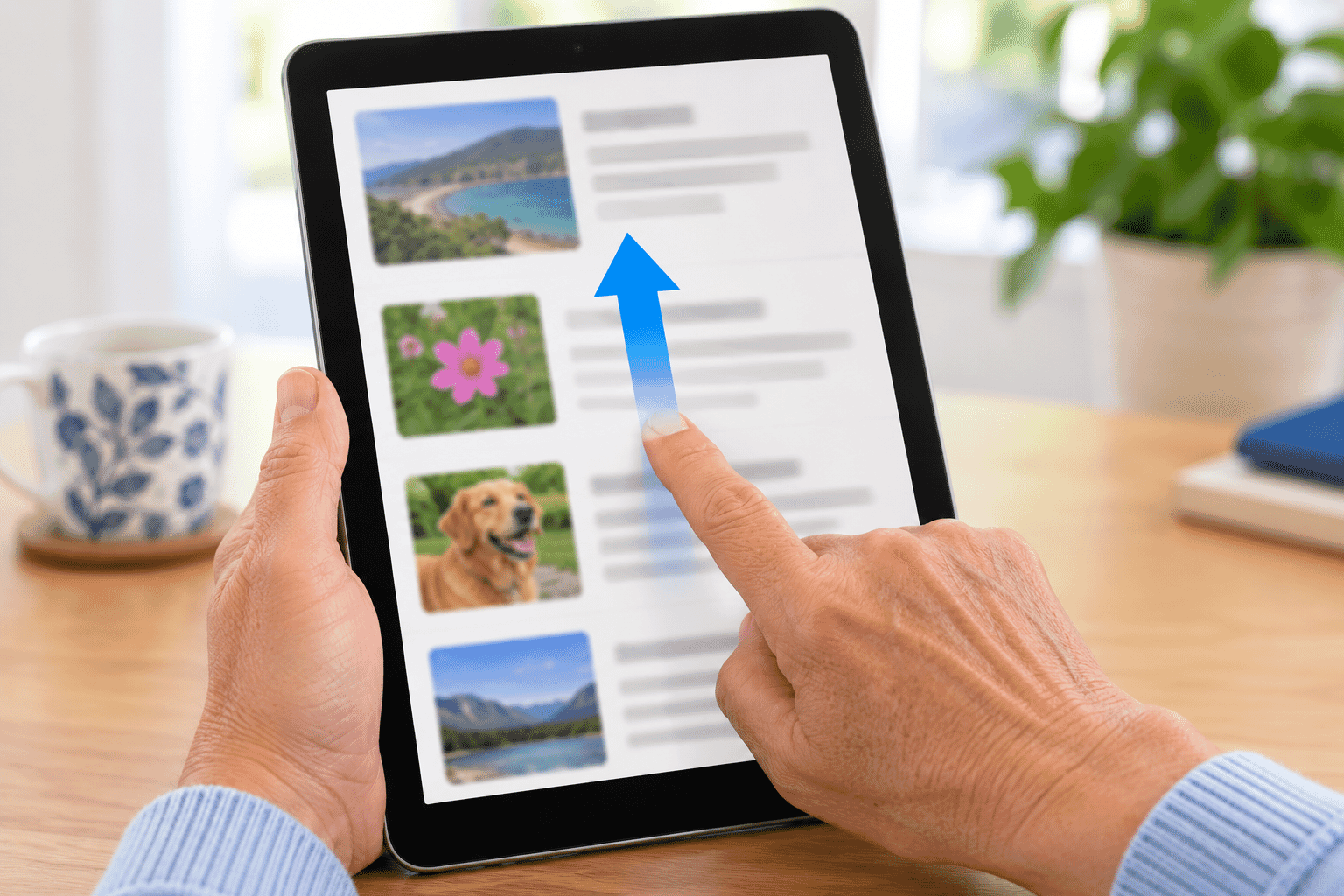
If your device has no Home button, you can normally return Home by swiping upward from the bottom edge.
If your device has a Home button, press it once.
What Is the Home Screen?
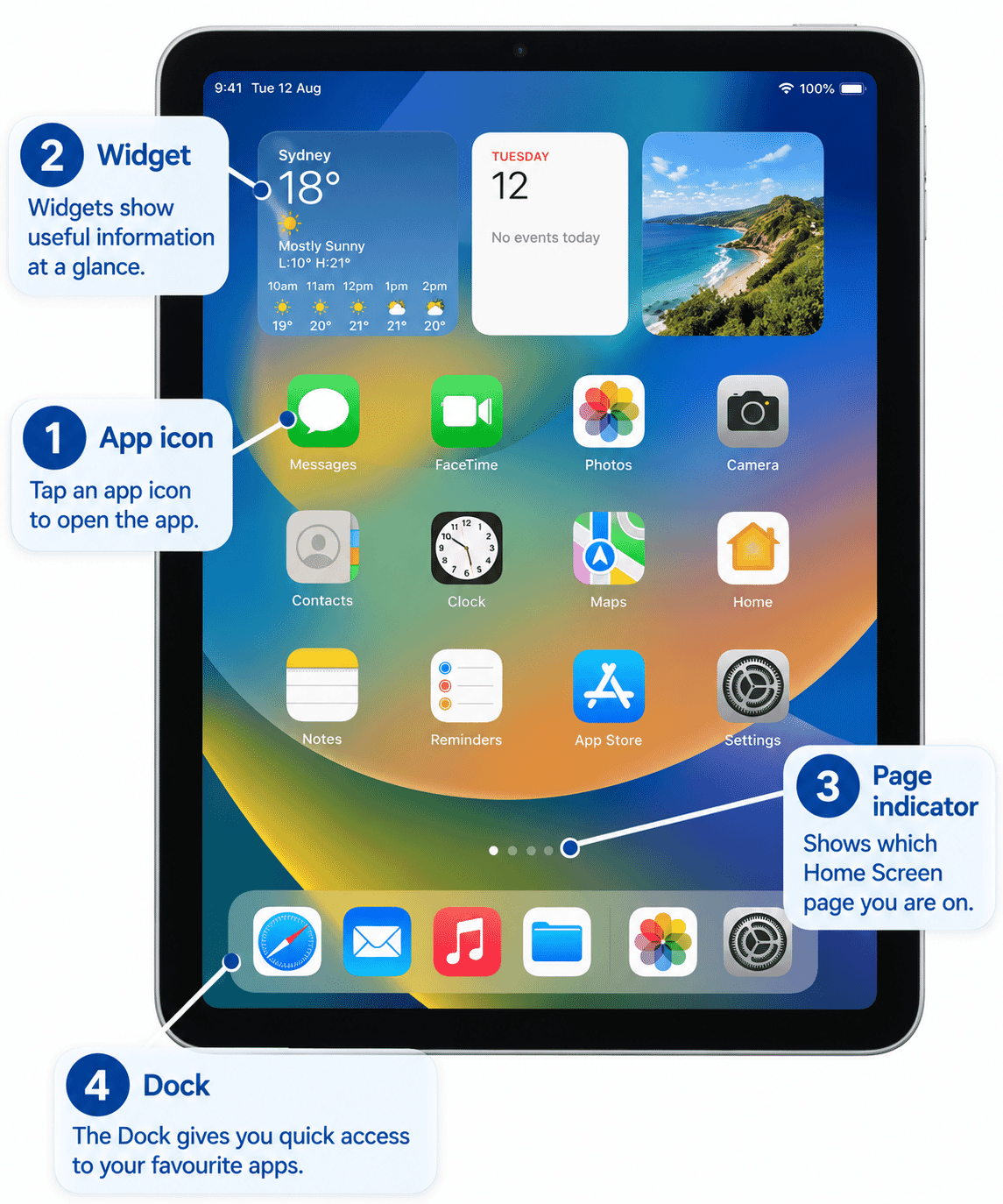
The Home Screen is the main area where your apps and other useful information can appear.
Depending on how your device has been set up, you may see:
- App icons.
- App names.
- Widgets.
- Folders.
- A Dock.
- Small dots or another page indicator.
- Notification badges.
Your Home Screen may not look like the examples in this guide.
That is normal.
Home Screens can be personalised, and different people often arrange their apps differently.
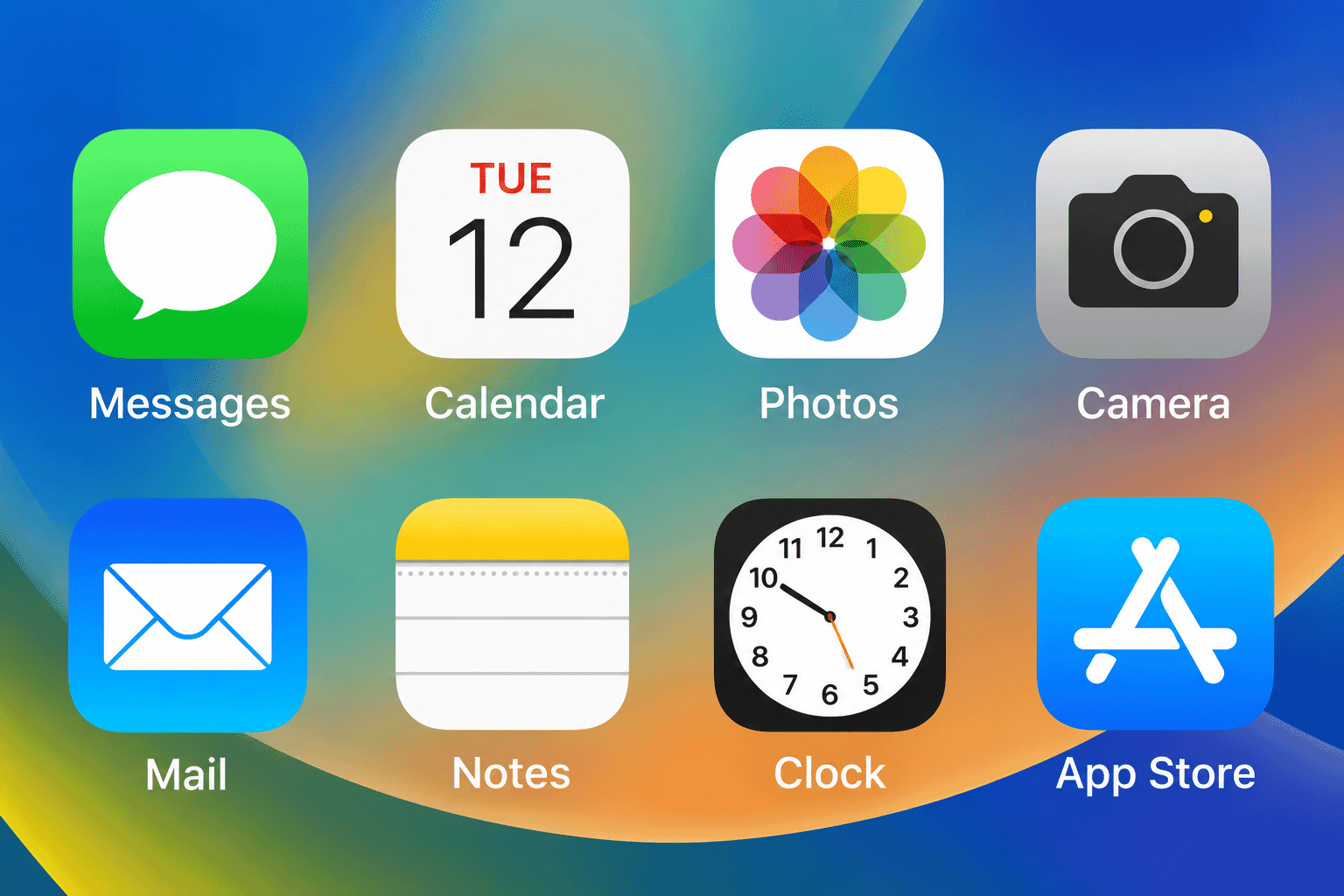
What Is an App Icon?
An app is a program that performs a particular task.
An app icon is the small picture or symbol you tap to open that app.
For example, you may have apps for:
- Phone calls.
- Messages.
- Email.
- Photos.
- Camera.
- Settings.
- Maps.
- Internet browsing.
Under or near an app icon, you will usually see the name of the app.
To open an app, tap its icon once.
Apps Can Be in Different Places
Do not worry if an app on your device is not in the same position as it is on someone else's device.
Apps can be moved.
For example, one person may have the Camera app near the top of the first Home Screen page, while another person may have it somewhere else.
The location of an app is not fixed.
Later in this Learning Path, LG-522 -- Organising Apps and the Home Screen will show you how apps can be arranged.
For now, avoid moving anything deliberately.
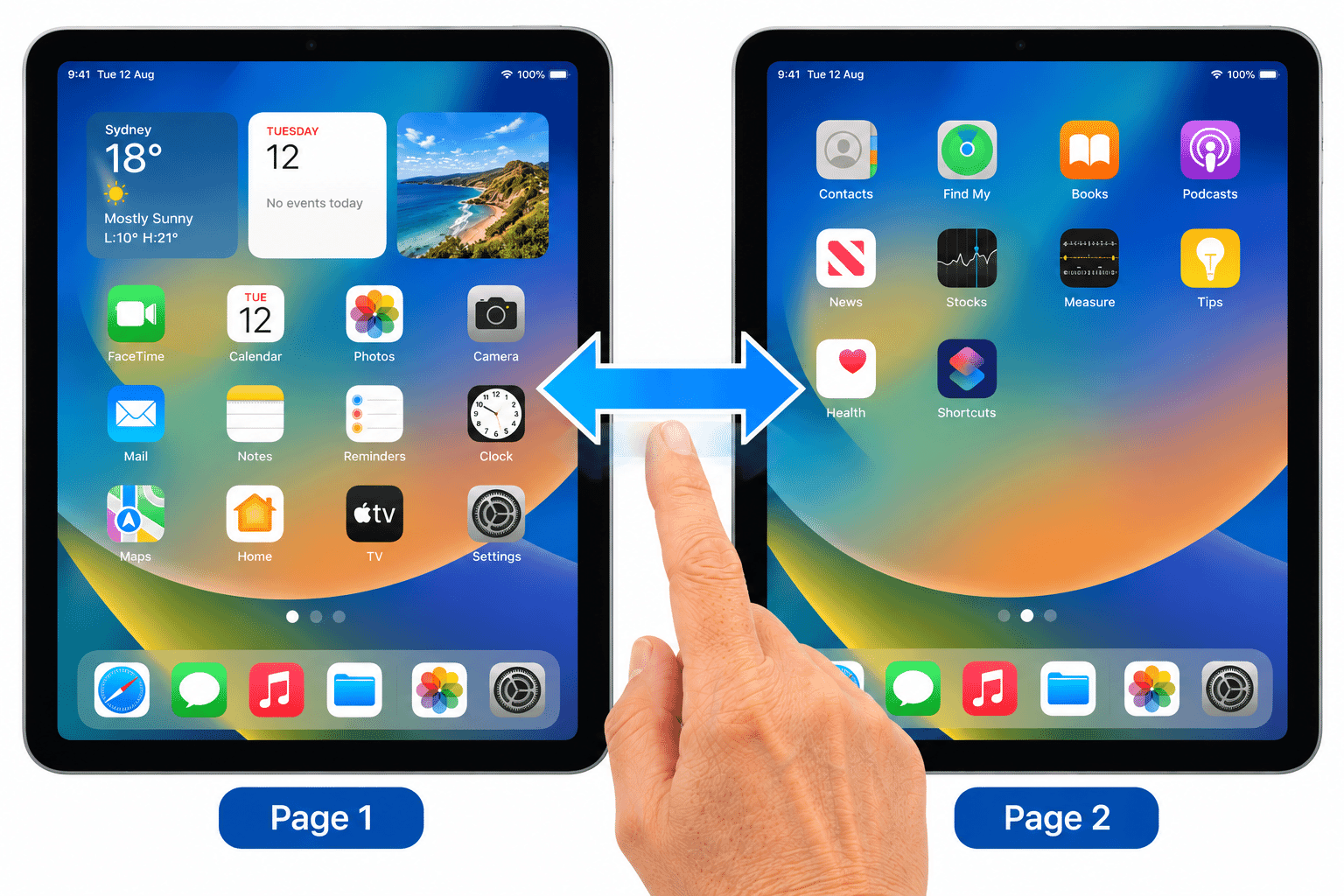
Home Screen Pages
One screen may not have enough room to show everything.
Your iPhone or iPad can therefore have more than one Home Screen page.
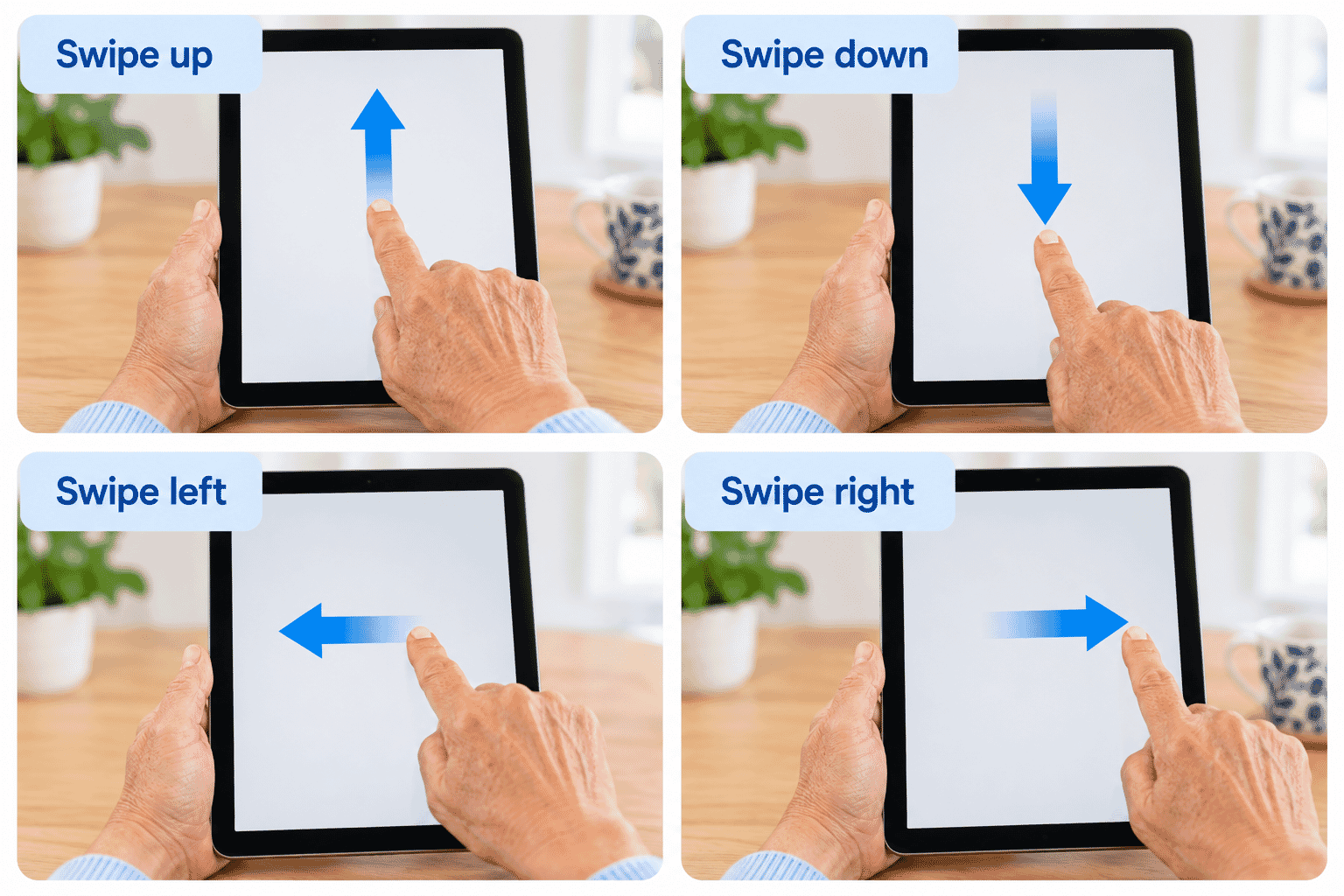
You can move between pages by swiping left or right.
If you swipe from right to left, you can move to another page.
Swipe in the opposite direction to move back.
Depending on your device and setup, you may see a page indicator near the bottom of the Home Screen.
The Dock
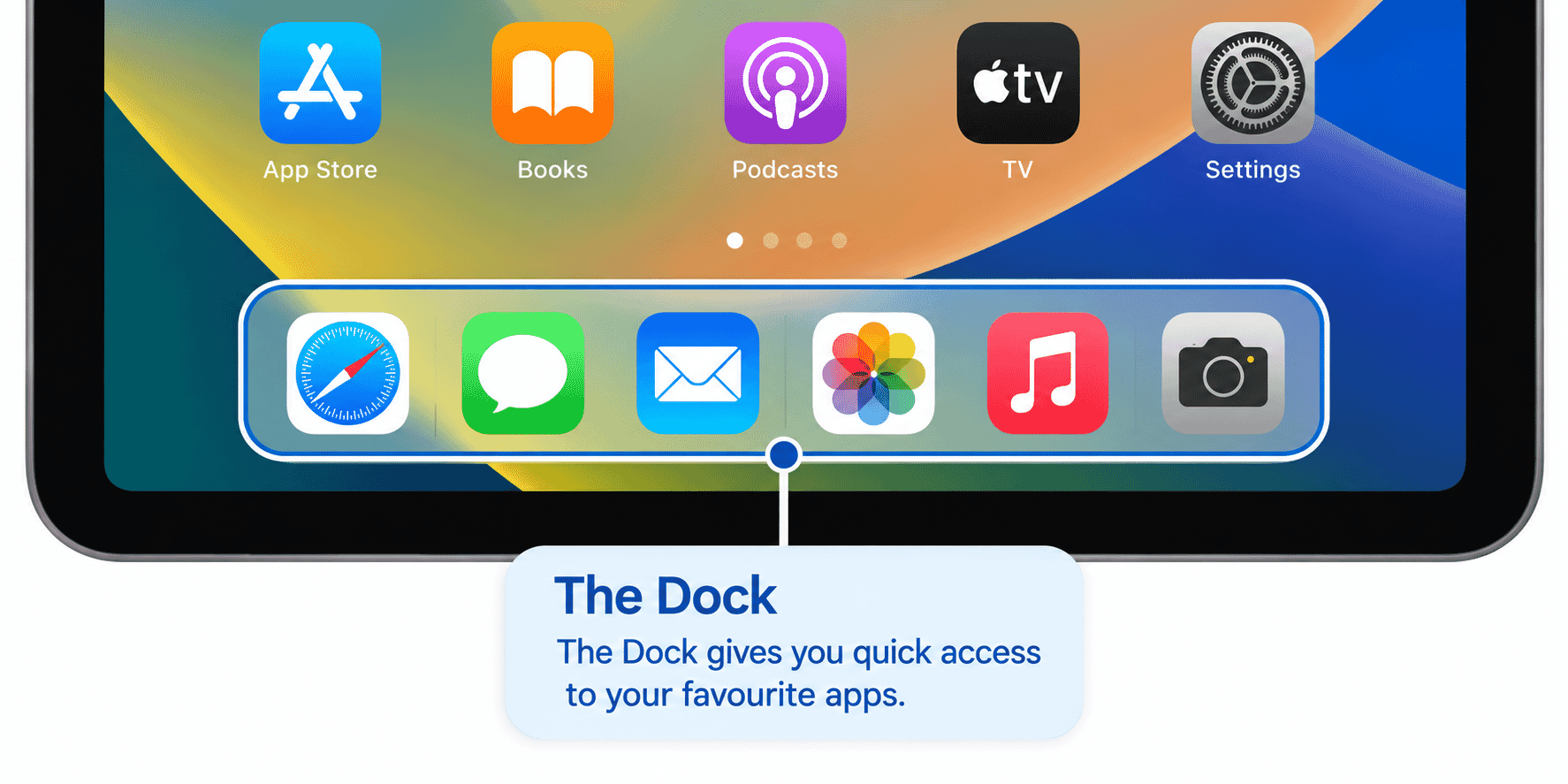
Near the bottom of the Home Screen is an area called the Dock.
The Dock provides convenient access to apps.
On an iPhone, it usually remains available as you move between Home Screen pages.
On an iPad, the Dock is also an important navigation area and can include additional app and multitasking behaviour.
You do not need to learn all of the iPad Dock features yet.
For now, simply recognise the Dock as the area near the bottom of the screen containing apps you may want easy access to.
What Is a Folder?
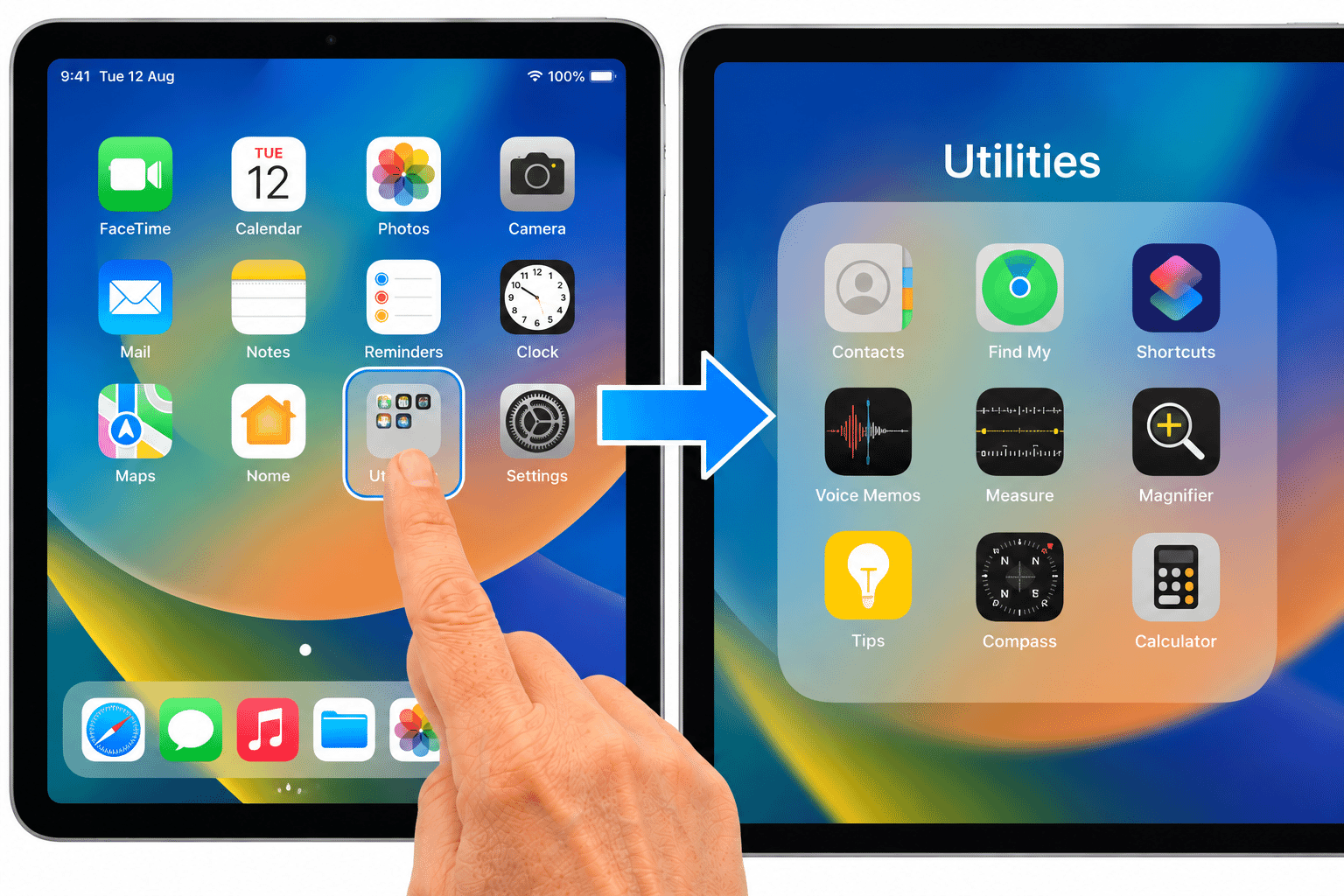
A folder allows several apps to be grouped together.
Instead of seeing each app separately on the Home Screen, you may see one folder containing several smaller app icons.
Folders can have names such as:
- Utilities.
- Entertainment.
- Shopping.
- Travel.
The folder names on your device may be different.
To open a folder:
- Tap the folder once.
- The folder opens and shows the apps inside.
- Tap an app to open it.
To leave the folder without opening an app, tap outside it where appropriate or return to the Home Screen.
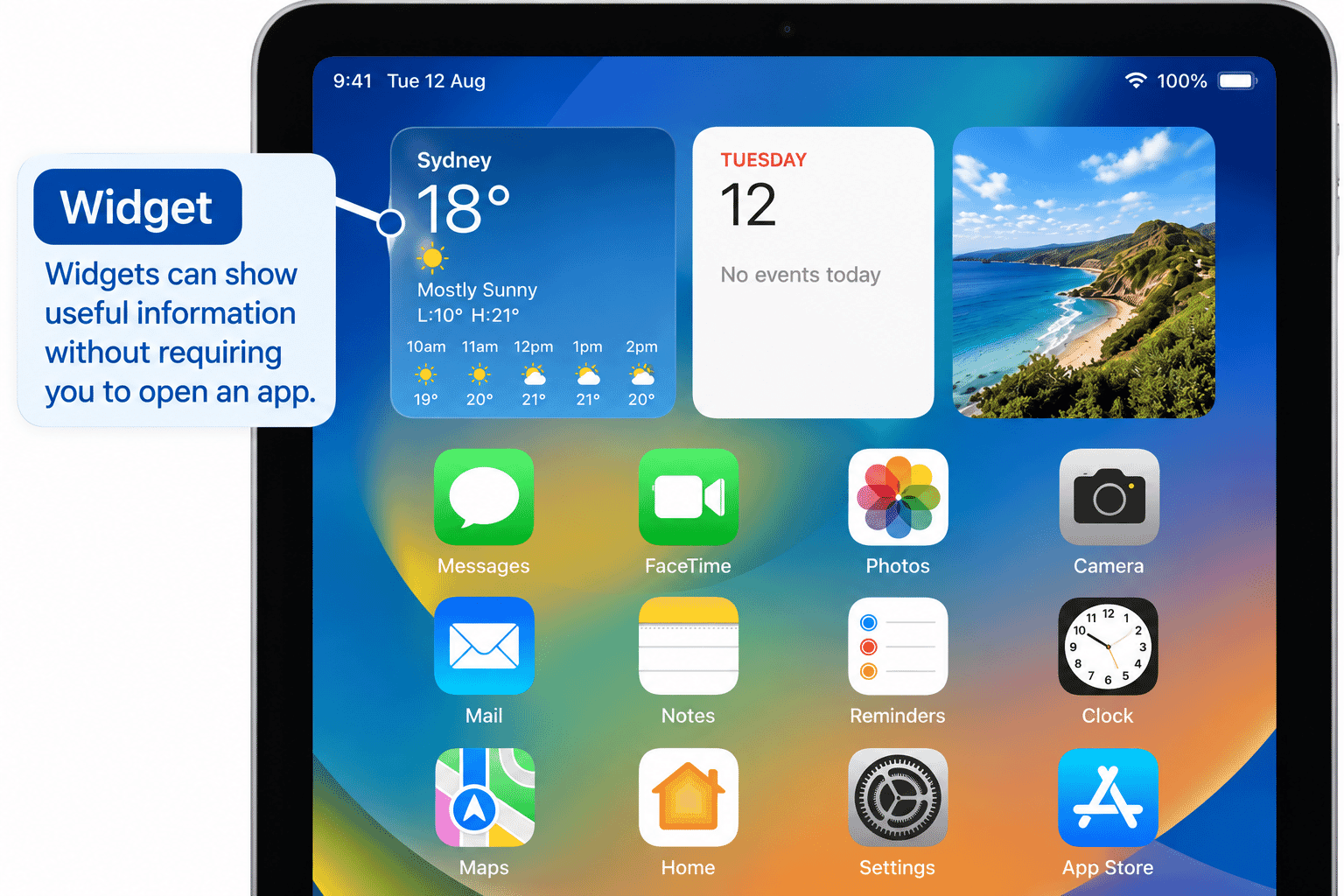
What Is a Widget?
A widget is an area on the Home Screen that can show useful information without requiring you to fully open an app first.
For example, a widget might show:
- Weather information.
- Calendar events.
- A clock.
- Photos.
- Battery information.
- Reminders.
Widgets can come in different sizes.
If your Home Screen has widgets and someone else's does not, both devices can still be working normally.
You do not need to add or remove widgets during this guide.
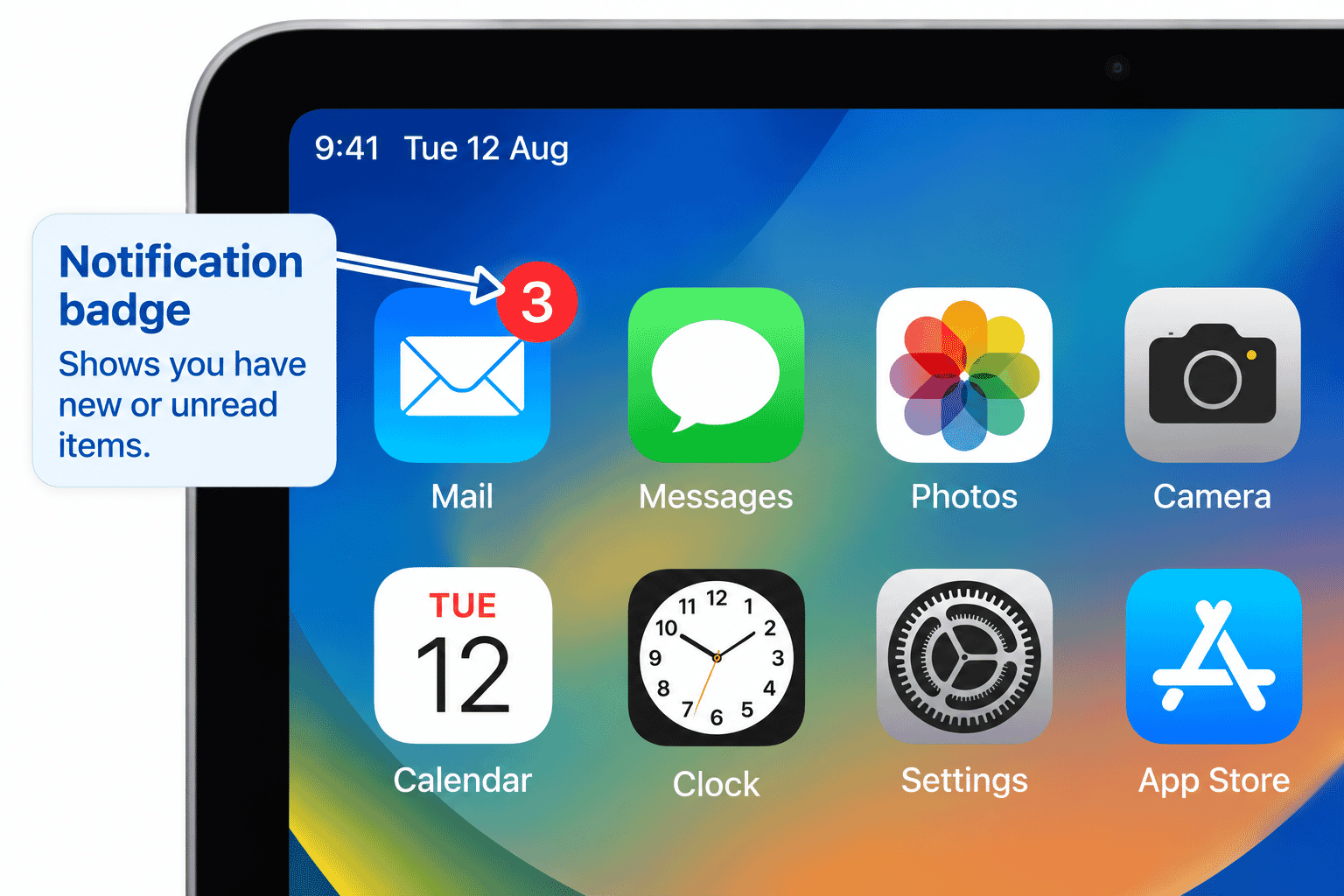
Notification Badges
You may notice a small numbered badge on the corner of an app icon.
This is commonly used to indicate that the app has something that may need your attention.
For example, a badge might relate to:
- Unread messages.
- Missed calls.
- New email.
- Other app activity.
A number does not automatically mean something is wrong.
It simply indicates that the app has information or activity to show you.
Notification settings will be explained in more detail in:
LG-507 -- Understanding Notifications
The Status Area
Your device also displays useful information about its current state.
Depending on the device and screen, you may see information such as:
- The time.
- Battery level.
- Wi-Fi connection.
- Mobile network information on supported devices.
The exact layout can vary between iPhone and iPad models.
You do not need to understand every symbol yet.
We will introduce relevant indicators as they become useful throughout the Learning Path.
What If I Cannot Find an App?
If an app is not visible on the current Home Screen page, it does not necessarily mean the app has been deleted.
It may be:
- On another Home Screen page.
- Inside a folder.
- Available through the App Library.
- Installed but not currently shown on a Home Screen.
Later guides will teach you more ways to find and organise apps.
For now, first check your other Home Screen pages and any obvious folders.
The App Library
On supported iPhones and iPads, you may also encounter the App Library.
The App Library provides another way to find installed apps.
You do not need to learn how to organise the App Library in this guide.
The important thing to understand is that an app can still be installed even if you do not see its icon on your normal Home Screen pages.
App organisation will be covered later in:
LG-522 -- Organising Apps and the Home Screen
Returning Home When You Feel Lost
One of the most useful beginner habits is knowing how to return to a familiar place.
If you open an app and become unsure what to do next, you can often return to the Home Screen.
On a device without a Home button:
- Start at the bottom edge of the screen.
- Swipe upward.
- The Home Screen should appear.
On a device with a Home button:
- Press the Home button once.
Returning Home does not normally delete your work or remove the app.
It simply takes you back to the Home Screen.
Try It Yourself
Use your own Home Screen for this activity.
See if you can identify:
- An app icon.
- The name of an app.
- The Dock.
- Whether you have more than one Home Screen page.
- A folder, if you have one.
- A widget, if you have one.
- A notification badge, if one is visible.
- The battery indicator.
Now swipe to another Home Screen page and return.
Open one familiar app.
Then return to the Home Screen.
The goal is to become familiar with your own device, not to make any changes.
Helpful Tips
- Your Home Screen does not need to look like anyone else's.
- App icons can be moved, so their position may differ between devices.
- Learn to recognise app names and icons rather than memorising one exact screen layout.
- The Dock gives you convenient access to selected apps.
- A numbered badge usually means an app has something to show you.
- If you feel lost, return to the Home Screen.
- Do not worry about organising your apps yet.
Common Mistakes
Assuming an App Has Disappeared Because It Is Not on the First Page
Check other Home Screen pages and folders.
The app may still be installed.
Accidentally Pressing and Holding an App
If you hold your finger on an app icon rather than tapping quickly, extra options may appear.
Tap away from the menu if you do not want to make a change.
Comparing Your Screen with Someone Else's
Home Screens are personal and can be arranged differently.
Focus on understanding the parts of your own screen.
Thinking a Notification Badge Means There Is a Problem
A badge normally indicates new or unread activity.
It is not automatically a warning.
Trying to Organise Everything Immediately
First learn how the Home Screen works.
You can organise apps later when you are more comfortable.
Troubleshooting
Troubleshooting
| Problem | Possible Cause | What to Try |
|---|---|---|
| I cannot find an app | It may be on another Home Screen page or inside a folder. | Swipe through your Home Screen pages and check likely folders. |
| An app menu appears when I touch an icon | You may have pressed and held the icon. | Tap away from the menu and use a quicker tap next time. |
| My Home Screen looks different from the guide | Home Screens can be personalised. | This is normal. Identify the same general features on your device. |
| I cannot see a Home button | Many newer devices do not have one. | Swipe up from the bottom edge to return Home. |
| I see a number on an app icon | It is probably a notification badge. | Open the app when convenient to see what requires attention. |
| I cannot see a widget | Your Home Screen may not have one. | Widgets are optional. Nothing needs to be fixed. |
| I cannot find an installed app anywhere on my Home Screens | It may be available through the App Library. | App finding and organisation will be covered later in the Learning Path. |
Summary
The Home Screen is one of the main starting points on your iPhone or iPad.
It can contain:
- App icons.
- Several Home Screen pages.
- The Dock.
- Folders.
- Widgets.
- Notification badges.
- Device status information.
Your Home Screen can look different from someone else's because it can be personalised.
At this stage, you do not need to organise or customise it.
The most important skill is recognising the main parts and knowing how to return Home when you need a familiar starting point.
What You've Learned
You now know:
- What the Home Screen is.
- What an app icon represents.
- How to move between Home Screen pages.
- What the Dock is.
- What folders are.
- What widgets are.
- What notification badges usually mean.
- Why different devices can have different Home Screen layouts.
- That an app can still be installed even when it is not visible on a normal Home Screen page.
- How returning Home can help when you become unsure where you are.
Module 1 Complete
You have now completed the five guides in Module 1 -- Meet Your iPhone or iPad:
- LG-501 -- Getting to Know Your iPhone or iPad
- LG-502 -- Buttons, Ports and Charging
- LG-503 -- Using the Touchscreen
- LG-504 -- Essential iPhone and iPad Gestures
- LG-505 -- Understanding the Home Screen
You have learned the basic physical and touchscreen skills needed to start using your device.
The next module builds on these foundations and introduces the everyday controls used to navigate and interact with your iPhone or iPad.
Keep Learning
Next guide:
LG-506 -- Using Control Centre
You will learn what Control Centre is, how to open it and how to recognise common controls such as Wi-Fi, Bluetooth, brightness and volume.
Requirements
iPhone or iPad
Need some help with this?
One-hour, in-person 1:1 tech training for people who find technology challenging, especially older adults, with patient, practical support using phones, tablets and computers.
Troubleshoot IT provides practical, one-to-one technology support across Darwin, Palmerston and surrounding areas.