LG-502 - Buttons, Ports and Charging
Learn what the main buttons and connections on your iPhone or iPad do, including the side or top button, volume controls and charging connection. This beginner guide also explains how to connect a charger safely and what to expect while your device is charging.
Before You Begin
Knowledge Prerequisites
What you need
Have your iPhone or iPad with you if possible.
It is also useful to have the charging cable and power adapter you normally use.
You do not need:
- An Apple Account.
- Internet access.
- To install an app.
- To change any settings.
If you are unsure whether a charger or cable is suitable for your device, do not force it into the charging connection.
The Buttons on Your Device
Most iPhones and iPads have only a few physical buttons.
Depending on your model, these may include:
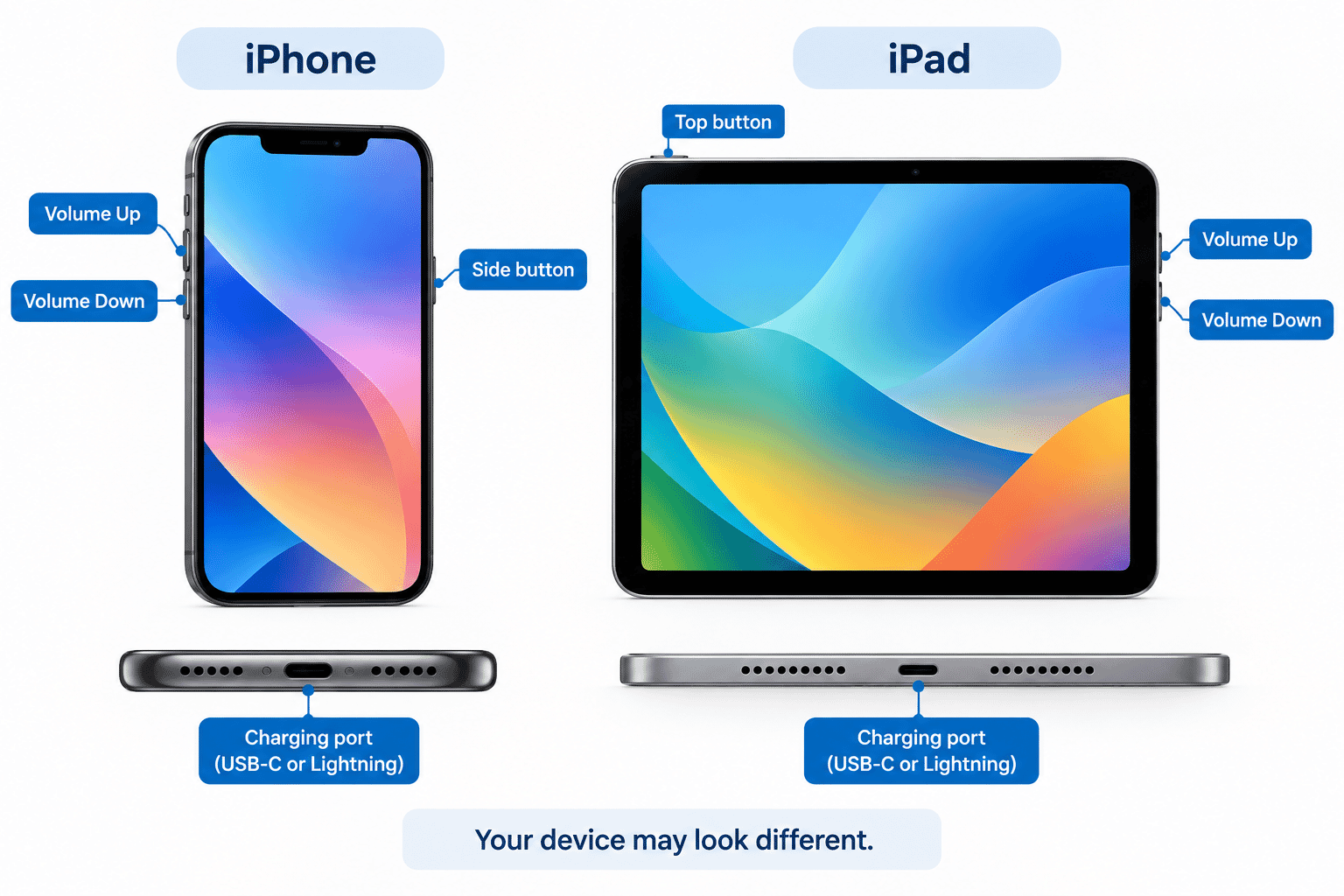
- A side button.
- A top button.
- Volume buttons.
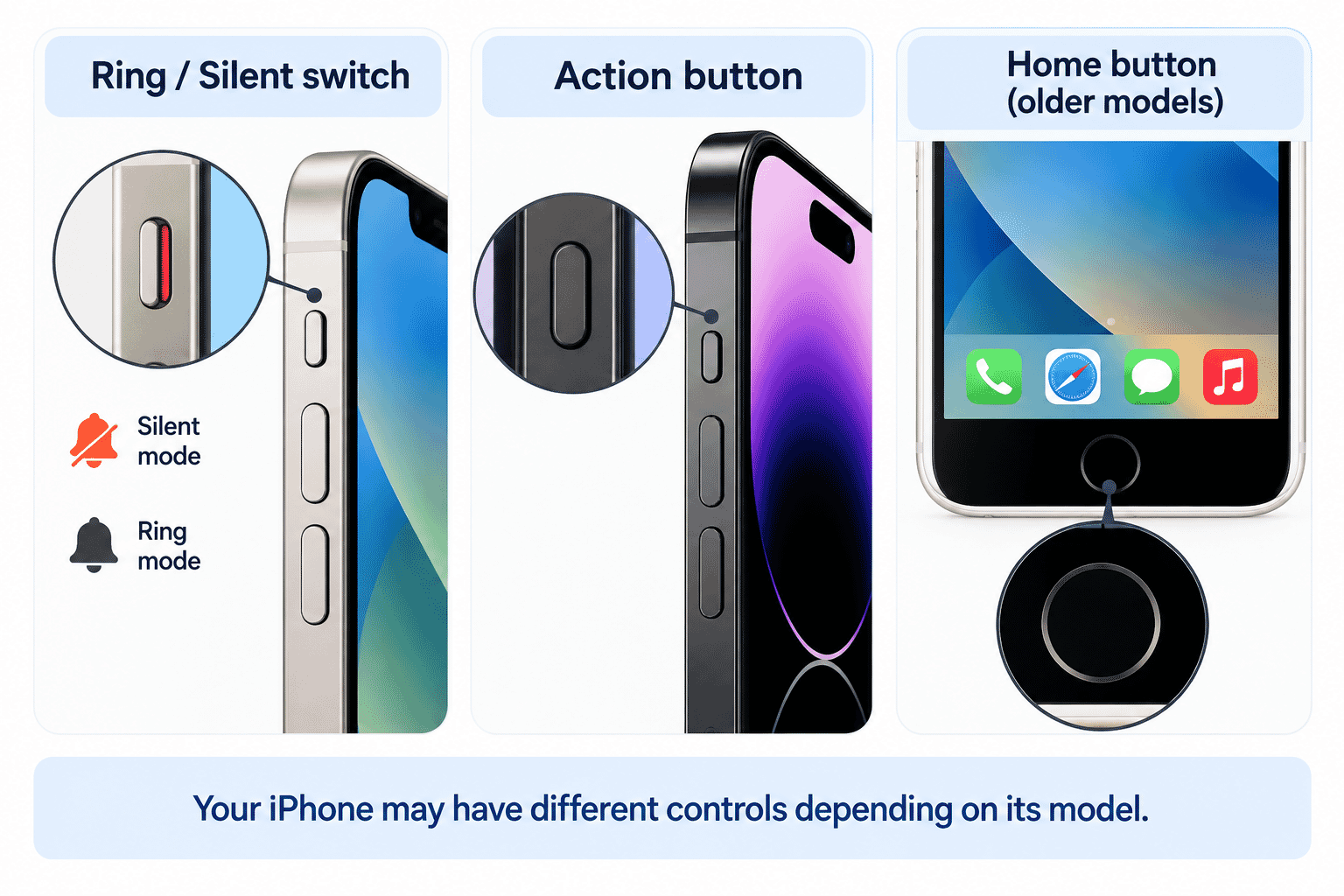
- A Ring/Silent switch on some iPhones.
- An Action button on some iPhones.
- A Home button on some older devices.
Your device may not have every control listed here.
Apple has changed the design of iPhones and iPads over time, so the exact position and appearance of the buttons can vary.
The Side or Top Button
One of the main buttons on your device is usually found on the side or top.
On many iPhones, this is called the side button.
On some iPads, you may have a top button.
For a beginner, the most useful thing to know is that this button can be used to wake the device when the screen is dark.
Press it once briefly and the screen should wake.
The same button has other uses, but you do not need to learn all of them yet.
Important
A short press and a press and hold can do different things.
For now, when you simply want to wake your device, press the button once and release it.
The Volume Buttons
Your iPhone or iPad will normally have physical buttons for adjusting volume.
They are commonly marked or shaped as:
Volume Up -- increases the volume.
Volume Down -- decreases the volume.
Depending on what you are doing, the buttons can affect sounds such as music, videos, calls or other audio.
You may see a volume indicator appear on the screen when you press one of the buttons.
Try It
If appropriate, play a video or some music and press the volume buttons one at a time.
Notice what changes on the screen and what happens to the sound.
You do not need to make the volume very loud.
Other Controls You May Have
Some iPhones have additional physical controls.
Ring/Silent Switch
Some iPhone models have a small Ring/Silent switch on the side.
This can be used to quickly change whether some sounds are heard.
Action Button
Some newer iPhone models have an Action button instead of the traditional Ring/Silent switch.
The Action button can be configured to perform different tasks.
If your iPhone has one, you do not need to configure it during this guide.
Home Button
Some older iPhones and iPads have a round Home button below the screen.
Many newer devices do not have a Home button and instead use touchscreen gestures for navigation.
Both designs are normal.
The Charging Connection
Look along the bottom edge of your iPhone or iPad.
You will normally find the connection used for charging the device.
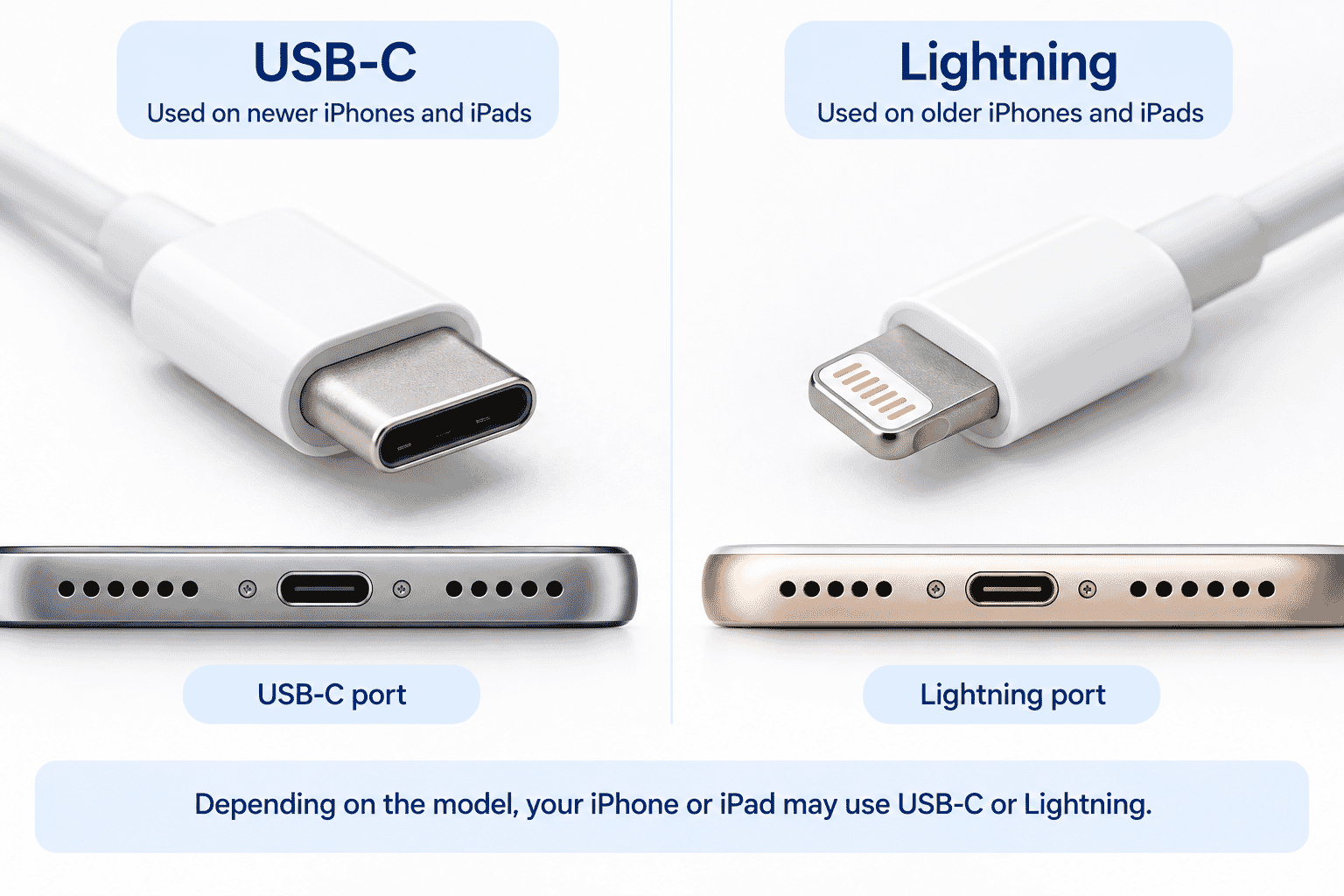
Depending on the model, it may use USB-C or Lightning.
USB-C
USB-C is used on many newer iPhones and iPads.
The connector has a small rounded rectangular shape.
One useful feature of USB-C is that the plug can be inserted either way up.
Lightning
Many earlier iPhones and iPads use Apple's Lightning connector.
It is smaller and narrower than USB-C.
The Lightning plug can also be inserted either way up.
You do not need to remember which connector every Apple device uses.
You only need to recognise which cable fits your device.
Never Force a Charging Cable
A charging plug should fit into the device without excessive force.
If it does not fit:
- Stop.
- Check that you have the correct cable.
- Check that you are using the charging connection rather than another opening.
- Look for obvious dirt or an obstruction around the connection.
- Ask for assistance if you are still unsure.
Do not push harder simply because the plug is not going in.
This can damage the cable or the device.
Understanding the Charger
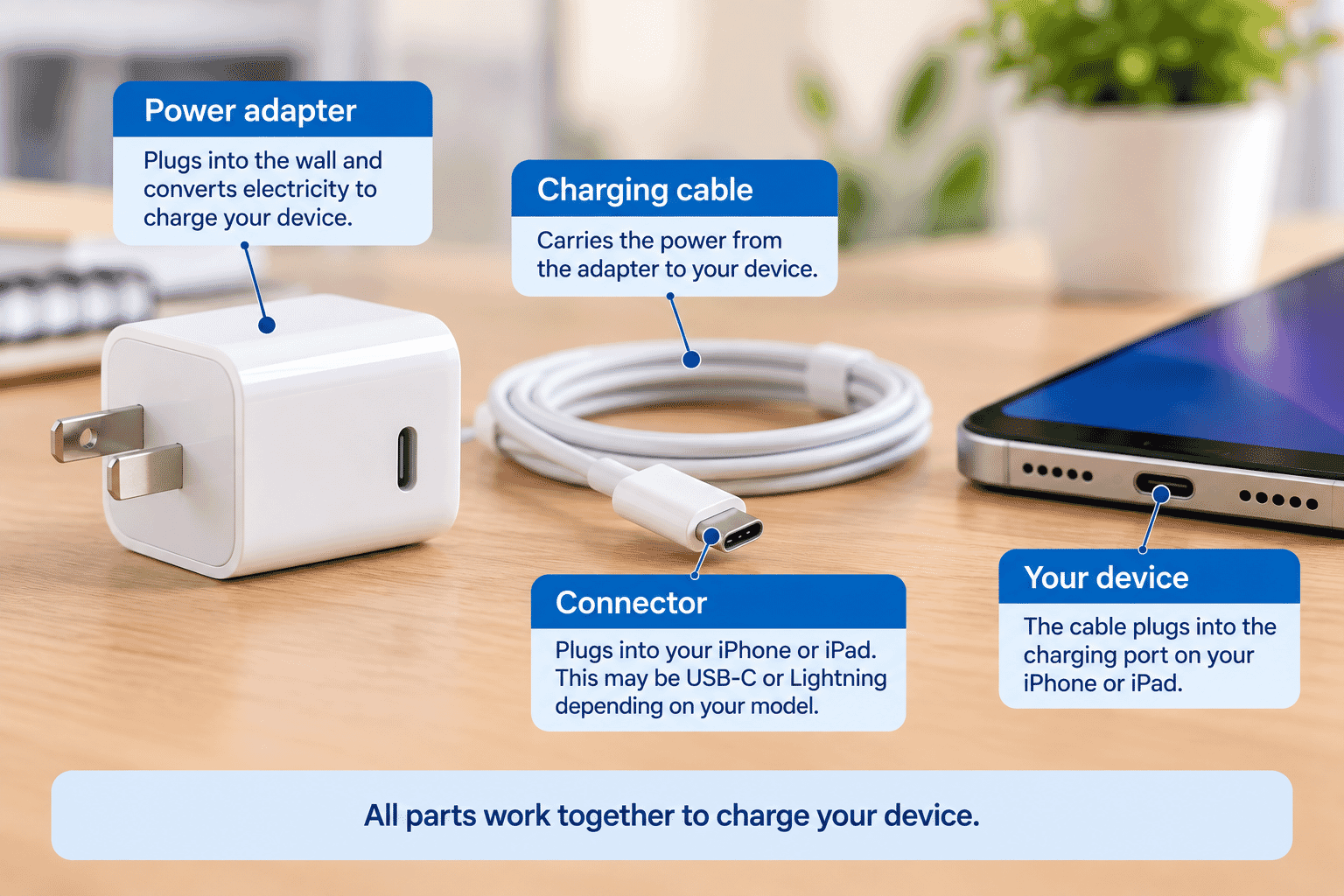
Charging normally involves two main parts:
- A charging cable that connects to your iPhone or iPad.
- A power adapter that connects the cable to a power outlet.
Some cables can also connect your device to a computer or another suitable power source.
The connector at the device end and the connector at the power-adapter end are not necessarily the same.
For example, a cable may have USB-C at both ends, or it may have Lightning at one end and USB-C at the other.
How to Charge Your iPhone or iPad
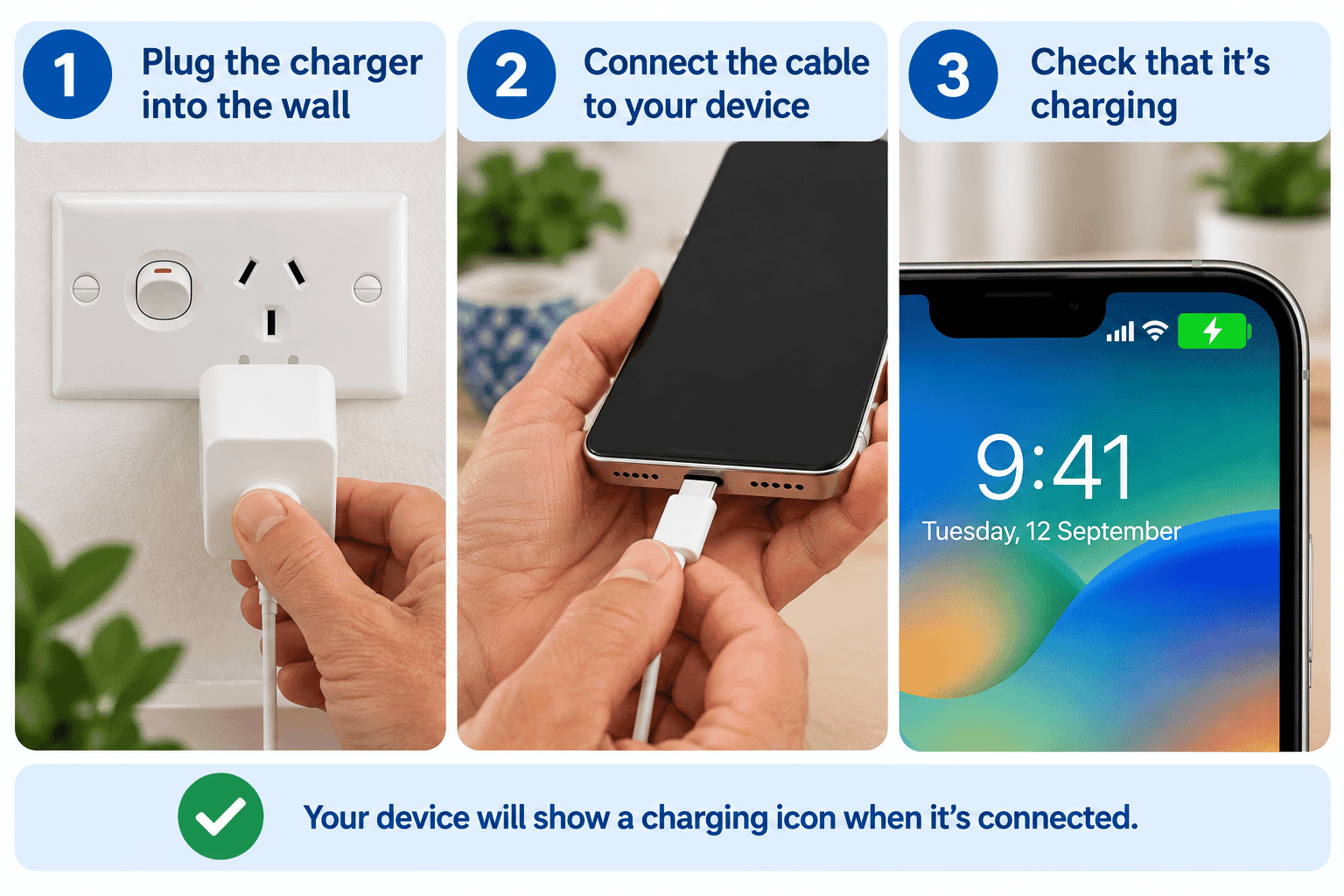
To charge your device:
- Check that you have a compatible charging cable.
- Connect the cable gently to the charging connection on the iPhone or iPad.
- Connect the other end to a suitable power adapter or power source.
- If using a power adapter, plug it into a power outlet and switch the outlet on if required.
- Check the device screen for an indication that charging has started.
You do not need to switch the iPhone or iPad off while it charges.
How Do I Know It Is Charging?
When your device is connected to power, you should normally see an indication that the battery is charging.
This may include a charging symbol associated with the battery indicator.
If the battery is extremely low, the device may need to remain connected for a short time before it starts normally.
Do not repeatedly disconnect and reconnect it if the battery has been completely flat.
Give it some time to charge.
Disconnecting the Charging Cable
When you want to disconnect the charger:
- Hold the charging plug rather than pulling on the cable itself.
- Gently pull the plug straight out of the device.
- Avoid twisting or sharply bending the cable near the connector.
Pulling on the cable repeatedly can damage it over time.
Can I Use the Device While It Is Charging?
For normal everyday use, you can generally continue using an iPhone or iPad while it is charging.
However, the device may charge more slowly if you are doing something that uses a lot of power, such as playing a demanding game or watching high-quality video.
If the device or charger becomes unusually hot, damaged or behaves unexpectedly, stop using the charging equipment and have it checked.
Charging Without a Cable
Some supported iPhones can charge using compatible wireless charging equipment.
You may also hear the term MagSafe used with supported iPhones and accessories.
Wireless charging is convenient, but it is not something you need in order to use your device.
A compatible charging cable is perfectly suitable for everyday charging.
Because charging options vary by model, this Learning Path will focus mainly on the standard cable connection.
Looking After Your Charging Cable
Charging cables are used frequently and can wear out.
Check your cable occasionally for:
- Fraying.
- Exposed wires.
- Bent or damaged connectors.
- Loose connections.
- Damage near either end of the cable.
Do not continue using a badly damaged cable.
Keep charging connections and plugs dry.
Avoid sharply bending or crushing the cable.
Try It Yourself
With your device in front of you, see if you can identify:
- The side or top button.
- Volume Up.
- Volume Down.
- Any additional physical control your device has.
- The charging connection.
- The correct end of your charging cable.
If you are comfortable doing so, connect the charger and check whether the device shows that it is charging.
Then disconnect it by holding the plug rather than pulling on the cable.
Helpful Tips
- Your device may have different buttons from someone else's.
- A quick press and a long press can perform different actions.
- Do not force a charging plug into the device.
- Hold the plug when disconnecting a cable.
- A completely flat device may need time on the charger before the screen responds normally.
- You do not need to buy every type of Apple charging accessory.
- Keep damaged charging cables out of use.
Common Mistakes
Holding a Button for Too Long
A short press and a long press may perform different actions.
If you only want to wake the screen, press and release the side or top button.
Assuming Every Device Uses the Same Cable
Different iPhone and iPad models can use different charging connections.
Check your device before buying a replacement cable.
Pulling the Charger Out by the Cable
Pulling on the cable instead of the plug can damage the cable over time.
Forcing the Plug
If the connector does not fit easily, stop and check it.
More force is not the solution.
Assuming the Device Is Broken When the Battery Is Completely Flat
A device with a very low battery may not respond immediately.
Leave it connected to a suitable charger for a while before trying again.
Troubleshooting
Problem Possible Cause What to Try
The charging plug does The cable may use the Stop and check whether not fit wrong connector your device uses USB-C or Lightning
The device does not The cable, adapter, Check each connection show that it is outlet or connection and try a known working charging may be the problem power outlet or compatible charger
The screen remains The battery may be Leave the device black after connecting completely flat connected for a while the charger before trying to wake it
Charging starts and The cable or connection Stop using damaged stops when the cable may be damaged or loose equipment and try a moves known compatible cable
I cannot find the side Your device may use a Look around the side button shown in the different physical and top edges and refer guide layout to your model information if necessary
My iPhone has an Action Different models use This is normal; no button instead of a different controls change is required for Ring/Silent switch this guide
The device or charger There may be an Disconnect it if safe becomes unusually hot equipment, to do so, allow it to environmental or cool and seek charging issue assistance if the problem continues
Summary
Your iPhone or iPad has only a few physical controls that you need to become familiar with.
The most important ones at this stage are:
- The side or top button.
- The volume buttons.
- Any additional control fitted to your particular model.
- The charging connection.
Your device may use USB-C or Lightning for cable charging.
The exact hardware varies between models, so learning to recognise the controls on your own device is more important than memorising every Apple design.
When charging, use compatible equipment, connect it gently and never force a plug that does not fit.
What You've Learned
You now know:
- How to recognise the main physical buttons on your device.
- What the side or top button is used for at a basic level.
- What the volume buttons do.
- Why some iPhones have different additional controls.
- That iPhones and iPads may use USB-C or Lightning.
- How to connect a charging cable safely.
- How to disconnect a cable without pulling on the cord.
- How to recognise that charging has started.
- What to try if a device with a flat battery does not respond immediately.
Keep Learning
Next guide:
LG-503 -- Using the Touchscreen
You will learn how to control your iPhone or iPad by tapping, scrolling, pressing and holding, and using other basic touchscreen actions.
Learning Paths
View all pathsNeed some help with this?
One-hour, in-person 1:1 tech training for people who find technology challenging, especially older adults, with patient, practical support using phones, tablets and computers.
Troubleshoot IT provides practical, one-to-one technology support across Darwin, Palmerston and surrounding areas.