LG-507 - Understanding Notifications
Learn what notifications are on your iPhone or iPad, where they appear and how to open, dismiss and review them without feeling that every alert needs immediate attention.
Before You Begin
Knowledge Prerequisites
Overview
Your iPhone or iPad uses notifications to let you know that something has happened.
You might receive a notification when:
- Someone sends you a message.
- You miss a phone call.
- A new email arrives.
- A calendar event is approaching.
- An app has information for you.
- Your device needs your attention.
Notifications are useful, but they can also feel overwhelming when you are new to a device.
The most important thing to remember is:
A notification does not automatically mean you need to do something immediately.
You can stop, read it and decide what to do.
In this guide, you will learn how to recognise notifications, where to find them and how to deal with them confidently.
Learning Objectives
By the end of this guide you will be able to:
- Understand what a notification is.
- Recognise common notifications.
- Understand where notifications can appear.
- View notifications from the Lock Screen.
- Open Notification Centre.
- Open a notification.
- Dismiss a notification.
- Understand notification badges.
- Recognise that notifications can be grouped.
- Understand that not every notification is urgent.
- Be cautious with unexpected or suspicious notifications.
Before You Begin
It is helpful to have completed:
- LG-505 -- Understanding the Home Screen
- LG-506 -- Using Control Centre
You should also be comfortable with:
- Tapping.
- Swiping.
- Returning to the Home Screen.
- Recognising the Lock Screen.
Have your iPhone or iPad available.
You do not need to change your notification settings during this lesson.
What Is a Notification?
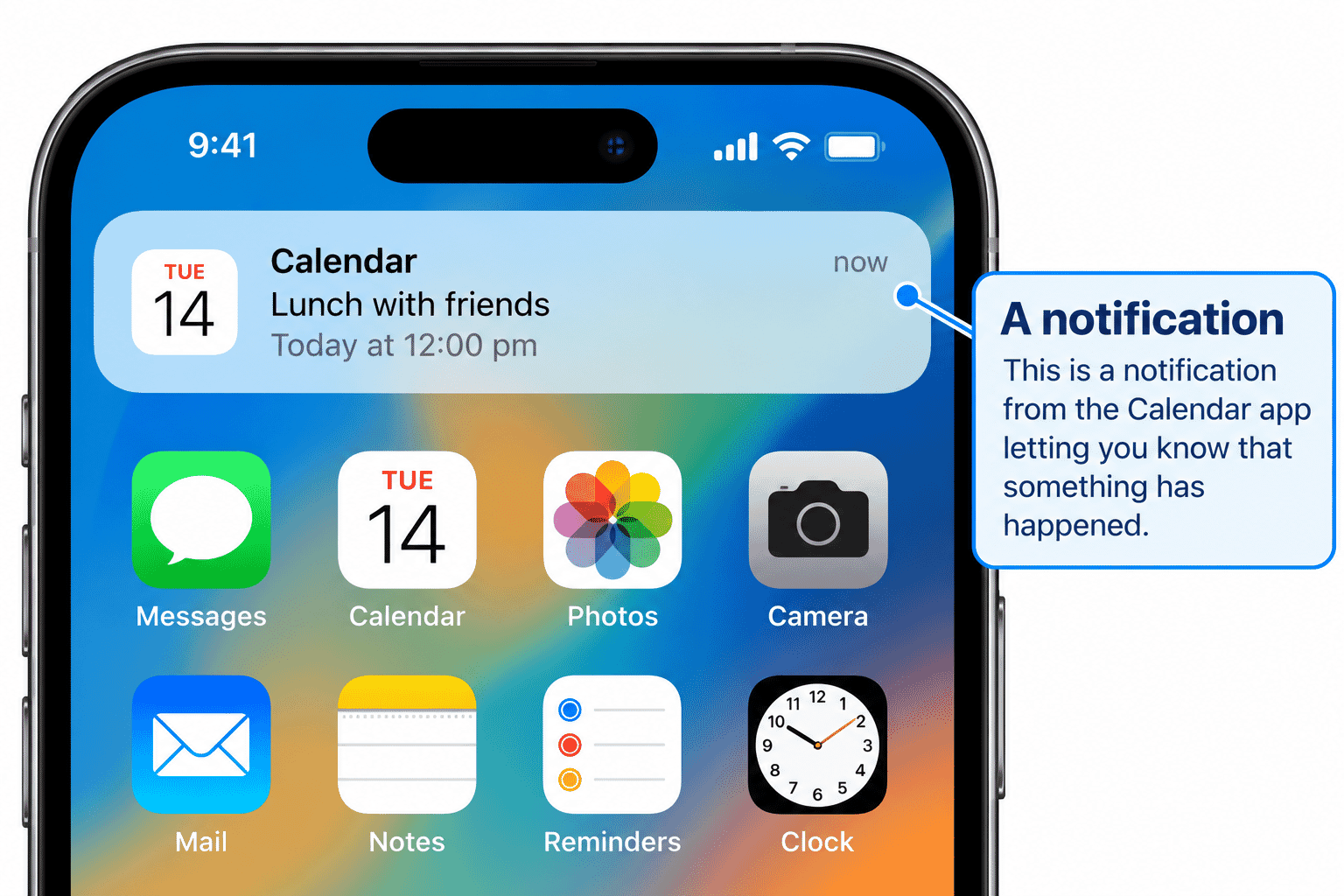
A notification is a message or alert from your device or one of your apps.
It is a way for an app to tell you that something has happened without you needing to open the app first.
For example, the Messages app might notify you that someone has sent you a message.
A calendar app might remind you about an appointment.
Your device might notify you about a software update.
Notifications can appear in different ways depending on your settings.
Where Can Notifications Appear?
Notifications can appear in several places.
You may see them:
- On the Lock Screen.
- At the top of the screen while using another app.
- In Notification Centre.
- As a numbered badge on an app icon.
- With a sound or vibration, depending on your settings and device.
You may not see every notification in all of these places.
Apps can have different notification settings.
Notifications on the Lock Screen
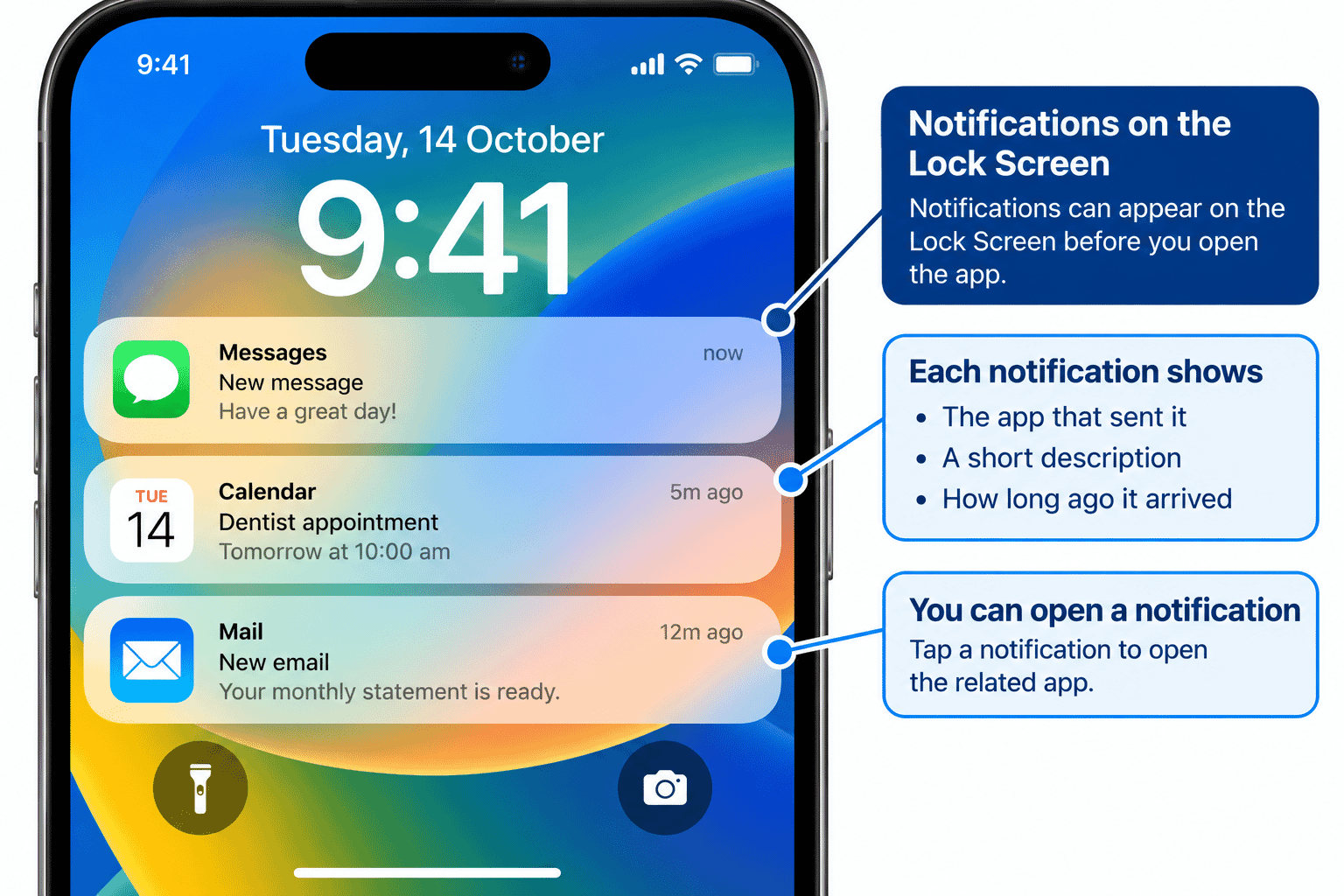
When your iPhone or iPad is locked, notifications may appear on the Lock Screen.
This allows you to see that something has happened without first finding and opening the app.
Depending on your privacy settings, the notification may show:
- The app that sent it.
- A short description.
- Part of a message.
- Less information until the device is unlocked.
This can help protect private information from being visible to other people.
Reading a Notification
Before tapping a notification, take a moment to read it.
Look for:
- Which app sent it.
- What it says.
- Whether you were expecting it.
- Whether it actually needs your attention.
For example:
Messages -- New message from Mary
may be easy to recognise.
A vague message such as:
Urgent! Your account will be closed. Tap now!
deserves more caution.
You do not have to tap a notification simply because it appears.
Opening a Notification
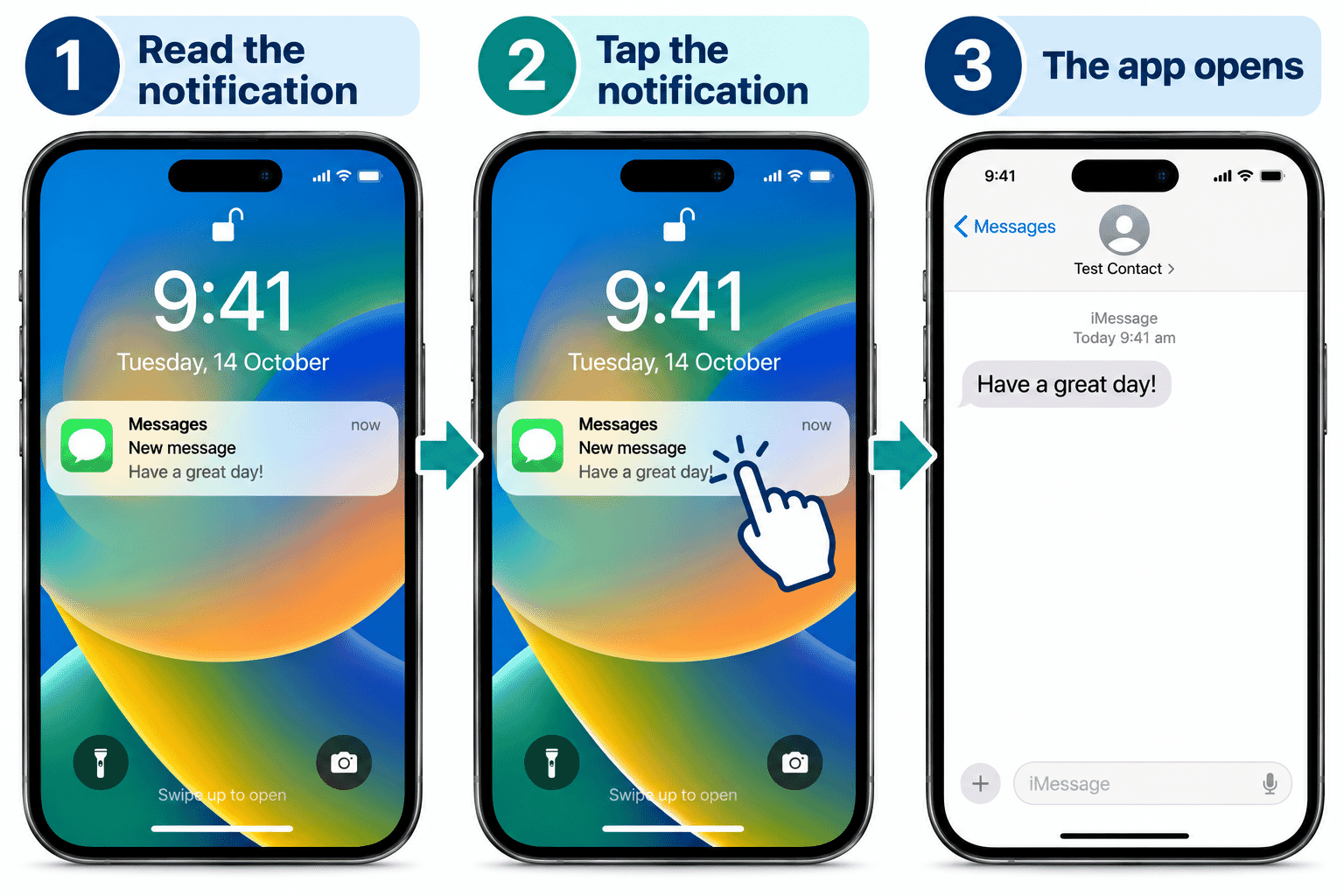
If you recognise a notification and want to see more:
- Tap the notification.
- Your device may ask you to unlock it.
- The relevant app or information should open.
For example, tapping a notification from Messages may open the related conversation.
What happens can vary depending on the app and your device settings.
What Is Notification Centre?
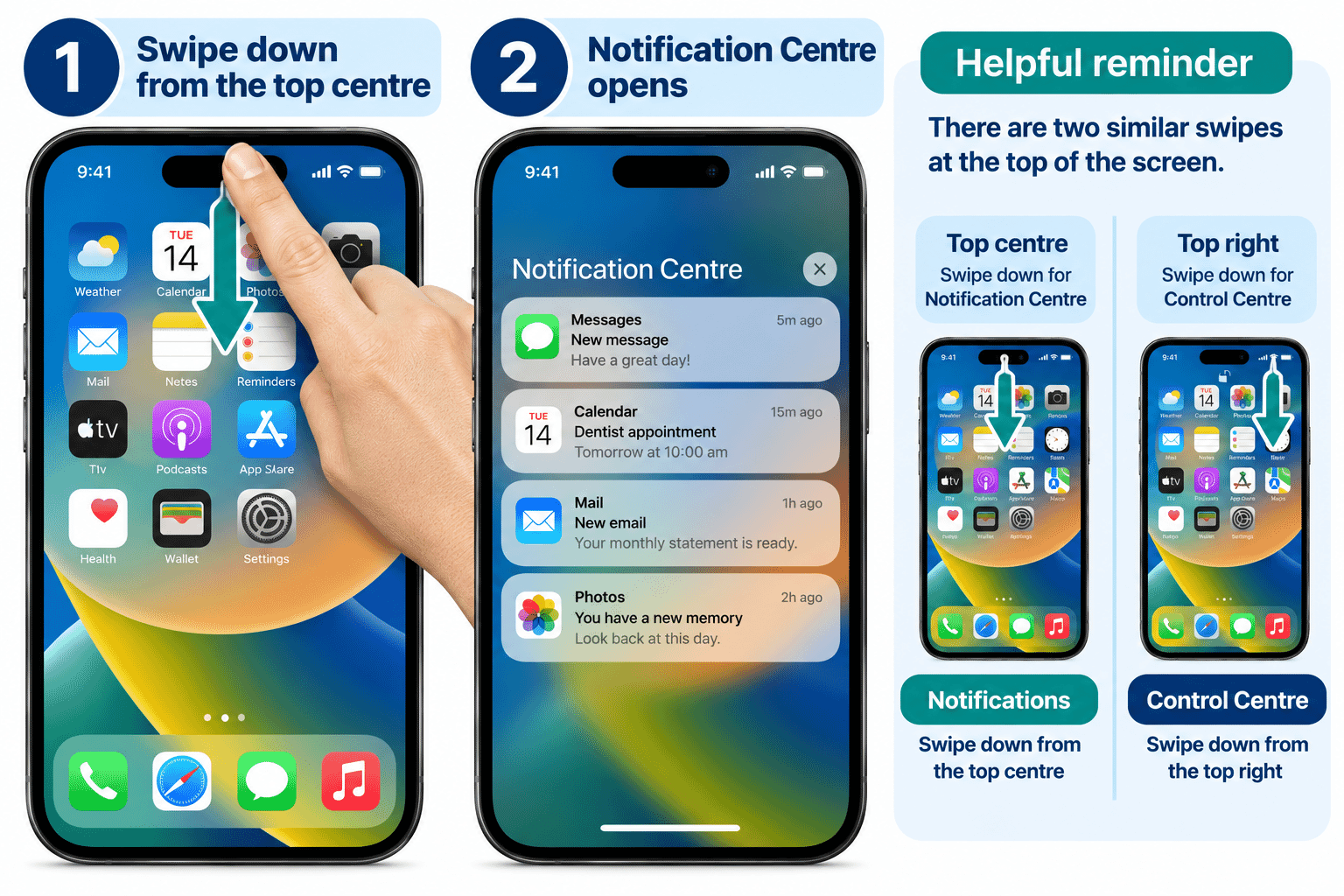
Notification Centre gives you a place to review notifications that you have not already dealt with.
Think of it as an area where recent notifications can be collected for you.
This is useful if a notification appeared while you were busy and you did not open it at the time.
Opening Notification Centre
The gesture depends on where you are starting.
When your device is unlocked and you are using it, you can generally open Notification Centre by swiping down from the top centre of the screen.
This is different from opening Control Centre on newer devices, which uses the top-right corner.
If you accidentally open Control Centre, close it and try again with your finger closer to the top centre.
From the Lock Screen, you can review notifications using the gestures available on your device and software version.
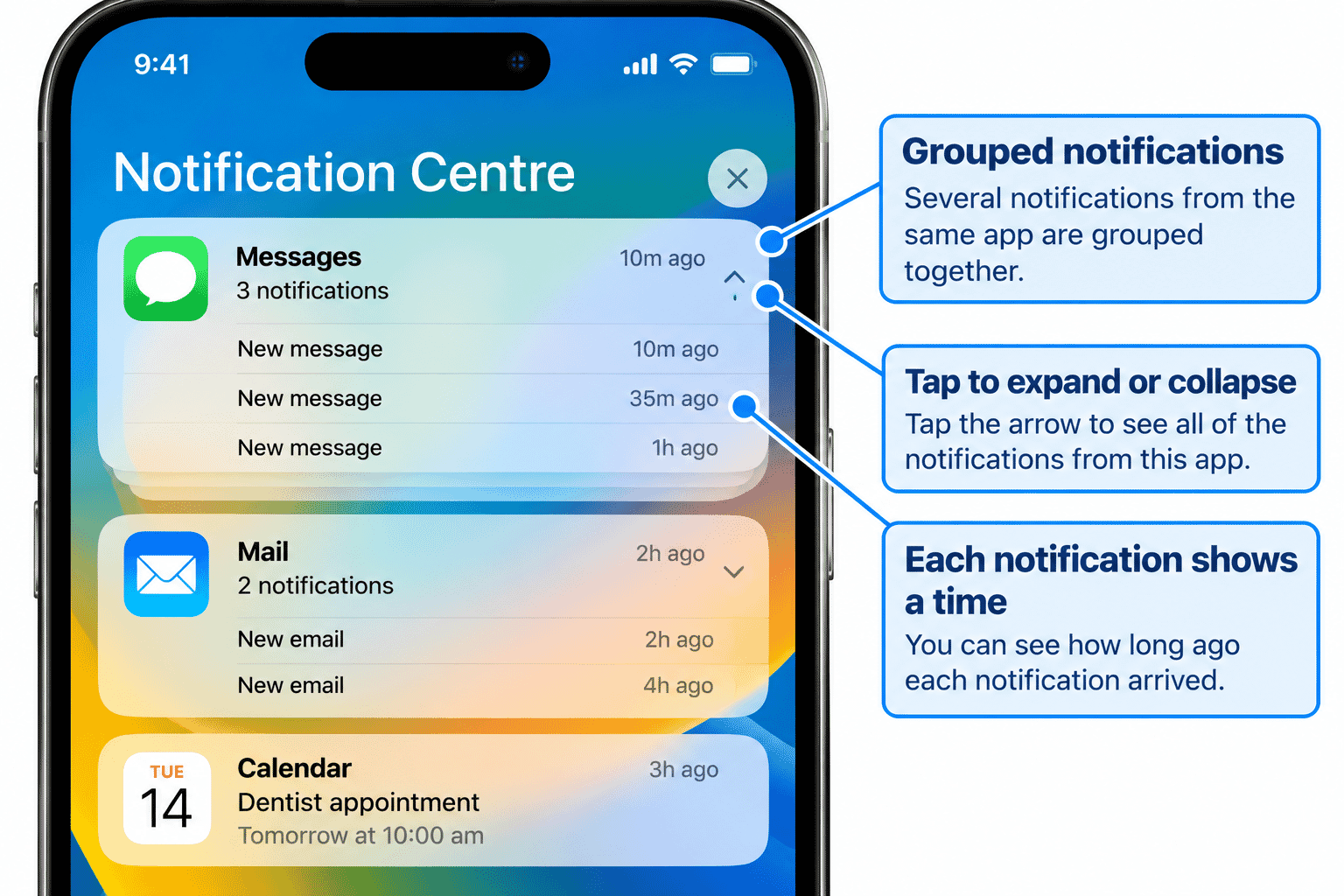
Notifications Can Be Grouped
If you receive several notifications from the same app, your device may group them together.
This helps stop the screen becoming filled with many separate alerts.
A group may show several notifications from:
- Messages.
- Email.
- News.
- Social media.
- Other apps.
You can interact with the group to see more where appropriate.
Do not worry if your notifications appear slightly differently from someone else's. Notification display can vary according to your settings and software version.
Dismissing a Notification
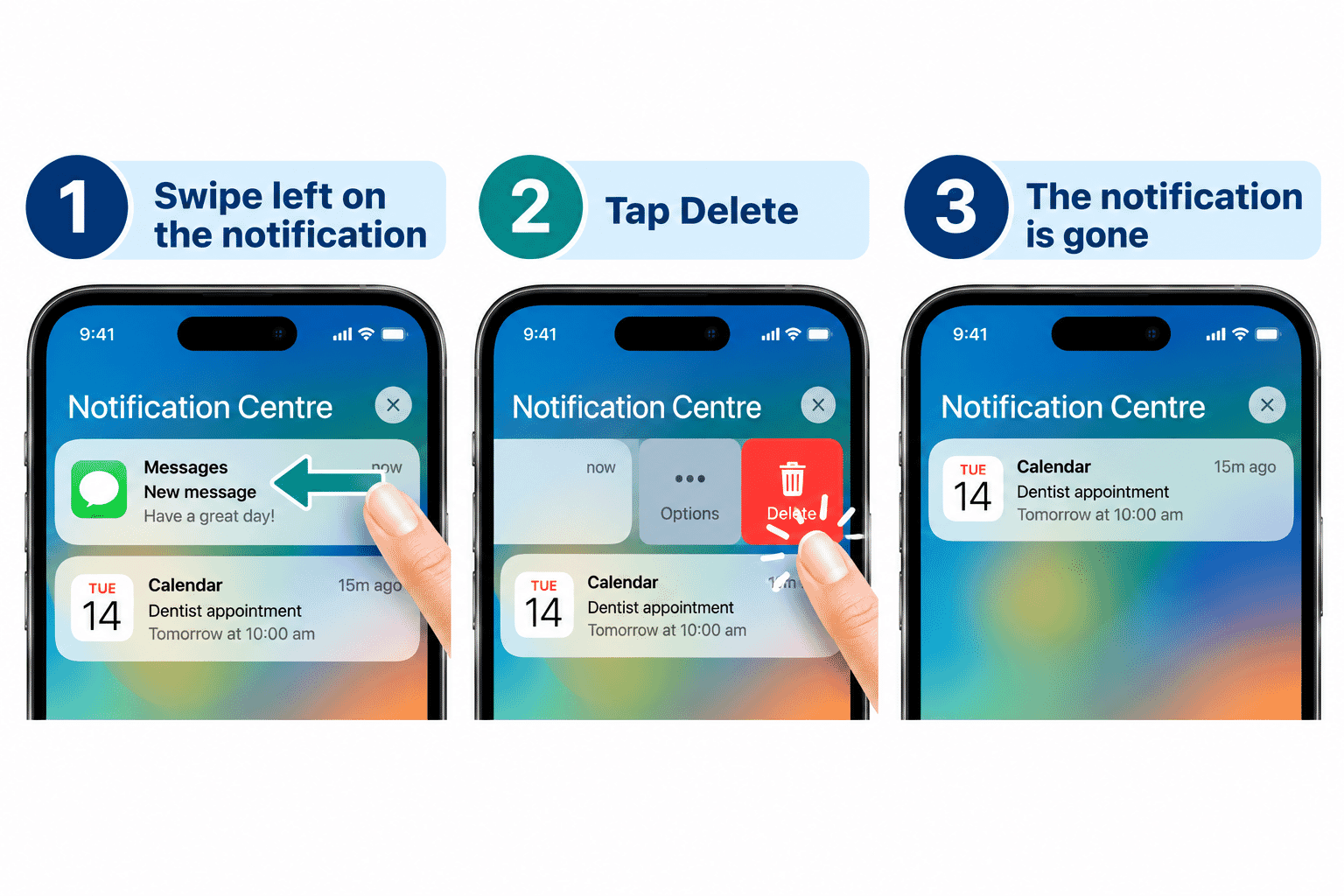
If you have read a notification and do not need it, you can dismiss or clear it.
Depending on where the notification appears and your software version, you can usually swipe on the notification to reveal available options.
You may also see controls for clearing notifications.
Clearing a notification removes the alert from the notification list.
It does not normally delete the underlying message, email or other information from the app.
For example, clearing an email notification does not normally delete the email itself.
This is an important difference.
Notification Badges
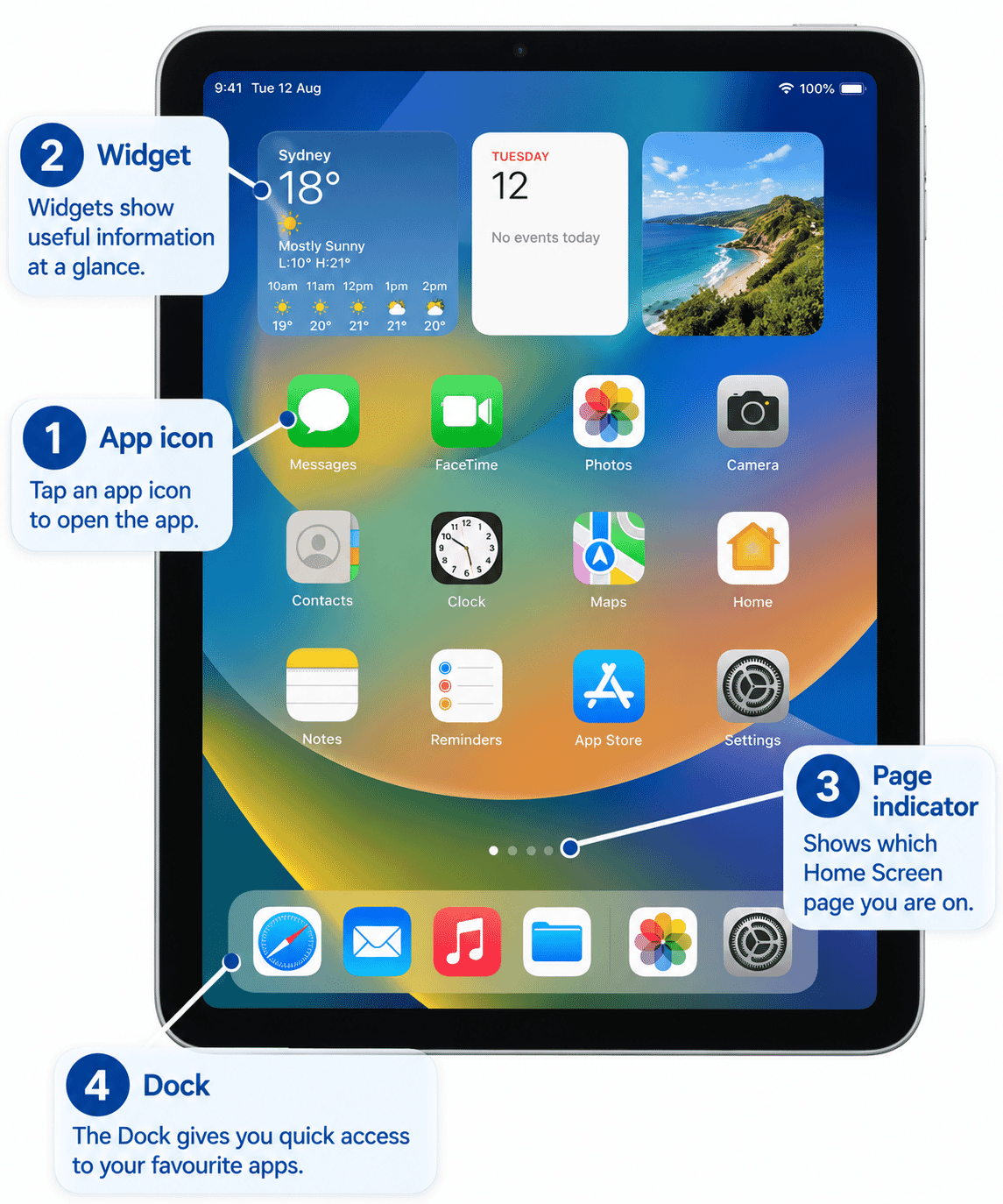
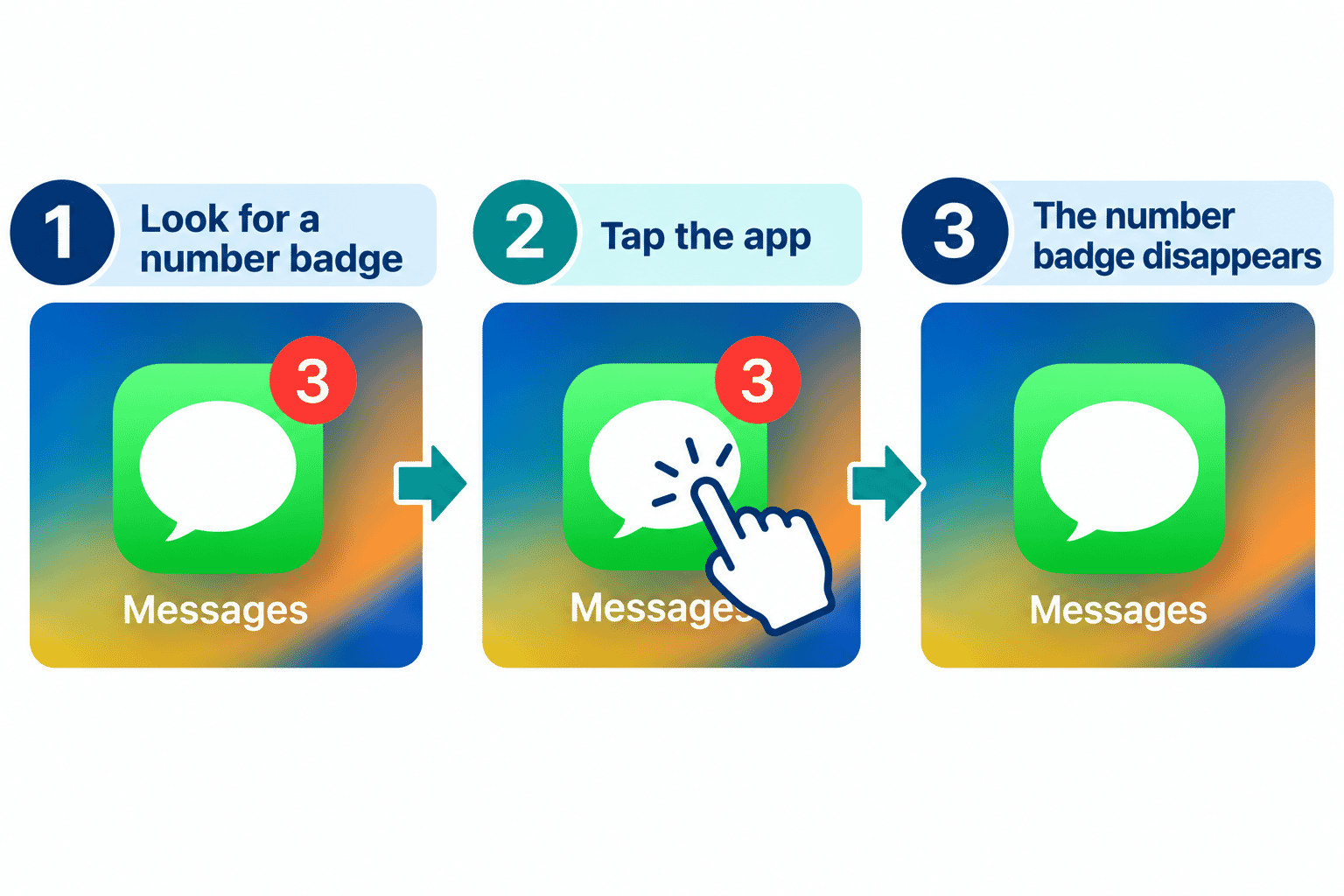
You may see a small numbered badge on the corner of an app icon on your Home Screen.
For example, the Mail app might display a number.
This indicates that the app has activity or items that may need your attention.
The exact meaning depends on the app.
A badge does not necessarily mean there is a problem.
Notification badges were introduced briefly in LG-505 -- Understanding the Home Screen.
You Do Not Need to Respond to Every Notification
Some apps send many notifications.
These can include:
- Useful reminders.
- Messages from people.
- Delivery updates.
- News.
- Promotions.
- Suggestions.
- Advertising.
- App activity you may not care about.
You are in control of your attention.
If a notification is not important, you can leave it until later or dismiss it.
You do not need to stop what you are doing every time the device makes a sound.
Be Careful with Unexpected Notifications
Notifications can sometimes be used to encourage you to open something quickly.
Scammers may try to create urgency or fear.
Be cautious if a notification says things such as:
- Your account will be closed immediately.
- You have won an unexpected prize.
- You owe money you were not expecting.
- A parcel cannot be delivered and requires an unexpected payment.
- You must provide a password or verification code.
- You need to act immediately to prevent a problem.
If you are unsure, do not use the notification itself to access the account.
Instead, open the genuine app yourself or use the organisation's normal trusted website or contact method.
Never give someone a verification code simply because a message or notification tells you to.
Notification Previews and Privacy
A notification can sometimes show part of a message on the Lock Screen.
That is convenient, but it can also mean someone nearby can see information without opening your device.
Your iPhone or iPad includes settings that control how notification previews are displayed.
You do not need to change these settings now.
For this lesson, simply be aware that notification information visible on a locked device can affect your privacy.
Changing Notification Settings
You can control which apps are allowed to send notifications and how those notifications appear.
These options are available in Settings.
We will learn how to find and navigate Settings in:
LG-509 -- Finding and Changing Settings
For now, do not feel that you need to change every notification setting.
First learn what notifications are and which ones are useful to you.
Try It Yourself
If you have some notifications available, use them for this activity.
Do not create or open anything sensitive simply for practice.
Activity 1 -- Identify a Notification
Find one notification and ask yourself:
- Which app sent it?
- What is it telling me?
- Was I expecting it?
- Do I need to act now?
Activity 2 -- Open Notification Centre
From an unlocked screen:
- Start near the top centre.
- Swipe downward.
- Look at the notifications shown.
- Close Notification Centre when finished.
Activity 3 -- Open a Safe Notification
Choose a notification you recognise.
Tap it and see which app opens.
Return to the Home Screen when finished.
Activity 4 -- Check for Badges
Look at your Home Screen.
See whether any app icons have numbered notification badges.
There is no need to clear them all.
Helpful Tips
- Read a notification before tapping it.
- Check which app sent it.
- You do not need to respond immediately.
- Clearing a notification normally does not delete the underlying message or email.
- Notifications can be grouped together.
- A numbered badge is not automatically a warning.
- Unexpected urgency is a reason to slow down, not speed up.
- If you are unsure about an account alert, open the genuine app yourself rather than following the notification.
- You can change notification settings later if an app becomes annoying.
Common Mistakes
| Common Mistake | What Happens | What to Remember |
|---|---|---|
| Tapping every notification immediately | You may feel that every alert needs your attention. | You can ignore or postpone notifications. Read them first and decide whether they matter. |
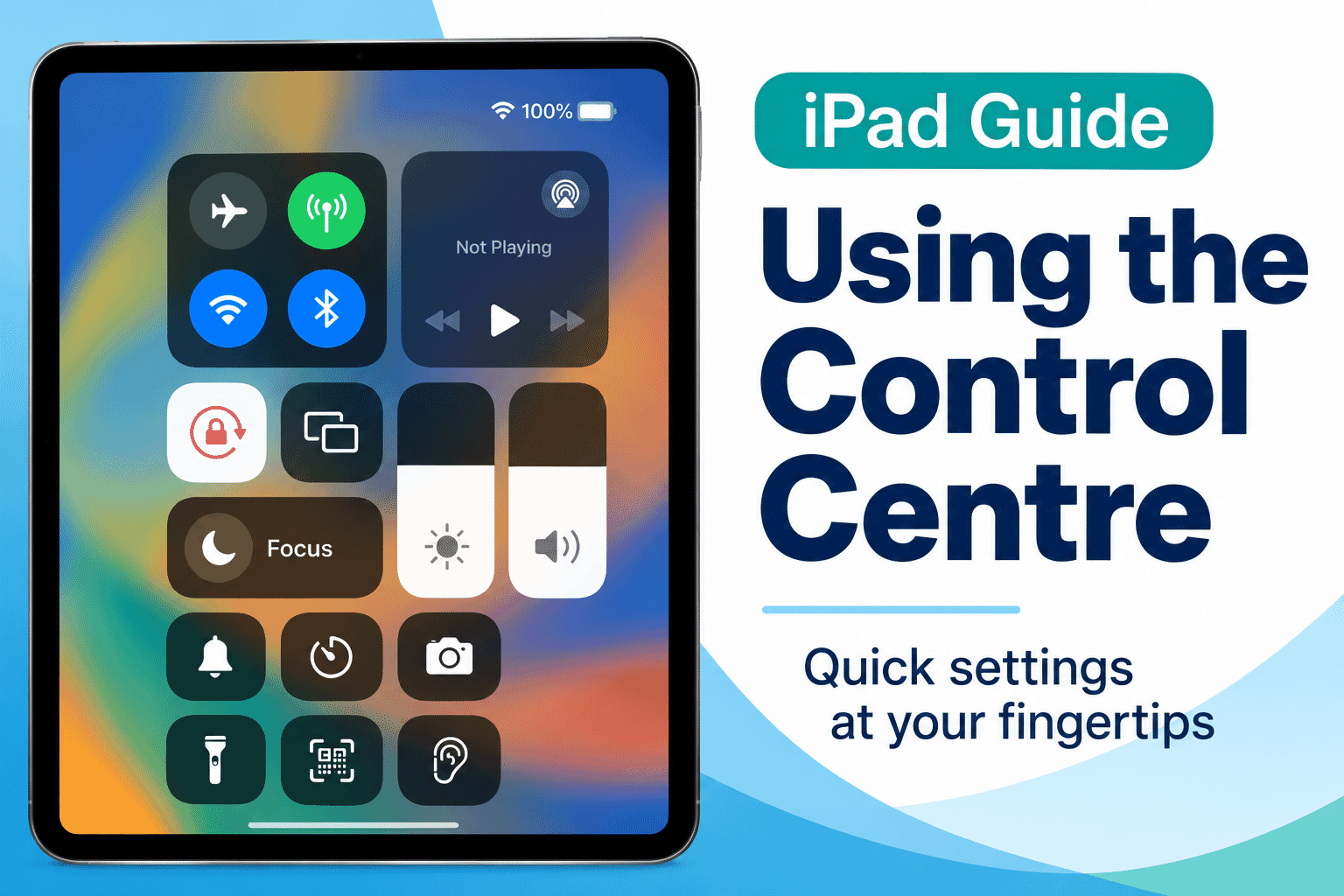
| Opening Control Centre instead of Notification Centre | Swiping down from the top-right corner may open Control Centre. | On newer iPhones, swipe down from the top centre or left side to open Notification Centre. |
| Thinking clearing a notification deletes the message | You may think the original message has disappeared. | Clearing a notification usually removes the alert only. The original message or email normally remains in its app. |
| Assuming every numbered badge is urgent | A number on an app icon may look like something needs immediate attention. | Badges indicate app activity. They do not automatically mean something is wrong. |
| Trusting a notification because it looks important | Scam notifications may use urgent language to make you act quickly. | If a notification is unexpected, open the genuine app yourself or verify it through a trusted source. |
Troubleshooting
| Problem | Possible Cause | What to Try |
|---|---|---|
| Control Centre opens instead of Notification Centre | Your swipe started too far to the right. | Close Control Centre and swipe down from closer to the top centre of the screen. |
| I cannot see an old notification | It may have been cleared, opened or handled differently by the app. | Open the relevant app and check the information there. |
| Several notifications appear together | Your device may have grouped notifications from the same app. | Tap or interact with the notification group to see more. |
| A notification disappeared after I cleared it | Clearing removes the alert from the notification list. | Open the original app if you still need the message or information. |
| I see a number on an app icon | It is a notification badge showing activity or items in the app. | Open the app when convenient to see what the number relates to. |
| I receive too many alerts | The app's notification settings may allow more alerts than you need. | You can adjust notification settings later through Settings. |
| A notification looks suspicious | It may be misleading or fraudulent. | Do not tap the notification. Open the genuine app or visit the trusted website separately. |
Summary
Notifications let your iPhone or iPad tell you that something has happened.
They can appear on the Lock Screen, while you are using your device, in Notification Centre or as badges on app icons.
You can open useful notifications, leave them until later or dismiss alerts you do not need.
Most importantly, you remain in control.
A notification appearing on your screen does not mean you have to act immediately.
If a notification is unexpected, frightening or asks for sensitive information, slow down and verify it independently.
What You've Learned
You now know:
- What a notification is.
- Where notifications can appear.
- How notifications can appear on the Lock Screen.
- How to open a notification.
- What Notification Centre is.
- How notifications can be grouped.
- How to dismiss a notification.
- Why dismissing an alert is different from deleting the underlying information.
- What notification badges mean.
- Why not every notification needs immediate attention.
- How to approach suspicious notifications more safely.
Keep Learning
Next guide:
LG-508 -- Using the On-Screen Keyboard
You will learn how to type letters, numbers and punctuation, correct simple mistakes and become more comfortable entering information on your iPhone or iPad.
Learning Paths
View all pathsNeed some help with this?
Protect your photos and files, automatic backups plus a “test restore” so you know it works.
Troubleshoot IT provides practical, one-to-one technology support across Darwin, Palmerston and surrounding areas.