LG-509 - Finding and Changing Settings
Learn how to find and use the Settings app on your iPhone or iPad. This beginner-friendly guide explains how Settings is organised, how to move through menus, use switches and choices, search for a setting and safely make simple changes.
Before You Begin
Knowledge Prerequisites
- LG-501 - Getting to Know Your iPhone or iPad
- LG-502 - Buttons, Ports and Charging
- LG-503 - Using the Touchscreen
- LG-504 - Essential iPhone and iPad Gestures
- LG-505 - Understanding the Home Screen
- LG-506 - Using Control Centre
- LG-507 - Understanding Notifications
- LG-508 - Using the On-Screen Keyboard
Overview
The Settings app is where you can control many of the ways your iPhone or iPad works.
Settings can be used for things such as:
- Wi-Fi.
- Bluetooth.
- Notifications.
- Sounds.
- Display and brightness.
- Accessibility.
- Privacy and security.
- Your Apple Account.
- Individual apps.
When you first open Settings, the number of choices can look overwhelming.
You do not need to understand all of them.
The goal of this guide is to show you how Settings is organised and give you a safe way to find and change simple options.
Learning Objectives
By the end of this guide you will be able to:
- Find and open the Settings app.
- Understand that Settings contains many different sections.
- Open a settings section.
- Return to the previous screen.
- Recognise an on/off switch.
- Recognise a list of choices.
- Understand that some settings open additional menus.
- Search for a setting.
- Find basic information about your device.
- Make simple changes one at a time.
- Know when it is better not to change an unfamiliar setting.
Before You Begin
You should already be comfortable with:
- Tapping.
- Scrolling.
- Returning to the Home Screen.
- Recognising app icons.
- Basic typing.
These skills were introduced earlier in LP-005.
Have your iPhone or iPad unlocked and ready.
You will practise navigating Settings, but there is no need to make major changes.
Finding the Settings App
The Settings app uses a grey gear icon.
The app is usually labelled:
Settings
To open it:
- Go to your Home Screen.
- Find the Settings icon.
- Tap it once.
If you cannot immediately see Settings, it may be on another Home Screen page or available through your device's app-finding features.
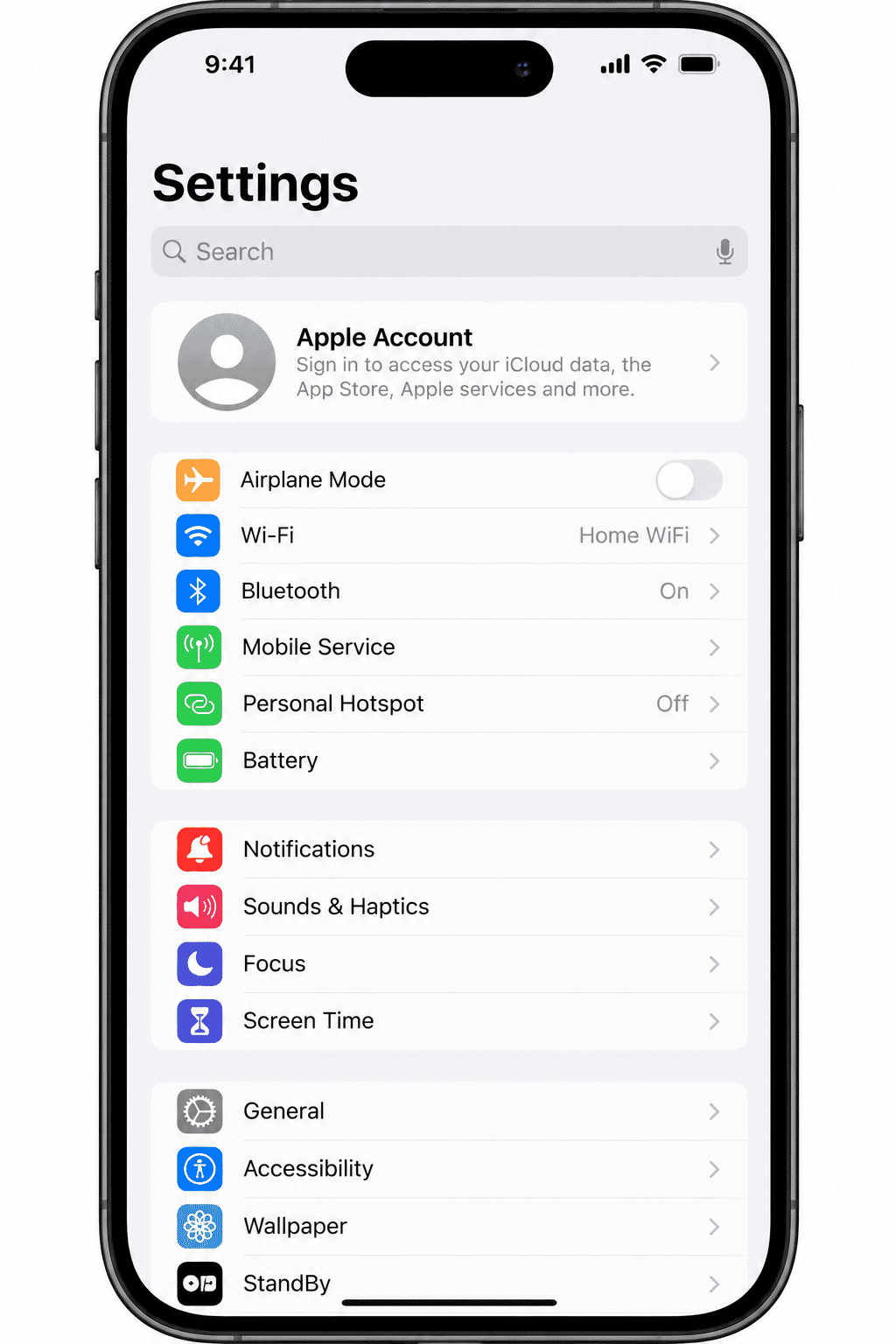
What You See in Settings
When Settings opens, you will see a list of sections and options.
The exact layout can change between software versions and may differ between iPhone and iPad.
You may see areas relating to:
- Your Apple Account.
- Wi-Fi.
- Bluetooth.
- Mobile or cellular services on supported devices.
- Notifications.
- Sounds.
- Focus.
- Screen settings.
- Accessibility.
- Privacy and security.
- Apps.
There are many choices because Settings controls many parts of your device.
You do not need to memorise the list.
Settings Is Like a Set of Menus
A useful way to think about Settings is as a series of menus.
You start with the main Settings screen.
Tap a section to go deeper.
For example:
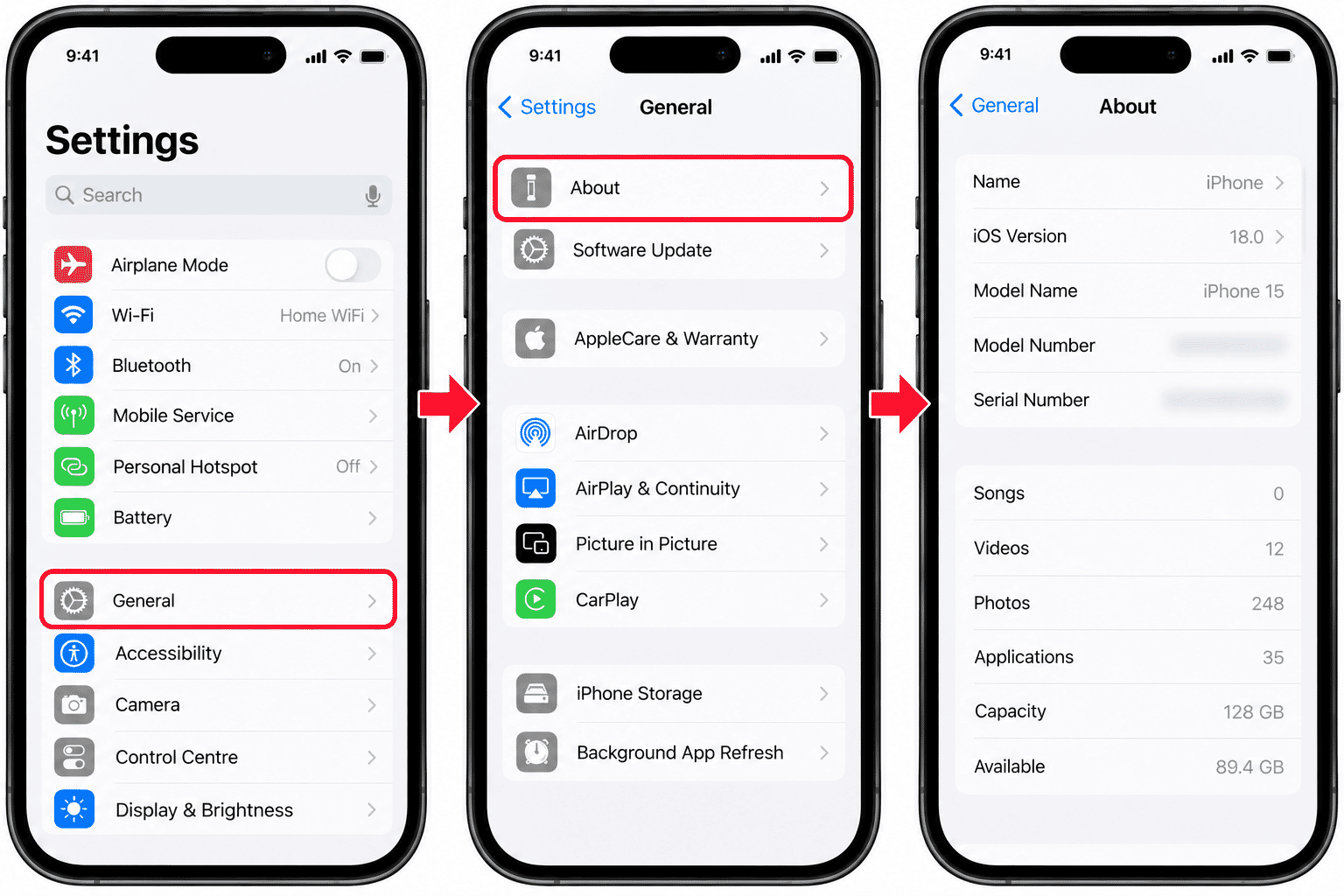
Settings → General → About
Each step takes you to a more specific area.
If you go somewhere you did not intend, you can usually return to the previous screen.
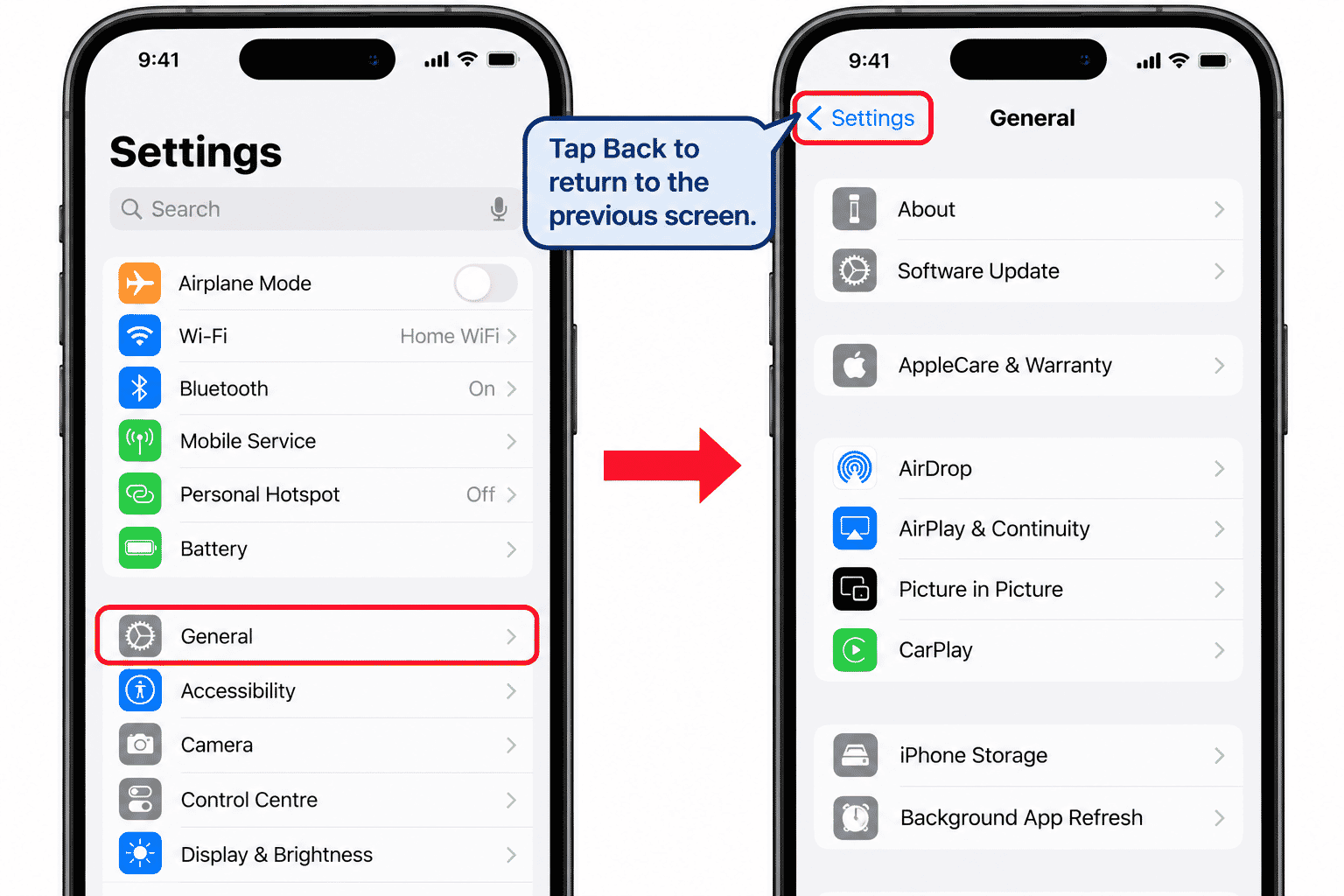
Going Back
When you open a settings section, look near the top of the screen for the Back control.
It may include an arrow pointing left and the name of the previous section.
Tap it once to go back.
You can repeat this until you return to the main Settings screen.
Learning to go back confidently makes Settings much easier to explore.
Scrolling Through Settings
Not every option fits on the screen at once.
Swipe upward to move further down the list.
Swipe downward to move back toward the top.
Use a gentle scrolling movement.
If you pass the option you wanted, simply scroll back.
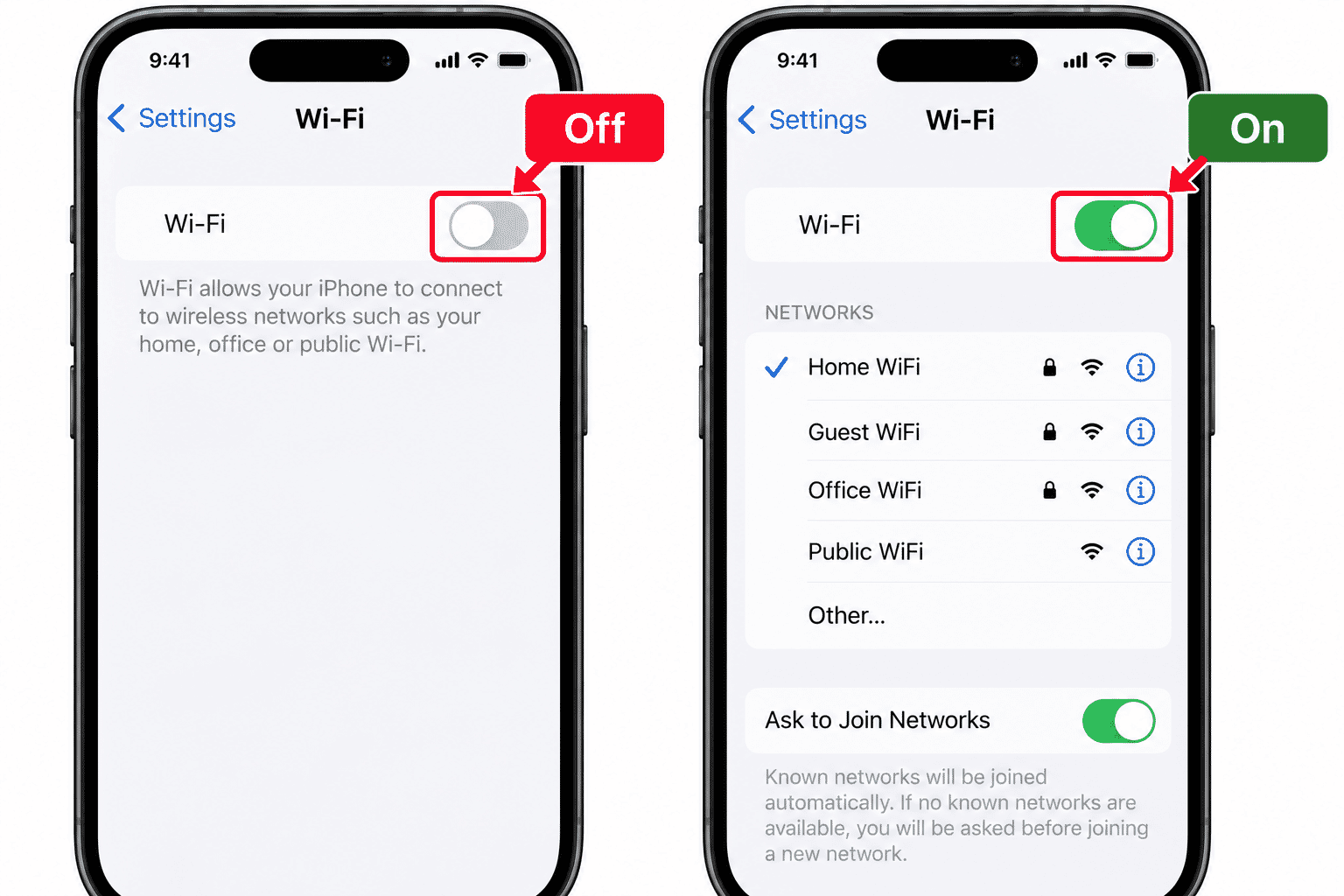
On and Off Switches
Many settings use a switch.
A switch lets you turn a feature on or off.
Tap the switch once to change its state.
The switch changes appearance to indicate whether the option is active.
Because appearance can vary, do not rely only on colour when learning from screenshots. Look at the control itself and any available labels or context.
Change One Setting at a Time
This is one of the best habits you can develop.
If you want to change something:
- Find the relevant setting.
- Note its current state.
- Change one thing.
- Check what happened.
- Decide whether the result is what you wanted.
If you change several settings at once, it can be difficult to work out which change caused a problem.
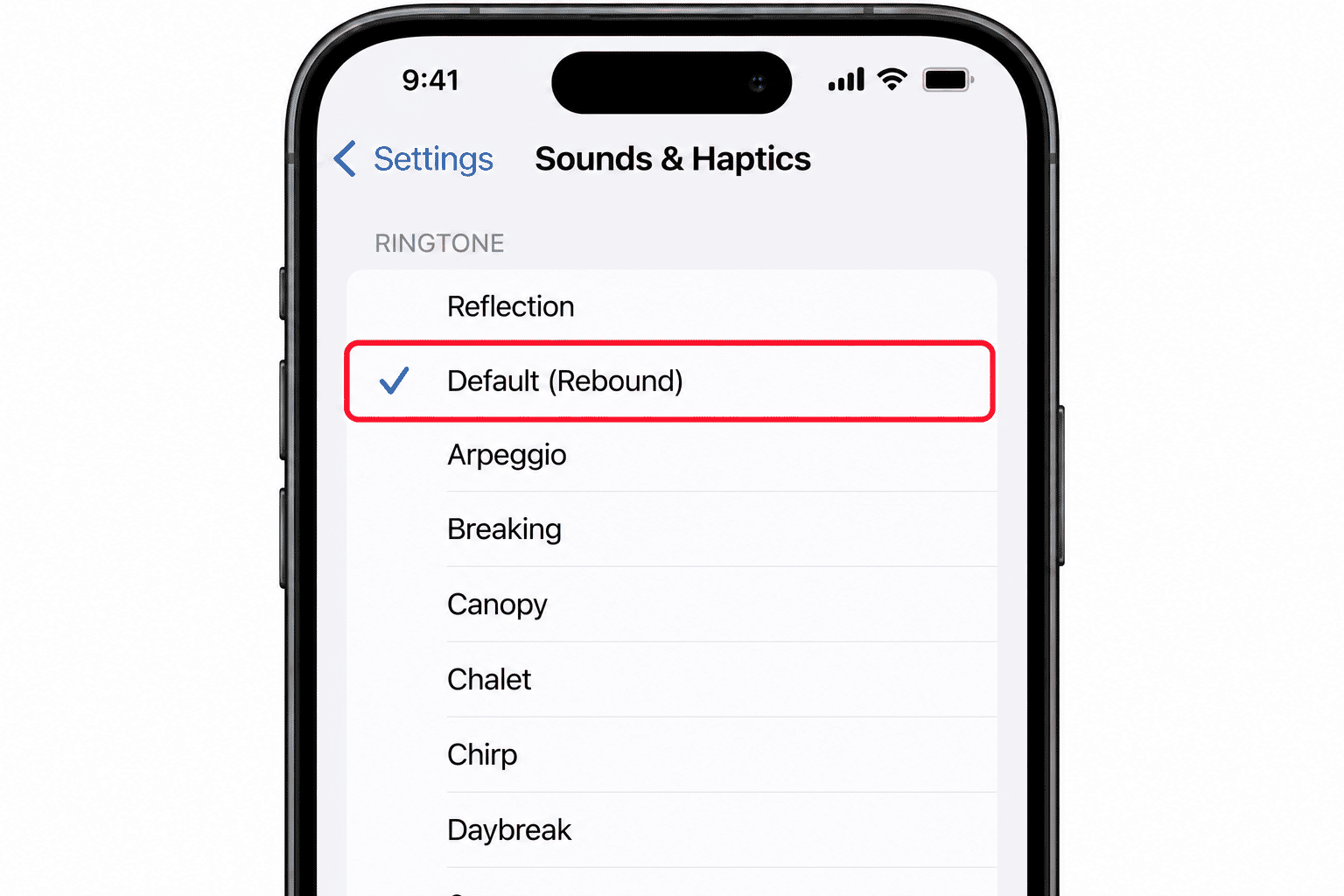
Settings with Several Choices
Not every setting is simply on or off.
Some settings allow you to choose from a list.
For example, a setting might provide several possible options.
Depending on the screen, the currently selected choice may be indicated with a tick or another visual marker.
Read the available choices before selecting one.
Some Settings Open Another Screen
You may see a row with a small arrow or other indication that more options are available.
Tapping that row opens another settings screen.
This is normal.
Settings often works in layers.
If you become unsure where you are, use the Back control until you reach a screen you recognise.
Searching Settings
You do not always need to know where a setting is located.
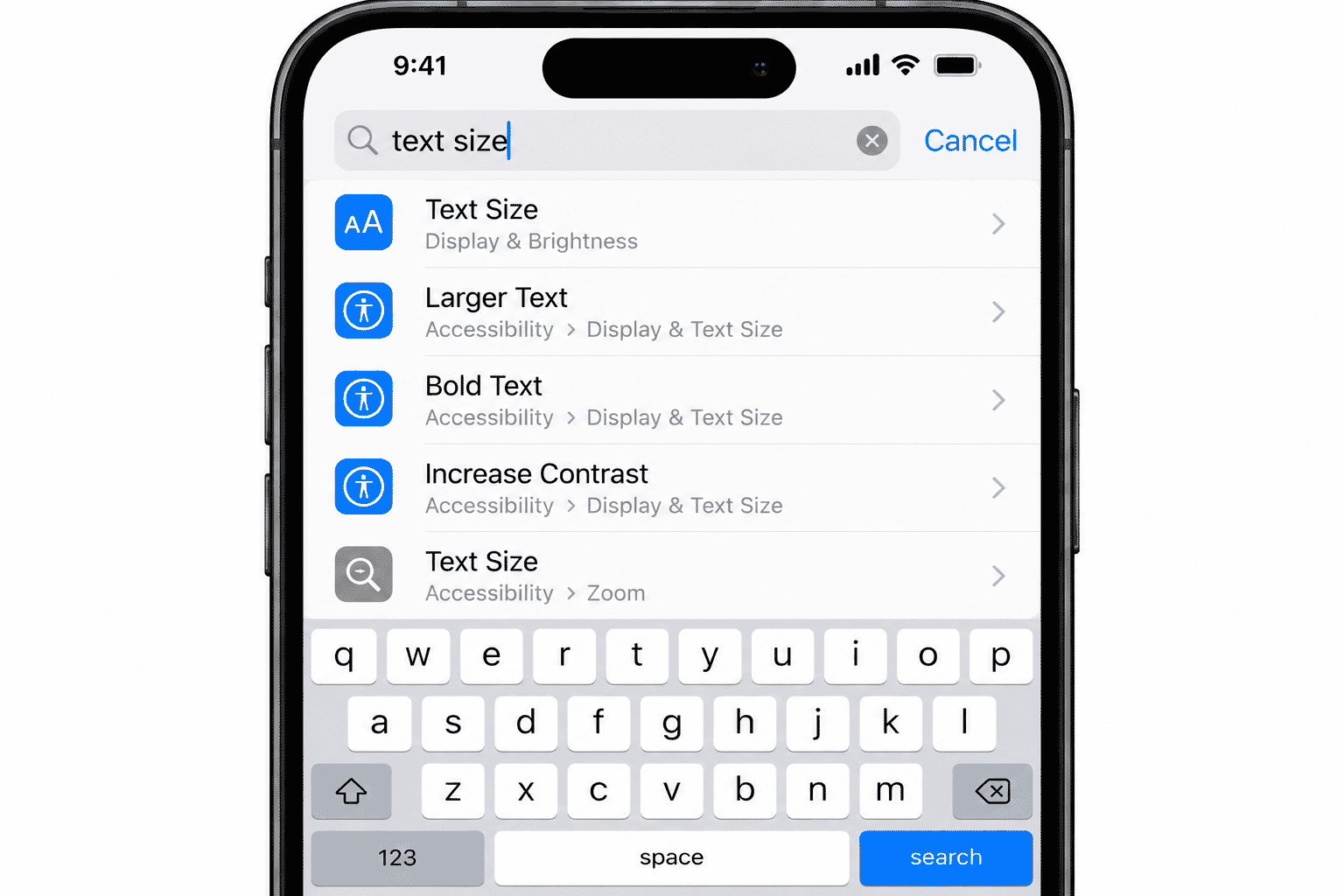
Settings includes a search feature that can help you find an option by name.
To use it:
- Open Settings.
- Go to the main Settings screen.
- If the search field is not visible, move toward the top of the screen as required.
- Tap the search field.
- Type what you are looking for.
- Review the results.
- Tap the result that matches what you need.
For example, you might search for:
text sizeBluetoothnotifications
Search can be particularly useful because the organisation of Settings can change between software versions.
Be Specific When Searching
A short, specific search usually works better than a long question.
For example, instead of typing:
How do I make all the writing bigger on my phone?
try:
text size
You can try another search term if the first one does not find what you expected.
Finding Information About Your Device
Settings can also tell you useful information about your iPhone or iPad.
A common place to find device information is:
Settings → General → About
Depending on the device and software, this area can show information such as:
- Device name.
- Software version.
- Model information.
- Storage information.
- Other technical details.
You do not need to memorise this information.
It can be useful when someone is helping you troubleshoot your device.
Settings for Individual Apps
Apps can also have their own settings.
On current software, app-related settings may be available through an Apps area in Settings.
Individual app settings can control things such as:
- Permissions.
- Notifications.
- Mobile data access.
- Other app-specific behaviour.
The exact choices depend on the app.
Do not change permissions simply because you find them. First understand what the app needs and why.
Settings and Control Centre Are Different
In LG-506 -- Using Control Centre, you learned about quick controls.
Control Centre is useful for fast everyday access.
Settings provides more detailed control.
For example, tapping Wi-Fi in Control Centre and changing Wi-Fi options in Settings are not exactly the same thing.
A useful rule is:
Control Centre = quick controls
Settings = detailed options
Be Careful with Important Settings
Some settings can affect:
- Your internet connection.
- Your Apple Account.
- Passwords.
- Privacy.
- Security.
- Mobile service.
- App permissions.
- Device accessibility.
- Backups and stored information.
Do not experiment with an unfamiliar setting simply to see what happens.
If you are unsure:
- Leave it unchanged.
- Read what the setting does.
- Ask someone you trust or use a reliable guide.
- Make the change only when you understand the likely result.
Exploring Settings is useful. Randomly changing Settings is not.
Be Cautious with Instructions from Strangers
A caller, text message, pop-up or email may sometimes tell you to change a setting.
Be especially careful if someone unexpectedly asks you to:
- Change security settings.
- Install a profile or app.
- Give them remote access.
- Turn off a protection feature.
- Change account information.
- Read out a password or verification code.
Do not make sensitive changes because an unexpected person tells you to.
If you are unsure, stop and verify who you are dealing with independently.
Try It Yourself
For this activity, you will explore Settings without making any important changes.
Activity 1 - Open Settings
- Return to the Home Screen.
- Find Settings.
- Tap it once.
Activity 2 - Open and Close a Section
- Tap General.
- Look at the options.
- Use the Back control to return to Settings.
Activity 3 - Find About
- Open General.
- Tap About.
- Find the software version or model information.
- Do not change anything.
- Go back to the main Settings screen.
Activity 4 - Use Search
Search Settings for:
text size
Look at the results.
You do not need to change the text size during this activity.
Activity 5 -- Find a Switch
Find a screen containing an on/off switch.
Identify the switch, but do not change it unless you know what the setting does.
The aim is to become comfortable navigating Settings.
Helpful Tips
- You do not need to understand every setting.
- Use the Back control whenever you go somewhere unexpected.
- Scroll slowly through long lists.
- Use Settings search when you know what you want but not where it is.
- Change one thing at a time.
- Remember the original setting before changing it.
- Do not change security, account or network settings casually.
- Settings may look different after a software update.
- If a guide's screen looks slightly different from yours, look for the setting name rather than expecting an identical layout.
Common Mistakes
| Common Mistake | What Happens | What to Remember |
|---|---|---|
| Trying to memorise where everything is | The Settings app contains many sections, which can be difficult to remember. | You do not need to memorise everything. Use Settings search and learn the sections you use most often. |
| Changing several things at once | Changing multiple settings can make it difficult to understand what caused a problem. | Make one change, check the result and then continue. |
| Assuming every setting is safe to experiment with | Some settings can affect your connections, privacy or security. | Leave unfamiliar settings alone until you understand what they do. |
| Becoming lost in menus | You may open several sections and become unsure how to return. | Use the Back control repeatedly until you reach a familiar screen. |
| Expecting Settings to look exactly like an older guide | Apple may reorganise Settings when software changes. | Use the names of settings and the search function rather than memorising their exact positions. |
Troubleshooting
| Problem | Possible Cause | What to Try |
|---|---|---|
| I cannot find Settings | The Settings app may not be on your current Home Screen page. | Check other Home Screen pages or use your device's app search to find Settings. |
| I cannot find a setting in the list | The setting may be further down or located in another section. | Scroll through the list or use the search function in Settings. |
| I opened the wrong section | You may have tapped a different menu. | Tap Back to return to the previous screen. |
| A guide shows a different layout | Your device or software version may be different from the one shown in the guide. | Search for the setting by name rather than relying on its position. |
| I changed something and do not like the result | The setting may need to be returned to its previous state. | Return to the setting and restore your previous choice if you know what it was. |
| I do not know what a setting does | The option may be unfamiliar or technical. | Leave it unchanged until you have reliable information about what it does. |
| Someone is telling me to change security settings | The request may be unsafe or part of a scam. | Stop and verify the person's identity or organisation independently before making any changes. |
Summary
Settings is where you control many of the ways your iPhone or iPad works.
You do not need to learn every option.
The most useful beginner skills are:
- Finding Settings.
- Opening a section.
- Scrolling.
- Going back.
- Recognising switches and choices.
- Searching for a setting.
- Changing one thing at a time.
- Leaving unfamiliar settings alone until you understand them.
The more familiar you become with navigating Settings, the less intimidating it becomes.
What You've Learned
You now know:
- How to find and open Settings.
- How Settings is organised into sections and menus.
- How to go back to a previous screen.
- How to scroll through settings.
- What an on/off switch does.
- How settings can offer several choices.
- How to search Settings.
- How to find basic device information.
- Why app settings may appear in their own area.
- The difference between quick controls and detailed Settings.
- Why changing one setting at a time is safer.
- When it is better to leave a setting unchanged.
Keep Learning
Next guide:
LG-510 -- Getting Started with Siri
You will learn what Siri is, how it can help with simple everyday tasks and how to use voice requests confidently.
Learning Paths
View all pathsNeed some help with this?
One-hour, in-person 1:1 tech training for people who find technology challenging, especially older adults, with patient, practical support using phones, tablets and computers.
Troubleshoot IT provides practical, one-to-one technology support across Darwin, Palmerston and surrounding areas.