LG-508 - Using the On-Screen Keyboard
Learn how to use the on-screen keyboard on your iPhone or iPad to type letters, capital letters, numbers and punctuation, add spaces, correct mistakes and use helpful typing suggestions.
Before You Begin
Knowledge Prerequisites
Overview
Your iPhone or iPad has an on-screen keyboard that appears when you need to type.
You will use it for everyday tasks such as:
- Writing messages.
- Entering an email address.
- Searching the internet.
- Adding a contact.
- Writing notes.
- Filling in forms.
- Entering a Wi-Fi password.
If you are used to a computer keyboard, the on-screen keyboard may initially feel small or unfamiliar.
That is completely normal.
You do not need to type quickly.
For a beginner, accuracy and confidence are more important than speed.
This guide will introduce the main parts of the keyboard and give you a chance to practise.
Learning Objectives
By the end of this guide you will be able to:
- Make the on-screen keyboard appear.
- Type letters and words.
- Add spaces between words.
- Type capital letters.
- Delete typing mistakes.
- Find numbers and punctuation.
- Recognise the Return key.
- Understand basic typing suggestions.
- Correct simple mistakes.
- Hide the keyboard where appropriate.
- Understand why the keyboard can look different in different apps.
Before You Begin
You should be comfortable with:
- Tapping.
- Basic touchscreen use.
- Opening an app.
- Returning to the Home Screen.
These skills were introduced in Module 1.
For practice, you can use an app such as Notes if it is available on your device.
Avoid practising in an important form, email or message until you feel comfortable.
When Does the Keyboard Appear?
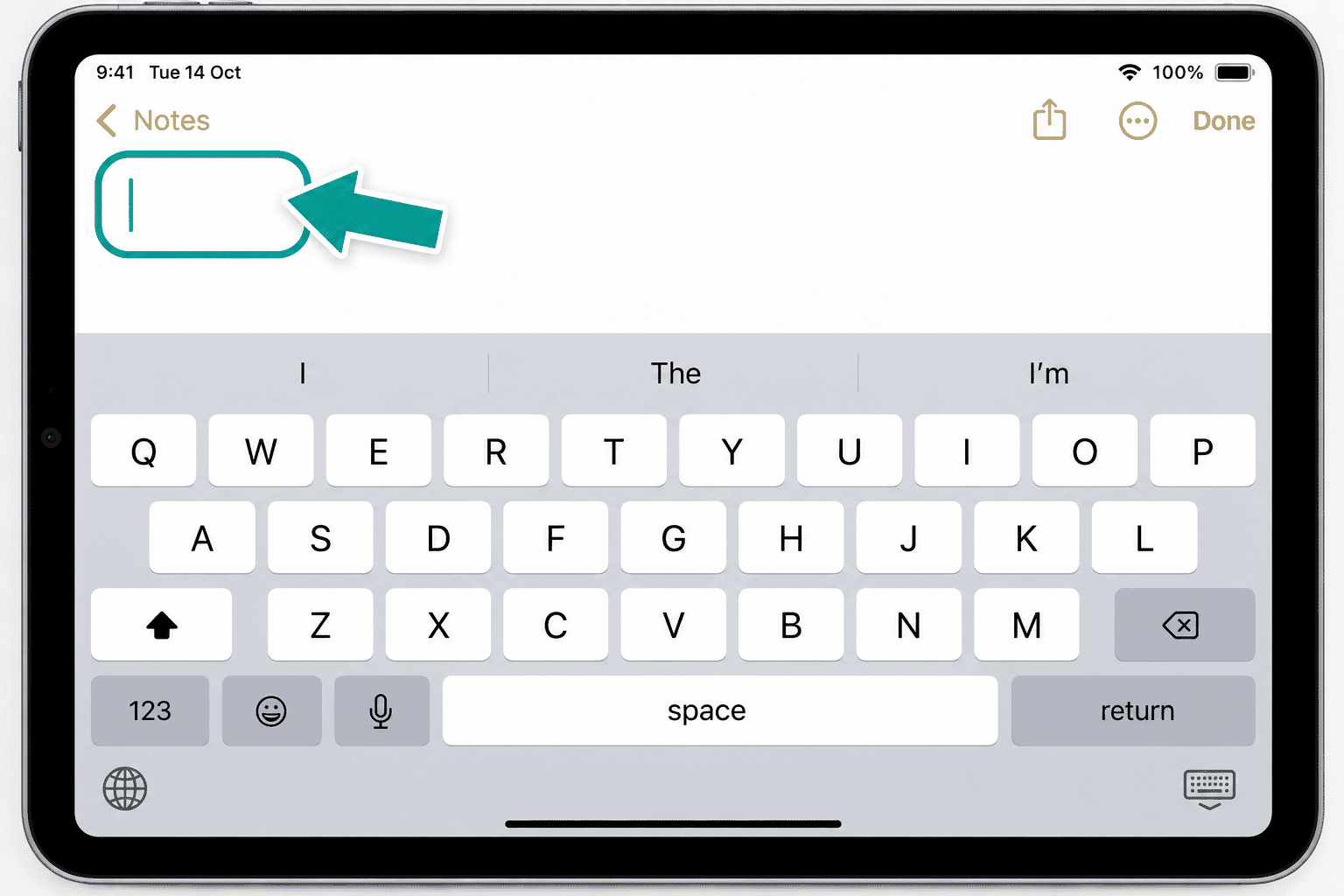
The keyboard normally appears when you tap somewhere that allows you to enter text.
This area is often called a text field.
Examples include:
- A search box.
- A message box.
- An email field.
- A notes page.
- A form field.
Tap inside the text area once.
A cursor or insertion point may appear, and the keyboard should open.
The Main Keyboard
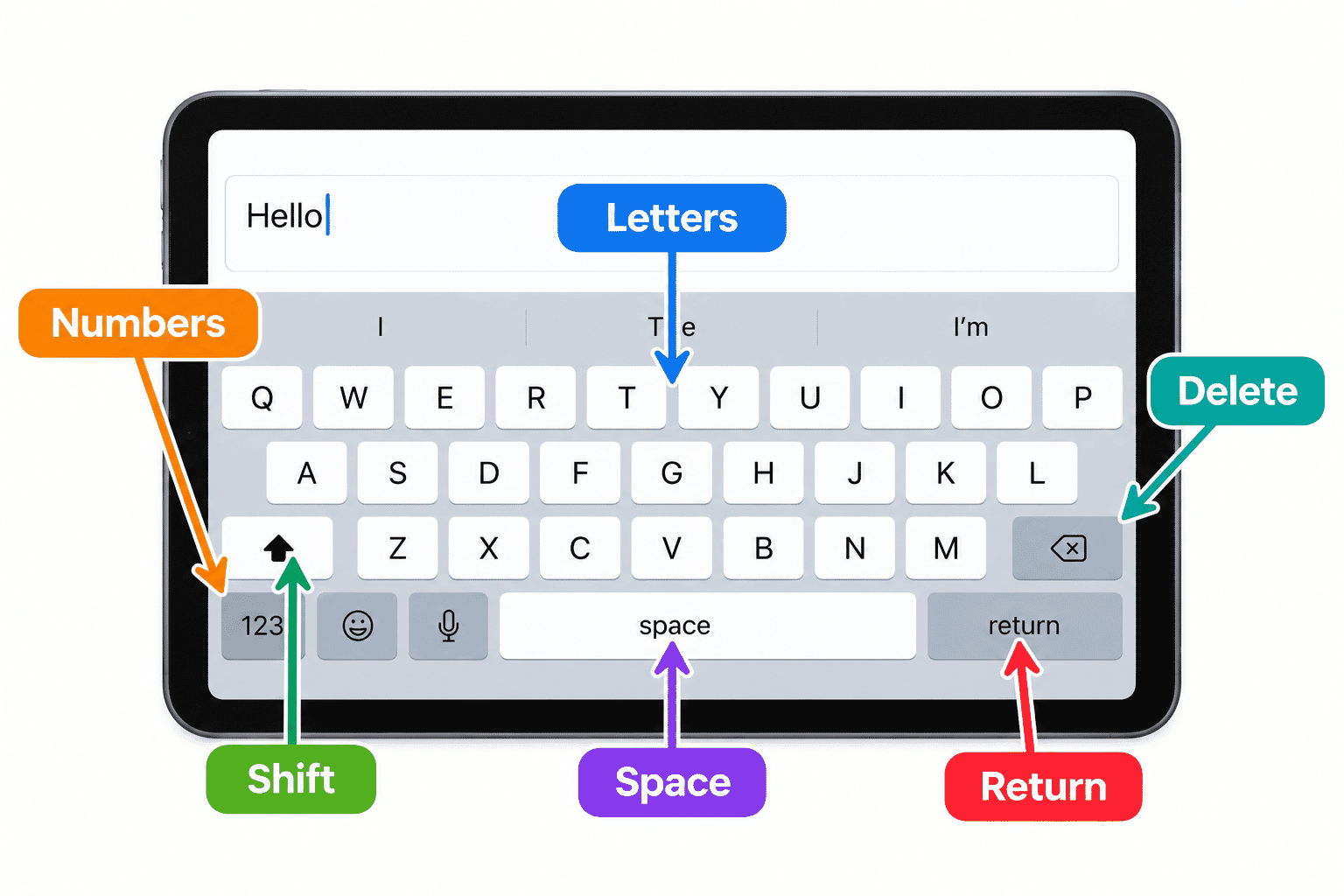
The keyboard contains letters arranged in a familiar pattern.
If you have used a computer keyboard, you may recognise the layout.
To type a letter:
- Find the letter.
- Tap it once.
- The letter appears in the text area.
Continue tapping letters to make a word.
Do not worry if you occasionally tap the wrong key.
Mistakes are easy to correct.
Adding a Space
The long key near the bottom of the keyboard is the Space bar.
Use it to put a space between words.
For example:
Hello Mary
After typing Hello:
- Tap Space once.
- Type
Mary.
If words appear joined together, you may simply have forgotten the space.
Using Capital Letters
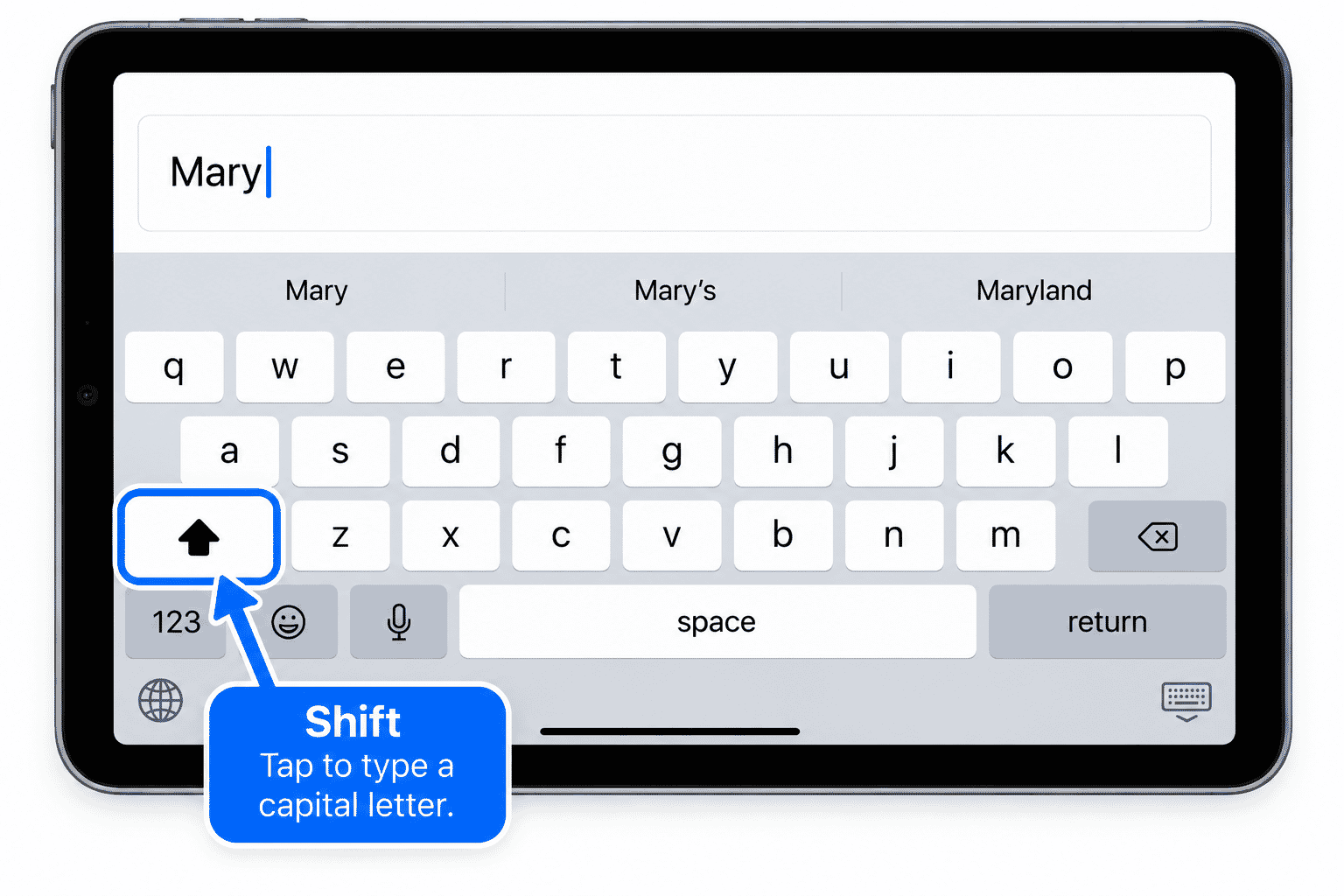
The Shift key is usually shown with an upward-pointing arrow.
Tap Shift when you want the next letter to be a capital letter.
For example, to type Mary:
- Tap Shift.
- Tap M.
- Continue typing
ary.
Your device may also automatically use a capital letter at the beginning of a sentence.
Typing More Than One Capital Letter
If you need several capital letters, such as an abbreviation, your keyboard may allow Caps Lock.
A common method is to double-tap the Shift key.
The appearance of the Shift key changes to show that Caps Lock is active.
Type your capital letters, then tap Shift again to return to normal typing.
You will not need Caps Lock very often for everyday use.
Correcting a Mistake
Everyone makes typing mistakes.
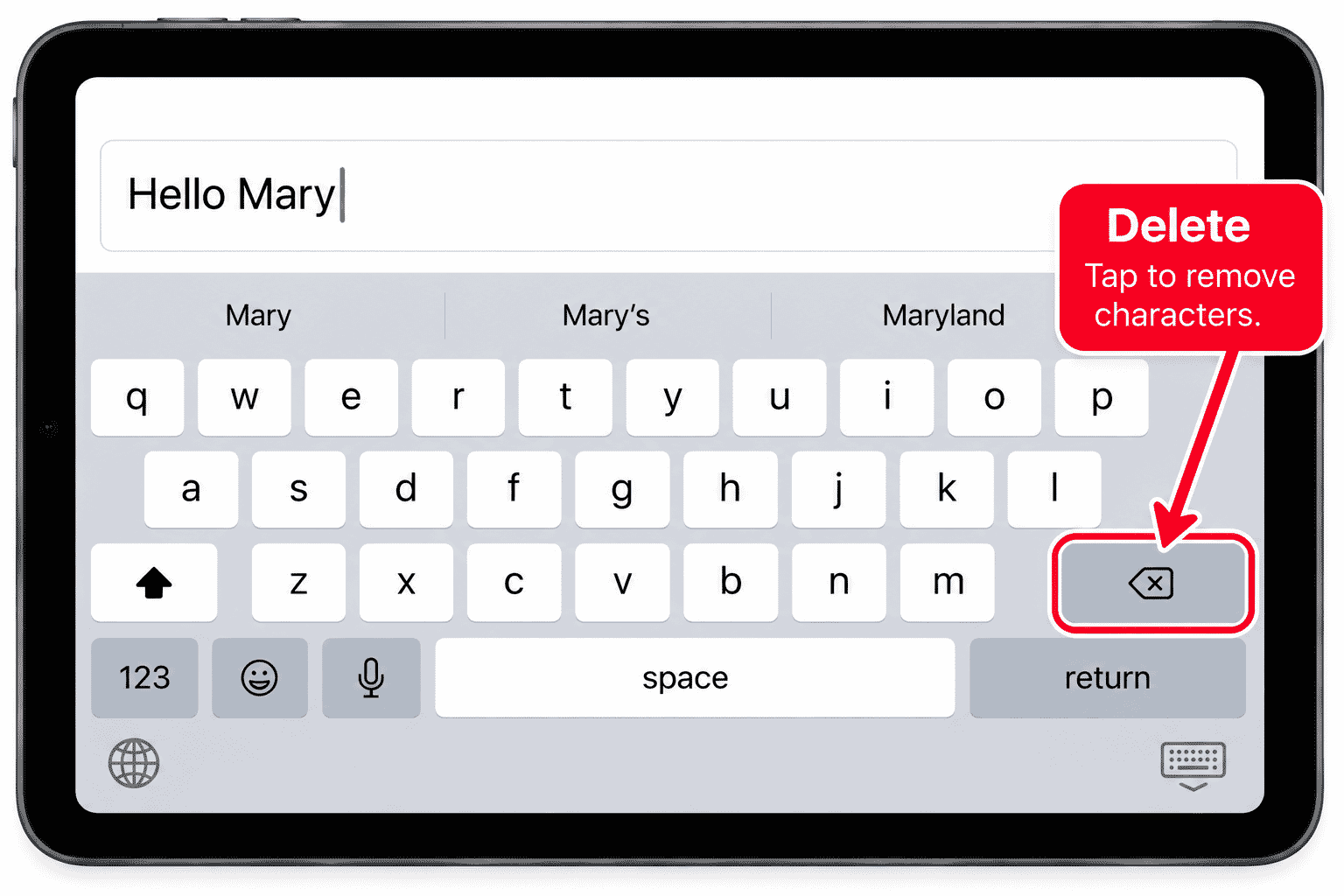
The Delete key, sometimes called Backspace, removes characters immediately before the cursor.
It is usually represented by a left-facing delete symbol.
If you type:
Helo
and notice the mistake straight away, you can use Delete to remove letters and type them again correctly.
Do not feel that you need to start the whole sentence again.
Moving the Cursor
The cursor shows where the next character will be entered.
It usually appears as a vertical line in your text.
If you notice a mistake earlier in a sentence, you do not necessarily need to delete everything after it.
You can tap in the text to reposition the cursor.
Depending on the device and software, additional text-selection or cursor controls may also be available.
For this beginner lesson, practise tapping near the place you want to correct.
It may take a couple of attempts to position the cursor exactly where you want it.
Numbers and Punctuation
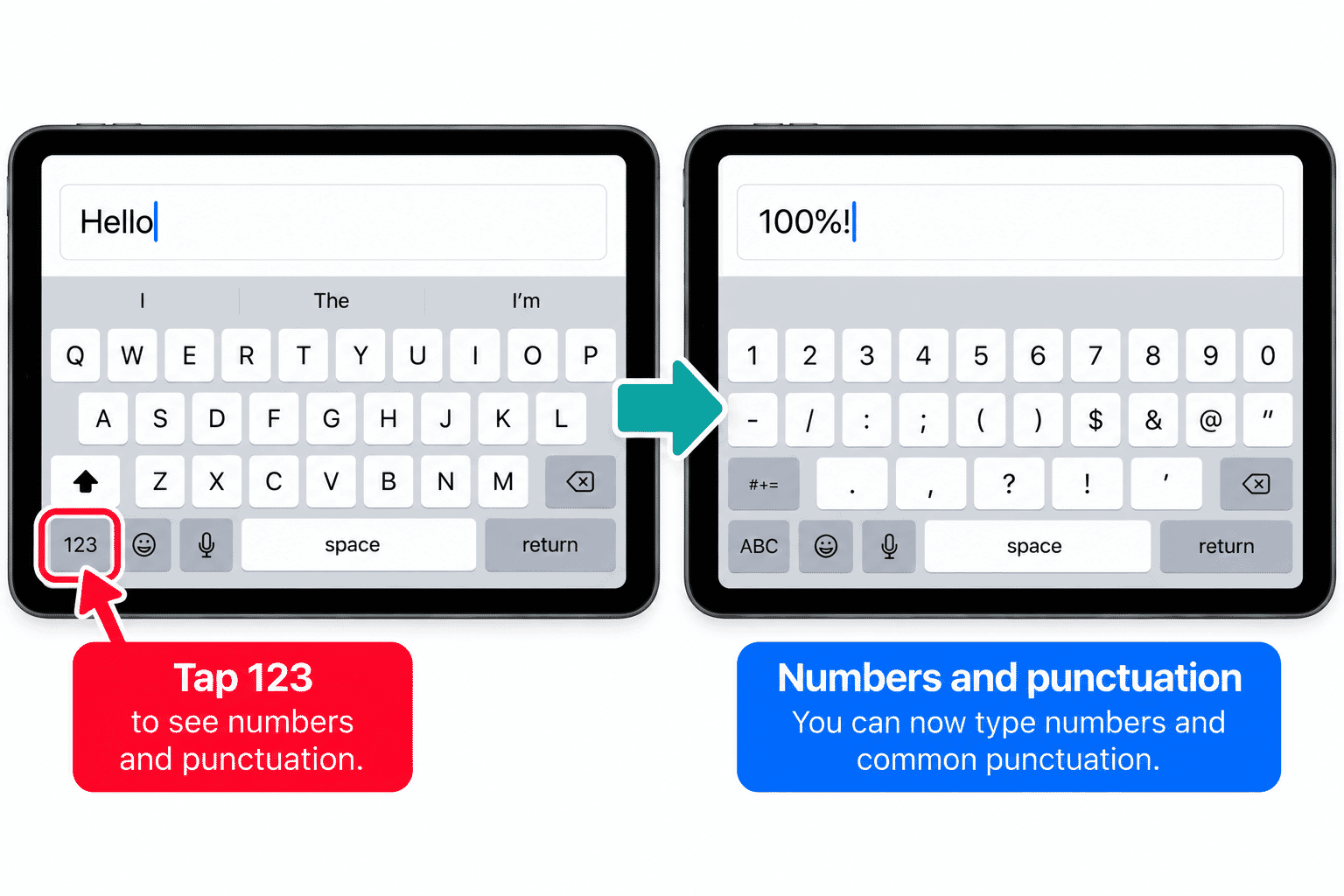
The main keyboard does not have enough room to display every letter, number and symbol at once.
Look for a key such as 123.
Tap it to display numbers and common punctuation.
You can then type things such as:
- 1 2 3
- Full stops.
- Commas.
- Question marks.
- Other common symbols.
Tap the key that returns you to letters when you are finished.
The Full Stop
When writing a sentence, you can use the punctuation keyboard to enter a full stop.
Your device may also provide typing shortcuts that make common punctuation easier.
Do not worry about learning every shortcut now.
The important skill is knowing that numbers and punctuation are available by changing the keyboard view.
The Return Key
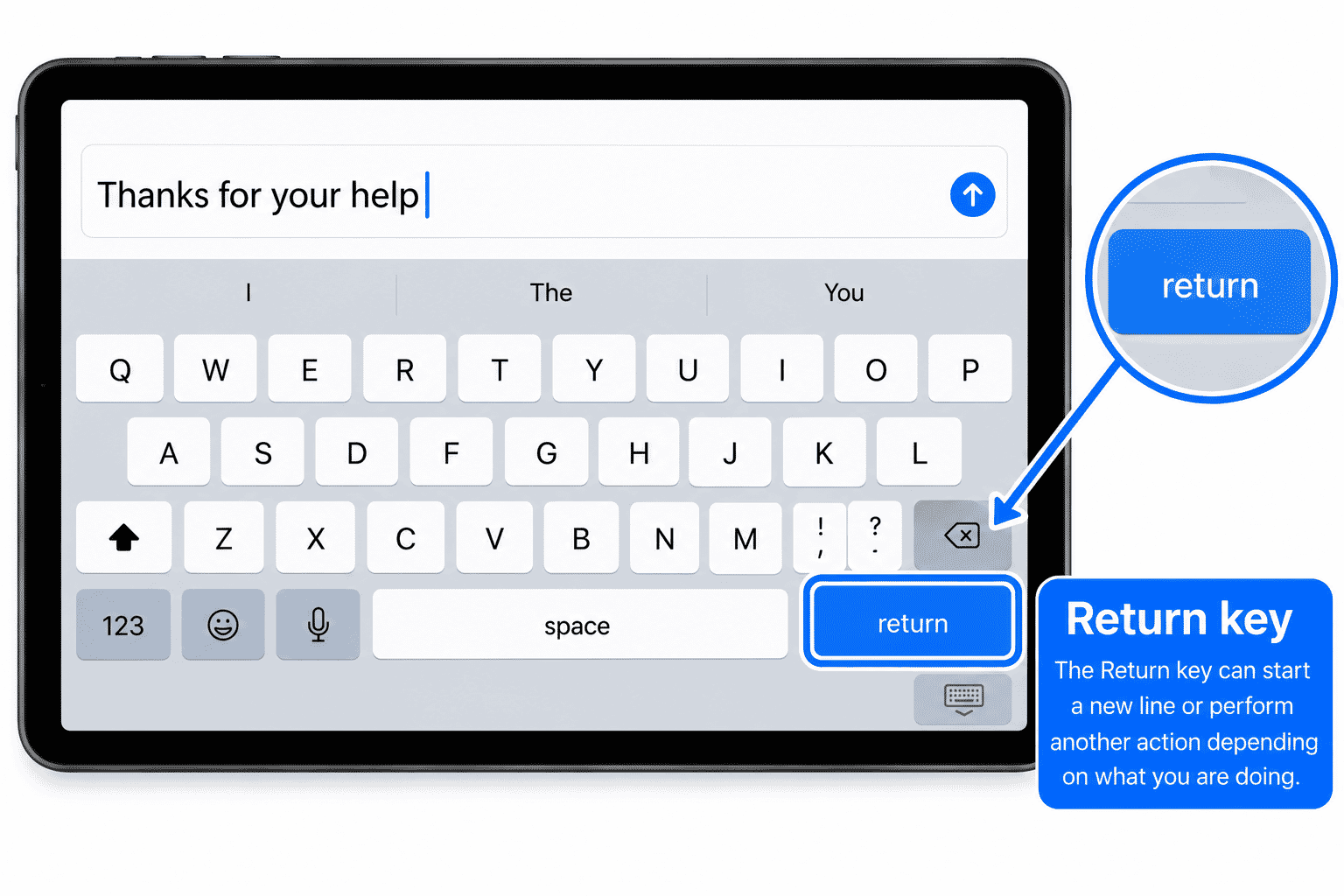
The Return key is usually near the lower-right area of the keyboard.
Its purpose can change depending on what you are doing.
It may:
- Start a new line.
- Confirm an entry.
- Start a search.
- Move to another field.
- Be labelled with another action such as Go, Search, Next or Done.
Read the label before tapping it.
Typing Suggestions
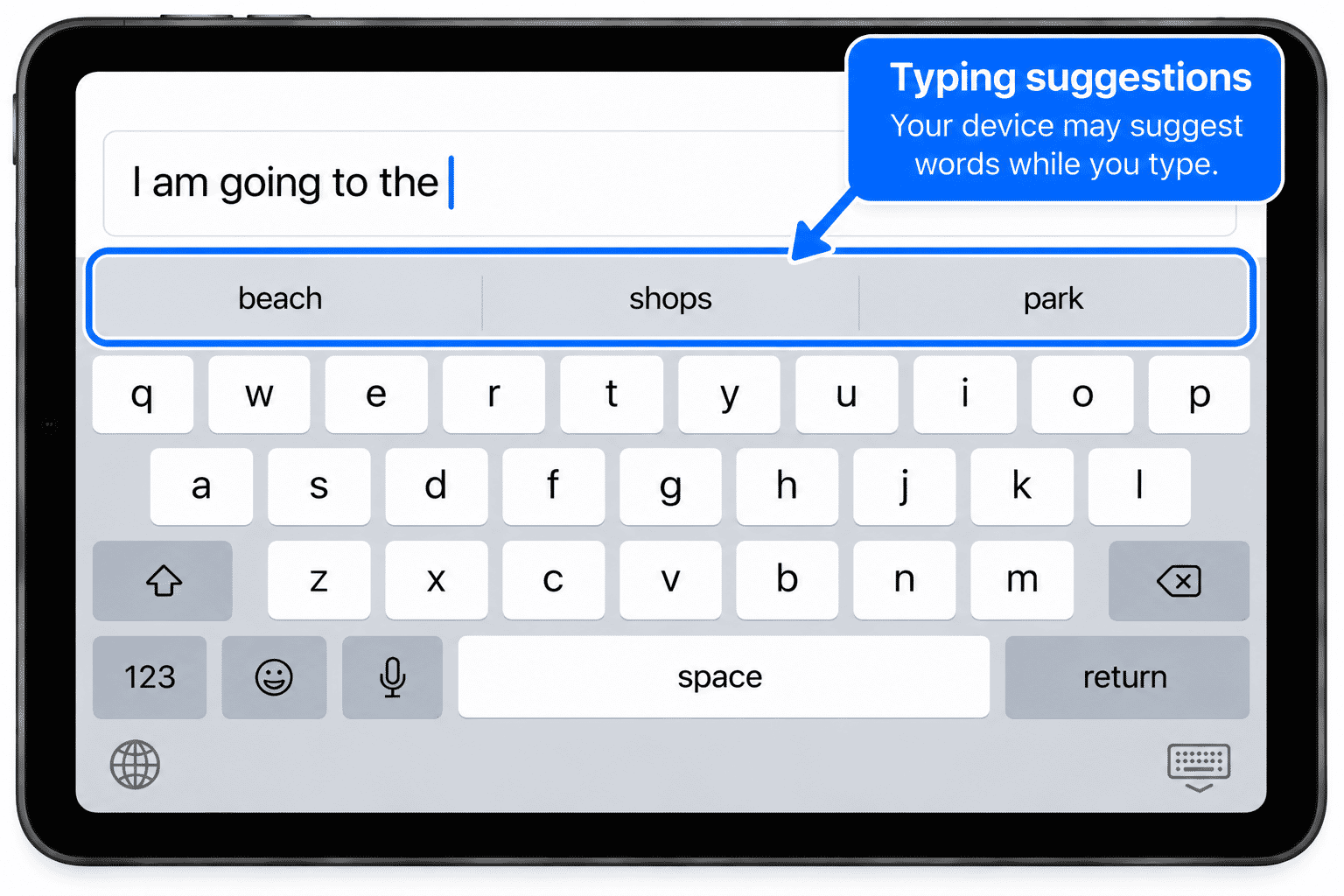
Your iPhone or iPad may suggest words while you type.
These suggestions can appear near the keyboard.
For example, if you start typing:
tomor
the device may suggest:
tomorrow
If the suggested word is correct, you may be able to tap it instead of typing the rest yourself.
You do not have to use suggestions.
If the suggestion is wrong, simply continue typing what you intended.
Automatic Corrections
Your device may sometimes correct a word automatically.
This can be helpful when you make a simple spelling mistake.
However, automatic corrections are not always right.
Before sending an important message, email or form, read what you have typed.
Pay particular attention to:
- People's names.
- Place names.
- Unusual words.
- Email addresses.
- Passwords.
- Reference numbers.
The device is trying to help, but you remain responsible for checking the final text.
The Keyboard Can Change
The keyboard does not always look exactly the same.
It can change depending on:
- The app you are using.
- The type of information being requested.
- Your device.
- Your keyboard settings.
- Your language.
- Whether you are using an iPhone or iPad.
For example, an email field may make the @ symbol easier to access.
A web address field may provide useful internet-related keys.
This is normal.
iPhone and iPad Keyboards
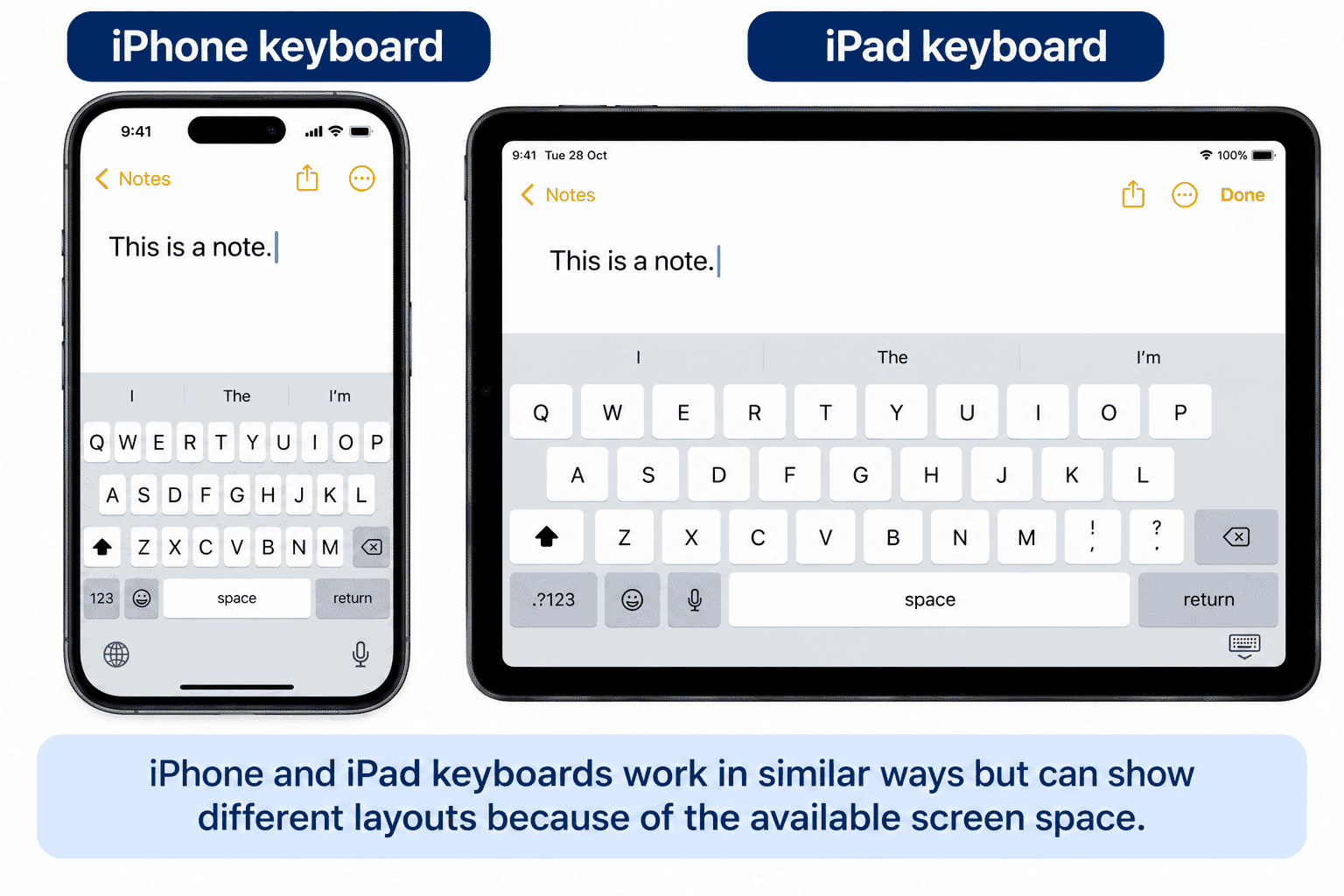
The iPhone and iPad both use on-screen keyboards, but the iPad has more screen space.
An iPad keyboard may therefore show more keys or options at once.
Do not worry about memorising every key.
Concentrate on the controls you use most:
- Letters.
- Shift.
- Delete.
- Space.
- Numbers and punctuation.
- Return.
Emoji and Other Keyboards
You may see a key showing a smiley face or globe.
This can provide access to emoji or other installed keyboards.
Emoji are small pictures and symbols used in messages.
You do not need to use them.
If you accidentally open an emoji keyboard, look for the globe or keyboard control that returns you to your normal letters.
Dictation
You may see a microphone button associated with the keyboard.
On supported devices, this can allow you to speak instead of typing.
This is called Dictation.
Dictation can be useful, particularly if typing on a small screen is difficult.
However, spoken words can sometimes be misunderstood, so always read the text before sending it.
You do not need to use Dictation to complete this guide.
Passwords Look Different
When you type a password, the characters may be hidden or briefly displayed before being replaced by dots or another concealed form.
This is a security feature.
Be particularly careful when typing passwords because:
- Capital letters matter.
- Numbers matter.
- Symbols matter.
- Spaces may matter.
- A wrong character can prevent you signing in.
Never send or share a password simply because someone asks you for it.
Hiding the Keyboard
Sometimes the keyboard covers part of the screen.
Depending on the app and device, you may be able to hide it by:
- Tapping a keyboard or Done control.
- Tapping outside the text field.
- Using another control provided by the app.
The exact method varies.
If the keyboard does not disappear, do not panic. You can often continue using the app or return to the previous screen.
Try It Yourself
Open Notes or another safe place where you can type without sending anything.
Create a new note if necessary.
Activity 1 - Type Your Name
Type your first name.
Check that the first letter is a capital.
Activity 2 - Type a Short Sentence
Type:
Today I am practising on my iPhone.
If you are using an iPad, type:
Today I am practising on my iPad.
Do not worry if you make a mistake.
Use Delete and correct it.
Activity 3 - Use Numbers
Start a new line and type:
12345
Return to the letters keyboard afterwards.
Activity 4 - Ask a Question
Type:
What time is lunch?
This gives you practice finding the question mark.
Activity 5 - Correct a Word
Type a word incorrectly on purpose.
Then use Delete or reposition the cursor and correct it.
The goal is not speed.
Take your time.
Helpful Tips
- Tap lightly. You do not need to press hard.
- Type slowly while you are learning.
- Use the Space bar between words.
- Read your message before sending it.
- Watch automatic corrections, especially with names.
- Use Delete rather than starting again.
- If the keyboard changes, look for familiar controls rather than assuming something is wrong.
- You do not have to use predictive text, emoji or Dictation.
- Practise in Notes where nothing is accidentally sent to another person.
Common Mistakes
| Common Mistake | What Happens | What to Remember |
|---|---|---|
| Tapping every notification immediately | You may feel that every alert needs your attention. | You can ignore or postpone notifications. Read them first and decide whether they matter. |
| Opening Control Centre instead of Notification Centre | Swiping down from the top-right corner may open Control Centre. | On newer iPhones, swipe down from the top centre or left side to open Notification Centre. |
| Thinking clearing a notification deletes the message | Removing a notification may make you think the original message has disappeared. | Clearing a notification usually removes the alert only. The original message or email normally remains in its app. |
| Assuming every numbered badge is urgent | A number on an app icon may look like something needs immediate attention. | Badges indicate app activity. They do not automatically mean something is wrong. |
| Trusting a notification because it looks important | Scam notifications may use urgent language to make you act quickly. | If a notification is unexpected, open the relevant app yourself or verify it through a trusted source. |
Troubleshooting
| Problem | Possible Cause | What to Try |
|---|---|---|
| The keyboard does not appear | A text field may not be selected. | Tap inside the area where you want to type. |
| I see numbers instead of letters | You are on the numbers or symbols keyboard. | Tap ABC to return to the letters keyboard. |
| I keep typing the wrong letter | The keys may feel small, or you may be rushing. | Slow down and tap near the centre of each key. |
| My words are being changed | Automatic correction may be active. | Read the corrected word and change it if necessary. |
| The keyboard is covering something | The keyboard may be hiding part of the screen. | Look for Done, a keyboard control, or try tapping outside the text field. |
| I cannot find a symbol | It may be on another keyboard view. | Tap 123 and look for the punctuation or symbol you need. |
| My password will not work | A capital letter, number, symbol or other character may be incorrect. | Re-enter your password carefully and check each character. |
| Emoji appear instead of letters | The emoji keyboard is active. | Tap ABC or use the globe or keyboard control to return to letters. |
Summary
The on-screen keyboard lets you enter information on your iPhone or iPad.
The most important controls for a beginner are:
- Letter keys.
- Shift.
- Delete.
- Space.
- Numbers and punctuation.
- Return.
You may also see typing suggestions, emoji, Dictation and other features.
You do not need to learn everything at once.
Practise slowly, correct mistakes when they happen and read important information before you send or submit it.
What You've Learned
You now know:
- How to make the keyboard appear.
- How to type letters and words.
- How to add spaces.
- How to type capital letters.
- How to delete mistakes.
- How to find numbers and punctuation.
- What the Return key does.
- How the cursor helps you correct text.
- What typing suggestions and automatic corrections do.
- Why the keyboard may change in different apps.
- That iPhone and iPad keyboards can look slightly different.
- How to practise typing without accidentally sending anything.
Keep Learning
Next guide:
LG-509 -- Finding and Changing Settings
You will learn how to find the Settings app, move through its menus and make simple changes without feeling overwhelmed by all the available options.
Learning Paths
View all pathsNeed some help with this?
One-hour, in-person 1:1 tech training for people who find technology challenging, especially older adults, with patient, practical support using phones, tablets and computers.
Troubleshoot IT provides practical, one-to-one technology support across Darwin, Palmerston and surrounding areas.